|
Direct to Drive: How to Send Chrome Downloads to One Place
Stop the manual upload cycle and sync your web saves directly to a dedicated, searchable folder in the cloud.
Have you ever downloaded a critical project brief only to have it vanish into the digital abyss of your local folders?
We have all been there.
You find an important PDF, download it, and then immediately forget where it went or which device it is on.
Here's a Cool Tip: Use Save to Google Drive.
Google is solving this specific headache by removing the middleman.
With the Save to Google Drive feature,
Chrome now allows you to bypass your hard drive entirely.
This update turns your browser into a direct portal to your cloud storage, ensuring your files are backed up and organized before you even have time to lose them.
Feature Explanation
The Save to Google Drive integration is a productivity bridge between the Chrome browser and your cloud storage.
Instead of the traditional "download, find, and re-upload" workflow, Chrome can now send PDFs and other files directly to a specific destination in the cloud.
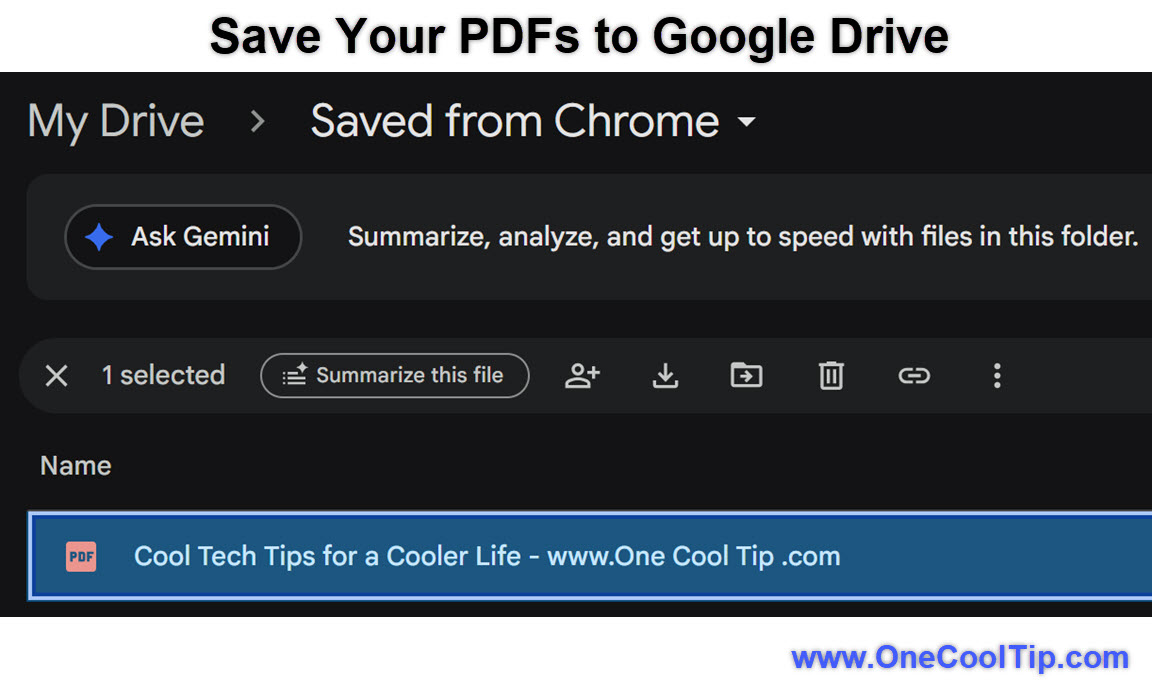
When activated, the browser automatically creates and manages a dedicated folder titled “Saved from Chrome” within your Google Drive.
This is not just a shortcut; it is a fundamental shift in how the browser handles data.
It ensures that any PDF you save is immediately available across all your synced devices, from your office desktop to your phone.
What You’ll Gain
-
Instant Backup: Files go straight to the cloud, protecting them from local hardware failure.
-
Automatic Organization: Chrome creates a "Saved from Chrome" folder so you never have to hunt for a file again.
-
Cross-Device Access: Start a download on your laptop and open it seconds later on your tablet or phone.
Step-by-Step Instructions
Here's how to do it.
Web/Desktop
-
Open Chrome and navigate to the PDF you wish to save.
-
Click the Save to Google Drive icon in the PDF viewer.
-
Ensure you are in the correct Google account, click Save.
-
Verify that the file is being directed to the Saved from Chrome folder.
|