|
One Cool Tip Newsletter
December 1, 2025
| Your daily dose of tech-savvy brilliance! | |
😀Greetings!, Happy Monday, Cool Tipper!
Get ready to streamline your digital life with simple, actionable tips delivered straight to your inbox.
Today's Cool Tip Theme: Microsoft 365 Copilot Notebooks
IN THIS ISSUE
- 🚨 Holiday Shopping Scams.
- 📰 Copilot Gets Smarter with GPT-5.1.
- 🚀 Productivity AI Prompt for the Monday After Thanksgiving.
- 🎅 Cool Christmas Shopping AI Prompt.
- 💡 Copilot Notebooks Arrive for Microsoft 365.
- 📄 Cool Microsoft 365 prompts.
- 👀 Clean Data in Excel?
- 🤔 View a Dynamic Snapshot in Word.
- 🙋♂️ Open Copilot in Windows 11.
New here? Subscribe to the One Cool Tip Newsletter for daily updates. It's FREE!
-
😂 Laugh with Us! Enjoy our Tech Joke of the Day, Haiku and Cool Tip Comics.
-
🌐 Stay Informed! Check out ICYMI, and our One Cool Tip Video.
Today's Tech Trivia
Answer at the end of this newsletter.
| |
| Which major Microsoft app was not in the first version of the Office for Windows in 1990? | | | | |
🚨Protect Yourself from Holiday Shopping Scams🚨
Scammers love the holiday rush. Before clicking on that “too good to be true” deal, take a moment to verify the seller, pay safely, and keep records.
Smart Holiday Shopping Moves
-
Research the seller: Search the company name and website with words like “review” or “scam” to spot red flags.
-
Use credit cards: They offer dispute protections if you’re billed incorrectly or never receive your item.
-
Avoid sketchy payment methods: Requests for gift cards, wire transfers, payment apps, or cryptocurrency are strong scam signals.
-
Save receipts and confirmations: Documentation helps you recover funds if something goes wrong.
-
Know shipping rules: Sellers must deliver by the promised date or give you the option to cancel for a refund.
And in Other News...
- Copilot Gets Smarter with GPT‑5.1
Microsoft has started rolling out GPT‑5.1 to Copilot on Windows 11, bringing faster, more accurate responses and a new “Labs” feature for experimenting with upcoming AI tools
What’s New
-
GPT‑5.1 upgrade: Improves reasoning, reduces errors, and delivers more natural answers in Copilot.
-
Labs feature: Lets you preview experimental Copilot capabilities before they’re widely released.
-
Windows 11 integration: The rollout is happening directly inside the OS, so Copilot feels more seamless.
-
Gradual release: Not everyone will see it right away; updates are rolling out in phases.
Why It Matters
This update makes Copilot more reliable for everyday tasks, from troubleshooting to creative projects. The Labs feature is especially useful if you like testing new tools early and giving feedback.
| | |
🚀 Make It a Great Week!
Copy/Paste this AI-powered prompt. Try it in the One Cool Tip AI Companion (free ChatGPT account required) or Copilot, Gemini or ChatGPT:
Productivity AI Prompt for the Monday After Thanksgiving
“Help me restart my workweek after the Thanksgiving break. First, ask me for my top three priorities, any deadlines coming up in the next five days, and any lingering tasks I didn’t finish before the holiday.
Then create a simple, realistic plan for today and the rest of the week that includes:
• a focused priority checklist
• two quick wins I can finish today
• one task I should postpone or delegate
• a clean email-triage plan
• a short ‘reset ritual’ to get back into work mode
Keep everything realistic, calm, and easy to follow.
| | | |
🖼️ Cool ChatGPT AI Prompt of the Day
Try this ChatGPT prompt:
Help me plan my Christmas shopping. First, ask me for:
• who I’m shopping for,
• my budget for each person,
• gift ideas I already have,
• any items they’ve mentioned wanting this year.
Then create a detailed shopping plan that includes recommended gifts for each person, price estimates, links to top options, and a shopping schedule I can finish before the holiday.
| | |
Copilot Notebooks Arrive for Microsoft 365: Save Smarter Prompts, Get Better Results
Two new words that change how you use AI: persistent prompts. Copilot Notebooks let you craft, refine, and reuse complex instructions across your Microsoft 365 life.
Have you ever wished you could save that perfect prompt you used to generate a great report, syllabus, or family travel plan and come back to improve it later?
Here's a Cool Tip: Use Copilot Notebooks in Microsoft 365.
Copilot Notebooks make that a reality for Microsoft 365 Personal, Family, and Premium subscribers.
It’s a focused workspace for longer, iterative prompts that you can test, tune, and reuse without starting from scratch.
Feature Explanation
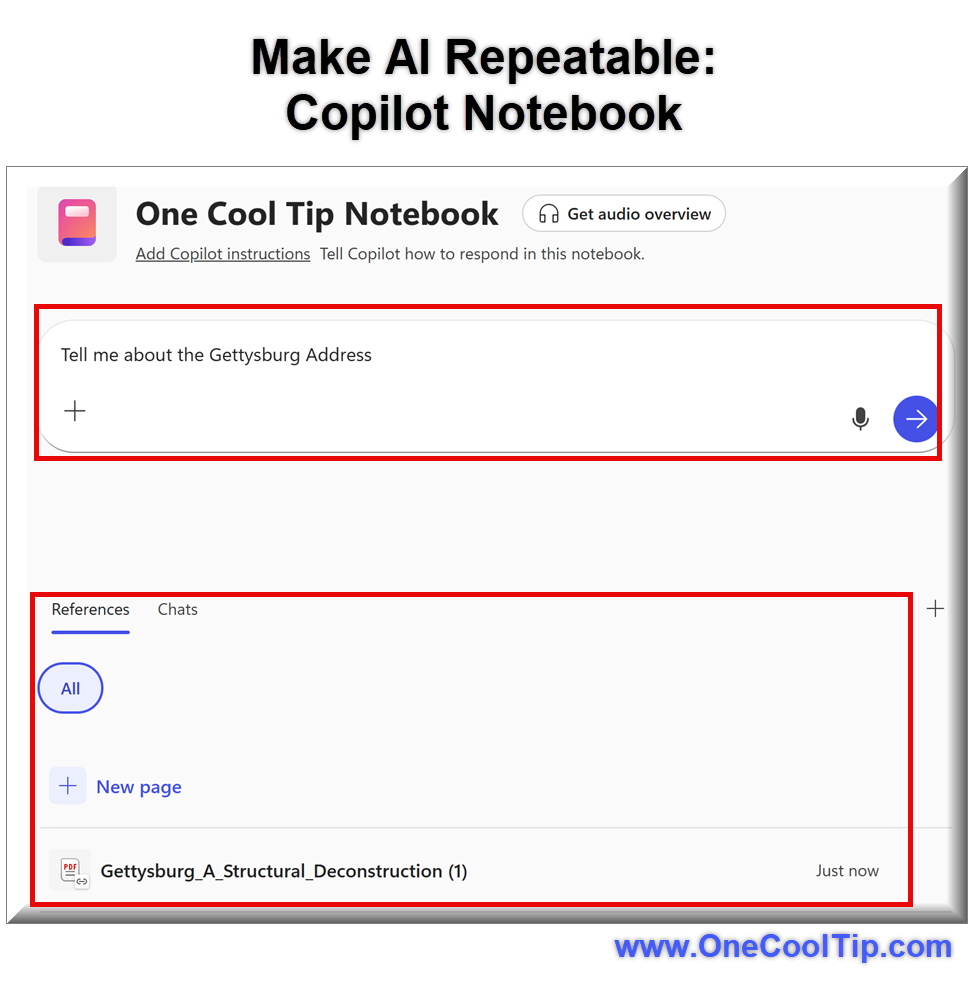
Copilot Notebooks is a dedicated space inside Copilot where you write structured, multi-step prompts and keep them for reuse.
Instead of one-off chats, a Notebook organizes your instructions in a clean, persistent document so you can iterate, compare outputs, and build living “recipes” for reports, lesson plans, and workflows.
You type your prompt, run it, assess the result, then refine the prompt or add clarifying steps.
That tight loop improves quality and consistency for recurring tasks.
It matters because reliable outcomes in AI hinge on repeatable instructions.
Notebooks turn good prompts into dependable systems for your work and personal life.
What You’ll Gain
-
Consistency: Save prompts that deliver the outcomes you expect, every time.
-
Speed: Reuse proven instructions instead of rewriting long prompts from memory.
-
Quality control: Iterate and compare results to dial in tone, structure, and formatting.
-
Shareability: Create standardized workflows your team, class, or family can follow.
Step-by-step Instructions
Here's how to do it.
Microsoft Web/Desktop
-
Sign in at m365.cloud.microsoft.
-
Look for "Notebook" or a journal-style icon in the sidebar.
-
Click "Create Copilot Notebook," name it for the task (e.g., Quarterly Report Prompt).
-
Add references by selecting files using "Files" or dragging them into your Notebook.
-
Click "Create".
-
Write your prompt: Start with context, goals, inputs, output format, and success criteria.
-
Press Enter to run the prompt.
- Save the result for reference.
-
Add clarifications, constraints, or examples. Re-run and compare results.
-
Keep the Notebook for the next sprint, class, or project.
| | fig. 1 - Make AI Repeatable | | |
Pros and Cons
Pros
-
Repeatability: Build standard prompts for reports, lessons, and templates that maintain brand voice and formatting.
-
Clarity: Structured space encourages better instructions that produce more reliable outputs.
-
Collaboration-friendly: Shared workflows mean fewer mixed results across a team.
Cons
-
Learning curve: Users must invest time to write thoughtful prompts; quick chat habits won’t cut it.
-
Version drift: Without naming conventions, multiple similar Notebooks can cause confusion in teams.
-
Scope limits: If you expect Notebook to “do it all,” you’ll still need human review for nuance and compliance.
Feature Access
Copilot Notebooks is now available to Microsoft 365 Personal, Family, and Premium accounts and is currently rolling out across regions and clients.
Score
Criterion | Score (0–10) | Justification
Value 9
Turns ad-hoc AI use into repeatable workflows that save time and improve quality.
Usability 8
Simple concept, but requires prompt discipline and a bit of learning to maximize benefits.
Wow Factor 8
Persistent, iterative prompts feel like an “upgrade” to everyday AI work.
Total: 25/30 🌟 Excellent
A practical leap from chat to systems; comparable to advanced “prompt templates” in other tools, but more integrated for Microsoft 365 users.
Key Takeaways
Copilot Notebooks help you save, refine, and reuse complex prompts so outcomes stay consistent.
It’s ideal for recurring business reports, lesson plans, and personal projects where format and tone matter.
If it hasn’t appeared in your account, it’s likely currently rolling out—check updates and try again soon.
Cool Tip Snapshot
-
Feature Name: Copilot Notebooks
-
Platform(s): Microsoft 365 web, desktop
-
Quick Benefit: Save and iterate on prompts for repeatable, high-quality outputs
-
Access Type (Free, Subscription, Beta): Subscription; currently rolling out for eligible Microsoft 365 accounts
Try It Yourself
Open Copilot, create a Notebook titled “Weekly Status Summary,” write your context and desired sections, run it, refine once, and save.
Share this article with your team, family, and friends.
READ MORE
Read the Full Cool Tip.
| | |
Help support One Cool Tip. Use this Amazon link when you shop online.
Look at these Cool Products for Cyber Monday:
| |
Prices accurate at time of publication
| | |
🆒Tell Me More
- Copilot Notebooks can store long-form prompts without losing context, something the standard chat box doesn’t preserve.
- You can insert documents or data references alongside instructions to guide Copilot’s reasoning.
- Version-style thinking becomes natural because every notebook captures your past attempts and refinements.
- Notebooks help teams communicate how a result was generated, which supports transparency in shared workflows.
- Copilot Notebooks resemble a project journal, making them ideal for planning, learning, and documenting decisions.
⏩Quick Tips
-
🗂️ Use sections for clarity: Break complex tasks into headings. Copilot responds better when instructions are grouped. Create new sections with simple headings like "Plan," "Review," or "Refine."
-
🔁 Reuse your best prompts: Once you build a notebook you like, duplicate it for similar tasks. Copy the notebook in your Microsoft 365 Files area.
-
📎 Attach references: Upload PDFs or documents so Copilot reads them alongside your text. Use the Insert menu to add files as needed.
-
⏱️ Iterate instead of rewriting: Adjust your last prompt, don’t delete it. Copilot learns from the evolution of your notebook. Click into the previous cell and revise your instruction.
-
📤 Export when ready: You can copy results into Word, Outlook, or Teams. Use the Copy Output option in the notebook editor.
| | ✅ More Must-Read Tech Tips | |
|
📄 Try these Cool Microsoft 365 prompts:
-
Summarize Emails: Copilot can condense long email threads into key points. Open Outlook, select an email, and ask Copilot to “summarize this.”
-
Draft Documents: Quickly generate polished drafts in Word with Copilot. Start a new document and type “Draft a proposal for…” in the Copilot pane.
-
Rewrite Text: Improve clarity or tone instantly. Highlight text in Word or Outlook, then choose “Rewrite with Copilot.”
-
Create Presentations: Copilot can turn ideas into slides. In PowerPoint, type “Create a 5-slide deck on…” and Copilot builds it.
-
Analyze Data: Copilot explains trends in Excel. Select your data range, then ask Copilot “Analyze sales by region.”
-
Generate Charts: Visualize numbers fast. In Excel, highlight data and ask Copilot “Insert a bar chart.”
-
Meeting Recaps: Copilot summarizes Teams meetings. After a meeting, open the recap and select “Copilot summary.”
-
Action Items: Extract tasks from notes or chats. In Teams, ask Copilot “List action items from this conversation.”
-
Brainstorm Ideas: Use Copilot for creative prompts. In Word or OneNote, type “Brainstorm 10 marketing ideas for…”
-
Check Tone: Ensure your writing matches the audience. Highlight text in Word or Outlook and ask Copilot “Adjust tone to professional.”
Note:
While these are written for Microsoft 365 Copilot (subscription), most can be used by copying and pasting into the free Copilot.
| | |
👀 How Do I Clean Data in Excel?
Are you tired of spending hours manually correcting data inconsistencies in your Excel sheets?
What if there was a way to automate this tedious task and ensure your data is always accurate and consistent?
Copilot in Excel is your new best friend for data cleaning!
Here's how to do it.
-
Launch Microsoft Excel for the Web or the desktop version of Excel and open your workbook.
-
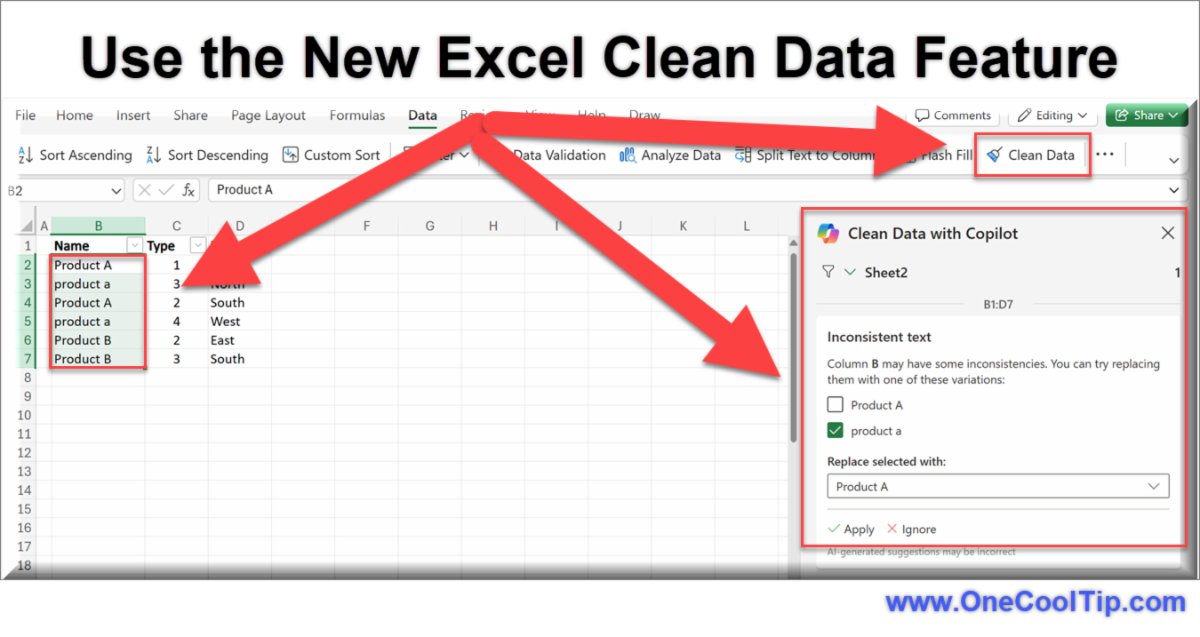
Highlight the data you want to clean.
-
Go to the Data tab on the ribbon.
-
Select the Clean Data option.
-
Copilot detects inconsistencies and offers solutions.
-
Review the suggestions and apply the changes as needed.
-
For best results, format your data as an Excel table by selecting Home > Tables > Format as Table.
This feature automates the data cleaning process, freeing up time for more important tasks.
By automating the detection and correction of common data issues, you can focus on what truly matters, making informed decisions based on accurate and consistent data.
Discover more HERE.
| | |
🤔 Have You Ever Wondered How to View a Dynamic Snapshot in Word?
What if your Word docs could summarize themselves?
You open a 40-page report. Your eyes glaze over.
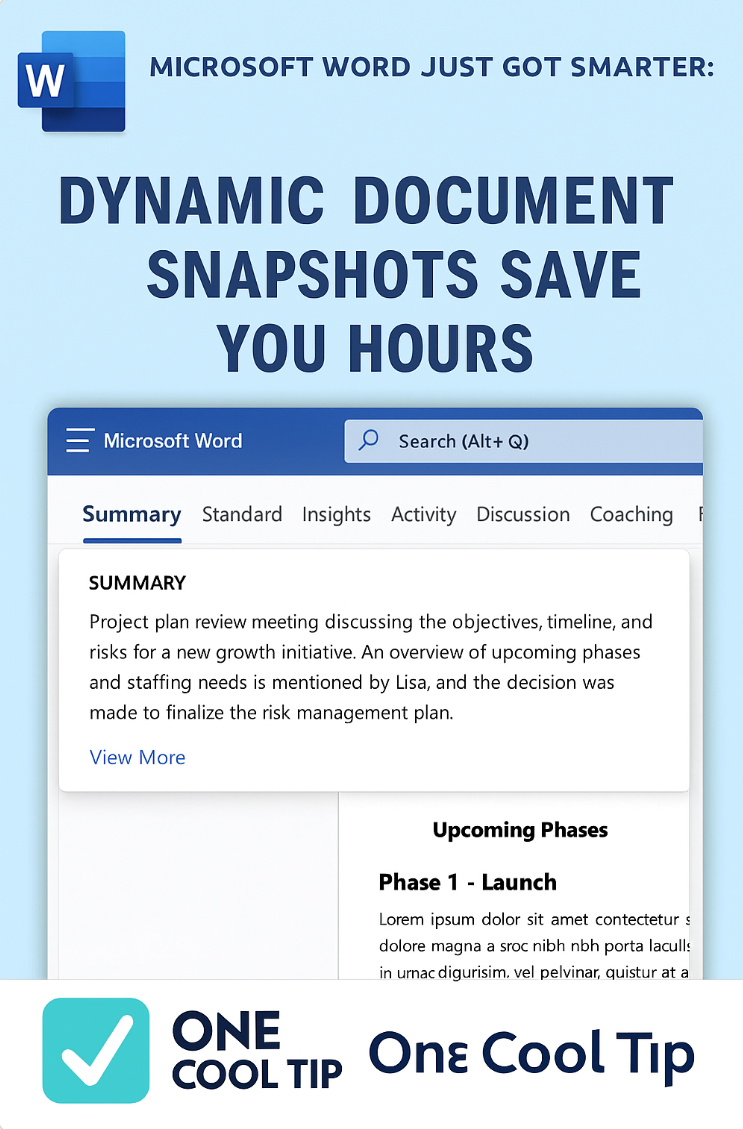
Microsoft 365 Copilot’s Dynamic Document Snapshot feature in Word is not just a summary tool.
Here's how to do it.
Microsoft Word for Web/Desktop
-
Open a Word document saved in OneDrive or SharePoint.
-
If you have a Microsoft 365 Copilot license, the summary appears at the top.
-
Click “View More” to expand the full summary.
-
Select “Open in Chat” to ask questions or customize the summary.
-
Adjust summary detail level (Brief, Standard, Detailed) using the dropdown.
Open a Word document in OneDrive or SharePoint and see if Copilot generates a summary.
Find our more HERE.
| | |
🙋♂️ Here's How to Open Copilot in Windows 11.
Remember when the Win + C keyboard shortcut opened Cortana?
Microsoft retired the shortcut after moving away from its voice assistant, leaving the key combo unused.
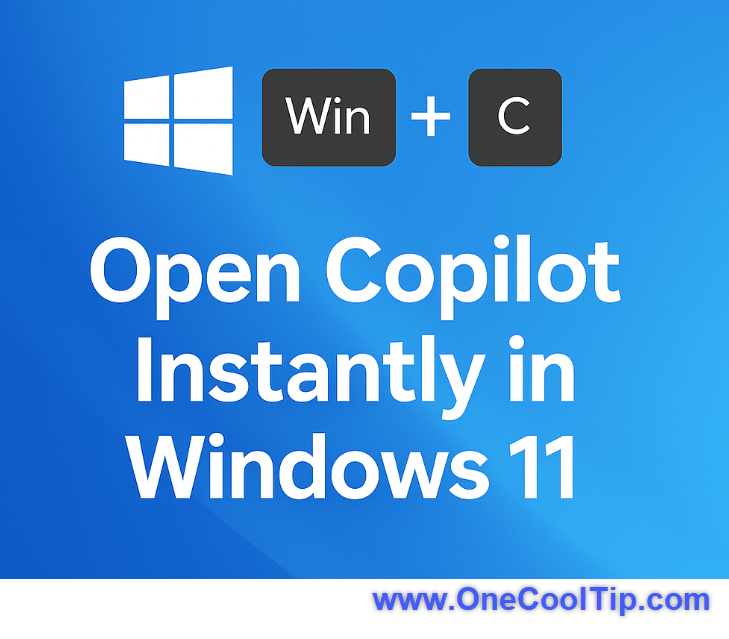
Win + C makes a comeback, this time launching Copilot, Microsoft's AI-powered assistant in Windows 11.
If you rely on Copilot for quick answers, writing help, or coding assistance, this shortcut is a game-changer.
Here's how to do it.
Windows 11 Desktop
- Ensure your system is updated.
-
Press Win + C on your keyboard.
-
Copilot opens.
-
Start typing to interact with Copilot.
Press Win + C today to test Copilot’s instant launch.
Learn more HERE.
| | |
❓Did you share this newsletter with three friends yet?
😎 Cool Facts
-
45%: A 2025 survey found many workers cite frequent “tool-fatigue,” with 45% saying that wrapping up many apps daily makes them less productive. Source.
-
10: Some companies report that switching between 10 or more apps daily can cost about 3.6 hours per week in lost productivity. Source.
-
8 Million: According to recent independent reporting (August 2025) the number of active licensed users of Microsoft 365 Copilot is estimated at around 8 million, suggesting that widespread adoption remains limited. Source.
⌨️Today's Cool Keyboard Shortcuts
-
🪟 Windows: Ctrl + Shift + N: Create a new folder for organizing notebooks.
-
🍏 macOS: Command + Shift + 5: Take a screenshot for inserting into a notebook.
-
🌐 Web browsers: Ctrl + L / Command + L: Jump to the address bar fast when opening Microsoft 365.
-
📄 Word: Ctrl + K / Command + K: Insert a hyperlink into your prompts or references.
-
📧 Outlook: Ctrl + Enter: Send your Copilot-assisted email immediately.
😜 Tech Joke of the Day 😅
Why did the spreadsheet blush?
It saw someone’s private cells.
🔎 Do you have a Cool Tip or tech question? Email us at onecooltip.com@gmail.com.
| | |
Notebook on the screen,
Thoughts rise slowly line by line,
Clarity returns.
| |
| 🤔 How do you plan to use Copilot Notebooks? | | | | Did You See These Cool Tips This Week? | | | | Buy It in ChatGPT: A Faster Way to Shop Without Leaving the Chat | You can now browse, compare, and buy products directly inside ChatGPT with a smooth checkout powered by trusted retail partners. This feature removes friction from online shopping and shortens the journey from idea to purchase. | | | | Schedule a Call in WhatsApp | Make your calls more organized with a feature that lets you plan voice or video calls ahead of time. Keep your team, family, or study group aligned without juggling reminders or missed connections. | | ICYMI - In Case You Missed It ... | | | | Shared Projects in ChatGPT: Turn AI Into a Team Workspace | Shared Projects lets teams organize AI work into dedicated spaces with files, instructions, and chat history, now with true collaboration so multiple people contribute context and keep deliverables consistent. | | |
How to Quickly Create Different Types of Lines in Microsoft Word
Have you ever wanted to quickly add a line to your document or email, but didn’t want to go through the hassle of finding the right tool or button?
Did you know that you can easily create different types of lines using the autocomplete feature in both Microsoft Word and Outlook?
Watch
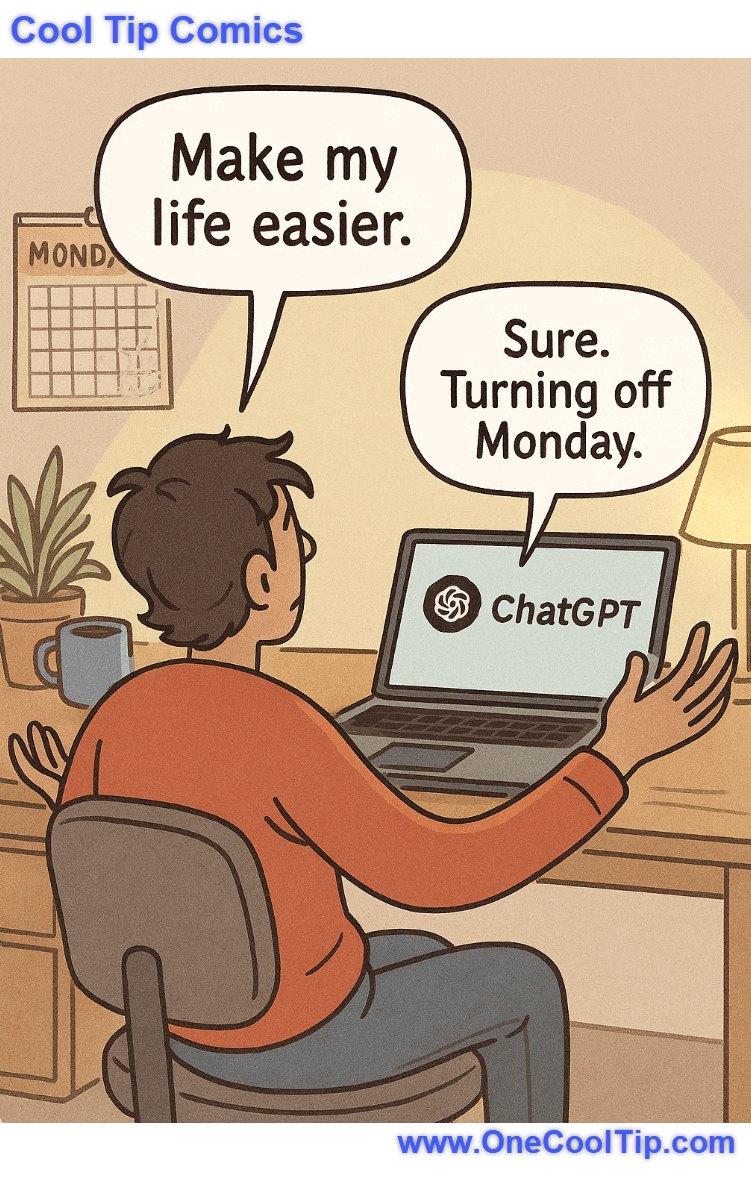
| | Finally, a tech upgrade we can all agree on: uninstalling Mondays.” | | |
Trivia Answer: D) Microsoft Access
The first Microsoft Office suite for Windows, called Microsoft Office for Windows 1.0, was a "bundle" of the three existing applications: Word, Excel, and PowerPoint.
The database application, Microsoft Access, was not released until 1992 (version 1.0) and was later integrated into the Office suite.
This initial bundling strategy proved immensely successful, establishing the all-in-one software package as a commercial standard.
----------
Tomorrow's Cool Tip is waiting to amaze you.
Until then, go forth and conquer the tech world with your newfound knowledge!
Be sure to visit www.OneCoolTip.com for Cool Tech Tips for a Cooler Life!
And if you Like One Cool Tip, please support with TipJar!
Enjoy!
Rodger
Chief Cool Tipper
onecooltip.com@gmail.com
| | |
3️⃣
If you enjoy the One Cool Tip newsletter, please forward this newsletter to THREE friends or colleagues or share it on social media using the links below.
Leave a Tip!
Share this One Cool Tip Newsletter!
| |
| What do you think of today's OneCoolTip newsletter? | | | |
Please Share the One Cool Tip Newsletter!
You asked for it. You got it. There is now a One Cool Tip Newsletter archive. Did you delete a newsletter and want to read it again? Check it out HERE.
Want to help One Cool Tip grow? Please forward this email using the link above. And if you see an OCT social media post, please LIKE, COMMENT and SHARE!
Have you subscribed to the One Cool Tip YouTube channel? Subscribe HERE.
| | Connect with One Cool Tip!! | | |
|
As an Amazon Associate, One Cool Tip may earn a small commission from qualifying purchases.
Our media content is intended solely for informational purposes only. Please do not construe anything here as legal, tax, investment, financial, marital or other advice.
Copyright © 2025 | www.OneCoolTip.com | All Rights Reserved
|
| | | |