|
Organize Your Research with Notebooks in Google Gemini
Turn scattered notes and documents into a structured knowledge base using the new integrated Notebooks feature in Gemini.
Gemini now includes a dedicated Notebooks feature that allows you to upload documents, ask complex questions across multiple sources, and generate structured guides. This update brings the powerful research capabilities of NotebookLM directly into the main Gemini interface for a more streamlined workflow.
Have you ever found yourself staring at a dozen open browser tabs, three PDFs, and a messy Word document, wondering how to make sense of it all?
Researching a complex topic often feels like trying to assemble a jigsaw puzzle where the pieces are hidden in different rooms.
Here's a Cool Tip: Use Google Notebooks in Gemini.
Google recently addressed this fragmentation by integrating Notebooks into Gemini.
Instead of just chatting with an AI, you can now build a private "brain" for your specific projects.
This tool changes the way we interact with information by grounding the AI’s responses in your own curated library of data.
Feature Explanation
Notebooks feature in Gemini is a workspace where you can upload your own files, such as PDFs, text documents, or meeting transcripts, and use them as the primary source for the AI.
While a standard chat with Gemini pulls from the general web, a Notebook prioritizes the content you provide.
This process, often called grounding, significantly reduces the chance of the AI making things up because it is tethered to your specific documents.
The interface allows you to toggle between different sources, create "Studio" notes, and even generate deep-dive audio discussions or study guides based on your uploads.
It is essentially a bridge between Google’s creative AI and the specialized research capabilities previously found only in the standalone NotebookLM experimental tool.
What You’ll Gain
-
Source-Grounded Accuracy: Get answers based strictly on your uploaded documents rather than generic internet data.
-
Streamlined Synthesis: Automatically summarize hundreds of pages across multiple files into a single coherent briefing.
-
Creative Outputs: Convert dry technical manuals into FAQs, study guides, or even podcast-style audio overviews.
Step-by-Step Instructions
Here's how to do it.
Web / Desktop (Google Chrome or Edge)
-
Navigate to the Gemini website, gemini.google.com.
-
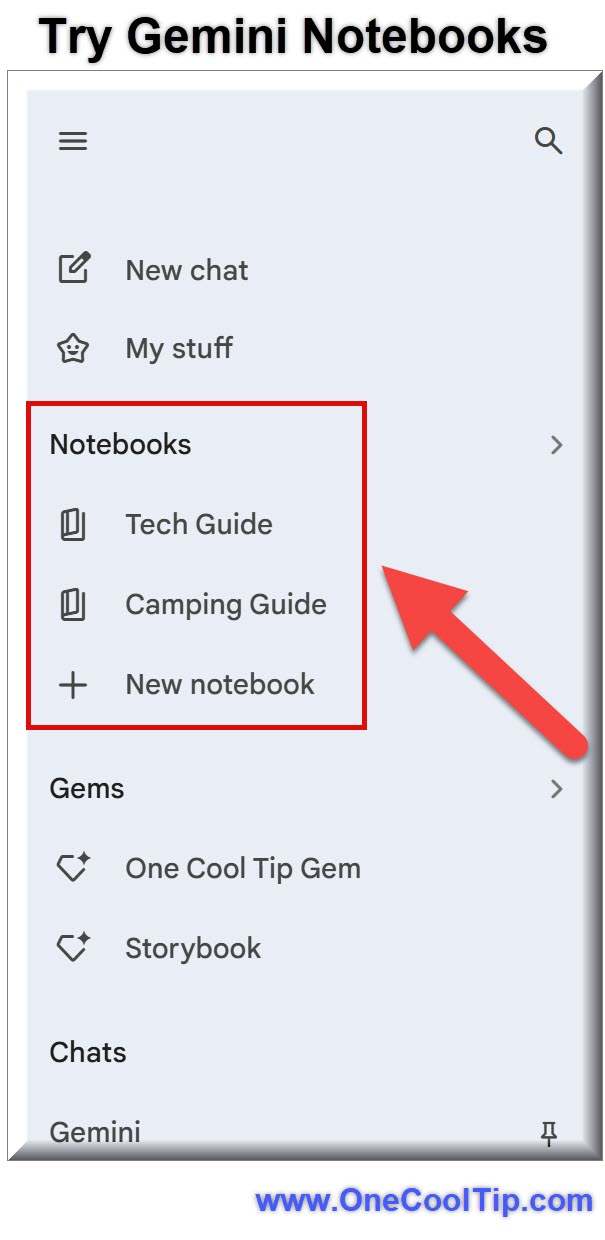
Look for the Notebooks icon in the left-hand sidebar menu.
-
Click New Notebook to start a fresh project.
-
Name your new Notebook.
-
Click Add Sources or select the Plus (+) icon to upload files from your local drive or select documents directly from Google Drive.
-
Wait for the AI to index the sources.
-
Once finished, type a prompt like "Summarize the key findings from these three reports" in the chat box.
|