One Cool Tip Newsletter

December 14, 2025

Your daily dose of tech-savvy brilliance!

😀Greetings! Happy Sunday, Cool Tipper!


Get ready to streamline your digital life with simple, actionable tips delivered straight to your inbox.


Cool Tip Theme: Google Chrome's Tab Split View


New here? Subscribe to the One Cool Tip Newsletter for daily updates. It's FREE!

3️⃣

If you enjoy the One Cool Tip newsletter, please forward this newsletter to THREE friends or colleagues or share it on social media using the links below.


Leave a Tip!


Share this One Cool Tip Newsletter!

X Share This Email
LinkedIn Share This Email
Pinterest Share This Email
  • Google Cracks Down on Disney AI Videos


Google has removed dozens of AI-generated videos featuring Disney characters, including Mickey Mouse, Deadpool, and Star Wars icons, after receiving a cease-and-desist letter from Disney.


Disney flagged YouTube links to videos made with Google’s Veo AI tool, demanding their removal and stricter safeguards.


The takedown coincided with Disney’s $1 billion licensing deal with OpenAI, allowing approved character use on its Sora platform.


Google responded by reaffirming its copyright controls like Content ID and Google-extended, but Disney insists on tighter restrictions to prevent unlicensed AI use.


Cool Deals

Help support One Cool Tip. Use this Amazon link when you shop online.


Check out these Cool Deals:


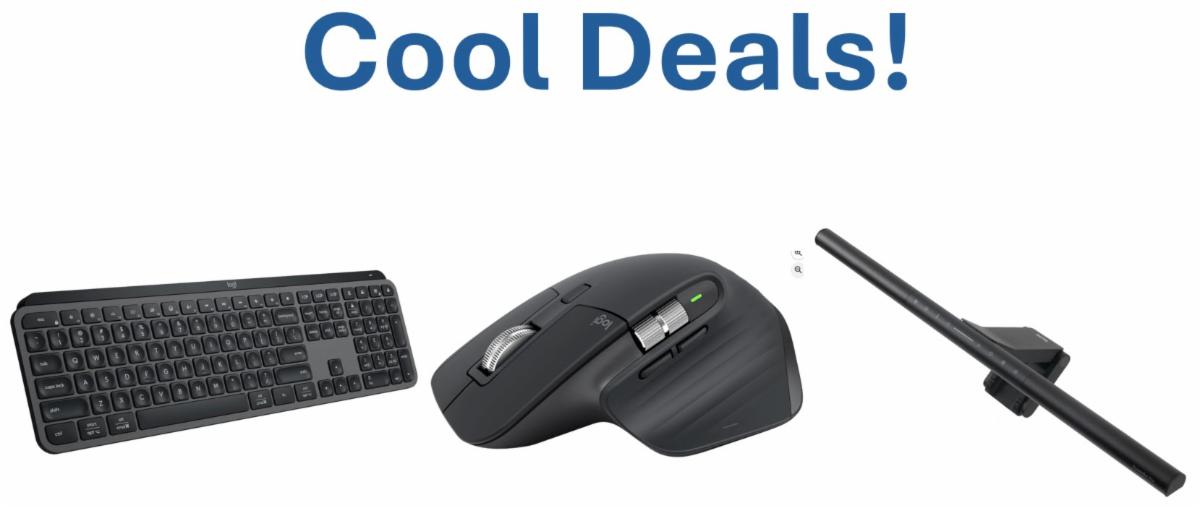
⌨️ Logitech MX Keys S: Premium backlit keyboard for multitasking. Save 15% $109.99 Check it out on Amazon!


🖱️ Logitech MX Master 3S Mouse: Precision scrolling for side-by-side browsing. Save 17% $99.99 Check it out on Amazon!


💡 BenQ ScreenBar Monitor Light: Reduces eye strain during long split-view sessions. Overall Pick! $139. Check it out on Amazon!


*prices accurate when originally published.

Fuel Your Adventure

Try Big Mike's Jerky!


bigmikesjerky.com


Now on TikTok!


Today's Cool Tip

How to Use Google Chrome’s New Tab Split View


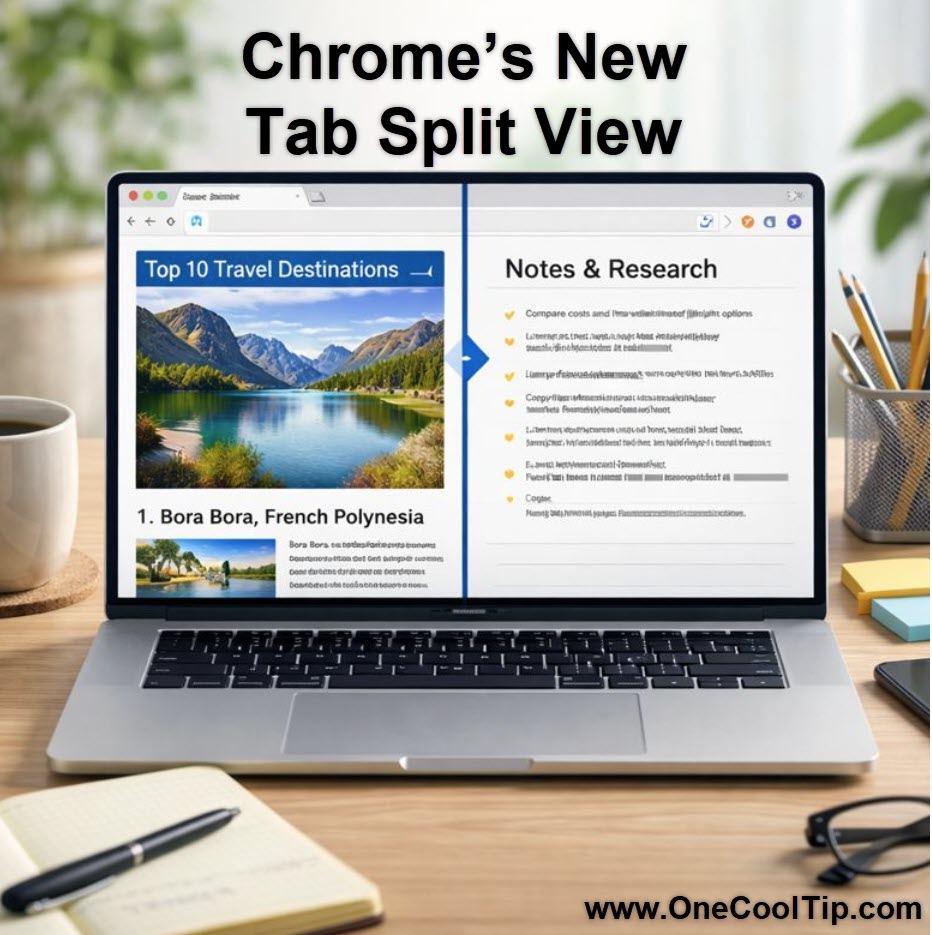
See two websites side by side in one browser window and stop juggling tabs. Google Chrome’s new Tab Split View makes it easier to compare content, copy information, and work faster without bouncing between tabs. 


How often do you flip back and forth between tabs just to compare two pages or reference information while you work? 


For years, power users relied on window snapping at the operating system level or third-party extensions to solve this problem. 


Here's a Cool Tip:  Use Chrome's Tab Split View.


Chrome is addressing it directly with Tab Split View, a built-in way to place two tabs side by side inside a single browser window.


This is not flashy, but it is one of those features that immediately earns a permanent spot in your workflow once you start using it.


Feature Explanation


Tab Split View allows you to display two Chrome tabs next to each other within the same browser window. 


Instead of opening multiple windows or constantly switching tabs, Chrome divides the viewing area so both pages remain visible at once.


The feature works entirely inside Chrome. 


That matters because it keeps tabs grouped, preserves your browsing context, and works consistently across desktops without relying on operating system window snapping. 


It is designed for comparison, reference work, and light multitasking rather than full multi-monitor replacement.


What You’ll Gain


  • Faster research with fewer tab switches
  • Easier copy-and-paste between sources
  • Cleaner workflows without extra windows


Step-by-Step Instructions


Here's how to do it.


Desktop


  1. Open two tabs you want to view together.
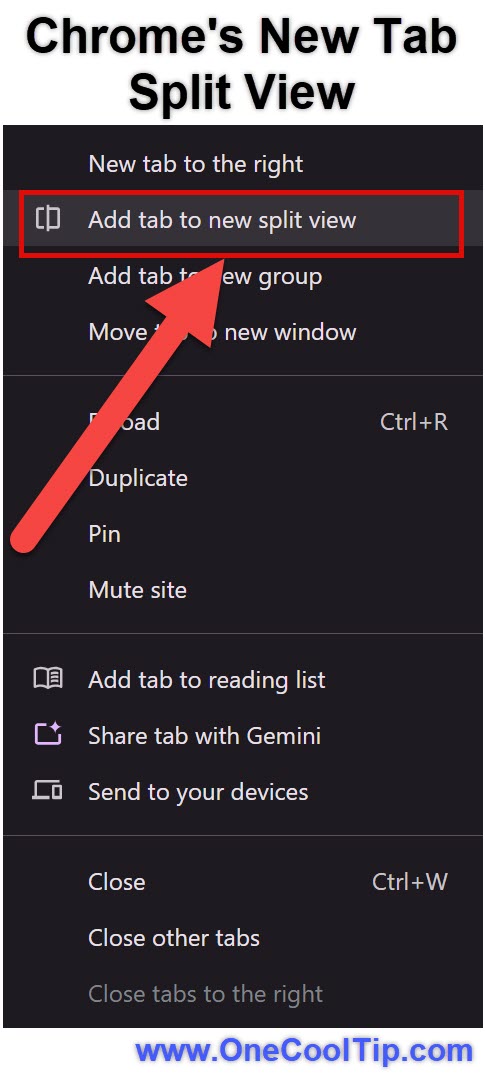
  2. Right-click one of the tabs.
  3. Select "Add tab to new split view".
  4. Chrome automatically places the second tab beside the first.
  5. Drag the divider to resize each side as needed.


fig. 1 - Chrome's Tab Split View Example

iOS / Android


  • Tab Split View is not currently available on iOS or Android Chrome. 


Pros and Cons


Pros


  • Native Chrome feature with no extensions required.
  • Keeps both tabs active and visible.
  • Ideal for comparison, research, and writing.


Cons


  • Desktop only at launch.
  • Limited to two tabs at a time.
  • Not a full replacement for multi-monitor setups.


Feature Access


  • Who gets it: Desktop Chrome users.
  • Platforms: Windows, macOS, ChromeOS.
  • Availability: Currently rolling out.
  • Cost: Free


Score

Criterion | Score (0–10) | Justification
Value 9
Saves time instantly for anyone who works in a browser daily.
Usability 8
Easy to activate, though discoverability could improve.
Wow Factor 6
Practical rather than exciting, but highly effective.
Total: 23 / 30👍 Good
A simple productivity win that quietly replaces third-party extensions and OS-level workarounds.


Key Takeaways


Tab Split View reduces friction when working with multiple web pages at once. 


It is especially valuable for research, writing, and comparison tasks. 


Once it becomes muscle memory, standard tab switching feels inefficient.


Cool Tip Snapshot


  • Feature Name: Chrome Tab Split View.
  • Platform(s): Windows, macOS, ChromeOS.
  • Quick Benefit: View two tabs side by side inside Chrome.
  • Access Type: Free, currently rolling out.


Try It Yourself


Open two tabs you use daily and try Tab Split View for one task today. 


Share how it changes your workflow in the comments, subscribe to the One Cool Tip newsletter, and pass this tip along to your team, family, and friends.


READ MORE


Read the Full Cool Tip.

Check out these Cool Tips & Tricks for using Google Chrome Tab Split View:


  • Quick Compare: View two pages at once to spot differences faster. Right-click a tab and open it in split view.


  • Copy Helper: Keep source material visible while writing. Drag the divider to resize panes.


  • Price Check: Compare product pages side by side. Open each store in split view.


  • Research Mode: Read and take notes without switching tabs. Pair an article with Docs.


  • Reference Docs: Keep instructions visible while working. Split your task page and guide.


  • Focus Boost: Reduce tab switching fatigue. Stick to two active tabs.


  • Cleaner Desktop: Avoid opening multiple windows. Use split tabs instead.


  • Teaching Aid: Show examples next to explanations. Split content and lesson material.


  • Faster Edits: Edit content while previewing changes. Keep draft and preview open.


  • Daily Workflow: Make split view your default for complex tasks. Use it every morning.

ICYMI - In Case You Missed It ...

Take a Drive on Route 66 With Google Arts and Culture


Explore Route 66 in a new way with Google Arts and Culture. This interactive experience lets you tour landmarks, browse history, and plan a future trip across America’s Mother Road without leaving your screen.


Read the Full Cool Tip.

Read the Newsletter Version.

Looking for your next adventure?


Call Denise at Travel For You.

314.660.3039


Sign Up for the Monthly Newsletter


http://www.travelforyouvacations.com/


https://www.facebook.com/TRAVEL.FOR.U/


See You Tomorrow

Tomorrow's Cool Tip is waiting to amaze you.


Until then, go forth and conquer the tech world with your newfound knowledge!


Be sure to visit www.OneCoolTip.com for Cool Tech Tips for a Cooler Life!


And if you Like One Cool Tip, please support with TipJar!


Enjoy!


Rodger

Chief Cool Tipper

onecooltip.com@gmail.com


What Do You Think?

What do you think of today's OneCoolTip newsletter?
Positive        Neutral        Negative
X Share This Email
LinkedIn Share This Email

Connect with One Cool Tip!!

Facebook  X  Instagram  Web  Pinterest  YouTube  LinkedIn
 

As an Amazon Associate, One Cool Tip may earn a small commission from qualifying purchases.


Our media content is intended solely for informational purposes only. Please do not construe anything here as legal, tax, investment, financial, marital or other advice.


Copyright © 2025 | www.OneCoolTip.com | All Rights Reserved