|
One Cool Tip Newsletter
October 25, 2026
| Your daily dose of tech-savvy brilliance! | |
😀 Greetings! Happy Sunday, Cool Tipper!
Get ready to streamline your digital life with simple, actionable tips delivered straight to your inbox.
Cool Tip Theme: Gmail Live
Search your inbox hands-free with Gmail Live on iOS and Android. Speak questions naturally, hear spoken answers, and verify email sources on the go.
New here? Subscribe to the One Cool Tip Newsletter for daily updates. It's FREE!
| |
3️⃣
If you enjoy the One Cool Tip Newsletter, please forward this newsletter to THREE friends or colleagues or share it on social media using the links below.
Leave a $$$ Tip!
Share this One Cool Tip Newsletter!
| | |
🚨 Quest Diagnostics Data Breach 🚨
Quest Diagnostics has confirmed (pdf) a cyberattack involving its Quanum lab-testing system and says some patient records were accessed without authorization.
The company says some protected health information was taken, including personal information and patient records, but it is still investigating exactly what types of data were involved.
Quest Diagnostics has notified law enforcement, but it has not yet disclosed how many patients or healthcare customers were affected.
If you use Quest Diagnostics, watch for official notifications about the incident and be cautious of unexpected emails, calls, or texts claiming to involve your medical information.
The Cool Tip:
Avoid responding to unexpected requests for personal or financial information, especially while details of the breach are still emerging.
This is a developing incident, so patients should look for additional information directly from Quest Diagnostics as its investigation continues.
And in Other News...
- Google’s Smarter AI Comes With a Privacy Setting Worth Checking
Google’s Personal Intelligence features can use information from connected services such as Gmail and Google Photos to provide more personalized answers and recommendations.
Google says Gmail, Drive, and Photos content is not used to personalize ads by default, but information you choose to share with eligible Google services may be used for ad personalization.
That means connecting personal information for smarter recommendations can involve a privacy trade-off depending on the service and permissions you choose.
You can review these settings through your Google Account and disconnect Google Workspace or Google Photos from connected content if you do not want Search accessing them.
You can also disable personalized recommendations, although previously saved information may remain in Search Services History.
The Cool Tip:
Before giving an AI access to years of emails and photos, take a minute to review exactly what you are sharing and how that information may be used.
| |
| 🤔 How often do you use voice commands on your phone? | | | |
-
Have you tried the Upside app? Everyday cash back on gas, groceries and dining.
Help support One Cool Tip. Use this Amazon link when you shop online.
Check out these Cool Deals:
| | |
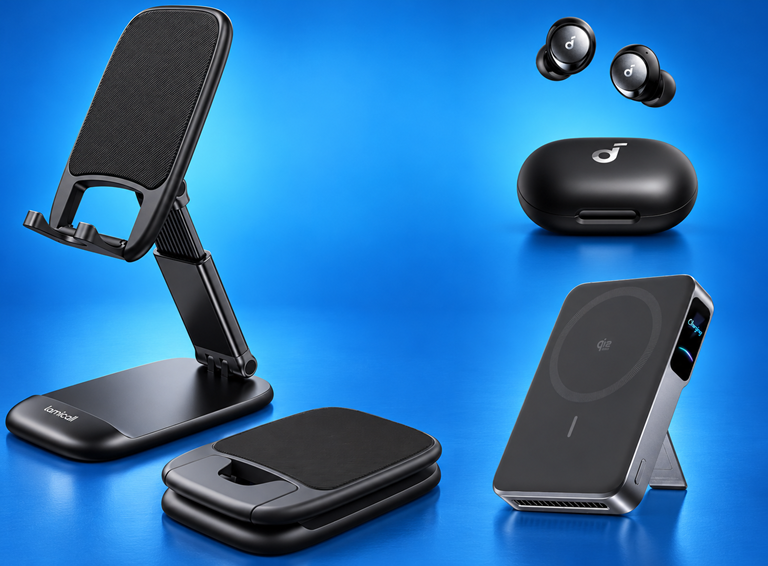
🎧 Anker Soundcore Space A40 Earbuds: Crisp dual-mic noise reduction ensures clear voice recognition when speaking queries into Gmail Live on windy commutes.
Save 25%. Now $59.99. 4.2 Stars. Check it out on Amazon!
📱 Lamicall Adjustable Cell Phone Stand: Holds your phone at an optimal desk angle so you can tap the Live icon and talk hands-free while working on your laptop.
Save 10%. Now $8.99. 4.8 Stars. Check it out on Amazon!
🔋 Anker Magnetic Power Bank (MagGo 10,000mAh): Provides reliable wireless backup battery power during long travel days when running heavy mobile AI voice tasks.
Overall Pick! Now $109.99. 4.3 Stars. Check it out on Amazon!
*Prices accurate when originally published.
One Cool Tip may earn a commission from qualifying purchases.
| | Talk Directly to Your Inbox with Gmail Live on Mobile | | |
Search your inbox hands-free with Gmail Live on iOS and Android.
Speak questions naturally, hear spoken answers, and verify email sources on the go.
| | |
By Rodger Mansfield, Technology Editor
October 25, 2026
Subscribe
You are walking through an airport terminal carrying luggage, or standing in line grabbing morning coffee, when an urgent question pops into your head:
Which gate did that connecting flight move to, or what time is that vendor proposal due?
Opening your mobile email client and typing keywords into a tiny search bar is slow, awkward, and frustrating when you only have one free hand.
Google is addressing that friction directly by rolling out Gmail Live to mobile devices.
Instead of forcing you to hunt through dozens of multi-threaded conversations, the mobile app now lets you talk back and forth with an AI voice agent that understands your actual inbox contents.
Here’s a Cool Tip: Tap the Live icon in the Gmail search bar to ask spoken questions and hear instant answers drawn directly from your email threads.
Feature Explanation
Gmail Live transforms your traditional mobile search box into a conversational audio assistant.
Powered by Google Gemini models, the tool creates an interactive two-way voice channel where you speak natural questions and listen to synthesized verbal summaries.
Unlike basic voice-to-text dictation that simply pastes words into a text field, Gmail Live is fully inbox-aware.
It searches across your messages, extracts relevant schedules, dates, and order numbers, synthesizes the answers, and reads them back to you out loud.
If the initial response needs clarification, you do not have to start over.
You can interrupt the voice, ask follow-up questions, or narrow the search scope on the fly.
Every spoken response also populates a clickable source card on your screen.
This card points you directly to the exact messages used to generate the answer, providing an immediate audit trail so you never have to take an automated summary on blind faith.
You can also customize the experience by selecting your preferred synthesized voice profile directly from the Live interface.
What You'll Gain
- Save minutes of digging through sprawling email threads while on the move.
- Access travel confirmations, flight details, and order receipts hands-free.
- Verify machine-generated answers quickly using visible email source cards.
- Refine complex questions naturally without retyping long search operators.
Step-by-Step Instructions
Here's how to do it.
iPhone/iPad:
-
Launch the Gmail app from your iOS home screen.
-
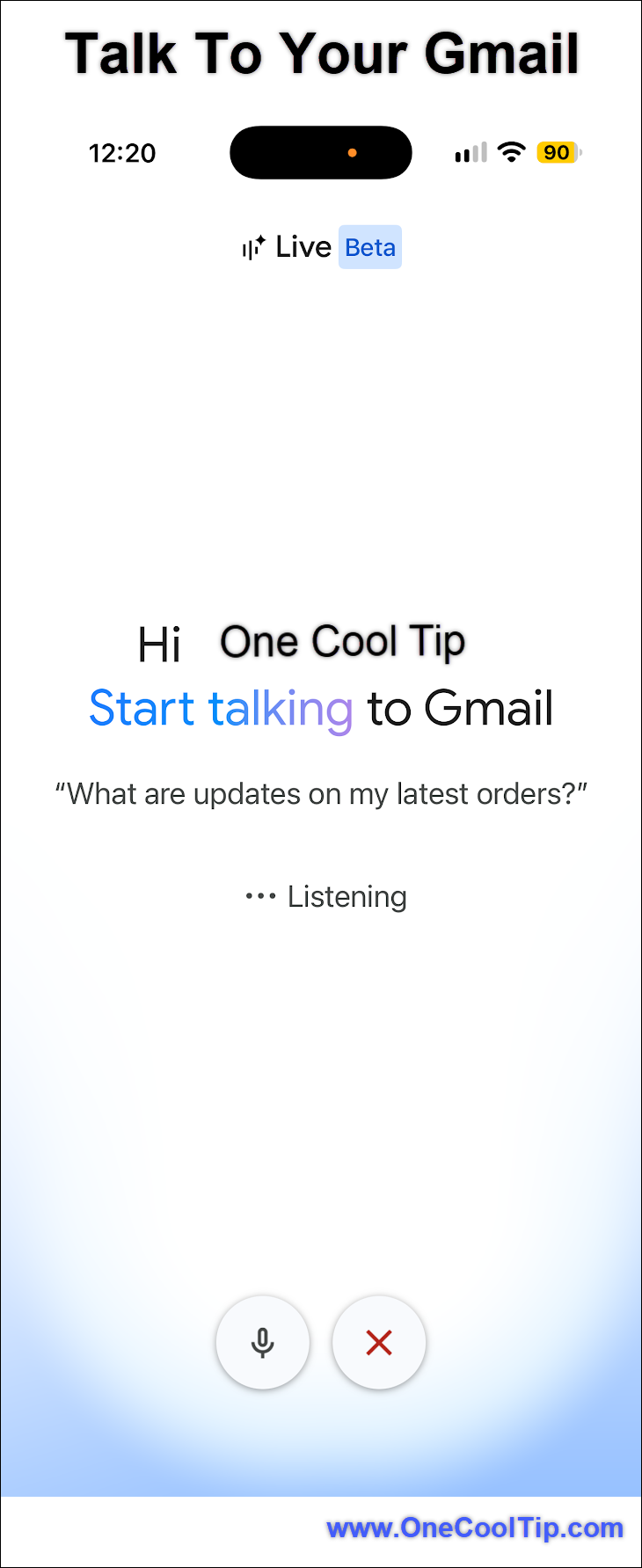
Look at the top search bar and tap the Live icon.
- Grant microphone permissions when prompted by iOS, and agree to the feature terms.
-
Ask your question in plain language without worrying about formal search syntax.
-
Review the on-screen Sources card as the audio response plays.
-
Tap Mute if you want to silence your microphone while reviewing, tap an individual source link to open the underlying message, or tap End to leave.
| | fig. 1 - Talk To Your Gmail | | |
Android:
-
Open the Gmail app on your Android smartphone or tablet.
- Locate the search bar at the very top of your inbox screen.
-
Tap the Live entry point icon located inside the right edge of the search field.
-
When prompted on first launch, tap Allow to give Gmail permission to use your device microphone, then accept the terms of service.
-
Speak your question naturally into your phone, or tap one of the suggested prompt chips displayed on screen.
-
Listen to the spoken response. Look at the lower portion of the screen to view the Sources card showing the exact referenced emails.
-
Tap any email citation in the source menu to open the full message text, or tap End to finish the audio session.
Pros and Cons
Pros:
- Hands-Free Speed: Business travelers can pull flight gates or hotel confirmation codes while walking through an airport.
- Transparent Citations: Prominent source cards ensure you can cross-check facts against original client emails with a single tap.
- Conversational Context: Allows natural interruptions and follow-up adjustments without resetting your search query.
- Customization Options: Users can select their preferred voice style directly from the interface settings.
Cons:
- Subscription Required: Personal free accounts cannot access the feature without paid Google AI consumer tiers.
- Regional and Language Limits: Restricted initially to users in the United States with account language configured to English (US).
- Workspace Admin Dependent: Enterprise users cannot access it if organizational administrators disable Gemini beta features or smart controls.
Troubleshooting and Limitations
Problem: The Live icon does not appear in the search bar.
-
Why it happens: The feature began rolling out on October 15, 2026, on a gradual rollout schedule taking up to 15 days for visibility, or your account lacks an eligible plan.
-
Fix or workaround: Update the Gmail app via the Google Play Store or Apple App Store. Verify that your account is a paid Workspace tier or Google AI subscriber, and confirm your device language is set to English (US).
Problem: Tapping the icon causes the session to close immediately or fail to start.
-
Why it happens: Microphone access was previously blocked or denied in mobile system permissions.
-
Fix or workaround: Open your phone's Settings app, navigate to Applications, select Gmail, open Permissions, and ensure Microphone access is set to "Allow while using the app".
Problem: You can see the text generating but cannot hear any spoken audio.
-
Why it happens: Device media volume is set to zero or routed to a disconnected Bluetooth accessory.
-
Fix or workaround: Press your physical volume-up button, check your active Bluetooth output connections, and ensure silent mode does not suppress media playback.
Privacy and Data Notice
Gmail Live relies on your personal or organization email repository to generate answers.
For commercial Google Workspace customers, data handled by Gemini features adheres to enterprise-grade Workspace confidentiality terms and is not used to train foundational AI models outside your organization boundary without authorization.
Transcripts of your audio sessions are logged to your Gemini in Workspace conversation history to help you review past queries.
You can view, manage, and manually clear this history at any time through your Google Account controls.
Because using the tool requires processing voice data via mobile microphones, avoid querying confidential client details aloud in public areas where bystanders might overhear sensitive figures.
Feature Access
- Gmail Live began rolling out on October 15, 2026.
- Supported plans include:
- Google Workspace Business: Starter, Standard, Plus.
- Google Workspace Enterprise: Starter, Standard, Plus.
- Other Commercial Tiers: Frontline Plus, Google Workspace for Nonprofits.
- Workspace Add-ons: Gemini Business, Gemini Enterprise, AI Expanded Access, AI Ultra Access.
- Education Accounts: Requires the Google AI Pro for Education add-on.
- Consumer Accounts: Requires Google AI Plus, Google AI Pro, or Google AI Ultra subscription tiers.
- Geography & Language: Limited strictly to United States users configured with English (EN-US).
Score
Criterion | Score (0–10) | Justification
Value | 8
Solves a genuine productivity hurdle by giving mobile workers reliable, hands-free retrieval of specific operational facts.
Usability | 8
Prominent search bar placement and clear source citations make the tool intuitive, though it requires microphone permissions.
Wow Factor | 8
Natural interruption handling and inbox-grounded speech synthesis represent a noticeable technical evolution over standard voice typing.
Total: 24/30 | 👍 Good
Gmail Live turns messy mobile email searching into a quick, conversational experience that saves real time when your hands are full.
While Apple Intelligence and standard Google Assistant can pull select notification snippets, Gmail Live analyzes complete internal email bodies and cites its work directly.
Key Takeaways
Gmail Live allows mobile users to retrieve specific dates, deadlines, and project details simply by asking out loud.
Direct source citations eliminate guesswork by pointing you straight to original messages for total verification.
While access requires a paid Workspace or Google AI tier, it removes mobile inbox friction for busy professionals on the move.
Cool Tip Snapshot
-
Feature Name: Gmail Live.
-
Platform(s): Android, iOS.
-
Quick Benefit: Spoken, hands-free inbox search with cited email references.
-
Best For: Commuters, travelers, field workers, busy executives.
-
Access Type: Rolling Out (Paid Workspace and Google AI Subscriptions).
-
Difficulty: Easy.
Learn More
Review the official announcement and rollout timeline for Gmail Live on the Google Workspace Updates blog to confirm plan eligibility and deployment schedules.
Try It Yourself
Next time you need to find an invoice amount, flight update, or school calendar note while on the move, tap the Live icon in your Gmail search bar and ask away.
Leave a comment below with your favorite query prompt, subscribe to the One Cool Tip newsletter for regular productivity insights, and pass this Cool Tip along to colleagues who spend half their workday wrestling with email.
READ MORE
Read the Full Cool Tip!
| | |
Check Out These Cool Tips & Tricks
-
Mute Instantly: Silence audio responses while keeping your session alive during sudden background interruptions. Tap the on-screen Mute button while Gmail Live is actively speaking.
-
Interrupt Flow: Change topics or add details without restarting the entire conversation from scratch. Speak directly over the synthesized voice to redirect the search query.
-
Check Sources: Verify critical figures by jumping directly to original emails. Tap the Sources card at the bottom of the screen to view referenced messages.
-
Voice Selection: Personalize your audio experience with a speech style you prefer listening to. Open your Gmail Live settings during a chat session to select a new voice profile.
-
Standard Results: Return to traditional list layouts if you want to scan multiple threads manually. Scroll to the bottom of the sources menu and tap View search page.
-
Review History: Retrieve past spoken queries without having to re-ask them later. Access your Gemini in Workspace conversation history within your Google Account settings.
-
Volume Safeguard: Avoid silent search loops caused by muted media settings on your handset. Tap the on-screen Turn volume up prompt whenever an audio warning banner appears.
-
Prompt Ideas: Get immediate search inspiration without framing complete sentences. Tap any of the suggested prompt pills shown directly below the listening waveform.
-
Clean Disconnect: Exit your audio session cleanly without accidentally leaving the microphone hot. Tap the red End button in the interface to close your session.
-
Mic Permissions: Resolve immediate launch failures when starting a session for the first time. Open device settings, select Gmail, and toggle microphone permissions to allowed.
| | ICYMI - In Case You Missed It ... | | | | |
Explore 60 US National Parks From Your Living Room
Google recently launched a digital collection that lets you explore natural wonders and historical sites from anywhere. You can hike the Grand Canyon, examine the Liberty Bell up close, and ask an AI guide questions about the Founding Fathers without leaving your home.
Read the Full Version.
Read the Newsletter Version.
| | |
Tomorrow's Cool Tip is waiting to amaze you.
Until then, go forth and conquer the tech world with your newfound knowledge!
Be sure to visit www.OneCoolTip.com for Cool Tech Tips for a Cooler Life!
And if you Like One Cool Tip, please support with TipJar!
Enjoy!
Rodger
Chief Cool Tipper
onecooltip.com@gmail.com
| |
| What do you think of today's One Cool Tip Newsletter?
| | | | Connect with One Cool Tip! | | |
|
As an Amazon Associate, One Cool Tip may earn a small commission from qualifying purchases.
Our media content is intended solely for informational purposes. Please do not construe anything here as legal, tax, investment, financial, marital or other advice.
Copyright © 2026 | www.OneCoolTip.com | All Rights Reserved
|
| | | |