|
Turn YouTube Into a Smart Assistant with Conversational AI Search
Ask YouTube transforms traditional video searching by allowing you to ask natural, complex questions and receive structured text answers paired with precise video clips. This Cool Tip demonstrates how to use this conversational AI feature on desktop and TV devices to find answers fast without scrubbing through endless video timelines.
Searching for specific information inside a long video has historically required patience.
You type a few keywords into the search bar, click through several top results, and manually jump across video timelines hoping to spot the exact moment a creator demonstrates a skill or answers a niche question.
Here’s a Cool Tip: Skip keyword guessing and type full, natural questions into YouTube’s search bar to jump straight to the exact video timestamp with your answer.
Google is changing that experience by bringing conversational generative AI directly into the YouTube search ecosystem.
Instead of guessing the right keyword string, you can now state your exact goal or problem in plain language.
The platform processes your request, pulls together real-time web context, and serves up direct text summaries alongside video clips set to play at the exact timestamp you need.
Feature Explanation
Ask YouTube is an experimental conversational search feature powered by Google’s Gemini models.
Rather than treating search purely as a list of video titles, it acts like an interactive query engine for visual content.
When you submit a prompt, the system synthesizes information from YouTube’s video index and real-time web sources.
It returns a structured overview containing concise text explanations alongside curated selections of long-form videos and YouTube Shorts.
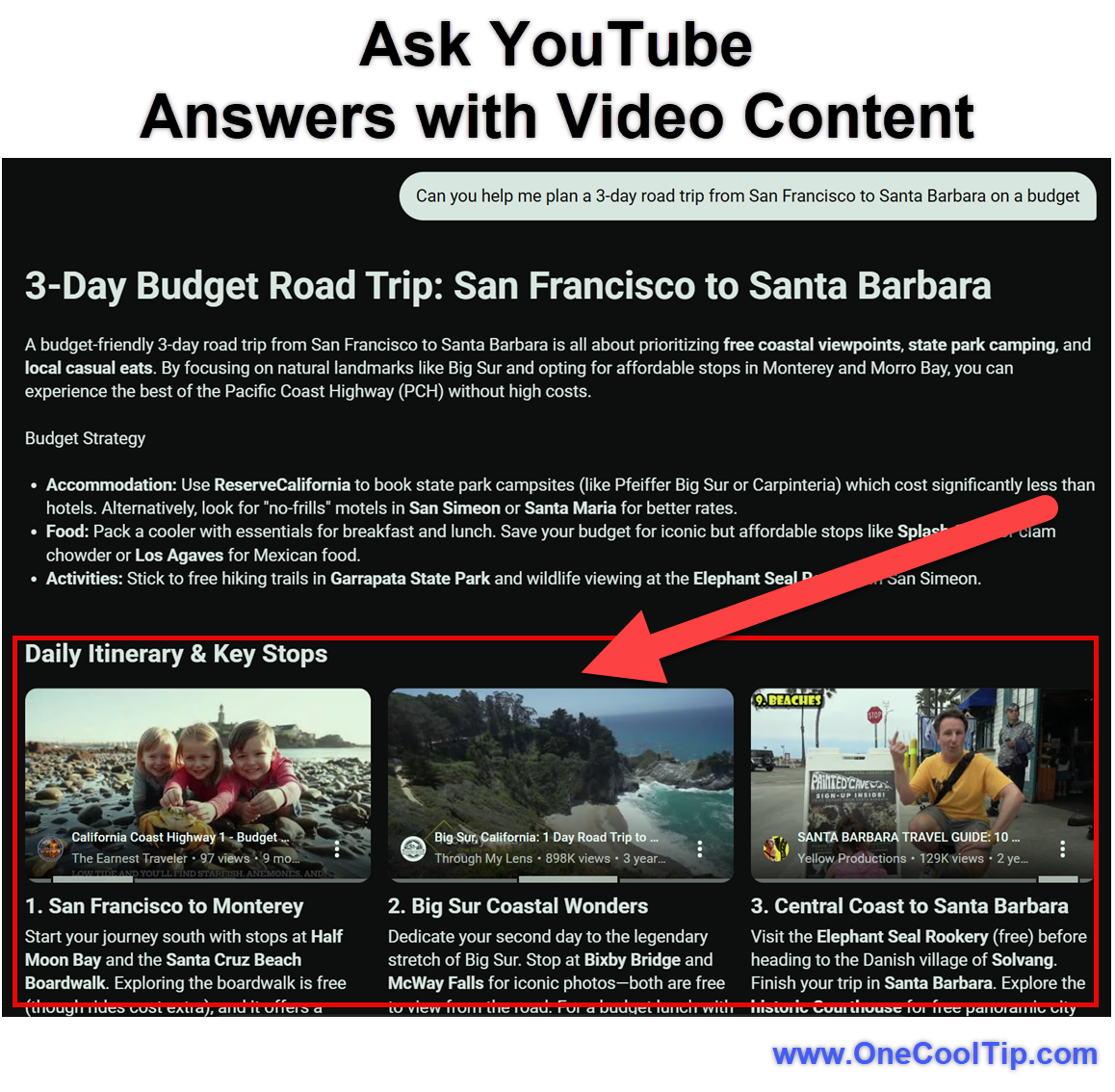
Crucially, embedded video previews feature hover-to-play capabilities that start streaming at the precise timestamp relevant to your question.
The feature addresses a common pain point: finding specific answers within multi-topic or lengthy videos without wasting time watching unnecessary filler.
It is currently expanding through YouTube’s experimental channels.
What You'll Gain
Save time by launching video previews automatically at the precise relevant timestamp.
Reduce confusion on complex projects by combining concise text summaries with visual video steps.
Discover better content by letting conversational AI surface exact answers hidden deep inside long-form videos.
Step-by-Step Instructions
Here's how to do it.
Web / Desktop (Chrome, Edge, Safari, Firefox)
-
Navigate to YouTube.com on your desktop browser.
-
Sign in to your Google Account.
-
Click inside the top Search bar.
-
Look for and click the Ask YouTube button located inside or adjacent to the main search bar.
-
Type a full, natural-language prompt (for example: "Can you help me plan a 3-day road trip from San Francisco to Santa Barbara on a budget?") and press Enter.
-
Review the AI-generated response area. Hover your mouse cursor over any attached video card to preview the clip starting at the highlighted timestamp.
-
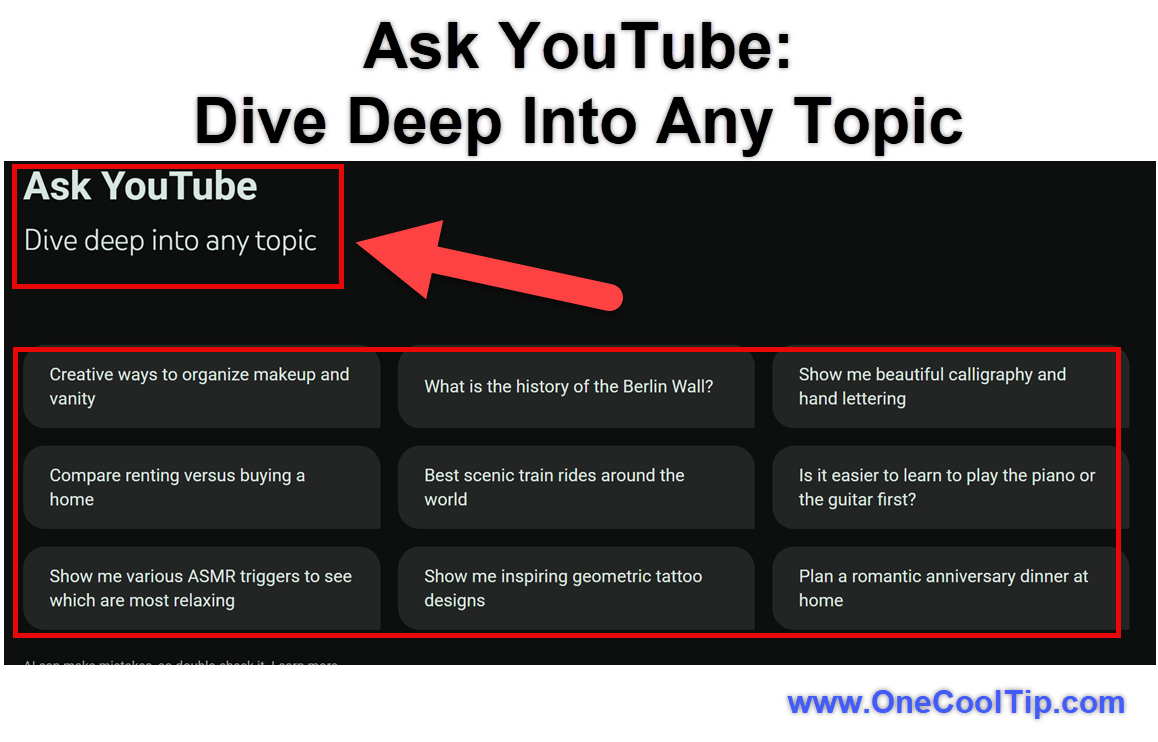
To refine your results, click one of the suggested topic chips or enter a follow-up query into the Ask a follow-up field at the bottom of the page.
|