One Cool Tip Newsletter

March 15, 2026

Your daily dose of tech-savvy brilliance!

😀Greetings! Happy Sunday, Cool Tipper!


Get ready to streamline your digital life with simple, actionable tips delivered straight to your inbox.


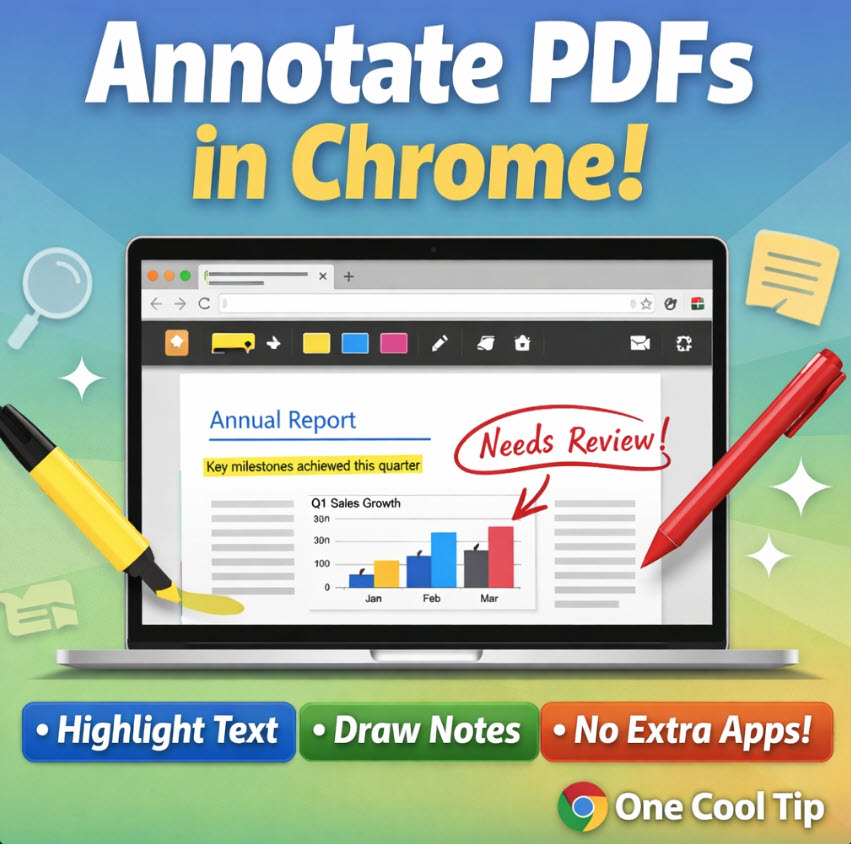
Cool Tip Theme: Chrome PDF Annotations


New here? Subscribe to the One Cool Tip Newsletter for daily updates. It's FREE!

3️⃣

If you enjoy the One Cool Tip newsletter, please forward this newsletter to THREE friends or colleagues or share it on social media using the links below.


Leave a Tip!


Share this One Cool Tip Newsletter!

X Share This Email
LinkedIn Share This Email
Pinterest Share This Email

🚨Quick Tech Tip: Spot the Scam Before It Hits🚨


The FTC’s latest guidance outlines four red flags that almost every scam shares.


Whether it’s a fake IRS call, a bogus tech support alert, or a “you won a prize” message, these tactics are designed to rush you into a bad decision.


Four Signs It’s a Scam


  1. They pretend to be someone you know: Scammers impersonate government agencies, banks, charities, or tech companies. Caller ID can be faked.
  2. They claim there’s a problem or a prize: You’re told you owe money, your account is compromised, or you’ve won but need to pay to claim it.
  3. They pressure you to act immediately: Threats of arrest, license suspension, or data loss are common scare tactics.
  4. They demand payment in a specific way: Gift cards, crypto, wire transfers, or payment apps are all red flags. Real companies don’t operate this way.


How to Protect Yourself


  • Block suspicious calls and texts. Use built-in phone settings or apps to filter unknown contacts.
  • Never share personal info with unexpected requests. If it feels off, it probably is.
  • Don’t click links in emails or texts, even if they look legit. Go directly to the company’s official site.
  • Talk to someone you trust. A quick gut check with a friend or family member can stop a scam in its tracks.


If you spot or fall for a scam, report it at ReportFraud.ftc.gov.


Every report helps stop the next one.


Cool Deals of the Day

Help support One Cool Tip. Use this Amazon link when you shop online.


Check out these Cool Deals:


🖊️ Logitech Crayon Digital Pencil: The perfect companion for annotating PDFs on iPads or supported tablets. Save 25% Now $52.74 Check it out on Amazon!


🖱️ Logitech MX Master 3S: Precision scrolling makes navigating long PDF documents a breeze. Save 8% Now $109.99 Check it out on Amazon!


💻 Laptop Stand for Desk: Ergonomic viewing for long hours of document review. Overall Pick! Now $26.24 Check it out on Amazon!


*Prices accurate when originally published.

One Cool Tip may earn a commission from qualifying purchases.

Fuel Your Adventure

Try Big Mike's Jerky!


bigmikesjerky.com


Now on TikTok!


Today's Cool Tip

Master Your Documents with Chrome PDF Annotations


Stop searching for third party editors and start marking up your files directly in the browser you already use. Google Chrome now includes robust tools to draw, highlight, and save notes directly onto PDF documents. This update transforms the browser into a powerful productivity workstation for anyone handling digital paperwork.


How many times have you downloaded a PDF just to sign it, highlight a single sentence, or jot down a quick note? 


For years, this simple task required heavy software or clunky third-party web converters that often compromised your privacy. 


Most users are unaware that the solution to this daily friction is already sitting in their taskbar.


Here's a Cool Tip:  Use the new PDF Annotation Tools in Google Chrome.


Chrome has quietly evolved from a simple window to the internet into a functional document editor.


Whether you are a student highlighting a research paper or a manager reviewing a contract, the ability to annotate files without leaving your tab is a game changer for your workflow.


Feature Explanation


The Chrome PDF annotation feature is a built-in toolkit that appears whenever you open a PDF file within the browser. 


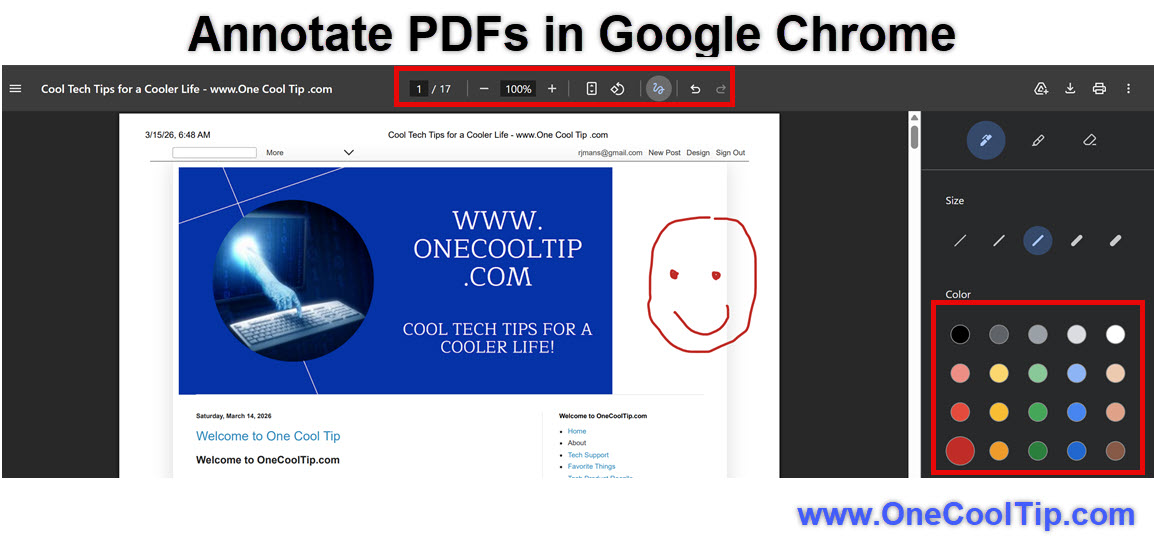
Instead of just viewing a static page, you gain access to a toolbar featuring highlighters, pens, and eraser tools.


When you click the draw icon, the interface shifts into editing mode. 


It works by overlaying a digital ink layer onto the document. 


The most critical part of this feature is the "Save" functionality. 


You can choose to save the original file or a version that includes your new edits, ensuring that your notes stay attached to the document when you email it to a colleague or upload it to a portal.


What You’ll Gain


  • Zero Friction: Eliminate the need to download, edit, and re-upload files.
  • Cost Savings: Replace expensive PDF editing subscriptions for basic markup needs.


Step-by-Step Instructions


Here's how to do it.


Microsoft Web/Desktop


  1. Right click any PDF file on your computer and select 'Open with' then choose Google Chrome.
  2. Look for the Draw Icon in the top menu bar of the PDF viewer.
  3. Select the Pen or Highlighter tool to begin marking the text.
  4. Adjust the thickness and color by clicking the arrow next to the tool icons.
  5. Click the Download icon and select Edited to save your changes to your local drive.


fig. 1 - Annotate PDFs in Google Chrome Example

Example: Use the red pencil to draw a Happy Face!


Pros and Cons


Pros: 


  • Extremely fast loading times compared to dedicated software like Adobe Acrobat.
  • No account or subscription required to use basic markup tools.


Cons: 


  • Lacks advanced features like OCR (Optical Character Recognition) or text layer editing.


Feature Access


  • This tool is available to all users on Chrome version 120 and later. 
  • It is currently rolled out globally for desktop users. 


Score

Criterion | Score (0–10) | Justification
Value | 9
Saves significant time and money for average users.
Usability | 9
The interface is intuitive and requires no learning curve.
Wow Factor | 7
It is a "hidden in plain sight" feature that surprises users.
Total: 25/30  | 🌟 Excellent
This is the most practical productivity update Chrome has seen in years, making dedicated PDF readers nearly obsolete for home users.


Key Takeaways


Chrome is no longer just for browsing because its built-in PDF tools allow for professional level markup. 


By using the Save as Edited option, you can streamline your document workflow and eliminate unnecessary software.


Cool Tip Snapshot


  • Feature Name: Chrome PDF Annotations.
  • Platform(s): Web, Windows, macOS.
  • Quick Benefit: Markup and sign PDFs without extra software.
  • Access Type: Free.


Try It Yourself


Drag a PDF from your desktop into a new Chrome tab right now. 


Click the draw icon and try highlighting one sentence. 


If you found this helpful, subscribe to the One Cool Tip newsletter and share this with your team to help them save time on their next project.


READ MORE


Read the Cool Tip on OneCoolTip.com.

Check out these Cool Tips & Tricks.


  • Quick Zoom: Adjust your view instantly. Hold Ctrl and scroll your mouse wheel while the PDF is open.


  • Rotate View: Fix upside down scans. Right click anywhere on the PDF and select Rotate Clockwise.


  • Two Page View: See more content at once. Click the three dots in the PDF header and select Two Page View.


  • Dark Mode: Save your eyes at night. Enable the "Force Dark Mode for Web Contents" flag in Chrome settings.


  • Direct Printing: Skip the save step. Press Ctrl + P to print your annotated version directly to a printer or PDF.


  • Search Text: Find keywords in seconds. Press Ctrl + F while the PDF is the active window.


  • Hide Toolbar: Clear the screen clutter. Click the "Present" mode icon to see the document without browser bars.


  • Eraser Tool: Correct your mistakes quickly. Select the eraser icon next to the pen tool to remove digital ink.


  • Download Original: Keep the clean file. Choose Original when hitting the download button to discard your marks.

ICYMI - In Case You Missed It ...

How to Remove Your Explicit Content from Google Search Results


Take control of your digital footprint by requesting the removal of sensitive personal images and information from Google Search results.


Read the Full Cool Tip.


Read the Newsletter Version.

Looking for your next adventure?


Call Denise at Travel For You.

314.660.3039


Sign Up for the Monthly Newsletter


http://www.travelforyouvacations.com/


https://www.facebook.com/TRAVEL.FOR.U/


See You Tomorrow

Tomorrow's Cool Tip is waiting to amaze you.


Until then, go forth and conquer the tech world with your newfound knowledge!


Be sure to visit www.OneCoolTip.com for Cool Tech Tips for a Cooler Life!


And if you Like One Cool Tip, please support with TipJar!


Enjoy!


Rodger

Chief Cool Tipper

onecooltip.com@gmail.com


What Do You Think?

What do you think of today's OneCoolTip newsletter?
Positive        Neutral        Negative
X Share This Email
LinkedIn Share This Email

Connect with One Cool Tip!!

Facebook  X  Instagram  Web  Pinterest  YouTube  LinkedIn
 

As an Amazon Associate, One Cool Tip may earn a small commission from qualifying purchases.


Our media content is intended solely for informational purposes only. Please do not construe anything here as legal, tax, investment, financial, marital or other advice.


Copyright © 2026 | www.OneCoolTip.com | All Rights Reserved