|
One Cool Tip Newsletter
September 22, 2025
| Your daily dose of tech-savvy brilliance! | |
😀Greetings! Happy Monday, Cool Tipper!
Get ready to streamline your digital life with simple, actionable tips delivered straight to your inbox.
Today's Cool Tip Theme: OneNote Merged Cells
IN THIS ISSUE
- 🚨 FBI Warning: Fake IC3 Websites.
- 📲TikTok's U.S. Future.
- ✍️ AI-Powered Productivity Prompt.
- 🎨 Cool ChatGPT Prompt.
- 📊 OneNote Table Tip.
- 📝 Sticky Notes Tip.
- 💡 Laser Pointer Tip.
- ⌨️ Keyboard Shortcuts Tip
New here? Subscribe to the One Cool Tip Newsletter for daily updates. It's FREE!
-
😂 Laugh with Us! Enjoy our Tech Joke of the Day, Haiku and Cool Tip Comics.
-
🌐 Stay Informed! Check out ICYMI, and our One Cool Tip Video.
🔔 Is your email provider (Gmail, Yahoo, Outlook...) not delivering the newsletter?
Check the Junk folder - Move the newsletter to your Inbox. And reply to this email with a “Hey, Rodger” or “I got it.” That tells your mail service you want this newsletter!
Today's Tech Trivia
Answer at the end of this newsletter.
| |
| When was Microsoft OneNote first released to the public? | | | | |
3️⃣
If you enjoy the One Cool Tip newsletter, please forward this newsletter to THREE friends or colleagues or share it on social media using the links below.
Leave a Tip!
Share this One Cool Tip Newsletter!
| |
🚨Beware of Spoofed IC3 Websites🚨
The FBI has issued a Public Service Announcement warning that cybercriminals are spoofing the official Internet Crime Complaint Center (IC3) website to steal personal information and money from unsuspecting users. These fake sites mimic the real www.ic3.gov domain, often using subtle misspellings or alternate top-level domains (like .com or .net) to trick visitors into submitting sensitive data.
If you’re trying to report online fraud or cybercrime, make sure you’re on the legitimate IC3 site. Type the URL directly into your browser’s address bar—don’t rely on search engine results, especially sponsored links, which may lead to imposters.
The real IC3 site ends in [.gov] and never asks for payment or refers you to third-party recovery services.
Here’s how to stay safe:
- Always type www.ic3.gov directly into your browser.
- Avoid clicking on links from search results or suspicious emails.
- Check that the URL ends in [.gov] and looks exactly like www.ic3.gov..
- Never share banking info or personal data unless you’re sure the site is legitimate.
- IC3 does not use social media and will never charge you to recover lost funds.
If you suspect you’ve interacted with a spoofed site, report it immediately to the real IC3 at www.ic3.gov or contact your local FBI field office.
And in Other News...
- TikTok’s Future in the U.S. Hinges on New Deal
The US govt. has approved a new deal that could allow TikTok to continue operating in the U.S. under strict conditions.
The agreement reportedly involves a partnership between TikTok’s parent company ByteDance and a U.S.-based tech firm, aimed at addressing national security concerns over data access and influence.
Why It Matters:
- The deal may require TikTok to store U.S. user data domestically and allow oversight by American stakeholders.
- If finalized, it could prevent a nationwide ban and preserve access for millions of users and creators.
- Privacy advocates and regulators are watching closely, expect changes to how TikTok handles data and moderation.
📱 Pro Cool Tip: If you use TikTok for business, education, or outreach, stay informed. Platform policies and features may shift quickly depending on the final terms of the deal.
| | |
🚀 Make It a Great Week!
Copy/Paste this AI-powered prompt. Use with your favorite AI assistant: Gemini, Copilot, Grok, DuckAI, Meta and ChatGPT.
“Act as my productivity coach for the start of the week.
Ask me 5 quick questions to help me set priorities for today (e.g., most important task, urgent deadlines, small wins, possible distractions, and energy check).
Then, create a simple Monday action plan I can realistically follow in 3 steps.
Keep it short, practical, and motivating.”
| | | |
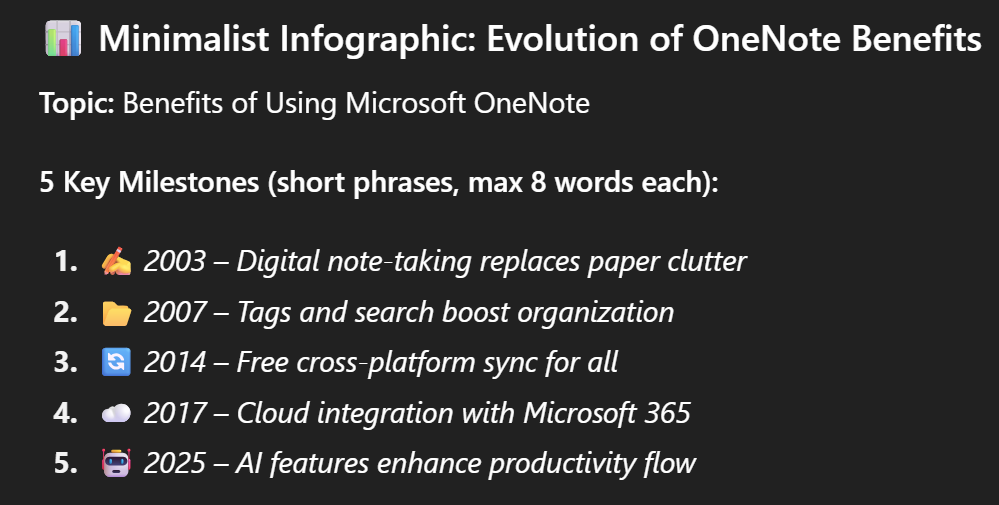
🖼️ Cool ChatGPT AI Prompt of the Day:
“Create a minimalist infographic that explains the evolution of [insert topic of choice] in 5 key milestones. Use short phrases (max 8 words each), icons or symbols for each milestone, and a simple horizontal timeline layout. Keep it visually clean and modern, suitable for sharing in a newsletter or presentation.”
| | |
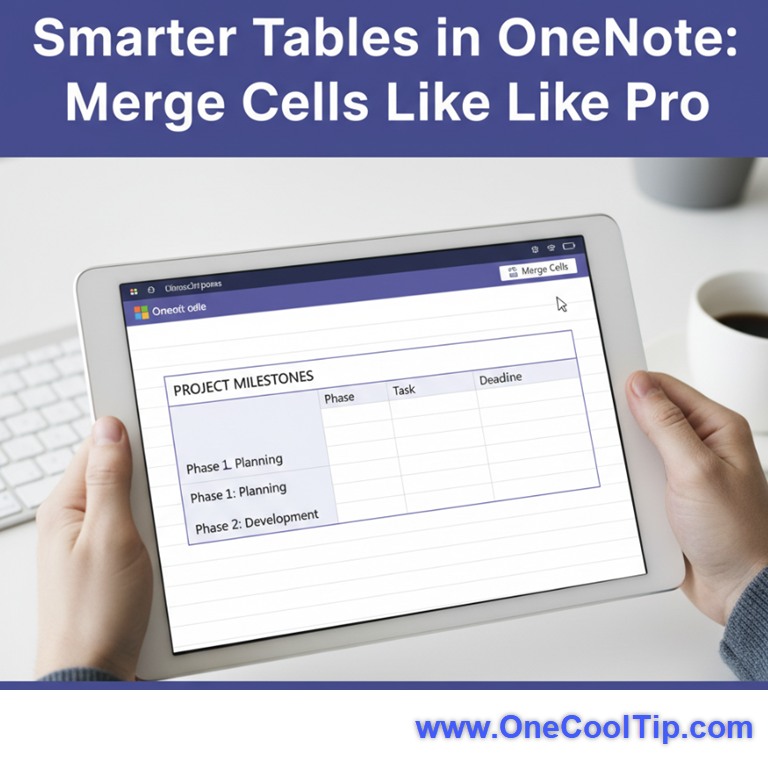
Smarter Tables in OneNote: Merge Cells Like a Pro
Microsoft OneNote now lets you merge table cells. This long-awaited feature brings cleaner layouts, better organization, and a touch of Word-like polish to your notes.
Have you ever tried building a table in OneNote and realized you couldn’t merge cells?
It’s like trying to build a house with bricks but no mortar.
For years, users have asked for this basic functionality, especially educators, project managers, and anyone who organizes complex notes.
Here's a Cool Tip: Merge Cells in Microsoft OneNote as an "Insider"!
The ability to merge table cells is rolling out to OneNote on Windows and Mac for Microsoft 365 insiders, with view-only support on mobile and web.
It’s not flashy, but it’s a game-changer for anyone who lives in their notebooks.
What You'll Gain
- Create cleaner, more readable tables.
- Group related content under unified headers.
- Reduce visual clutter in meeting notes and lesson plans
Step-by-Step Instructions
Here's how to do it.
Windows & Mac
-
Join the Microsoft 365 Insider Program.
-
Update OneNote > File > Account > Update Options > Update Now.
-
Open a OneNote notebook.
-
Insert a table via Insert > Table.
-
Select two or more adjacent cells (horizontal or vertical).
-
Right-click and choose Table > Merge Cells, or use the Merge Cells button in the Table ribbon.
fig. 1 - Merge Cells in Microsoft OneNote
iOS & Android
- You can view merged cells, but editing is not yet supported.
- Expect editing support in future updates.
OneNote Web
- Merged cells are visible and editable in the web version.
Pros and Cons
Pros:
- Makes tables more flexible and visually appealing.
- Ideal for creating headers that span multiple columns or grouping related data.
- Aligns OneNote more closely with Word and Excel formatting standards.
Cons:
- Editing merged cells is not yet supported on iPhone and Android.
- No option to split merged cells back (yet).
- Still missing advanced table formatting like nested tables or conditional formatting.
Feature Access
Available to:
-
Available to Microsoft 365 Insiders.
- Windows and Mac users (editing)
- Web, iOS, and Android users (viewing only)
No separate subscription required beyond Microsoft 365.
Score
Criterion | Score | Justification
Value: 9/10
Solves a long-standing limitation and improves table usability for note-heavy users.
Usability: 8/10
Simple to use on desktop, but mobile editing is still missing.
Wow Factor: 7/10
Not flashy, but long overdue. Users will appreciate the polish.
Total Score: 24/30 👍 Good. Worth adopting for most users.
Key Takeaways
OneNote’s new merge cell feature finally fills a major gap in table formatting.
It’s intuitive, practical, and makes your notes look more professional.
While mobile editing is still pending, desktop users can start benefiting today.
Try It Yourself
Ready to clean up your cluttered tables?
Try merging cells in OneNote today.
Share your experience in the comments, and pass this tip along to your team.
READ MORE
Read the Full Tip.
| | |
Help support One Cool Tip. Use this Amazon link when you shop online.
Look at these Cool Products:
|
-
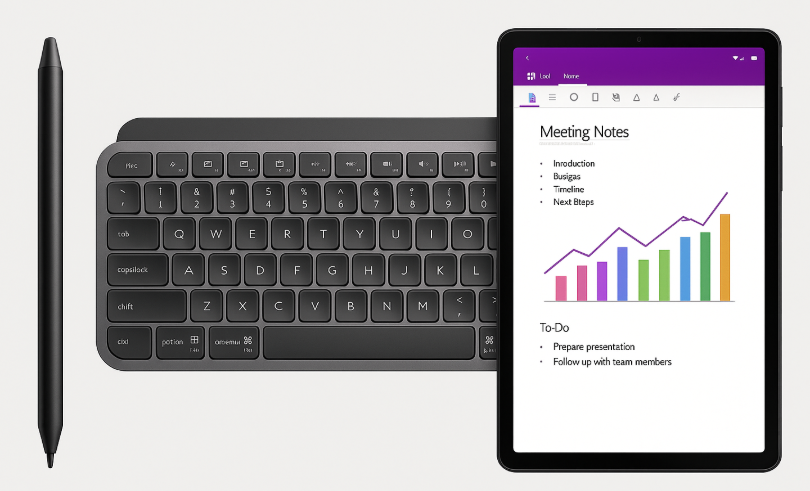
🖊️ Metapen Stylus Pen for Microsoft Surface: Perfect for annotating merged tables and handwritten notes. Overall Pick. Save 20% Check it out on Amazon!
-
💻 Logitech MX Keys S Keyboard: Ideal for fast, accurate typing in OneNote. Backlit keys and multi-device support. Overall Pick. Check it out on Amazon!
-
📱 Samsung Galaxy Tab A9+: Great for viewing and editing OneNote tables on the go. Overall Pick. Limited Time Deal. Save 20% Check it out on Amazon!
| | |
🆒Tell Me More
- Merged cells are now editable on Windows and Mac for Microsoft 365 Insiders.
- Web users can view and edit merged cells; mobile users can view only (editing coming soon).
- You can merge cells horizontally or vertically; great for headers or grouped data.
- The feature aligns OneNote more closely with Word and Excel formatting.
- No add-ins required; just update to the latest Insider build.
⏩Quick Tips
- 🖱️ Merge Cells Easily: Select adjacent cells, right-click, and choose “Merge Cells” from the Table menu.
- 🧭 Use for Headers: Merge top-row cells to create a unified header across columns. → Select the top row, then merge.
- 🧹 Declutter Your Tables: Group related rows or columns to reduce visual noise. → Highlight cells and merge to simplify layout.
- 📱 Mobile Limitations: You can view merged cells on iOS and Android, but editing isn’t supported yet. → Use desktop or web for full functionality.
- 🔄 Undo Merge: You can’t split merged cells yet; plan your layout before merging. → Use Ctrl+Z immediately if you need to reverse.
| | ✅ More Must-Read Tech Tips | |
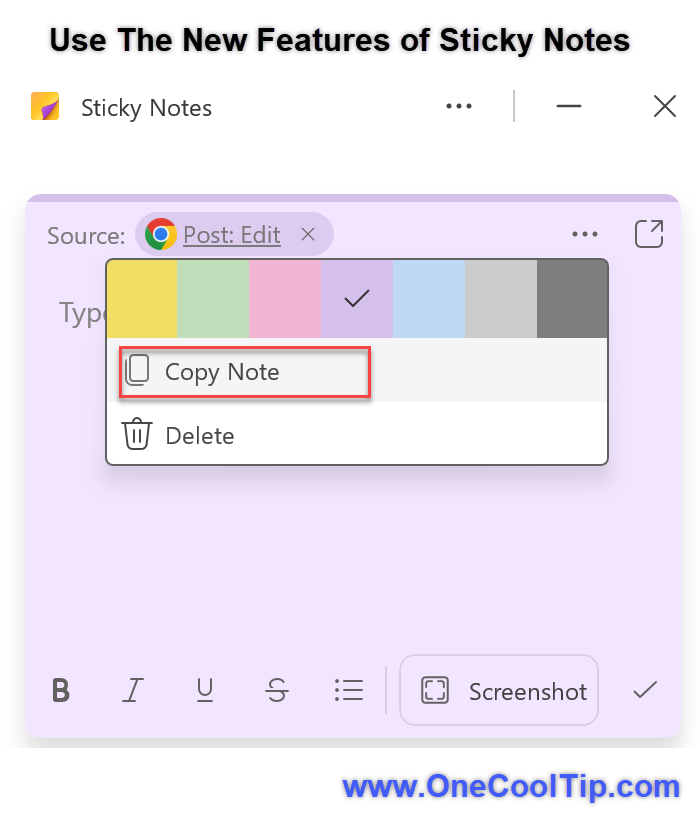
👀 How Do I Use Sticky Notes in OneNote?
Are you tired of losing those paper sticky notes that seem to vanish into thin air?
Or perhaps you’re drowning in a sea of disorganized digital notes?
Here's a Cool Tip. Try OneNote’s latest feature, Sticky Notes.
The new Sticky Notes feature in OneNote is a game-changer for digital note-taking.
It seamlessly integrates with your existing notes, allowing you to create, organize, and collaborate effortlessly.
Whether you’re a student, professional, or creative thinker, these virtual sticky notes will keep your ideas organized and accessible.
Here's how to do it.
Access Sticky Notes in OneNote
-
Open OneNote on your device. OneNote is part of Microsoft 365 suite of apps.
-
Click on the “Sticky Notes” icon in the toolbar (it looks like a yellow sticky note in the top right corner) OR use the Win + Alt + S keyboard shortcut.
- You’re now in the Sticky Notes section.
Create Sticky Notes
-
Click the “+” button to create a new sticky note.
-
Type your note, add formatting (bold, italic, bullet points), and even insert images.
-
Pin important notes to the top for quick access.
The new Sticky Notes experience from OneNote is designed to enhance your note-taking and organization process.
Discover more HERE.
| |
🤔 Have You Ever Wondered How to Use OneNote's Laser Pointer?
Have you ever fumbled with a laser pointer during a presentation, struggling to keep the beam steady?
Do you wish you could seamlessly highlight key points on your slides without breaking your flow?
Here's a Cool Tip. Use Microsoft OneNote's "Laser Pointer" feature.
Microsoft 365 OneNote, commonly known as OneNote, is a digital note-taking app that’s part of the Microsoft 365 suite.
It provides a versatile platform for users to capture ideas, notes, research, and information in a digital format.
Here is how to use it.
-
Launch Microsoft 365 OneNote and access the presentation you want to deliver.
-
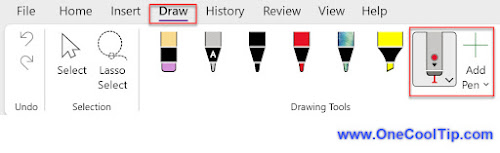
In the OneNote ribbon, click the "Draw" tab to reveal your digital inking tools.
-
If Laser Pointer is visible, select it.
-
If Laser Pen is not visible, click "+Add Pen".
-
Select "Laser Pointer".
-
Select a Color, default is Red.
-
Use the Laser Pointer to draw on screen. The drawing disappears after a few seconds.
Using OneNote's Laser Pen guide your audience's attention effortlessly while maintaining a natural presentation style.
It offers a seamless, integrated way to highlight crucial information, boost your engagement, and elevate your delivery.
Find more HERE.
| | |
🙋♂️ Here's How to Open Microsoft Apps Quickly.
Do you know the super secret keyboard shortcuts to open Microsoft Applications?
There's even one to open the Microsoft-owned LinkedIn website.
Here's a Cool Tip: Secret Microsoft Application Keyboard Shortcuts.
Here's how to do it.
-
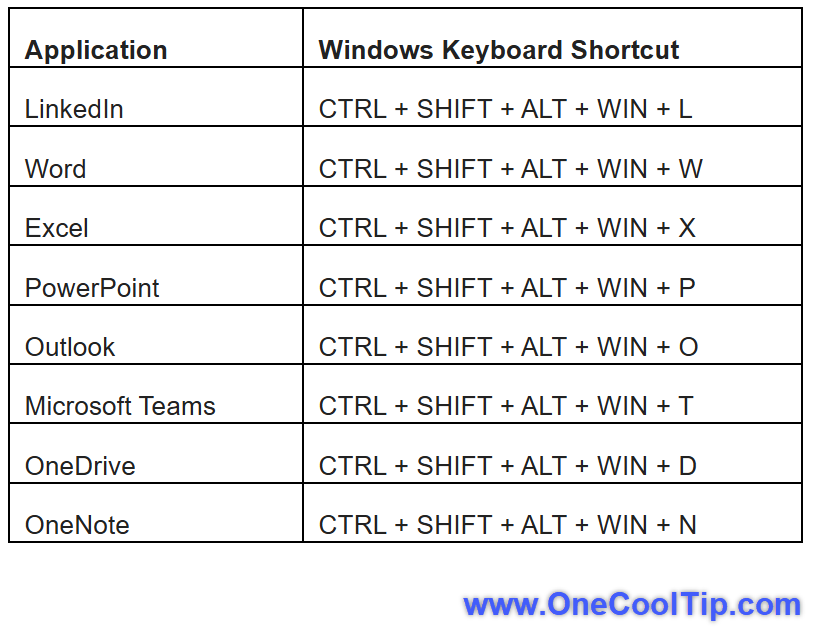
Press and hold the Control + Shift + Alt + Windows + a letter from the list below for each application.
- For example, L for LinkedIn.
-
CTRL + SHIFT + ALT + WIN + L: LinkedIn
-
CTRL + SHIFT + ALT + WIN + W: Word
-
CTRL + SHIFT + ALT + WIN + X: Excel
-
CTRL + SHIFT + ALT + WIN + P: PowerPoint
-
CTRL + SHIFT + ALT + WIN + O: Outlook
-
CTRL + SHIFT + ALT + WIN + T: Microsoft Teams
-
CTRL + SHIFT + ALT + WIN + D: OneDrive
-
CTRL + SHIFT + ALT + WIN + N: OneNote
The keyboard shortcut to open LinkedIn on Windows is CTRL + SHIFT + ALT + WIN + L.
This shortcut opens LinkedIn in your default browser.
You can also use this shortcut to open other Office apps, including Word, Excel, PowerPoint, Outlook, Microsoft Teams, OneDrive and OneNote.
Learn more HERE.
| | |
❓Did you share this newsletter with three friends yet?
😎 Cool Facts
- Over 500 million users rely on OneNote globally for note-taking and organization. Source
- The OneNote Insider program has millions of testers, helping shape features like merged cells. Source
- Microsoft 365 has over 400 million paid seats, making OneNote updates highly impactful. Source
- OneNote tables are used in over 60% of shared notebooks in education settings. Source
⌨️Today's Cool Keyboard Shortcuts
-
Ctrl + T (Windows): Insert a table.
-
Cmd + T (Mac): Insert a table.
-
Ctrl + Z (Windows): Undo merge.
-
Cmd + Z (Mac): Undo merge.
-
Tab: Move to next cell in table.
😜 Tech Joke of the Day 😅
What’s a OneNote user’s favorite pickup line?
“Mind if I merge with you?”
🔎 Do you have a Cool Tip or tech question? Email us at onecooltip.com@gmail.com.
| | |
Tables now refined,
Cells merge like thoughts in a stream,
OneNote finds its flow.
| |
| 🤔 How do you use tables in OneNote most often? | | | |
Did You See These Cool Tips This Week?
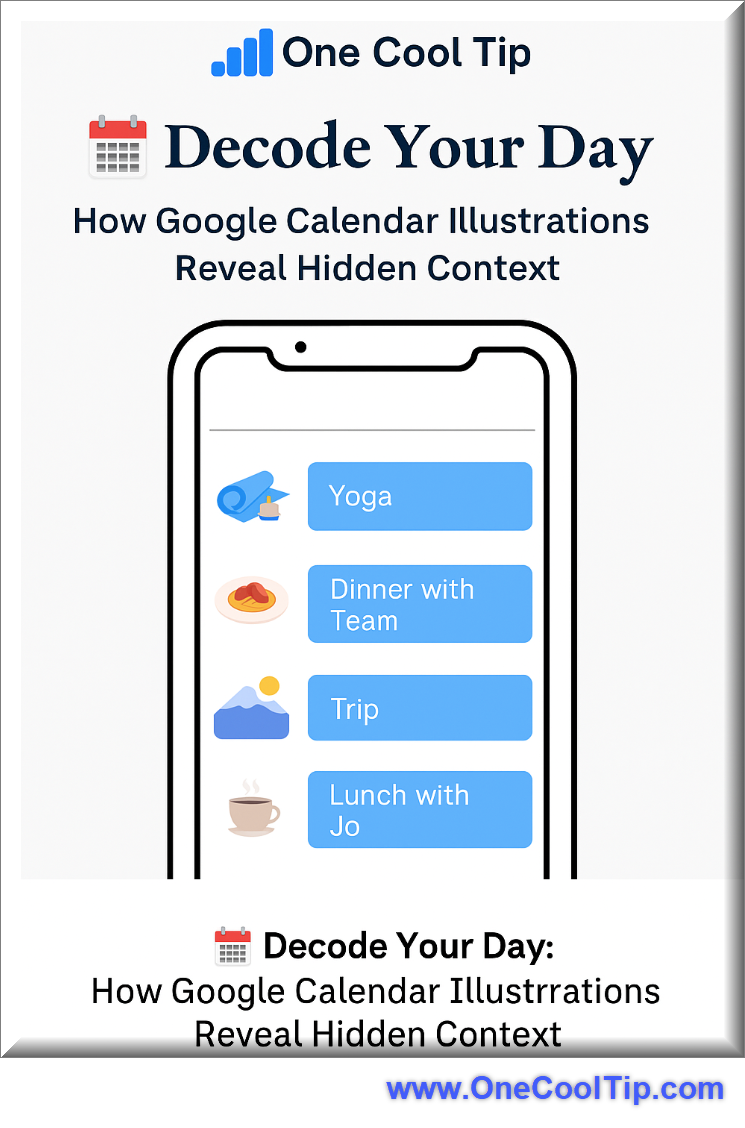
| | | | ChatGPT Projects Are Now Free for Everyone | OpenAI has unlocked its Projects feature for free-tier users, meaning you can now organize chats, reference files, memory, and custom instructions in dedicated workspaces without paying. Here’s what to expect, how it helps, and how to use it. | | | | The Codewords That Make Google Calendar Events Pop | How a few simple, built-in “codewords” let you change how your Google Calendar events look; helping you spot meetings, set the mood, or just have less visual noise. This tip gives you the lowdown and shows how to use them in practice. | |
ICYMI - In Case You Missed It ...
| | | | CrazyGames Lets You Play Free Browser Games | Discover how CrazyGames Originals is shaking up the fast, free world of browser gaming with no downloads, no hassle, just instant joy and creative surprises. | | |
Do you think you know Windows?
Watch
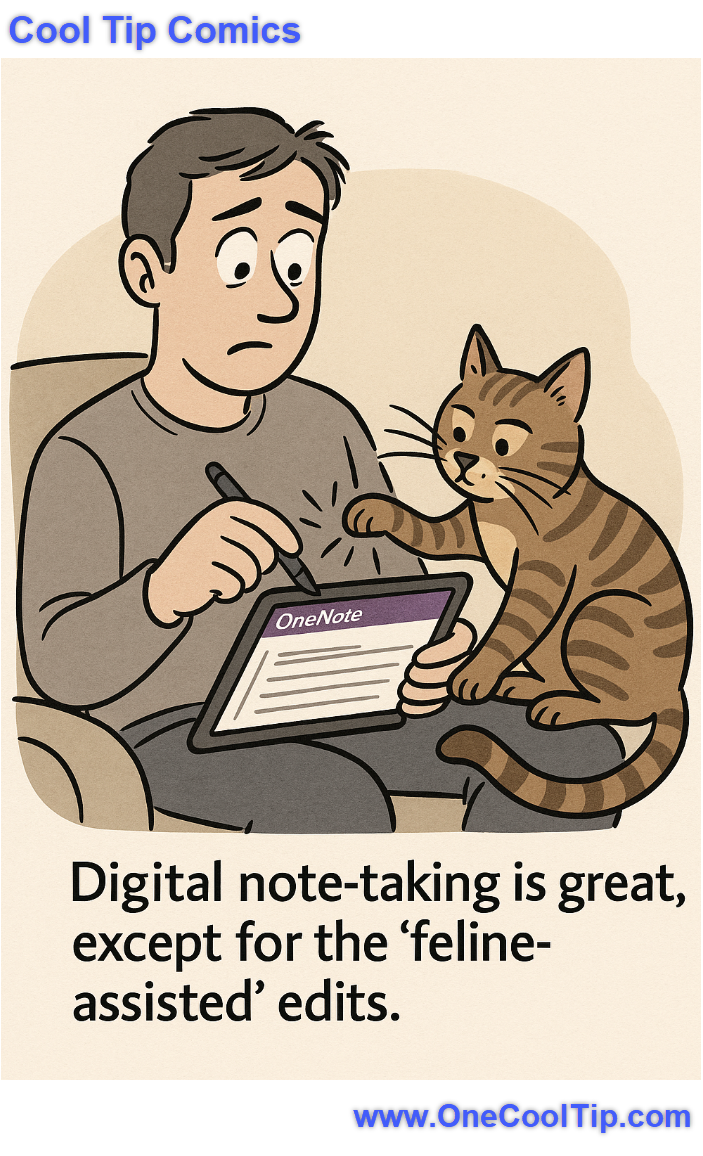
| | Proof that cats aren’t just desktop crash testers. They’ve upgraded to OneNote quality control. | | |
Trivia Answer: B) 2003
OneNote debuted in 2003 as a digital note-taking application that supported freeform notes, drawings, and basic multimedia.
While it wasn’t widely adopted at first, it grew in popularity with students and business professionals for organizing thoughts and projects.
By 2014, Microsoft expanded its reach by making OneNote free across platforms, cementing its role as one of the most widely used note-taking tools.
----------
Tomorrow's Cool Tip is waiting to amaze you.
Until then, go forth and conquer the tech world with your newfound knowledge!
Be sure to visit www.OneCoolTip.com for Cool Tech Tips for a Cooler Life!
And if you Like One Cool Tip, please support with TipJar!
Enjoy!
Rodger
Chief Cool Tipper
onecooltip.com@gmail.com
| |
| What do you think of today's OneCoolTip newsletter? | | | |
Please Share the One Cool Tip Newsletter!
You asked for it. You got it. There is now a One Cool Tip Newsletter archive. Did you delete a newsletter and want to read it again? Check it out HERE.
Want to help One Cool Tip grow? Please forward this email using the link above. And if you see an OCT social media post, please LIKE, COMMENT and SHARE!
Have you subscribed to the One Cool Tip YouTube channel? Subscribe HERE.
| | Connect with One Cool Tip!! | | |
|
As an Amazon Associate, One Cool Tip may earn a small commission from qualifying purchases.
Our media content is intended solely for informational purposes only. Please do not construe anything here as legal, tax, investment, financial, marital or other advice.
Copyright © 2025 | www.OneCoolTip.com | All Rights Reserved
|
| | | |