One Cool Tip Newsletter

August 27, 2025

Your daily dose of tech-savvy brilliance!

😀Greetings! Happy Windows Wednesday, Cool Tipper!


Get ready to streamline your digital life with simple, actionable tips delivered straight to your inbox.


Today's Cool Tip Theme: Microsoft Edge Predictive Text


IN THIS ISSUE


  • 🚨 Farmers Insurance Data Breach Alert.
  • 📱 iPhone 17 Launch.
  • 🚀 AI Prompts.
  • 🖼️ Prompt of the Day.
  • ✍️ Edge Text Prediction.
  • 👀 Full-Page Capture.
  • 🤔 Edge Split Screen.
  • 🙋‍♂️ Edge Task Manager.


New here? Subscribe to the One Cool Tip Newsletter for daily updates. It's FREE!


  • 😂 Laugh with Us! Enjoy our Tech Joke of the Day, Haiku and Cool Tip Comics.


  • 🌐 Stay Informed! Check out ICYMI, and our One Cool Tip Video.


🔔 Is your email provider (Gmail, Yahoo, Outlook...) not delivering the newsletter? 


Check the Junk folder - Move the newsletter to your Inbox. And reply to this email with a “Hey, Rodger” or “I got it.” That tells your mail service you want this newsletter!


Today's Tech Trivia


What groundbreaking AI program, created at MIT in 1972, was a pioneer in natural language processing that interacted with a virtual 'blocks world'?


A. ELIZA

B. Deep Blue

C. Heidi

D. SHRDLU


Answer at the end of this newsletter.

3️⃣

If you enjoy the One Cool Tip newsletter, please forward this newsletter to THREE friends or colleagues or share it on social media using the links below.


Leave a Tip!


Share this One Cool Tip Newsletter!

X Share This Email
LinkedIn Share This Email
Pinterest Share This Email

🔥Hot Topics 🔥

🚨Farmers Insurance Data Breach Affects

Over 1 Million Customers🚨


Farmers Insurance has confirmed a data breach impacting more than 1 million policyholders. The breach, discovered in late May 2025, exposed sensitive personal information including names, addresses, birthdates, driver’s license numbers, and partial Social Security numbers.


If you’re a Farmers customer, here’s what to do:


  • Watch for a notification letter (sent starting August 22).
  • Monitor your credit reports and bank statements for unusual activity.
  • Farmers is offering free credit monitoring for 24 months through Cyberscout.


Stay alert and take proactive steps to protect your identity. Read more from Farmers Insurance: Notice of Security Incident (PDF)


And in Other News...


  • 📱iPhone 17 Launch Set for September 9


Apple has officially announced its iPhone 17 launch event for September 9, 2025, and expectations are high. Rumors point to a sleeker design, improved battery life, and a major leap in AI-powered features, including smarter Siri and enhanced on-device processing.


If you're considering an upgrade:


  • 🗓️ Mark your calendar for the keynote livestream.
  • 🔍 Watch for new camera tech and satellite connectivity updates.
  • 💰 Expect pricing tiers similar to the iPhone 16 lineup.


Stay tuned. This could be Apple’s most intelligent iPhone yet


🚀 Make It a Great Week!


Copy/Paste these AI-powered prompts. Use with your favorite AI assistant: Gemini, Copilot, Grok, DuckAI, Meta and ChatGPT.


Prompt 1: Perspective Shift

"Reframe today’s biggest challenge as if it were an opportunity for growth. What hidden upside could this problem reveal if you looked at it differently?"


Prompt 2: Energy Audit

"Describe the moments this week when you felt most energized, and the moments that drained you. What patterns do you notice about where your focus truly belongs?"


Prompt 3: Future Self Check-In

"Write a short note from the perspective of yourself 90 days from now. What advice, encouragement, or warning would that future version of you share?"


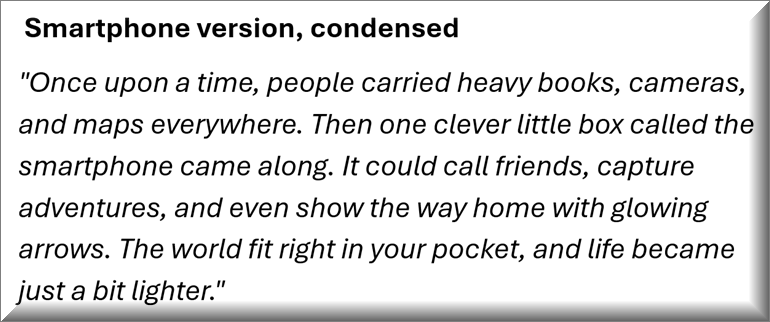
🖼️ Cool ChatGPT AI Prompt of the Day:


"Take a well-known tech invention (like the smartphone, Wi-Fi, or the cloud) and explain it in the style of a children’s bedtime story, using simple language and a touch of whimsy."

Today's Cool Tip

Can Your Browser Finish Your Sentences Better Than You Can?


Microsoft Edge’s text prediction feature uses AI to help you write faster, smarter, and with fewer interruptions. Whether you're drafting emails, lesson plans, or reports, it anticipates your next words and completes sentences in real time, saving keystrokes and sharpening clarity. 


You’re halfway through a sentence, fingers flying, when your brain stalls. 


What was that word again? 


Something like “collaborative,” or maybe “cohesive”? 


Here's a Cool Tip:  Microsoft Edge's Text Prediction.


Microsoft Edge’s text prediction feature steps in like a helpful colleague who finishes your thought, without the awkwardness.


In a world where we’re all writing more than ever, emails, reports, lesson plans, blog posts, Edge’s predictive typing isn’t just a convenience. 


It’s a quiet revolution in how we interact with language.


What Is Microsoft Edge Text Prediction?


Text prediction in Microsoft Edge is an AI-powered feature that anticipates what you’re about to type and offers suggestions to complete your sentence. 


It’s built into the browser’s Editor tool, which also handles spelling, grammar, and synonym suggestions across the web.


Think of it as autocomplete for grown-ups. 


Instead of just finishing “Thurs…” with “Thursday,” it might suggest “Thursday’s meeting agenda includes…” based on context. 


You hit Tab, and the sentence completes itself. 


It’s fast, fluid, and surprisingly intuitive.


What You'll Gain


  • Save time by reducing keystrokes and repetitive phrasing.
  • Write with confidence thanks to grammar and synonym suggestions.
  • Stay focused by minimizing interruptions and decision fatigue.


Step-by-Step Instructions


Here's how to do it.


Microsoft Edge (Web/Desktop)


  1. Open Edge and click the three-dot menu in the upper right.
  2. Go to Settings > Languages.
  3. Toggle Text Prediction to “On.”
  4. Start typing in any text field, suggestions will appear as grayed-out text.
  5. Press Tab to accept a suggestion.


Pros and Cons


Pros


  • Speeds up writing, especially for repetitive tasks like emails or documentation.
  • Reduces spelling and grammar errors.
  • Helps non-native speakers or those with typing challenges.


Cons


  • Limited to English in most markets (though support for Chinese and Japanese is expanding).
  • Doesn’t work on websites with their own spellcheckers.
  • Suggestions can occasionally feel generic or miss the mark.


Feature Access


Text prediction is available to:


  • General public using Microsoft Edge (latest version).
  • No Microsoft 365 subscription required.
  • Currently supports English; Chinese and Japanese support is rolling out.


Score

Criterion | Score| Justification
Value: 9/10 
Saves time and improves writing quality for a wide range of users—especially in business and education.
Usability: 8/10 
Easy to enable and use, though limited language support and site compatibility may frustrate some.
Wow Factor: 7/10 
Not flashy, but quietly impressive. The seamlessness of sentence completion feels like magic when it works well.
Total Score: 24/30 👍 Good. Worth adopting for most users.


Key Takeaways


Microsoft Edge’s text prediction is a practical, low-effort way to improve your writing speed and clarity. 


It’s built into the browser, easy to activate, and surprisingly helpful for anyone who types regularly.


Try It Yourself


Turn it on today and see how much smoother your writing becomes. 


Share your experience in the comments, subscribe to the newsletter, and pass this tip along to your team.


READ MORE


Read the Full Tip.

Cool Products

Help support One Cool Tip. Use this Amazon link when you shop online.


Look at these Cool Products:

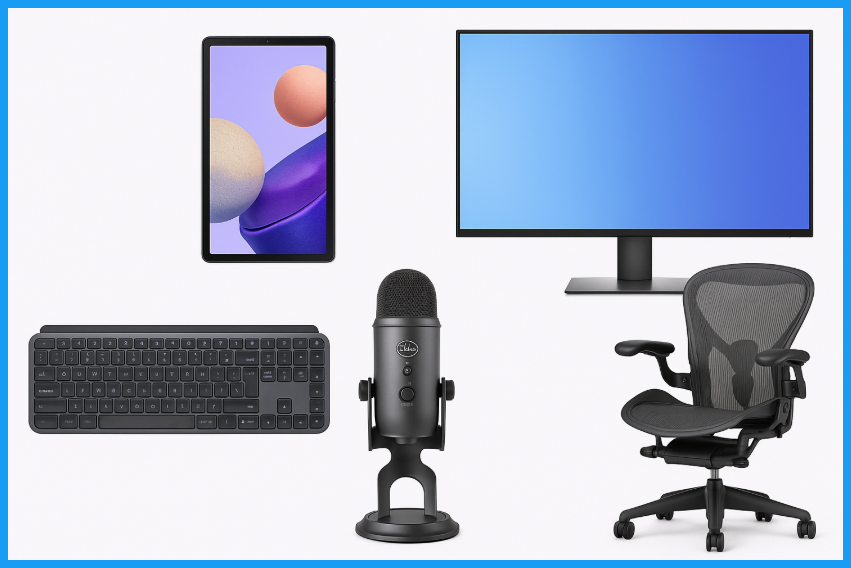
  • 🧠 Logitech MX Keys Advanced Wireless Keyboard: A responsive, comfortable keyboard perfect for long writing sessions. 👉 Check it out on Amazon!


  • 📱 Samsung Galaxy Tab A9+: A sleek tablet with great Edge support for mobile writing and browsing. 👉 Check it out on Amazon!


  • 🖥️ Dell 27 Plus 4K Monitor: Crisp visuals and wide screen real estate for multitasking with Edge and Editor. Overall Pick 👉 Check it out on Amazon!


  • 🔊 Blue Yeti USB Microphone: Ideal for dictation or voice-to-text workflows in Edge. Save 35% Overall Pick. 👉 Check it out on Amazon!


Cool Thoughts

🆒Tell Me More


  • Microsoft Editor powers text prediction in Edge, offering grammar, spelling, and synonym suggestions across web platforms.


  • Predictions are generated using AI models trained on large language datasets, similar to autocomplete but more context-aware.


  • The feature is most effective in English (US) and may not appear in other languages or regions yet.


  • It’s disabled in InPrivate browsing and guest sessions for privacy reasons.


  • Text prediction is part of a broader push toward intelligent writing assistance in browsers and productivity tools.


⏩Quick Tips


  • ✨ Enable Prediction: Make sure your Edge language is set to English (US) to unlock text prediction. → Go to Settings > Languages > Preferred Languages.


  • 🔒 Avoid InPrivate Mode: Text prediction won’t work in private browsing. → Use a regular window for writing tasks.


  • 📱 Check Device Compatibility: Mobile support is limited and rolling out gradually. → Try it first on desktop for full functionality.


  • 🧹 Clear Conflicts: Browser extensions may interfere with prediction. → Disable conflicting extensions under Settings > Extensions.


  • 🧠 Train Your Flow: Accept suggestions with a tap or keystroke to improve speed. → Use Tab or right arrow to accept predictions.


✅ More Must-Read Tech Tips

👀 How Do I Capture a Full Page in Microsoft Edge?


Have you ever wanted to capture a screenshot of an entire webpage, but didn't know how? 


Microsoft Edge has a built-in feature that allows you to easily capture full-page screenshots in JPEG format.


Here's how to do it:


  1. Open the Microsoft Edge browser on your Windows 10/11 or Mac computer
  2. Go to the web page that you want to capture.
  3. Scroll all the way to the bottom of the page to make sure that the Web Capture feature loads all images in the article. 
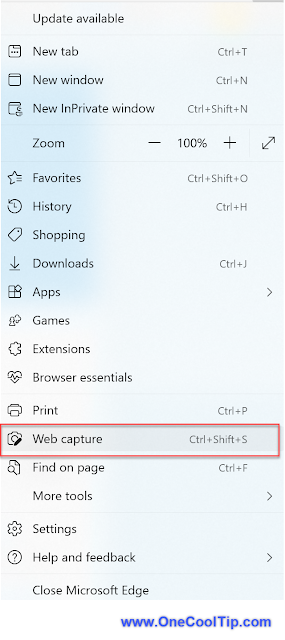
  4. Press and hold the three dots icon in the top-right corner.
  5. Click the Web Capture button from the toolbar. 
  6. Select the Full Page option.
  7. You'll see the Web Capture menu. 
  8. Once you're done, click the save button (which looks like a floppy disk) from the toolbar. 
  9. Microsoft Edge will instantly download the full-page JPEG image to the default download folder on your computer.


Discover more HERE. 

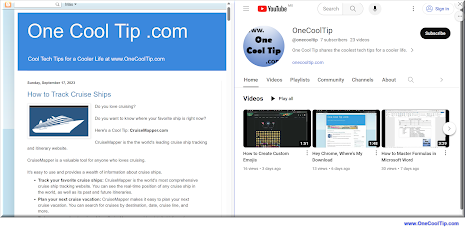
🤔 Have You Ever Wondered How to Split Screen in Edge?


Ever found yourself juggling between multiple tabs and wishing for a simpler way to view them all at once? 


Here's how to do it.


  1. Open Microsoft Edge and navigate to the page you want to split.
  2. Look for the Split Screen icon in the toolbar, which is usually located near the top-right corner of the browser window.
  3. Click on the Split Screen icon to divide your current tab into two separate screens.
  4. You can now navigate independently on each side of the split screen.
  5. To adjust the size of the screens, simply drag the slider in the middle to your preferred position.
  6. If you want to exit the split screen view, select the Close split screen (X) at the top right corner of the active screen.


Find more HERE. 

🙋‍♂️ Here's How to Unleash the Power of Microsoft Edge’s Task Manager


Ever wondered why your Microsoft Edge browser is running slow? 


Here's a Cool Tip.  Use Microsoft Edge's built-in Task Manager. 


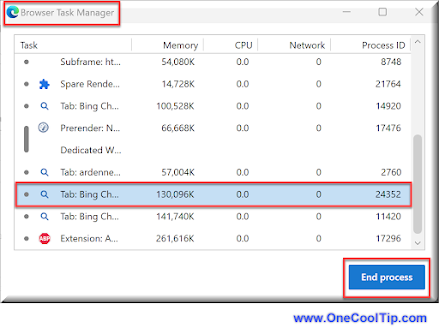
Microsoft Edge’s Task Manager is a powerful tool that allows you to manage resource-intensive tabs and extensions. 


It provides real-time data about the memory, CPU, and network usage of each tab or process. 


Here's how to use it.


  1. Open Microsoft Edge.
  2. Click the ellipses button (three dots) in the upper-right corner of any Edge browser window.
  3. In the menu that pops up, select More tools, then Browser task manager.
  4. OR Use SHIFT + ESC keyboard shortcut to open the Task Manager.
  5. Once the Browser Task Manager window opens, you’ll see a list of all tabs, processes, and extensions running in the browser.


Learn more HERE. 

❓Did you share this newsletter with three friends yet?


😎 Cool Facts


  • 109: Text prediction shipped with Microsoft Edge version 109, released in early 2023. Source.


  • 30 days: Microsoft keeps cloud-based typing data for up to 30 days when using Editor mode. Source.


  • 3 languages: English today, with Chinese and Japanese announced as next in line. Source.


⌨️Today's Cool Keyboard Shortcuts


Cool Keyboard shortcuts:


  • Ctrl + Enter: Quickly submit a form or search.
  • Alt + Tab: Switch between writing apps and Edge.
  • Ctrl + Z Undo a mistaken prediction.


😜 Tech Joke of the Day 😅


I asked Edge to predict my text.


It guessed “Download Chrome.”


🔎 Do you have a Cool Tip or tech question? Email us at onecooltip.com@gmail.com.

Haiku

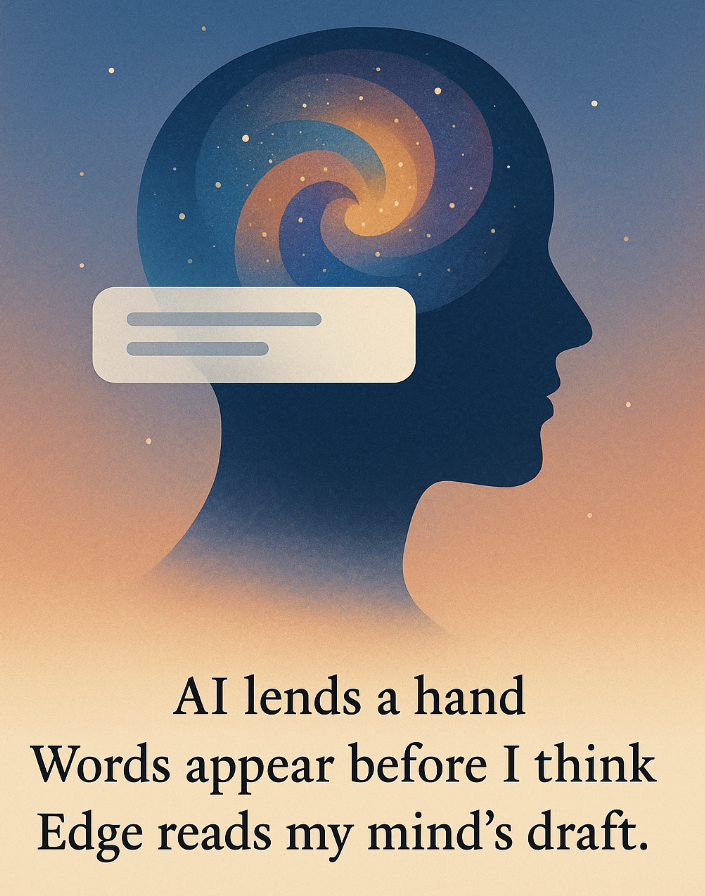
AI lends a hand,

Words appear before I think,

Edge reads my mind’s draft.

Cool Tip Pulse

🤔 What’s your favorite way to speed up writing online?


Fuel Your Adventure

Try Big Mike's Jerky!


bigmikesjerky.com


Now on TikTok!


Did You See These Cool Tips This Week?

Why Gemini's Temporary Chats Are a Game Changer for Smart Professionals

Google is introducing a new feature called Temporary Chats for its Gemini AI assistant. This mode functions like an "incognito" window for AI conversations.

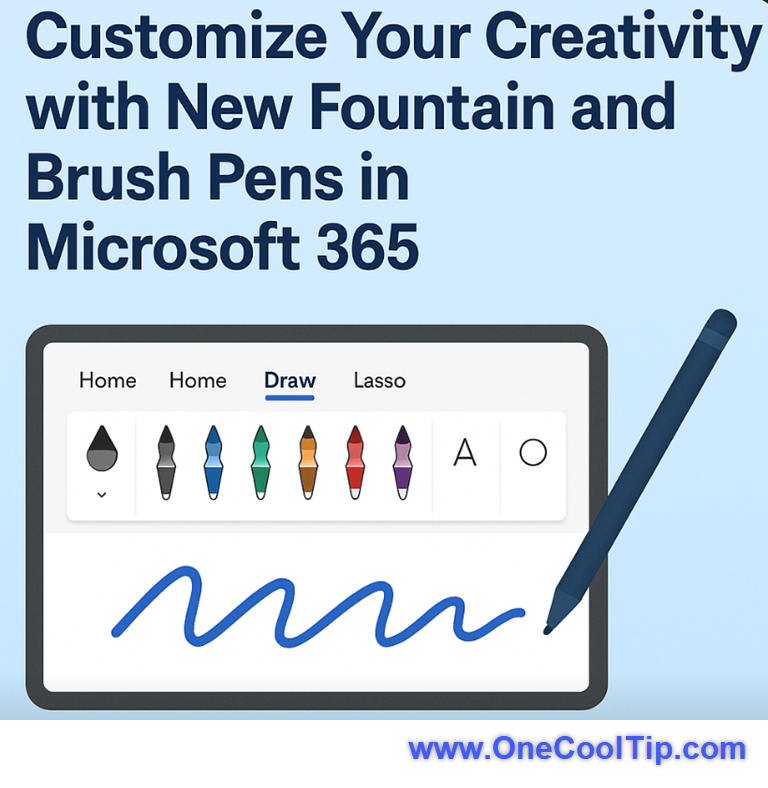
New Pen Tools in Microsoft 365

Microsoft just gave Word, Excel, and PowerPoint a subtle but powerful upgrade: new Fountain and Brush pens plus full control over your Draw tab layout. Here's how to make your digital handwriting feel more like your own.


Find Your Adventure

Looking for your next adventure?


Call Denise at Travel For You.

314.660.3039


Sign Up for the Monthly Newsletter - Deals and Specials


http://www.travelforyouvacations.com/


https://www.facebook.com/TRAVEL.FOR.U/


ICYMI - In Case You Missed It ...

How to Sign Out of All Devices on Disney Plus

Need to kick someone off your Disney+ account or just want a fresh login? 


Here’s how to remotely sign out of all devices in seconds, whether you’re protecting your account after a password share or cleaning up old logins.


One Cool Tip Video

How to Enable Dark Mode in Microsoft Paint


Do you find yourself squinting at your screen at night while using Microsoft Paint? 


Watch


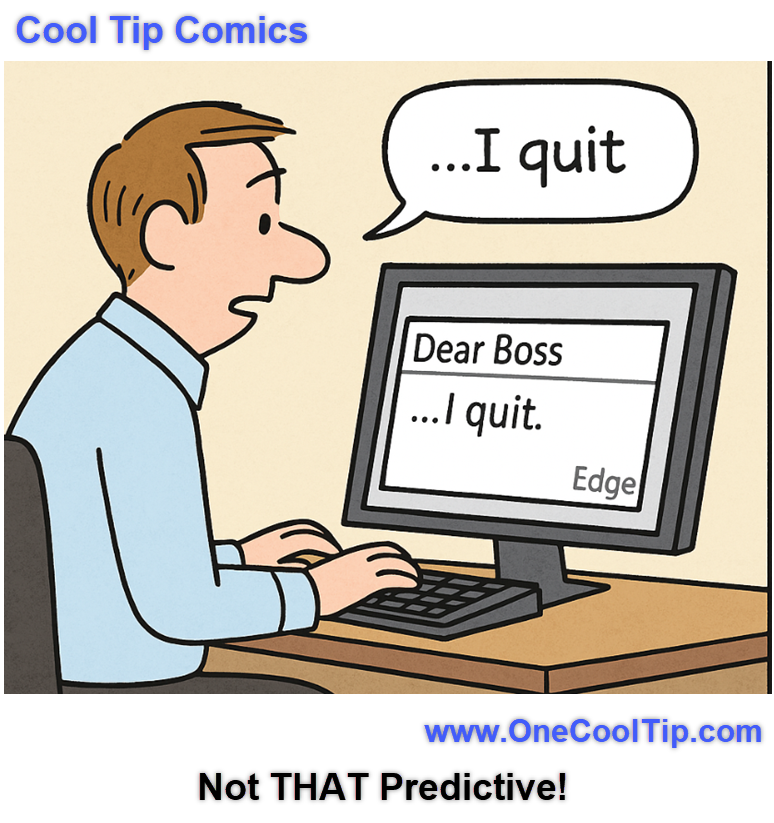
Cool Tip Comics

Edge may finish your sentences, but maybe not the ones you want your boss to read.


See You Tomorrow

Trivia Answer: D. SHRDLU


SHRDLU was a groundbreaking AI program created by Terry Winograd at MIT in 1972.


It allowed users to interact with a virtual world of blocks by using natural language commands, demonstrating a significant leap in language comprehension.


While it was not a voice assistant, it was a pivotal project in natural language processing (NLP) and AI, influencing the development of the voice assistants we use today.


----------


Tomorrow's Cool Tip is waiting to amaze you.


Until then, go forth and conquer the tech world with your newfound knowledge!


Be sure to visit www.OneCoolTip.com for Cool Tech Tips for a Cooler Life!


And if you Like One Cool Tip, please support with TipJar!


Enjoy!


Rodger

Chief Cool Tipper

onecooltip.com@gmail.com


What Do You Think?

What do you think of today's OneCoolTip newsletter?

Please Share the One Cool Tip Newsletter!


You asked for it. You got it. There is now a One Cool Tip Newsletter archive. Did you delete a newsletter and want to read it again? Check it out HERE.


Want to help One Cool Tip grow? Please forward this email using the link above. And if you see an OCT social media post, please LIKE, COMMENT and SHARE!


Have you subscribed to the One Cool Tip YouTube channel? Subscribe HERE.

X Share This Email
LinkedIn Share This Email

Connect with One Cool Tip!!

Facebook  X  Instagram  Web  Pinterest  YouTube  LinkedIn
 

As an Amazon Associate, One Cool Tip may earn a small commission from qualifying purchases.


Our media content is intended solely for informational purposes only. Please do not construe anything here as legal, tax, investment, financial, marital or other advice.


Copyright © 2025 | www.OneCoolTip.com | All Rights Reserved