|
One Cool Tip Newsletter
June 4, 2026
| Your daily dose of tech-savvy brilliance! | |
😀Greetings! Happy Apple Thursday, Cool Tipper!
Get ready to streamline your digital life with simple, actionable tips delivered straight to your inbox.
Cool Tip Theme: Notes on Apple Watch
New here? Subscribe to the One Cool Tip Newsletter for daily updates. It's FREE!
| |
3️⃣
If you enjoy the One Cool Tip newsletter, please forward this newsletter to THREE friends or colleagues or share it on social media using the links below.
Leave a $$$ Tip!
Share this One Cool Tip Newsletter!
| | |
🚨Fake Job Offers Could Be a Front for Foreign Intelligence🚨
A new federal warning highlights a growing online threat: fake job postings designed to steal sensitive information from unsuspecting applicants.
According to the alert (pdf) from the FBI, foreign intelligence actors are increasingly using professional networking sites and freelance job platforms to target people who may have access to valuable information.
What’s happening?
Scammers, and in some cases, foreign intelligence operatives, are posing as recruiters offering legitimate-looking jobs.
These opportunities often appear on trusted platforms like LinkedIn or popular freelance sites.
Here’s how the scheme typically works:
-
Initial contact: You’re approached by someone claiming to represent a consulting firm, think tank, or recruiting agency.
-
Fake hiring process: Interviews may be conducted online, often with vague or overly broad job descriptions.
-
“Test assignments”: You’re asked to produce research or reports (which may seem harmless).
-
Escalation: Requests gradually shift toward non-public, sensitive, or insider information.
The goal is to build trust over time and extract valuable data.
Who’s at risk?
While anyone could be targeted, the alert notes higher risk for people with:
- Experience in government, defense, or security fields.
- Access to confidential or proprietary information.
- Roles in academia, journalism, policy, or research.
- Connections to industries tied to national security or economic strategy.
Red flags to watch for
Be cautious if a job opportunity includes:
- Vague descriptions of the “client” or end user.
- Requests for non-public information or insider insights.
- Recruiters who avoid sharing verifiable company details.
- Pressure to move conversations off-platform.
- Payment offers that seem high for minimal work.
How to protect yourself
- Research the company and recruiter independently.
- Verify job postings through official company websites.
- Never share confidential information, even in “sample work”.
- Keep communication on trusted platforms whenever possible.
- Trust your instincts. If it feels off, it probably is.
If you think you’ve been targeted, Report suspicious activity to the FBI’s IC3 at:
👉 Report a cybercrime or scam
Bottom line
Not all scams are about quick cash grabs.
Some are long-term schemes designed to collect valuable information, and they often start with something as simple as a job offer.
Staying informed is your first line of defense.
And in Other News...
- New App Rules for Texas Families Take Effect Today
If you live in Texas and share an Apple Account with your kids, you are about to notice some major changes when downloading apps.
Following a recent court ruling on Texas law SB 2420 (pdf), Apple is rolling out strict new age-verification and parental consent rules for all Texas-based accounts starting today, June 4, 2026.
Here is what you need to know about how this impacts your iPhone, iPad, and Apple Watch apps:
-
Mandatory Parental Consent: For users under the age of 18, parents or guardians must now explicitly give permission for any new app downloads, in-app purchases, or even "significant changes" to apps they already own.
-
The Power to Revoke: Parents now have the right to completely revoke their consent. If you decide an app your child is using is no longer appropriate, you can pull the plug, and the App Store will instantly notify the app developer to restrict access.
-
Behind the Scenes: App developers are being given new tools by Apple to check age categories and flag when an app gets a major update that might require a parent to re-approve it.
What you need to do:
If you manage a family sharing plan in Texas, keep an eye out for new prompt screens the next time your teen or child tries to grab a new game or buy in-game digital items.
| | |
Help support One Cool Tip. Use this Amazon link when you shop online.
Check out these Cool Deals:
🔌 Apple Watch Magnetic Fast Charger to USB-C Cable: A smart spare charger for your desk, travel bag, or nightstand, especially if you use Apple Watch Notes throughout the day. Save 14% Now $24.99 Check it out on Amazon!
⚡ Belkin MagSafe 3-in-1 Wireless Charging Stand: Good for charging iPhone, Apple Watch, and AirPods together so your watch is ready for note capture in the morning. Save 45% Now $54.99 Check it out on Amazon!
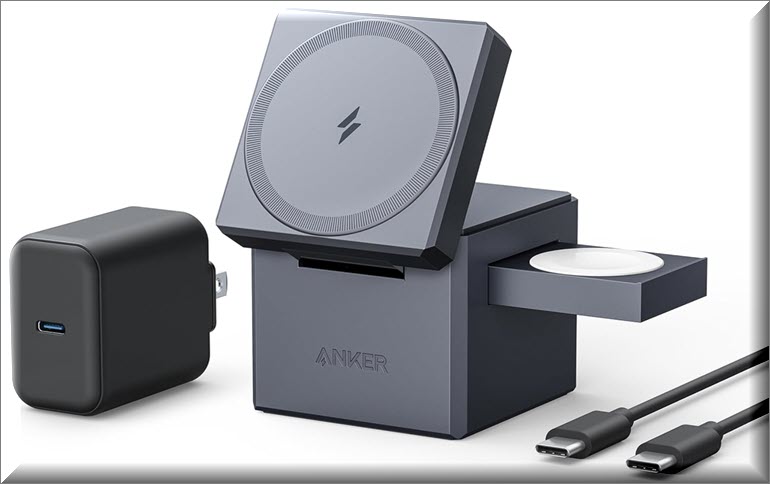
🧳 Anker 3-in-1 Cube Wireless Charger: A compact travel-friendly charging station for keeping your Apple setup powered on trips. Save 31% Now $89.99 Check it out on Amazon!
*Prices accurate when originally published.
One Cool Tip may earn a commission from qualifying purchases.
| | |
Create Notes on Apple Watch Without Reaching for Your iPhone
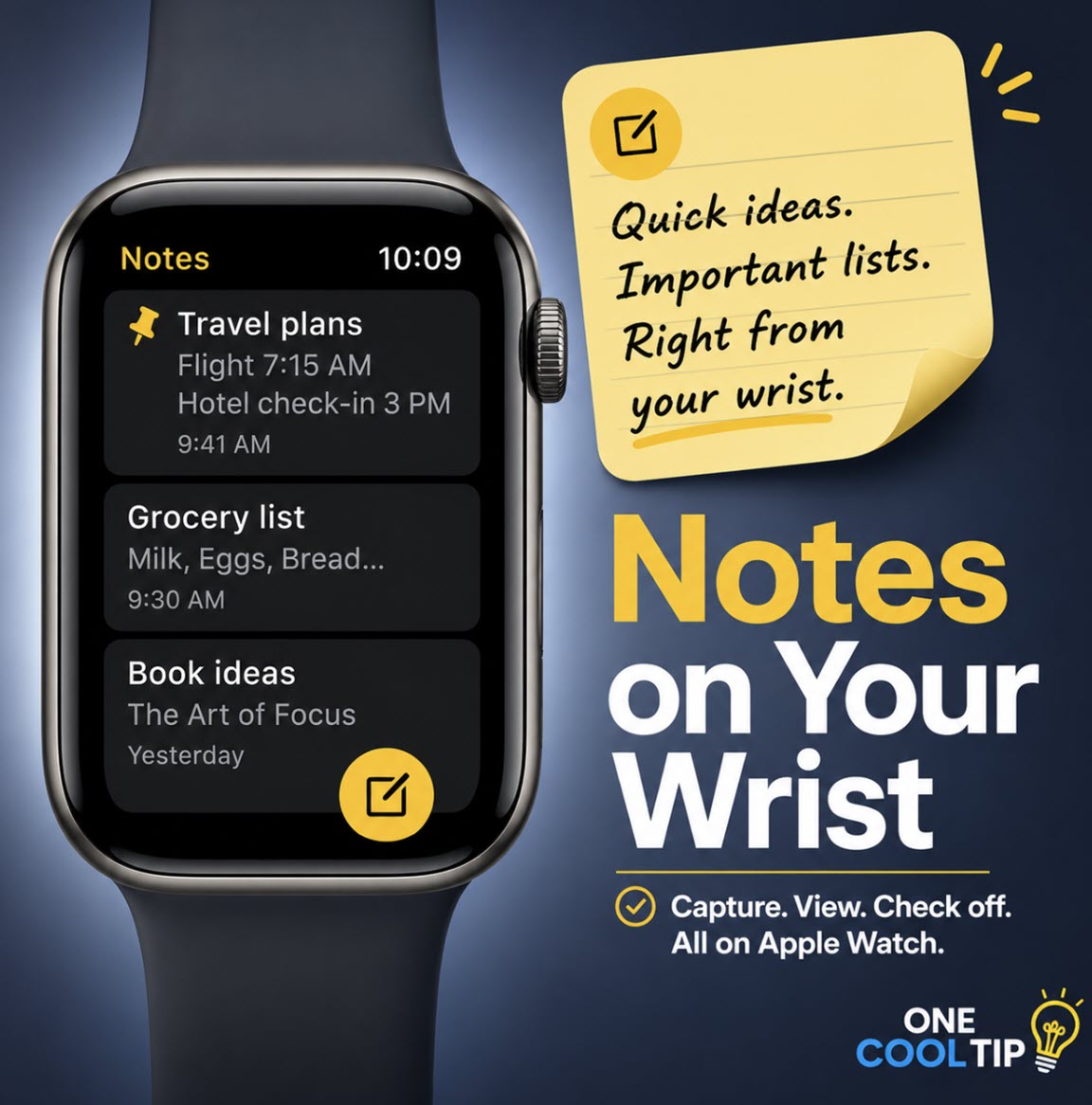
Apple Notes finally has a practical place on your wrist, letting you capture quick thoughts and view important iCloud notes from Apple Watch. This Cool Tip shows what works, what does not, and how to make wrist-based notes genuinely useful.
You are walking through a store, boarding a flight, sitting in a meeting, or heading out for a walk when a quick thought pops into your head.
Here's a Cool Tip: Create and Read Notes on Your Apple Watch.
Apple has added Notes to Apple Watch in watchOS 26, giving users the ability to create new notes, view existing iCloud notes, and complete checklist items from the wrist.
There is one important catch: you cannot fully edit existing notes on Apple Watch.
For that, you still need your iPhone, iPad, or Mac, with changes syncing through iCloud.
Feature Explanation
The Notes app on Apple Watch is a wrist-friendly version of Apple Notes.
It is designed for quick access, fast capture, and lightweight review, not heavy writing.
With watchOS 26, Apple Watch users can create a new note, ask Siri to start one, view existing iCloud notes, scroll through notes, open a note, complete checklist items, pin important notes, and delete notes.
Pinned notes appear at the top of the watch list, and recent notes appear first.
The feature matters because many notes are not essays.
They are reminders, packing lists, errands, meeting follow-ups, parking locations, gift ideas, and quick observations.
Those are exactly the kinds of notes that benefit from being available on the smallest screen you already wear.
What You’ll Gain
- Save time by capturing quick thoughts without opening your iPhone.
- Reduce missed ideas by using Siri to start a note while moving.
- Keep key lists handy by pinning important notes.
- Update simple checklists from your wrist.
Step-by-Step Instructions
Here's how to do it.
Apple Watch
-
Press the Digital Crown to open the app list.
-
Open the Notes app.
-
Tap the New Note button.
-
Enter your text using the itty-bitty keyboard (on supported models) or select the keyboard to change to voice.
-
Tap Done to save the note.
| | fig. 1 - Take Notes From Your Apple Watch | | |
Create a Note with Siri:
-
Raise your wrist or activate Siri or say "Siri" or "Hey Siri".
-
Enter or dictate your text (to use Siri, be sure to have voice selected).
-
Confirm or save when prompted.
View a Note on Apple Watch:
-
Open the Notes app on Apple Watch.
-
Scroll through the list.
-
Tap a note to open it.
-
For older notes, use the expand option to jump through months and years.
Pros and Cons
Pros:
-
Fast capture: Great for quick thoughts, errands, and reminders.
-
Siri support: Useful while walking, driving with CarPlay context, cooking, or carrying bags.
-
iCloud sync: Notes created on Apple Watch can appear on your signed-in Apple devices.
-
Checklist support: Handy for shopping lists, packing lists, and basic task tracking.
-
Pinning: Keeps the most useful notes at the top of the watch list.
Cons:
-
Limited editing: Existing notes cannot be fully edited on Apple Watch.
-
Formatting gaps: Some formatting and attachments, including tables and audio recordings, may not appear on Apple Watch.
-
iCloud dependency: The best experience requires iCloud-synced Notes.
-
Small screen: Long notes are better handled on iPhone, iPad, or Mac.
Feature Access
-
Supported platform: Apple Watch with watchOS 26, paired with iCloud Notes for syncing.
-
Account requirement: Apple Account with iCloud Notes enabled for cross-device sync.
-
Subscription requirement: No paid subscription is identified in Apple’s documentation.
-
Availability note: Availability may still depend on device compatibility, software version, iCloud settings, and Apple Account configuration.
Score
Criterion | Score (0–10) | Justification
Value | 8
Quick note capture and checklist access solve a real daily problem, especially when your iPhone is not convenient.
Usability | 7
The basics are easy, but the inability to fully edit existing notes may surprise users.
Wow Factor | 6
It is useful and overdue, but it is more practical convenience than flashy innovation.
Total: 21/30 | 👍 Good
Apple Watch Notes is a good, practical upgrade for quick capture and lightweight reference.
Compared with Reminders, Notes is better for loose thoughts and reference lists, while Reminders is better for due dates, alerts, and task management.
Key Takeaways
Apple Watch Notes is best for quick capture, fast reference, and simple checklist updates.
Use it to start notes on the go, but keep serious editing, formatting, and organization on iPhone, iPad, or Mac.
Cool Tip Snapshot
-
Feature Name: Notes on Apple Watch
-
Platform(s): Apple Watch, iPhone, iPad, Mac through iCloud Notes
-
Quick Benefit: Create and view notes from your wrist
-
Best For: Quick ideas, lists, errands, travel reminders, meeting follow-ups
-
Access Type: Free
-
Difficulty: Easy
Try It Yourself
Try creating one quick note from your Apple Watch today, then open it later on your iPhone or Mac to expand it.
Share this Cool Tip with family, friends, and coworkers, and leave a comment with your favorite Apple Watch shortcut.
READ MORE
Read the Cool Tip on OneCoolTip.com.
| | |
Check out these Cool Tips & Tricks.
-
Use Siri: Start notes faster by asking Siri to create a new note. Say, “Start a new note,” then dictate the idea.
-
Pin Priorities: Keep your most-used notes at the top of the list. Swipe right on a note, then tap the Pin button.
-
Think Short: Use Apple Watch Notes for quick thoughts, not long writing. Create the note on Watch, then expand it later on iPhone or Mac.
-
Checklists: Use checklist notes for groceries, packing, and errands. Open the note on Apple Watch, then tap items as you complete them.
-
Sync First: Make sure iCloud Notes sync is enabled before relying on Watch notes. On iPhone, go to Settings > your name > iCloud > Notes.
-
Avoid Tables: Do not depend on Apple Watch for notes with tables or complex attachments. Open those notes on iPhone, iPad, or Mac instead.
-
Use Pinned Travel Notes: Pin hotel, flight, packing, or excursion notes before a trip. Open Notes on Apple Watch when you need quick access.
-
Clean Up Later: Delete notes you no longer need from the watch. Swipe left on a note, then tap Delete.
-
Recover Mistakes: Deleted notes can be recovered from Recently Deleted on iPhone for 30 days. Open Notes on iPhone and move the note back.
-
Pair With Reminders: Use Notes for flexible information and Reminders for alerts. Put reference details in Notes and time-sensitive tasks in Reminders.
| | ICYMI - In Case You Missed It ... | | | | |
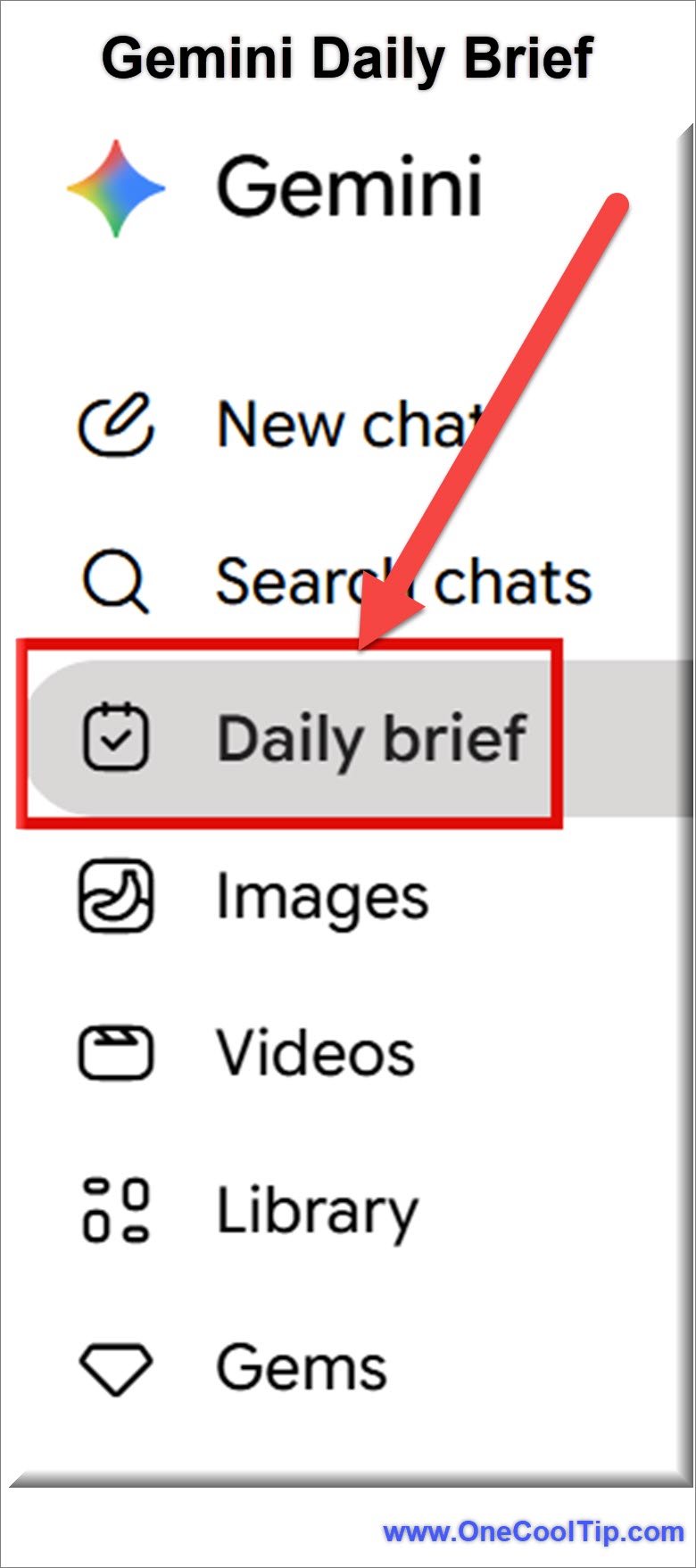
Move Beyond Chatting and Start Creating with Gemini File Generation
Gemini has evolved from a simple chatbot into a functional file creator that can generate and download documents directly from your prompts. This new capability streamlines the transition from a rough idea to a polished, shareable file without the manual heavy lifting of formatting.
Read the Full Cool Tip.
Read the Newsletter Version.
| | |
Tomorrow's Cool Tip is waiting to amaze you.
Until then, go forth and conquer the tech world with your newfound knowledge!
Be sure to visit www.OneCoolTip.com for Cool Tech Tips for a Cooler Life!
And if you Like One Cool Tip, please support with TipJar!
Enjoy!
Rodger
Chief Cool Tipper
onecooltip.com@gmail.com
| |
| What do you think of today's OneCoolTip newsletter?
| | | | Connect with One Cool Tip!! | | |
|
As an Amazon Associate, One Cool Tip may earn a small commission from qualifying purchases.
Our media content is intended solely for informational purposes only. Please do not construe anything here as legal, tax, investment, financial, marital or other advice.
Copyright © 2026 | www.OneCoolTip.com | All Rights Reserved
|
| | | |