One Cool Tip Newsletter

April 21, 2026

Your daily dose of tech-savvy brilliance!

😀Greetings! Happy Techy Tuesday, Cool Tipper!


Get ready to streamline your digital life with simple, actionable tips delivered straight to your inbox.


Cool Tip Theme: Side-by-Side View in Gemini


New here? Subscribe to the One Cool Tip Newsletter for daily updates. It's FREE!

3️⃣

If you enjoy the One Cool Tip newsletter, please forward this newsletter to THREE friends or colleagues or share it on social media using the links below.


Leave a $$$ Tip!


Share this One Cool Tip Newsletter!

X Share This Email
LinkedIn Share This Email
Pinterest Share This Email

🚨Google’s $135 Million Android Settlement🚨


If you’ve used an Android phone in the U.S. anytime since November 12, 2017, you may be eligible for a small payout from Google’s new $135 million settlement in Taylor v. Google LLC.


The lawsuit alleged that Google used paid cellular data to transfer information without user consent.


Eligible users can visit the official settlement website to submit a claim.


Payments are capped at $100 per person, though the final amount depends on how many users apply.


A court hearing on June 23, 2026, will determine whether funds are distributed.


Google has not admitted wrongdoing but agreed to update its Google Play Terms of Service to clarify how cellular data is used for background transfers.


Cool Tip:


Check your email for a settlement notice or visit the official claim site to see if you qualify.


Even if the payout is small, it’s a reminder to review your privacy settings and data permissions regularly.

Cool Deals of the Day

Help support One Cool Tip. Use this Amazon link when you shop online.


Check out these Cool Deals:


🖥️ SAMSUNG 34-Inch ViewFinity S65UC Series Ultrawide Monitor: More screen real estate makes side-by-side browsing even better. Save 30% Now $379.99 Check it out on Amazon!


🖱️ Logitech Pebble 2 M350S Wireless Mouse: Slim and portable for those who research on the go. Save 8% Now $22.95 Check it out on Amazon!


💡 BenQ ScreenBar Monitor Light: Reduce eye strain while reading those side-by-side documents. $199.00 Check it out on Amazon!


*Prices accurate when originally published.

One Cool Tip may earn a commission from qualifying purchases.

Fuel Your Adventure

Try Big Mike's Jerky!


bigmikesjerky.com


Now on TikTok!


Today's Cool Tip

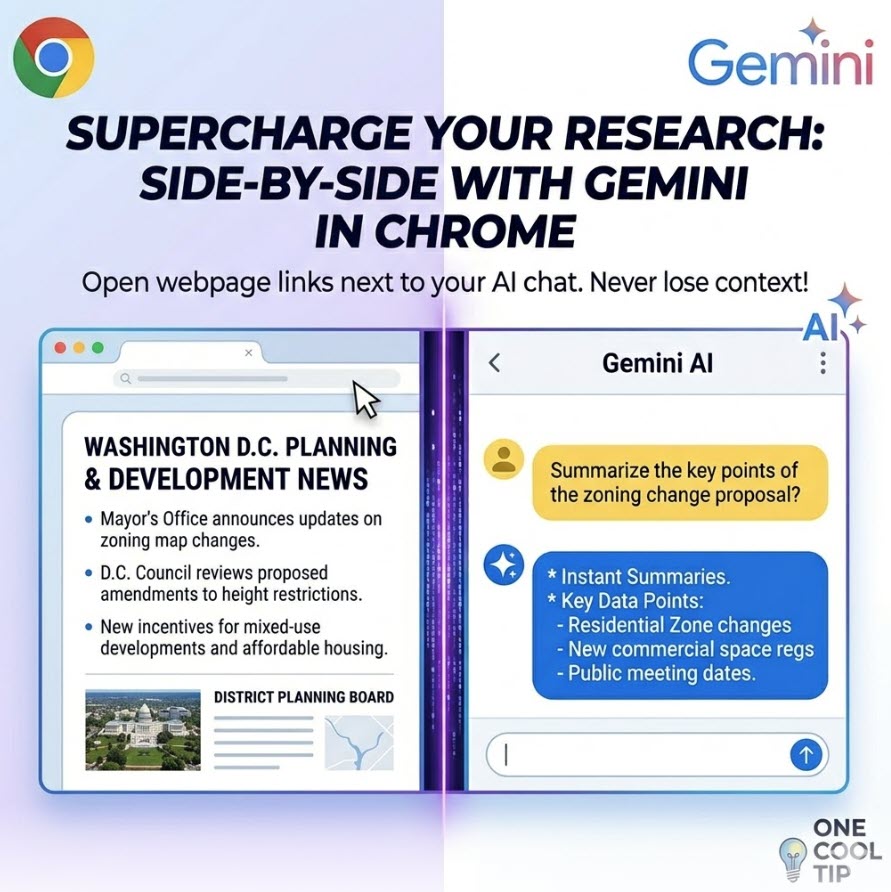
Supercharge Your Research: How to Open Links Side-by-Side with Gemini


Stop flipping between tabs and start multitasking like a pro with Chrome’s new split-screen AI research mode. Google Chrome now allows you to open links directly into a side-by-side view while keeping your Gemini AI chat active. This guide shows you how to use this new layout to verify facts and browse sources without ever losing your place in the conversation.


Have you ever been deep in a productive session with an AI assistant, only to have your flow interrupted because clicking a reference link hijacked your entire screen? 


It is a common frustration for anyone using AI for deep research or complex planning. 


You click a source to verify a fact, and suddenly your chat window is gone, buried under a new tab. 


Here's a Cool Tip:  Use the New Side-by-Side Search feature in Gemini.


With the latest update to Chrome, clicking links within Gemini now opens the target webpage in a side-by-side view, keeping your AI assistant and your research material perfectly in sync.


Feature Explanation


The new "Side-by-Side" mode is a structural change to how Chrome handles links generated within the Gemini interface. 


Previously, clicking a link meant navigating away or managing multiple windows. 


Now, Chrome leverages its side panel architecture to create a split-screen environment. 


When Gemini provides a source or a suggested link, clicking it anchors the AI chat to one side while the website loads in the main browsing area. 


This matters because it allows for real-time verification and simultaneous reading. 


You can look at the website while still seeing your prompts, making it significantly easier to ask follow-up questions about specific sections of the page.


What You’ll Gain


  • Seamless Context: Keep your AI conversation visible while you browse the sources it provides.
  • Faster Fact-Checking: Verify AI claims instantly by looking at the source side-by-side.
  • Reduced Tab Clutter: Avoid opening dozens of background tabs that you will likely forget to check.


Step-by-Step Instructions


Here's how to do it.


Windows, macOS, and ChromeOS


  1. Open Google Chrome and navigate to gemini.google.com or open Gemini in the Side Panel.
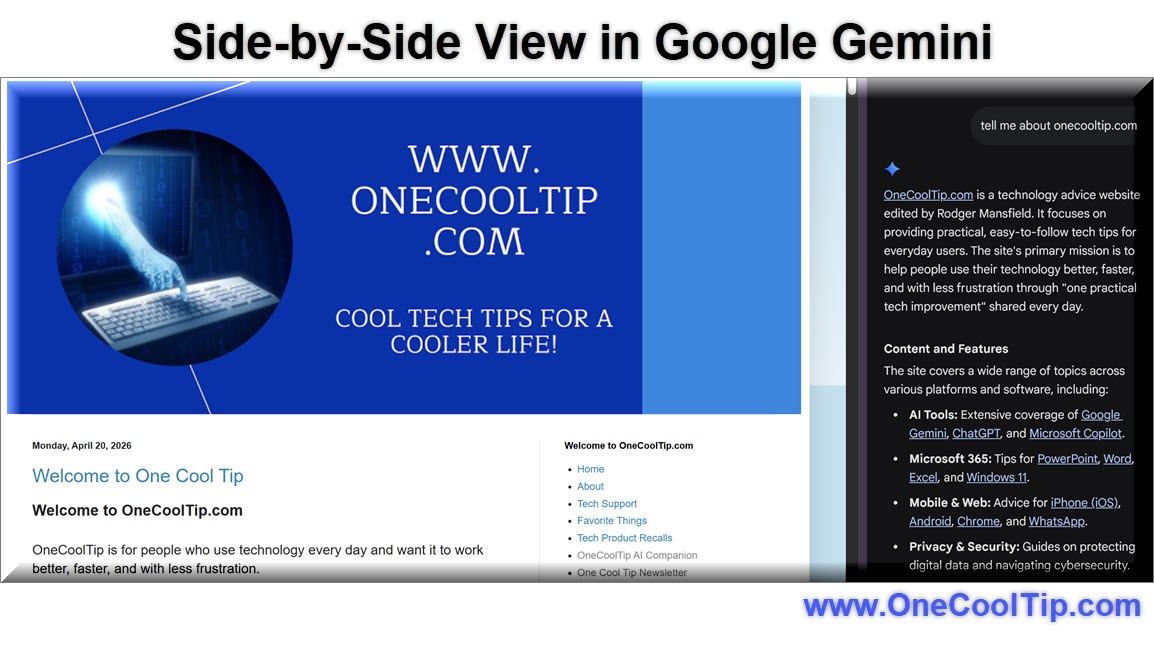
  2. Enter a prompt that requires sources, such as "Find the latest quarterly earnings for Google" or "Tell me about One Cool Tip.com"
  3. When Gemini provides a response with clickable links or citations, simply click the link.
  4. Notice that the webpage opens in the large main window while Gemini remains pinned to the right or left.


fig. 1 - Side-by-Side View in Gemini

Pros and Cons


Pros:


  • Eliminates the "back and forth" fatigue of switching between tabs.
  • Maintains the thread of complex conversations while exploring external data.


Cons:


  • On smaller laptop screens, the split-view can feel a bit cramped.
  • Some websites with heavy sidebars may require horizontal scrolling in this mode.


Feature Access


This side-by-side capability is currently rolling out to all users on Chrome Version 128 and higher 


It is available on all desktop platforms including Windows, macOS, and ChromeOS.


Score

Criterion | Score (0–10) | Justification
Value 10 
Solves the single biggest workflow pain point for AI users.
Usability 9 
It happens automatically, making it very intuitive for most users.
Wow Factor 7 
It is a practical utility update rather than a flashy visual trick.
Total: 26/30 |  🌟 Excellent
This is a mandatory update for anyone who uses AI as a serious research tool, providing the workspace organization we have needed since Gemini launched.


Key Takeaways


The side-by-side feature in Chrome ends the era of tab-switching during AI sessions.


By keeping the chat and the source in one view, users can work faster and with much higher accuracy.


Cool Tip Snapshot


  • Feature Name: Gemini Side-by-Side View.
  • Platform(s): Windows, macOS, ChromeOS.
  • Quick Benefit: Opens links without losing your AI chat window.
  • Access Type: Free for all Chrome users.


Try It Yourself


Ask Gemini to find a recipe for dinner tonight. 


When it gives you a link, click it and watch how the page opens right next to your chat. 


If this saves you a few clicks, please share this Cool Tip with your family, friends and team to help them boost their efficiency too.


READ MORE


Read the Cool Tip on OneCoolTip.com.

Check out these Cool Tips & Tricks.


  • Side-by-Side: Open links from AI directly into a split view. Simply click any link inside the Gemini chat window.


  • Resize View: Adjust the width of your split screen. Click and drag the divider line between the webpage and the AI panel.


  • Quick Close: Exit the split view instantly. Click the small "X" at the top of the side panel to return to a full-screen webpage.


  • Source Check: Verify AI claims by seeing the site instantly. Use side-by-side mode to compare the AI's summary with the actual text.


  • Contextual Q&A: Ask questions about the page you just opened. With the site open on the left, ask Gemini to "Find the price on this page."


  • Link Dragging: Open any link in the side panel manually. Drag a URL from the address bar or a page into the side panel icon.


  • Pin Gemini: Keep your assistant ready at all times. Click the side panel icon and select the pin icon to keep Gemini available.


  • Multiple Sources: Open several links in sequence. Each new click updates the main window while keeping your chat history intact.


  • Mobile Sync: View your history on your phone. Links opened in side-by-side mode still appear in your standard Chrome history.


  • Keyboard Toggle: Open the side panel without your mouse. Press Ctrl + Shift + L (Windows) or Cmd + Shift + L (Mac) to toggle the view.


ICYMI - In Case You Missed It ...

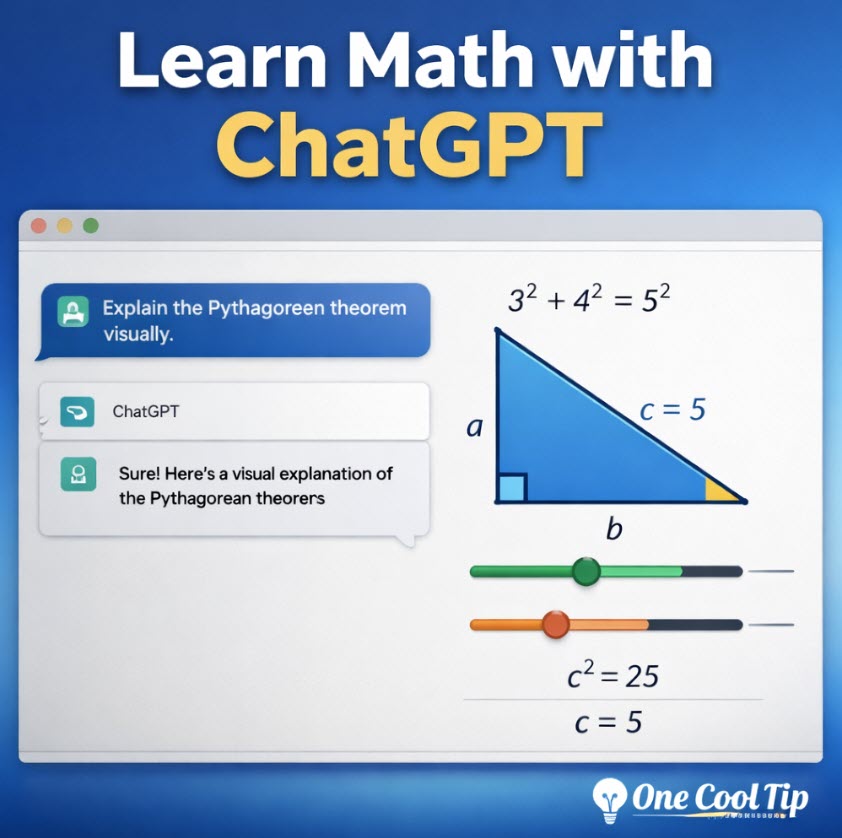
Learn Math with ChatGPT Using Interactive Visuals That Actually Make Sense


See formulas move, variables respond, and hard concepts click faster. ChatGPT’s new interactive math and science visuals turn abstract lessons into something you can test, tweak, and understand.


Read the Full Cool Tip.


Read the Newsletter Version.

Looking for your next adventure?


Call Denise at Travel For You.

314.660.3039


Sign Up for the Monthly Newsletter


http://www.travelforyouvacations.com/


https://www.facebook.com/TRAVEL.FOR.U/


See You Tomorrow

Tomorrow's Cool Tip is waiting to amaze you.


Until then, go forth and conquer the tech world with your newfound knowledge!


Be sure to visit www.OneCoolTip.com for Cool Tech Tips for a Cooler Life!


And if you Like One Cool Tip, please support with TipJar!


Enjoy!


Rodger

Chief Cool Tipper

onecooltip.com@gmail.com


What Do You Think?

What do you think of today's OneCoolTip newsletter?
Positive        Neutral        Negative
X Share This Email
LinkedIn Share This Email

Connect with One Cool Tip!!

Facebook  X  Instagram  Web  Pinterest  YouTube  LinkedIn
 

As an Amazon Associate, One Cool Tip may earn a small commission from qualifying purchases.


Our media content is intended solely for informational purposes only. Please do not construe anything here as legal, tax, investment, financial, marital or other advice.


Copyright © 2026 | www.OneCoolTip.com | All Rights Reserved