One Cool Tip Newsletter

May 10, 2026

Your daily dose of tech-savvy brilliance!

😀Greetings! Happy Sunday, Cool Tipper!


Get ready to streamline your digital life with simple, actionable tips delivered straight to your inbox.


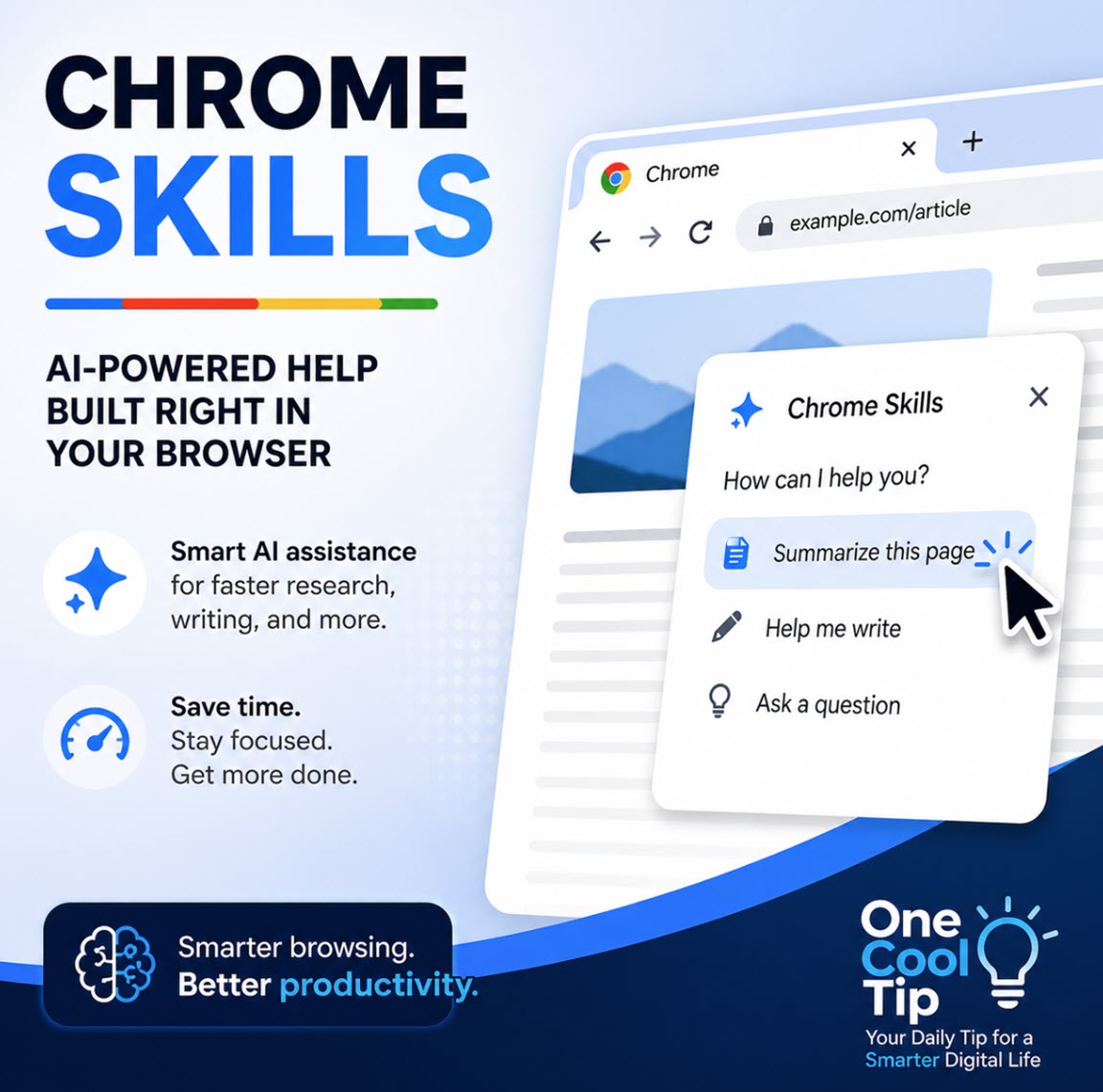
Cool Tip Theme: Chrome Skills


New here? Subscribe to the One Cool Tip Newsletter for daily updates. It's FREE!

3️⃣

If you enjoy the One Cool Tip newsletter, please forward this newsletter to THREE friends or colleagues or share it on social media using the links below.


Leave a $$$ Tip!


Share this One Cool Tip Newsletter!

X Share This Email
LinkedIn Share This Email
Pinterest Share This Email

🚨“Remote Workers” Scam Hits Home🚨


Two Americans were just sentenced to 18 months in prison for helping North Korean IT workers pretend to be U.S.-based remote employees, a scheme that pulled in over $1.2 million for the North Korean government.


Here’s how the scam worked:


U.S. companies mailed laptops to what they thought were new remote hires.


The Americans in the scheme then forwarded those laptops overseas, where North Korean workers secretly logged in through remote desktop tools and did the jobs under stolen identities.


Why you should care:


Scammers are getting better at blending into everyday online life, including remote work, job boards, and identity theft.


Even if you’re not hiring anyone, your identity, Wi‑Fi, or devices could be targeted to help pull off similar schemes.


How to protect yourself:


  • Freeze your credit to stop identity thieves from opening accounts in your name.
  • Use strong, unique passwords and a password manager.
  • Turn on two‑factor authentication everywhere you can.
  • Watch for unexpected packages; scammers sometimes use real addresses to mask their activity.


A strange package or a stolen identity can be more than an annoyance; it might be part of a much bigger scheme.


And in Other News...


  • Chrome’s Quiet 4GB AI Download


Google Chrome has been quietly downloading a 4GB on‑device AI model called Gemini Nano to power features like writing help, page summaries, scam detection, and tab organization, even if you didn’t realize you enabled them.


If these features are on, Chrome creates a large file named weights.bin on your computer. You can delete it manually, but it will return unless you turn off on‑device AI.


How to stop it:


  1. Open Chrome Settings
  2. Select System
  3. Toggle off On‑device AI


Chrome will remove the model and stop future downloads.


A simple switch frees up gigabytes, worth checking if your storage is tight.


Everything is a trade-off.


I'm leaving mine on.

Cool Deals of the Day

Help support One Cool Tip. Use this Amazon link when you shop online.


Check out these Cool Deals:


  • ⌨️ Logitech MX Keys S. The perfect keyboard for executing those new Chrome shortcuts with precision. $129.99 Check it out on Amazon!


  • 🖱️ Logitech MX Master 3S. Assign custom buttons to your favorite Chrome actions. $99.99 Check it out on Amazon!


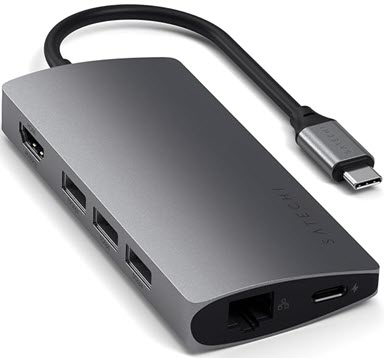
  • 💻 Satechi USB-C Multiport Adapter. Expand your workstation to handle all the tabs you’ll be organizing. $79.99 Check it out on Amazon!


*Prices accurate when originally published.

One Cool Tip may earn a commission from qualifying purchases.

Fuel Your Adventure

Try Big Mike's Jerky!


bigmikesjerky.com


Now on TikTok!


Today's Cool Tip

How to Use Google Chrome Skills


Transform your browser into a high-performance command center by using Gemini AI slash commands to summarize, chat, and organize your digital life.


Google Chrome is evolving from a simple window to the web into an intelligent assistant that can execute multi-step workflows on your behalf. By leveraging the integrated Gemini side panel, users can now summarize pages, search history, and manage tasks using slash commands.


Have you ever found yourself with fifty tabs open, a looming deadline, and no idea where that one specific research paper went? 


The average professional spends a significant portion of their day just navigating the tools they use to work. 


What if you could simply use a slash command to summarize a complex document or search your entire browsing history with a conversational query?


The era of manual browser management is fading. 


Here's a Cool Tip:  Chrome Skills.


Google is integrating Gemini AI directly into the Chrome experience.


This allows users to use the forward slash key within the Gemini panel to trigger powerful Skills that previously required dedicated AI extensions or manual copying and pasting.


Feature Explanation


The Chrome interface now features a dedicated Gemini icon, often found in the side panel or next to the address bar, that acts as your AI portal. 


While the Omnibox handles your standard web searches, clicking the Gemini icon opens a workspace where the forward slash (/) becomes your most powerful tool.


When you type a forward slash inside the Gemini chat box, a menu of preset AI actions appears. 


These Skills allow Gemini to "read" the context of your current active tab or your past activity. 


Instead of just searching for a keyword, you are using the AI to understand your intent, whether that is condensing a 20 page PDF into five bullet points or finding a specific receipt from three months ago.


What You’ll Gain


  • Instant AI Summaries: Use slash commands to get the "too long; didn't read" version of any website you are currently viewing.
  • Contextual History Search: Find exactly what you need from your past browsing using natural language prompts.
  • Streamlined Research: Access Gemini's full power in a side-by-side view without losing your place on the main page.


Step-by-Step Instructions


Here's how to do it.


Windows and macOS Desktop


  1. Open Chrome and ensure you are signed in to your Google account.
  2. Navigate to a page you wish to review.
  3. Click the Gemini icon located in the top right toolbar or the side panel.
  4. Click inside the Gemini chat input box.
  5. Type the / key. A dropdown menu appears showing Gemini-specific options.
  6. Select a Skill: Choose /summarize to have Gemini analyze the current page, or /history to search your records.
  7. Press Enter. Gemini processes the request and provides the results directly in the side panel.


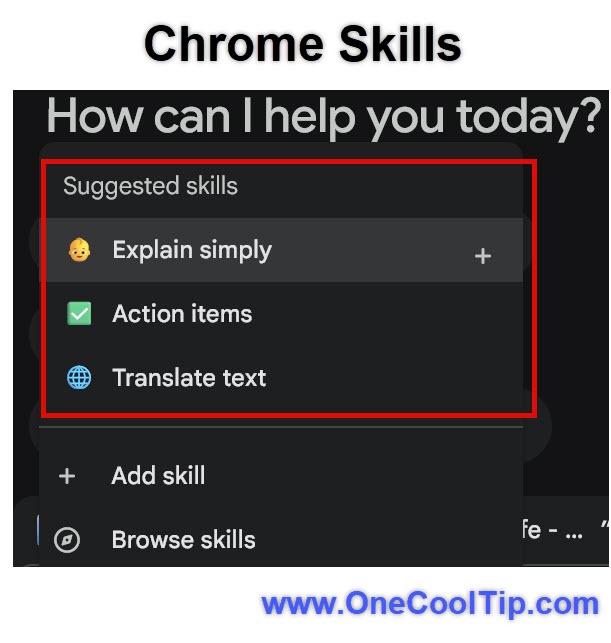
fig. 1 - Chrome Skills Example

Common Chrome Skills Commands


You can copy and paste these triggers directly into the Gemini side panel in Chrome. Note that while some are built-in, others can be created or added from the Skills Library.


Productivity & Research


  • /summarize: Generates a concise summary of the current page or document.
  • /keypoints: Extracts the most important facts and takeaways into a bulleted list.
  • /actionitems: Scans the page for deadlines, tasks, and assigned owners.
  • /explain: Simplifies complex technical jargon or difficult concepts on the page.
  • /translate: Translates the visible text into your preferred language.
  • /findfacts: Scans long-form content to verify specific claims against other open tabs.


Shopping & Analysis


  • /compare:  Creates a side-by-side table of products across all your open tabs.
  • /proscons:  Lists the advantages and disadvantages of an item based on user reviews.
  • /pricecheck:  Look for historical price data or better deals for the current product.
  • /specs:  Pulls the technical specifications into a clean, easy-to-read list.


Content Creation


  • /draftemail:  Drafts a professional email based on the information found on the page.
  • /socialpost:  Generates a short social media caption summarizing the article.
  • /rewrite: Adjusts the tone of the selected text (e.g., "more professional" or "more casual").
  • /outline:  Creates a structured outline for a blog post or report based on the current research.


Health & Utilities


  • /macros: Breaks down the nutritional information from a recipe or food blog.
  • /ingredients:  Analyzes a list of ingredients for potential allergens or specific chemicals.
  • /travel:  Pulls dates, locations, and prices from a travel itinerary or booking site.


Pros and Cons


Pros:


  • Side-by-side integration allows you to work with AI without constantly switching tabs.
  • Slash commands provide a consistent, fast interface for power users who want to avoid typing out long, repetitive prompts.


Cons:


  • Requires one extra click to open the Gemini panel before you can use the slash shortcuts.
  • Performance depends on your internet connection and the complexity of the page being analyzed.


Feature Access


These Gemini-powered skills are currently rolling out to users on Chrome stable channel (Version 125 and higher). 


These features are available to all users with a standard Google account. 


Score

Criterion | Score (0–10) | Justification
Value 9 
It eliminates the friction of moving between tabs to use AI tools.
Usability 8 
The slash menu is intuitive, though it requires opening the side panel first.
Wow Factor 8 
The ability to summarize a page in real-time right next to the source is a game changer.
Total: 25/30 |  🌟 25–30 Excellent
This update turns the Chrome side panel into a true AI assistant, making professional research and organization much faster.

Key Takeaways


The new Gemini slash commands in the Chrome side panel allow you to summarize, search, and chat with ease. 


By clicking the Gemini icon and typing a forward slash, you can let AI handle the heavy lifting of information organization while you stay focused on your primary task.


Cool Tip Snapshot


  • Feature Name: Chrome Gemini Slash Commands.
  • Platform(s): Windows, macOS, ChromeOS.
  • Quick Benefit: Provides instant AI page summaries and contextual history search in a side-by-side view.
  • Access Type (Free, Subscription, Beta): Free.


Try It Yourself


Open the Gemini panel in your browser right now and type / to see what is available. 


Try the summarize feature on this very article to see how quickly it pulls out the main points. 


If you found this tip helpful, please share this with your family, friends and coworkers to help everyone stay ahead of the curve.


READ MORE


Read the Cool Tip on OneCoolTip.com.

Check out these Cool Tips & Tricks.


  • Page Summaries: Condense long articles or complex reports into digestible bullet points instantly. Type /summarize in the Gemini side panel while viewing any text-heavy webpage.


  • Quick Fact-Checking: Verify claims by scanning your other open tabs for supporting information. Type /findfacts to see how the current page stacks up against your other research.


  • Actionable Tasks: Turn long meeting notes or project pages into a to-do list. Use /actionitems to pull out deadlines and assigned owners automatically.


  • Shopping Comparison: Stop jumping between tabs to decide on a purchase. Type /compare to generate a side-by-side table of products across all your open tabs.


  • Tone Adjustments: Change the vibe of your writing without starting over. Highlight text and type /rewrite followed by "more professional" or "more casual."


  • Email Drafting: Save time on outreach by basing your messages on current research. Type /draftemail to create a professional draft using information found on the page.


  • Allergen Alerts: Stay safe while browsing new recipes. Use /ingredients to have Gemini analyze a list for specific chemicals or potential allergens.


  • Itinerary Extraction: Organize your travel plans without the clutter. Type /travel to pull dates, locations, and prices from a booking site into a clean list.


  • Technical Simplified: Break down jargon that is over your head. Use /explain to have Gemini simplify difficult concepts or technical terms on the page.


  • Review Analysis: Get the truth about a product without reading hundreds of comments. Type /proscons to see a balanced list of advantages and disadvantages based on user reviews.

ICYMI - In Case You Missed It ...

NotebookLM Expands Your Research Universe with Epub Support


Unlock the power of your digital library by transforming standard ebooks into interactive, AI-powered research assistants.


Read the Full Cool Tip.


Read the Newsletter Version.

Looking for your next adventure?


Call Denise at Travel For You.

314.660.3039


Sign Up for the Monthly Newsletter


http://www.travelforyouvacations.com/


https://www.facebook.com/TRAVEL.FOR.U/


See You Tomorrow

Tomorrow's Cool Tip is waiting to amaze you.


Until then, go forth and conquer the tech world with your newfound knowledge!


Be sure to visit www.OneCoolTip.com for Cool Tech Tips for a Cooler Life!


And if you Like One Cool Tip, please support with TipJar!


Enjoy!


Rodger

Chief Cool Tipper

onecooltip.com@gmail.com


What Do You Think?

What do you think of today's OneCoolTip newsletter?
Positive        Neutral        Negative
X Share This Email
LinkedIn Share This Email

Connect with One Cool Tip!!

Facebook  X  Instagram  Web  Pinterest  YouTube  LinkedIn
 

As an Amazon Associate, One Cool Tip may earn a small commission from qualifying purchases.


Our media content is intended solely for informational purposes only. Please do not construe anything here as legal, tax, investment, financial, marital or other advice.


Copyright © 2026 | www.OneCoolTip.com | All Rights Reserved