|
One Cool Tip Newsletter
December 29, 2025
| Your daily dose of tech-savvy brilliance! | |
😀Greetings!, Happy Back-to-Work Monday, Cool Tipper!
Get ready to streamline your digital life with simple, actionable tips delivered straight to your inbox.
Today's Cool Tip Theme: Most Popular Microsoft 365 Cool Tips
IN THIS ISSUE
- 🚨 New Microsoft 365 Scam Alert.
- 🔮 Future Tech.
- 🤖 AI Illustration Prompt.
- 🏆 Top Microsoft 365 Tips of 2025.
- 💡 Quick Tips for Microsoft 365.
- 👀 Word Formatting Marks..
- 🎨 Excel Drawing.
- 👉 PowerPoint Pointer.
New here? Subscribe to the One Cool Tip Newsletter for daily updates. It's FREE!
-
😂 Laugh with Us! Enjoy our Tech Joke of the Day, Haiku and Cool Tip Comics.
-
🌐 Stay Informed! Check out ICYMI, and our One Cool Tip Video.
| | |
3️⃣
If you enjoy the One Cool Tip newsletter, please forward this newsletter to THREE friends or colleagues or share it on social media using the links below.
Leave a Tip!
Share this One Cool Tip Newsletter!
| | |
Today's Tech Trivia
Answer at the end of this newsletter.
| |
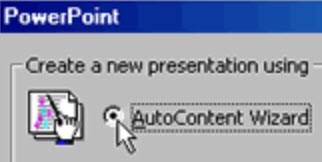
| Which Microsoft Office feature was originally called "AutoContent Wizard"? | | | |
🚨New Scam Sends Fake Microsoft 365 Login Pages🚨
Cybercriminals are launching a new phishing campaign that impersonates Microsoft security alerts. The goal is to trick you into entering your Microsoft 365 password on a fake login page.
How the Scam Works
- You receive a fake Microsoft alert email
- You’re redirected to a fake Microsoft login page
- The page is designed to steal your credentials once you sign in.
Warning Signs to Watch For
- Odd or misspelled sender addresses
- Urgent language claiming your account is at risk
- Links that don’t actually lead to Microsoft
- Requests for passwords or 2FA codes
- Unexpected attachments or QR codes
How to Protect Yourself
- Hover before you click
- Check where the link really goes.
-
Go directly to office.com
- Never log in through an email link.
And in Other News...
- New Microsoft 365 Features in 2026
Looking ahead to 2026, here are new features currently being tested. When they are widely available, you know One Cool Tip will share more!
🔢 Excel: Agent Mode with Copilot
Agent Mode can automate multistep tasks, build dashboards, clean data, and even pull live information from trusted online sources such as scientific figures or market trends.
🖼️ PowerPoint: Copilot Text Rephrasing
Instantly rewrite slide text to be more concise, more professional, or formatted as a list.
✍️ Word: Improved Keyboard Navigation
Make moving through documents with a keyboard or screen reader more intuitive and predictable.
| | |
Try this Cool ChatGPT prompt:
Professional Work Document Illustration
Do you need a professional illustration for a work project? Try this prompt.
Step 1: Clarifying Questions
“Before creating the image, ask me these questions one at a time:
- What type of document is this image for (report, proposal, presentation, training guide, internal memo, executive summary)?
- Who is the intended audience (executives, managers, staff, clients, students)?
- What tone should the image convey (formal, modern, calm, confident, innovative)?
- What setting fits best (office desk, meeting room, remote workspace, abstract workspace)?
- Should the image show people, objects, or be purely conceptual?
- Preferred color palette (neutral, blue/gray, brand colors, muted tones)?
- Any elements to avoid (faces, logos, text, devices, specific apps)?
Wait for my answers before proceeding.”
Step 2: Image Creation (after answers are provided)
- “Using my answers, create a professional, document-ready illustration suitable for business and workplace use.
- The image should be clean, realistic, and editorial in style.
- Preserve a calm, credible tone with balanced composition, soft lighting, and minimal visual noise.
- If people are included, keep expressions neutral and professional.
- If devices or work materials are shown, keep them generic and brand-agnostic.
- Do not include text, logos, watermarks, or exaggerated effects."
For example, here is a created image for an office training document on completing time sheets each week.
| | |
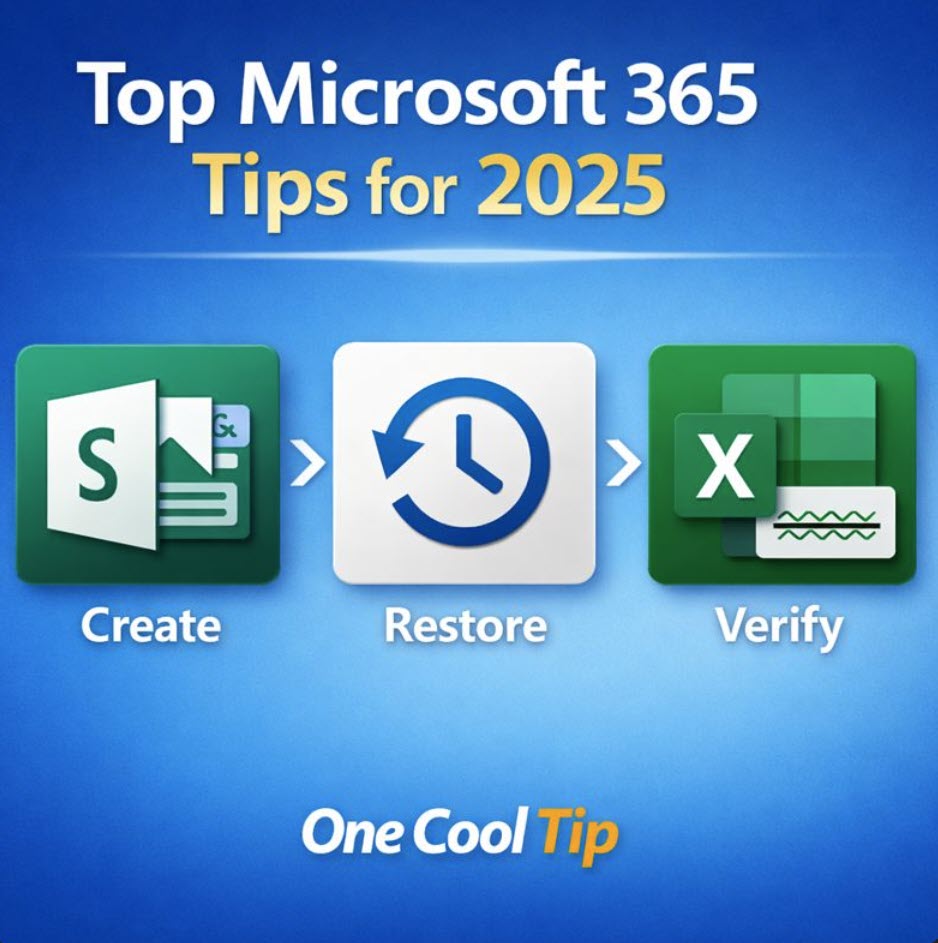
Most Popular Microsoft 365 Cool Tips of 2025
Two small Microsoft 365 habits can prevent big mistakes, and one overlooked presentation tool can make your work look far more polished in minutes. If you create slides, collaborate on documents, or live in Excel, this trio will pay you back fast.
Have you ever sent a deck that looked “fine” but not impressive, restored a file only after hours of rework, or discovered an Excel model was quietly showing old numbers?
The most popular Microsoft 365 Cool Tips of 2025 are not flashy tricks.
They are workflow upgrades that reduce rework, improve output quality, and lower the chance of decisions based on stale data.
Feature Explanation
This “best-of” set is really one modern Microsoft 365 pattern:
-
Create stunning presentations fast with Sway when you want something that looks designed, scrolls beautifully, and is easy to share. Sway is a web-based storytelling and presentation tool with themes, layout intelligence, and a “Remix!” style button that can instantly re-skin your work.
-
Use Version History like a safety net in Word, Excel, and PowerPoint so you can review prior versions, open a clean copy, or restore when collaboration goes sideways. Version History is easiest and most reliable when files live in OneDrive or SharePoint.
-
Spot stale Excel values before they burn you with Stale Value Formatting, which visually marks cells (often via strikethrough) when calculation mode is partial/manual and values have not been recalculated after upstream changes. This is the quiet productivity win for finance, ops, and anyone who models outcomes.
What You’ll Gain
Outcomes you can feel this week:
- Fewer “redo the deck” moments because the design looks intentional from the start.
- Faster recovery when a file gets overwritten or a teammate change breaks something.
- Less risk of reporting or decisions based on outdated spreadsheet results.
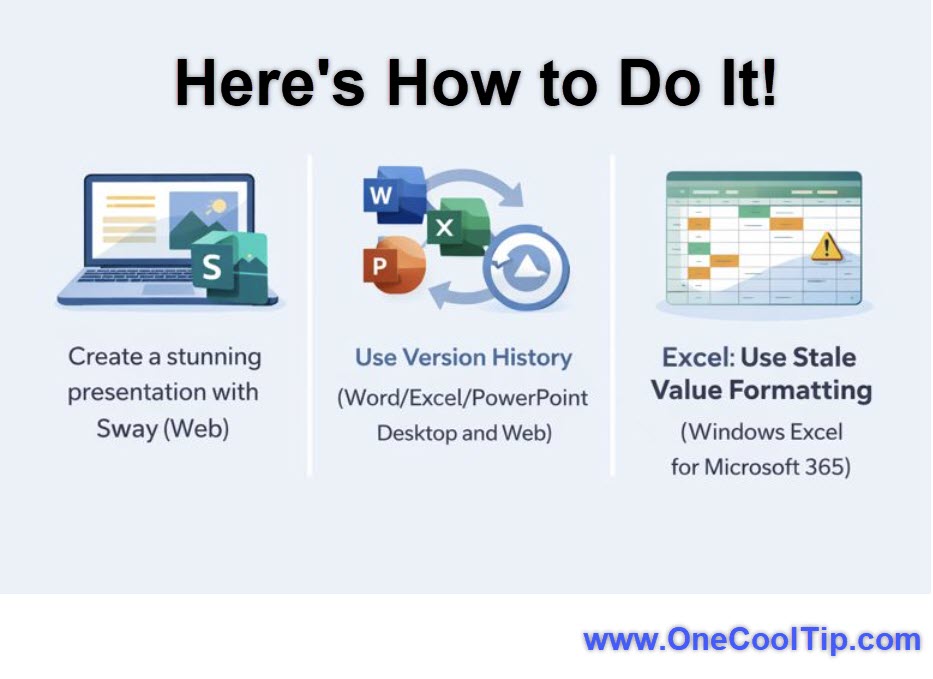
| | fig. 1 - Here's How to Do It! | |
Step-by-Step Instructions
Here's how to do it.
1. Create a stunning presentation with Sway (Web)
-
Go to sway.cloud.microsoft/ and sign in with your Microsoft account.
-
Click on "Create New" to begin a new project.
-
Use the "Insert" button to add text, images, videos, and other multimedia elements.
-
Choose from the available templates or let Sway's design engine suggest a layout for you.
-
Adjust the layout, fonts, and colors to match your preferences.
-
Use the "Preview" button to see how your presentation will look on different devices.
-
Once you're satisfied, click "Share" to get a shareable link or embed code.
Read the Full Cool Tip.
2. Use Version History (Word/Excel/PowerPoint Desktop and Web)
-
Open your document, spreadsheet, or presentation in Word, Excel, or PowerPoint.
-
Double-click the document title at the top of the window.
-
Select Version History from the dropdown menu.
-
Choose a previous version from the list, then click Restore or Compare to review changes.
Read the Full Cool Tip.
3. Excel: Use Stale Value Formatting (Windows Excel for Microsoft 365)
Update Cell Values
- Click the Stale Format icon when a cell is Stale.
- Select an option to "Calculate Now (F9)" or "Switch to Automatic Calculation".
Turn On or Off
- To disable stale value formatting, go to "Formulas" on the menu bar.
- Select "Calculation Options".
- Select/Deselect "Format Stale Values".
Read the Full Cool Tip.
Pros and Cons
Pros
-
Sway: Extremely fast path to “designed” output, great for newsletters, reports, and scrolling presentations.
-
Version History: Reduces fear of collaboration and enables rapid rollback when something breaks.
-
Stale Value Formatting: Prevents silent Excel errors in manual/partial calc workflows.
Cons
-
Sway: Web-first; if your org is “PowerPoint-only,” you may need to sell it internally.
-
Version History: Most dependable when your file lives in OneDrive/SharePoint and versioning is enabled.
-
Stale Value Formatting: Only relevant when you use partial/manual calculation; some users may dislike visual strikethrough clutter (though you can toggle it).
Feature Access
-
Sway: Available on the web; you can create a Sway from scratch or from a topic. Sharing options vary by personal vs organizational accounts.
-
Version History: Available across Microsoft 365 apps with best support when files are stored in OneDrive/SharePoint; restore steps are documented by Microsoft.
-
Stale Value Formatting: Available in Excel for Windows and documented by Microsoft; Excel Insider communications describe rollout and behavior in partial/manual calculation modes.
Score
Criterion | Score (0–10) | Justification
Value 10
Prevents rework (Version History), improves output quality (Sway), and reduces decision risk (stale values).
Usability 8
Easy once you know where the menus live, but mobile/tenant differences can hide Version History for some users.
Wow Factor 7
Not flashy, but Sway’s instant polish and Excel’s stale warnings create “how did I miss this” moments.
Total: 25/30 🌟 Excellent
This is a practical “quality + safety” bundle that beats most shiny features because it saves you from real-world failures.
Key Takeaways
If you want Microsoft 365 to feel modern, treat it like a workflow: create in a tool that speeds design, protect collaboration with Version History, and verify spreadsheet truth with stale formatting.
These three popular 2025 Cool Tips reduce the cost of mistakes more than almost anything else you can learn in an hour.
Cool Tip Snapshot
-
Feature Name: Microsoft 365
-
Platform(s): Web (Sway), Web/Desktop/Mobile (Version History varies), Windows (Excel stale formatting)
-
Quick Benefit: Better presentation polish, safer collaboration, fewer spreadsheet accuracy surprises
-
Access Type (Free, Subscription, Beta): Mixed; depends on Microsoft 365 plan and environment.
Try It Yourself
Pick one file you care about this week: convert your next update into a Sway, confirm you can open Version History on the source doc, and in Excel toggle on Format Stale Values so you can trust what you send.
Then drop a comment with what changed for you, and share this with your team, family, and friends.
READ MORE
Read the Full Cool Tip.
| | |
Help support One Cool Tip. Use this Amazon link when you shop online.
Look at these Cool Products:
| |
Prices accurate at time of publication
One Cool Tip may earn a commission from qualifying purchases.
| | |
🆒Tell Me More
- Sway’s Remix! is intentionally random so you can iterate on design quickly without becoming a part-time graphic designer.
- Version History is core to Microsoft 365’s built-in data protection in SharePoint/OneDrive, and it’s a practical defense against accidental changes and even ransomware-style incidents.
- Stale Value Formatting exists because manual/partial calculation is common in heavy models, and Excel needed a visual “do not trust this yet” signal.
- Versioning behavior is configurable at the organization, site, library, or individual OneDrive level, which explains why two people can have different “version history” experiences.
⏩Quick Tips
-
🎨 Remix Ruthlessly: In Sway, hit Remix! a few times before you edit anything deeply so you start from a design you like. How: Design → Styles → Remix!
-
🧯 Treat Version History as a habit: Before major edits, verify your file is in OneDrive/SharePoint so versions actually exist. How: Save/move the file into OneDrive/SharePoint, then check Version history.
-
🧠 Excel “trust but verify”: If you use Manual or Partial calculation, assume outputs can be stale until recalculated. How: look for stale strikethrough and press F9 to calculate.
-
🧼 Share links, not attachments: Attachments create “which version is real?” problems. How: Share a OneDrive link so everyone edits the same file, backed by versioning.
-
🧩 Use Sway for scrolling audiences: If your reader is on phones (leaders, parents, students), Sway often lands better than slides. How: build in Sway and share a read-only link.
| | ✅ More Must-Read Tech Tips | |
|
📄 Try These Microsoft 365 Cool Tips:
-
Flash Fill: Automatically fill data in Excel columns based on a pattern you provide. Type an example in the top cell and press Ctrl + E to fill the rest.
-
Edit PDFs: Open and modify PDF documents directly inside Microsoft Word without extra software. Go to File > Open, select your PDF, and click OK to convert it to an editable format.
-
Clipboard History: Access a list of multiple items you have copied recently to paste them anywhere. Press Windows Key + V to open the history pane and select the item you need.
-
Teams Mute: Quickly mute or unmute your microphone during a Teams meeting without using the mouse. Press Ctrl + Shift + M to toggle your audio status instantly.
-
Delay Delivery: Schedule an email in Outlook to be sent at a specific future time. In the message window, go to Options > Delay Delivery and set your preferred "Do not deliver before" time.
-
Quick Analysis: Instantly create charts, totals, or tables from selected data in Excel. Highlight your data range and click the small Quick Analysis icon that appears at the bottom right corner.
-
Smart Lookup: Research definitions and see web results for a term without leaving your document. Right-click any word or phrase and select Search or Smart Lookup.
-
Transpose Data: Rotate your Excel data from rows to columns or vice versa without retyping. Copy your data, right-click a new cell, and select Paste Special > Transpose.
-
Slide Zoom: Create an interactive summary slide in PowerPoint that lets you jump to different sections during a presentation. Go to Insert > Zoom > Summary Zoom and choose the slides you want to feature.
-
Dark Mode: Switch your Office interface to a darker color scheme to reduce eye strain. Go to File > Account > Office Theme and select Black or Dark Gray.
| |
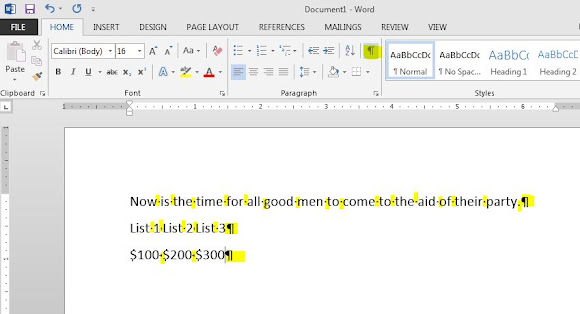
👀 How Do I Show or Hide Microsoft Word Format Marks?
One criticism of Word has always been that there are so many features that it can be easy to miss very useful ones because they get lost in the sea of menu options.
And so it is with the Show/Hide Format Marks function.
It's one of the best features of MS Word.
When you toggle on the Show Hidden Marks, you can see the specific format marks within a document, such as paragraphs, periods, and tabs.
To toggle the Show/Hide function on or off, use the Control+Shift+8 keyboard command.
In addition, the menu bar also has a ¶ option that can be toggled to Show or Hide formatting marks.
Discover more HERE.
| | |
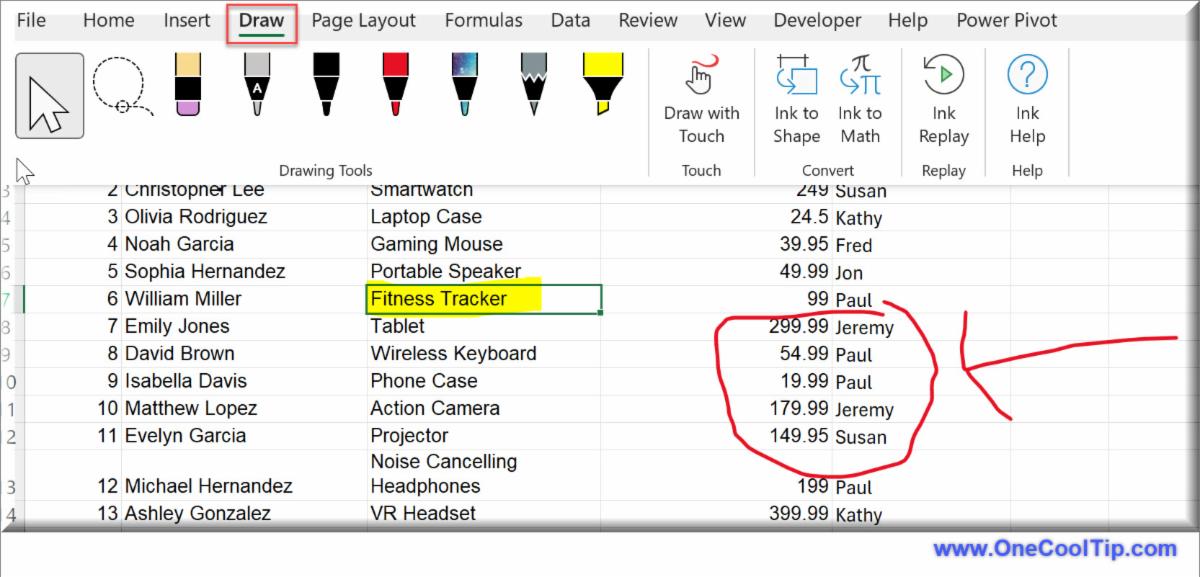
🤔 Have You Ever Wondered How to Draw in Excel?
Excel's drawing tools are a hidden gem, offering a simple and effective way to enhance your spreadsheets with visuals.
By creating diagrams, flowcharts, and illustrations directly within Excel, you can improve data visualization, communication, and overall engagement.
This integrated approach streamlines your workflow, making it easy to collaborate and share your work while saving you the expense of additional software.
With a bit of creativity and practice, Excel's drawing tools can transform your spreadsheets into dynamic and informative documents.
Here's how to do it.
Activate the Draw Tab:
-
If you don't see the "Draw" tab in your Excel ribbon, right-click on the ribbon and select "Customize the Ribbon."
-
In the customization window, check the box next to "Draw" and click "OK."
Explore the Drawing Tools:
-
The "Draw" tab offers a variety of tools, including pens, pencils, highlighters, and erasers.
- Experiment with different line colors, thicknesses, and styles.
Start Drawing:
-
Click on the desired drawing tool and start drawing directly on your worksheet.
-
Use the "Shapes" tool to insert pre-designed shapes like rectangles, circles, and arrows.
-
Combine shapes and freehand drawing to create more complex visuals.
Format Your Drawings:
-
Select a drawn object to reveal formatting options like fill color, outline color, and effects.
-
Use the "Arrange" tools to layer, group, or align your drawings.
Your drawings stay within the same Excel file, making it easy to reference them alongside your data.
Find out more HERE.
| | |
🙋♂️ Here's How to Use the Presentation Pointer in Microsoft PowerPoint.
Are you tired of fumbling around with your mouse during presentations?
Do you want to make your presentations more engaging and interactive?
If so, you’re in luck!
There's a Cool Tip on how to use the presentation pointer in Microsoft PowerPoint to make your presentations more dynamic and engaging.
Here's how to do it:
- Go into Slide Show mode.
- Press the Slide Show icon at the bottom right corner
- Press and hold the Ctrl key then Left-Click the mouse.
- A red dot will appear on the screen
- Move the red dot around the screen with the mouse to highlight key points on your slide
Learn more HERE.
| | |
❓Did you share this newsletter with three friends yet?
😎 Cool Facts
-
95%: 95% of users never change their default software settings, which means millions miss out on productivity boosters like Dark Mode or AutoSave. Source.
-
320 Million: 320 Million people now use Microsoft Teams every single day, making it the most popular business collaboration tool in history. Source.
-
42%: 42% of all Teams meetings now utilize AI-powered features like real-time captions or live translation. Source.
⌨️Today's Cool Keyboard Shortcuts
-
General: Ctrl + Z: Undo the last action.
-
Excel: F9: Recalculate now (critical when using Manual/Partial calc).
-
Excel: Ctrl + `: Toggle formula view (quick way to sanity-check what drives outputs).
-
PowerPoint: Ctrl + M: New slide.
😜 Tech Joke of the Day 😅
My coworker said, “I don’t need Version History.”
That’s exactly what he said right before he needed Version History.
🔎 Do you have a Cool Tip or tech question? Email us at onecooltip.com@gmail.com.
| | |
Slides beg for clean lines,
Remix paints the story fast,
Numbers stay honest.
| |
| 🤔 What is your biggest productivity killer? | | | | Did You See These Cool Tips This Week? | | | | Mastering Google Gemini: 3 Essential Features You Need Now | |
Unlock the full power of Google's AI with these hidden productivity, privacy, and comfort settings. Try these Top 3 Cool Tips for Google Gemini in 2025.
Read the Newsletter Version.
| | | | Top 2025 ChatGPT Cool Tips You Should Know | |
Three 2025 ChatGPT features quietly changed how people work across Apple devices, the web, and teams. If you use ChatGPT even occasionally, these tips can save time immediately and unlock capabilities many users still overlook.
Read the Newsletter Version.
| | ICYMI - In Case You Missed It ... | | | | Schedule a Call in WhatsApp | |
Make your calls more organized with a feature that lets you plan voice or video calls ahead of time. Keep your team, family, or study group aligned without juggling reminders or missed connections.
Read the Newsletter Version.
| | Version History just became a very good boy. | | |
Trivia Answer: C) Presentation Templates
In early versions of PowerPoint, the AutoContent Wizard helped users create presentations by suggesting structure and content.
It was eventually replaced by more flexible templates and, later, by AI-powered tools like Designer.
----------
Tomorrow's Cool Tip is waiting to amaze you.
Until then, go forth and conquer the tech world with your newfound knowledge!
Be sure to visit www.OneCoolTip.com for Cool Tech Tips for a Cooler Life!
And if you Like One Cool Tip, please support with TipJar!
Enjoy!
Rodger
Chief Cool Tipper
onecooltip.com@gmail.com
| |
| What do you think of today's OneCoolTip newsletter? | | | |
Please Share the One Cool Tip Newsletter!
You asked for it. You got it. There is now a One Cool Tip Newsletter archive. Did you delete a newsletter and want to read it again? Check it out HERE.
Want to help One Cool Tip grow? Please forward this email using the link above. And if you see an OCT social media post, please LIKE, COMMENT and SHARE!
Have you subscribed to the One Cool Tip YouTube channel? Subscribe HERE.
| | Connect with One Cool Tip!! | | |
|
As an Amazon Associate, One Cool Tip may earn a small commission from qualifying purchases.
Our media content is intended solely for informational purposes only. Please do not construe anything here as legal, tax, investment, financial, marital or other advice.
Copyright © 2025 | www.OneCoolTip.com | All Rights Reserved
|
| | | |