|
Personalize Your Chat in NotebookLM with Custom Goals
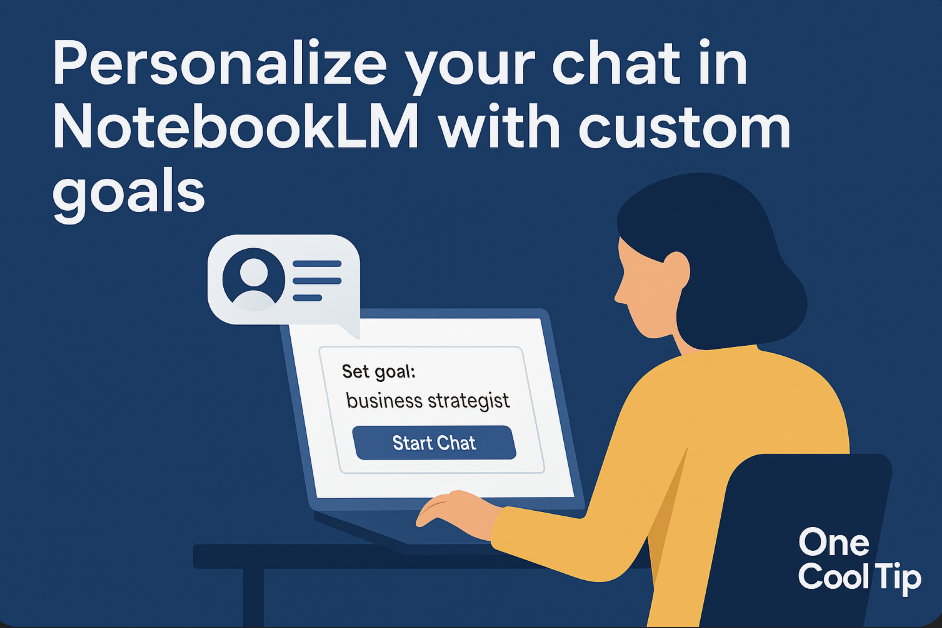
Set a clear goal for your chat in NotebookLM and watch how the AI adapts to behave like a strategist, researcher or storyteller. The latest upgrade unlocks deeper context, longer memory and smarter responses tied to your defined intent.
What if your AI research assistant didn’t just answer your questions but knew your objective and aligned itself around it?
With the latest upgrade to NotebookLM, that scenario is now real. Google has helped turn a generic chat assistant into a goal-driven, persona-aware companion that can follow your defined agenda.
Feature Explanation
In plain terms, the latest version of NotebookLM includes two major enhancements: first, a massive expansion of context window (up to about 1 million tokens) and conversation memory (about 6x longer), enabling much more sustained and coherent chat sessions based on large documents.
Second, NotebookLM now supports a Goals (or custom persona) setting.
You open the chat configuration and specify the AI's role, voice, and objective before or during a session.
For example: "Act as my marketing strategist and give me an action plan," or "Treat me as a PhD candidate and challenge my assumptions."
Why it matters:
By anchoring the AI’s behavior to a goal or role, you move from general Q&A toward task-oriented, aligned conversations, especially useful for business reports, research projects and productivity workflows.
With deeper context and longer chat memory, your conversation retains thread, context and intent over time.
What You’ll Gain
- Better alignment between your objective and the AI’s responses (e.g., strategic plan rather than generic advice)
- Longer conversations that retain context across turns and even sessions, reducing repetition and lost thread
- Smarter document synthesis: large files, many sources, deeper insights.
Step-by-Step Instructions
Here's how to do it.
Microsoft Web/Desktop (Browser)
-
Sign in to NotebookLM via browser at notebooklm.google/
- Create or open a notebook and upload your sources (PDFs, Docs, websites) as usual.
- Locate the “Chat Settings” icon in the Chat window.
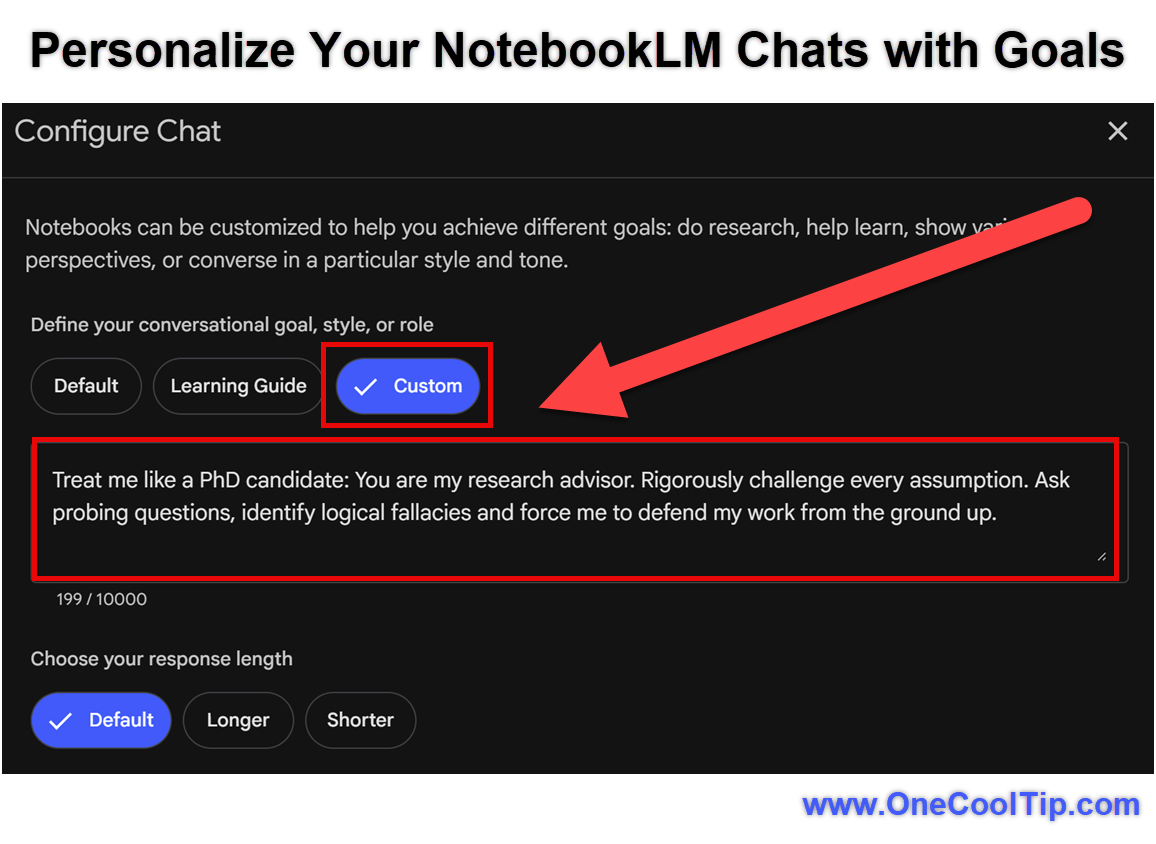
- Select "Custom" for Conversational goal.
- In the “Goal / Personal” field, type a description such as: “Treat me like a PhD candidate: You are my research advisor. Rigorously challenge every assumption. Ask probing questions, identify logical fallacies and force me to defend my work from the ground up.”
- Click “Save”.
- Ask your question or start the conversation: e.g., “Review these documents and recommend five strategic opportunities for our project.”
- When you close the session and return later, the chat retains history and remembers context so you can resume.
|