|
One Cool Tip Newsletter
May 28, 2026
| Your daily dose of tech-savvy brilliance! | |
😀Greetings! Happy Thursday, Cool Tipper!
Get ready to streamline your digital life with simple, actionable tips delivered straight to your inbox.
Cool Tip Theme: Apple Maps Suggested Places
New here? Subscribe to the One Cool Tip Newsletter for daily updates. It's FREE!
| |
3️⃣
If you enjoy the One Cool Tip newsletter, please forward this newsletter to THREE friends or colleagues or share it on social media using the links below.
Leave a $$$ Tip!
Share this One Cool Tip Newsletter!
| | |
🚨Fake FIFA Websites Target Fans Ahead of the 2026 World Cup🚨
Cybercriminals are creating spoofed FIFA websites to trick fans looking for World Cup 2026 tickets, merch, jobs, or event info.
These fake sites often use small URL changes, like fiffa.com, fifa.pink, or worldcup2026-tickets.com.mx, to steal personal and financial information or sell fake tickets.
What’s happening
Threat actors are cloning the look of the real FIFA site to:
- Collect personal data (name, address, banking info).
- Sell fake tickets and hospitality packages.
- Impersonate FIFA job or hiring pages.
- Redirect fans to malicious ads or phishing pages.
How to protect yourself
- Always type fifa.com directly into your browser.
- Avoid “sponsored” search results; scammers often buy ads.
- Double-check the URL ends in .com and is spelled correctly.
- Don’t click links from ads or social posts claiming to sell tickets.
- Never enter sensitive info unless you’re sure the site is legitimate.
- Bookmark the real site for quick, safe access.
If you spot a fake site or shared info by mistake, Report it to the FBI’s Internet Crime Complaint Center: ic3.gov. Include the fake domain and any details about what you entered.
Source: FBI
And in Other News...
- How to Watch Apple’s WWDC 2026 Keynote
Apple’s biggest software event of the year, WWDC 2026, streams live on Monday, June 8 at 1 p.m. ET / 10 a.m. PT.
Expect major reveals including iOS 27, a new Siri with an AI overhaul, and updates across macOS, watchOS, visionOS, and more.
Where to watch
What to expect
- iOS 27 with performance and battery improvements.
- New Siri featuring a chatbot-style interface and LLM-powered intelligence.
- AI upgrades across Apple platforms.
- Liquid Glass refinements and fewer new features as Apple focuses on stability.
| | |
Help support One Cool Tip. Use this Amazon link when you shop online.
Check out these Cool Deals:
📍 Apple AirTag 4 Pack: Helpful for travelers who want to track luggage, backpacks, keys, and other essentials while using Apple Maps on the go. $99. Check it out on Amazon!
🚗 MagSafe Car Mount Charger for iPhone: Keeps your iPhone visible and charged while using Apple Maps for driving directions. Save 39% Check it out on Amazon!
🔌 USB-C Car Charger for iPhone: A practical road-trip accessory for keeping Maps, music, and emergency calling available during long drives. Save 15% $16.99 Check it out on Amazon!
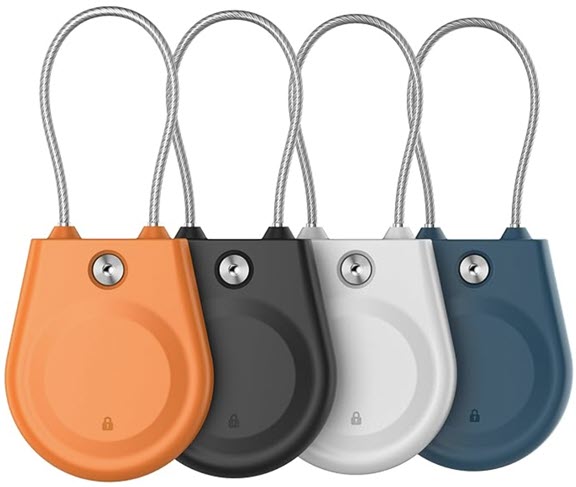
🧳 AirTag Luggage Holder: Makes it easier to secure an AirTag to luggage, backpacks, camera bags, or travel cases. Click for Lowest Price!
*Prices accurate when originally published.
One Cool Tip may earn a commission from qualifying purchases.
| | |
Find Better Stops Faster with Apple Maps Suggested Places
Apple Maps now gives iPhone users a faster way to discover nearby places before they even type a search. Suggested Places in iOS 26.5 can surface local recommendations based on nearby trends, recent searches, and other factors.
Opening Apple Maps often starts with a tiny moment of indecision.
You know you need coffee, dinner, gas, a pharmacy, or something interesting nearby, but you may not know exactly what to search for.
Apple Maps already handles direct searches well, but iOS 26.5 adds a small discovery feature that makes the app feel a little more helpful when you are deciding where to go next.
Here’s a Cool Tip: Tap Maps Search Before You Type.
Apple Maps Suggested Places appears when you tap the search field. Instead of waiting for you to type, Maps can show recommended locations based on signals such as what is trending nearby and what you have searched for recently.
It is not a dramatic redesign, but it is the kind of practical shortcut that can save time when you are traveling, running errands, or exploring a new neighborhood.
Feature Explanation
Suggested Places is a new Apple Maps feature reported in iOS 26.5.
When you tap inside the Apple Maps search box, Maps can display recommended places before you enter a search term.
Those suggestions may be influenced by nearby trends, recent search history, and other factors.
That matters because most map searches are not always precise.
Sometimes you know the category but not the destination.
Other times, you are away from home and want a quick clue about what is nearby.
Suggested Places turns the search field into a light discovery tool, not just a blank box.
This small feature points to a larger shift: Apple Maps is becoming more proactive.
What You'll Gain
-
Save time by seeing possible destinations before typing.
-
Find nearby options when you are not sure what to look for.
-
Improve trip planning by surfacing places related to recent searches.
-
Notice local trends when exploring restaurants, shops, or attractions.
Step-by-Step Instructions
Here's how to do it.
iPhone
-
Update your iPhone to iOS 26.5 or later, if available for your device.
-
Open the Maps app.
-
Tap the Search Maps field.
-
Look for a Suggested Places section in the search panel.
-
Tap a suggested location to view its place card, directions, hours, ratings, photos, and available actions.
-
Choose Directions, Call, Website, or Add to Places, depending on what the location supports.
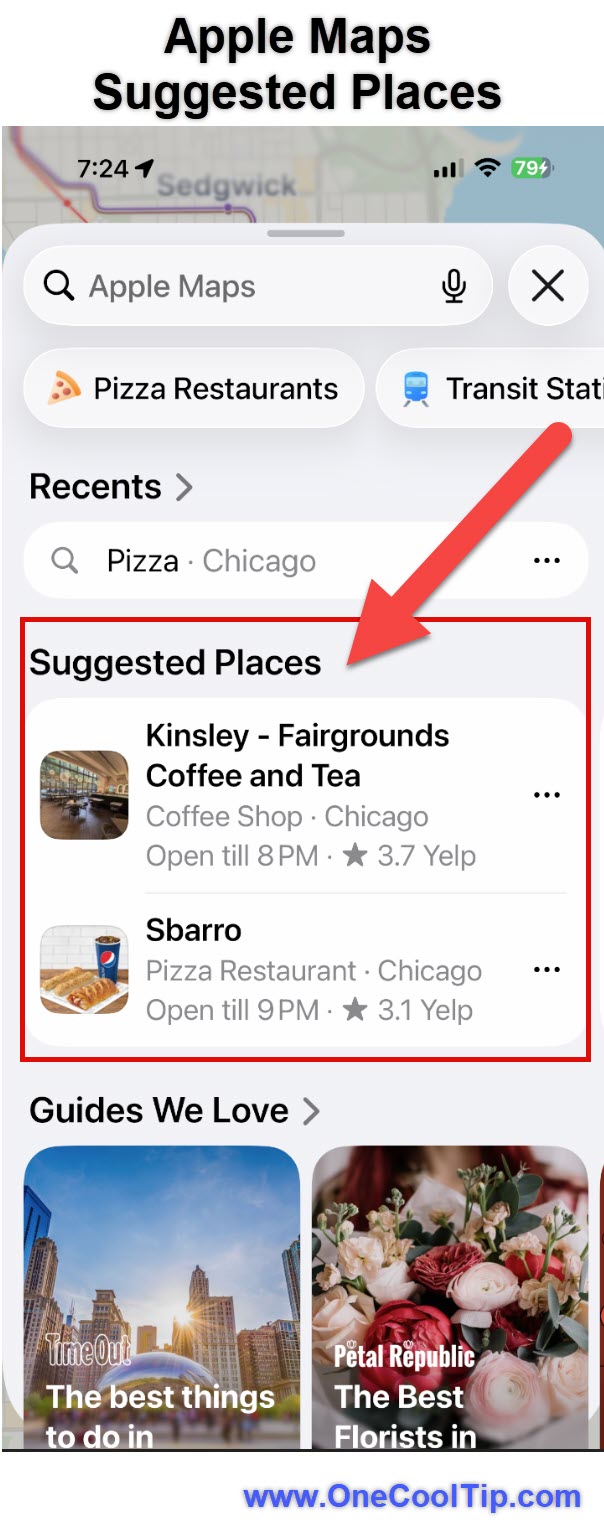
| | fig. 1 - Apple Maps Suggested Places Example | | |
Real-world example:
You are in Chicago for a weekend trip. You recently searched Apple Maps for “deep dish pizza.”
Later, when you tap the Maps search field near your hotel,
Suggested Places may show nearby food spots or related recommendations instead of making you start from scratch.
Pros and Cons
Pros:
-
Fast discovery: You can find nearby ideas before typing.
-
Useful for travel: It helps when you are in an unfamiliar city and need quick local suggestions.
-
Context-aware: Suggestions can reflect nearby trends and recent searches.
-
Easy to use: The feature appears in a place users already visit, the search box.
-
Helpful for errands: It can speed up common searches for food, stores, gas, and services.
Cons:
-
Limited control: Apple does not appear to offer a dedicated Suggested Places settings panel.
-
Availability may vary: The feature is tied to iOS 26.5 and may depend on device, region, app behavior, or rollout status.
-
Ads are coming: Apple says Maps ads will be available to businesses starting this summer in the United States and Canada.
-
Not a full travel planner: It surfaces ideas, but users still need to compare reviews, hours, distance, and suitability.
Feature Access
-
Who gets it: Apple Maps users on iPhone running iOS 26.5, based on current reporting.
-
Supported platforms: Current reporting focuses on Apple Maps on iPhone.
-
Subscription: No subscription requirement has been verified.
-
Region: Suggested Places availability may vary by region, device, and app behavior. Apple says Maps ads will be available to businesses starting this summer in the United States and Canada.
-
Account type: No separate business, education, enterprise, or family account requirement has been verified.
-
Rollout status: Availability may vary by device, region, and iOS version. Apple has not published a dedicated Suggested Places support page at the time of writing.
Score
Criterion | Score (0-10) | Justification
Value: | 7
Suggested Places solves a small but real problem: finding useful nearby options without starting from a blank search box. It is especially helpful for travelers and errands.
Usability: | 8
The feature appears in the Maps search flow users already know. The downside is that there does not appear to be a dedicated control for tuning it.
Wow Factor: | 6
It is useful and timely, but not dramatic. The bigger shift is Apple Maps becoming more proactive and more commercial as ads arrive.
Total: 21/30 👍 Good
Suggested Places is a good, low-effort improvement that makes Apple Maps more useful when you are deciding where to go.
Key Takeaways
Apple Maps Suggested Places gives iPhone users a faster way to discover nearby destinations from the search screen.
The feature is most useful when you are traveling, exploring, or doing quick local searches.
Keep an eye on how Apple labels and presents sponsored results as Maps ads roll out.
Cool Tip Snapshot
-
Feature Name: Apple Maps Suggested Places
-
Platform: iPhone with iOS 26.5
-
Quick Benefit: Find nearby recommendations before typing a search
-
Best For: Travelers, families, business users, local errands
-
Access Type: iOS 26.5 feature, availability may vary
-
Difficulty: Easy
Try It Yourself
Open Apple Maps, tap the search field, and check Suggested Places before typing.
Try it the next time you need coffee, dinner, gas, or a quick stop nearby.
If this Cool Tip helped, share it with family, friends, and coworkers!
READ MORE
Read the Cool Tip on OneCoolTip.com.
| | |
Check out these Cool Tips & Tricks.
-
Tap First: Open Apple Maps and tap the search field before typing to see whether Suggested Places appears. Do this before entering a destination.
-
Search Nearby: Use short category searches like “coffee,” “gas,” or “pharmacy” to improve your local search flow. Open Maps, type the category, and compare results with future suggestions.
-
Check Labels: Watch for sponsored or ad labels as Apple Maps ads roll out. Open the place card and verify whether the result is organic or promoted.
-
Use Place Cards: Do not choose a location based only on the suggestion. Tap the place card to check hours, distance, photos, and directions.
-
Plan Trips: Search a destination city before traveling so Maps may surface related places later. Open Maps, search the city or neighborhood, then revisit the search box during planning.
-
Save Favorites: Add useful places to your saved lists for faster access later. Tap a place card, then choose the option to add or save the place.
-
Review Location Access: Location-aware suggestions work best when Maps has appropriate location permission. Go to Settings > Apps > Maps > Location, then review your setting.
-
Clear History: Remove unwanted visited place data if you use Apple’s Visited Places feature. Open Maps, tap your Profile picture, Places, tap Visited Places, then tap Clear History.
-
Compare Options: Treat Suggested Places as a starting point, not the final answer. Tap Search and compare nearby results by distance, rating, hours, and route.
-
Use While Traveling: Suggested Places is most helpful away from home. Open Maps in a new city, tap search, and look for nearby ideas before entering a query.
| | ICYMI - In Case You Missed It ... | | | | |
ChatGPT Health: Smarter, Safer Health Conversations
ChatGPT Health introduces a focused environment for discussing personal health topics with enhanced privacy and context awareness. Access is limited today, but you can join the waitlist to be among the first to try it.
Read the Full Cool Tip.
Read the Newsletter Version.
| | |
Tomorrow's Cool Tip is waiting to amaze you.
Until then, go forth and conquer the tech world with your newfound knowledge!
Be sure to visit www.OneCoolTip.com for Cool Tech Tips for a Cooler Life!
And if you Like One Cool Tip, please support with TipJar!
Enjoy!
Rodger
Chief Cool Tipper
onecooltip.com@gmail.com
| |
| What do you think of today's OneCoolTip newsletter?
| | | | Connect with One Cool Tip!! | | |
|
As an Amazon Associate, One Cool Tip may earn a small commission from qualifying purchases.
Our media content is intended solely for informational purposes only. Please do not construe anything here as legal, tax, investment, financial, marital or other advice.
Copyright © 2026 | www.OneCoolTip.com | All Rights Reserved
|
| | | |