One Cool Tip Newsletter

November 12, 2026

Your daily dose of tech-savvy brilliance!

😀 Greetings! Happy Thursday, Cool Tipper!


Get ready to streamline your digital life with simple, actionable tips delivered straight to your inbox.


Cool Tip Theme: Suggested Actions in Messages


Turn plans in iPhone Messages into Calendar events with Suggested Actions. Learn where to find the option, check event details and save your plans.


New here? Subscribe to the One Cool Tip Newsletter for daily updates. It's FREE!

3️⃣

If you enjoy the One Cool Tip Newsletter, please forward this newsletter to THREE friends or colleagues or share it on social media using the links below.


Leave a $$$ Tip!


Share this One Cool Tip Newsletter!

X Share This Email
LinkedIn Share This Email
Pinterest Share This Email

🚨 Use Notion AI? Check Your Inbox for This Security Alert 🚨


Notion says a security incident at third-party provider Fireworks AI exposed data from less than 1% of Notion workspaces.


The affected data included some Notion AI chat transcripts used for the Insights feature, although Notion says the vast majority could not be tied back to particular users, workspaces or companies.


Notion has contacted customers it identified as affected and says no action is currently needed if you haven't received a notification.


The company disconnected its systems from Fireworks and disabled the Insights feature while it investigates.


Affected users who entered passwords, API keys or other credentials into Notion AI should rotate them, according to Notion.


The Cool Tip:


Treat AI chats carefully and avoid pasting passwords or other sensitive credentials into them, regardless of which AI service you're using.


And in Other News...


  • Apple Users: It’s Time to Check for This Important Update


If you own an Apple device, take a minute today to check for the latest software update.


Apple released iOS and iPadOS 27.2.1, macOS 27.2.1, watchOS 27.2.1 and visionOS 27.2.1 on November 9, 2026, along with updates for some devices running older operating systems.


Keeping your software up to date is one of the most important things you can do to maintain your device’s security.


Older devices aren't necessarily being forgotten, with updates also released for iOS and iPadOS 26 and 18, older macOS versions and certain older Apple Watch models.


Check Software Update on your Apple devices and install the newest version offered for your model.


The Cool Tip:


Don’t assume automatic updates have already handled it. Take a moment to check and make sure your device is current.


  • Meta’s Muse AI Assistant Is Now on Your Wrist


Meta has brought its Muse AI agent to Apple Watch and Wear OS smartwatches.


You can interact with Muse through voice, text, or dictation directly from your watch.


Muse can connect to accounts to help manage email, meetings, bills, and other tasks, as well as make reservations and handle purchases.


The smartwatch version makes it easier to reach the assistant without first pulling out your phone.


Your personalized Muse avatar can also appear on the watch while you interact with it.


The Cool Tip:


If you already use Muse, your smartwatch can now become a convenient shortcut to your AI assistant

Cool Tip Poll

🤔 What would you most likely add to Calendar from an iPhone text?

Cool Deals of the Day

  • Have you tried the Upside app? Everyday cash back on gas, groceries and dining.


Help support One Cool Tip. Use this Amazon link when you shop online.


Check out these Cool Deals:

Apple AirPods Pro 3: Perfect for your next call!

Save 20%. Now $199.00. 4.4 Stars. Check it out on Amazon!


Apple Watch Series 12 GPS 42mm Smartwatch: Stay informed on messages and important updates!

Amazon's Choice! Now $389.99. 4.7 Stars. Check it out on Amazon!


Apple AirTag (2nd Generation): Keep track of your important things!

Save 21%. Now $23.00. 4.6 Stars. Check it out on Amazon!


*Prices accurate when originally published.

One Cool Tip may earn a commission from qualifying purchases.

Fuel Your Adventure

Try Big Mike's Jerky!


bigmikesjerky.com


Today's Cool Tip

Turn an iPhone Text Conversation Into a Calendar Event

When someone confirms plans in Messages, your iPhone can suggest adding them to Calendar.


Here’s how to use Suggested Actions and check the details before you save the event. 

By Rodger Mansfield, Technology Editor

November 12, 2026

Subscribe


The family group chat finally settles on dinner. One person confirms the restaurant. Another confirms the time. You put your phone down. 


A few days later, you’re scrolling through photos and side conversations to find out when you’re supposed to show up.


By then, the calendar you check every day still has a blank spot.


Here’s a Cool Tip: Tap the Calendar suggestion in Messages when your plans are set.


Feature Explanation


Suggested Actions arrived in Messages with iOS 27.2. 


Apple Intelligence uses the conversation to suggest an action, such as creating a Calendar event. 


You can choose which types of suggestions Messages shows. 


The useful part is the timing. 


You can start an event right when a client confirms a meeting or a friend names the restaurant. 


Treat the resulting event as a draft. 


Check the details while they’re still fresh, especially if several dates came up in the same chat.


What You’ll Gain


  • Capture a confirmed plan before it gets buried in the chat.
  • Review the date and time while you have the conversation in front of you.
  • Put an event on the calendar where you’ll look for it later.


Step-by-Step Instructions


Here's how to do it.


iPhone and iPad


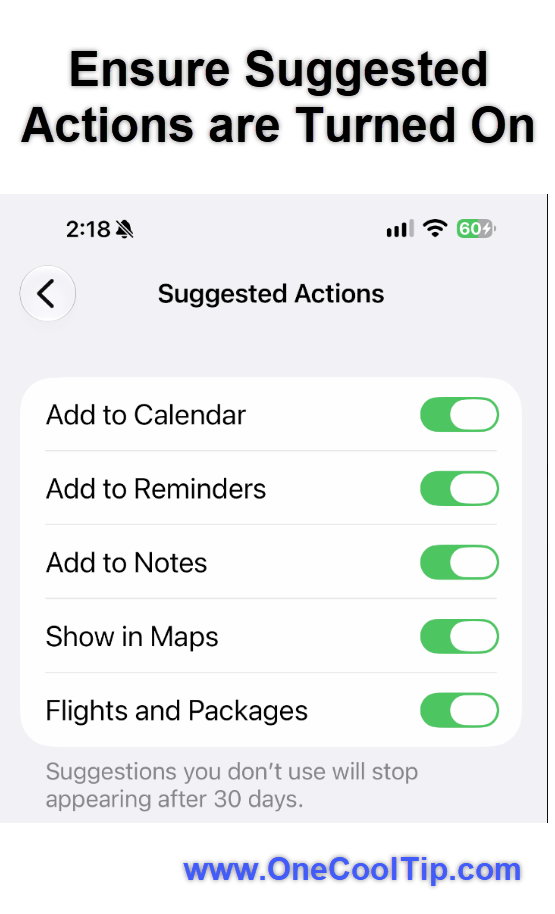
  1. Open Settings → Apps → Messages → Suggested Actions and make sure Add to Calendar is on. 
  2. Open Messages and go to a conversation with a confirmed date and time. 
  3. For a test, ask a friend to send a message such as “Let’s meet at the Italian restaurant on Main Street at 6:30 p.m. Friday, Nov. 20.” 
  4. Look for a Calendar suggestion below the message about the plan. 
  5. If the suggestion appears, tap it.
  6.  Review the event title, date, time, location and selected calendar. 
  7. Fill in any missing details and save the event. 
  8. Open Calendar and go to the event date and confirm the event appears where you expect it. 
  9. If you need to change the start time or add an alert, tap the event, then tap Edit. 


fig. 1 - Ensure Suggested Actions are Turned On

Pros and Cons


Pros:


  • Save a family plan while the date and time are still on screen.
  • Capture a meeting when a client confirms it by text.
  • Choose which types of actions Messages can suggest.


Cons:


  • A suggestion depends on the conversation. You may still need to add the event manually.
  • You still need to check details such as the address and time zone before saving.
  • The feature requires Apple Intelligence and is currently available in English.


Troubleshooting and Limitations


Problem: Suggested Actions is missing


  • Why It Happens: The device, software or language may not be available.
  • Fix or Workaround: Check your software version and whether Apple Intelligence is enabled. Check that your device and Siri use the same supported English language setting. 


Problem:  No Calendar button appears.


  • Why It Happens: Add to Calendar may be off, or Messages may have too little context to suggest an event.
  • Fix or Workaround:  Check the toggle. Try a message with an explicit date and time, or open Calendar and tap Add in Day view. 


Problem: The event is missing on another device.


  • Why It Happens: You may have saved it to a calendar associated with a different account.
  • Fix or Workaround: In Calendar, tap Calendars to see the accounts in use and check where you saved the event. 


Privacy and Data Notes


Siri Suggestions can use information on your device, including messages, to personalize suggestions. 


When you save an event to iCloud, it can sync across your devices. 


Anyone with access to a shared calendar can see its entries, so choose a private calendar for personal plans. 


To stop Calendar suggestions in Messages, turn off Add to Calendar under Suggested Actions. 


Feature Access


Suggested Actions in Messages requires Apple Intelligence and iOS 27.2 or later on an iPhone 15 Pro, iPhone 15 Pro Max or iPhone 16 model or later. 


On iPad, it requires iPadOS 27.2 or later and a compatible iPad: an iPad with an M1 chip or later, or an iPad mini with an A17 Pro chip or later. 


Suggested Actions in Messages are available in English with no separate subscription.


Score

Criterion |  Score (0–10) |  Justification
Value | 8
It lets you capture plans while the details are fresh.
Usability |  8
The shortcut is easy to use when it appears. The event details still need a quick review.
Wow Factor |  6
It’s a clever shortcut for a routine task.
Total: 22/30 | 👍 Good
This is a good shortcut when a conversation has already done the work of settling the plan. The Add button in Calendar is a reliable fallback when you need to enter the details yourself. 


Key Takeaways


Use the suggestion as soon as the plan is firm. 


Before saving, check that the event is going to the right calendar and add an alert if you need one.


Cool Tip Snapshot


  • Feature Name: Suggested Actions in Messages
  • Platform(s): iPhone and iPad. 
  • Quick Benefit: Save plans from a conversation to Calendar.
  • Best For: Families, travelers and anyone who schedules by text.
  • Access Type: Free with Apple Intelligence on compatible devices. 
  • Difficulty: Easy


Learn More


Apple’s Messages guide explains how Suggested Actions work and where to choose which ones appear.


Try It Yourself


Try it the next time someone confirms plans by text. 


Tell us in the comments how it worked, subscribe to the One Cool Tip Newsletter for FREE and share the article with family, friends and coworkers.


READ MORE


Read the Full Cool Tip!

Check Out These Cool Tips & Tricks


  • Check Suggestions: Choose which actions appear in Messages. Open Settings → Apps → Messages → Suggested Actions and turn individual options on or off. 


  • Confirm the Time: Capture the time everyone agreed on. Compare the event form with the last message that confirms the plan before saving. 


  • Add an Address: A street address helps when a restaurant has multiple locations. Open the event, tap Edit and fill in Location or Video Call. 


  • Set an Alert: Give yourself time to leave for an appointment. Open the event and tap Edit → Alert to select a reminder. 


  • Invite Guests: Send a Calendar invitation when someone needs the event on their own schedule. In Calendar, tap the event, then tap Edit → Invitees and add their email address. 


  • Choose a Default: Make your most-used calendar the starting point for new events. Open Settings → Apps → Calendar → Default Calendar and choose it. 


  • Share Family Plans: Give household members access to a calendar for shared events. Tap Calendars → Info beside an iCloud calendar, then tap Add Person. 


  • Check Calendar Accounts: Find where an event is stored when it fails to appear elsewhere. Open Calendar and tap Calendars to see which account holds each calendar. 


  • Add It Manually: Save a plan even if Messages shows no suggestion. In Calendar’s Day view, tap Add and enter the event details.


  • Add Travel Time: Block out time to get to an appointment. When creating an event in Calendar, swipe up if needed to find Travel Time and set a duration.

ICYMI - In Case You Missed It ...

PowerPoint’s New Design Tools Make Better Slides Easier


Microsoft PowerPoint is getting new design options aimed at making attractive presentations easier to build. Fresh SmartArt choices, themes and design improvements give you more ways to turn ordinary information into polished slides while spending less time arranging everything yourself.


Read the Full Version.


Read the Newsletter Version.

Looking for your next adventure?


Call Denise at Travel For You.

314.660.3039


Sign Up for the Monthly Newsletter


http://www.travelforyouvacations.com/


https://www.facebook.com/TRAVEL.FOR.U/


See You Tomorrow

Tomorrow's Cool Tip is waiting to amaze you.


Until then, go forth and conquer the tech world with your newfound knowledge!


Be sure to visit www.OneCoolTip.com for Cool Tech Tips for a Cooler Life!


And if you Like One Cool Tip, please support with TipJar!


Enjoy!


Rodger

Chief Cool Tipper

onecooltip.com@gmail.com


What Do You Think?

What do you think of today's One Cool Tip Newsletter?
Positive        Neutral        Negative
X Share This Email
LinkedIn Share This Email

Connect with One Cool Tip!

Facebook  X  Instagram  Web  Pinterest  YouTube  LinkedIn
 

As an Amazon Associate, One Cool Tip may earn a small commission from qualifying purchases.


Our media content is intended solely for informational purposes. Please do not construe anything here as legal, tax, investment, financial, marital or other advice.


Copyright © 2026 | www.OneCoolTip.com | All Rights Reserved