|
One Cool Tip Newsletter
August 31, 2026
| Your daily dose of tech-savvy brilliance! | | |
😀Greetings!, Happy Back-to-Work Monday, Cool Tipper!
Get ready to streamline your digital life with simple, actionable tips delivered straight to your inbox.
Today's Cool Tip Theme: Google Sheets Canvas
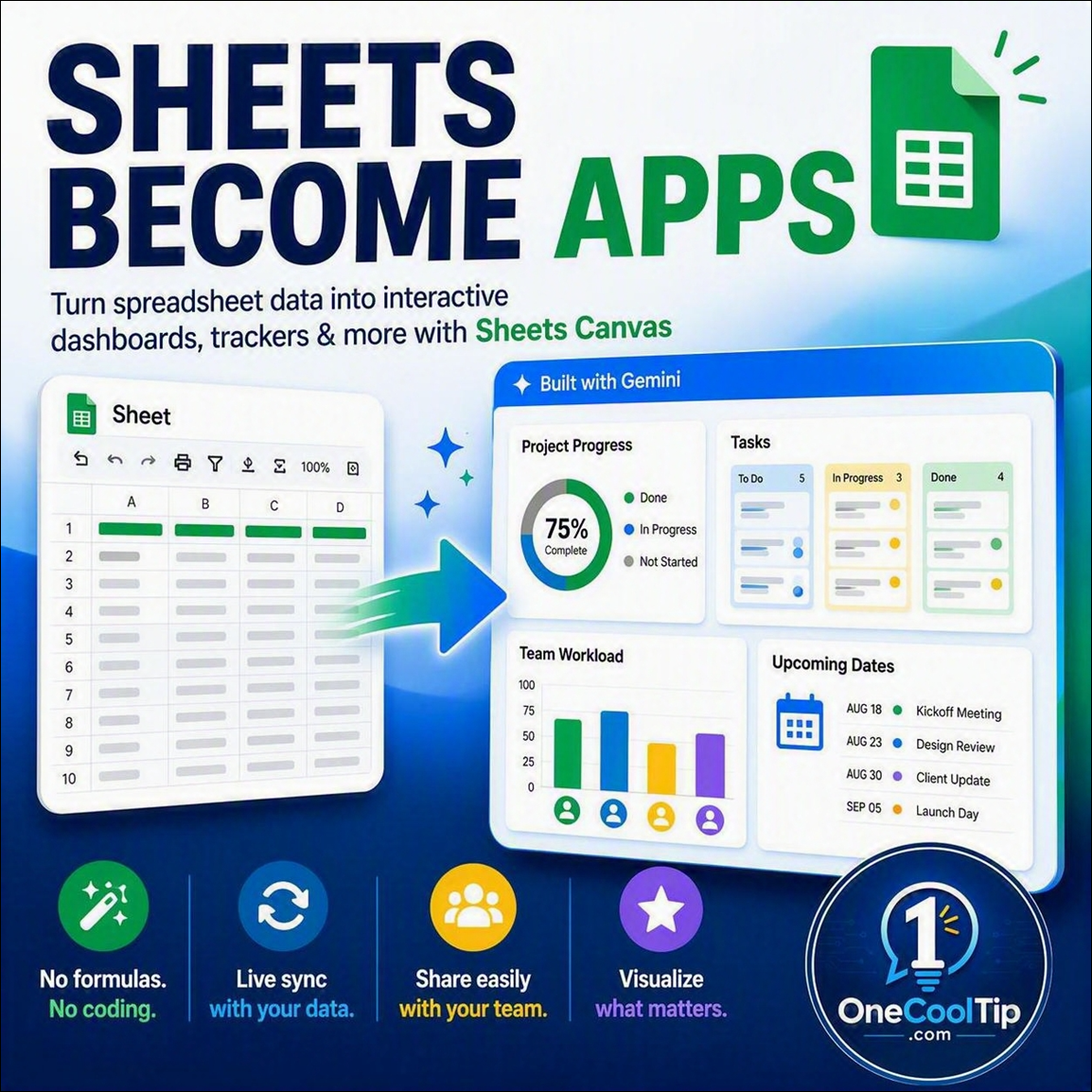
Learn how to transform raw spreadsheet rows into dynamic, interactive dashboards and visual trackers with the new Sheets canvas feature.
IN THIS ISSUE
- 🚨 Protect Yourself from Disaster Relief Scams
- 🗺️ Google Maps Location-Based Naming Updates
- 🤖 Prompt of the Week (Executive Summaries)
- 📊 Convert Spreadsheets into Mini-Apps with Sheets Canvas
- 🎧 Turn Microsoft Word Docs into Audio Overviews
- 🔗 Share Custom Sheet Views in Excel for the Web
- ⚡ Deduplicate Data Instantly with the UNIQUE Function
New here? Subscribe to the One Cool Tip Newsletter for daily updates. It's FREE!
-
😂 Laugh with Us! Enjoy our Tech Joke of the Day, Haiku and Cool Tip Comics.
-
🌐 Stay Informed! Check out ICYMI, and our One Cool Tip Video.
| | |
3️⃣
If you enjoy the One Cool Tip newsletter, please forward this newsletter to THREE friends or colleagues or share it on social media using the links below.
Leave a $$$ Tip!
Share this One Cool Tip Newsletter!
| | |
Today's Tech Trivia
When Google first introduced its browser-based spreadsheet program in 2006, what was the technology originally based on?
A) Writely
B) XL2Web
C) JotSpot
D) Quickoffice
Answer at the end of this newsletter.
| | |
⚠️ Before You Donate After a Disaster, Read This⚠️
When hurricanes, wildfires, floods, or other tragedies make headlines, scammers often see an opportunity.
The FBI warns that fake charities, fraudulent crowdfunding campaigns, and imposters posing as relief organizations frequently appear after major disasters.
These scams can arrive through social media, text messages, emails, phone calls, or even fake websites that look legitimate.
Before donating, stick with established organizations you know and trust, and take a few minutes to research any unfamiliar charity.
Be wary of groups with names that closely resemble well-known charities.
The FBI also advises against donating with cash, gift cards, wire transfers, or cryptocurrency, since those payment methods are favorites among scammers.
When you give thoughtfully, your generosity is far more likely to reach the people who truly need help.
And in Other News...
- Why Google Maps May Look Different Depending on Where You Live
If you use Google Maps, you may soon notice that the same location can have different names depending on your country.
U.S. users will see "Lake America" in place of "Lake Ontario" after a change in the U.S. Geographic Names Information System, while Canadian users will continue to see "Lake Ontario."
Users outside the U.S. and Canada will see both names displayed.
The change is a reminder that digital maps often reflect official government naming standards and can vary by region.
If a place name looks unfamiliar, it may be the result of a location-based mapping update rather than an error in the app.
Or you can choose the MapQuest route which has chosen not to rename the Gulf of Mexico or now, Lake Ontario.
You can even rename either to your own liking. Gulf. Lake.
| | |
Try this Cool AI prompt. Copy and paste to ChatGPT, Gemini, Claude or Copilot.
“Act as a senior business analyst.
Review the following information and create a concise executive summary for leadership.
Identify the three most important findings, key risks, opportunities, recommended actions, and any decisions that need to be made.
Keep it clear, practical, and free of jargon.
Here is the information: [paste text, notes, report, or data].”
| | |
Turn Spreadsheet Rows into Interactive Apps with Sheets Canvas
Google Sheets now allows you to convert traditional rows and columns into interactive mini-apps using plain language prompts. Discover how Sheets canvas helps you build dynamic visual dashboards, assignment trackers, and event plans without writing a single formula.
Most spreadsheet data ends up trapped in dense rows and columns that only make sense to the person who entered them.
When you want to share progress with team members, plan an event, or track assignments, raw grids often feel stiff, cluttered, and hard to navigate at a glance.
Here’s a Cool Tip: Use Sheets canvas to build interactive mini-apps directly on top of your existing spreadsheet data with a simple prompt.
Google introduced a fresh way to interact with your spreadsheet files called Sheets canvas. Instead of spending hours designing layout grids, nesting formulas, or configuring charts manually, you can tell the built-in Gemini side panel exactly what type of interface you want to see.
Feature Explanation
Sheets canvas acts as an interactive, read-write visual layer placed directly over your standard spreadsheet data.
Rather than replacing the grid, it references your source rows and translates that information into custom, visual layouts such as visual rosters, progress dashboards, study schedules, or seating plans.
When you request a canvas, the Gemini engine reads the structure of your data and builds a polished interface tab.
Because this view connects directly to your original sheet, any changes made inside the canvas update the underlying rows immediately, and any edits to the cells reflect on the canvas in real time.
You can continue refining your layout by chatting with the side panel to add filters, adjust groupings, or modify visual components.
This bridges the gap between raw data storage and interactive web applications without requiring code, third-party software, or complicated script setups.
What You’ll Gain
- Save setup time by generating interactive trackers and dashboards using conversational prompts.
- Keep everything synchronized with real-time two-way updates between your visual canvas and original data.
- Share interactive interfaces directly with coworkers or study partners using standard Google Sheets sharing permissions.
- Eliminate the need to construct nested formulas or manual visual grids from scratch.
Step-by-Step Instructions
Here's how to do it.
Web/Desktop (Google Workspace):
-
Open your desired spreadsheet in Google Sheets via your desktop web browser.
-
Ensure your sheet has clean, structured column headers on row 1.
-
Click the Ask Gemini star icon in the upper-right toolbar area to open the side panel.
-
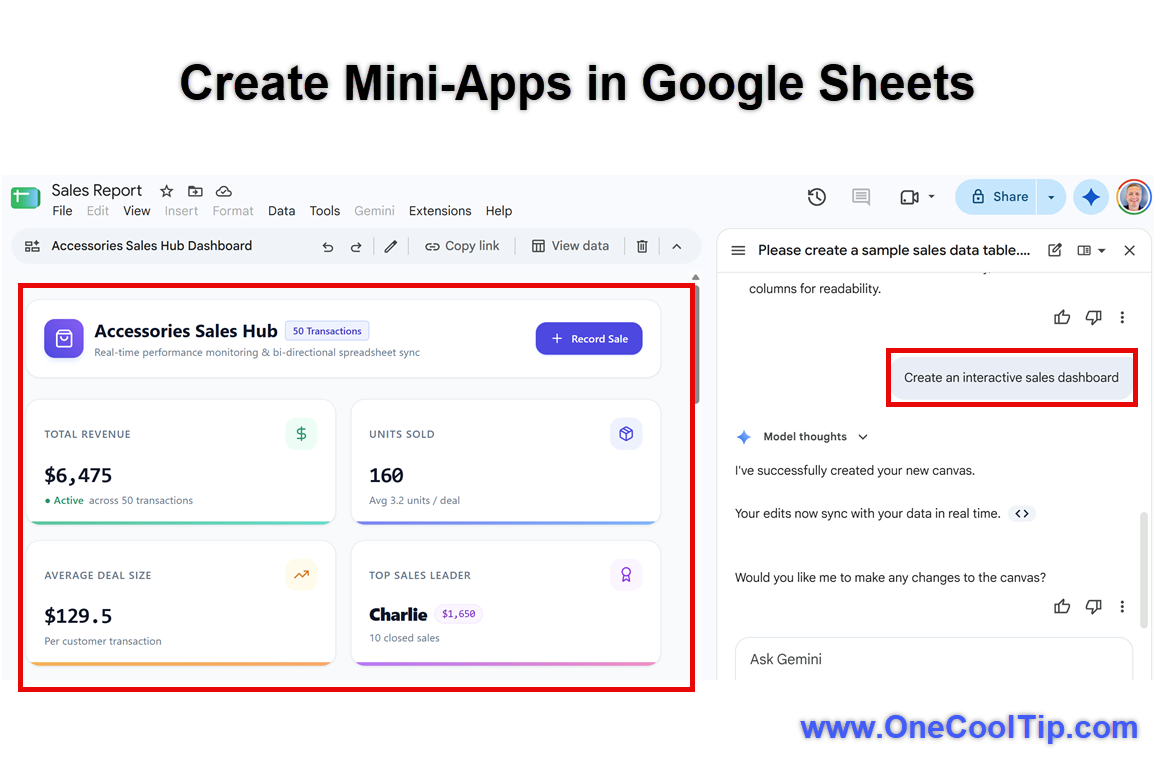
Select the Create canvas option from the suggested prompts, or select Build, then type your own request directly into the prompt box (such as: "Build a monthly business expense dashboard with monthly totals" or "Create an interactive sales dashboard").
-
Press Enter and review the newly generated Canvas tab that appears in your spreadsheet workbook.
-
Review the proposed build and Approve.
-
Type follow-up instructions into the Gemini panel to refine colors, add filters, or change the layout components.
| | fig. 1 - Create Mini-Apps in Google Sheets | |
Mobile Platforms:
- Not currently available for direct creation in the iOS or Android Google Sheets mobile apps.
Pros and Cons
Pros:
-
Zero code barrier: Anyone can generate dynamic, visual dashboards without advanced spreadsheet formulas.
-
Two-way sync: Data edits made on the canvas flow straight to the underlying sheet cells and vice versa.
-
Familiar sharing: Canvases reside in the workbook as tabs and share easily using standard Google Drive permissions.
-
Iterative refinement: Users can modify the layout, styling, and filters through natural language conversations.
Cons:
-
Subscription gate: Requires an eligible Google Workspace business edition, an Education add-on, or a Google AI Pro/Ultra consumer tier.
-
Language limitations: Launched initially with support for English prompts only.
-
Not a full enterprise BI suite: Lacks the deep relational database querying found in dedicated platforms like Looker or Tableau.
Feature Access
-
Rollout Status: Officially announced on August 13, 2026, rolling out globally in English.
-
Supported Consumer Tiers: Google AI Pro and Ultra subscribers.
-
Supported Business/Enterprise Plans: Google Workspace Business Standard, Business Plus, Enterprise Standard, and Enterprise Plus.
-
Education Accounts: Available to users with the Google AI Pro for Education add-on.
-
Platform: Available on the Google Sheets web interface.
Score
Criterion | Score (0–10) | Justification
Value | 9
Converts complex tabular data into functional visual applications without requiring formula skills or software development.
Usability | 9
Initiating a layout takes a single prompt in the Gemini panel, and data remains continuously synchronized.
Wow Factor | 8
Watching ordinary cell rows instantly reassemble into interactive boards and dashboards delivers immediate visual utility.
Total: 26/30 | 🌟 Excellent
Sheets canvas provides an intuitive, high-value visual layer that saves substantial time when presenting or managing everyday spreadsheet projects.
Key Takeaways
Sheets canvas transforms raw spreadsheet columns into customized, interactive web layouts with simple text prompts.
Two-way real-time data sync ensures your master rows stay accurate whenever changes happen on the canvas.
It eliminates the friction of building custom tracker boards and project dashboards manually.
Cool Tip Snapshot
-
Feature Name: Sheets Canvas
-
Platform(s): Web (Google Sheets)
-
Quick Benefit: Transforms spreadsheet rows into interactive visual mini-apps using natural language
-
Best For: Business managers, students, event organizers, and productivity enthusiasts
-
Access Type: Subscription (Google AI Pro/Ultra, Workspace Business/Enterprise Standard & Plus)
-
Difficulty: Easy
Try It Yourself
Open a Google Sheet with your project tasks or budget numbers, tap the Gemini panel, and ask it to build a visual tracker today.
Share your results in the comments below, subscribe to the One Cool Tip newsletter for regular productivity insights, and pass this guide along to your family, friends, and coworkers!
READ MORE
Read the Cool Tip on One Cool Tip.com.
| | Help support One Cool Tip. Use this Amazon link when you shop online. | |
💻 Logitech MX Master 3S Wireless Mouse: An ergonomic productivity mouse with customizable buttons and high-speed scrolling that makes panning through large sheets effortless.
Limited Time Deal Save 15%. $76.49. 4.5 Stars. Check it out on Amazon!
🖥️ Dell UltraSharp 27-Inch 4K USB-C Monitor: Offers expansive screen workspace so you can keep your data sheets and visual dashboards open side by side.
Save 17%. $289.99. 4.3 Stars. Check it out on Amazon!
⌨️ Logitech MX Wireless Keyboard: Includes a dedicated numeric keypad designed for fast data entry.
Save 15%. $110.49. 4.4 Stars. Check it out on Amazon!
Prices accurate at time of publication
One Cool Tip may earn a commission from qualifying purchases.
| | |
🆒Tell Me More
-
Two-Way Synchronization: Any changes you make to cards, dropdowns, or status fields inside a Canvas view write directly back to your original spreadsheet cells in real time.
-
Prompt-Driven Adjustments: You can refine your canvas layout conversationally through the Ask Gemini side panel to restyle cards, insert quick filters, or alter groupings.
-
Standard Workspace Permissions: Canvases reside as dedicated tabs inside your workbook, meaning anyone with standard Google Drive view or edit permissions can access them.
-
Initial Language Support: Sheets canvas launched globally with initial support for English-language prompts.
⏩Quick Tips
- 📋 Clean Headers: Always place clear, unique labels across row 1 so AI tools recognize your categories accurately.
- ☑️ Fast Checkboxes: Add interactive checkboxes to track tasks by selecting your cells and clicking Insert > Checkbox.
- 📌 Freeze Headers: Keep your top row visible while scrolling long lists by clicking View > Freeze > 1 row.
- 🎨 Color Statuses: Set automatic cell highlights based on deadlines by selecting Format > Conditional formatting.
- 🔍 Personal Filters: Analyze data without altering what collaborators see by choosing Data > Filter views > Create new filter view.
| | ✅ More Must-Read Tech Tips | | |
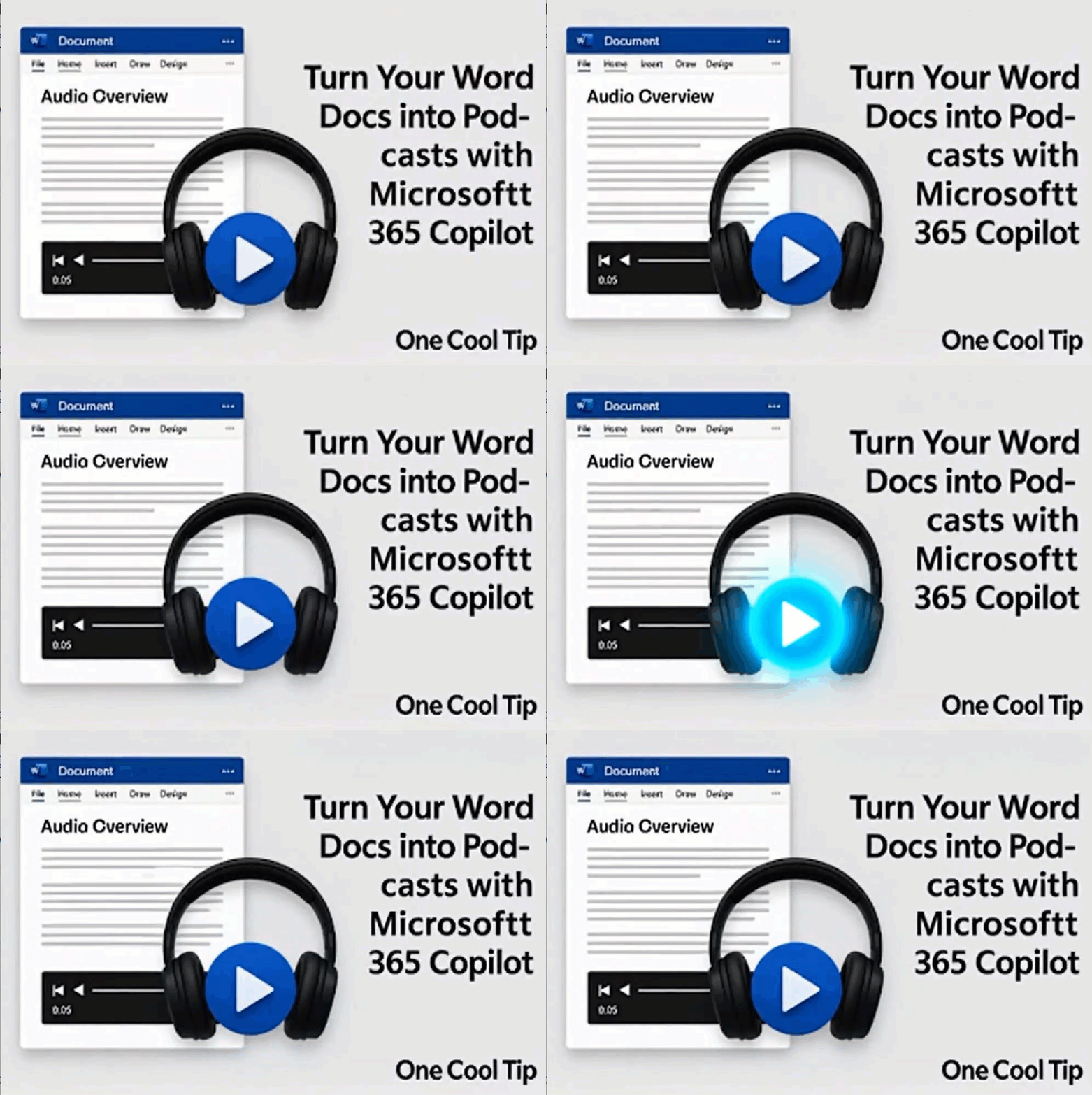
👀 How Do I Turn Word Docs into Podcasts?
Have you ever wished that your documents could talk to you?
Let Microsoft Word Read to You.
Here's how to do it.
-
Open your document in Word for Windows (Version 2506 or later) or Word for the web.
-
Click the Copilot button in the Home tab.
-
Select the suggested prompt or type: "Generate an audio overview from this document."
-
Use the audio player to:
- Adjust playback speed
- Skip forward/back
- Pause/play
5 To save the audio:
- Click the More options (...) button
- Select Save to OneDrive
Microsoft 365 Copilot’s audio overview feature in Word offers a smart, time-saving way to consume content.
Give it a spin today.
Discover more HERE.
| | |
🤔 Have You Ever Wondered How To Share Links to Sheet Views in Excel?
Ever had a messy Excel workbook where different team members apply conflicting filters?
Use the New View Share in Excel for the Web.
Instead of frustrating back-and-forths or duplicate spreadsheets, Microsoft has introduced Sheet View sharing, a simple way to preserve custom views while keeping the original data intact.
Here's how to do it.
-
Open Excel for the web, excel.cloud.microsoft.
-
Load your workbook.
-
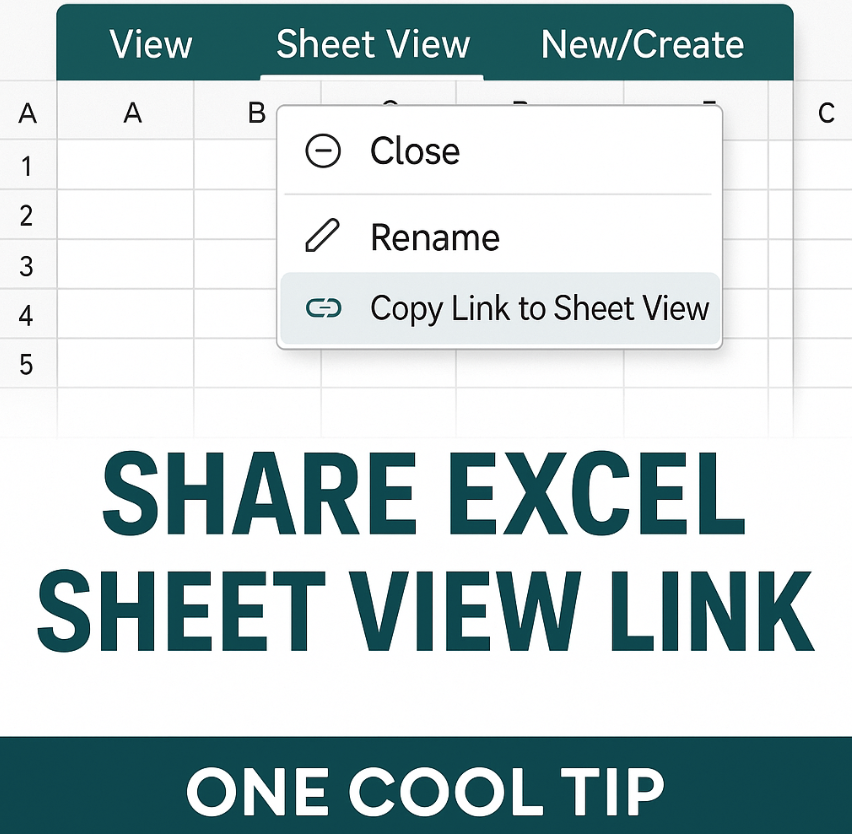
Click on the View tab and create a Sheet View (or use an existing one).
-
Right-click any cell or the sheet tab.
-
Select Copy Link to Sheet View.
-
Paste and share the link via email, Teams, or a document.
Need to share a specific Excel view without disrupting your workbook?
Find out more HERE.
| | |
🙋♂️ Here's How To Master the UNIQUE Function in Google Sheets
Have you ever stared at a sprawling spreadsheet, overwhelmed by a sea of duplicate entries?
The UNIQUE function in Google Sheets serves a straightforward yet crucial purpose: it extracts a list of unique values from a specified range of cells.
Here's how to do it.
-
Launch your Google Sheets document containing the data you want to analyze.
-
Determine the range of cells from which you want to extract unique values (e.g., A2:A9).
-
In an empty cell, enter the formula =UNIQUE(range), replacing "range" with your identified cell range. For instance, if your data is in cells A1 to A9, type =UNIQUE(A2:A9).
-
Press the Enter key.
-
Google Sheets generates a list of unique values, starting from the cell where you entered the formula.
-
Examine the output to ensure it accurately reflects the unique values in your data.
The UNIQUE function in Google Sheets is a powerful tool for anyone seeking to streamline data analysis and eliminate redundancy.
Learn more HERE.
| | |
❓Did you share this newsletter with three friends yet?
😎 Cool Facts
10 Million Cells: A single Google Sheets workbook supports up to 10 million total cells across all combined tabs. Source.
18,278 Columns: The maximum column width in a Google Sheet reaches all the way to column ZZZ. Source.
47 Years of Grids: The electronic spreadsheet model has evolved for 47 years since VisiCalc first debuted on the Apple II in 1979. Source.
⌨️Today's Cool Shortcuts
-
Ctrl + / (Cmd + / on Mac): Open the complete keyboard shortcuts menu.
-
Ctrl + Space: Select the entire active column.
-
Alt + Shift + 5 (Option + Shift + 5 on Mac): Apply or remove strikethrough formatting..
😜 Tech Joke of the Day 😅
How do accountants stay cool in the summer?
They stay close to the frozen panes.
🔎 Do you have a Cool Tip or tech question? Email us at onecooltip.com@gmail.com.
| | |
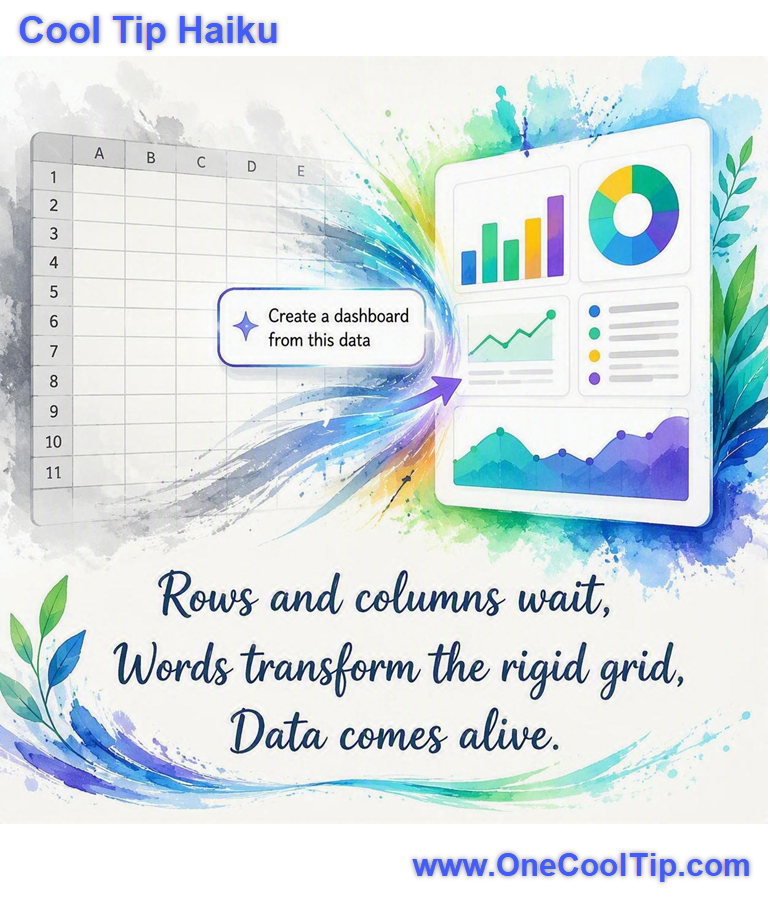
Rows and columns wait,
Words transform the rigid grid,
Data comes alive.
| |
| 🤔 How do you prefer to interact with complex spreadsheet data? | | | | Did You See These Cool Tips This Week? | | | | Turn Spoken Ideas into Finished Tasks with Gemini Live | |
Google added major voice-driven productivity upgrades to Gemini Live, letting you organize emails, compile daily briefings, and complete multi-step tasks across Google Workspace. Here is how you can use natural conversation to clear your daily to-do list without touching your screen.
Read the Newsletter Version.
| | | | Explore Space in 3D With NASA’s Eyes | |
NASA’s Eyes turns real NASA data, imagery, and spacecraft models into interactive 3D experiences. Explore planets, follow spacecraft, track nearby asteroids, monitor Earth, and visit distant worlds from your web browser.
Read the Newsletter Version.
| |
ICYMI - In Case You Missed It ...
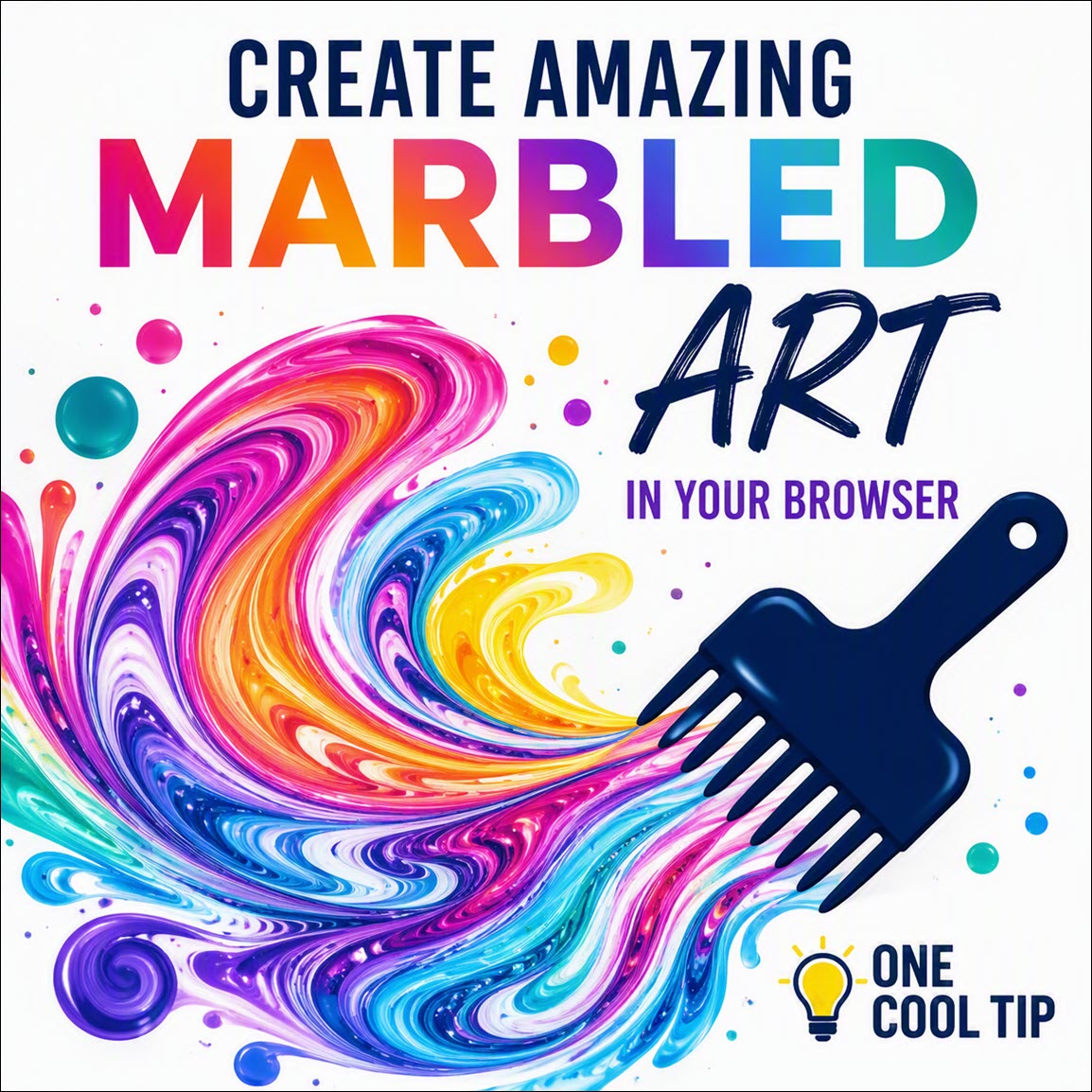
| | | | Make Mesmerizing Marbled Art in Your Browser | |
Paint Toys Marbling turns your web browser into a virtual tray of floating ink. Drop colors onto the canvas, drag a digital comb through them, and save the resulting artwork without installing an app or creating an account.
Read the Newsletter Version.
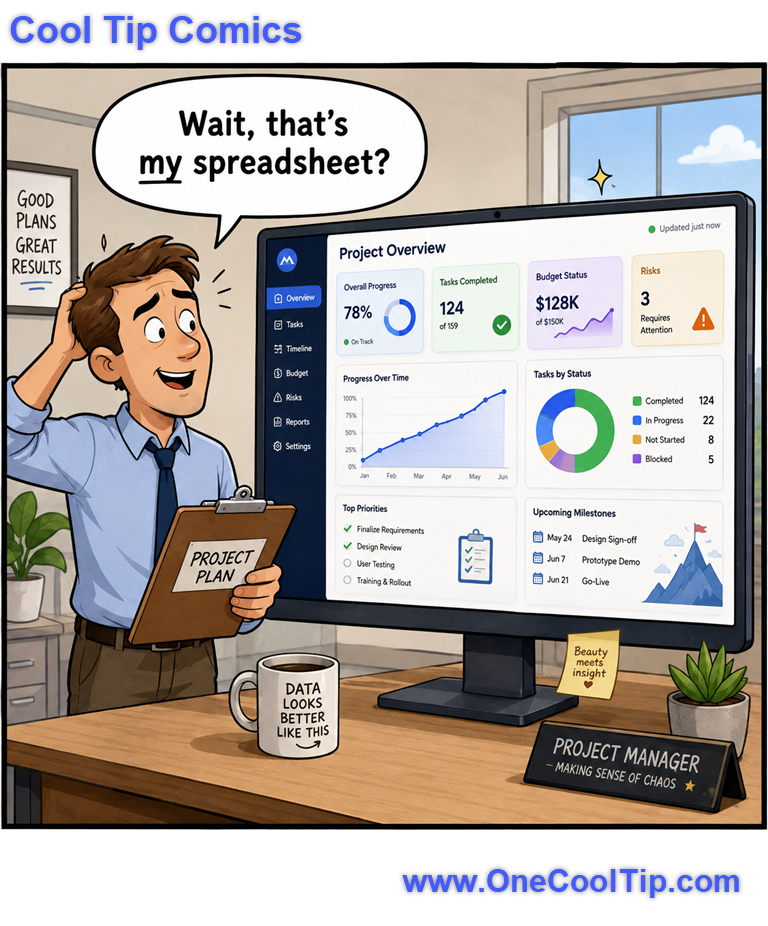
| | Apparently, my spreadsheet just got promoted to management. | | |
Trivia Answer: B) XL2Web
Before Google Sheets existed, co-founder Jonathan Rochelle created XL2Web at 2Web Technologies to allow users to publish and share spreadsheets on the web.
Google acquired 2Web Technologies in early 2006 and used the XL2Web foundation to launch "Google Spreadsheets" in June 2006.
Writely, acquired around the same time, served as the basis for Google Docs.
----------
Tomorrow's Cool Tip is waiting to amaze you.
Until then, go forth and conquer the tech world with your newfound knowledge!
Be sure to visit www.OneCoolTip.com for Cool Tech Tips for a Cooler Life!
And if you like One Cool Tip, please support with TipJar!
Enjoy!
Rodger
Chief Cool Tipper
onecooltip.com@gmail.com
| |
| What do you think of today's OneCoolTip newsletter? | | | |
Please Share the One Cool Tip Newsletter!
You asked for it. You got it. There is now a One Cool Tip Newsletter archive. Did you delete a newsletter and want to read it again? Check it out HERE.
Want to help One Cool Tip grow? Please forward this email using the link above. And if you see an OCT social media post, please LIKE, COMMENT and SHARE!
Have you subscribed to the One Cool Tip YouTube channel? Subscribe HERE.
| | Connect with One Cool Tip!! | | |
|
As an Amazon Associate, One Cool Tip may earn a small commission from qualifying purchases.
Our media content is intended solely for informational purposes only. Please do not construe anything here as legal, tax, investment, financial, marital or other advice.
Copyright © 2026 | www.OneCoolTip.com | All Rights Reserved
|
| | | |