|
One Cool Tip Newsletter
August 10, 2026
| Your daily dose of tech-savvy brilliance! | | |
😀Greetings!, Happy Back-to-Work Monday, Cool Tipper!
Get ready to streamline your digital life with simple, actionable tips delivered straight to your inbox.
Today's Cool Tip Theme: Gemini in Google Slides and Vids
IN THIS ISSUE
- 🚨 Cybercrime Security Warning.
- 🎡 State Fair AI Hacks.
- 🤖 AI Presentation Prompt.
- 🎬 Design & Video with Gemini.
- 📑 Google Docs Tabs Guide.
- 🎥 YouTube Video Summaries.
- ✂️ PowerPoint Video Editing.
New here? Subscribe to the One Cool Tip Newsletter for daily updates. It's FREE!
-
😂 Laugh with Us! Enjoy our Tech Joke of the Day, Haiku and Cool Tip Comics.
-
🌐 Stay Informed! Check out ICYMI, and our One Cool Tip Video.
| | |
3️⃣
If you enjoy the One Cool Tip newsletter, please forward this newsletter to THREE friends or colleagues or share it on social media using the links below.
Leave a $$$ Tip!
Share this One Cool Tip Newsletter!
| | |
Today's Tech Trivia
When did Google launch its first online presentation application as part of Google Docs?
A) 2004
B) 2007
C) 2010
D) 2012
Answer at the end of this newsletter.
| | |
⚠️ One Click Could Put Your Private Accounts at Risk⚠️
The FBI is warning consumers about cybercriminals who use fake account alerts, password reset messages, and customer service impersonation scams to gain access to online accounts.
Once inside, attackers may steal personal information, photos, and other sensitive content.
One of the best ways to protect yourself is to use strong, unique passwords and enable multi-factor authentication on all important accounts.
Be especially cautious of unexpected text messages or emails that ask you to click a link, provide a verification code, or reset your password.
If you receive an account security warning, go directly to the company's official website or app rather than using a link in the message.
Taking a few extra seconds to verify a request can help prevent a major privacy and security headache.
And in Other News...
The Secret to a Smarter State Fair Visit
Heading to a state fair this year?
Google's Gemini AI and other Google tools can help you spend less time planning and more time enjoying the fun.
You can use Gemini to build a personalized itinerary based on your interests, whether that includes concerts, livestock shows, food vendors, or family activities.
Google Maps can help you navigate traffic, locate amenities, and find your way around busy fairgrounds.
If you spot an interesting exhibit, Gemini can answer questions about it using your phone's camera.
You can even turn your fair photos into creative keepsakes using AI-powered editing tools.
It's a great example of how AI can help make everyday adventures a little easier and a lot more enjoyable.
| | |
Try this Cool AI prompt. Copy and paste to ChatGPT, Gemini, Claude or Copilot.
"Act as a professional presentation designer and communication strategist.
I am preparing a 10-minute presentation on [Insert Topic Here] for [Insert Target Audience Here].
Please create a clear 5-slide outline.
For each slide, provide a compelling headline, 3 concise bullet points explaining key concepts, and a suggestion for a visually engaging graphic or video snippet that complements the message."
| | |
Design On-Brand Decks and Convert Them to Video with Gemini
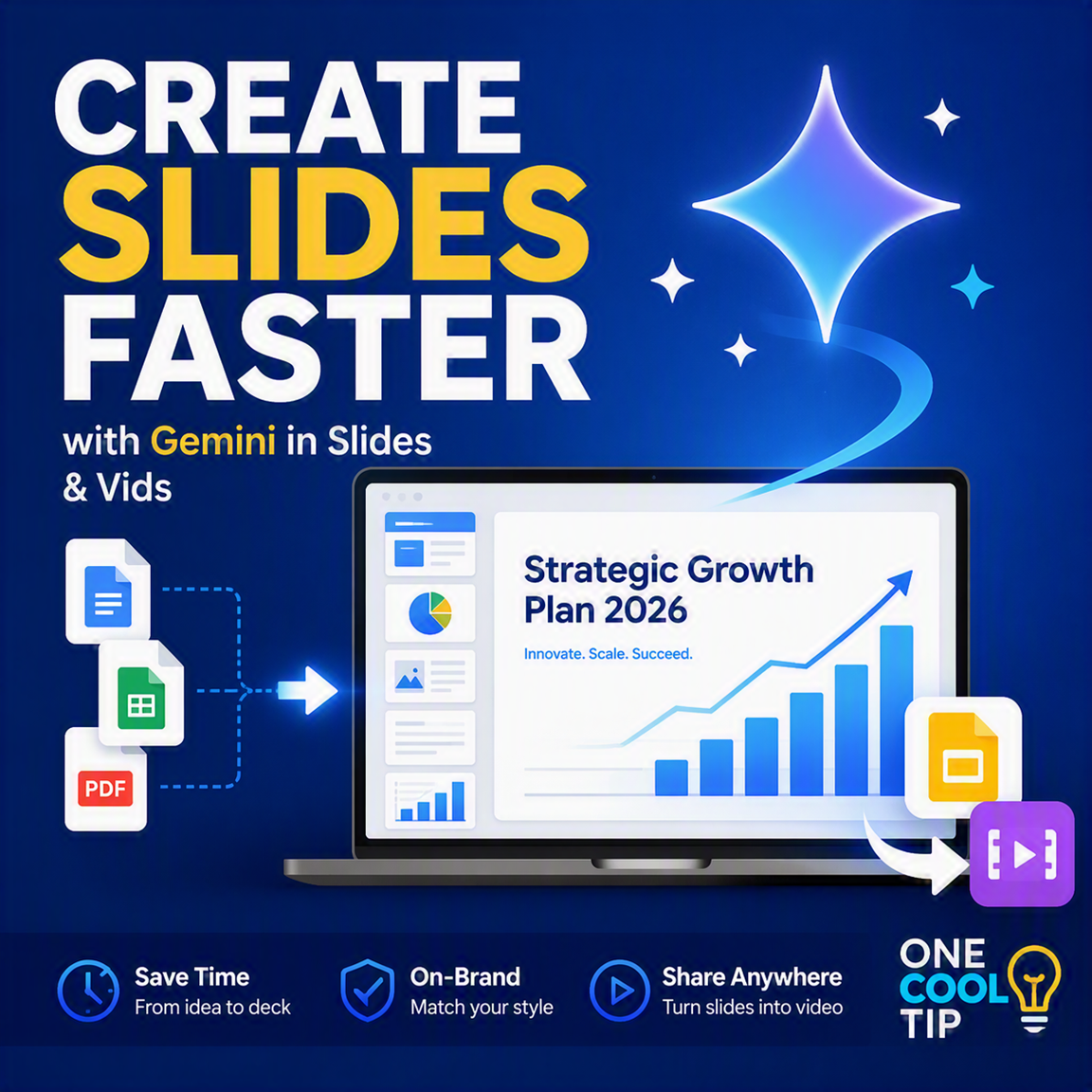
Transforming plain notes into fully styled presentation decks and multimedia videos no longer takes hours of formatting. With Gemini integrated into Google Slides and Google Vids, you can generate structured slide decks from reference files and turn those decks into narrated videos.
Building a presentation from scratch usually involves a tedious mix of copying text, wrestling with visual layouts, and tweaking fonts until everything looks professional.
If you need to convert those slides into a video presentation for remote team members or clients, the task takes twice as long.
Here’s a Cool Tip: Use Gemini in Google Slides to Build Your Presentations, Then Convert It Directly to Video.
Google Workspace addresses workflow friction by linking generative AI directly across its core creation apps.
Using Gemini inside Google Slides, you can feed in raw documents, spreadsheets, or existing decks to generate an on-brand presentation outline and complete slide draft.
From there, Google Vids allows you to convert those slides into a video complete with AI voiceovers, timing, and background music.
Feature Explanation
Gemini in Google Slides acts as a built-in presentation strategist and graphic designer.
Instead of typing content slide by slide, you open the Gemini side panel and prompt the assistant with your presentation goals.
You can tag reference files in Google Drive such as Google Docs, Google Sheets, or PDFs, or select an existing presentation so Gemini learns your team's colors and layout styles.
Gemini begins by proposing an interactive outline.
You can adjust slide titles, remove unnecessary steps, or add key topics before any slides are drawn.
Once approved, Gemini generates editable slides matching your layout preferences.
Complementing this capability is Google Vids, the Workspace app designed for asynchronous video creation.
Using the Convert Slides functionality in Vids, you can import your newly generated presentation.
Gemini then automatically drafts a video script based on your slide notes, assigns natural-sounding AI voiceovers, adds background music, and organizes the presentation into timed video scenes.
This bridge eliminates the need for external screen recorders or video editing software.
What You’ll Gain
Save time by turning raw notes and spreadsheets into complete, editable slide decks in minutes.
Maintain brand consistency by setting Gemini to match the visual style of your team's existing decks.
Scale video content creation by converting static slides into narrated videos without recording your own voice.
Step-by-Step Instructions
Web/Desktop (Google Workspace)
Part 1: Generating the Presentation in Google Slides
-
Open your web browser, navigate to Google Slides.
-
Start a blank presentation. Alternatively, type slides.new into your address bar.
-
Click the Ask Gemini star icon in the upper-right corner of the interface to open the side panel.
-
In the prompt field, type a description of your project. For example: "Create a 6-slide report on AI in the Workplace."
- Click Add sources to attach specific Google Drive files.
-
Answer any quick clarification prompts from Gemini regarding length, audience, or tone, then click Next.
-
Review the generated presentation outline. Edit slide titles, remove unwanted topics, or add steps as needed.
-
Click Approve. Keep the browser tab open while Gemini builds your custom slides.
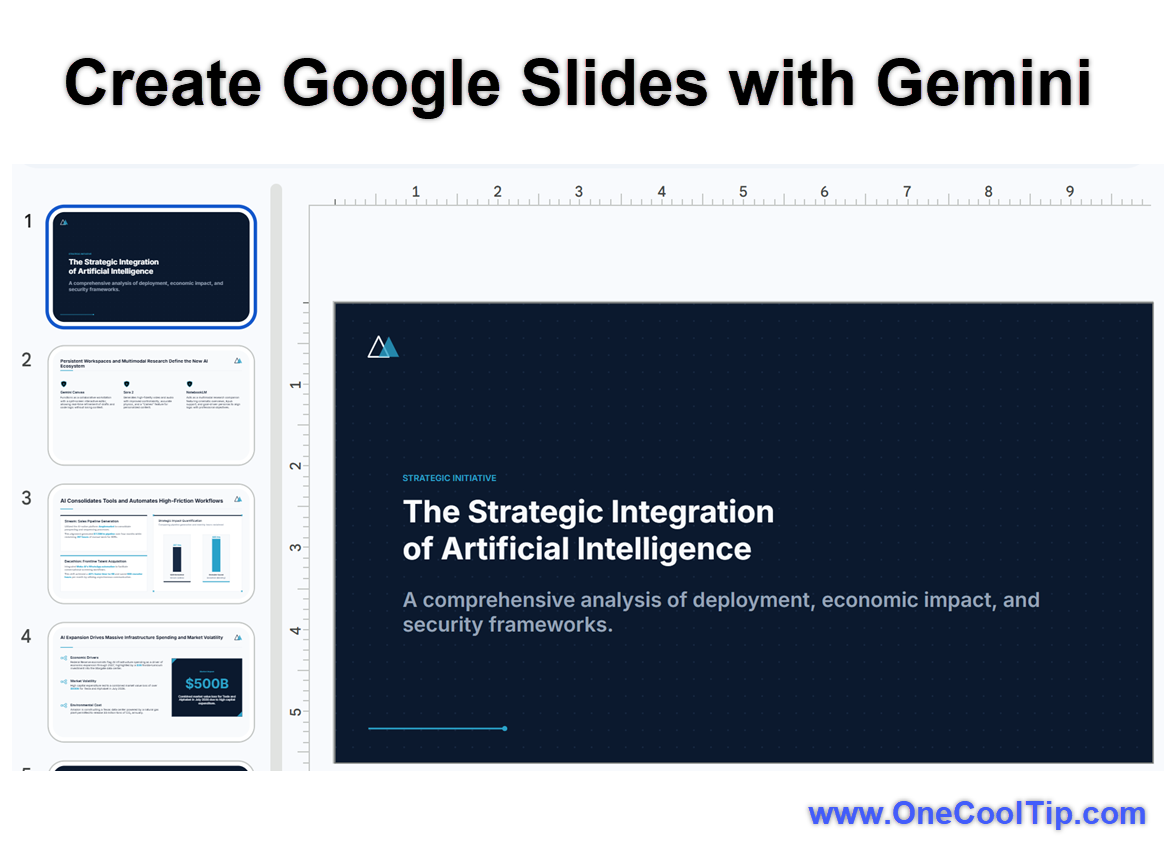
| | fig. 1 - Create Google Slides with Gemini | |
Part 2: Converting the Presentation to Video in Google Vids
-
Open a new tab and go to vids.new.
-
On the welcome screen, select Convert Slides.
-
Pick your newly created Google Slides presentation from the file picker and select which slides to include.
-
Ensure the toggle labeled Include AI voiceover, script, and background music is switched on.
-
Click Import. Google Vids will create a timeline with individual scenes, generated scripts, voice narration, and background tracks.
| |
Note:
Not currently available on Android or iOS mobile apps as of August 2026; Gemini generation and Vids creation features require a desktop web browser.
Pros and Cons
Pros:
- Eliminates blank-page friction by producing fully formatted outlines and drafts quickly.
- References real context from your Google Drive files for high content accuracy.
- Matches corporate design systems so generated decks look polished rather than generic.
- Automatically generates voiceovers and scripts, turning decks into shareable videos without extra recording equipment.
Cons:
- Requires an active, eligible Google Workspace or Google AI subscription plan.
- Only supported on desktop web browsers in English.
- AI-generated slides still require manual review to verify nuanced figures or complex data charts.
Feature Access
-
Availability: Fully supported across Google Workspace Business, Enterprise, and Essentials tiers, as well as selected Education and AI add-on plans.
-
Supported Platforms: Desktop web browsers (Chrome, Edge, Safari, Firefox).
-
Language Support: English only at present.
-
Account Limitations: Free personal accounts require enrollment in Google Workspace Experiments to access preview features.
Score
Criterion | Score (0–10) | Justification
Value | 9
Substantially cuts down the time required to build decks and produce training videos from existing documentation.
Usability | 8
The guided, step-by-step outline preview gives users control before generating final assets.
Wow Factor | 8
Turning static slides into a fully scripted, AI-voiced video with a single click is impressive and highly useful.
Total: 25/30 | 🌟 Excellent
Gemini in Slides and Vids provides a comprehensive workflow for turning ideas into polished decks and videos with minimal effort.
Key Takeaways
Gemini transforms presentation creation by analyzing your working documents and generating styled slide decks tailored to your brand.
Connecting Slides with Google Vids enables fast conversion of static content into fully narrated video presentations.
Cool Tip Snapshot
-
Feature Name: Gemini in Google Slides & Vids
-
Platform(s): Web (Desktop)
-
Quick Benefit: Generate custom slide decks from Drive files and convert them into narrated videos.
-
Best For: Business professionals, educators, and content creators.
-
Access Type: Subscription / Workspace Plan
-
Difficulty: Easy
Try It Yourself
Ready to streamline your workflow?
Open Google Slides today, prompt Gemini using your latest project document, and see how quickly you can generate a full deck!
Share your experience in the comments below, subscribe to the One Cool Tip newsletter for daily tech guides, and pass this article along to your colleagues.
READ MORE
Read the Cool Tip on One Cool Tip.com.
| | Help support One Cool Tip. Use this Amazon link when you shop online. | |
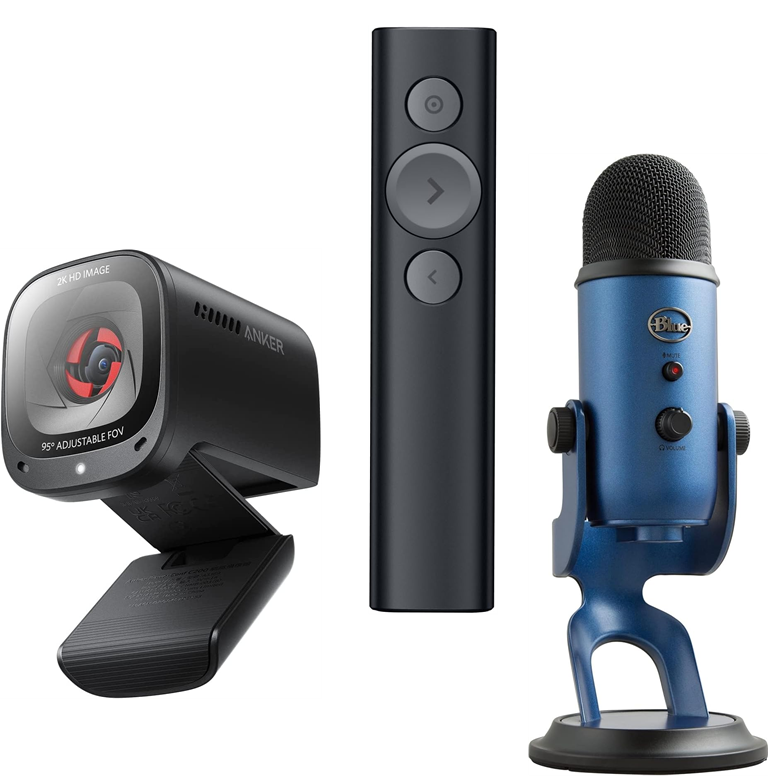
🎧 Anker PowerConf C200 Webcam: Upgrade your video presentations with crisp 2K resolution and dual noise-canceling microphones.
Save 18%. $53.99. 4.4 Stars. Check it out on Amazon!
🎙️ Blue Yeti USB Microphone: Ensure your voiceover commentary in video presentations sounds crystal clear and professional.
Save 26%. $104. 4.6 Stars. Check it out on Amazon!
🖱️ Logitech Spotlight Presentation Remote: Highlight key areas on your slides seamlessly during live or virtual meetings. Check it out on Amazon!
Save 8%. $109.99. 4.4 Stars. Check it out on Amazon!
Prices accurate at time of publication
One Cool Tip may earn a commission from qualifying purchases.
| | |
🆒Tell Me More
-
Direct Drive Integration: Gemini in Google Slides reads files directly from your Google Drive using @ mentions, allowing you to build slide decks grounded in real project data.
-
Automated Audio Creation: When converting slides to video in Google Vids, Gemini writes the narration script based on slide content and applies synthetic voiceovers automatically.
-
Visual Style Preservation: The "Match presentation style" feature scans existing .gslide files so new AI-generated decks retain corporate fonts, colors, and layouts.
⏩Quick Tips
- 🏷️ Source Tagging: Type @ inside the Gemini panel in Slides to tag specific Drive files as source material.
- 🎨 Style Sync: Click Match presentation style inside Gemini to apply your company's design layout to new decks.
- 📝 Outline Review: Edit slide headings directly in the Gemini plan preview before approving final slide creation.
- 🎙️ Voiceover Toggle: Turn on Include AI voiceover when importing slides into Google Vids to generate automatic speech tracks.
- ⚡ Instant Launch: Type slides.new or vids.new into your web browser address bar to create fresh documents instantly.
| | ✅ More Must-Read Tech Tips | | |
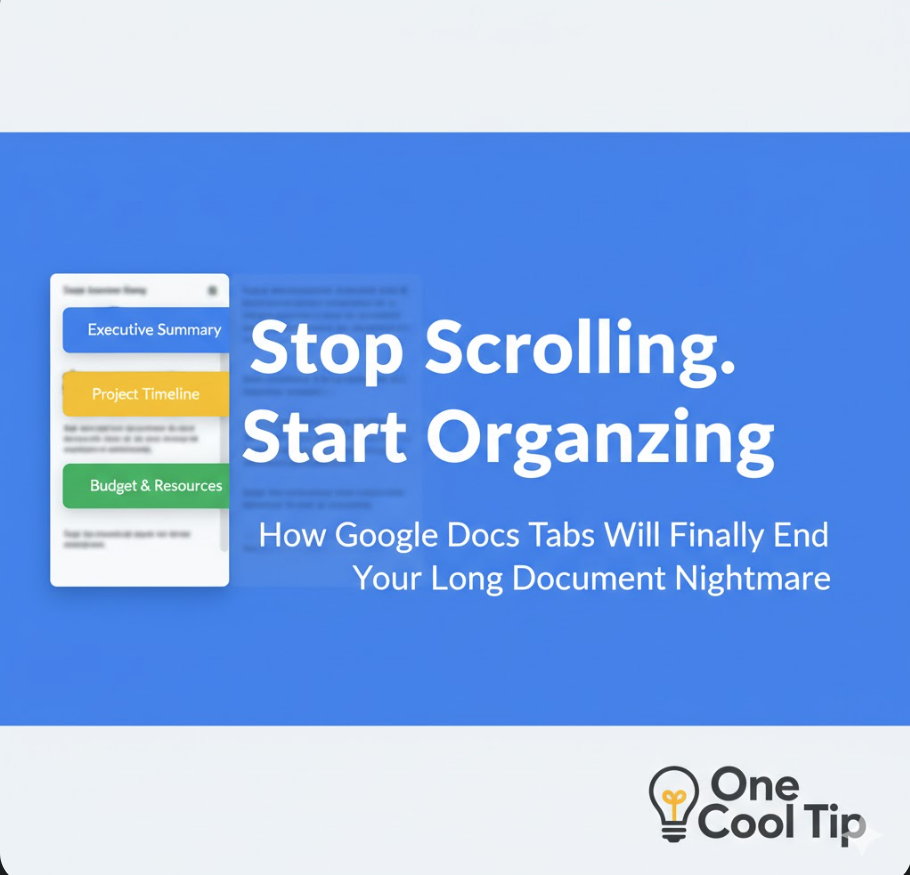
👀 How Do I Use Tabs in Google Docs?
Have you ever found yourself endlessly scrolling through a massive Google Docs file trying to find that one paragraph buried in the middle of the page?
Google’s rollout of the “tabs” feature in Docs feels like a genuine productivity upgrade.
Here's how to do it.
On Desktop/Web (Google Docs on browser)
-
Open a document in Google Docs, docs.google.com.
-
Click the top-left icon: “Show tabs & outlines”.
-
In the left panel, click “Add tab” (➕) to create a new tab.
- Optional: To create a sub-tab, click the three-dot tab menu → “Add subtab” or drag one tab onto another to make it a child.
-
To rename: click tab menu → Rename → type new name (you can even add an emoji).
-
To duplicate: tab menu → Duplicate (retains style).
-
To delete (only if more than one tab exists): tab menu → Delete.
-
To move/reorder: drag the tab to desired position.
-
To link to a tab: tab menu → Copy link. Share that link to direct collaborators.
-
Printing/downloading: Note that only the active tab prints/downloads by default. To get every tab in one go, go to Google Drive → right-click document → Download.
Tabs in Google Docs let you treat one document like a mini-workbook, allowing you to navigate via section tabs, collapse sections, and share pinpoint links.
Discover more HERE.
| | |
🤔 Have You Ever Wondered How to Use Google Gemini to Summarize a Video?
Ever wished you could skip ahead to the good part without wading through an hour of chatter?
Here's how to do it.
On Desktop / Web
-
Visit Gemini in your browser, logged into your Google account, gemini.google.com
-
Open the model picker and choose 2.5 Flash (or greater) model.
-
Toggle the YouTube (via Settings → Apps → YouTube/).
- Note: This example uses a TED Talk featuring Sam Altman, CEO of OpenAI. But include the URL of the YouTube video you want to review.
- Prompt Gemini with:
- "Please analyze the following YouTube video and provide a comprehensive summary that includes:
-
https://www.youtube.com/live/5MWT_doo68k?si=bMquqMqTwtCIa-P6
-
**Main Topic/Purpose:** Clearly state the primary subject and objective of the video.
-
**Key Points/Arguments:** List the most important ideas, arguments, or pieces of information presented. Use bullet points for clarity.
-
**Target Audience:** Who is this video primarily intended for?
-
**Overall Tone and Style:** Describe the general tone (e.g., informative, enthusiastic, critical, humorous) and style (e.g., formal, casual, conversational) of the video.
-
**Actionable Takeaways (if applicable):** If the video provides advice, instructions, or calls to action, summarize them here.
-
**Potential Limitations or Bias (if any):** Briefly mention any noticeable limitations, omissions, or potential biases in the video's content or presentation.
-
**Timestamped Highlights (3-5 key moments):** Provide 3-5 specific moments from the video with their timestamps and a brief description of what is discussed at that point. Please ensure the summary is concise yet informative, capturing the essence of the video without unnecessary detail. "
Google Gemini transforms long videos into easily navigable summaries with automated bullet points and clickable timestamps, ideal for professionals and educators.
Find out more HERE.
| | |
🙋♂️ Here's How to Edit Videos in PowerPoint
Have you ever found yourself wishing for a simple way to edit videos for your presentations?
Microsoft PowerPoint is a widely-used presentation program that allows users to create dynamic, slide-based presentations.
Here's how to do it.
- Create a new PowerPoint or open an existing file.
- Add your video to the desired slide.
- Insert from Device.
- Insert from Stock.
- Insert from Online.
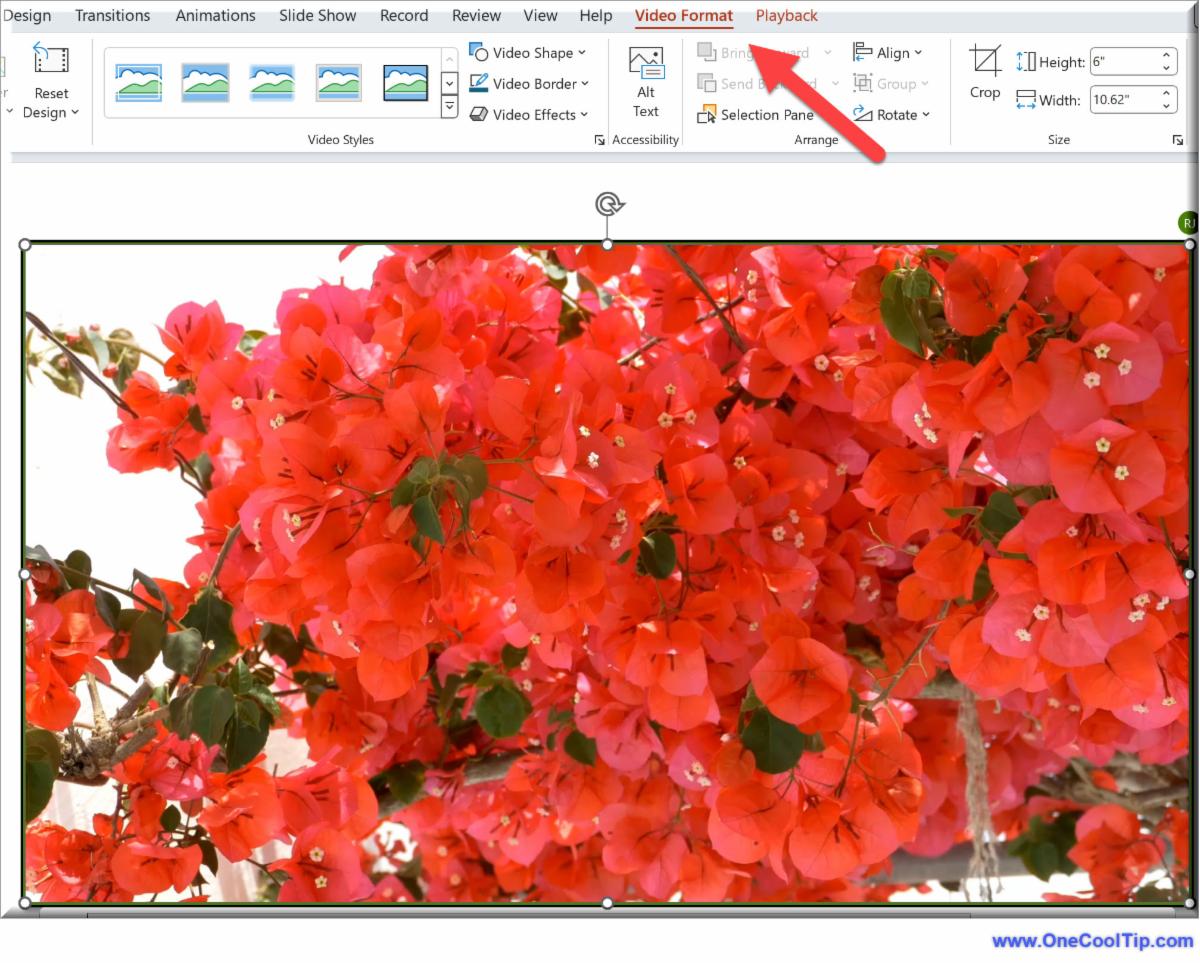
- Use the built-in trim feature to cut out any unnecessary parts.
- Apply video styles, borders, and effects to match your presentation’s theme.
- Customize how your video plays during the presentation, like setting it to loop or play full-screen.
- Overlay text or shapes to provide additional context or highlight key points.
Using video editing in PowerPoint allows editing without leaving PowerPoint.
Seamlessly blend videos into your presentations and tailor video playback to suit your needs.
Embrace the simplicity and power of PowerPoint’s video editing capabilities and take your presentations to the next level.
Learn more HERE.
| | |
❓Did you share this newsletter with three friends yet?
😎 Cool Facts
- Visual information processed by the human brain stays in long-term memory significantly longer than text alone. Source.
- Video presentation formats experience higher viewer completion rates compared to standard text slide decks. Source.
- Automated layout tools reduce the average time spent formatting presentation decks by up to 30 percent. Source.
⌨️Today's Cool Click Paths
-
Open Gemini Side Panel: Google Slides > View > Show Gemini Side Panel
-
Generate AI Image: Google Slides > Insert > Image > Create Image with Gemini
-
Generate Slide Layouts: Google Slides > Tools > Explore / Gemini Design
-
Convert Deck to Video: Google Vids > File > Import > Import Slides
😜 Tech Joke of the Day 😅
Why did the presentation go to therapy?
It had too many slide issues.
🔎 Do you have a Cool Tip or tech question? Email us at onecooltip.com@gmail.com.
| | |
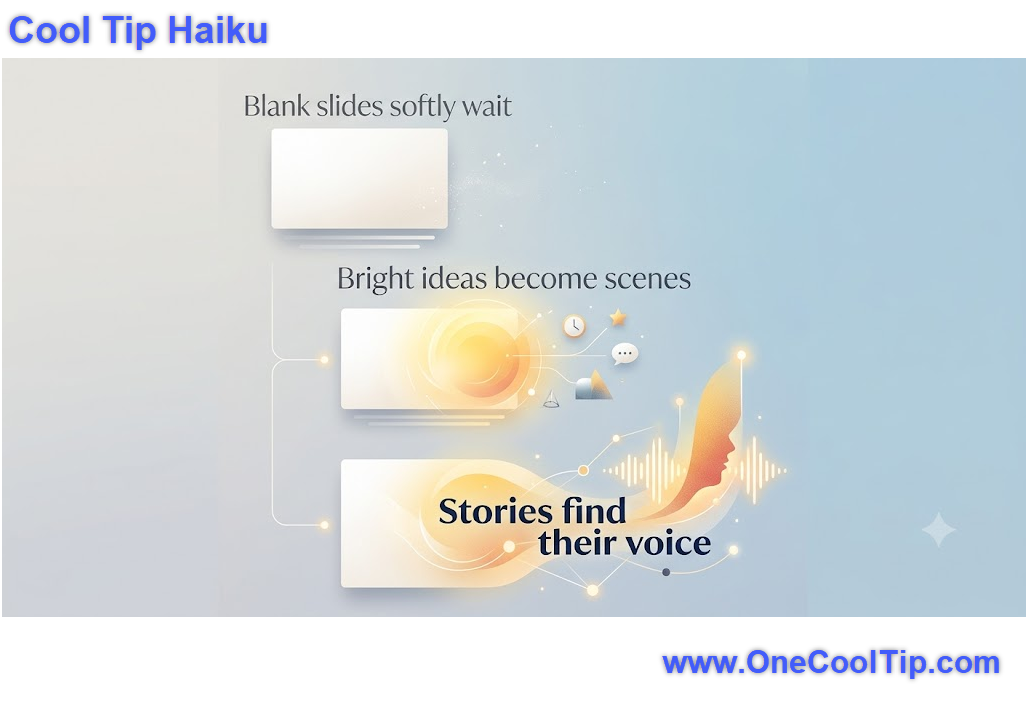
Blank slides softly wait
Bright ideas become scenes
Stories find their voice
| |
| 🤔 What is your primary tool for creating presentation decks? | | | | Did You See These Cool Tips This Week? | | | | ChatGPT Removes Text Chat Limits for Free Users | |
ChatGPT Free users will soon be able to continue ordinary text conversations without hitting a standard usage limit. The update also makes GPT-5.6 Luna the default model for Free and Go accounts and adds a Think button for more difficult questions.
Read the Newsletter Version.
| | | | Turn YouTube Into a Smart Assistant with Conversational AI Search | |
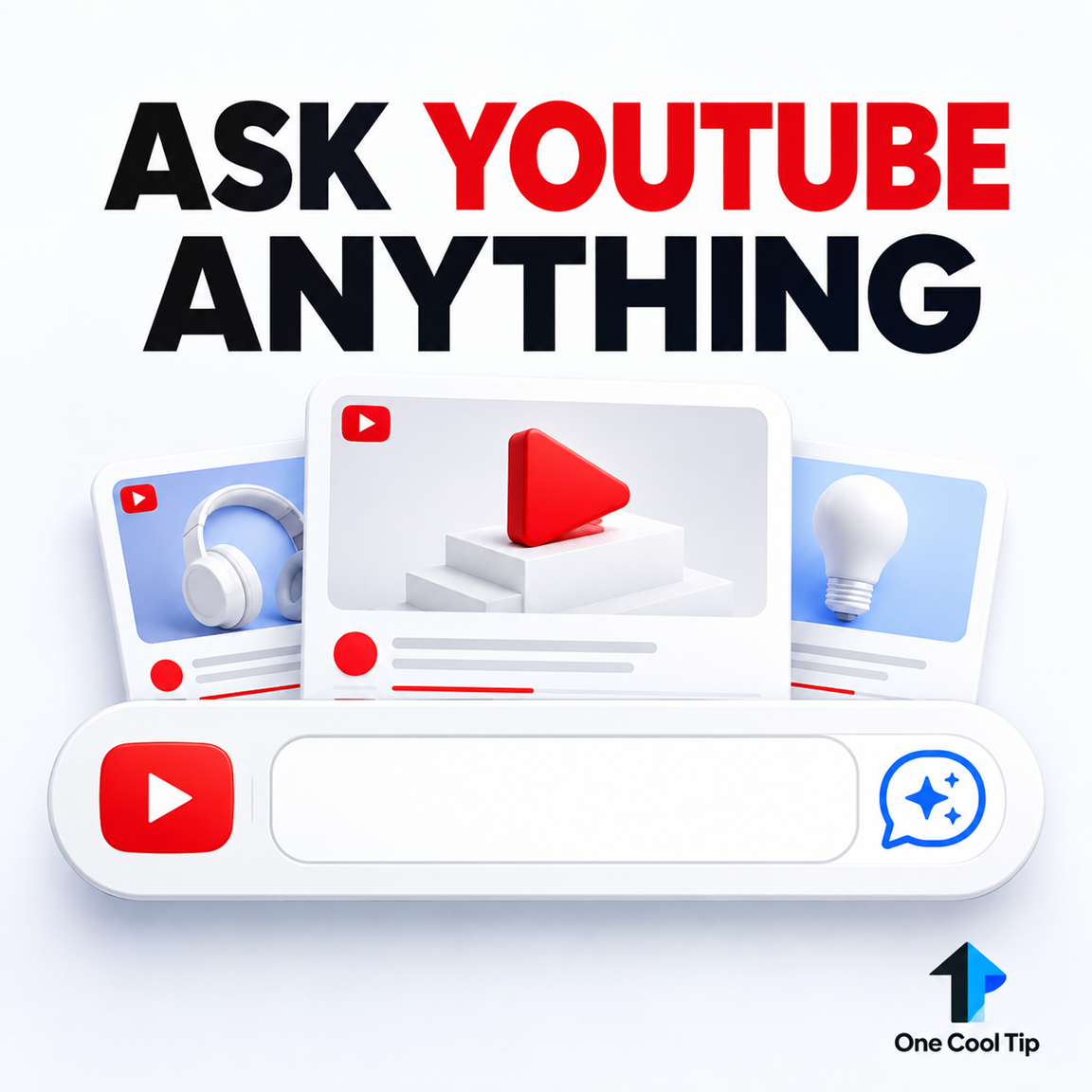
Ask YouTube transforms traditional video searching by allowing you to ask natural, complex questions and receive structured text answers paired with precise video clips. This Cool Tip demonstrates how to use this conversational AI feature on desktop and TV devices to find answers fast without scrubbing through endless video timelines.
Read the Newsletter Version.
| |
ICYMI - In Case You Missed It ...
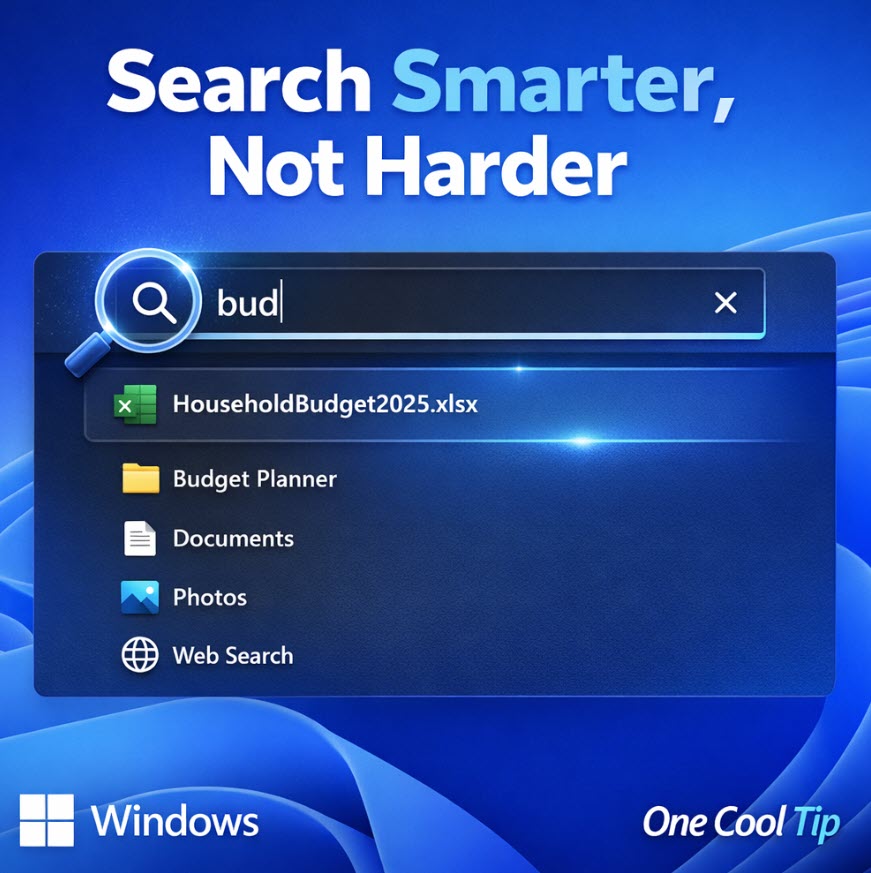
| | | | Find Files Faster: Windows 11 Search Finally Gets Smarter | |
Windows 11 Search has long been a frustration point, but the June 2026 update addresses some of its biggest weaknesses. These changes make finding files faster, easier, and far less dependent on typing the exact file name.
Read the Newsletter Version.
| | |
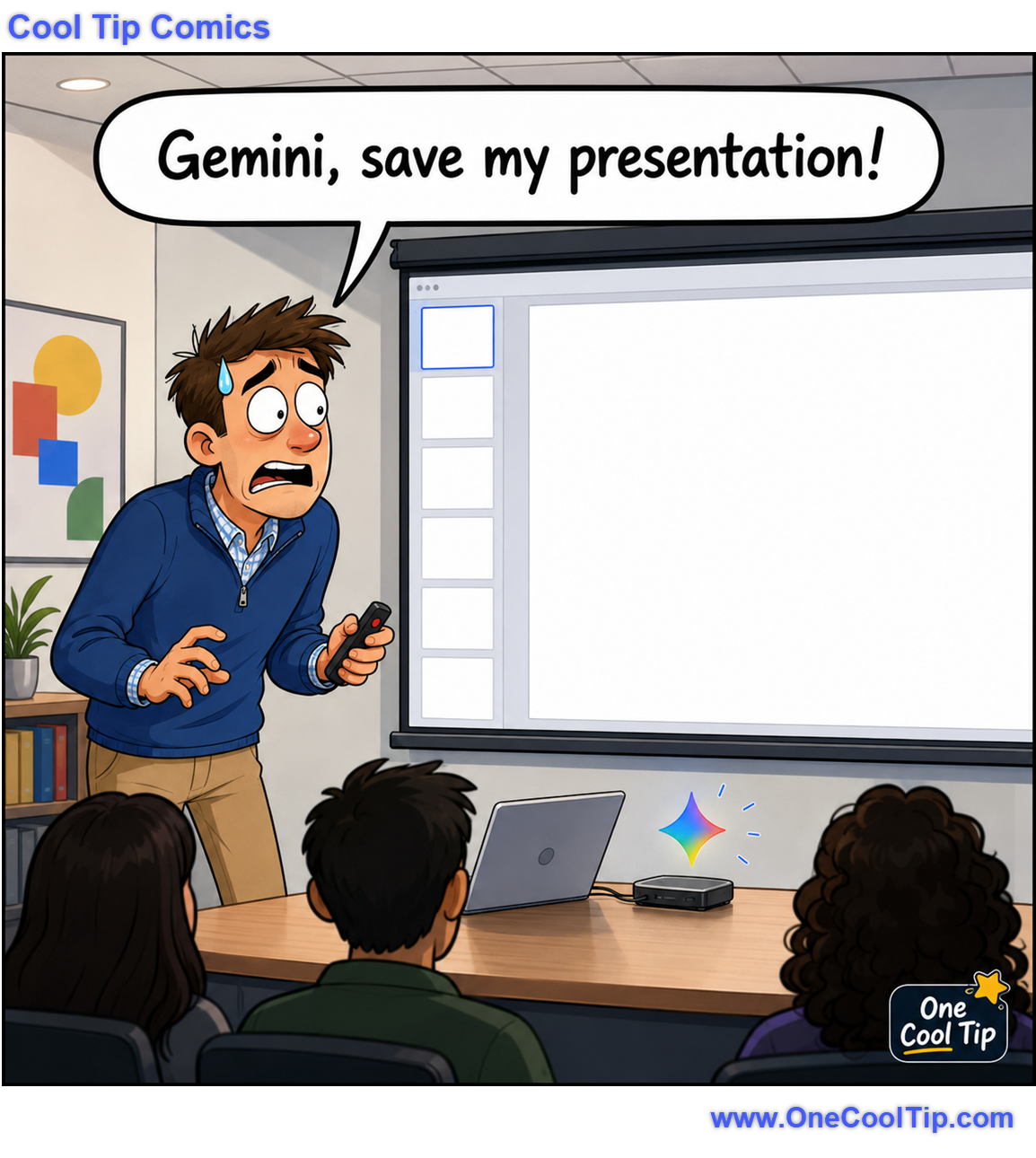
When your presentation is so blank, even the AI gets stage fright.
| | |
Trivia Answer: B) 2007
Google launched the presentation application on September 17, 2007.
At the time, the emphasis was not artificial intelligence but real-time online collaboration.
Users could create, upload, share, and edit presentations from different locations.
That early collaboration model remains the foundation of Google Slides.
Nearly two decades later, Gemini can now help draft the content and design that collaborators refine together.
----------
Tomorrow's Cool Tip is waiting to amaze you.
Until then, go forth and conquer the tech world with your newfound knowledge!
Be sure to visit www.OneCoolTip.com for Cool Tech Tips for a Cooler Life!
And if you like One Cool Tip, please support with TipJar!
Enjoy!
Rodger
Chief Cool Tipper
onecooltip.com@gmail.com
| |
| What do you think of today's OneCoolTip newsletter? | | | |
Please Share the One Cool Tip Newsletter!
You asked for it. You got it. There is now a One Cool Tip Newsletter archive. Did you delete a newsletter and want to read it again? Check it out HERE.
Want to help One Cool Tip grow? Please forward this email using the link above. And if you see an OCT social media post, please LIKE, COMMENT and SHARE!
Have you subscribed to the One Cool Tip YouTube channel? Subscribe HERE.
| | Connect with One Cool Tip!! | | |
|
As an Amazon Associate, One Cool Tip may earn a small commission from qualifying purchases.
Our media content is intended solely for informational purposes only. Please do not construe anything here as legal, tax, investment, financial, marital or other advice.
Copyright © 2026 | www.OneCoolTip.com | All Rights Reserved
|
| | | |