|
One Cool Tip Newsletter
March 2, 2026
| Your daily dose of tech-savvy brilliance! | |
😀Greetings!, Happy Monday, Cool Tipper!
Get ready to streamline your digital life with simple, actionable tips delivered straight to your inbox.
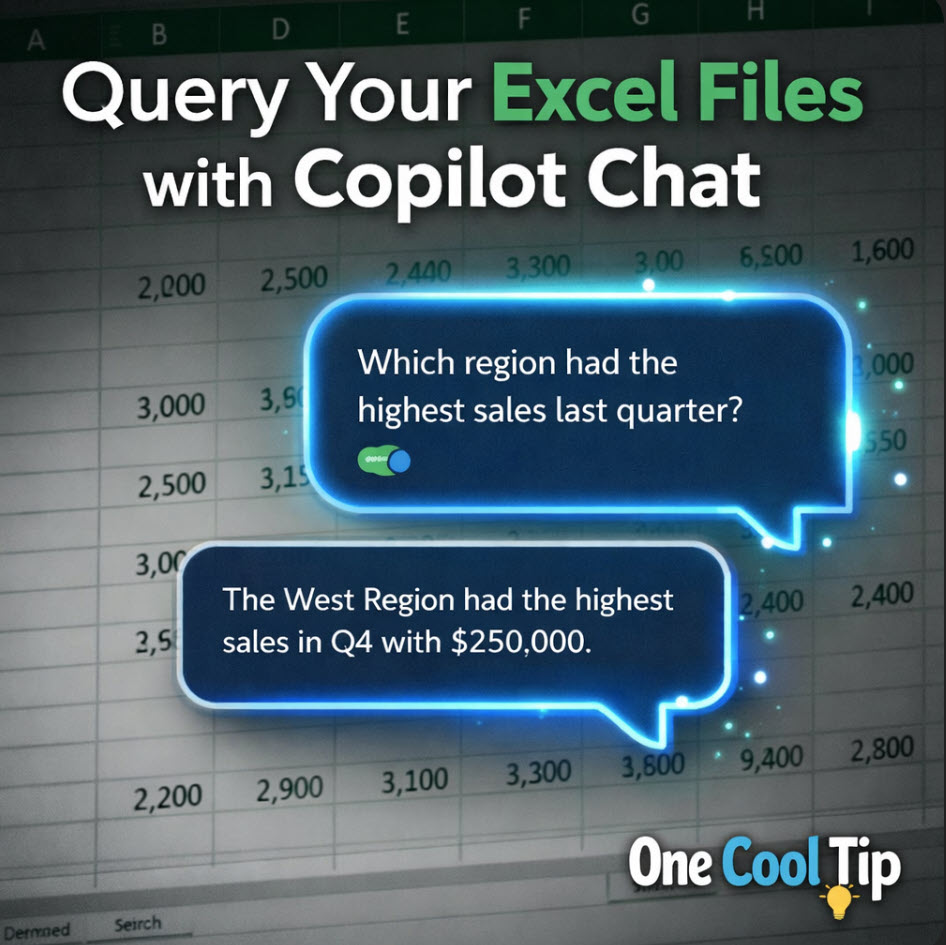
Today's Cool Tip Theme: Query Your Local Excel Files with Copilot Chat.
IN THIS ISSUE
- ⚾ MLB Rule Change.
- 📈 February Top Tips.
- 🧘 Digital Wellness
- 🤖 AI Excel Prompt.
- 📗 Local Excel Copilot Query.
- 🔄 Transpose Excel Data.
- ➕ Multiple Ways to Total.
- 🧹 Duplicate Data Removal.
New here? Subscribe to the One Cool Tip Newsletter for daily updates. It's FREE!
-
😂 Laugh with Us! Enjoy our Tech Joke of the Day, Haiku and Cool Tip Comics.
-
🌐 Stay Informed! Check out ICYMI, and our One Cool Tip Video.
| | |
3️⃣
If you enjoy the One Cool Tip newsletter, please forward this newsletter to THREE friends or colleagues or share it on social media using the links below.
Leave a Tip!
Share this One Cool Tip Newsletter!
| | |
Today's Tech Trivia
Answer at the end of this newsletter.
| |
| Which Excel feature was introduced in 1993 and changed how users analyze large datasets? | | | | |
🚨MLB Adds ABS Challenge System for 2026 Season🚨
Major League Baseball is making one of its biggest rule changes in years. Beginning with the 2026 season, players will be able to challenge ball and strike calls using the new Automated Ball‑Strike (ABS) Challenge System. The system debuts on Opening Night, March 25, 2026, when the Giants face the Yankees, marking the first time fans will see ABS used in a regular-season MLB game.
The ABS Challenge System uses advanced tracking cameras to determine pitch location in real time. When a batter, catcher, or pitcher disagrees with a call, they can immediately request a challenge. A graphic showing the pitch’s exact location is displayed almost instantly on the stadium videoboard and broadcast feed, confirming or overturning the call.
Each team starts with two challenges, and successful challenges are retained. In extra innings, teams always receive at least one challenge per inning, ensuring late‑game strategy stays alive.
MLB calls this a “middle ground” between full robot umpires and traditional human judgment. After years of testing in the minors, fan polling and league review supported bringing the system to the majors. The goal is simple: fewer missed calls, faster decisions, and a more transparent strike zone.
Bottom line: The ABS Challenge System is coming to every MLB ballpark this season, adding accuracy, strategy, and a new layer of excitement to every pitch.
And in other Tech News...
- Top Cool Tips for February
Once again, One Cool Tip saw hundreds of thousands of visitors reading and watching hundreds of Cool Tips in February 2026:
- Google’s “Deep Breathing” Helps You Reset in 60 Seconds
Feeling stressed at your desk? Google has a quiet little easter egg that can help you reset in under a minute. Type “deep breathing” into Google Search, and you’ll see a built‑in guided breathing tool appear at the top of the page.
It’s a simple animation that expands as you inhale and contracts as you exhale, pacing you through a one‑minute calming cycle.
There’s nothing to install, no account needed, and it works on any device with a browser. The exercise ends with a gentle “Well done,” and you can even share it with someone who might need a quick break.
| | |
Try this Cool AI prompt. Copy and paste to ChatGPT, Gemini or Copilot.
- Upload an Excel file and use this prompt:
“Analyze this Excel workbook and give me three insights I can share in a meeting. Highlight trends, outliers, and anything that needs attention.”
| | |
Query your local Excel files with Copilot Chat
Copilot in Excel is finally learning a new trick: it can now answer questions about workbooks stored right on your device. If you primarily work in local folders, this update quietly changes how you work with data every day.
You know that one folder on your desktop where all the “final_v3_really_final.xlsx” files live.
Until now, those local workbooks were invisible to Copilot Chat unless you moved them into the cloud.
That extra step was just enough friction to skip using Copilot at all.
Here's a Cool Tip: You Can Now Query Your Local Excel Files with Copilot Chat.
Copilot can now analyze modern Excel files stored locally, so you can ask questions, clean data, and build summaries without reshuffling your storage strategy or uploading sensitive files.
Feature Explanation
At its core, this feature lets Copilot Chat read and reason over modern Excel workbooks that are stored on your device or a local network share.
When you open a supported workbook in Excel and launch Copilot Chat, your prompts are now grounded in the data inside that local file.
You can ask natural language questions like “What are the top three cost drivers this quarter?” or “Create a pivot table showing revenue by region,” and Copilot will respond based on the workbook you have open.
Previously, this level of context was limited to files stored in OneDrive or SharePoint.
Microsoft describes this as an expansion of Copilot’s reach.
The company confirms that the capability is currently rolling out on Windows and Mac, bringing Copilot closer to where most people actually keep their spreadsheets.
What You Will Gain
- Faster insights from the Excel files you already have on your device.
- Less friction moving files into the cloud just to use Copilot.
- Safer workflows for sensitive or confidential spreadsheets.
- More value from Copilot during travel or low connectivity.
Step-by-Step Instructions
Excel on Windows and Mac
-
Make sure you are running the latest version of Excel.
-
Open an Excel file stored on your device or a local network share. Look for .xlsx, .xlsb, .xlsm, or .ods.
-
Select the Copilot icon in the ribbon, or use the Copilot pane if it is already visible.
-
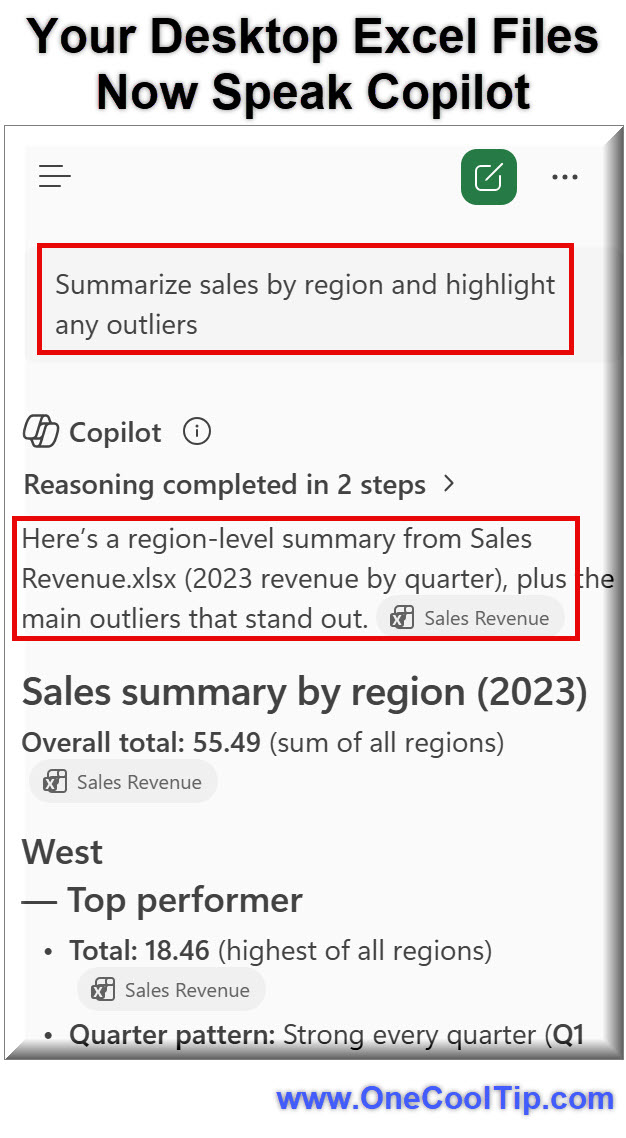
Type a prompt like “Summarize sales by region and highlight any outliers.”
-
Copilot proposes formulas, summaries, or visualizations.
-
Accept, tweak, or ask follow-up questions.
| | fig. 1 - Local Excel Files Speak Copilot Example | |
iOS and Android
- The local file support is focused on desktop Excel.
- On mobile, Copilot works best with files stored in OneDrive or SharePoint.
- If you want similar behavior on iOS or Android, save the workbook to the cloud from your phone or tablet, then open Copilot Chat from there.
Pros and Cons
Pros
-
Less friction: You can keep your existing folder structure and still use Copilot effectively.
-
Better privacy posture: Sensitive workbooks can stay local while still benefiting from AI assistance.
-
Offline friendly: If you are on a plane or in a low connectivity environment, you can still work with open local files and get value once Copilot connects.
Cons
-
Modern formats only: Legacy .xls files are not supported, so older workbooks may need conversion.
-
Performance on huge files: Very large workbooks may feel slower when Copilot analyzes them.
-
Desktop first: The most complete experience is on Windows and Mac, not mobile.
Feature Access
-
Who gets it: Microsoft 365 subscribers with Copilot access.
-
Platforms: Excel on Windows and Mac.
-
File types: Modern Excel formats such as .xlsx, .xlsb, .xlsm, and .ods.
-
Rollout status: This feature is currently rolling out on Windows and Mac.
If you do not see it yet, you are likely waiting on the rollout to reach your account.
Score
Criterion | Score (0–10) | Justification
Value 9
Unlocks Copilot for the files people actually use most often and reduces friction.
Usability 8
Works naturally once enabled, though some users may be confused about supported formats and platforms.
Wow Factor 8
Quiet but powerful shift that makes Copilot feel more integrated into everyday Excel work.
Total: 25/30 🌟 Excellent
A high-impact upgrade that finally brings Copilot to your real-world spreadsheets, not just the ones you remember to upload.
Key Takeaways
Copilot in Excel can now analyze modern workbooks stored on your device, not just in the cloud.
That means less file shuffling, better alignment with privacy needs, and more chances to use AI on the spreadsheets you already rely on.
As the rollout continues, this will quietly become one of the most useful Copilot improvements for everyday users.
Cool Tip Snapshot
-
Feature Name: Query your local Excel files with Copilot Chat
-
Platform(s): Excel for Windows, Excel for Mac
-
Quick Benefit: Get instant insights from local workbooks without moving them to the cloud.
-
Access Type: Subscription, currently rolling out
Try It Yourself
Open a local Excel workbook you actually use, launch Copilot, and ask one specific question you would normally answer with a pivot table or a quick chart.
READ MORE
Read the Full Cool Tip.
| | Help support One Cool Tip. Use this Amazon link when you shop online. | |
-
💻 Microsoft Surface Laptop 5: Runs Windows 11 smoothly and handles large Excel workbooks with ease. Ideal for business users using Copilot daily. $1,599. Check it out on Amazon!
-
🖥️ Dell 27” 4K Monitor: Extra screen space makes side-by-side spreadsheet and Copilot chat far easier to manage. Save 20% $239.99 Check it out on Amazon!
-
⌨️ Logitech MX Keys Wireless Keyboard: Comfortable typing for long Excel sessions with precise key travel. $129.99 Check it out on Amazon!
-
🖱️ Logitech MX Master 3S Mouse: Advanced scrolling for navigating large datasets quickly. $99.99 Check it out on Amazon!
Prices accurate at time of publication
One Cool Tip may earn a commission from qualifying purchases.
| | |
🆒Tell Me More
- Copilot works best when your Excel data is formatted as a Table.
- Natural language prompts reduce the need for nested formulas.
- Local file querying helps organizations that restrict cloud storage.
- Follow-up questions refine the result just like a conversation.
⏩Quick Tips
-
📊 Use Tables: Press Ctrl + T to convert raw data into a structured table for better Copilot results.
-
🗣 Be Specific: Include timeframes like “Q4 2025” in your question to narrow results.
-
🔁 Ask Follow-Ups: After getting an answer, ask “Why?” or “Show trend over time” to deepen insight.
-
📂 Check File Type: Ensure the workbook is saved in a supported Excel format.
-
🔍 Start Simple: Begin with summary questions before asking complex analytical comparisons.
| | ✅ More Must-Read Tech Tips | | |
👀 How Do I Transpose Data in Excel?
Have you ever found yourself in a situation where you needed to switch rows to columns or vice versa in your data?
The Transpose feature in Excel is a tool that allows you to rotate your data by converting columns into rows, and rows into columns.
This can make it easier to carry out further analysis, such as calculating descriptive statistics for each variable.
Here's how to do it.
-
Select the data you want to transpose.
-
Click and drag your mouse across the cells to select them.
-
Copy the selected data
-
You can do this by right-clicking on the selected cells and choosing ‘Copy’, or simply by pressing Ctrl + C keys (Cmd + C for Mac users).
-
Click on the cell where you want your transposed data to begin.
- This will be the top-left cell of your transposed data.
-
Right-click on the chosen cell and select ‘Paste Special’.
- A dialog box will appear.
-
In the ‘Paste Special’ dialog box, look for the ‘Transpose’ option and check it.
-
Click ‘OK’.
- Your data has been transposed.
Remember, if you have any formulas in your data, they will be adjusted to suit the new orientation.
Discover more HERE.
| | |
🤔 Have You Ever Wondered How Many Ways to Total in Excel?
Have you ever found yourself needing to add up a long list of numbers?
Whether you’re balancing your checkbook or calculating the total cost of a project, summing a series of numbers is a common task.
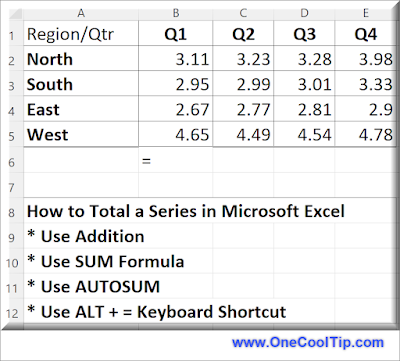
To total, or sum, a series of numbers in Excel, you can use several methods:
Use Addition:
- This is a very simple method to add the value of several cells containing numbers together.
-
Use the Formula: =A1 + A2 + A3 + A4 where A1, A2, A3 and A4 are the cells containing the numbers you want to total.
- This works for a few cells but is unwieldy for a large set of numbers.
Use the SUM function:
- The SUM function is a built-in function in Excel that allows you to easily add up a range of cells.
-
To use the SUM function, simply enter the formula =SUM(A1:A4) where A1:A4 is the range of cells containing the numbers you want to total.
Use AutoSum:
- AutoSum is a tool in Excel that automatically selects a column or row of numbers and calculates their sum.
- To use AutoSum, select the cell where you want to display the sum, then click on the AutoSum button in the toolbar on your screen.
Super Cool Tip:
Use the Excel Keyboard Shortcut ALT + = to sum a series of numbers in a column or a row.
Find out more HERE.
| | |
🙋♂️ Here's How to Say Goodbye to Duplicates
Are you tired of dealing with duplicate data in your Excel spreadsheets?
Remove them.
Here's how to do it.
- Select the range of cells that contains the duplicate values you want to remove
-
Click the Data tab in the Excel ribbon
-
Click the Remove Duplicates button in the Data Tools group
-
In the Remove Duplicates dialog box, check or uncheck the columns where you want to remove the duplicates
-
Click OK.
With these simple steps, you can quickly and easily remove duplicate data from your Excel spreadsheets.
You can also turn on the Filter feature to help you find and remove duplicates more easily.
Learn more HERE.
| | |
❓Did you share this newsletter with three friends yet?
😎 Cool Facts
-
1987: Excel for Windows launched in 1987. The first version of Microsoft Excel designed for Windows (Excel 2.0) debuted in late 1987, following the original Macintosh release in 1985. Source.
-
80% of Data: Experts estimate that up to 80% of a data scientist's time is spent simply cleaning and organizing data before it can be analyzed. Source.
-
88%: Research suggests that nearly 88% of all spreadsheets contain at least one error. Source.
⌨️Today's Cool Keyboard Shortcuts
-
Ctrl + T: Convert data into a Table
-
Alt + N + V: Insert PivotTable
-
Ctrl +; : insert today’s date
-
Ctrl + Shift + ; : insert current time
😜 Tech Joke of the Day 😅
Why don’t Excel users panic?
They just pivot.
🔎 Do you have a Cool Tip or tech question? Email us at onecooltip.com@gmail.com.
| | |
Rows whisper softly,
Numbers wait for one question,
Answers bloom in light.
| |
| 🤔 How do you usually analyze spreadsheets? | | | | Did You See These Cool Tips This Week? | | | | Google Nano Banana 2: The Next Giant Leap for Desktop and Mobile AI | |
Elevate your creative workflow with the most advanced multimodal AI model yet. Nano Banana 2 brings high-fidelity image generation and seamless editing directly to your favorite devices.
Read the Newsletter Version.
| | | | Alexa+ Personality Styles: Finally, an AI That Matches Your Vibe | |
Customize how Alexa responds so it feels less like a device and more like a digital companion that fits your mood and workflow. Amazon’s new Alexa+ introduces personality styles that let you tailor how your assistant talks and reacts. If you’ve ever wished Alexa sounded more energetic, more concise, or more conversational, this update puts you in control.
Read the Newsletter Version.
| |
ICYMI - In Case You Missed It ...
| | | | Turn Word Into Your AI Writing Partner With Agent Mode | |
Agent Mode in Word lets you describe your goal and have Copilot do targeted edits, rewrites, and formatting inside your document. Once you learn where to find it and how to steer it, Word starts to feel less like a blank page and more like a collaborative editor.
Read the Newsletter Version.
| | Gone but not forgotten. May your cells always stay referenced and your ranges forever balanced. | | |
Trivia Answer: B) PivotTables
PivotTables were introduced in Excel 5.0 in 1993 and quickly became one of the most powerful tools for summarizing and analyzing large datasets.
Before PivotTables, users had to rely on complex formulas or manual sorting to group and compare data.
The feature allowed drag-and-drop data aggregation, making advanced analysis accessible to non-programmers and helping Excel dominate business analytics workflows.
----------
Tomorrow's Cool Tip is waiting to amaze you.
Until then, go forth and conquer the tech world with your newfound knowledge!
Be sure to visit www.OneCoolTip.com for Cool Tech Tips for a Cooler Life!
And if you Like One Cool Tip, please support with TipJar!
Enjoy!
Rodger
Chief Cool Tipper
onecooltip.com@gmail.com
| |
| What do you think of today's OneCoolTip newsletter? | | | |
Please Share the One Cool Tip Newsletter!
You asked for it. You got it. There is now a One Cool Tip Newsletter archive. Did you delete a newsletter and want to read it again? Check it out HERE.
Want to help One Cool Tip grow? Please forward this email using the link above. And if you see an OCT social media post, please LIKE, COMMENT and SHARE!
Have you subscribed to the One Cool Tip YouTube channel? Subscribe HERE.
| | Connect with One Cool Tip!! | | |
|
As an Amazon Associate, One Cool Tip may earn a small commission from qualifying purchases.
Our media content is intended solely for informational purposes only. Please do not construe anything here as legal, tax, investment, financial, marital or other advice.
Copyright © 2026 | www.OneCoolTip.com | All Rights Reserved
|
| | | |