|
One Cool Tip Newsletter
August 1, 2026
| Your daily dose of tech-savvy brilliance! | |
😀Greetings! Happy Saturday, Cool Tipper!
Get ready to streamline your digital life with simple, actionable tips delivered straight to your inbox.
Cool Tip Theme: WhatsApp Web Calling
New here? Subscribe to the One Cool Tip Newsletter for daily updates. It's FREE!
| |
3️⃣
If you enjoy the One Cool Tip newsletter, please forward this newsletter to THREE friends or colleagues or share it on social media using the links below.
Leave a $$$ Tip!
Share this One Cool Tip Newsletter!
| | |
🚨 The New Face of Scams: How AI Is Making Fraud More Convincing 🚨
Scammers are increasingly using AI tools to create realistic messages, fake online identities, and fraudulent websites designed to gain trust and steal money.
OpenAI recently reported disrupting a criminal operation that used AI to support investment scams, romance scams, gambling schemes, and impersonation attempts.
The biggest takeaway for consumers is that polished writing and professional-looking content are no longer signs that a message is legitimate.
Be especially cautious if someone you have only met online asks for money, investment funds, fees, or personal information.
Before responding, verify identities through trusted channels and be skeptical of offers that seem unusually profitable or urgent.
A few extra minutes of verification can help protect you from becoming the next target of an AI-powered scam.
And in Other News...
WhatsApp Just Got More Useful Across All Your Devices
If you use WhatsApp every day, several new features could make staying connected a lot more convenient.
You can now create a WhatsApp account directly on an iPad without linking it to a phone first, making the tablet experience much more independent.
Drivers will also benefit from a refreshed CarPlay and Android Auto experience that allows hands-free messaging, calling, and access to favorite contacts from their vehicle's screen.
On web and desktop, WhatsApp now lets users open PDF files and make simple annotations without leaving the app.
Music fans can also share songs directly from Apple Music or Spotify to their WhatsApp Status.
These updates are designed to make WhatsApp work more seamlessly wherever you are and whatever device you're using.
| |
| 🤔 Would you use WhatsApp to make calls from your web browser? | | | | |
Help support One Cool Tip. Use this Amazon link when you shop online.
Check out these Cool Deals:
| | |
📷 Logitech Brio 100 Full HD Webcam: A compact 1080p webcam with an integrated privacy shutter for computers that need a straightforward video upgrade.
Save 25%. Now $29.99. 4.4 Stars. Check it out on Amazon!
🎙️ Anker PowerConf C200 Webcam: Its adjustable field of view and built-in microphones make it a practical option for browser-based video calls.
Save 9%. Now $59.99. 4.4 Stars. Check it out on Amazon!
🎧 Jabra Evolve2 40 Wired Headset: A wired USB headset can provide consistent microphone performance without the battery concerns associated with Bluetooth headsets.
Now $169.99. 4.3 Stars. Check it out on Amazon!
*Prices accurate when originally published.
One Cool Tip may earn a commission from qualifying purchases.
| | |
Make WhatsApp Calls From Any Web Browser
WhatsApp is adding voice and video calls directly to WhatsApp Web, eliminating the need to install the desktop app. The browser experience also includes group calls, screen sharing, reactions, call history, and favorite contacts.
You may already use WhatsApp Web to answer messages from a full-size keyboard.
Until now, joining a WhatsApp call often meant reaching for your phone or installing the desktop application.
That limitation is disappearing.
Here’s a Cool Tip: Turn your browser into a WhatsApp calling station.
WhatsApp recently announced that users can now make and receive voice and video calls directly through WhatsApp Web. The browser version supports individual and group calls without requiring a desktop app.
The company says the feature is rolling out gradually, so it may not appear in every account immediately.
Feature Explanation
WhatsApp Web Calling adds voice and video controls to the browser-based version of WhatsApp.
Once you link the browser to your WhatsApp account and grant permission to use your microphone and camera, you can place a call from a conversation or the new Calls tab.
The browser experience includes several capabilities previously associated with WhatsApp’s mobile and desktop apps:
- Individual voice and video calls.
- Group calls.
- Screen sharing.
- Emoji reactions during calls.
- A Calls tab containing call history and favorite contacts.
- Call transfers between supported devices.
- Waiting-room controls for selected group call links.
- QuickHD video at the beginning of a call.
- Background-noise suppression.
Web calls are end-to-end encrypted, have no time limits, and do not carry a separate calling charge.
Your internet service provider or mobile carrier may still charge for data usage.
The biggest benefit is flexibility.
A student using a shared computer, a traveler working from a hotel business center, or an employee who cannot install software on a managed computer can still join a WhatsApp call.
What You’ll Gain
- Make calls without installing the WhatsApp desktop app.
- Move conversations to a larger screen and full-size keyboard.
- Share your screen during group, family, or business discussions.
- Access your call history and favorite contacts from the browser.
Step-by-Step Instructions
Here's how to do it.
Web/Desktop
-
Open web.whatsapp.com in a supported browser.
-
If you are not signed in, open WhatsApp on your phone and select Settings > Linked Devices > Link a Device.
-
Scan the QR code displayed in the browser.
-
Open a conversation with the person you want to call.
-
Select Call, then choose Voice or Video.
-
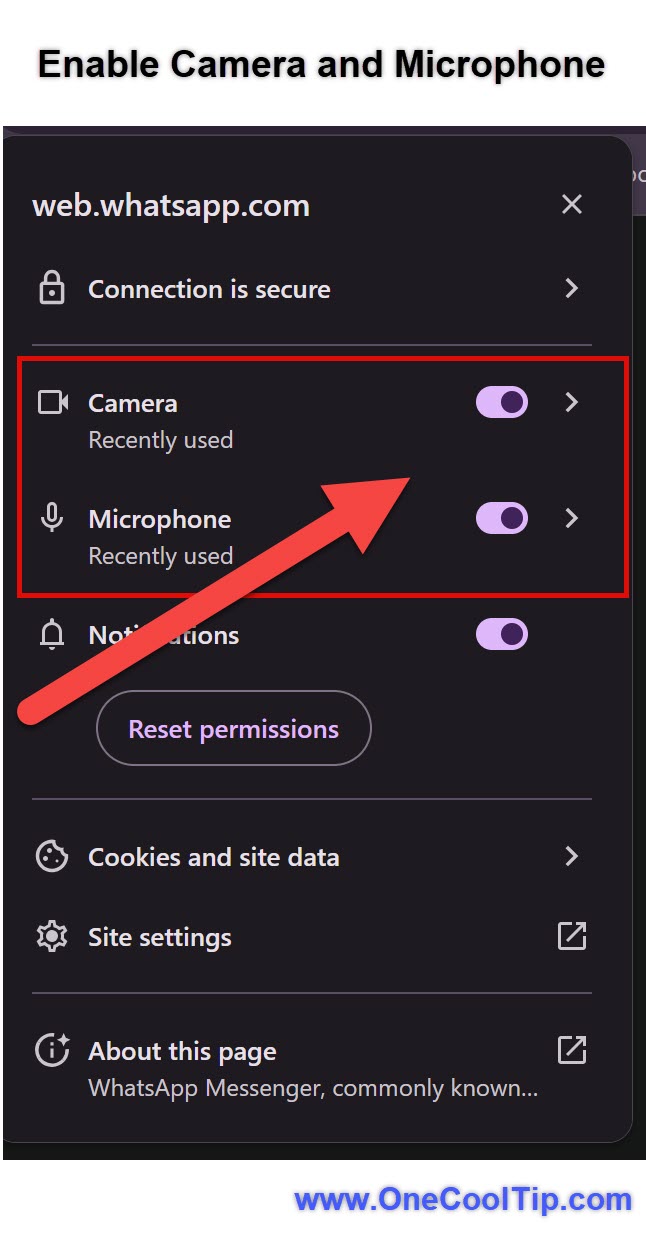
When your browser requests access, select Allow for the microphone and, for video calls, the camera.
-
Confirm that your video preview appears and that WhatsApp is using the correct microphone, camera, and speakers.
-
During the call, use the on-screen controls to mute your microphone, disable your camera, react, share your screen, or open the available call settings.
| | fig. 1 - Enable Camera and Microphone | | |
Pros and Cons
Pros:
- No desktop application is required.
- Voice, video, individual, and group calls are supported.
- Screen sharing is useful for demonstrations and collaborative work.
- Device transfer lets users continue eligible group calls on a more convenient screen.
- Calls remain end-to-end encrypted, according to WhatsApp.
- There is no separate fee or time limit for WhatsApp Web calls.
Cons:
- The new features are still rolling out gradually.
- Browser permissions can prevent the microphone or camera from working.
- Organizations may block WhatsApp Web through browser, firewall, or network policies.
- A shared or public computer creates privacy risks if the user remains signed in.
- Some older browser versions may not support calling properly.
Feature Access
WhatsApp announced Web Calling on July 28, 2026.
It supports individual and group voice and video calls through WhatsApp Web without requiring an app download.
Calling works best in current versions of Chrome, Microsoft Edge, Safari, and Firefox.
You need:
- A WhatsApp account.
- A linked browser session.
- A compatible browser.
- An internet connection.
- A microphone.
- A camera for video calls.
- Permission for the browser to access the microphone and camera.
There is no separate subscription fee.
The new calling features are rolling out gradually and will become available to everyone soon.
Availability may vary by account, device, browser version, and rollout stage.
Score
Criterion | Score (0–10) | Justification
Value | 8
Browser calling solves a real problem for people who cannot or do not want to install desktop software.
Usability | 8
Calling is straightforward once permissions are granted, although browser controls and the gradual rollout may confuse some users.
Wow Factor | 7
Browser calling is not unique, but device transfers, waiting rooms, screen sharing, and noise suppression make WhatsApp’s implementation more useful.
Total: 23/30 | 👍 Good
WhatsApp Web Calling is a practical and overdue upgrade that makes the browser experience more complete.
Like Google Meet and Microsoft Teams, WhatsApp now provides calls and screen sharing in a browser. Its advantage is that conversations can begin with contacts and groups already using WhatsApp.
Key Takeaways
WhatsApp Web Calling lets you make encrypted voice and video calls without downloading the desktop app.
Group calling, screen sharing, call transfers, waiting rooms, and noise suppression make the feature useful for families, travelers, students, and small businesses.
Cool Tip Snapshot
-
Feature Name: WhatsApp Web Calling.
-
Platforms: Compatible web browsers on Windows, macOS, and other computers.
-
Quick Benefit: Make voice and video calls without installing an app.
-
Best For: Travelers, students, families, and small businesses.
-
Access Type: Free, Rolling Out.
-
Difficulty: Easy.
Try It Yourself
Open WhatsApp Web and look for the new Calls tab or calling controls inside a conversation.
If the feature has reached your account, try a short call and review your camera, microphone, notification, and privacy settings.
Share your experience in the comments, and send this article to family, friends, and coworkers who use WhatsApp.
READ MORE
Read the Full Cool Tip.
| | |
Check Out These Cool Tips & Tricks
-
Mute Quickly: Mute yourself when typing or dealing with background noise. Select the microphone button in the call controls.
-
Check Permissions: Confirm browser access before an important call. Select the site-permission icon beside the address bar and allow access to the camera and microphone.
-
Use Headphones: Prevent echoes and keep conversations private when other people are nearby. Connect a headset before entering the call.
-
Choose Devices: Make sure WhatsApp uses your preferred camera and microphone. Review the device selections in the browser or in-call settings.
-
Protect Details: Keep private information out of a screen share. Close unrelated tabs, messages, documents, and notification panels before sharing.
-
Save Favorites: Keep frequent contacts easier to reach. Add them to Favorites in the WhatsApp Calls tab when that option becomes available.
-
Reduce Noise: Improve your audio in busy surroundings. Open the in-call settings and enable noise suppression when available.
-
Transfer Calls: Move an eligible group call to a more convenient screen. Open the call controls and select the available transfer option.
-
Approve Guests: Prevent unexpected participants from immediately entering a call-link meeting. Enable Require approval to join when creating the link.
-
Log Out: Protect your account after using a shared computer. Open the WhatsApp Web menu, select Log out, and confirm removal under Linked Devices on your phone.
| | ICYMI - In Case You Missed It ... | | | | |
Use Edge Journeys to Resume Tasks Instantly Anywhere
Microsoft Edge Journeys organizes your browsing into task-based summaries so you can quickly pick up where you left off. It’s a simple way to resume projects across desktop and mobile without digging through tabs or history.
Read the Full Version.
Read the Newsletter Version.
| | |
Tomorrow's Cool Tip is waiting to amaze you.
Until then, go forth and conquer the tech world with your newfound knowledge!
Be sure to visit www.OneCoolTip.com for Cool Tech Tips for a Cooler Life!
And if you Like One Cool Tip, please support with TipJar!
Enjoy!
Rodger
Chief Cool Tipper
onecooltip.com@gmail.com
| |
| What do you think of today's OneCoolTip newsletter?
| | | | Connect with One Cool Tip!! | | |
|
As an Amazon Associate, One Cool Tip may earn a small commission from qualifying purchases.
Our media content is intended solely for informational purposes only. Please do not construe anything here as legal, tax, investment, financial, marital or other advice.
Copyright © 2026 | www.OneCoolTip.com | All Rights Reserved
|
| | | |