|
One Cool Tip Newsletter
April 23, 2025
| Your daily dose of tech-savvy brilliance! | |
😀Hello Rodger, Happy Wednesday, Cool Tipper!
Get ready to streamline your digital life with simple, actionable tips delivered straight to your inbox.
Today's Cool Tip Theme: Windows Wednesday: Symbols!
IN THIS ISSUE
- 🚨 Data Breach Alert.
- ✨ Free Copilot Vision.
- 🚀 Midweek Productivity Boost.
- 🖼️ AI Art Inspiration.
- ⌨️ Master Windows 11 Symbols.
- 🖋️ New Default Font.
- 🔢 Notepad Enhancement.
- 😊 Add Flair with Kaomoji.
New here? Subscribe to the One Cool Tip Newsletter for daily updates. It's FREE!
-
😂 Laugh with Us! Enjoy our Tech Joke of the Day, Haiku and Cool Tip Comics.
-
🌐 Stay Informed! Check out ICYMI, and our One Cool Tip Video.
🔔 Is your email provider (Gmail, Yahoo, Outlook...) not delivering the newsletter?
Check the Junk folder - Move the newsletter to your Inbox. And reply to this email with a “Hey, Rodger” or “I got it.” That tells your mail service you want this newsletter!
Today's Tech Trivia
What is the keyboard shortcut to open the Character Map in Windows?
A) Ctrl + Alt + S
B) Alt + Shift + C
C) Win + R, then type "charmap"
D) Ctrl + Shift + M
Answer at the end.
| | |
3️⃣
If you enjoy the One Cool Tip newsletter, please forward this newsletter to THREE friends or colleagues or share it on social media using the links below.
Share this One Cool Tip Newsletter!
| |
🚨Landmark Admin Data Breach🚨
A significant data breach at Landmark Admin, a third-party administrator for life insurance carriers, has potentially exposed sensitive personal information, including Social Security numbers, health insurance details, and financial data.
The breach occurred between May and June 2024, affecting over 1.6 million individuals. The size of this breach has increased dramatically.
What You Can Do:
- Monitor your financial accounts and credit reports for suspicious activity.
- Consider placing a fraud alert or credit freeze on your file.
- Take advantage of free credit monitoring services offered by Landmark Admin.
Stay vigilant and proactive to protect your personal information. For more details, you can find the official notice HERE (PDF).
And in Other News...
- Copilot Vision Now Free in Microsoft Edge
Exciting news for Edge users! Microsoft's Copilot Vision, an AI-powered tool that analyzes and summarizes web pages, is now available for free. This feature allows you to ask questions, get insights, and even receive recommendations based on the content you're browsing. Simply opt in with your Microsoft account to unlock this powerful assistant.
How to Access: Enable Copilot Vision in Edge settings and start exploring smarter browsing today.
- 🚀 Boost Your Back to Work Wednesday Productivity!
Copy/Paste this AI-powered productivity prompt to stay focused and organized with your favorite AI assistant: Gemini, Copilot, Grok, DuckAI, Meta and ChatGPT.
"Act as my midweek productivity assistant. Review the following tasks I’ve completed so far this week and help me prioritize the remaining ones based on urgency, impact, and time required. Suggest which tasks to delegate, automate, or batch together for efficiency. Then, recommend a focused 3-hour work block schedule for today with 10-minute breaks built in. Here are my tasks:"
[Insert list of tasks or copy from your task manager or notes app]
| | |
🖼️ Cool ChatGPT AI Prompt of the Day: Transform Your Photos!
"Take the photo I uploaded and transform it into a stylized artwork in the style of a 1920s Art Deco movie poster. Emphasize bold lines, geometric shapes, gold and black color schemes, and dramatic lighting. Keep facial features recognizable and add a vintage title banner across the top."
| | | |
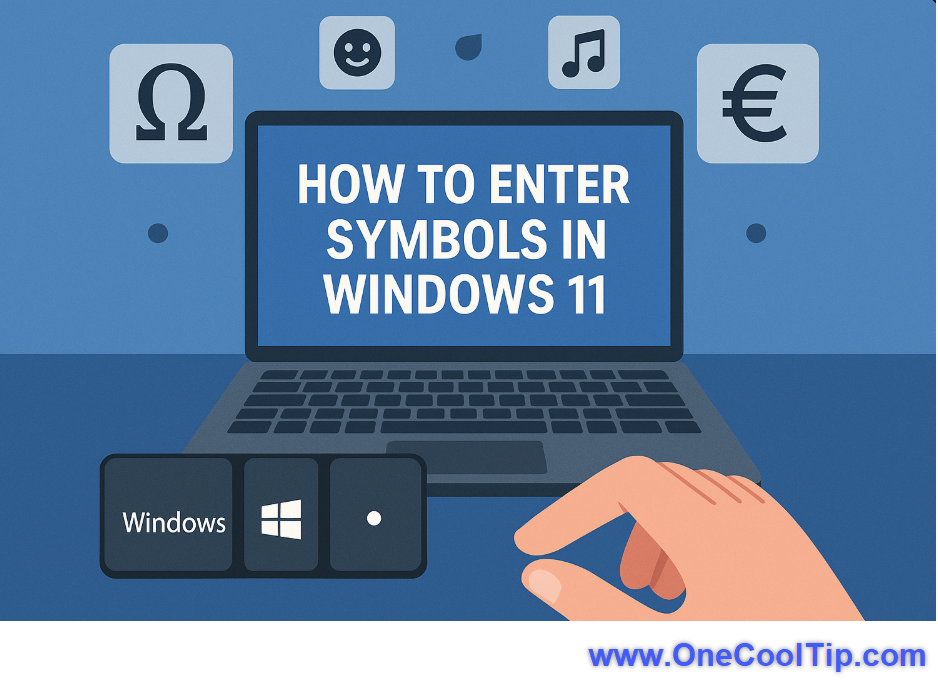
How to Master Symbols in Windows 11
Ever struggled to find the copyright symbol or an em-dash while typing?
Here's a Cool Tip: Use these tips to insert symbols.
Windows 11 brings a wealth of tools to simplify entering special characters and symbols.
From quick shortcuts to easy-to-use panels, these features can save you time and add precision to your work.
Ready to master them?
Exploring Windows 11 Symbol Tools
Windows 11 offers three key methods for inserting symbols: Alt codes, the Character Map, and the Emoji Panel.
These tools cater to users ranging from professionals needing technical precision to casual users enhancing creativity.
By streamlining access to symbols, Windows 11 empowers efficient workflows.
Here's How to Do It.
Method 1: Using Alt Codes
-
Ensure your keyboard has a numeric keypad.
-
Turn on the Num Lock key.
-
Hold down the Alt key while typing the corresponding four-digit code on the numeric keypad.
-
Example: To type the degree symbol (º), press Alt + 0176.
Method 2: Accessing the Character Map
-
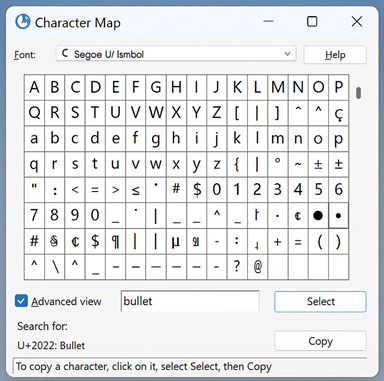
Press Windows + S and search for "Character Map."
-
Open the Character Map application.
-
Choose your desired font, select a symbol, and click "Copy."
-
Paste the symbol into your document.
Method 3: Using the Emoji Panel
-
Press Windows + . (period) or Windows + ; (semicolon).
-
Browse through the symbols, emojis, and kaomoji.
-
Click on the desired symbol to insert it directly into your text.
Pros and Cons
These intuitive tools simplify symbol insertion and work across most applications and devices.
However, Alt codes must be memorized and a Numeric keypad is required to use them.
Key Takeaways
Windows 11 delivers robust and accessible methods for entering symbols, catering to diverse user needs. Mastering these features will undoubtedly enhance productivity and efficiency.
Try It Yourself
Explore these features and transform how you type.
READ MORE
Read the Full Cool Tip
| | |
🆒Tell Me More
- The Character Map in Windows provides access to thousands of symbols, including emojis and foreign language characters.
- You can use Alt codes to type symbols directly by holding the Alt key and entering a numeric code.
- Windows 11 introduced a new emoji picker (Win + .) that includes symbols, kaomojis, and GIFs.
- Unicode is the universal standard for symbols, ensuring compatibility across platforms.
- Many fonts, like Wingdings and Segoe UI Symbol, are rich in unique characters.
⏩Quick Tips
-
🎯 Use Alt Codes: Hold Alt and type a number on the numeric keypad to insert symbols. Example: Alt + 0176 for °. How-to: Ensure Num Lock is on, then press Alt and the code.
-
🖋 Access the Character Map: Open it via Win + R, type "charmap," and browse symbols. How-to: Copy your desired symbol and paste it where needed.
-
😊 Emoji Picker Shortcut: Press Win + . (period) to open the emoji picker. How-to: Browse emojis, symbols, and kaomojis in one place.
-
🔤 Switch Keyboard Layouts: Add a new keyboard layout in Settings for language-specific symbols. How-to: Go to Settings > Time & Language > Language & Region.
-
✍️ Utilize Word's Symbol Library: In Microsoft Word, go to the "Insert" tab and click "Symbol" for an extensive collection.
✅ More Must-Read Tech Tips.
| |
👀 How Do I Use Aptos?
Have you ever considered how a font can shape your experience with digital documents?
What if a simple typeface change could refresh the entire look and feel of your workspace?
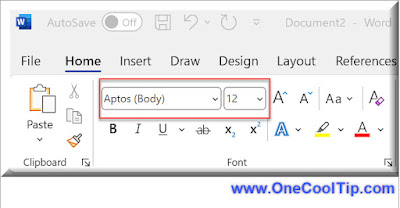
Here's a Cool Tip. Aptos is now the default font in Microsoft 365 apps.
We first told you about Aptos HERE where we shared about the history of default fonts in Microsoft office applications.
Microsoft recently rolled out the new font as the default in 365 apps such as Word, Excel and PowerPoint replacing the previous default font Calibri.
Here's how to do it.
-
Open any Microsoft 365 application (Word, Excel, PowerPoint).
-
Create a new document (In Word, File --> New --> Blank Document)
-
Aptos is the new default font used when you start typing.
Aptos offers a modern, clean aesthetic that enhances readability and as a cloud font, it ensures document consistency across devices.
By embracing Aptos, users enjoy a refreshed, cohesive digital workspace that’s poised to meet the demands of modern typography.
Discover more HERE.
| | |
Have you ever wondered how many characters are in your text file?
How about the number of words, lines, or paragraphs?
If you are a writer, a student, a programmer, or anyone who works with text files, you might find these statistics useful for various purposes.
For example, you might want to check the length of your tweet, your essay, your code, or your email.
Or you might want to analyze the readability, the complexity, or the style of your writing.
Here's a Cool Tip. Use the new Windows 11 Notepad character count feature.
Windows 11 Notepad, the simple and handy text editor that comes with every Windows operating system, has a new built-in feature that can help you with that.
Available in version 11.2311.29.0 and greater, it is called the Character Count feature, and it can show you the number of characters, words, lines, and paragraphs in your text file with just a few clicks.
Here's how to do it.
How to Use the Character Count Feature in Windows 11 Notepad
-
Open Windows 11 Notepad by clicking on the Start menu and typing “Notepad” in the search box.
-
Alternatively, you can press the Windows key + R and type “notepad” in the Run dialog box.
-
Create a new text file or open an existing one by clicking on the File menu and choosing New or Open.
-
Type or paste your text in the Notepad window.
-
Edit, format, or save your text as usual.
-
When text is selected, the status bar shows the character count for both the selected text and the entire document.
-
When no text is selected, the character count for the entire document is displayed, ensuring you always have a clear view of your document’s length.
The Character Count feature in Windows 11 Notepad is a useful tool for anyone who works with text files.
Ready to write better with Windows 11 Notepad’s Character Count feature?
Find more HERE.
| |
🙋♂️ Here is How to Add Fun and Flair to Your Messages With Kaomoji in Windows 11
Ever wanted to spice up your messages with adorable and quirky text faces?
Here's a Cool Tip: Use Kaomoji in Windows 11.
Kaomoji, a popular form of Japanese emoticons, can add personality and emotion to your texts, emails, and social media posts. Windows 11 makes it easier than ever to access and use Kaomoji.
What are Kaomoji and Why are They Important?
Kaomoji are text-based emoticons that originated in Japan and have become popular worldwide for their ability to convey emotions through text.
Unlike traditional emojis, which are graphical representations, Kaomoji use keyboard characters to create expressive faces.
They can make your messages more engaging and personalized, adding a touch of creativity to your digital conversations.
Here's how to do it.
-
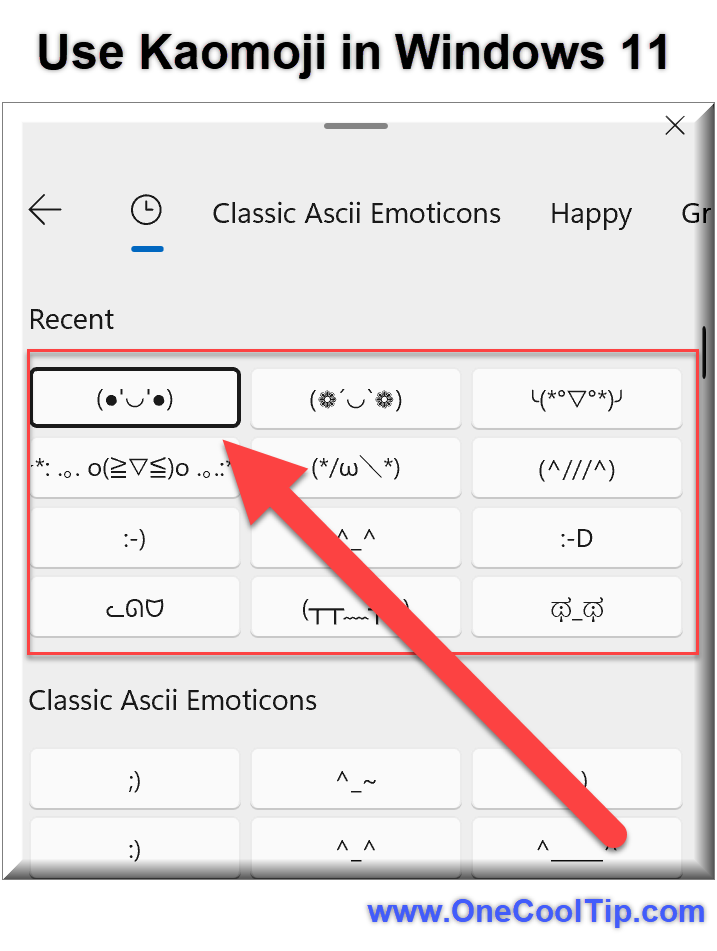
Press Windows Key + . (period) or Windows Key + ; (semicolon) on your keyboard. This will open the Emoji Panel.
-
In the Emoji Panel, click on the Kaomoji tab located at the top of the panel.
-
Here, you'll find a variety of Kaomoji organized into categories such as happy, sad, angry, and more.
-
Browse through the categories and click on the Kaomoji you want to use. It will be inserted directly into your document or message.
Kaomoji allow you to convey a wide range of emotions and nuances that text alone might not capture.
Windows 11’s built-in Emoji Panel makes it easy to find and use Kaomoji without needing to remember complex character combinations.
Kaomoji are a fun and expressive way to enhance your digital communication.
With Windows 11, accessing and using Kaomoji is easier than ever.
While fun, overusing Kaomoji in professional or formal communication might be inappropriate.
Whether you’re chatting with friends, composing an email, or posting on social media, Kaomoji can add a unique flair to your messages.
Learn more HERE.
| | |
❓Did you share this newsletter with three friends yet?
⌨️Today's Cool Keyboard Shortcuts
-
Win + . (period): Open the emoji picker.
-
Win + R, then type "charmap": Open the Character Map.
-
Alt + numeric code: Insert symbols directly.
✍️Today's Haiku
Symbols in Windows,
Alt codes unlock hidden gems,
Language knows no bounds.
🔎 Do you have a Cool Tip or tech question? Email us at onecooltip.com@gmail.com.
😜 Tech Joke of the Day 😅
What’s a symbol’s favorite type of music?
Alt-rock!
| |
| 🤔 What’s your favorite way to insert symbols in Windows? | | | |
Did You See These Cool Tips This Week?
| | | | Google Unleashes Gemini 2.5 Pro: Advanced AI Now Free for All Users | Google's most powerful AI model, Gemini 2.5 Pro, is now accessible to everyone at no cost. Here's how to leverage its advanced capabilities for your projects. | | | | Inspect Hidden Data in Microsoft 365 Documents to Protect Your Privacy | Learn how to use Microsoft 365's Document Inspector to identify and remove hidden data and personal information from your files, ensuring privacy and professionalism when sharing documents. | |
ICYMI - In Case You Missed It ...
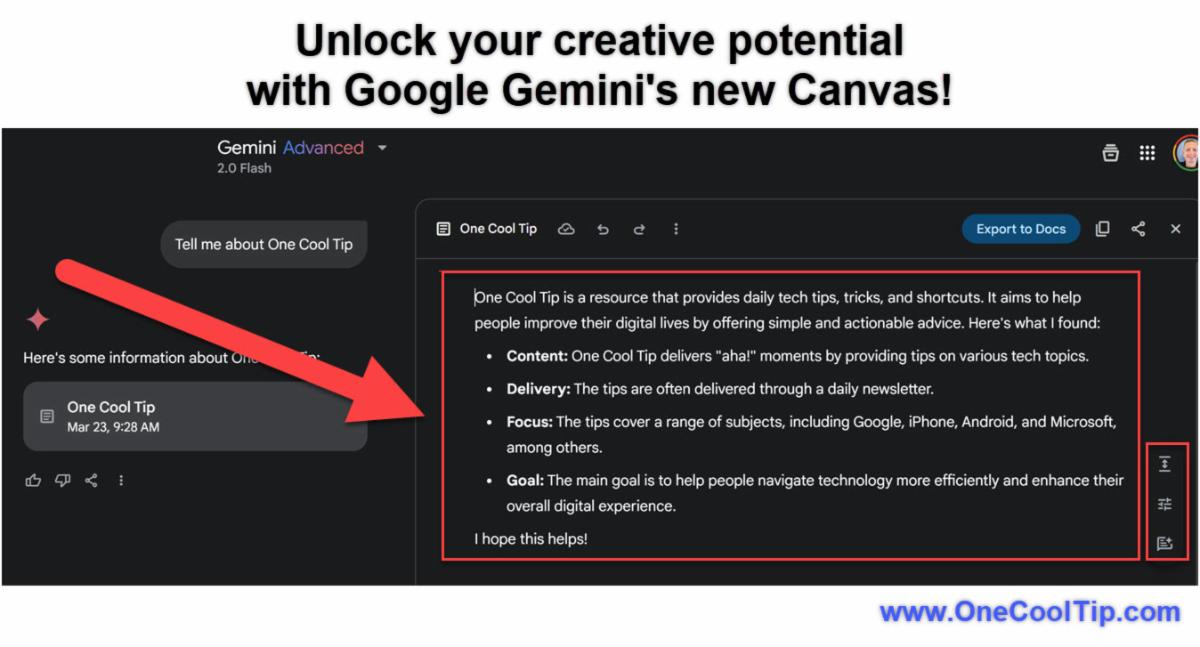
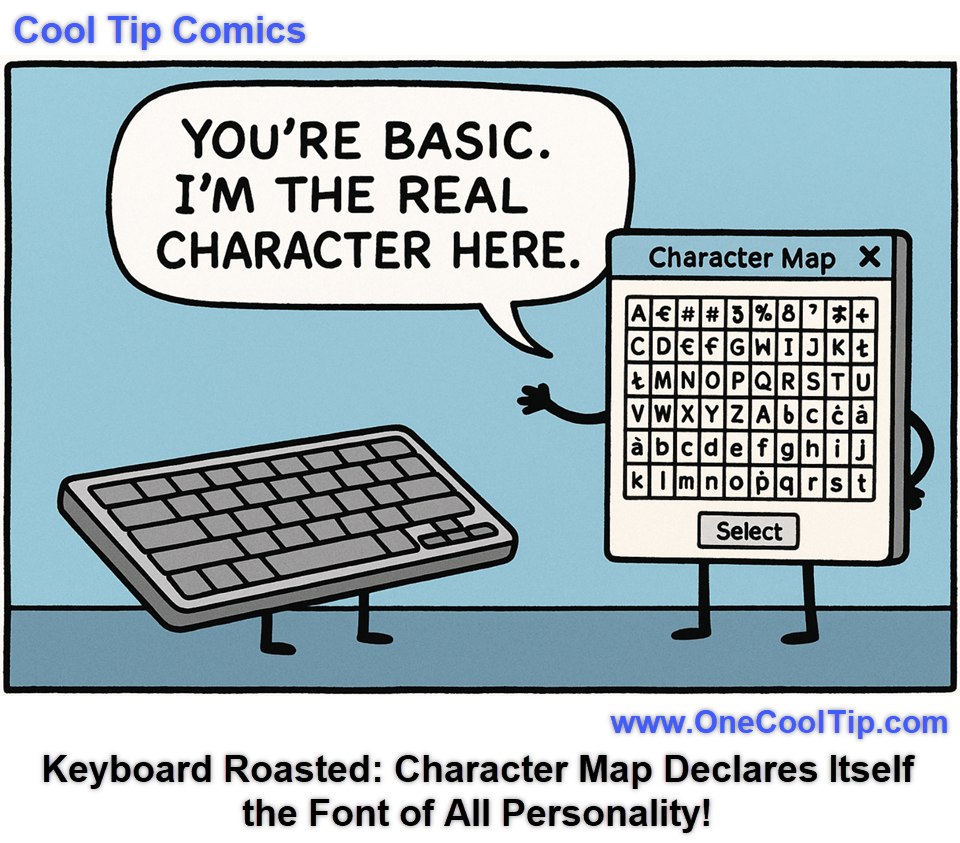
| | | | Unleashing Your Inner Creator: How to Use the New Canvas in Google Gemini | Google Gemini's new Canvas feature transforms the way you interact with AI. It goes beyond simple conversations, empowering you to collaborate with Gemini to create, edit, and refine text and code directly within the platform. | | When you're full of character and not afraid to map it out. 😎 | | |
Trivia Answer: C) Win + R, then type "charmap"
The Character Map is a built-in utility in Windows that allows users to browse and copy special characters and symbols.
By pressing Win + R and typing "charmap," you can access this tool quickly.
It’s especially useful for inserting symbols not available on your keyboard.
----------
Tomorrow's Cool Tip is waiting to amaze you.
Until then, go forth and conquer the tech world with your newfound knowledge!
And be sure to visit www.OneCoolTip.com for Cool Tech Tips for a Cooler Life!
Enjoy!
Rodger
Chief Cool Tipper
onecooltip.com@gmail.com
| |
| What do you think of today's OneCoolTip newsletter? | | | |
Please Share the One Cool Tip Newsletter!
You asked for it. You got it. There is now a One Cool Tip Newsletter archive. Did you delete a newsletter and want to read it again? Check it out HERE.
Want to help One Cool Tip grow? Please forward this email using the link above. And if you see an OCT social media post, please LIKE, COMMENT and SHARE!
Have you subscribed to the One Cool Tip YouTube channel? Subscribe HERE.
| | Connect with One Cool Tip!! | | |
|
As an Amazon Associate, One Cool Tip may earn a small commission from qualifying purchases.
Our media content is intended solely for informational purposes only. Please do not construe anything here as legal, tax, investment, financial, marital or other advice.
Copyright © 2025 | www.OneCoolTip.com | All Rights Reserved
|
| | | |