|
One Cool Tip Newsletter
March 23, 2026
| Your daily dose of tech-savvy brilliance! | | |
😀Greetings!, Happy Back-To-Work-Monday, Cool Tipper!
Get ready to streamline your digital life with simple, actionable tips delivered straight to your inbox.
Today's Cool Tip Theme: Create QR Codes in Microsoft Word
IN THIS ISSUE
- ⚠️ Security Alert: Stay vigilant against a resurfacing 2026 scam involving unsolicited packages containing malicious QR codes.
- 🤖 AI Prompt: Boost your document engagement with a ready-to-use prompt that generates creative QR code strategies.
- 📄 Word Power: Master the "DISPLAYBARCODE" field code to create professional, native QR codes directly inside Microsoft Word.
- 🌐 Chrome Quick-Tip: Learn the fastest way to generate a shareable QR code for any website using the Google Chrome browser.
- 💻 Edge Essentials: Discover how to use Microsoft Edge to instantly create and download PNG versions of QR codes for your team.
- 📶 Wi-Fi Sharing: Simplify guest access by using the new Windows 11 feature to share your network credentials via a quick scan.
New here? Subscribe to the One Cool Tip Newsletter for daily updates. It's FREE!
-
😂 Laugh with Us! Enjoy our Tech Joke of the Day, Haiku and Cool Tip Comics.
-
🌐 Stay Informed! Check out ICYMI, and our One Cool Tip Video.
| | |
3️⃣
If you enjoy the One Cool Tip newsletter, please forward this newsletter to THREE friends or colleagues or share it on social media using the links below.
Leave a Tip!
Share this One Cool Tip Newsletter!
| | |
Today's Tech Trivia
What year was the QR Code invented?
A) 1984
B) 1994
C) 2004
D) 2014
Answer at the end of this newsletter.
| | |
⚠️QR Code Scam Resurfaces in 2026⚠️
Watch for Unsolicited Packages
The FBI warned last year that criminals are sending packages with QR codes to trick recipients into scanning and revealing personal or financial info.
These scams are still active in 2026 and may target homes or small businesses.
What’s Happening
- Scammers ship packages with no sender info to spark curiosity.
- Inside is a QR code that links to a fake site or downloads malware.
- Victims may unknowingly give up login credentials or install spyware.
What To Do
- Don’t scan QR codes from unknown packages, even if they look official.
- Check for missing sender info or merchandise you didn’t order.
- Secure your accounts if you scanned a suspicious code: change passwords and monitor for fraud.
- Report incidents to IC3.gov and your local FBI field office.
| | |
Try this Cool AI prompt. Copy and paste to ChatGPT, Gemini or Copilot.
"I am creating a [type of document, e.g., real estate flyer]. Provide a list of 5 creative ways I can use QR codes in this document to improve user engagement."
| | |
How To Create QR Codes In Microsoft Word (So People Actually Scan Them)
Turn any Word document into a scannable, mobile-friendly experience with built-in QR codes. No add ins, no sketchy websites, just a smart field code hiding in plain sight. Creating QR codes directly in Microsoft Word lets you turn reports, handouts, and invoices into interactive documents.
You have probably seen QR codes slapped on posters, menus, and invoices that no one actually scans.
Often they are too small, too blurry, or point to a link that is already out of date.
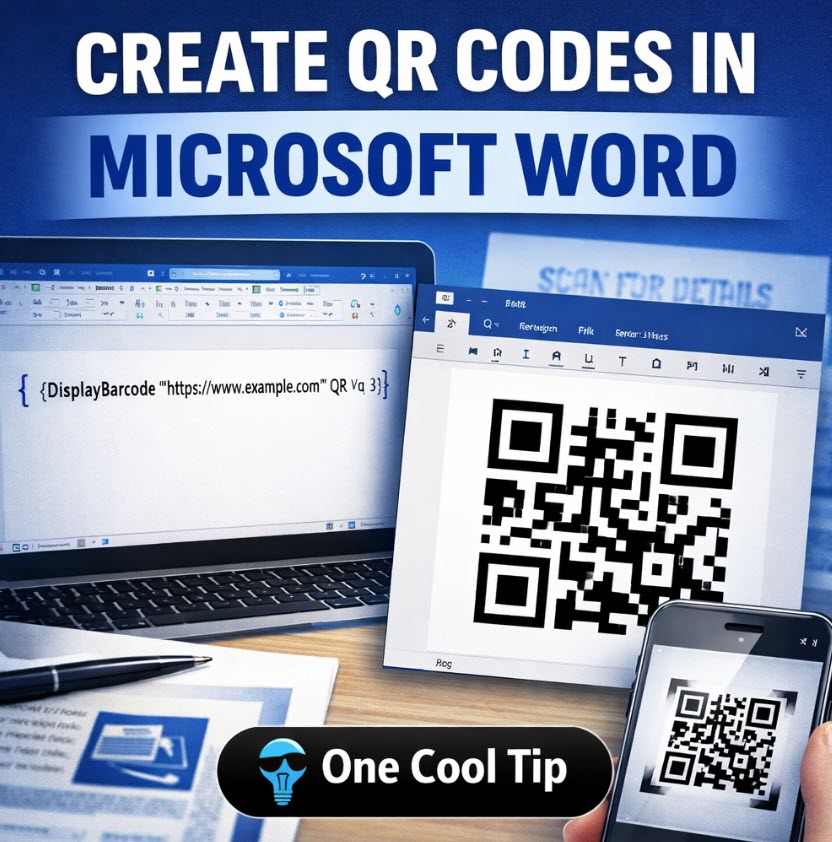
Here's a Cool Tip: Create QR Codes in Microsoft Word.
Microsoft Word has a built in way to generate QR codes that update with your document, without uploading anything to a third party site.
Once you know the trick, you can drop a QR code into a template in seconds and keep it in sync with your latest URL, form, or contact info.
Feature Explanation
Microsoft Word includes a field code called DISPLAYBARCODE that can generate several types of barcodes, including QR codes, directly inside your document.
You type a special field, Word renders it as a barcode image, and you can update it whenever the underlying data changes.
The QR option accepts a string of characters, such as a website address, text snippet, or tracking ID.
The field has three main parts in plain language:
-
Data: What the QR code represents, such as https://www.OneCoolTip.com
-
Type: The barcode format, in this case QR.
-
Switches: Extra settings like size, height, and error correction level.
Because this is a field, not a static picture, you can right click and toggle between the code and the rendered QR image, or update it if the link changes.
That makes it ideal for templates, recurring reports, and documents that live longer than a single print run.
What You’ll Gain
-
Scannable documents: Add QR codes to reports, invoices, and handouts that open links instantly on a phone.
-
Fewer broken links: Update the field once instead of regenerating images every time a URL changes.
-
Consistent branding: Keep QR codes aligned, sized, and styled the same way across templates.
-
Less copy paste: Skip external QR generators and keep everything inside Word.
Step-by-Step Instructions
Microsoft Word on Windows (desktop)
- Open Microsoft Word.
- Click where you want the QR code.
-
Press Ctrl + F9 to insert field brackets { }
- Note: Typing the brackets manually will not work.
-
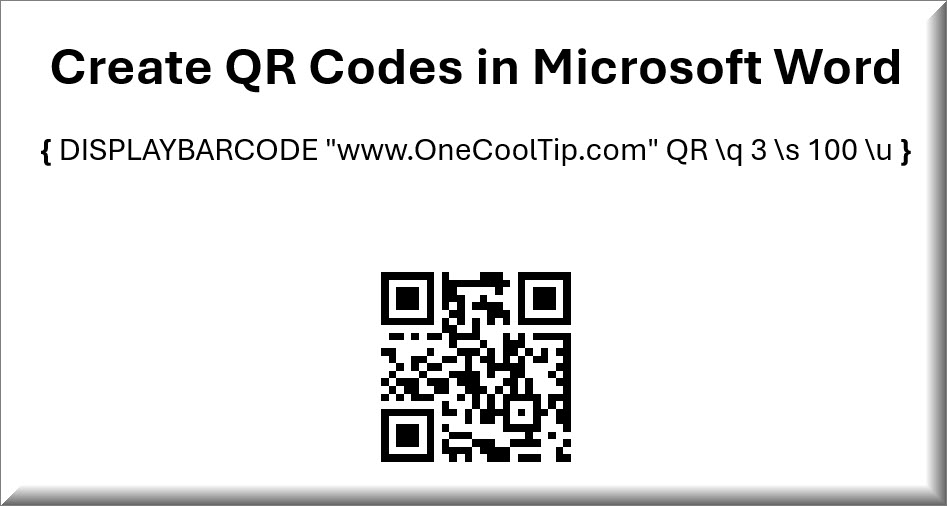
Inside the brackets, paste the following: { DISPLAYBARCODE "https://www.OneCoolTip.com" QR \q 3 \s 100 \u }
- Right‑click the DISPLAYBARCODE field.
-
Select Toggle Field Codes.
- Word displays the QR code.
- Breakdown of the Display Code:
- "https://www.OneCoolTip.com" : your URL or text
- QR : QR code type
- \q 3 : error correction level
- \s 100 : size of the QR code
- \u : treat data as Unicode
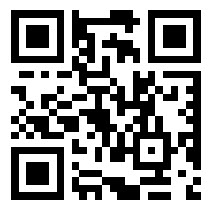
| | fig. 1 - Microsoft Word QR Code Example | |
Microsoft Word on the web
- Word on the web currently does not support inserting DISPLAYBARCODE fields directly in the browser editor.
- This is a limitation of field code support in the web version. (Status: feature parity is evolving, but barcode fields are not documented as supported.)
Word on iOS / Android
- The Word mobile apps focus on editing content, not advanced field creation.
- You can view QR codes created on desktop, but you cannot reliably insert or edit DISPLAYBARCODE fields.
Pros and Cons
Pros:
-
Built in and offline: No need to upload URLs or data to third party QR generators, which reduces privacy concerns for internal documents.
-
Field based and updatable: Change the URL once in the field and regenerate the QR code without redesigning layouts.
-
Multiple barcode types: Use QR for links and other formats like Code 128 or EAN for labels and inventory in the same document.
-
Template friendly: Perfect for recurring documents such as invoices, course syllabi, or event programs.
Cons:
-
Windows centric: Full DISPLAYBARCODE support is primarily documented for Word on Windows, which limits cross platform editing.
-
Field syntax is picky: Users must remember the exact switches and spacing, which can intimidate non technical staff.
-
Limited styling: You cannot easily change QR color or embed logos without external tools, which may matter for strict brand guidelines.
-
Mobile editing gap: Word mobile apps are great for viewing, but not for creating or tweaking barcode fields.
Feature Access
This capability is not a separate add-in or premium QR generator.
Microsoft documents DisplayBarcode support for Word for Microsoft 365, Word 2024, Word 2021, Word 2019, Word 2016, and Word 2013.
Score
Criterion | Score (0–10) | Justification
Value 9
Eliminates third party QR tools and keeps documents interactive with minimal setup.
Usability 7
Powerful once configured, but field syntax and platform gaps can confuse casual users.
Wow Factor 8
Turning a plain Word document into a scannable, mobile friendly experience feels surprisingly modern.
Total: 24/30 | 👍 Good
A high value, slightly hidden feature that beats most web QR generators for everyday business documents, especially if you already live in Word for Windows.
Key Takeaways
Creating QR codes directly in Microsoft Word with DISPLAYBARCODE gives you updatable, scannable elements that stay in sync with your documents.
The feature shines in templates and recurring documents, even if it is most comfortable on Word for Windows.
If you invest a few minutes learning the field syntax, you can upgrade your reports, handouts, and invoices with a single reusable trick.
Cool Tip Snapshot
-
Feature Name: DISPLAYBARCODE QR codes in Microsoft Word
-
Platform(s): Primarily Word for Windows; viewable in Word on the web, iOS, and Android
-
Quick Benefit: Turn any document into a scannable gateway to online content without leaving Word
-
Access Type (Free, Subscription, Beta): Included with supported Word versions (Microsoft 365 and recent perpetual licenses)
Try It Yourself
Open a Word document on your Windows PC, insert a DISPLAYBARCODE QR code that links to a page your team uses every day.
Then share this article with your colleagues and invite them to subscribe to the One Cool Tip newsletter so they can start adding smart, scannable tricks to their own documents.
READ MORE
Read the Cool Tip on One Cool Tip.com.
| | Help support One Cool Tip. Use this Amazon link when you shop online. | |
📷 Fujitsu ScanSnap iX1600 Scanner: Scan QR-enabled handouts into searchable PDFs. Check it out on Amazon!
📱 Google Pixel 7a Unlocked Android Phone: Great test device for scanning QR codes. Check it out on Amazon!
🖨️ HP Color LaserJet Pro M283fdw Printer: Crisp prints keep QR codes sharp and scannable. Check it out on Amazon!
Prices accurate at time of publication
One Cool Tip may earn a commission from qualifying purchases.
| | |
🆒Tell Me More
- DISPLAYBARCODE supports 10 barcode types including QR, Code128, and EAN13.
- QR error correction levels range from 0 (low) to 3 (high).
- You must press Ctrl + F9 to insert field brackets; typing {} manually won’t work.
- QR codes created in Word are dynamic and updateable.
- Word on mobile and web can display QR codes but not create them.
⏩Quick Tips
- 📎 Use Ctrl + F9 to insert field brackets for QR codes.
- 🧠 Remember: QR codes in Word are fields, not images; toggle with Alt + F9.
- 📐 Use \s 100 to scale QR codes to 100%.
- 📱 Test your QR code with a phone before printing.
- 🔄 Update the QR by editing the field and right-clicking to “Update Field.”
| | ✅ More Must-Read Tech Tips | | |
👀 How Do I Create a QR Code in Chrome?
Do you want to create a QR code for a website you own or manage?
Are you publicizing a community or local event and want users to be able to scan a QR code to see your information?
They are a great way to share information quickly and easily such as websites, contact information, social media profiles, and more.
Here's how to do it:
- Open Chrome.
- Go to the page you want to share.
-
Select More > Cast, save, and share > Create QR code.
But for a quick and easy solution, this is a good way to create a QR code.
Discover more HERE.
| |
🤔 Have You Ever Wondered How to Create a QR Code in Microsoft Edge ?
Have you ever tried to get a whole room onto the same page without emailing a link?
Here's how to do it.
Microsoft Edge/Desktop
-
Navigate to the site you want to share.
-
Right-click the page.
-
Choose Create QR code for this page.
-
Click Download to save as PNG, or use Share from Edge to distribute.
-
The QR code icon now appears on the right side of the address bar for quick re-access.
Open a page in Edge, right-click, select Create QR code for this page, then download the PNG and share it with your team.
Find out more HERE.
| |
🙋♂️ Here's How to Share Wi-Fi Passwords Instantly with QR Codes on Windows 11.
Have you ever scrambled to share your Wi-Fi password with a friend or guest, only to realize it’s a complicated string of letters and numbers?
Windows 11 now solves this common frustration with a simple, yet ingenious solution: QR code Wi-Fi sharing.
Share Wi-Fi Using QR Codes
-
Open the Start menu and click on Settings.
-
Navigate to Network & Internet.
-
Click on Wi-Fi and then Manage Known Networks.
-
Select the network you want to share.
-
Click on Properties and locate the option to view the QR code.
-
The QR code displays on your screen.
-
Have your guest open their camera or QR code scanner app and point it at the code.
-
Once scanned, the device connects to the network automatically.
Learn more HERE.
| | |
❓Did you share this newsletter with three friends yet?
😎 Cool Facts
-
57%: Global QR code scans jumped 57% across 50 countries and are projected to grow another 22% by 2025. Source.
-
100 million: 89 million Americans scanned a QR code in 2022, with usage expected to exceed 100 million by 2025. Source.
-
75%: 75% of top U.S. restaurants adopted QR code menus by the end of 2021 as contactless dining surged. Source.
⌨️Today's Cool Shortcuts
-
Ctrl + F9: Insert field brackets.
-
Alt + F9: Toggle field codes.
-
Ctrl + S: Save your document.
-
Ctrl + P: Print your QR-enabled page.
😜 Tech Joke of the Day 😅
Why did the QR code get promoted?
Because it was always so easy to scan!
🔎 Do you have a Cool Tip or tech question? Email us at onecooltip.com@gmail.com.
| | |
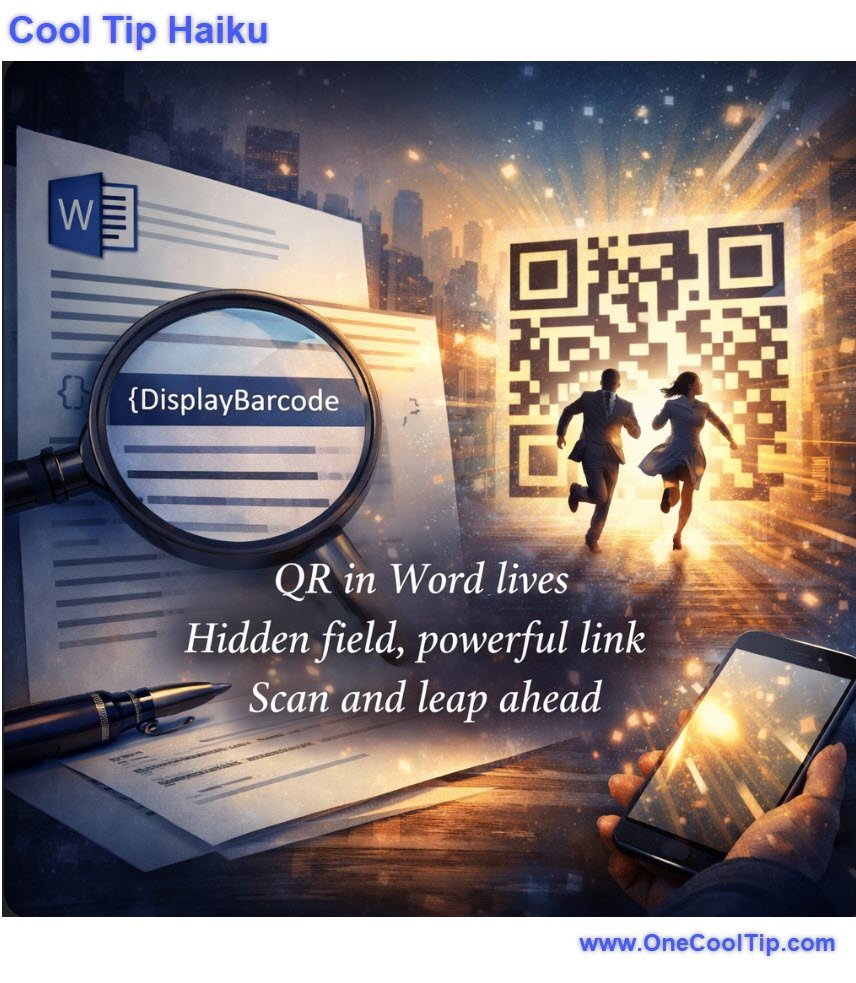
QR in Word lives
Hidden field, powerful link
Scan and leap ahead
| |
| 🤔 Why would you use a QR code in Word? | | | | Did You See These Cool Tips This Week? | | | | Gemini for Everyone: Personal Intelligence Moves Beyond the Paywall | |
Google has officially expanded its "Personal Intelligence" feature to all Gemini users in the U.S., allowing the AI to connect and reason across Gmail, Photos, and Drive without a paid subscription. This rollout marks a major shift from beta testing to a standard feature for millions of personal Google accounts.
Read the Newsletter Version.
| | | | Learn Math with ChatGPT Using Interactive Visuals That Actually Make Sense | |
See formulas move, variables respond, and hard concepts click faster. ChatGPT’s new interactive math and science visuals turn abstract lessons into something you can test, tweak, and understand.
Read the Newsletter Version.
| |
ICYMI - In Case You Missed It ...
| | | | Edit Slides in NotebookLM: No More Starting Over | |
Google has finally added the ability to edit individual slides within NotebookLM using simple text prompts. This update also introduces a long-requested PowerPoint export option for professional workflows.
Read the Newsletter Version.
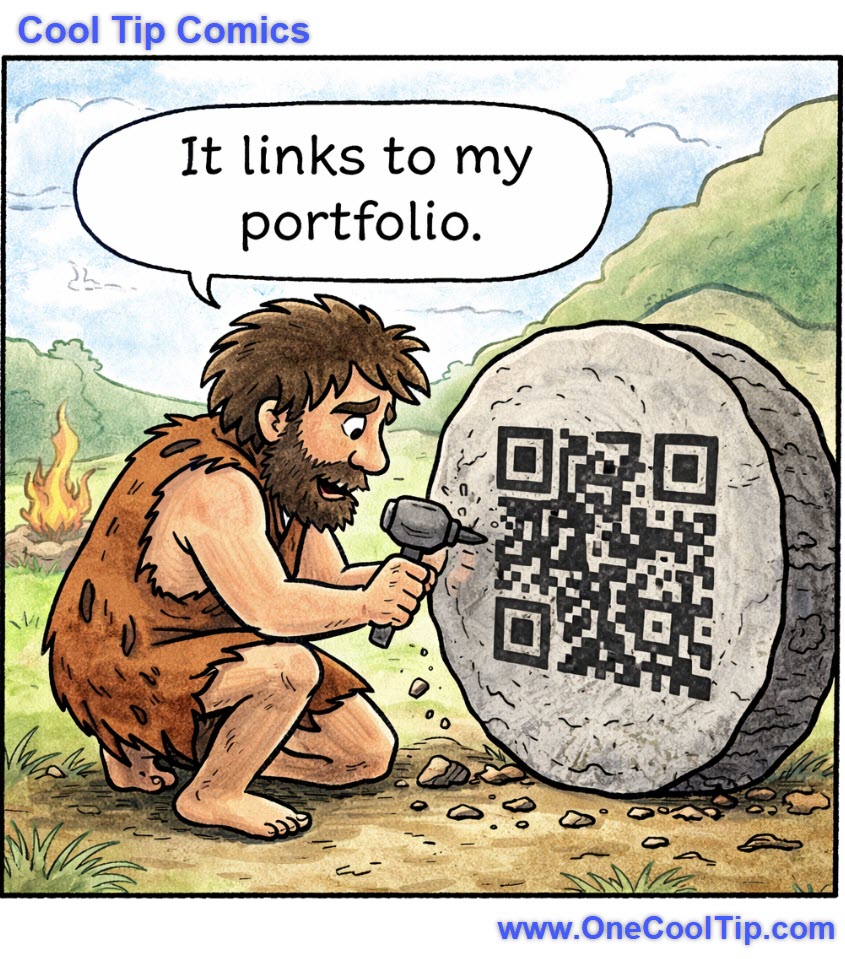
| | Turns out personal branding started in the Stone Age. | | |
Trivia Answer: B) 1994
QR Codes were invented by Masahiro Hara at Denso Wave, a Toyota subsidiary, to track vehicle parts.
The design allowed fast scanning and high data capacity, and in 1999, Denso made the technology royalty-free to encourage widespread adoption.
----------
Tomorrow's Cool Tip is waiting to amaze you.
Until then, go forth and conquer the tech world with your newfound knowledge!
Be sure to visit www.OneCoolTip.com for Cool Tech Tips for a Cooler Life!
And if you Like One Cool Tip, please support with TipJar!
Enjoy!
Rodger
Chief Cool Tipper
onecooltip.com@gmail.com
| |
| What do you think of today's OneCoolTip newsletter? | | | |
Please Share the One Cool Tip Newsletter!
You asked for it. You got it. There is now a One Cool Tip Newsletter archive. Did you delete a newsletter and want to read it again? Check it out HERE.
Want to help One Cool Tip grow? Please forward this email using the link above. And if you see an OCT social media post, please LIKE, COMMENT and SHARE!
Have you subscribed to the One Cool Tip YouTube channel? Subscribe HERE.
| | Connect with One Cool Tip!! | | |
|
As an Amazon Associate, One Cool Tip may earn a small commission from qualifying purchases.
Our media content is intended solely for informational purposes only. Please do not construe anything here as legal, tax, investment, financial, marital or other advice.
Copyright © 2026 | www.OneCoolTip.com | All Rights Reserved
|
| | | |