One Cool Tip Newsletter

March 28, 2026

Your daily dose of tech-savvy brilliance!

😀Greetings! Happy Saturday, Cool Tipper!


Get ready to streamline your digital life with simple, actionable tips delivered straight to your inbox.


Cool Tip Theme: Gemini Switching Tool


New here? Subscribe to the One Cool Tip Newsletter for daily updates. It's FREE!

3️⃣

If you enjoy the One Cool Tip newsletter, please forward this newsletter to THREE friends or colleagues or share it on social media using the links below.


Leave a $$$ Tip!


Share this One Cool Tip Newsletter!

X Share This Email
LinkedIn Share This Email
Pinterest Share This Email

🚫 FCC Bans New Foreign-Made Routers Over National Security Risks


The FCC has officially banned new consumer-grade routers made in foreign countries from receiving equipment authorization, following a national security determination by U.S. agencies.


The move adds these routers to the FCC’s Covered List, citing “severe cybersecurity risks” and supply chain vulnerabilities that could disrupt critical infrastructure and harm U.S. citizens.


What’s Banned?


  • New foreign-made consumer routers are prohibited from entering the U.S. market.
  • Previously approved models can still be sold and used.
  • Conditional approval may be granted by DHS or DoW for specific devices.


Why It Matters


Foreign-made routers were linked to major cyberattacks like Volt Typhoon and Salt Typhoon.


The FCC says malicious actors have exploited these devices to spy, steal data, and disrupt networks.


What You Should Do


  • Keep using your current router if it was legally purchased.
  • Watch for future router models labeled “FCC Authorized” or “Conditionally Approved.”
  • Businesses and IT teams should review the Covered List for compliance and risk management.


Read more: FCC Announcement

Cool Deals of the Day

Help support One Cool Tip. Use this Amazon link when you shop online.


Check out these Cool Deals:


🧠 Amazon Echo Show 8 (Newest Model): Smart display. Now with AI. Big Spring Sale: Save 22% $139.99 Check it out on Amazon!


💻 Samsung Galaxy Tab S9: Ideal for mobile AI productivity. $479.99 Check it out on Amazon!


🎧 Sony WH-1000XM5 Headphones: Focus better while working with AI tools. Save 25% Now $298. Check it out on Amazon!


*Prices accurate when originally published.

One Cool Tip may earn a commission from qualifying purchases.

Fuel Your Adventure

Try Big Mike's Jerky!


bigmikesjerky.com


Now on TikTok!


Today's Cool Tip

Import Your AI Memories and Chat History to Gemini


Stop starting from scratch with every new AI tool and learn how to migrate your existing conversations and preferences directly into the Gemini ecosystem.


The biggest hurdle in switching digital assistants is the fear of losing your curated history and personalized settings. Google has launched a dedicated switching tool that makes this transition seamless by allowing you to port your AI memories and chat history from platforms like ChatGPT and Claude directly into the Gemini app.


Have you ever spent weeks "training" an AI assistant to understand your specific writing style or your complex project requirements, only to feel trapped because moving to a better tool means starting over? 


It is a common frustration in the rapidly evolving world of generative AI. 


Here's a Cool Tip:  Import Memories to Google Gemini.


As Google consolidates its AI efforts under the Gemini brand, the company is addressing this "data gravity" head on. 


Instead of losing the context of your previous interactions, you can now bring that intelligence with you. 


This isn't just about saving old text; it is about maintaining the momentum of your digital workflows without skipping a beat.


Feature Explanation


Google's new "Import memory to Gemini" tool allows users to migrate two distinct types of data from other AI platforms: structured "memories" and your full chat history. 


Memories include your preferences, facts about your work, and how you like to communicate. History includes the actual logs of your past conversations.


The process for preferences is clever. Gemini provides a specialized prompt that you run in your current AI tool. 


That AI generates a summary of everything it knows about you, which you then paste back into Gemini. 


For chat history, the tool allows you to upload the standard data export ZIP files provided by other AI services. 


Gemini then processes these files so you can search, reference, and continue those old conversations within the Gemini interface.


What You’ll Gain


  • Contextual Continuity: Pick up exactly where you left off on complex tasks started in other apps.
  • Zero-Start Personalization: Gemini instantly learns your interests and style using data you've already curated elsewhere.
  • Unified Archive: Search and manage your entire AI history across multiple platforms in one central location.


Step-by-Step Instructions


Here's how to do it.


Web and Desktop


  1. Visit gemini.google.com.
  2. Click Settings & help (the gear icon) in the bottom left sidebar.
  3. Select Import memory to Gemini from the menu.
  4. To Import Preferences:  
  • Click the "Import preferences" option. 
  • Copy the provided prompt, paste it into ChatGPT or Claude, then copy the result back into Gemini.  
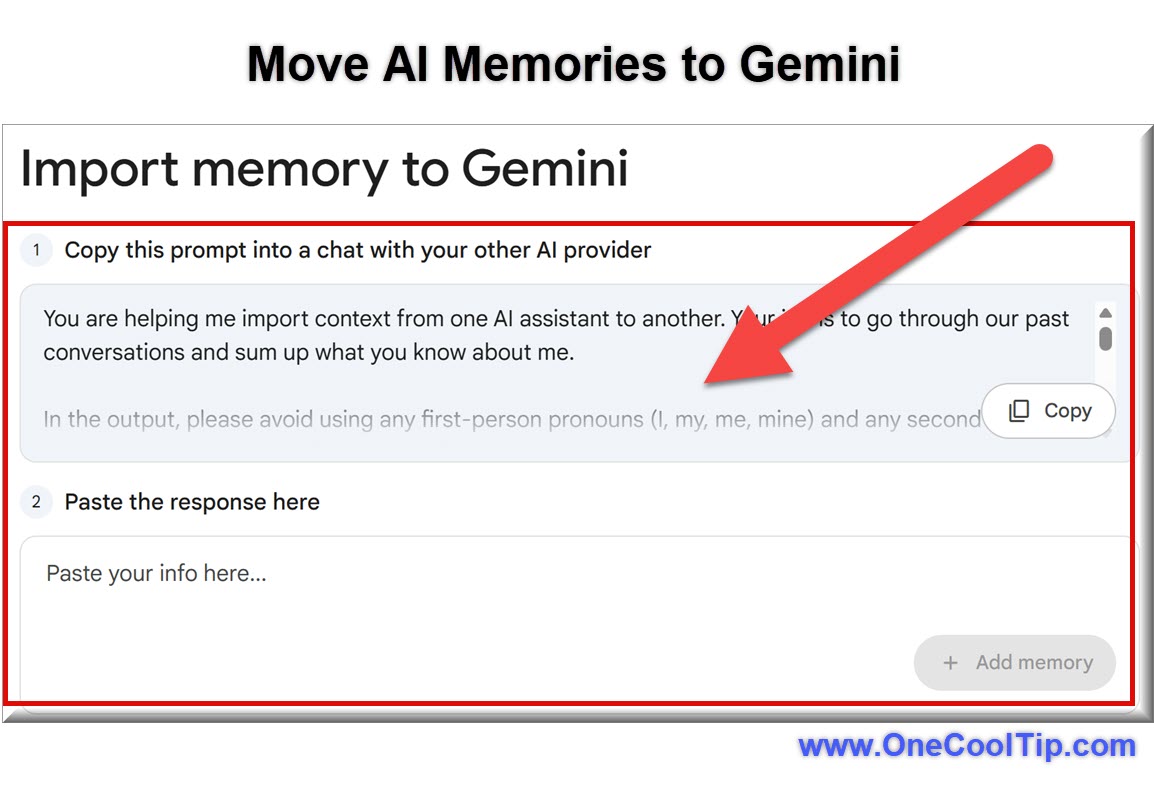
  • Here's the current prompt provided by Gemini:
You are helping me import context from one AI assistant to another. Your job is to go through our past conversations and sum up what you know about me.
In the output, please avoid using any first-person pronouns (I, my, me, mine) and any second-person pronouns (you, your, yours). Instead, refer to the individual you have learned about as "the user" or use neutral phrasing.
Preserve the user's words verbatim where possible, especially for instructions and preferences.
Categories (output in this order):
1. Demographics Information: Preferred names, profession, education, and general residence.
2. Interests & Preferences: Sustained, active engagements (not just owning an object or a one-time purchase).
3. Relationships: Confirmed, sustained relationships.
4. Dated Events, Projects & Plans: A log of significant, recent activities.
5. Instructions: Rules I've explicitly asked you to follow going forward, "always do X", "never do Y", and corrections to your behavior. Only include rules from stored memories, not from conversations.
Format:
Divide the content into the labeled section using the categories above. Try to include verbatim quotes from my prompts that justify each entry. Structure each entry using this format:
The user's name is .
- Evidence: User said "call me ". Date: [YYYY-MM-DD].
Output:
- Format the final output summary as a text block.


   5 To Import Chat History: 

  • Obtain your data export ZIP file from your current AI provider’s settings.
  • Under the Import chats section in Gemini, click Add and upload your ZIP file.


fig. 1 - Move AI Memories to Gemini

Pros and Cons


Pros:


  • Dramatically lowers the switching cost for power users with extensive AI histories.
  • Allows you to continue building on old threads using Gemini’s advanced reasoning and Google Workspace integrations.


Cons:


  • The ZIP upload process relies on third party exports, which can sometimes take hours or even days to receive from providers like OpenAI.
  • Only the text of conversations is imported; images and generated files from other apps will not carry over into the new interface.


Feature Access


The switching tool is currently rolling out for personal Google Accounts for users 18 and older. 


It is not currently available for work or school accounts or in the EEA, Switzerland, and the United Kingdom.


Score

Criterion | Score (0–10) | Justification
Value | 10
This is a "killer feature" that removes the biggest barrier to switching AI tools.
Usability | 8
The prompt and paste method is clever, though ZIP exports can be slightly clunky.
Wow Factor | 9
The ability to actually continue a rival AI thread inside Gemini is a major win.
Total: 27/30 |  🌟 Excellent
This is the most significant update for AI power users this year, making true data portability a reality.


Key Takeaways


Google’s new switching tool ends the era of AI lock in by letting you own and move your data. 


Whether it is your personal preferences or thousands of past messages, you can now bring that context into Gemini to fuel more personalized and productive results.


Cool Tip Snapshot


  • Feature Name: Gemini Switching Tool (Import Memory)
  • Platform(s): Web 
  • Quick Benefit: Migrates preferences and full chat history from rival AI apps.
  • Access Type: Free (Personal Accounts)


Try It Yourself


Navigate to your Gemini settings today and look for the "Import memory" option. 


Even if you aren't ready to fully switch, importing your history allows you to compare how Gemini handles your most complex past conversations. 


Invite your team to try it out and subscribe to the One Cool Tip newsletter for more AI transition guides!


READ MORE


Read the Cool Tip on OneCoolTip.com.

Check out these Cool Tips & Tricks.


  • Memory Prompt: Use the special import prompt to summarize your style. Copy the text from Gemini settings and run it in your old AI.


  • Search History: Use the new search bar in your Gemini menu to find old chats. Type keywords from your imported history to find specific threads.


  • ZIP Limit: Keep your history exports under 5 GB to ensure they upload. If your file is too large, try exporting smaller date ranges.


  • Daily Uploads: Note that you can upload up to five ZIP files per day. This is helpful if you have history from multiple platforms.


  • Privacy Check: Review your imported chats and delete any sensitive info. Click the "More" icon on any imported chat to remove it.


  • Continue Chatting: Open an imported chat and type a new prompt to continue. Gemini will use the imported context to keep the conversation going.


  • Fact Learning: Tell Gemini "Remember that I prefer brevity" to update its memory. This builds on your imported preferences.


  • Extension Sync: Enable the Workspace extension to help Gemini connect imports to your Gmail. This creates a powerful cross platform knowledge base.


  • Overwrite Updates: Re upload your latest export to keep your Gemini history current. It will update old threads with your most recent messages.


  • Mobile View: Use your phone to read imported chats while on the go. They sync perfectly across all devices once uploaded on the web.

ICYMI - In Case You Missed It ...

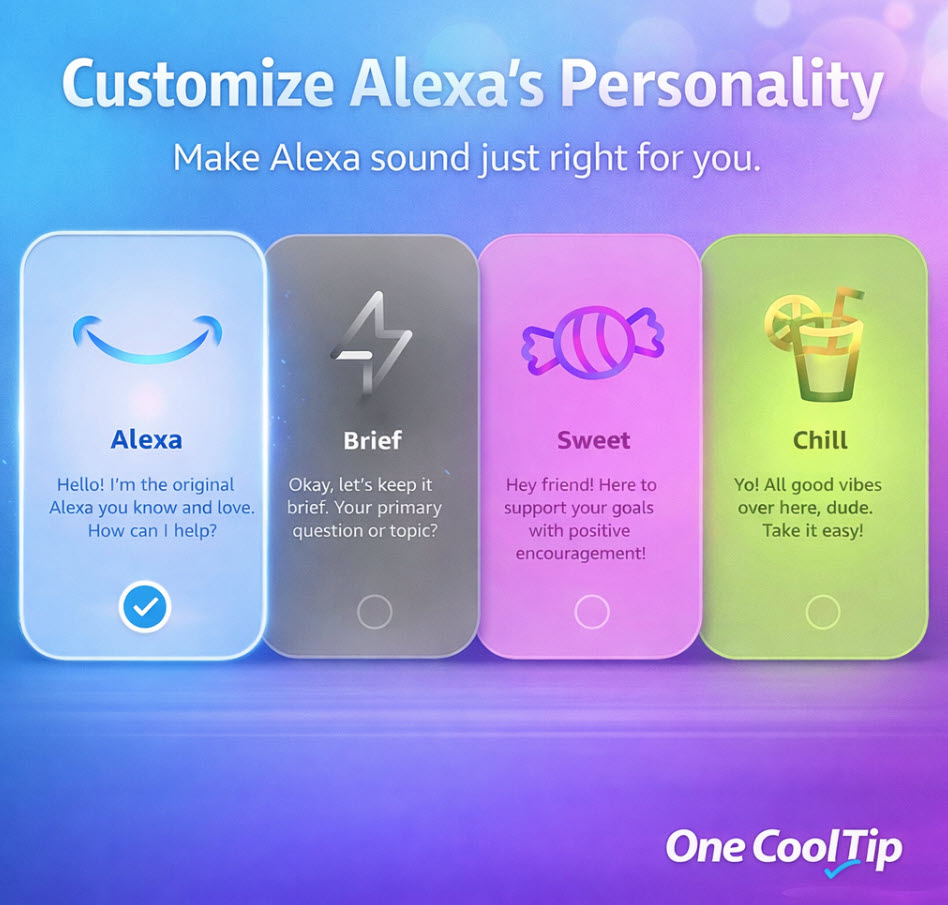
Alexa+ Personality Styles: Finally, an AI That Matches Your Vibe


Customize how Alexa responds so it feels less like a device and more like a digital companion that fits your mood and workflow. Amazon’s new Alexa+ introduces personality styles that let you tailor how your assistant talks and reacts. If you’ve ever wished Alexa sounded more energetic, more concise, or more conversational, this update puts you in control.


Read the Full Cool Tip.


Read the Newsletter Version.

Looking for your next adventure?


Call Denise at Travel For You.

314.660.3039


Sign Up for the Monthly Newsletter


http://www.travelforyouvacations.com/


https://www.facebook.com/TRAVEL.FOR.U/


See You Tomorrow

Tomorrow's Cool Tip is waiting to amaze you.


Until then, go forth and conquer the tech world with your newfound knowledge!


Be sure to visit www.OneCoolTip.com for Cool Tech Tips for a Cooler Life!


And if you Like One Cool Tip, please support with TipJar!


Enjoy!


Rodger

Chief Cool Tipper

onecooltip.com@gmail.com


What Do You Think?

What do you think of today's OneCoolTip newsletter?
Positive        Neutral        Negative
X Share This Email
LinkedIn Share This Email

Connect with One Cool Tip!!

Facebook  X  Instagram  Web  Pinterest  YouTube  LinkedIn
 

As an Amazon Associate, One Cool Tip may earn a small commission from qualifying purchases.


Our media content is intended solely for informational purposes only. Please do not construe anything here as legal, tax, investment, financial, marital or other advice.


Copyright © 2026 | www.OneCoolTip.com | All Rights Reserved