|
How to Take Control of Your Inbox with Scheduled Emails in Outlook
Ever wished you could send an email at the perfect moment—without setting an alarm to do it manually?
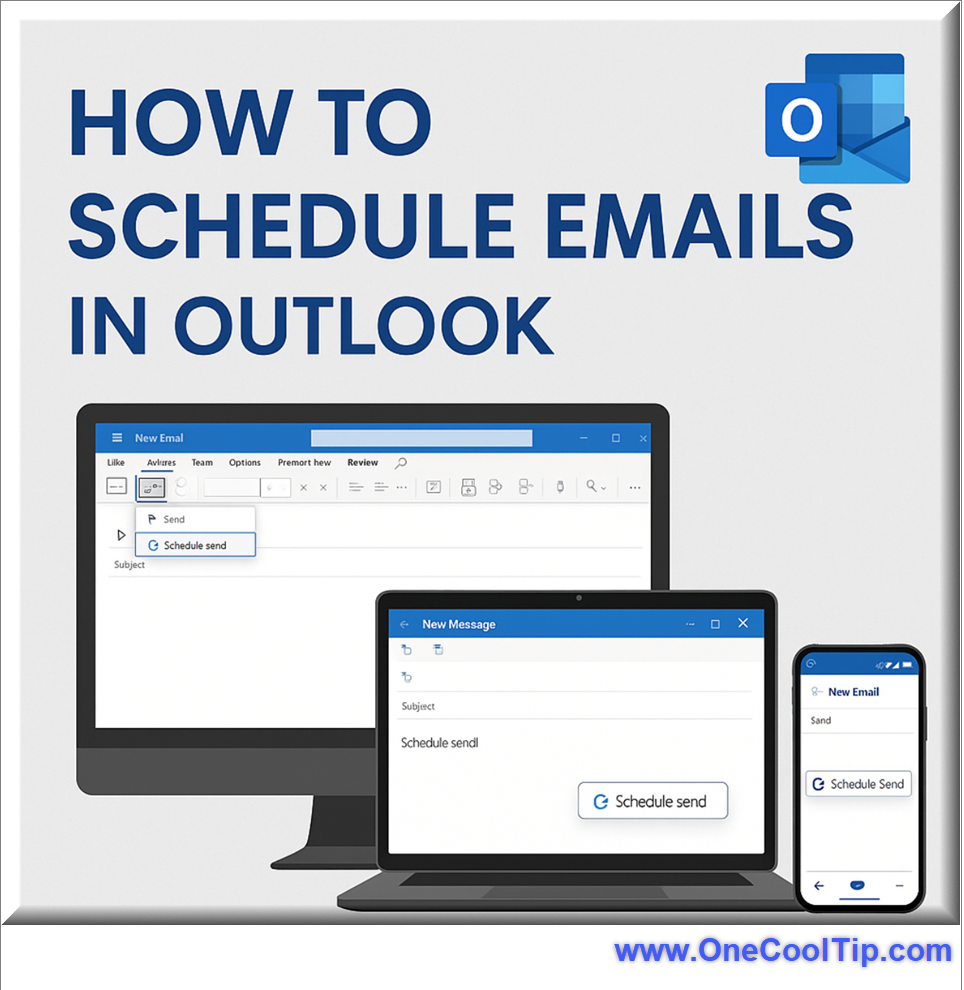
Here's a Cool Tip: Schedule Emails in Outlook.
Microsoft Outlook offers a powerful scheduling feature that lets you draft your email, set the desired send time, and walk away knowing it will be sent automatically.
Whether you're managing business communications across multiple time zones, sending birthday greetings in advance, or ensuring reminders land exactly when needed, Outlook’s scheduled email function is a vital tool.
Let’s discover how to delay or schedule your emails, the pros and cons of using this feature, and how to troubleshoot common issues.
How to Schedule an Email in Outlook
Here's how to do it.
On Outlook for Web and Desktop (IMAP/POP Accounts)
-
Open Outlook on the Web, https://outlook.live.com/mail/
-
Compose a new email.
- Click the dropdown next to the Send button.
-
Select "Schedule Send".
-
Pick the date and time for the email to be sent.
-
Click Send to confirm.
On Outlook for Windows & Mac (Exchange Server Accounts)
-
Open Outlook Desktop connected to an Exchange Server.
-
Compose a new email.
-
Click the Options tab.
-
Choose Delay Delivery.
-
Under "Do Not Deliver Before", set the date and time.
-
Click Close, then send the email as usual.
-
Unlike IMAP/POP accounts, Exchange Server processes scheduled emails server-side, meaning Outlook does not need to be open for the email to send at the scheduled time.
On Outlook Mobile (iOS & Android)
Scheduling emails is not yet a built-in feature on mobile apps, but users can save drafts and send them manually at the desired time.
Pros and Cons of Scheduled Emails
Pros:
✅ Automated convenience: Draft emails whenever and let Outlook handle the timing.
✅ Ideal for global teams: Ensures messages arrive during business hours in different time zones.
✅ Helps with reminders: Schedule follow-ups and important communications to stay organized.
✅ Exchange Server reliability: Emails are processed server-side, ensuring delivery even if Outlook is closed.
Cons:
❌ Requires an internet connection: Emails may fail if Outlook isn’t online when sending time arrives (for IMAP/POP accounts).
❌ Limited mobile support: As of now, scheduling isn't available on mobile apps.
❌ Potential delays: Sometimes, scheduled emails get stuck in the Outbox and require manual intervention.
Troubleshooting Tips
💡 Scheduled email stuck in Outbox? Ensure Outlook is connected to the internet and restart the app.
💡 Need to edit a scheduled email? Locate it in the Outbox, make changes, and reschedule it.
💡 No scheduling option available? Check if your account type supports delayed delivery—IMAP and POP accounts may lack this feature.
💡 Exchange Server users: If your scheduled email doesn’t send, check with your IT administrator to ensure server-side processing is enabled.
Key Takeaways
Microsoft Outlook allows users to schedule emails for automated sending at a later time.
The feature works seamlessly on Outlook Web and Desktop, but is not yet supported on mobile.
Exchange Server accounts process scheduled emails server-side, ensuring delivery even if Outlook is closed.
Scheduled emails help improve productivity and enable global coordination.
Try It Yourself!
Want to take control of your email timing?
Try scheduling your next email in Outlook and experience the convenience firsthand!
READ MORE
Read the Full Cool Tip
|