One Cool Tip Newsletter

August 6, 2026

Your daily dose of tech-savvy brilliance!

😀Greetings! Happy Thursday, Cool Tipper!


Get ready to streamline your digital life with simple, actionable tips delivered straight to your inbox.


Cool Tip Theme: iPhone VoiceOver.


New here? Subscribe to the One Cool Tip Newsletter for daily updates. It's FREE!

3️⃣

If you enjoy the One Cool Tip newsletter, please forward this newsletter to THREE friends or colleagues or share it on social media using the links below.


Leave a $$$ Tip!


Share this One Cool Tip Newsletter!

X Share This Email
LinkedIn Share This Email
Pinterest Share This Email

🚨 Could Your Home Be the Target of a Fake Emergency?🚨


The FBI is warning about the ongoing threat of "swatting," a dangerous prank where someone makes a false emergency report to send police or emergency responders to an innocent person's location.


These incidents can cause fear, disruption, and even injury while diverting resources from real emergencies.


The FBI notes that schools, government buildings, places of worship, hospitals, businesses, and private homes have all been targeted.


One way to reduce your risk is to limit the amount of personal information you share publicly online, including photos and videos that reveal details about your location.


Talk with family members about swatting and discuss how to respond calmly if law enforcement unexpectedly arrives.


Staying mindful of your digital footprint can help protect both your privacy and your safety.


And in Other News...


  • Why the Apple vs. OpenAI Battle Matters to Everyday Tech Users


A growing legal dispute between Apple and OpenAI highlights just how valuable technology and intellectual property have become in the race to develop next-generation AI products.


Apple has asked a court for an injunction as it pursues allegations that its trade secrets were improperly used by former employees now working for OpenAI, while OpenAI denies the claims.


The case centers on future consumer hardware and AI-powered devices, an area many experts expect to shape the next wave of technology innovation.


The story is a reminder that the companies behind our favorite devices are investing heavily in AI and competing to define what comes next.


While the legal arguments will play out in court, the bigger takeaway is that AI is rapidly becoming a key part of the future of personal technology.


Expect to see more AI features, services, and devices emerge as competition in this space continues to intensify.

Cool Tip Poll

🤔 Have you ever used VoiceOver on an iPhone?

Cool Deals of the Day

Help support One Cool Tip. Use this Amazon link when you shop online.


Check out these Cool Deals:

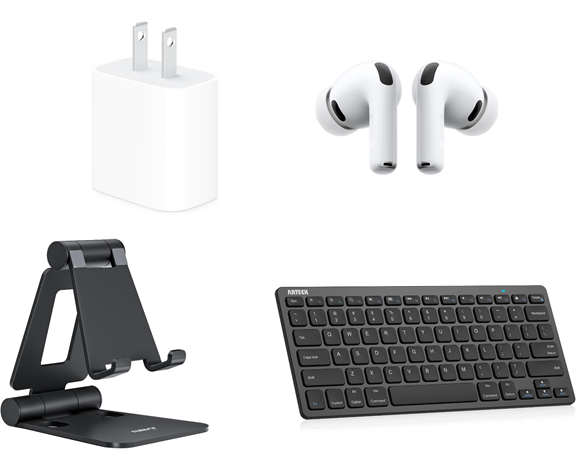
🎧 Apple AirPods: Headphones let users hear VoiceOver privately in offices, airports, stores, and other shared locations.

Save 24%. Now $189.99. 4.5 Stars. Check it out on Amazon!


🔌 Compact 20W USB-C Charger: A portable charger helps keep an iPhone available throughout a workday or trip.

Save 21%. Now $14.99. 4.8. Stars. Check it out on Amazon!


📱 Adjustable Phone Stand: A stable stand may make multifinger VoiceOver gestures easier for people who have difficulty holding the phone and performing gestures simultaneously.

Amazon's Choice. Now $9.99. 4.7 Stars. Check it out on Amazon!


⌨️ Bluetooth Keyboard: VoiceOver supports external keyboard commands, which can reduce dependence on touchscreen gestures.

Save 20%. Now $19.99. 4.5 Stars. Check it out on Amazon!


*Prices accurate when originally published.

One Cool Tip may earn a commission from qualifying purchases.

Fuel Your Adventure

Try Big Mike's Jerky!


bigmikesjerky.com


Now on TikTok!


Today's Cool Tip

Make Your iPhone Read the Screen Aloud


Apple’s VoiceOver screen reader can describe buttons, messages, webpages, notifications, and other content displayed on your iPhone. It is an essential accessibility tool for people who are blind or have low vision, but it is also useful for developers, caregivers, and anyone interested in accessible technology.


Imagine needing to check a message, open an app, or read a webpage without relying on the iPhone’s display. 


Here’s a Cool Tip: Use VoiceOver. on Your iPhone


VoiceOver speaks the name and status of items as you move around the screen.


VoiceOver is not simply a read-aloud command. 


It changes how the touchscreen responds so you can find, select, and activate controls using audio feedback and specialized gestures. 


A single tap identifies an item, while a double-tap activates the selected item.


The feature is built into the iPhone and does not require a separate app or subscription. 


Apple also provides a practice area where you can learn VoiceOver gestures without accidentally opening apps or changing settings.


Feature Explanation


VoiceOver is Apple’s built-in screen reader. 


When it is active, the iPhone speaks the name and status of the currently selected item, including buttons, links, headings, text fields, notifications, and app controls.


VoiceOver changes the normal touchscreen experience:


  • Tap once to select an item and hear its description.
  • Double-tap to activate the selected item.
  • Swipe right or left with one finger to move through items.
  • Swipe up or down with one finger to perform an action associated with the selected item.
  • Drag one finger around the screen to hear the items beneath it.


The VoiceOver rotor is one of the feature’s most useful tools. 


Place two fingers on the screen and rotate them as though turning a dial. 


Depending on the app and available content, the rotor can let you move by headings, links, words, characters, form controls, or other categories.


VoiceOver can also work with compatible external keyboards and braille displays. 


Apple lets users adjust the speaking voice, rate, pitch, verbosity, punctuation, typing feedback, audio behavior, and gesture assignments.


VoiceOver is not a new iOS feature. 


It is a mature accessibility tool that Apple continues to maintain as part of the iPhone operating system.


What You'll Gain


  • Operate an iPhone without depending entirely on the display.
  • Hear buttons, messages, webpages, settings, and app controls.
  • Protect displayed information with Screen Curtain.
  • Customize speech, gestures, typing feedback, and navigation.


Step-by-Step Instructions


Here's how to do it.


iPhone


  1. Open Settings.
  2. Select Accessibility.
  3. Select VoiceOver.
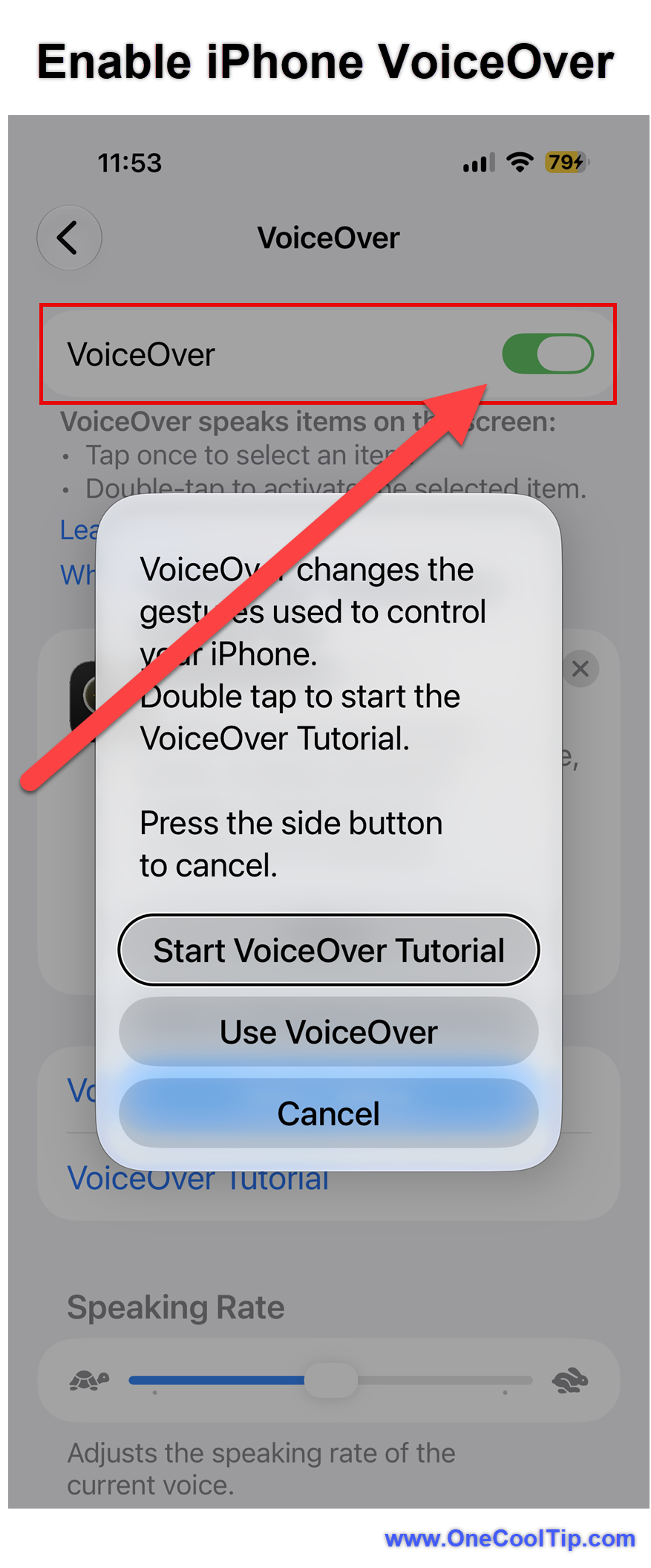
  4. Turn on VoiceOver. The iPhone will immediately begin speaking the selected item.
  5. Tap an item once to hear its name. Double-tap anywhere on the screen to activate the selected item.
  6. Swipe right or left with one finger to move to the next or previous item.
  7. Return to Settings > Accessibility > VoiceOver and select VoiceOver Practice.
  8. Practice one-finger, two-finger, three-finger, and four-finger gestures. VoiceOver explains what each gesture does without performing the associated action.
  9. When finished, select Done, then double-tap to exit the practice area.


fig. 1 Enable iPhone VoiceOver

Set Up a Quick Shortcut


  1. Open Settings > Accessibility.
  2. Scroll down and select Accessibility Shortcut.
  3. Select VoiceOver.
  4. Triple-click the iPhone’s Side button to turn VoiceOver on or off.


If several accessibility features are assigned to the shortcut, triple-clicking opens a menu. 


Select VoiceOver, then double-tap to activate it.


You can also ask Siri to “Turn on VoiceOver” or “Turn off VoiceOver.”


Screenshot suggestion: Show VoiceOver selected on the Accessibility Shortcut screen.


Cool Example


Suppose you want to open a text message. 


Touch the screen or swipe until VoiceOver announces “Messages.” 


Double-tap to open the app. Swipe right until VoiceOver announces the correct conversation, then double-tap again.


Pros and Cons


Pros:


  • Built into iOS: No additional app or subscription is required.
  • System-level navigation: VoiceOver works throughout iOS and within compatible apps.
  • Highly customizable: Users can adjust voices, speed, verbosity, punctuation, typing feedback, and gestures.
  • Braille support: Compatible Bluetooth braille displays can provide input and output.
  • Privacy option: Screen Curtain keeps the iPhone active while making the display appear black.


Cons:


  • VoiceOver replaces familiar touchscreen gestures, creating a significant learning curve.
  • Poorly labeled controls in some third-party apps may be confusing or inaccessible.
  • Accidental activation can make the iPhone appear unresponsive to someone unfamiliar with VoiceOver.
  • Available voices and languages vary.


Feature Access


  • Who gets it: iPhone users with a supported version of iOS.
  • Cost: Included with iOS.
  • Status: Generally available.
  • Language limitations: VoiceOver is not available in every language, and voice choices vary.
  • Accessories: Compatible Bluetooth keyboards and braille displays are supported.
  • Organization controls: Workplace policies may restrict Siri, Bluetooth accessories, or certain device settings.


Score

Criterion |  Score (0–10) |  Justification
Value |  10
VoiceOver provides essential access to iPhone functions for people who cannot rely on the display. It also gives developers and organizations a practical accessibility-testing tool.
Usability |  8
It is easy to enable, but mastering the gestures, rotor, typing controls, and app navigation requires practice.
Wow Factor |  8
Reading and controlling a smartphone through speech, gestures, keyboards, or braille remains technically impressive, even though VoiceOver is well established.
Total: 26/30 | 🌟 Excellent
VoiceOver is one of the iPhone’s most valuable accessibility features, provided the user takes time to learn its alternative gesture system.
Unlike Speak Screen, which primarily reads displayed text, VoiceOver provides interface navigation and control.


Key Takeaways


VoiceOver turns the iPhone into a speech-guided device that can be operated without relying on the display. 


Start with VoiceOver Practice, configure an Accessibility Shortcut, and learn the single-tap selection and double-tap activation pattern before exploring more advanced controls.


Cool Tip Snapshot


  • Feature Name: VoiceOver.
  • Platform(s): iPhone.
  • Quick Benefit: Hear and control onscreen content.
  • Best For: Blind users, people with low vision, accessibility testers, and app developers.
  • Access Type: Free.
  • Difficulty: Moderate.


Try It Yourself 


Open Settings > Accessibility > VoiceOver and try the practice area before enabling VoiceOver for everyday use. 


Tell us how it worked, subscribe to the One Cool Tip newsletter, and share this Cool Tip with family, friends, and coworkers who could benefit from a more accessible iPhone.


READ MORE


Read the Full Cool Tip.

Check Out These Cool Tips & Tricks


  • Practice First: Learn VoiceOver gestures without triggering actions by opening Settings > Accessibility > VoiceOver > VoiceOver Practice.


  • Quick Toggle: Select VoiceOver under Settings > Accessibility > Accessibility Shortcut, then triple-click the Side button to turn it on or off.


  • Ask Siri: Turn VoiceOver on or off by asking Siri when touchscreen navigation becomes confusing.


  • Explore by Touch: Drag one finger around the display to hear the item beneath it.


  • Move Precisely: Swipe right or left with one finger to move through screen elements in a predictable order.


  • Activate Items: Select a control with one tap, then double-tap anywhere on the screen to activate it.


  • Adjust Speed: Open Settings > Accessibility > VoiceOver and move the Speaking Rate slider until the speech is comfortable.


  • Use the Rotor: Rotate two fingers on the screen to choose navigation modes such as headings, links, words, or characters.


  • Protect Privacy: Triple-tap with three fingers to activate Screen Curtain while keeping VoiceOver and the iPhone active.


  • Add Headphones: Use wired or Bluetooth headphones when VoiceOver may announce messages, account information, or other private content aloud.

ICYMI - In Case You Missed It ...

The New LinkedIn Features That Can Help You Get Found Faster


LinkedIn has quietly evolved from a digital résumé into a powerful platform for networking, content creation, professional visibility, and career growth. New AI-powered search, enhanced analytics, video tools, and verification features could help job seekers and professionals stand out in a crowded market.


Read the Full Version.


Read the Newsletter Version.

Looking for your next adventure?


Call Denise at Travel For You.

314.660.3039


Sign Up for the Monthly Newsletter


http://www.travelforyouvacations.com/


https://www.facebook.com/TRAVEL.FOR.U/


See You Tomorrow

Tomorrow's Cool Tip is waiting to amaze you.


Until then, go forth and conquer the tech world with your newfound knowledge!


Be sure to visit www.OneCoolTip.com for Cool Tech Tips for a Cooler Life!


And if you Like One Cool Tip, please support with TipJar!


Enjoy!


Rodger

Chief Cool Tipper

onecooltip.com@gmail.com


What Do You Think?

What do you think of today's OneCoolTip newsletter?
Positive        Neutral        Negative
X Share This Email
LinkedIn Share This Email

Connect with One Cool Tip!!

Facebook  X  Instagram  Web  Pinterest  YouTube  LinkedIn
 

As an Amazon Associate, One Cool Tip may earn a small commission from qualifying purchases.


Our media content is intended solely for informational purposes only. Please do not construe anything here as legal, tax, investment, financial, marital or other advice.


Copyright © 2026 | www.OneCoolTip.com | All Rights Reserved