One Cool Tip Newsletter

October 22, 2026

Your daily dose of tech-savvy brilliance!

😀 Greetings! Happy Techy Thursday, Cool Tipper!


Get ready to streamline your digital life with simple, actionable tips delivered straight to your inbox.


Cool Tip Theme: Apple Reminders with Apple Intelligence


Your iPhone can do more than remind you about appointments and deadlines. With iOS 27 and Apple Intelligence, Reminders can understand everyday instructions, suggest tasks from emails and webpages, and help organize your to-do lists.


New here? Subscribe to the One Cool Tip Newsletter for daily updates. It's FREE!

3️⃣

If you enjoy the One Cool Tip Newsletter, please forward this newsletter to THREE friends or colleagues or share it on social media using the links below.


Leave a $$$ Tip!


Share this One Cool Tip Newsletter!

X Share This Email
LinkedIn Share This Email
Pinterest Share This Email

🚨 Buying an iPhone Duo? Don’t Let a Fake Preorder Steal Your Data🚨


Scammers are taking advantage of excitement around Apple’s new iPhone Duo by creating convincing fake preorder websites and promotions.


Be suspicious of websites, social media posts, emails, or messages promising an iPhone Duo faster or cheaper than official sources.


Keep your iPhone software updated and purchase through Apple, the Apple Store app, or another retailer or carrier you independently know and trust.


The Cool Tip:


When a hot new gadget comes with an unbelievable discount, skip the link and go directly to the seller’s official website or app.


And in Other News...


  • Own an iPhone 15 Pro or iPhone 16? You Could Get Up to $95


A proposed $250 million settlement with Apple could mean money for some U.S. iPhone owners.


If you purchased an iPhone 15 Pro, iPhone 15 Pro Max, or any iPhone 16 model in the United States between June 10, 2024, and March 29, 2025, you may qualify.


The lawsuit alleged that buyers expected certain Siri Apple Intelligence features they did not receive, while Apple denies wrongdoing and has not admitted liability.


Valid claims are expected to receive $25 per eligible device, although payments could increase to as much as $95 or decrease depending on the number of valid claims and other factors.


Claims must be submitted online or postmarked by December 21, 2026, and a separate claim is required for each eligible device.


The Cool Tip:


If you bought one of these iPhones during the qualifying period, check the official Smartphone AI Settlement site and file before the deadline if you're eligible.


  • Your Next iPhone Has More American-Made Parts Than You Might Think


Apple is expanding its U.S. manufacturing partnerships for the new iPhone Duo and iPhone 18 Pro.


The company says nearly 100 components in the two phones are produced by American companies using suppliers across more than a dozen states.


Pennsylvania-based Perryman Company will supply titanium for Apple products including the iPhone Duo, while Qnity Electronics will produce technology used in the iPhone 18 Pro's variable-aperture camera system.


Other U.S. suppliers produce components such as specialty glass, radio-frequency chips, and technology used for Face ID.


Apple says it works with suppliers in all 50 states and supports more than 450,000 American jobs as part of its broader U.S. manufacturing efforts.


The Cool Tip:


While iPhones aren't entirely manufactured in the United States, a growing number of important components inside Apple's newest models are being produced here.

Cool Tip Poll

🤔 How would smarter iPhone Reminders help you most?

Cool Deals of the Day

  • Have you tried the Upside app? Everyday cash back on gas, groceries and dining.


Help support One Cool Tip. Use this Amazon link when you shop online.


Check out these Cool Deals:

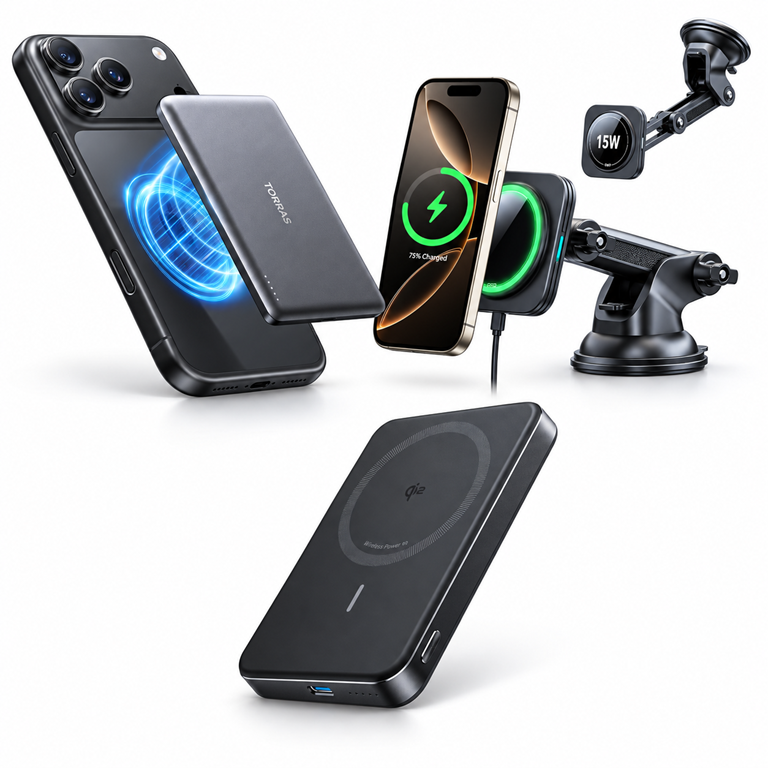
🔋 TORRAS MiniMag 5,000mAh Magnetic Power Bank: Keep your iPhone powered throughout your day with this slim magnetic portable charger. Its compact design makes it convenient for work, errands, and travel.

Save 15%. Now $34.16. 4.2 Stars. Check it out on Amazon!


🚗 ESR Magnetic Wireless Car Charger: Keep your iPhone securely mounted and charging while driving. The adjustable magnetic mount is useful for navigation and hands-free Siri commands.

Save 35%. Now $19.99. 4.0 Stars. Check it out on Amazon!


⚡ Anker MagGo 10,000mAh Qi2 Power Bank: This magnetic charger combines a larger battery capacity, wireless charging, and a built-in stand. It's a convenient accessory for keeping your iPhone charged while working at a desk or traveling.

Overall Pick! Now $79.86. 4.4 Stars. Check it out on Amazon!


*Prices accurate when originally published.

One Cool Tip may earn a commission from qualifying purchases.

Fuel Your Adventure

Try Big Mike's Jerky!


bigmikesjerky.com


Today's Cool Tip

Make iPhone Reminders Smarter With iOS 27

Your iPhone can do more than remind you about appointments and deadlines.


With iOS 27 and Apple Intelligence, Reminders can understand everyday instructions, suggest tasks from emails and webpages, and help organize your to-do lists.

By Rodger Mansfield, Technology Editor

October 22, 2026

Subscribe


How often have you read an email, noticed something you needed to do, and promptly forgotten about it?


Maybe it's a bill to pay, an appointment to schedule, or something you promised to pick up at the store.


Apple's built-in Reminders app can help keep those little obligations from slipping through the cracks.


With iOS 27, Reminders offers a more intelligent way to create tasks. 


On supported iPhones, Apple Intelligence can interpret a simple description and fill in reminder details automatically.


The app also includes AI-powered suggestions, automatic organization, and quick ways to capture tasks without interrupting what you're doing.


Some of those capabilities arrived in iOS 26, but together they make Reminders a more useful productivity tool.


Here's a Cool Tip: Use Apple Intelligence to create reminders with everyday language and keep your tasks organized with less effort.


How iOS 27 Makes Reminders More Useful


The biggest improvement is how easily you can tell Reminders what you need to accomplish.


Instead of filling out several fields, you can describe a task the way you might explain it to another person.


Create Reminders Using Everyday Language


Suppose you want to remember to water your plants every Saturday morning.


Open Reminders and type: Water the plants every Saturday at 9 AM.


With Apple Intelligence enabled on a compatible iPhone, Reminders can interpret the description and fill in the scheduling details.


You don't need to select the date, time, and repeat settings individually when the app correctly recognizes them.


Just review the information and save the reminder.


Turn Emails and Webpages Into Tasks


Ever receive an email containing several action items?


Instead of creating each reminder manually, share the relevant text with Reminders.


Apple Intelligence can examine the content and suggest individual tasks.


For example, an email about an upcoming business trip might generate reminders to confirm a hotel, complete a registration, and arrange transportation.


You decide which suggestions to keep.


The same capability can help identify grocery items from an online recipe in Safari or action items from notes.


Apple introduced suggested reminders in iOS 26, and the capability remains available in the iOS 27 Reminders experience.


Automatically Organize Your Lists


A long to-do list can become overwhelming, especially when it includes unrelated tasks.


The Auto-Categorize feature uses Apple Intelligence to group related reminders into sections.


Imagine preparing for a vacation with a list containing packing tasks, travel reservations, and shopping items.


Reminders can organize those tasks into related categories so they're easier to review.


If the results aren't quite right, you can move items manually or reset the automatic organization.


Auto-Categorize isn't new to iOS 27, but it's particularly useful when combined with AI-generated reminders.


Capture Tasks Without Opening Reminders


Sometimes the biggest challenge is remembering to create a reminder in the first place.


You can add a Reminders control to Control Center for faster access.


On supported iPhones, you can also assign Reminders to the Action button.


These quick-capture options help you record an idea, obligation, or errand before it disappears from your mind.


What You'll Gain


  • Save Time: Describe a reminder naturally instead of entering every detail manually.
  • Remember More: Turn useful information from emails and webpages into actionable tasks.
  • Stay Organized: Let Apple Intelligence group related reminders into sections.
  • Work Faster: Capture reminders from Control Center or the Action button.


Step-by-Step Instructions


Here's how to do it.


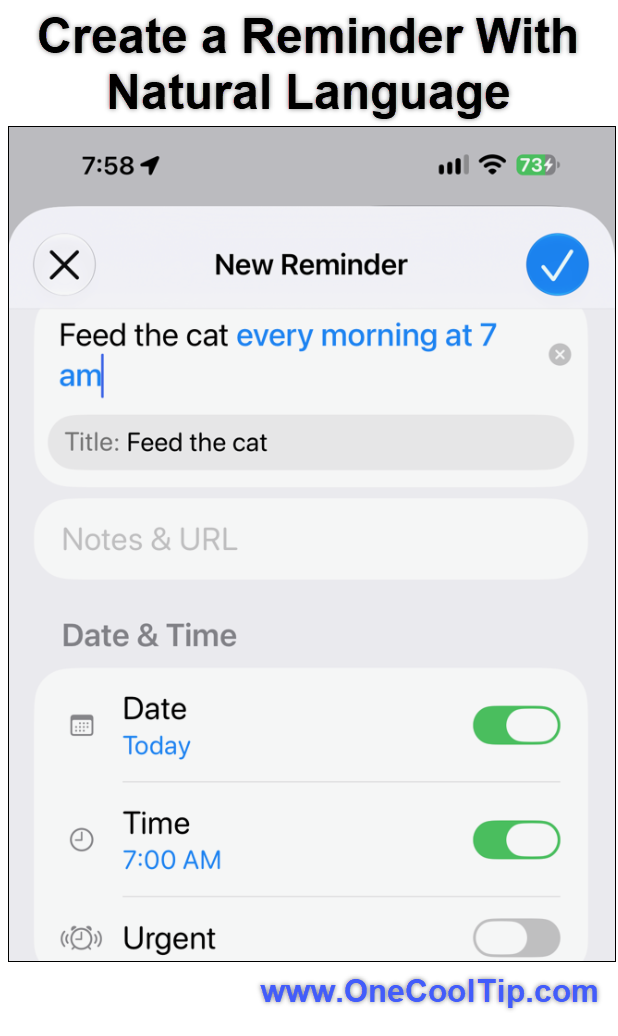
iPhone: Create a Reminder With Natural Language


  1. Open the Reminders app on your iPhone.
  2. Tap New Reminder.
  3. Type a complete description, such as Call the insurance agent tomorrow at 10 AM.
  4. If Apple Intelligence is available and enabled, review the date and time that Reminders identifies from your description.
  5. Make any necessary corrections.
  6. Tap Done to save.
  7. Your new reminder appears in the selected list with its scheduling information.

fig. 1 - Create a Reminder With Natural Language

iPhone: Create Reminders From an Email or Webpage


  1. Open a webpage in Safari, an email in Mail, or notes containing tasks.
  2. Highlight a bulleted list or block of text containing action items.
  3. Tap Share, then select Reminders. If the Share button isn't available, select the relevant text and tap Share.
  4. Review the extracted suggestions, pick your destination list from the top menu, and tap Add or Include All.
  5. Tap Done.
  6. Your selected tasks appear in the chosen Reminders list.


iPhone: Automatically Organize Reminders


  1. Open Reminders.
  2. Select an existing list.
  3. Tap the More button, represented by three dots.
  4. Select Auto-Categorize.
  5. Review the automatically created sections.
  6. Move individual tasks if you prefer a different arrangement.
  7. To disable automatic categorization, tap the Auto-Categorize control, select Turn Off, and choose whether to keep or remove the sections.
  8. Removing sections does not delete the reminders.


iPhone: Add Reminders to Control Center


  1. Open Control Center.
  2. Enter Control Center's editing mode.
  3. Tap Add a Control.
  4. Find and add the Reminders control.
  5. Position it where it's easy to reach.
  6. Now you can create reminders without first opening the Reminders app.


Pros and Cons


Pros:


  • Saves time when creating reminders with recurring schedules.
  • Converts selected information from emails and webpages into useful tasks.
  • Helps organize complicated lists automatically.
  • Makes capturing reminders more convenient.
  • Works with Apple's existing Reminders and iCloud ecosystem.


Cons:


  • Apple Intelligence requires compatible iPhone hardware.
  • Some capabilities depend on supported languages and regions.
  • Suggested tasks may be incomplete or inaccurate.
  • Automatic categories may not match your preferred organization.
  • Some features require updated iCloud Reminders rather than third-party reminder accounts.


Who Should Skip This?


If you only create an occasional reminder, the traditional Reminders interface may be all you need.


People who prefer organizing every task manually may find automatic categories unnecessary.


And if your iPhone doesn't support Apple Intelligence, you can continue using standard Reminders features without these AI enhancements.


Real-World Examples


Business: Organize Meeting Follow-Ups


  • After receiving an email containing project assignments, share the relevant text with Reminders.
  • Apple Intelligence can suggest tasks such as preparing a report, reviewing a proposal, or contacting a customer.
  • Review the suggestions before adding them to your work list.


Home: Make Grocery Shopping Easier


  • Find a recipe in Safari and share it with Reminders.
  • Apple Intelligence can suggest ingredients for your shopping list, saving you from entering each item individually.


Travel: Prepare for Your Next Trip


  • Create reminders for checking passports, confirming hotel reservations, charging devices, and packing medications.
  • Use Auto-Categorize to organize the tasks into manageable groups.


Configuration Guide


Apple Intelligence: Open Settings > Apple Intelligence & Siri to review its availability and configuration.


iCloud Sync: Open Settings > [your name] > iCloud and verify that Reminders is enabled.


Notifications: Open Settings > Notifications > Reminders to configure alerts.


Auto-Categorize: Open a reminder list, tap the More button, and select Auto-Categorize.


Quick Capture: Add Reminders to Control Center or assign it to the Action button on supported models.


Apple Intelligence must be available and enabled to use the AI-powered features.


Standard reminder creation does not require Apple Intelligence.


Troubleshooting and Limitations


Problem: Apple Intelligence options don't appear.


  • Why it happens: Your iPhone, language, region, or software configuration may not support the feature.
  • Fix or Workaround: Check compatibility, install available iOS updates, and review Apple Intelligence settings.


Problem: A reminder gets the wrong date or time.


  • Why it happens: Apple Intelligence may misinterpret an ambiguous description.
  • Fix or Workaround: Use clear wording, specify the intended date and time, and verify the result before saving.


Problem: Reminders doesn't suggest tasks from an email.


  • Why it happens: The selected content might not contain recognizable action items.
  • Fix or Workaround: Select the text containing the specific tasks, share it with Reminders, or create the tasks manually.


Problem: Auto-Categorize creates confusing sections.


  • Why it happens: Apple Intelligence may group reminders differently than you expect.
  • Fix or Workaround: Move items manually or turn Auto-Categorize off and back on to reset the sections.


Problem: Reminders don't appear on another Apple device.


  • Why it happens: iCloud synchronization may be disabled or delayed.
  • Fix or Workaround: Verify that the devices use the intended Apple Account, have internet access, and have iCloud Reminders enabled.


Privacy and Data Notes


Reminders may contain personal or business information, including appointments, project details, addresses, and deadlines.


Lists stored in iCloud can synchronize across devices using the same Apple Account.


Shared lists may also be visible to invited collaborators.


Apple Intelligence can process content that you choose to share with Reminders to generate suggested tasks. 


Review the suggestions before saving them, especially when the material contains sensitive information.


If you prefer manual control, you can create reminders normally without using AI suggestions or automatic categorization.


Feature Access


  • Operating System: iOS 27 for the current documented experience.
  • Apple Intelligence Hardware: iPhone 15 Pro, iPhone 15 Pro Max, and iPhone 16 models or later.
  • Apple Intelligence: Required for AI task creation, suggested reminders, and Auto-Categorize.
  • Language and Region: Available only where the relevant Apple Intelligence features are supported.
  • Account: Updated iCloud Reminders recommended for full functionality.
  • Subscription: No separate paid subscription required for the documented core features.
  • Availability: iOS 27 released September 14, 2026; individual AI feature availability varies.


Score

Criterion | Score (0–10) |  Justification
Value |  9
Creating tasks faster and extracting action items from existing information can provide meaningful everyday productivity benefits.
Usability |  8
Natural-language entry and sharing are straightforward, although Apple Intelligence requirements may confuse some users.
Wow Factor |  7
The AI assistance is useful, but several features build on capabilities introduced in earlier iOS versions.
Total: 24/30 |  👍 Good
Apple Reminders offers a practical combination of easy task creation, AI suggestions, and automatic organization without requiring a separate productivity app.
Dedicated task managers may offer more advanced project features, but Reminders remains an appealing choice for everyday personal and professional tasks.


Key Takeaways


With iOS 27, Reminders can interpret everyday task descriptions and help reduce repetitive data entry.


Combined with suggested reminders, automatic categories, and quick-capture controls, it offers a convenient way to manage daily responsibilities.


Cool Tip Snapshot


  • Feature Name: Apple Reminders with Apple Intelligence
  • Platform(s): iPhone with iOS 27
  • Quick Benefit: Create and organize reminders with less manual work
  • Best For: Business users, families, travelers, and busy professionals
  • Access Type: Free built-in app; Apple Intelligence requires supported hardware
  • Difficulty: Easy


Learn More


Apple's official iPhone User Guide explains how to create reminders, enter natural-language task descriptions, and generate suggested reminders from content in other apps.


Try It Yourself


Open Reminders and create a task using a complete sentence, then try sharing an email or webpage to see what Apple Intelligence suggests. 


Let us know what you think in the comments, subscribe to the One Cool Tip newsletter for more practical technology advice, and share this Cool Tip with family, friends, and coworkers.


READ MORE


Read the Full Cool Tip!

Check Out These Cool Tips & Tricks


  • Natural Language: Save time by describing tasks in everyday words instead of filling out every scheduling field. Open Reminders, tap New Reminder, and type a sentence with a date or time, then review the result.


  • Smart Suggestions: Turn action items from emails and webpages into reminders with Apple Intelligence on supported devices. Select relevant text, tap Share, choose Reminders, and review the suggested tasks.


  • Auto-Categorize: Keep long to-do lists organized by automatically grouping related tasks. Open a list, tap the three-dot More button, and select Auto-Categorize if available.


  • Quick Capture: Record tasks before they slip your mind using a shortcut in Control Center. Open Control Center, enter editing mode, tap Add a Control, and add Reminders.


  • Voice Reminders: Create reminders without typing when your hands are busy. Ask Siri something like, "Remind me to call John tomorrow at 10 AM."


  • Location Alerts: Get reminded about errands when you arrive at or leave a specific place. Open a reminder's details, choose Location, and select an arrival or departure condition.


  • Repeat Tasks: Stop recreating reminders for chores, bills, and appointments that happen regularly. Open a reminder's details, select Repeat, and choose how often it should recur.


  • Shared Lists: Coordinate groceries, household tasks, or project responsibilities with other people. Open an iCloud Reminders list, tap Share, and invite someone to collaborate.


  • Flag Important: Make your most important tasks easier to find. Open a reminder's details and enable Flag to add it to the Flagged Smart List.


  • Grocery Lists: Organize shopping items into familiar grocery categories. Open a list, tap the three-dot menu, choose Show List Info, and set List Type to Groceries.

ICYMI - In Case You Missed It ...

Show ChatGPT What You See With Appshots


ChatGPT Appshots lets you send the app window in front of you directly to a ChatGPT conversation, saving you from writing a long explanation or taking and uploading a separate screenshot. The feature works in the ChatGPT desktop app for Windows and macOS, with customizable shortcuts and chat-routing controls. 


Read the Full Version.


Read the Newsletter Version.

Looking for your next adventure?


Call Denise at Travel For You.

314.660.3039


Sign Up for the Monthly Newsletter


http://www.travelforyouvacations.com/


https://www.facebook.com/TRAVEL.FOR.U/


See You Tomorrow

Tomorrow's Cool Tip is waiting to amaze you.


Until then, go forth and conquer the tech world with your newfound knowledge!


Be sure to visit www.OneCoolTip.com for Cool Tech Tips for a Cooler Life!


And if you Like One Cool Tip, please support with TipJar!


Enjoy!


Rodger

Chief Cool Tipper

onecooltip.com@gmail.com


What Do You Think?

What do you think of today's One Cool Tip Newsletter?
Positive        Neutral        Negative
X Share This Email
LinkedIn Share This Email

Connect with One Cool Tip!

Facebook  X  Instagram  Web  Pinterest  YouTube  LinkedIn
 

As an Amazon Associate, One Cool Tip may earn a small commission from qualifying purchases.


Our media content is intended solely for informational purposes. Please do not construe anything here as legal, tax, investment, financial, marital or other advice.


Copyright © 2026 | www.OneCoolTip.com | All Rights Reserved