|
One Cool Tip Newsletter
August 18, 2026
| Your daily dose of tech-savvy brilliance! | |
😀Greetings! Happy Tuesday, Cool Tipper!
Get ready to streamline your digital life with simple, actionable tips delivered straight to your inbox.
Cool Tip Theme: Google Gemini Connected Apps
New here? Subscribe to the One Cool Tip Newsletter for daily updates. It's FREE!
| |
3️⃣
If you enjoy the One Cool Tip newsletter, please forward this newsletter to THREE friends or colleagues or share it on social media using the links below.
Leave a $$$ Tip!
Share this One Cool Tip Newsletter!
| | |
🚨The Top Search Result Might Not Be the Right One🚨
When paying a bill online, it’s easy to assume the first search result is the company’s official payment website.
Unfortunately, the FTC warns that some businesses use paid search ads to appear above the real company, potentially leading consumers to unexpected fees or third-party payment services.
Before entering payment information, take a moment to confirm you’re on the correct website.
If possible, type the company’s web address directly into your browser or scroll past sponsored results to find the official site.
This extra step can help ensure your payment goes where you intended and may save you money.
A few seconds of verification can prevent a frustrating and costly mistake.
And in Other News...
- What Happens to Your Data When a Company Goes Out of Business?
A recent court filing revealed that Google won a bankruptcy auction to acquire a large collection of business data from the defunct Spirit Airlines, including emails, chats, documents, calendars, and spreadsheets.
Google says the data will be used to improve its products and AI models, and that personally identifiable information will be removed by a third party before it receives the dataset.
The story is a reminder that data can remain valuable long after a company stops operating.
Consumers should be aware that privacy policies, bankruptcy proceedings, and data handling practices may affect what happens to information held by organizations they do business with.
While companies often take steps to protect personal information, it is always a good idea to review privacy policies and limit the amount of sensitive data you share whenever possible.
Staying informed about how companies collect, store, and use data is an important part of protecting your privacy in the digital age.
| |
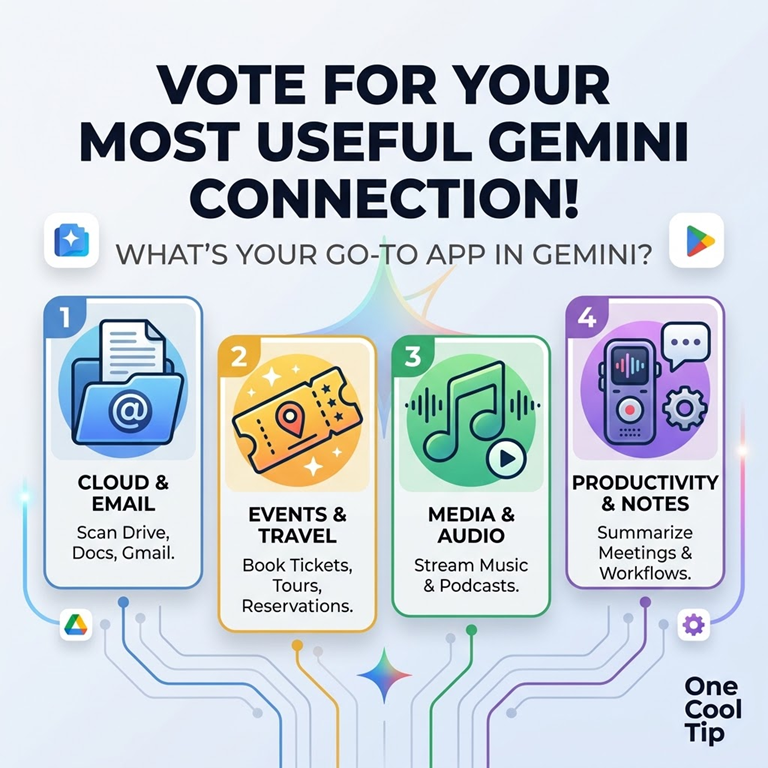
| 🤔 Which type of connected app do you find most useful in Google Gemini? | | | | |
Help support One Cool Tip. Use this Amazon link when you shop online.
Check out these Cool Deals:
| | |
💻 Logitech MX Master 3S Wireless Mouse: An ergonomic mouse with customizable shortcut buttons that make navigating between browser tabs and prompt windows effortless.
Overall Pick. Now $89.99. 4.5 Stars. Check it out on Amazon!
⌨️ Logitech MX Keys S Wireless Keyboard: Smart backlighting and fluid keystrokes designed to help you power through writing and prompt crafting with ease.
Look-->. $129.99. 4.4 Stars. Check it out on Amazon!
📱 Google Pixel 11 Pro XL with $200 Amazon Gift Card: The larger display is useful for reviewing Gemini results, travel choices, transcripts, and booking details.
Save 13%. Now $1,299. Check it out on Amazon!
*Prices accurate when originally published.
One Cool Tip may earn a commission from qualifying purchases.
| | |
Connect Everyday Apps to Google Gemini and Cut Daily Task Friction
Connecting third-party apps directly to Google Gemini lets you book tickets, discover local events, review meeting notes, and manage files without hopping between separate tabs. Here is how to link newly added apps, configure individual permissions, and call any connected service directly from your prompt window.
Switching between your inbox, event apps, cloud storage, and music player to complete a single task wastes valuable focus.
When an AI assistant operates in isolation, you still carry the burden of copying data, looking up confirmation numbers, or checking calendar openings manually.
Here’s a Cool Tip: Type @ in any Gemini prompt to summon a specific connected app and pull real-time data straight into your chat.
Google has expanded its Connected Apps library (formerly known as Extensions) to link external services directly into Gemini chats.
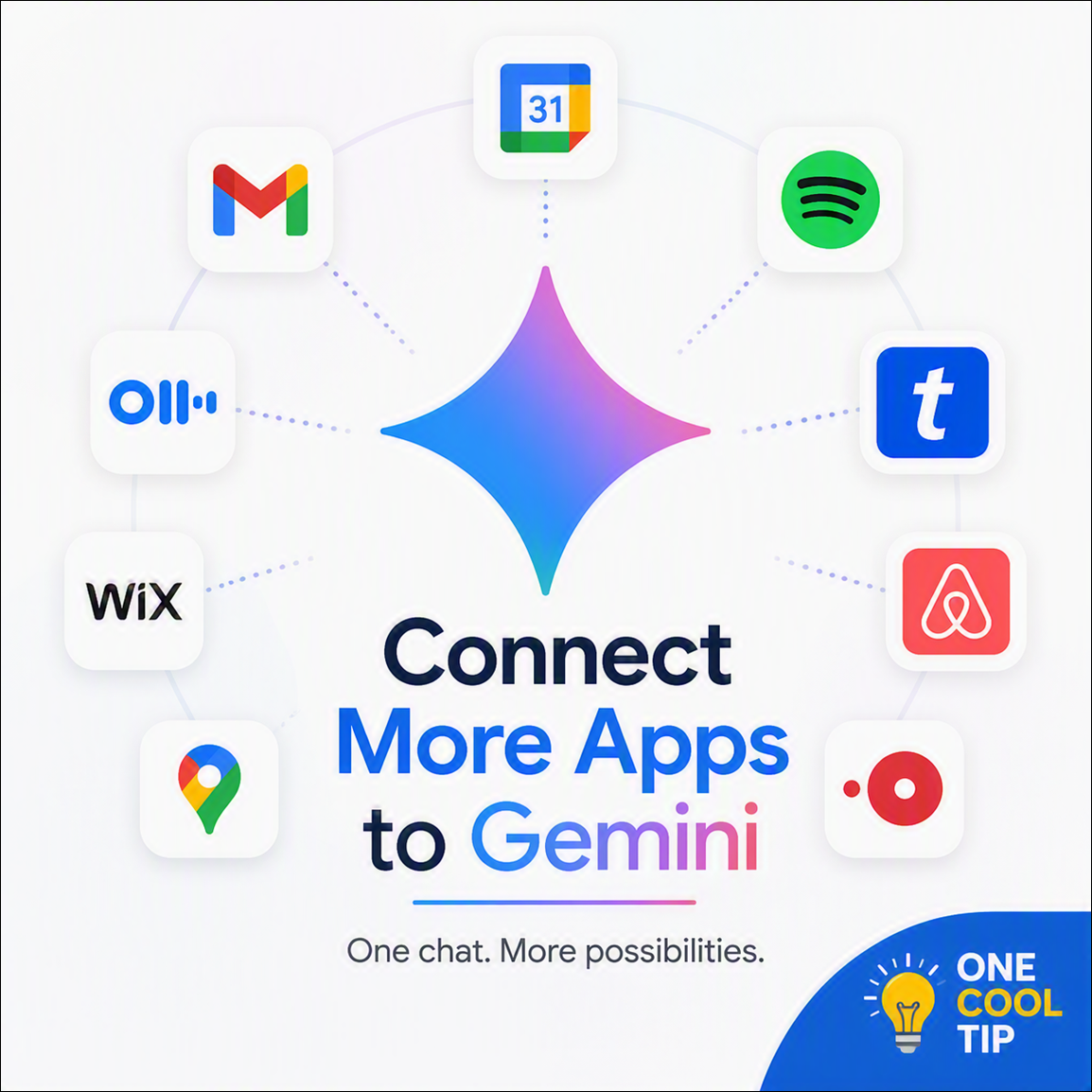
The latest wave of integrations adds services including Ticketmaster, Fever, GetYourGuide, Wix, Granola, Otter.ai, Pandora, and iHeartRadio alongside staples like Spotify, OpenTable, WhatsApp, and Google Workspace.
Feature Explanation
Connected Apps in Google Gemini serve as direct software bridges.
They allow the AI to read relevant context or execute actions inside external tools on your behalf.
Google previously grouped these tools under "Gemini Extensions" before consolidating them into the unified Connected Apps directory.
The latest roster introduces support across four key categories:
-
Productivity & Notes: Meeting summaries and website tools through Granola, Otter.ai, and Wix.
-
Local & Entertainment: Event ticketing and reservations via Ticketmaster, Fever, GetYourGuide, and OpenTable.
-
Media & Audio: Streaming stations and playlists on Spotify, iHeartRadio, and Pandora.
-
Home & Lifestyle: Service bookings through platforms like Angi, Thumbtack, and Zocdoc.
When you enter a prompt that requires outside information, Gemini can query the appropriate service automatically or let you target a specific source using an @mention.
What You’ll Gain
Save time by booking events, streaming music, and checking files without leaving your active chat.
Reduce friction by letting Gemini pull details from meeting notes, emails, and calendars automatically.
Maintain control by activating only the specific app connectors you want to use.
Step-by-Step Instructions
Here's how to do it.
Web/Desktop (Windows & macOS):
-
Open your browser and go to gemini.google.com.
-
Click Settings in the bottom-left sidebar.
-
Click Connected Apps (if not visible, click Personal Intelligence first, then select Connected Apps).
-
Browse the directory to find the service you want to add (e.g., Instacart, Google Workspace, Spotify, Wix).
-
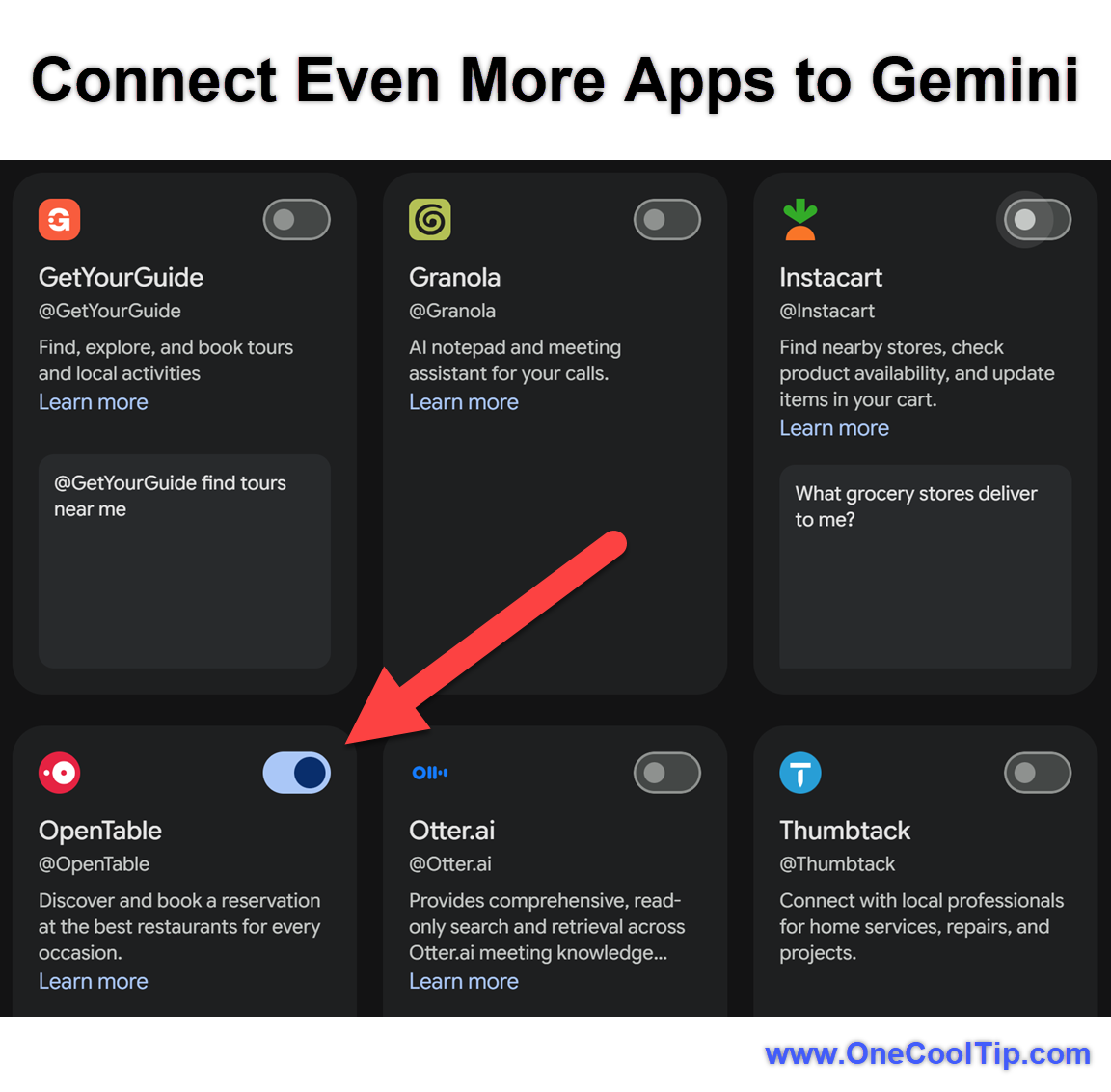
Click the toggle switch next to the app to turn it On.
-
If prompted, complete the third-party sign-in authorization to link your account.
-
Return to the chat window, type @ followed by the app name (such as @Spotify or @Google Drive), and type your request.
| | fig. 1 - Connect Even More Apps to Gemini | | |
Android:
-
Open the Gemini app on your Android device.
-
Tap your Profile picture in the top-right corner.
-
Tap Settings, then tap Connected Apps (or Personal Intelligence > Connected Apps).
-
Enable the toggle next to the desired apps (such as WhatsApp, Spotify, or Device Utilities).
-
Complete any external account linking prompts that appear.
-
Type @ in your chat bar or tap the microphone to issue a voice prompt.
iPhone/iPad (iOS):
-
Open the Google app or standalone Gemini app on iOS.
-
Tap your Profile icon and select Settings.
-
Tap Connected Apps.
-
Toggle on the available services you wish to use and approve any account connection prompts.
Pros and Cons
Pros:
- Eliminates repetitive copy-pasting across productivity tools, travel platforms, and entertainment apps.
- Supports direct @ targeting so you control where Gemini searches.
- Synchronizes across web browsers, Android, and iOS for linked accounts.
- Offers independent toggles to connect or disconnect individual services at any time.
Cons:
- Requires the Keep Activity setting to remain active on web and iOS.
- Newly announced third-party integrations roll out gradually across regions and account types.
- Managed business and school accounts may have specific integrations blocked by domain administrators.
Feature Access
-
Availability: Consumer rollout announced August 2026, with service availability rolling out across regions, devices, and languages over subsequent weeks.
-
Supported Platforms: Web (gemini.google.com), Android, iOS.
-
Account Tiers: Available for standard Google Accounts and Google AI subscription tiers. Workspace business and school accounts depend on admin configuration.
-
System Requirements: Active internet connection, updated mobile app or modern desktop browser, and Keep Activity enabled.
Score
Criterion | Score (0–10) | Justification
Value | 9
Expanding beyond Google Workspace into ticketing, entertainment, and meeting tools makes Gemini a more versatile daily assistant.
Usability | 8
Enabling apps requires only a single toggle and quick account authorization, though rollout timing varies across accounts.
Wow Factor | 8
Chaining requests between multiple external services like Ticketmaster and OpenTable in one chat prompt saves significant time.
Total: 25/30 | 🌟 Excellent
Connecting outside apps turns Google Gemini into an active task hub that bridges your personal files, streaming media, and daily bookings in one location.
Key Takeaways
Connecting third-party apps to Google Gemini streamlines cross-platform tasks by letting you query entertainment, productivity, and lifestyle services within a single chat prompt.
You can customize which apps have access through the Connected Apps settings menu and summon any active tool instantly using @.
The feature requires Keep Activity to remain enabled and respects individual service toggles.
Cool Tip Snapshot
-
Feature Name: Google Gemini Connected Apps
-
Platform(s): Web, Android, iOS, Windows, macOS
-
Quick Benefit: Query Ticketmaster, Spotify, Drive, OpenTable, and more directly from your AI prompt
-
Best For: Multitaskers, travelers, event planners, and busy professionals
-
Access Type: Free / Rolling Out / Workspace Admin Controlled
-
Difficulty: Easy
Try It Yourself
Open gemini.google.com today, head into Settings, and explore the Connected Apps library.
Turn on your favorite services, try out an @ prompt to find concert tickets or search your notes, and see how much manual tab switching you eliminate!
Have a favorite app integration?
Share your thoughts in the comments, subscribe to the One Cool Tip newsletter for regular productivity guides, and pass this article along to your friends, family, and coworkers.
READ MORE
Read the Full Cool Tip.
| | |
Check Out These Cool Tips & Tricks
-
Quick Mention: Summon any linked service instantly by typing @ followed by the service name. Type @ at the start of your prompt to view your active list of connected tools.
-
Activity History: Keep your Gemini Apps Activity enabled so connected tools remain accessible across your devices. Visit Gemini Settings, open Activity, and set Keep Activity to on.
-
Event Discovery: Search for concerts, sports events, and local shows without opening separate ticket websites. Ask @Ticketmaster to show upcoming tour dates for my favorite artist in my city.
-
Meeting Notes: Extract action items from past calls without reading entire transcripts. Prompt @Otter.ai summarize key deliverables from yesterday's team sync.
-
Drive Search: Locate specific figures buried inside spreadsheets or PDF documents. Type @Google Drive followed by keywords from the document title or text.
-
OAuth Permissions: Link third-party services securely through official provider sign-in pages. Follow the on-screen login window when you switch an app toggle on.
-
Granular Toggles: Turn off connectors you do not use to keep your prompt list uncluttered. Open Connected Apps settings and switch unused services to off.
-
Travel Booking: Plan excursions and restaurant stops in a single conversation. Ask Gemini to locate experiences with @GetYourGuide and dining spots via @OpenTable.
-
Audio Streaming: Start customized radio stations and playlists using simple natural language. Prompt @Spotify play upbeat acoustic tracks for focused work.
-
Mobile Utilities: Manage alarms, timers, and phone calls on Android using natural conversational commands. Open Gemini on your mobile device and say set a reminder for 3 PM using Utilities.
| | ICYMI - In Case You Missed It ... | | | | |
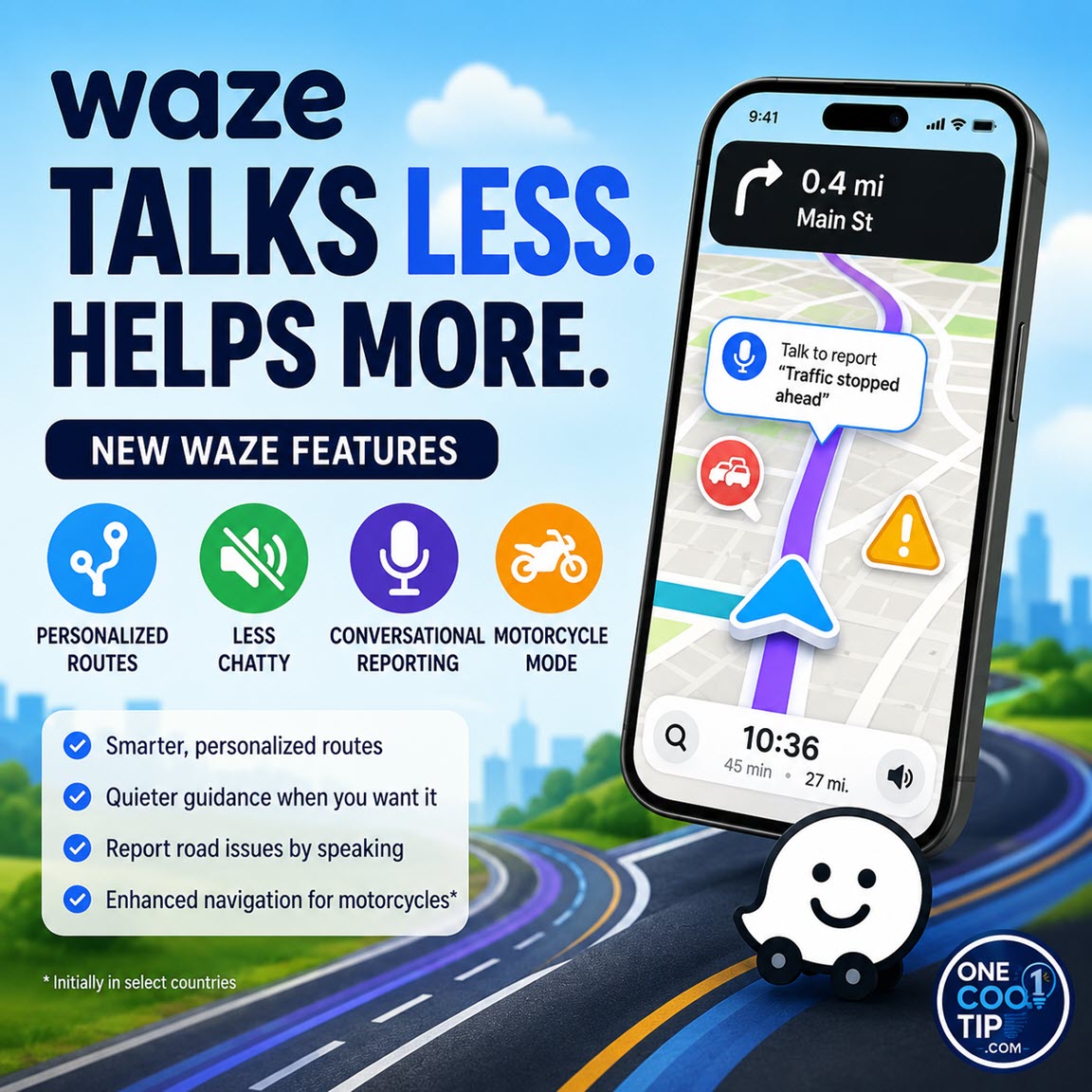
Make Your Drive Quieter and Smarter With New Waze AI Features
Waze is adding powerful Gemini AI capabilities to customize your commute, minimize interruptions, and improve route accuracy. Learn how to activate these new features for a calmer, smarter driving experience.
Read the Full Version.
Read the Newsletter Version.
| | |
Tomorrow's Cool Tip is waiting to amaze you.
Until then, go forth and conquer the tech world with your newfound knowledge!
Be sure to visit www.OneCoolTip.com for Cool Tech Tips for a Cooler Life!
And if you Like One Cool Tip, please support with TipJar!
Enjoy!
Rodger
Chief Cool Tipper
onecooltip.com@gmail.com
| |
| What do you think of today's OneCoolTip newsletter?
| | | | Connect with One Cool Tip!! | | |
|
As an Amazon Associate, One Cool Tip may earn a small commission from qualifying purchases.
Our media content is intended solely for informational purposes only. Please do not construe anything here as legal, tax, investment, financial, marital or other advice.
Copyright © 2026 | www.OneCoolTip.com | All Rights Reserved
|
| | | |