***For RWJBH and Rutgers Providers Live on Epic***

April 19, 2023

This Week's Top Stories

Attn: Physician Leaders and Practice Managers! Share these key items in your meetings:

Ambulatory and Inpatient Providers:

  • iPhone Only: Haiku/Canto version 10.4 abnormal results displaying in unexpected format

Ambulatory Providers:

  • Use Express Lane efficiency tool in Epic!

Inpatient Providers:

  • Reminder: QGenda and Provider Care Teams SBAR

Epic Enhancements

Wave 4 Epic Go-Live Build Freeze began April 7

  • In preparation for the April 29 Wave 4 Epic Go-Live, the Epic Together Project Team's build/code freeze began on April 7.
  • Enhancements, other than patient-safety or break-fix solutions, will pause until after the Wave 4 Epic Implementation.


Epic Updates

Haiku/Canto Version 10.4 Displays Abnormal Results in Unexpected Format


Background

Haiku is a mobile app designed to let physicians perform key workflows on the go. Haiku and Canto can be used with Apple and Android devices.


Issue

If a user has mobile Haiku/Canto version 10.4.#(?) installed on their iOS device (iPhone) with iOS 16.4.1, text for abnormal results displayed in In Basket messages and Chart Review is being wrapped and uses 2 lines to display 1 value. This formatting may be confusing for end users.


For example, an abnormal value of "201" appears as "20" on the first line and "1" on the second line. This is confusing for end users.


Workaround

To avoid this issue, users must update their Haiku/Canto app.


Resolution

Update to Mobile App version 10.5 when it becomes available.


 Click here for a chart comparing iOS and Android Haiku functionality.

Ambulatory Providers: Use Epic's Express Lane Functionality!

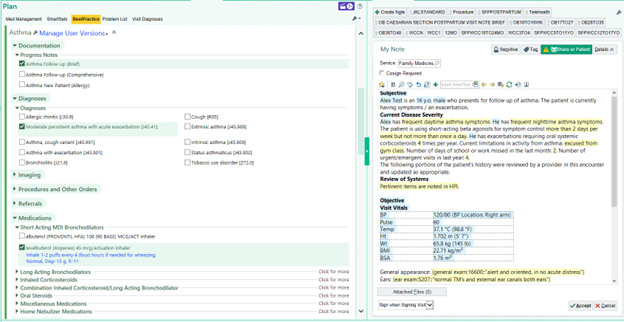
Epic’s Express Lane is an efficiency tool that allows a provider to document a repetitive/straightforward visit on a single screen with just a few clicks. 

There are currently approximately 120 Express Lanes available for use for various types of visits. 


Some Express Lane examples include Asthma, Well Child visits, Chronic Cough, Cerumen Impaction, and Urinary Tract Infection.


Documentation elements available for use in Express Lanes vary by topic but can include:

  • Note templates
  • Reasons for Visit
  • Diagnoses
  • Orders
  • Levels of Service
  • Patient Instructions
  • Follow-up instructions
  • A Communication Management section
  • Charge Capture section

Epic's Express Lane Q&A:

Express Lane Frequently Asked Questions (FAQs)

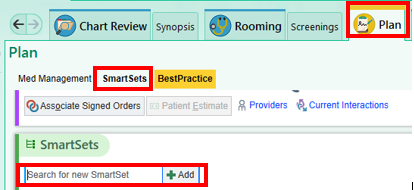
Q: Where can an Express Lane be found in Epic?


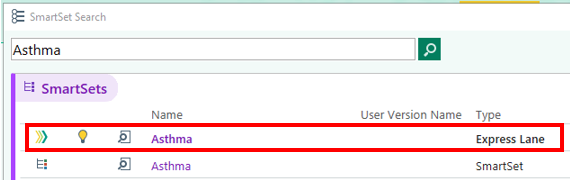
A: Navigate to the Plan tab, SmartSets section. An Express Lane can be found by searching for the topic to be documented.  

   Express Lanes are denoted by the right-facing, multi-colored chevron.

Q: Sometimes an Express Lane will automatically launch. Why does this happen? Is it required for use?


A: If a visit meets specific criteria, an Express Lane can be setup to either be suggested or to launch automatically. A few criteria examples that can be set for a visit to match to include visit type, department, and reason for visit.


If the Express Lane automatically launches, click Exit to remove the Express Lane, if it does not meet the needs of the visit.

Q: Can I save and customize an Express Lane?


A: Some, but not all, Express Lanes allow a copy to be saved. The Express Lane can then be customized to personalize the note template with a created SmartPhrase or SmartText. In addition, Diagnoses, Orders, Level of Service, and Follow-up instructions can be saved as preselected defaults along with saving preferred order details.


If the Express Lane can be customized, a Manage User Versions hyperlink will be present next to the name of the Express Lane.

When the drop-down arrow is clicked, a Create My Version option is available, allowing for personalization.

QGenda / Provider Care Teams SBAR Refresh


Situation: 

  • In the Epic On-Call Finder activity, “Primary Team Contact” may not accurately represent the primary on-call provider. 
  • The QGenda landing page website and Epic first contact treatment team functionality is unaffected.


Background: The Epic On-Call Finder activity is interfaced with the QGenda on-call system to facilitate easy and convenient access to provider on-call scheduling information without leaving the Epic Hyperspace environment.


Assessment:

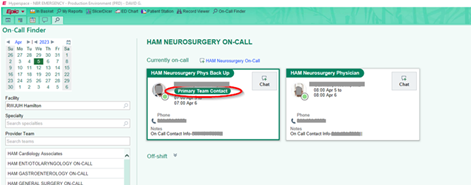
  • A recent update to enable enhanced functionality is causing the label “Primary Team Contact” to display on the first contact card, regardless of the intended on-call order. 
  • This example shows “Primary Team Contact” for the ‘physician back-up’: 
  • All other information (including the on-call provider names and times) in the Epic On-Call finder activity is interfaced properly with the QGenda system. 
  • The “Primary Team Contact” tag will eventually make it easier for staff to identify the appropriate on-call provider and support the provider sign-in workflow, which is currently in the implementation phase.


Recommendation: 

  • Please pause for a “STAR” moment when using the Epic On-Call finder to identify the correct first-call provider, as the “Primary Team Contact” label is currently unreliable.           
  • The RWJBH Epic Together team is working to implement a fix to correct the display of the “Primary Team Contact” label as soon as possible.
  • The long-term optimization strategy is to modify RWJBH provider care team configuration and QGenda schedule interface to better support provider workflows and accessibility.

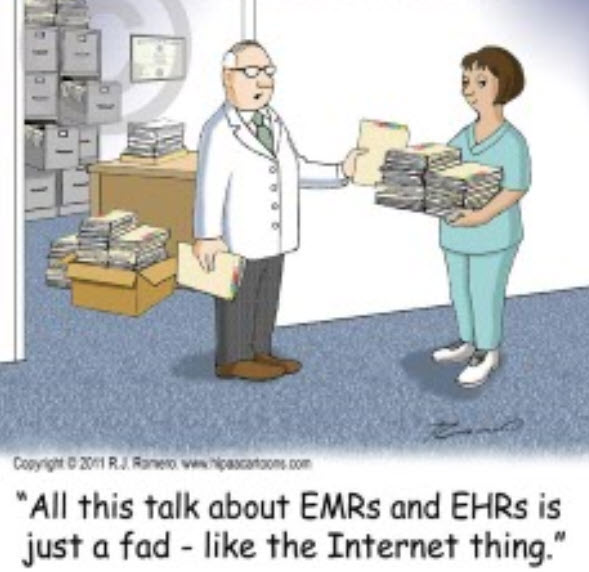
Good Humor

Heartfelt thanks to Julie Harrigan, MD, Physician Executive, for this week's Good Humor submission!

Epic: How to Get Help

Review the Epic "Get Help at a Glance" Flyer!

The "Epic Get Help at a Glance" Flyer includes instructions to:

  • Open a Help Desk Ticket
  • Check The Status of an Open Ticket
  • Enter an Epic Enhancement Request


Click here to view the updated "Get help at a Glance" flyer!

Live Site Epic Provider Print Edition!

Click here for a printable PDF of last week's Live Site Epic Provider Newsletter.

Phone a friend:

Our cell numbers are available below.

Please call with any questions or concerns.

RWJBH-Rutgers Medical Leadership Team

Dr. Joshua Bershad

EVP, Physician Services;

Clinical Assistant Professor of Medicine Rutgers Robert Wood Johnson Medical School

Joshua.Bershad@rwjbh.org

Cell: 973-202-0900


Dr. Frank Sonnenberg

Chief Medical Informatics Officer, RWJBarnabas-Rutgers Medical Group; Professor of Medicine, Rutgers Robert Wood Johnson Medical School

Frank.Sonnenberg@RWJBH.org

Cell: 908-313-6563 


Dr. Carol Ash, DO, MHCDS, MBA, FACHE, CPHQ, CHCQM-PHYADV

Chief Medical Officer

Robert Wood Johnson University Hospital Rahway

Carol.Ash@rwjbh.org

Phone: 732-499-6134

Cell: 732-857-6535 


Dr. Seth D. Rosenbaum, MD, MMM 

SVP, Chief Medical Officer Robert Wood Johnson University Hospital Hamilton;

Clinical Assistant Professor, Department of Medicine, Rutgers-Robert Wood Johnson Medical School

seth.rosenbaum@rwjbh.org

Phone: 609-584-2865 

Cell: 609-508-7951                 


Dr. Sal Moffa

Chief Medical Officer, RWJUH Somerset 

Salvatore.Moffa@rwjbh.org

Phone: 908-685-2816 

Cell: 609-238-5248 


Dr. Stephen O’Mahony

SVP & Chief Health Information Officer, RWJBarnabas Health; 

Clinical Associate Professor of Medicine, Rutgers New Jersey Medical School

Stephen.OMahony@rwjbh.org

Phone: 973-322-4231

Cell: 203-820-6519


Sheraz Siddiqui, MD

Chief of Hospital Medicine

Robert Wood Johnson

University Hospital

Associate Professor, Department of Family Medicine and Community Health

Rutgers-Robert Wood Johnson Medical School

siddiqsh@rwjms.rutgers.edu

Cell: 732-986-3577


Dr. Deborah L. Toppmeyer

Professor of Medicine, Robert Wood Johnson Medical School; Chief Medical Officer, Chief, Division of Medical Oncology, Director,

The Stacy Goldstein Breast Center

Rutgers Cancer Institute of New Jersey, Rutgers

The State University of New Jersey

deb.toppmeyer@rutgers.edu

Phone: 732-235-9692