|
AI Image Editing in PowerPoint
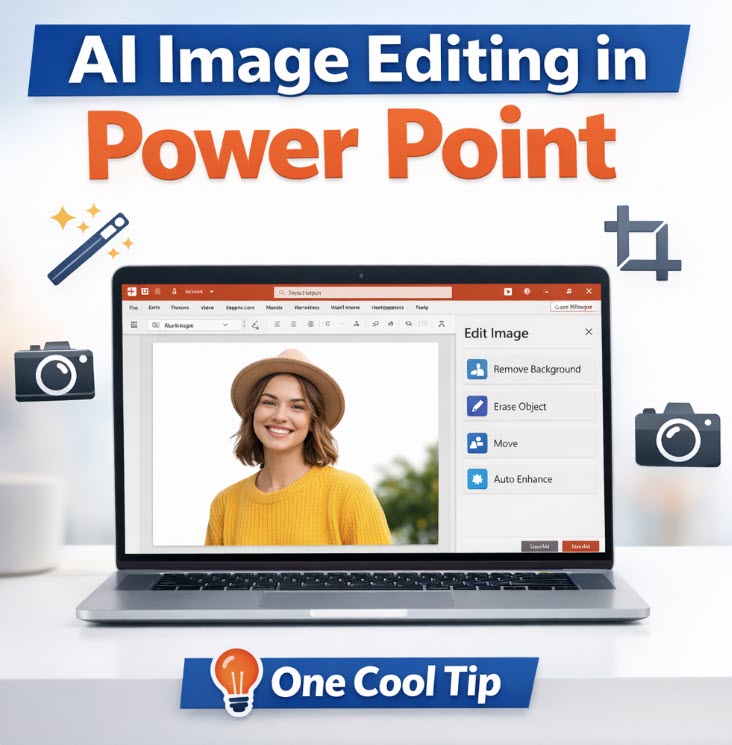
PowerPoint now includes a full AI image editor that can clean up photos, remove objects, and enhance slides without leaving the app. It’s one of the most useful upgrades Microsoft has shipped in years.
Every presenter knows the pain of scrambling to fix a photo minutes before a meeting.
Maybe the lighting is off. Maybe there’s a stranger in the background. Maybe the image looks fuzzy on a big screen.
Until now, you had to jump into a separate app to fix it.
Here's a Cool Tip: Edit PowerPoint Images with AI.
PowerPoint’s new AI image editing tools turn the app into a capable photo editor that handles the most common fixes with surprising accuracy.
Feature Explanation
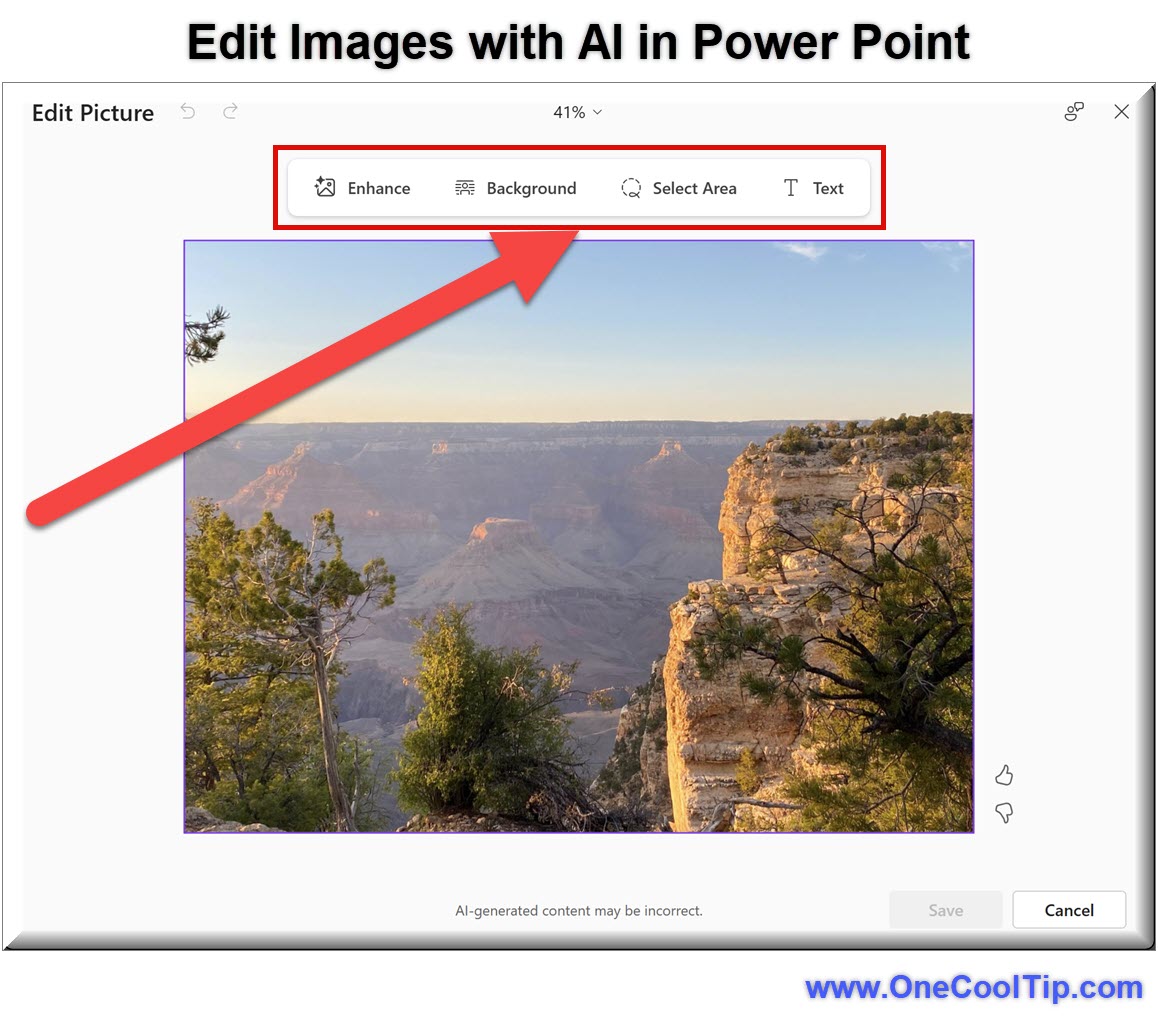
The new Edit Image workspace replaces the old Picture Format panel with a modern, AI‑powered editor.
It includes tools that previously required Photoshop or a third‑party app.
You can remove backgrounds, erase objects, move elements inside a photo, upscale low‑resolution images, and apply automatic enhancements.
The workspace opens in a dedicated panel that keeps your slide visible while you edit. When you click Update, the edited image replaces the original on your slide.
This matters because it removes friction.
You no longer need to export, edit, reimport, resize, and reposition. Everything happens in one place.
The tools are simple enough for everyday users but powerful enough to handle real corrections.
What You’ll Gain
-
Quick improvements: Fix lighting, clarity, and color with one click.
-
Cleaner slides: Remove distractions or unwanted objects.
-
Sharper images: Improve low‑resolution photos for large displays.
-
Faster workflow: Edit without switching apps.
Step‑by‑Step Instructions
Here's how to do it.
Microsoft PowerPoint for Windows and Mac
-
Insert an image into your slide.
-
Select the image.
-
Open the Picture Format tab.
-
Click Edit Image.
-
Choose a tool such as Remove Background, Erase, Move, or Auto Enhance.
-
Make your adjustments.
-
Click Update to apply the changes.
|