|
macOS
-
Open the Gemini app on your Mac and sign in with your personal Google Account.
-
Click the Task toggle below the text box to switch out of Chat mode.
-
Describe your task and press Submit.
- To control which local Mac apps Gemini can interact with, click Gemini in the top menu bar, choose Settings (or press Command + comma) and select Computer use. Add apps under Allowed apps or Blocked apps as needed.
Android and iPhone/iPad
-
Open the Gemini mobile app on your Android phone, iPhone or iPad.
-
Tap Task above the text box, enter your request and tap Submit.
-
To set up texting with Gemini (U.S. only), tap Menu, then Settings, then Channels.
-
Tap Set up next to Text with Gemini, select or add your U.S. phone number and verify it. Once active, you can text tasks or photos directly to Gemini.
-
To turn on email forwarding (U.S. only), stay in Settings > Channels and tap Turn on next to Email with Gemini. You can then forward emails to gemini@google.com to trigger a new task thread.
Pros and Cons
Pros:
- Free access in six countries lets everyday users test AI task automation without paying for a subscription.
- Hardware-isolated virtual machines keep each task sandboxed from other users.
- Multiple entry points (app toggle, RCS text messaging and email forwarding) fit naturally into daily habits.
- Spending caps and confirmation prompts protect against accidental purchases.
Cons:
- Some websites still block automated browsing, forcing Gemini to pause and ask you to take over manually.
- Phone calling is unavailable in five U.S. states: Indiana, Louisiana, Minnesota, Montana and Nebraska.
- Work and school Google Accounts are excluded for now, limiting business team adoption.
- Texting and email channels are currently limited to U.S.-based personal accounts.
Who Should Skip This
Users who rely exclusively on a managed work or school Google Workspace account.
Readers located in the European Economic Area, Nigeria, Switzerland or the United Kingdom, where the feature is not currently supported.
People who prefer keeping their emails, passwords and payment cards separate from AI assistants.
Anyone who wants zero supervision; complex web tasks still occasionally require manual sign-ins or a final click.
Real-World Examples
Families juggling schedules: A parent forwards a batch of school emails to gemini@google.com. Within a minute, Gemini adds every sports practice and school holiday to Google Calendar, invites a spouse and flags a conflict between two kids' events.
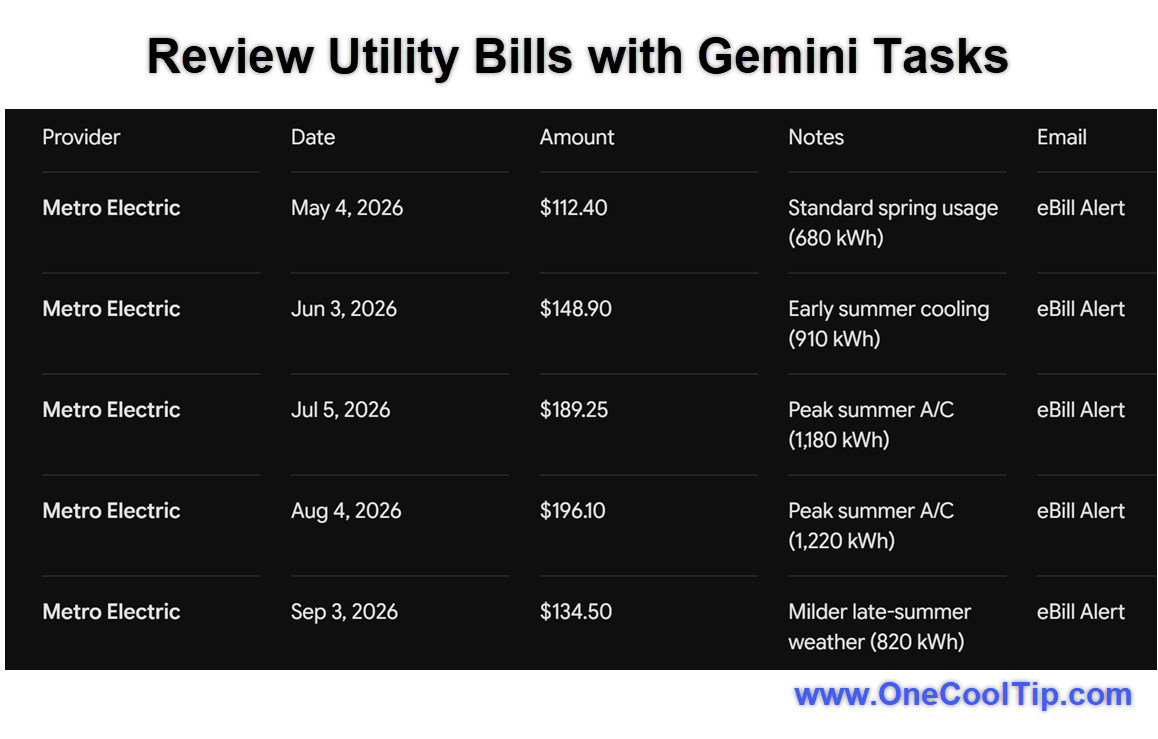
Homeowners auditing bills: A user notices a sudden jump in their electric bill. They grant Gemini temporary permission to check their utility portal via Google Password Manager and cross-reference old statements in Gmail, uncovering that a heat pump is running during peak afternoon rates.
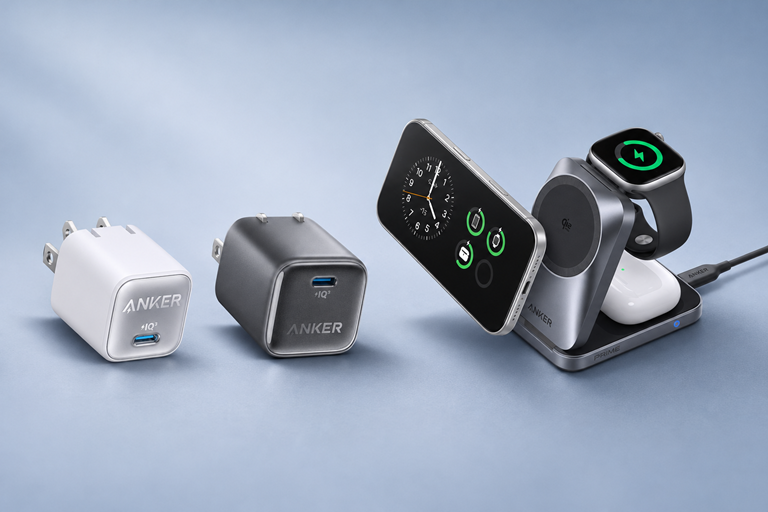
Busy travelers: Before a holiday trip, a traveler asks Gemini to find a compact USB-C charger under $40, compare wattage options, apply a working discount code and check out via Google Pay while keeping the receipt in Google Wallet.
Troubleshooting and Limitations
Problem: The Task toggle does not appear in your Gemini app.
-
Why it happens: You may be signed into a work or school account, have History turned off, live outside supported regions or still be waiting for the rollout to reach your account.
-
Fix or workaround: Switch to a personal Google Account, verify History is enabled in Settings and update the Gemini app to the latest version.
Problem: Gemini pauses mid-task on a retail or utility website.
-
Why it happens: Many websites block automated bots or require two-factor authentication that Gemini will not bypass on its own.
-
Fix or workaround: Tap View live in the task thread, select Take control (mobile) or Take over task (web), finish the login or final click and hand control back to Gemini.
Problem: Texting Gemini does not work on Android.
-
Why it happens: Texting requires a U.S. mobile number with an eligible carrier, English set as your Google Account language and RCS chats enabled in Google Messages.
-
Fix or workaround: Open Google Messages, enable RCS chats in Settings, confirm you are signed into the same Google Account in both apps and re-verify your number under Gemini Settings > Channels.
Problem: Emailing gemini@google.com creates a new task instead of updating an old one.
-
Why it happens: Email currently supports only new task creation, not follow-up discussions, and rejects emails with more than 10 attachments or auto-forwarded messages.
-
Fix or workaround: Open the task thread directly inside the Gemini app to ask for status updates or send follow-up instructions.
Privacy and Data Notes
Tasks in Gemini runs inside a hardware-isolated virtual machine on Google Cloud's Agent Compute Engine that is dedicated to your account and never shared with other users.
Google also applies prompt-injection filters and Google Safe Browsing to limit risky links.
When Gemini interacts with websites, it may share necessary details such as your name, contact info or preferences to complete the request.
Google advises against typing passwords or payment card numbers directly into a task thread; instead, use Google Password Manager or take over the browser manually when prompted.
Keep in mind that RCS texts with Gemini are not end-to-end encrypted and may be accessible to your mobile carrier.
You can wipe saved remote browser cookies anytime under Menu > Settings > Browser > Delete remote browser data.
Feature Access
Tasks in Gemini is currently rolling out free of charge without a Google AI subscription in Australia, Canada, India, Japan, South Korea and the U.S.
Users with a Google AI Pro or Ultra subscription can access it in other supported Gemini regions, excluding the European Economic Area, Nigeria, Switzerland and the United Kingdom.
Supported platforms include the Gemini mobile app (Android and iOS), the Gemini app on Mac and the web app at gemini.google.com.
Advanced features such as phone calling, RCS texting and emailing gemini@google.com are rolling out first in the U.S., with calling excluded in Indiana, Louisiana, Minnesota, Montana and Nebraska.
You must be 18 or older with a personal Google Account and History enabled; business and school Workspace accounts are not supported at this time.
Score
Criterion | Score (0–10) | Justification
Value | 9
Saves real time and money on tedious errands like phone calls, bill audits and calendar sorting at no cost in six countries.
Usability | 7
Flipping from Chat to Task is simple, though website blocks and manual handoffs can interrupt complex workflows.
Wow Factor | 8
Watching an AI sit on hold for a dealership appointment or scan utility portals feels like a genuine step beyond standard chat.
Total: 24/30 | 👍 Good
Tasks in Gemini is a practical, time-saving upgrade that turns AI from a conversation partner into a real errand runner, even if web compatibility still has rough edges.
Compared with standalone to-do managers like Google Tasks or Apple Reminders, Gemini does not just remind you to make a call or pay a bill; it can actually do the legwork.
Key Takeaways
Tasks in Gemini shifts AI from answering questions to finishing real-world chores like calling local businesses, analyzing bills and organizing forwarded emails.
Because it is rolling out free to personal accounts in the U.S. and five other countries, you can test it on a low-stakes errand today while keeping spending caps and manual approval prompts firmly in place.
Cool Tip Snapshot
-
Feature Name: Tasks in Gemini
-
Platform(s): Web (gemini.google.com), Android, iOS, macOS
-
Quick Benefit: Automate phone calls, bill reviews, shopping and calendar updates in the background
-
Best For: Busy families, home users, travelers and personal productivity fans
- Access Type: Free (Rolling Out in six countries; Pro/Ultra in other supported regions)
-
Difficulty: Easy
Learn More
Google's official Gemini Apps Help guide explains how to start tasks, manage remote browser takeovers, control permissions and delete saved remote browsing data.
Try It Yourself
Open Gemini, flip the toggle from Chat to Task and hand off one annoying errand on your list this week.
Let us know in the comments what Gemini tackled for you, subscribe to the FREE One Cool Tip Newsletter for daily tech tips, and share this Cool Tip with family, friends and coworkers who hate waiting on hold.
READ MORE
Read the Full Cool Tip!
|