|
One Cool Tip Newsletter
September 8, 2025
| Your daily dose of tech-savvy brilliance! | |
😀Greetings! Happy Monday, Cool Tipper!
Get ready to streamline your digital life with simple, actionable tips delivered straight to your inbox.
Today's Cool Tip Theme: Microsoft OneNote Plain Text
IN THIS ISSUE
- 🚨 Don’t Fall for Fake Loan Calls.
- 🍎 Apple’s “Awe-Dropping” Event Lands Tomorrow.
- 💡 AI-Powered Productivity Prompt.
- 📝 Cool ChatGPT AI Prompt of the Day.
- 📄 Clean Up Your Notes.
- 📌 Sticky Note Feature in OneNote.
- ✨ OneNote Laser Pointer.
- 🖼️ Picture-to-Text with Microsoft OneNote!
New here? Subscribe to the One Cool Tip Newsletter for daily updates. It's FREE!
-
😂 Laugh with Us! Enjoy our Tech Joke of the Day, Haiku and Cool Tip Comics.
-
🌐 Stay Informed! Check out ICYMI, and our One Cool Tip Video.
🔔 Is your email provider (Gmail, Yahoo, Outlook...) not delivering the newsletter?
Check the Junk folder - Move the newsletter to your Inbox. And reply to this email with a “Hey, Rodger” or “I got it.” That tells your mail service you want this newsletter!
Today's Tech Trivia
Answer at the end of this newsletter.
| |
| When was Microsoft OneNote first released? | | | | |
3️⃣
If you enjoy the One Cool Tip newsletter, please forward this newsletter to THREE friends or colleagues or share it on social media using the links below.
Leave a Tip!
Share this One Cool Tip Newsletter!
| |
🚨Don’t Fall for Fake Loan Calls🚨
Getting a voicemail about a $52,000 loan you never applied for? It’s a scam, designed to make you panic and hand over personal info. The FTC warns that scammers are posing as loan agents, claiming you’re “prequalified” and just need to confirm a few details like your Social Security number or bank account.
What to do:
-
Never call back or “opt out”, it only confirms your number.
-
Don’t trust caller ID. Scammers spoof real company names and numbers.
-
Use call-blocking tools from your phone provider or app store.
-
Report suspicious calls to ReportFraud.ftc.gov.
And in Other News...
- Apple’s “Awe-Dropping” Event Lands Tomorrow
Set your reminders: Tomorrow 9/9/25 at 1 p.m. ET / 10 a.m. PT, Apple unveils the iPhone 17 lineup, including the ultrathin iPhone 17 Air, and possibly its long-awaited smarter Siri. Expect updates to Apple Watch, smart home gear, and maybe a few surprises.
📺 Stream it live on Apple’s website or YouTube.
🧠 Rumor mill says Siri might finally get its AI glow-up.
📱 iPhone 17 Air could be Apple’s thinnest phone ever at just 5.5mm.
⌚ Apple Watch Series 11 and Ultra 3 expected to debut with new health features1.
Whether you're here for the specs or the spectacle, this one’s worth watching. And yes, we’re ironing out our expectations.
| | |
🚀 Make It a Great Week!
Copy/Paste this AI-powered prompt. Use with your favorite AI assistant: Gemini, Copilot, Grok, DuckAI, Meta and ChatGPT.
"Act as my personal productivity assistant. Here’s my workload for today: [list your meetings, emails, reports, and follow-ups]. Based on this, please:
- Create a prioritized task list separating urgent from important.
- Suggest time blocks for deep work, quick wins, and breaks.
- Recommend at least one automation, shortcut, or workflow tweak (in Outlook, Excel, Teams, or another tool I use) that could save me time today."
| | | |
🖼️ Cool ChatGPT AI Prompt of the Day:
Try this prompt! Be sure to customize it.
"I’m writing notes for a meeting in Microsoft OneNote. Take this messy pasted text: [paste a few sentences copied from an email or website]. Clean it up into plain text, format it into neat bullet points, and suggest a short action item list I could use in the meeting."
| | |
Clean Up Your Notes: OneNote’s Long-Overdue Plain-Text Paste Shortcut
Tired of mismatched fonts and colors when pasting into OneNote? Discover how a new shortcut and a smoother experience finally makes note-taking neater and faster.
Have you ever pasted something into OneNote and winced at mismatched fonts or unexpected background colors?
That tiny formatting glitch isn’t just distracting, it slows you down.
Now imagine a quick fix: one keystroke that drops in your text clean and uniform.
Here's a Cool Tip: Use the New OneNote Keyboard Shortcut.
What the Feature Is and Why It Matters
OneNote now finally respects your formatting preferences: you paste text and it conforms to the page, not the original styling. That means no rogue fonts, clashing colors, or wayward sizes disrupting your visual flow. It’s essentially a tidy-desk approach, but for your digital workspace.
What You'll Gain
• Consistent, clean formatting across pasted content.
• A faster workflow with fewer manual cleanup steps.
• A more professional look, whether you’re in meetings or classroom brainstorming.
Step-by-Step Instructions
Here's how to do it.
For Windows (Desktop)
-
Open your notebook in OneNote (version 2508, Build 19101.10000 or later).
-
Copy text as usual (Ctrl+C).
-
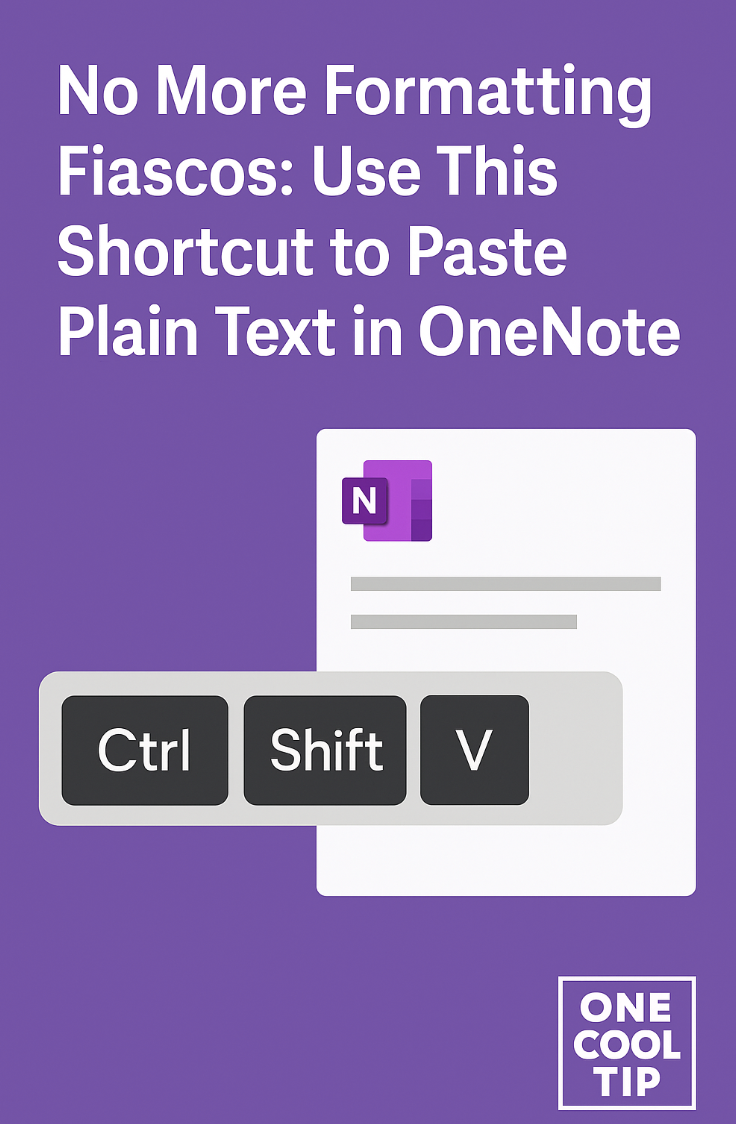
Use Ctrl + Shift + V to paste stylized to your note’s format.
-
Or right-click → Paste Options → Keep Text Only.
fig. 1 - Paste Clean Text in Microsoft OneNote
For Mac
-
Use OneNote Mac (Build 16.100 or later).
-
Copy text (Cmd+C).
-
Press Command + Shift + V to paste clean.
-
Or right-click and choose Keep Text Only from your context menu.
For OneNote for Web
-
The shortcut also works in the web version (rolling out via Microsoft 365 Insider Program).
-
Use the same key combos: Ctrl + Shift + V (Win) or Cmd + Shift + V (Mac).
Pros and Cons
Pros
- Uses a familiar shortcut (Ctrl + Shift + V / Cmd + Shift + V), so there’s no learning curve.
- Saves time by eliminating the need to manually reformat pasted text.
- Keeps notes visually consistent, especially when copying from emails, PDFs, or web pages.
- Available across Windows, Mac, and the web version for a uniform experience.
Cons
- If you need to preserve original formatting (like styled code blocks or citations), you’ll need to remember to use the standard paste.
- The rollout is gradual—some users may not have access yet.
- Users working with rich text (designers, coders) may find plain-text paste less useful in certain workflows.
Configuration Guide
No setup required.
Ensure your OneNote is updated to the specified builds:
- Windows Desktop: version 2508 (Build 19101.10000) or later,
- Mac: Build 16.100 (25080335) or later
- Web: available to Microsoft 365 Insider tenants now; general users will get it soon.
If it’s not working, your version might still be rolling out. Check “Help > About OneNote” or install the latest push.
Feature Access
Available to: Microsoft 365 users (Insiders first, then broader release)
Platforms: Windows, Mac, OneNote for Web
Subscription required?: OneNote is part of Microsoft 365 subscriptions; this feature is included in the standard app at no extra cost.
Score
Criterion | Score | Justification
Value 9
Solves a daily pain point—cleans formatting fast.
Usability 10
Uses familiar keystroke, no learning curve.
Wow Factor 6
Long-awaited, yes—but expected in modern apps.
Total: 25/30 → 🌟 Excellent. Highly recommended for immediate use.
Key Takeaways
OneNote finally gets one of its most requested features: clean-text pasting with Ctrl + Shift + V (or Cmd + Shift + V).
It streamlines note-taking, keeps your pages tidy, and matches how most of us already work in Word, browsers, or email clients.
Try It Yourself
Try it now.
Paste some content from Outlook or a web page using the shortcut.
Rate the difference.
Then share this to your team, especially anyone still wrestling with formatting glitches.
READ MORE
Read the Full Tip.
| | |
Help support One Cool Tip. Use this Amazon link when you shop online.
Look at these Cool Products:
| |
-
🖱️ Logitech MX Master 3S Mouse: Precision and custom buttons to speed up workflows. Check it out on Amazon! https://amzn.to/3I7Wq66
-
⌨️ Logitech MX Keys S Keyboard: Responsive keys with backlighting, perfect for shortcut power users. Save 8% Check it out on Amazon! https://amzn.to/3V47yns
-
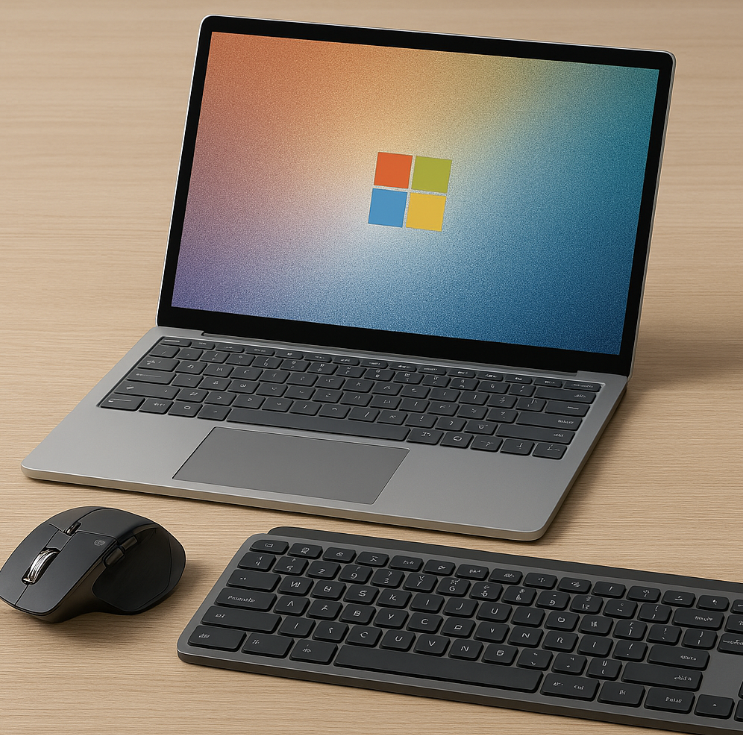
💻 Microsoft Surface Laptop 5: Smooth OneNote experience with touch support. Check it out on Amazon! https://amzn.to/4nqhjZl
| | |
🆒Tell Me More
- OneNote now supports Paste Text Only via shortcut on Windows, Mac, and the web.
- The shortcut is Ctrl + Shift + V on Windows and Command + Shift + V on Mac.
- This feature eliminates formatting clutter from emails, websites, and PDFs.
- It’s available in OneNote version 2508+ (Windows) and 16.100+ (Mac).
- Mobile users must still use the “Paste Options” menu manually.
⏩Quick Tips
- 🖥️ Use the Shortcut: Skip the formatting mess—use Ctrl + Shift + V (Windows) or Command + Shift + V (Mac). → Just copy your content and use the shortcut when pasting into OneNote.
- 🧹 Clean Up Old Notes: Re-paste messy content using the shortcut to tidy up legacy notes. → Select the text, copy it, delete the original, and paste it back clean.
- 📄 Avoid Style Conflicts: Use plain text paste when combining notes from multiple sources. → Helps maintain consistent font and layout across your notebook.
- 🔍 Spot the Difference: Compare regular paste (Ctrl + V) vs. plain paste to see formatting impact. → Try both in a test note to understand the visual difference.
- 📱 Mobile Workaround: On iOS/Android, tap “Paste Options” after pasting and choose “Keep Text Only.” → Until shortcuts arrive on mobile, this is your best bet.
| | ✅ More Must-Read Tech Tips | |
👀 How Do I Master the New Sticky Note Feature in OneNote?
Are you tired of losing those paper sticky notes that seem to vanish into thin air?
Here's a Cool Tip. Try OneNote’s latest feature, Sticky Notes.
The new Sticky Notes feature in OneNote is a game-changer for digital note-taking.
It seamlessly integrates with your existing notes, allowing you to create, organize, and collaborate effortlessly.
Here's how to do it.
Access Sticky Notes in OneNote
-
Open OneNote on your device. OneNote is part of Microsoft365 suite of apps.
-
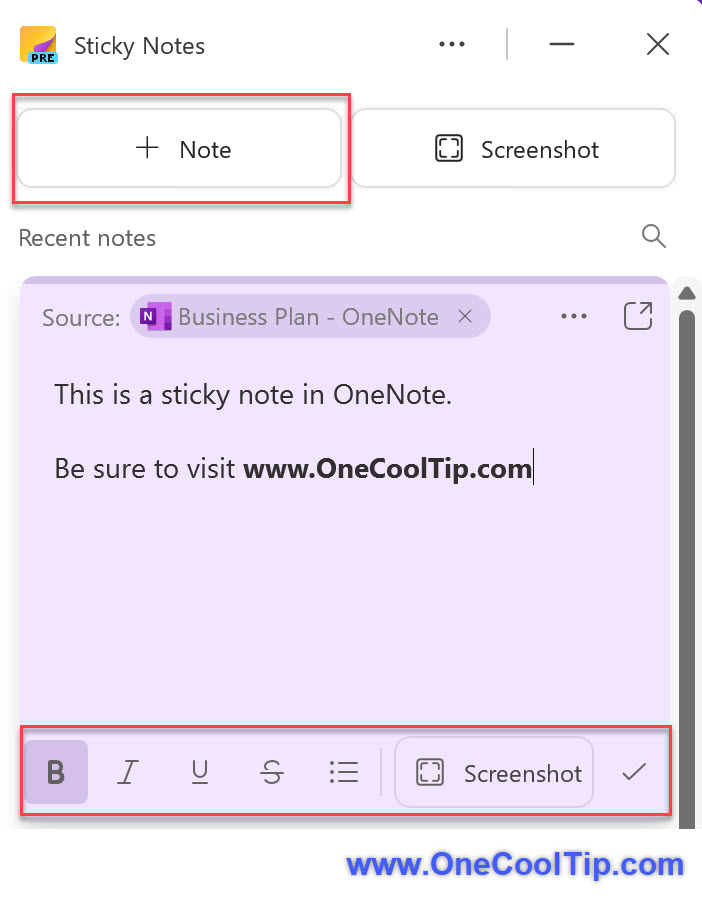
Click on the “Sticky Notes” icon in the toolbar (it looks like a yellow sticky note in the top right corner) OR use the Win + Alt + S keyboard shortcut.
- You’re now in the Sticky Notes section.
Create Sticky Notes
-
Click the “+” button to create a new sticky note.
-
Type your note, add formatting (bold, italic, bullet points), and even insert images.
-
Pin important notes to the top for quick access.
The new Sticky Notes experience from OneNote is designed to enhance your note-taking and organization process.
Discover more HERE.
| |
🤔 Have You Ever Wondered How to Use The OneNote Laser Pointer?
Have you ever fumbled with a laser pointer during a presentation, struggling to keep the beam steady?
Here's a Cool Tip. Use Microsoft OneNote's "Laser Pointer" feature.
Microsoft 365 OneNote, commonly known as OneNote, is a digital note-taking app that’s part of the Microsoft 365 suite.
Here is how to use it.
-
Launch Microsoft 365 OneNote and access the presentation you want to deliver.
-
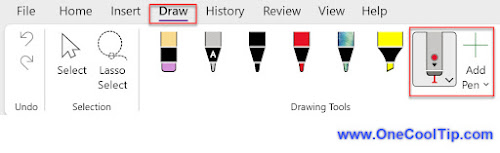
In the OneNote ribbon, click the "Draw" tab to reveal your digital inking tools.
-
If Laser Pointer is visible, select it.
-
If Laser Pen is not visible, click "+Add Pen".
-
Select "Laser Pointer".
-
Select a Color, default is Red.
-
Use the Laser Pointer to draw on screen. The drawing disappears after a few seconds.
Using OneNote's Laser Pen guide your audience's attention effortlessly while maintaining a natural presentation style.
It offers a seamless, integrated way to highlight crucial information, boost your engagement, and elevate your delivery.
Find more HERE.
| | |
🙋♂️ Here's How to Create Unlock the Power of Picture-to-Text with Microsoft OneNote!
Have you ever found yourself struggling to transcribe text from an image?
Use Microsoft OneNote’s picture-to-text feature!
Here’s how to use it:
-
Open OneNote
-
Paste a picture into OneNote or
-
Go to Insert > Picture to choose an picture from your device to import it into OneNote.
-
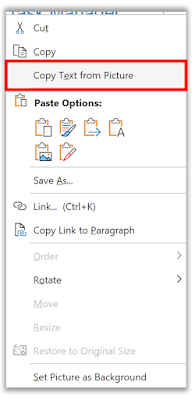
Right-click on the picture and choose Copy Text from Picture from the drop-down menu
-
Paste the extracted text into OneNote notes or other apps for further use.
It’s that simple!
Learn more HERE.
| | |
❓Did you share this newsletter with three friends yet?
😎 Cool Facts
- OneNote was first released in 2003 as a standalone program and later became a core part of the Microsoft Office Suite. It has now been helping people take notes for over two decades.
- The OneNote app on Windows, Mac, and the web has been downloaded and used by millions of people globally, making it one of the most popular note-taking applications in the world.
- A 2022 study by Microsoft found that a typical OneNote user creates an average of 12 new pages per month and adds over 1,000 lines of text.
⌨️Today's Cool Keyboard Shortcuts
Cool Keyboard shortcuts:
-
Ctrl + Shift + V: Paste plain text (Windows)
-
Command + Shift + V: Paste plain text (Mac)
-
Ctrl + Z: Undo last action (Windows)
-
Command + Z: Undo last action (Mac)
-
Ctrl + F: Find text in note (Windows)
😜 Tech Joke of the Day 😅
Why did the text blush in OneNote?
It was tired of showing up in Comic Sans!
🔎 Do you have a Cool Tip or tech question? Email us at onecooltip.com@gmail.com.
| | |
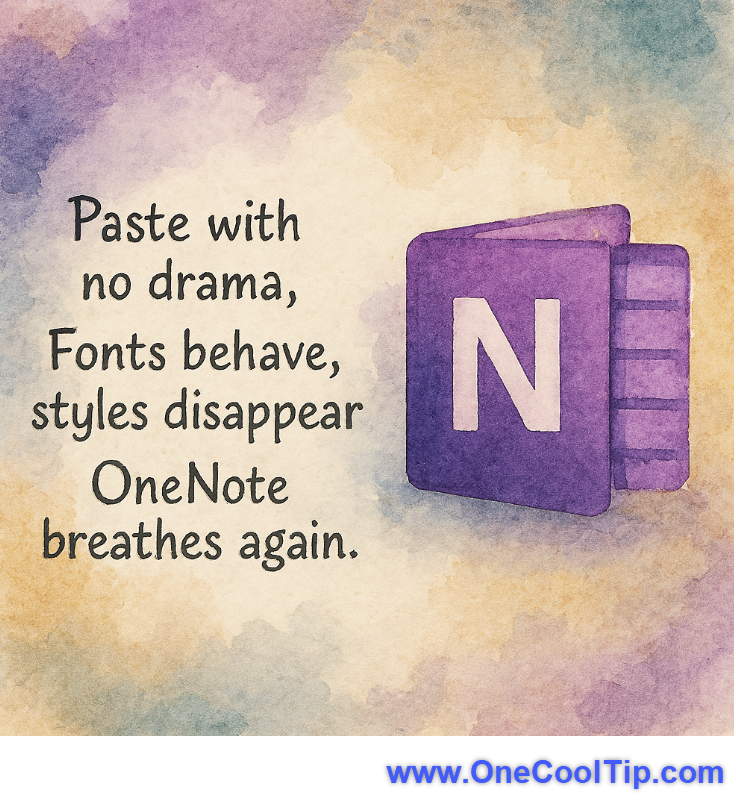
Paste with no drama,
Fonts behave, styles disappear
OneNote breathes again.
| |
| 🤔 How do you usually paste content into OneNote? | | | |
Did You See These Cool Tips This Week?
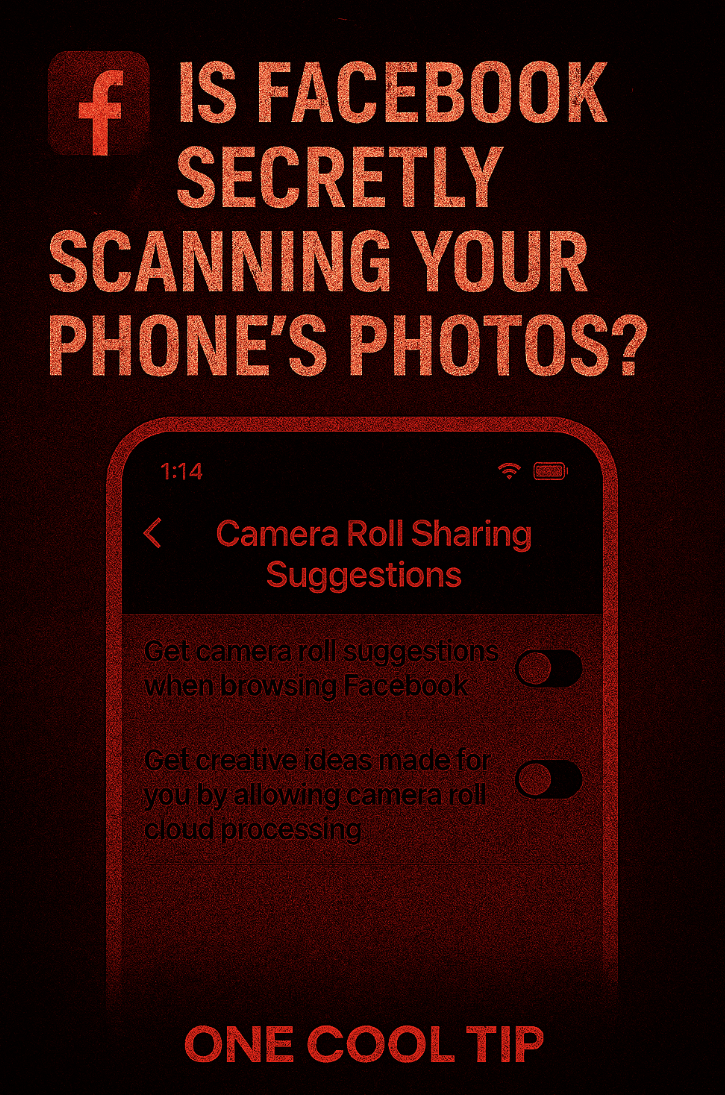
| | | | Give ChatGPT a Personality That Actually Sticks. Here’s How (and Why It Matters) | Want AI that feels like a colleague instead of a flat machine? This guide explains how to adjust ChatGPT’s personality settings, why they matter, and how they can make your daily work a little smoother. | | | | What Facebook Isn't Telling You: How Meta May Be Scanning Your Camera Roll and How to Stop It | Late-night photos, work docs, private memories. Meta could already be analyzing them without your clear consent. Here’s how to shut down Facebook’s AI suggestions and take back control. | |
ICYMI - In Case You Missed It ...
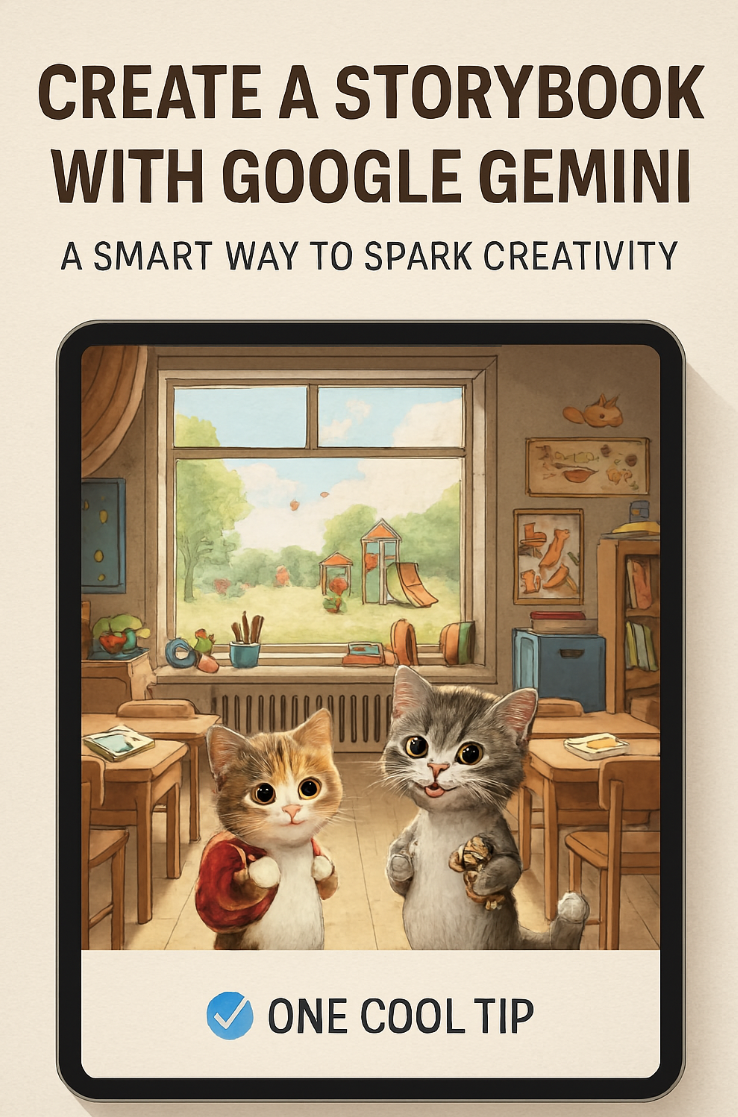
| | | | Turn Ideas into Illustrated Stories with Google Gemini | Let Google Gemini help you create charming, illustrated storybooks with just a few prompts. It's perfect for kids, educators, and creativity lovers. | | |
Are you tired of spending hours creating and editing documents?
Do you want to streamline your workflow and boost your productivity?
Watch
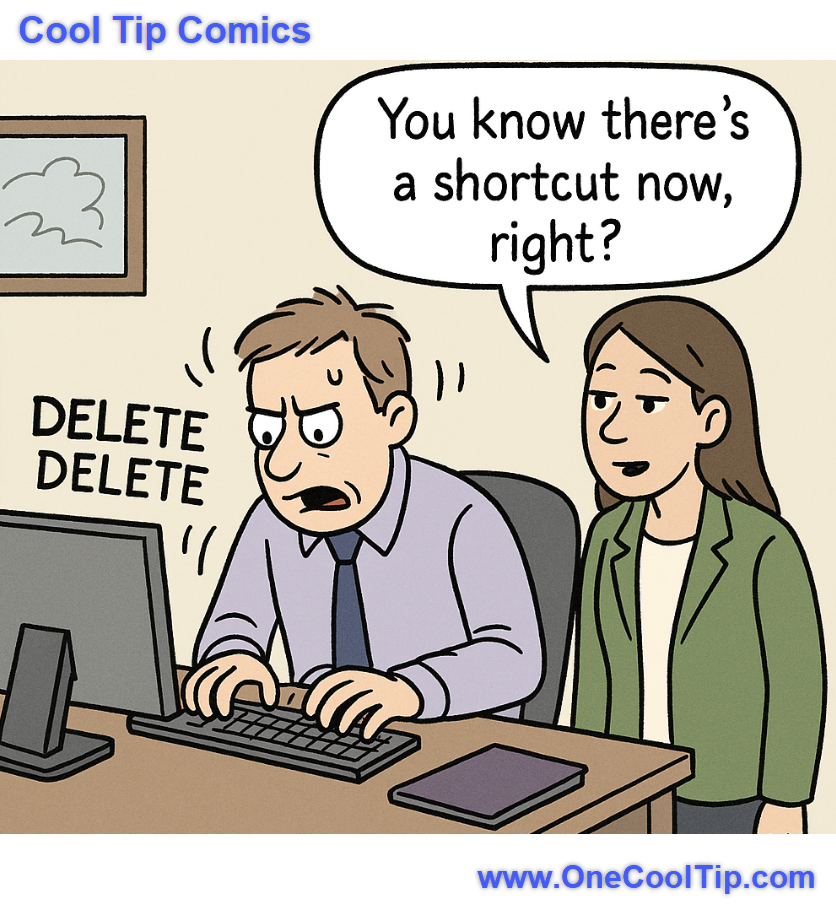
| | I love this. That look of panicked determination on his face is priceless. It's the universal expression of "I've been doing this the hard way my entire life and I refuse to believe there's a better option." | | |
Trivia Answer: C) 2003
OneNote debuted in 2003 as Microsoft Office 2003.
It was originally designed as a digital notebook to help users capture ideas, notes, and clippings in a free-form way, quite different from Word’s structured documents.
Over the years, it became a core Microsoft 365 app, tightly integrated with Teams and Outlook.
----------
Tomorrow's Cool Tip is waiting to amaze you.
Until then, go forth and conquer the tech world with your newfound knowledge!
Be sure to visit www.OneCoolTip.com for Cool Tech Tips for a Cooler Life!
And if you Like One Cool Tip, please support with TipJar!
Enjoy!
Rodger
Chief Cool Tipper
onecooltip.com@gmail.com
| |
| What do you think of today's OneCoolTip newsletter? | | | |
Please Share the One Cool Tip Newsletter!
You asked for it. You got it. There is now a One Cool Tip Newsletter archive. Did you delete a newsletter and want to read it again? Check it out HERE.
Want to help One Cool Tip grow? Please forward this email using the link above. And if you see an OCT social media post, please LIKE, COMMENT and SHARE!
Have you subscribed to the One Cool Tip YouTube channel? Subscribe HERE.
| | Connect with One Cool Tip!! | | |
|
As an Amazon Associate, One Cool Tip may earn a small commission from qualifying purchases.
Our media content is intended solely for informational purposes only. Please do not construe anything here as legal, tax, investment, financial, marital or other advice.
Copyright © 2025 | www.OneCoolTip.com | All Rights Reserved
|
| | | |