|
One Cool Tip Newsletter
November 24, 2025
| Your daily dose of tech-savvy brilliance! | |
😀Greetings!, Happy Back-To-Work Monday, Cool Tipper!
Get ready to streamline your digital life with simple, actionable tips delivered straight to your inbox.
Today's Cool Tip Theme: NotebookLM's Slide Deck Feature
IN THIS ISSUE
- 🚨 Stay Off the Internet" Scam Alert.
- 🌟 Upcoming Microsoft 365 Copilot Features.
- 📋 Short Week Planning.
- 🦃 Holiday AI Prep.
- 💻 AI Slide Deck Research.
- 📄 NotebookLM Tips.
- 👀 Mind Maps.
- 🤔 Video Overviews.
- 🙋♂️ Audio Overview.
New here? Subscribe to the One Cool Tip Newsletter for daily updates. It's FREE!
-
😂 Laugh with Us! Enjoy our Tech Joke of the Day, Haiku and Cool Tip Comics.
-
🌐 Stay Informed! Check out ICYMI, and our One Cool Tip Video.
Today's Tech Trivia
Answer at the end of this newsletter.
| |
| Which early presentation program introduced the first widely used digital slide deck format? | | | | |
🚨“Stay Off the Internet” = Scam🚨
If someone claiming to be a government agent tells you to disconnect from the internet to “stay safe,” it’s a scam.
The US Federal Trade Commission (FTC) warns that fraudsters use this tactic to isolate victims and gain remote access to their devices or finances.
- Real agents won’t ask you to cut internet access or install remote tools.
- Hang up, report the call, and never share personal info.
And in Other News...
- 🌟 Upcoming Microsoft 365 Copilot Features
Recently announced new features coming soon to Microsoft 365 Copilot.
-
Excel Copilot: Coming in 2026, you’ll be able to ask Copilot to create and organize spreadsheets for you; no formulas required.
-
PowerPoint Copilot: Also arriving in 2026, Copilot will build presentations from your ideas, polish the design, and even suggest layouts.
-
Copilot Pages: Already here, but soon even non‑subscribers will get a free version to brainstorm and plan projects.
-
Work IQ: A new smart layer that learns how you like to work and gives more personalized suggestions.
-
Outlook voice features: By early 2026, all Outlook mobile users (including free accounts) will be able to manage email and schedule meetings just by talking.
-
Teams recaps: Meeting summaries and quick file highlights will soon be available to free Teams users, not just paid subscribers.
-
PowerPoint translations: In 2026, Copilot will help everyday users translate slides and add speaker notes, making presentations easier across languages.
| | |
🚀 Make It a Great Week!
Copy/Paste this AI-powered prompt. Try it in the One Cool Tip AI Companion (free ChatGPT account required) or Copilot, Gemini or ChatGPT:
“Help me plan a highly effective short workweek. First, ask me for my top three priorities and any deadlines I must meet before the weekend. Then create a focused weekly plan with: a priority checklist, two quick wins I can finish today, one task I should postpone or delegate, and a simple end-of-week wrap-up plan. Keep everything realistic and easy to follow.”
| | | |
🖼️ Cool ChatGPT AI Prompt of the Day
Try this ChatGPT prompt:
“Help me get fully prepared for Thanksgiving. First, ask me a few questions about my plans:
– Where I’ll be celebrating
– How many people are coming
– Any dietary needs
– What dishes I’m responsible for
– Any travel or hosting tasks
After I answer, create a clear Thanksgiving plan with: a shopping list, a cooking timeline, cleaning or hosting tasks, travel reminders if needed, and two backup options in case something goes wrong. Keep everything organized, simple, and realistic.”
| | |
Transform Research into a Structured Presentation with NotebookLM
Need to quickly distill complex research into a shareable outline? NotebookLM’s slide generation feature instantly converts all your source documents into a structured, review-ready presentation, outputting a high-quality PDF perfect for sharing key findings or drafting a lecture structure.
How much time do you spend fighting with bullet points and slide masters instead of focusing on what you actually want to say?
In the professional world, presentations often begin not with a blank slide, but with a mountain of research: PDFs, meeting transcripts, long reports, and web articles.
The manual process of summarizing these sources into a coherent narrative is a massive time sink.
Here's a Cool Tip: Use NotebookLM to Generate a Slide Deck.
NotebookLM, Google's AI-powered research assistant, now offers a solution that fundamentally changes this workflow.
With a single prompt, the tool takes your complex source material and instantly drafts a professional, structured slide deck.
Feature Explanation
NotebookLM’s slide generation capability leverages Gemini Pro’s multimodal understanding to analyze the sources you have uploaded to a specific notebook and transform the content into a presentation outline.
What it is:
A generative AI feature within NotebookLM that creates a structured, non-editable slide presentation based on the entire body of sources within a user’s notebook.
How it works:
When you use the “Generate a slide deck” suggestion or input a custom prompt, the AI scans the uploaded documents and notes. It identifies primary themes, key arguments, supporting details, and then constructs a logical flow, assigning appropriate titles, bullet points, and speaker notes to each virtual slide.
Why it matters:
This feature moves beyond simple summarization. It applies a presentational structure to raw data. Instead of copying and pasting, users receive a fully drafted narrative that is immediately ready for refinement and visual design. This dramatically accelerates the most tedious part of presentation preparation: initial drafting.
What You’ll Gain
- Rapidly convert complex research notes into presentation structure.
- Focus more time on design and delivery, less on drafting bullet points.
- Ensure every slide point is directly traceable back to a source document.
- Accelerate team collaboration by sharing a comprehensive first draft instantly.
Step-by-Step Instructions
Here's how to do it.
Web/Desktop (Windows, macOS, Chrome OS)
-
Navigate to NotebookLM, notebooklm.google.com.
-
Select the project notebook that contains the sources you want to use.
-
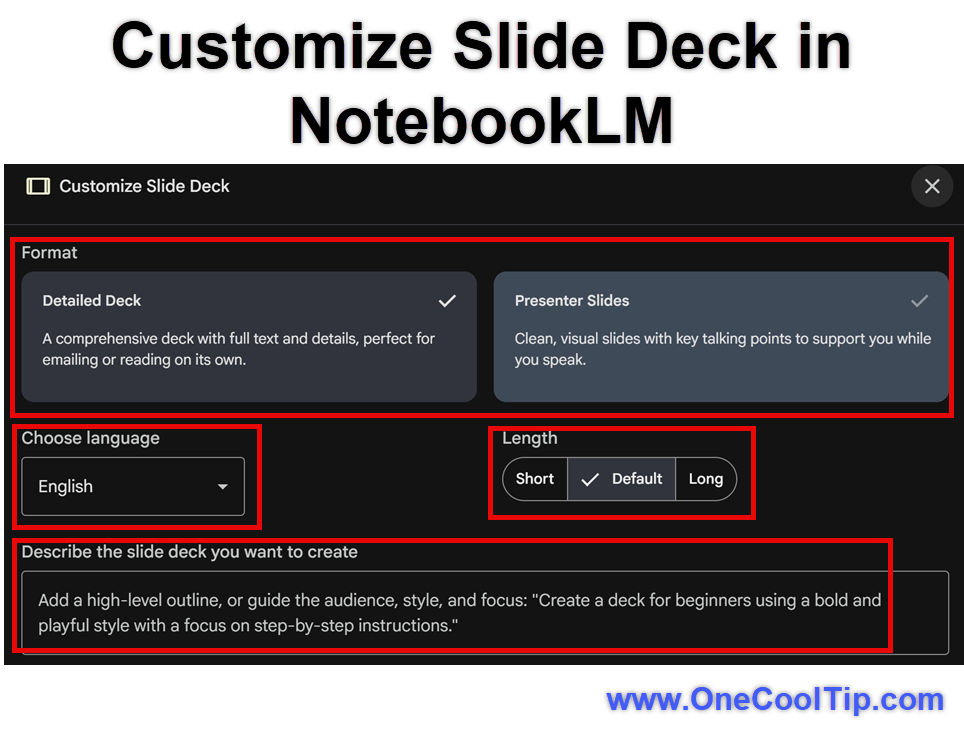
In the Studio panel, click “slide deck” to begin generation. (Optional: Use the pencil icon to adjust length and format before generating.)
-
When created, select the slide deck below to view.
-
Select the pencil icon next to the slide deck to adjust the options.
-
Select the download icon to save your presentation as a PDF to your device.
| | fig. 1 - Customize Slide Deck in NotebookLM | | |
iOS / Android
- The slide deck generation feature is currently only available for the web interface.
- While you can access and interact with your notebooks via mobile browsers, the dedicated “Generate a slide deck” quick action is not functional on mobile yet.
- The best experience remains on a desktop or laptop browser.
Pros and Cons
Pros
-
Speed and Efficiency: A 50-page report can become a 12-slide draft in under a minute, drastically reducing the drafting time for business analysts.
-
Source Grounding: The generated content directly references your uploaded documents, minimizing the risk of "hallucinations" and ensuring academic rigor for educators drafting lecture material.
-
Excellent Starting Point: Provides a coherent narrative flow and structure that is far easier to edit than starting from scratch, saving project managers hours on kickoff presentations.
Cons
-
Style and Design: The output is a functional outline. It requires manual design, branding, and visual refinement in Google Slides afterward.
-
Prompt Sensitivity: The quality of the draft relies heavily on the sources and the specificity of your prompt. A vague prompt may produce a generic or overly long presentation.
-
No Image Inclusion: The feature currently does not automatically embed relevant charts, graphs, or images from your source documents.
-
PDF Export: Export of slide deck is limited to PDF format.
Feature Access
NotebookLM, including the slide deck generation feature, is currently:
-
Available to: All users in the United States, Australia, and select other regions.
-
Version/Edition: It is part of the core NotebookLM tool and does not require a specific Google Workspace edition.
-
Subscription: NotebookLM is currently Free to use, requiring only a personal Google account.
-
Rollout: The feature is broadly available in supported regions.
Score
Criterion | Score (0–10) | Justification
Value 7
Dramatically cuts the time spent on the most time-consuming part of presentation prep: drafting the initial outline from research.
Usability 9
Access is simple, requiring only a single click or prompt within the NotebookLM chat interface.
Wow Factor 8
The leap from raw notes to a structured, traceable slide deck outline in seconds is highly impressive and immediately useful.
Total: 24/30 👍 18–24 Good
This feature transforms NotebookLM from a simple research tool into a powerful content production accelerator for anyone who needs to present complex information. But export is limited to PDF format, not an editable Google Slides format.
Key Takeaways
NotebookLM’s ability to generate a slide deck outline directly from your research sources is a game changer for efficiency.
It eliminates the friction of starting a presentation from a blank page, providing a well-structured narrative that you can immediately refine and enhance visually.
This means faster turnaround times and more focused communication across professional and educational projects.
Cool Tip Snapshot
-
Feature Name: Generate a Slide Deck
-
Platform(s): Web/Desktop
-
Quick Benefit: Instantly converts notes and documents into a presentation outline.
-
Access Type (Free, Subscription, Beta): Free
Try It Yourself
If you spend any significant time summarizing research into presentations, try using NotebookLM to generate your next slide deck draft.
Start by uploading 5–10 documents related to your topic, generate a slide deck, and see how fast you move from research to presentation.
We invite you to share this Cool Tip with your team, family, and friends.
READ MORE
Read the Full Cool Tip
| | |
Help support One Cool Tip. Use this Amazon link when you shop online.
Look at these Cool Products:
|
-
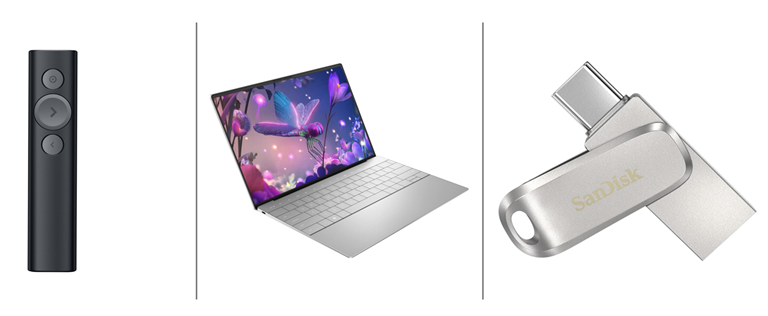
💻 Dell XPS 13 Plus Laptop: A high-performance laptop perfect for running multiple research applications and refining the generated Google Slides presentations. $999. Check it out on Amazon!
-
💡 Logitech Spotlight Presentation Remote: Once you generate your slides, this remote helps you deliver a polished presentation with an advanced pointer and timing features. Black Friday Special Save 15% $96.03 Check it out on Amazon!
-
💾 SanDisk 256GB Ultra Dual Drive Luxe: Easily transfer source files between devices before uploading them to NotebookLM for analysis. Overall Pick $24.99 Check it out on Amazon!
Prices accurate at time of publication
| | |
🆒Tell Me More
- The Slide Deck generation feature offers two formats: Presenter Slides (clean, short bullet points) and a Detailed Deck (comprehensive text, great for emailing).
- NotebookLM's internal generative model is Google's powerful Gemini Pro, which handles the complex transformation from raw text to structured narrative.
- You can generate a Slide Deck in a variety of non-English output languages, even if your source documents are in English.
⏩Quick Tips
- ✅ Focus Your Scope: Before generating a deck, select only the specific source documents you want the AI to summarize. This ensures the output is tightly focused and highly relevant.
- 🖊️ Customize the Draft: Use the "pencil icon" next to the Slide Deck option in the Studio panel before generation. This lets you specify a length (Short, Default, Long) and output style (Detailed Deck or Presenter Slides).
- 🌐 Share the Link: Instead of just emailing the PDF, use the Share link in NotebookLM. If the notebook is public, the recipient can view the full deck and even access the underlying sources directly.
- 🔎 View the Prompt: Generated a great deck but forgot the exact prompt you used? Use the three dots menu next to the Slide Deck title and select View custom prompt to reuse it later.
- 🔄 Export is PDF: Remember, the final output is a non-editable PDF presentation. If you need a fully editable Google Slides file, you must copy the structured bullet points from the PDF into a new Slides presentation.
| | ✅ More Must-Read Tech Tips | |
|
📄 Check out these NotebookLM Cool Tips:
-
Custom Prompts: Use a specific prompt to focus your output on a subtopic of your research. Instead of "Summarize," try "Compare the key findings on policy X versus policy Y."
-
Cite Everything: Review the source citations embedded in the chat response to verify factual accuracy. Click the citation number next to the generated text to instantly see the relevant passage in the source document.
-
Cross-Notebook Reference: The AI only uses sources in the current notebook, so consolidate all relevant documents into a single project before asking a complex question. Create topic-specific notebooks to keep your research clean and focused.
-
Limit Sources: If your notebook has too many unrelated sources, use the Selected Sources panel to temporarily hide documents you do not want the AI to consider for a specific query.
-
Ask Follow-up Questions: Refine the AI's answer by asking conversational follow-up questions within the same chat thread. For example, "What is the counter-argument to point three?"
-
Rename Your Notes: Use clear, descriptive titles for the Notes you take within NotebookLM for easier organization and retrieval later.
| |
👀 How Do I Master Mind Maps in NotebookLM?
Have you ever felt overwhelmed by a mountain of information, struggling to connect the dots and extract meaningful insights?
Google NotebookLM is stepping up to the challenge with its innovative mind mapping feature.
This powerful tool is designed to help users synthesize information, brainstorm effectively, and unlock their creative potential.
What is Google NotebookLM Mind Map?
A mind map is a visual representation of information, organized around a central concept.
It uses a branching diagram to connect related ideas, keywords, and images.
Mind maps are incredibly useful for brainstorming, note-taking, project planning, and studying.
Here's how to do it.
- Go to notebooklm.google.com.
- Create a new notebook or open an existing one.
- Upload the documents you want to analyze to Google NotebookLM. Supported formats might include PDFs, DOCX files, and text files.
- Select the "Mind Map" option within the NotebookLM interface.
- Google NotebookLM's AI analyzes your uploaded documents and creates a mind map based on the content.
- Once the mind map is generated, interact with it.
- Expand and collapse branches.
- Click on nodes to view related text from your source documents.
- Rearrange nodes to customize the layout.
- Add your own notes and connections.
Google NotebookLM's mind map feature is a powerful tool for anyone seeking to enhance their information processing skills.
Discover more HERE.
| |
🤔 Have You Ever Wondered How to Use Nano Banana Video Overviews?
Ever stared at a 40-page business plan and wished it would just explain itself?
Google has enhanced the NotebookLM Video Overviews with Nano Banana Pro, an image-generation model from the Gemini family, to create narrated videos with original, context-aware visuals.
NotebookLM’s Video Overviews already summarized your documents through voice and text.
The Nano Banana upgrade adds visuals that match the content you’re reviewing.
Here's how to do it.
Web or Desktop Version
-
Open NotebookLM, notebooklm.google.com.
-
Create a new notebook, or choose one already stored there.
-
Go to the “Studio” section and select “Video Overview.”
-
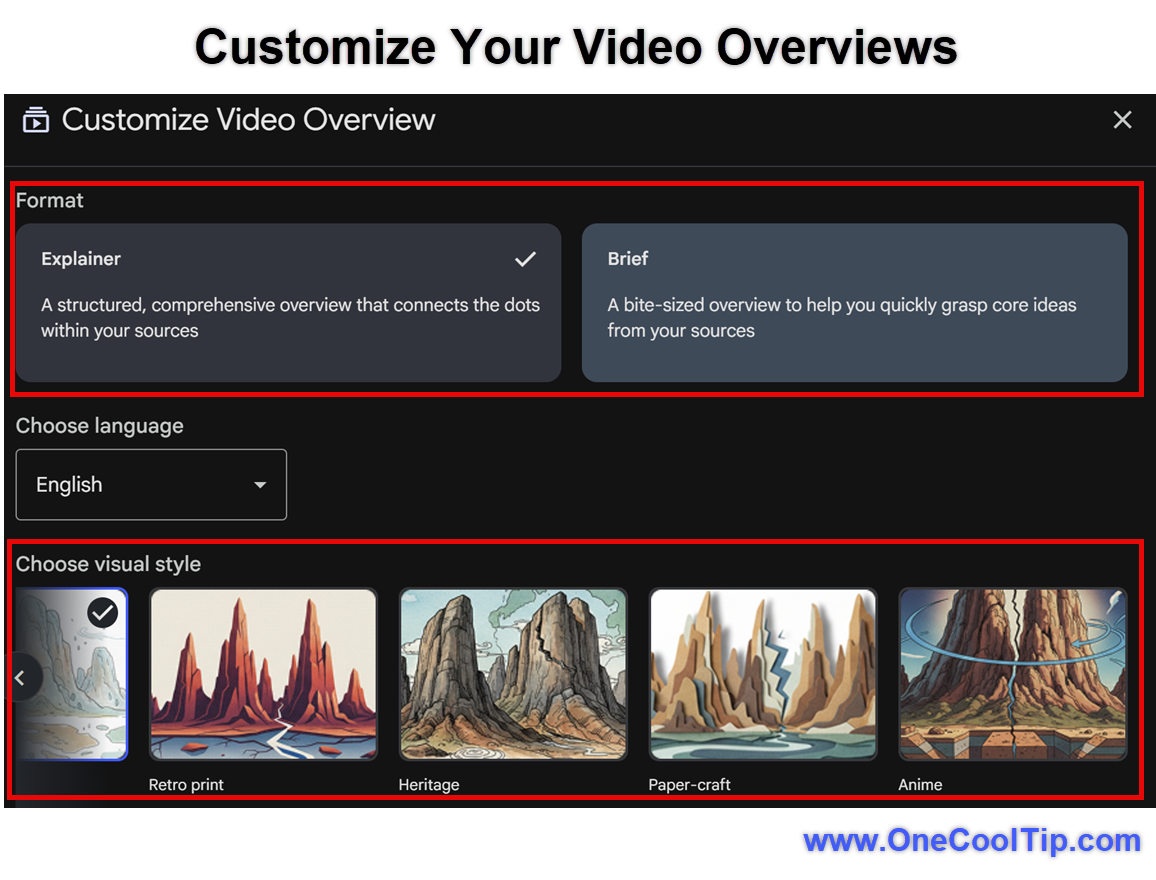
Select Edit (pencil icon).
-
Choose either the Explainer or Brief format.
-
Pick a style and add any instructions to focus on certain sections.
-
Click Generate and wait a few moments for the video to appear.
-
Watch your summary directly in NotebookLM or share it with others.
Choose a visual style that fits your audience. Generate your first video and share it with a coworker or friend.
Watch how quickly they understand the material.
Find our more HERE.
| | |
🙋♂️ Here's How to Use the NotebookLM Audio Overview.
What if your notes could talk back to you?
Not just read themselves out loud, but actually debate, critique, and summarize your work on command?
Google’s NotebookLM, a tool that has quietly been transforming the way we work with information, is now giving its audio feature a much-needed personality transplant.
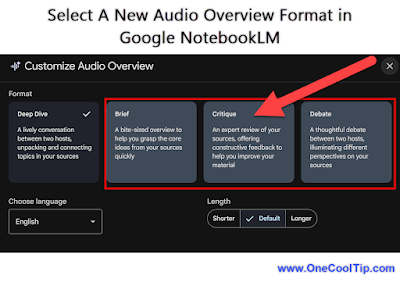
The new formats: Brief, Critique, and Debate transform passive summaries into dynamic learning tools, fundamentally changing how we engage with our own data.
Here's how to do it.
On the Web
-
Open NotebookLM, notebookLM.google.com, and select the notebook that contains the sources you want to review.
-
Navigate to the Audio Overview card in the main panel.
-
Tap the pencil icon to open the customization options.
-
Select your desired format: Brief, Critique, or Debate.
-
Click "Create" and the AI will generate the audio track based on your selection.
Ready to hear what your documents have to say?
Learn more HERE.
| | |
❓Did you share this newsletter with three friends yet?
😎 Cool Facts
-
18 and Over: The Slide Deck generation feature in NotebookLM is currently restricted to users who are 18 years of age or older. Source.
-
1 - 3 Hours: The average time required for a professional to create one high-quality presentation slide (excluding research) is often estimated to be between 1 and 3 hours, underscoring the massive time savings provided by NotebookLM. Source.
-
79%: 79% of all surveyed employees report they have had at least some exposure to generative AI tools (for work or outside of work), highlighting its rapid and widespread relevance across the entire workforce. Source.
⌨️Today's Cool Keyboard Shortcuts
NotebookLM is best viewed in the Chrome browser. Here are three Cool Chrome keyboard shortcuts:
-
Ctrl + T (Windows) / Cmd + T (macOS) - Open a New Tab quickly without touching your mouse.
-
Ctrl + Shift + T (Windows) / Cmd + Shift + T (macOS) - Reopen the last closed tab. Use this to retrieve a tab you accidentally closed.
-
Ctrl + L (Windows) / Cmd + L (macOS) - Instantly move your cursor to the Address Bar (also known as the omnibox) so you can quickly type a new URL or search query.
😜 Tech Joke of the Day 😅
Why don’t slides gossip?
They prefer bullet points.
🔎 Do you have a Cool Tip or tech question? Email us at onecooltip.com@gmail.com.
| | |
Research becomes clear,
The AI drafts the whole deck,
The structure is done.
| |
| 🤔 How do you usually build presentations? | | | | Did You See These Cool Tips This Week? | | | | The AI Model That Finally Renders Perfect Text in Images: Meet Nano Banana Pro | Google has unveiled Nano Banana Pro, the new state-of-the-art Gemini 3 Pro Image model that revolutionizes how we create and edit visuals. This powerful new tool can generate stunning, high-fidelity graphics with perfectly legible text in multiple languages, making professional design instant and accessible. | | | | Group Chats in ChatGPT: A Smarter Way to Think as a Team | Group Chats in ChatGPT bring multiple people and AI together in a shared workspace that helps teams plan, research, and create faster. This new feature blends collaboration with intelligent context so your group stays aligned from the first message. | | ICYMI - In Case You Missed It ... | | | | Learn why pixel art remains a powerful medium for creators and businesses, how to get started with the free online tool Pixilart, and how this low-fidelity art form can boost your productivity or creative workflows. | | When your notes look like a crime scene but your laptop is the lead investigator. | | |
Trivia Answer: D) Microsoft PowerPoint
PowerPoint launched in 1987 for Macintosh before Microsoft purchased it.
It helped popularize the idea of digital slides that mirrored real overhead transparencies.
Its success pushed both business and educational environments toward the modern slideshow format we know today.
----------
Tomorrow's Cool Tip is waiting to amaze you.
Until then, go forth and conquer the tech world with your newfound knowledge!
Be sure to visit www.OneCoolTip.com for Cool Tech Tips for a Cooler Life!
And if you Like One Cool Tip, please support with TipJar!
Enjoy!
Rodger
Chief Cool Tipper
onecooltip.com@gmail.com
| | |
3️⃣
If you enjoy the One Cool Tip newsletter, please forward this newsletter to THREE friends or colleagues or share it on social media using the links below.
Leave a Tip!
Share this One Cool Tip Newsletter!
| |
| What do you think of today's OneCoolTip newsletter? | | | |
Please Share the One Cool Tip Newsletter!
You asked for it. You got it. There is now a One Cool Tip Newsletter archive. Did you delete a newsletter and want to read it again? Check it out HERE.
Want to help One Cool Tip grow? Please forward this email using the link above. And if you see an OCT social media post, please LIKE, COMMENT and SHARE!
Have you subscribed to the One Cool Tip YouTube channel? Subscribe HERE.
| | Connect with One Cool Tip!! | | |
|
As an Amazon Associate, One Cool Tip may earn a small commission from qualifying purchases.
Our media content is intended solely for informational purposes only. Please do not construe anything here as legal, tax, investment, financial, marital or other advice.
Copyright © 2025 | www.OneCoolTip.com | All Rights Reserved
|
| | | |