|
One Cool Tip Newsletter
April 27, 2026
| Your daily dose of tech-savvy brilliance! | | |
😀Greetings!, Happy Monday, Cool Tipper!
Get ready to streamline your digital life with simple, actionable tips delivered straight to your inbox.
Today's Cool Tip Theme: Google Docs and Gemini Improvements
IN THIS ISSUE
- 🚨 Security Alert: ShinyHunters claims a major data breach at Udemy; here is how to protect your account.
- 🤖 Prompt of the Day: Use this AI command to turn your flight and hotel emails into a professional travel itinerary.
- ✍️ Gemini in Docs: Discover the March 2026 updates that allow Gemini to draft documents using your personal Gmail and Drive data.
- 🛠️ Markdown Support: Enable this hidden gem in Google Docs to format your text faster using simple plain-text syntax.
- 🎧 Audio Playback: Catch mistakes more easily by having Gemini's natural voice read your documents aloud to you.
- ⏳ Version History: Access the Google Docs "time machine" to track changes or restore accidentally deleted content.
New here? Subscribe to the One Cool Tip Newsletter for daily updates. It's FREE!
-
😂 Laugh with Us! Enjoy our Tech Joke of the Day, Haiku and Cool Tip Comics.
-
🌐 Stay Informed! Check out ICYMI, and our One Cool Tip Video.
| | |
3️⃣
If you enjoy the One Cool Tip newsletter, please forward this newsletter to THREE friends or colleagues or share it on social media using the links below.
Leave a $$$ Tip!
Share this One Cool Tip Newsletter!
| | |
Today's Tech Trivia
Which year did Google Docs first launch to the public?
A) 2004
B) 2006
C) 2008
D) 2010
Answer at the end of this newsletter.
| | |
⚠️Udemy Data Theft Claim by ShinyHunters⚠️
The hacking group ShinyHunters is claiming responsibility for stealing a large batch of user data from online learning platform Udemy.
According to HaveIBeenPwnd, the group says it obtained millions of user records, including names, email addresses, and account details.
Udemy has not yet confirmed the breach, but the data sample shared by the attackers appears consistent with real user information.
What to do now
- If you have a Udemy account, change your password and avoid reusing it on other sites.
- Enable two‑factor authentication for added protection.
- Watch for phishing emails pretending to be from Udemy or related services.
| | |
Try this Cool AI prompt. Copy and paste to ChatGPT, Gemini or Copilot.
"Create a detailed three-day travel itinerary for my upcoming work trip based on the hotel and flight confirmations in my Gmail.
Format the response as a professional document with headers for each day."
| | |
Unlock the Next Level of Productivity with New Gemini Features in Google Docs
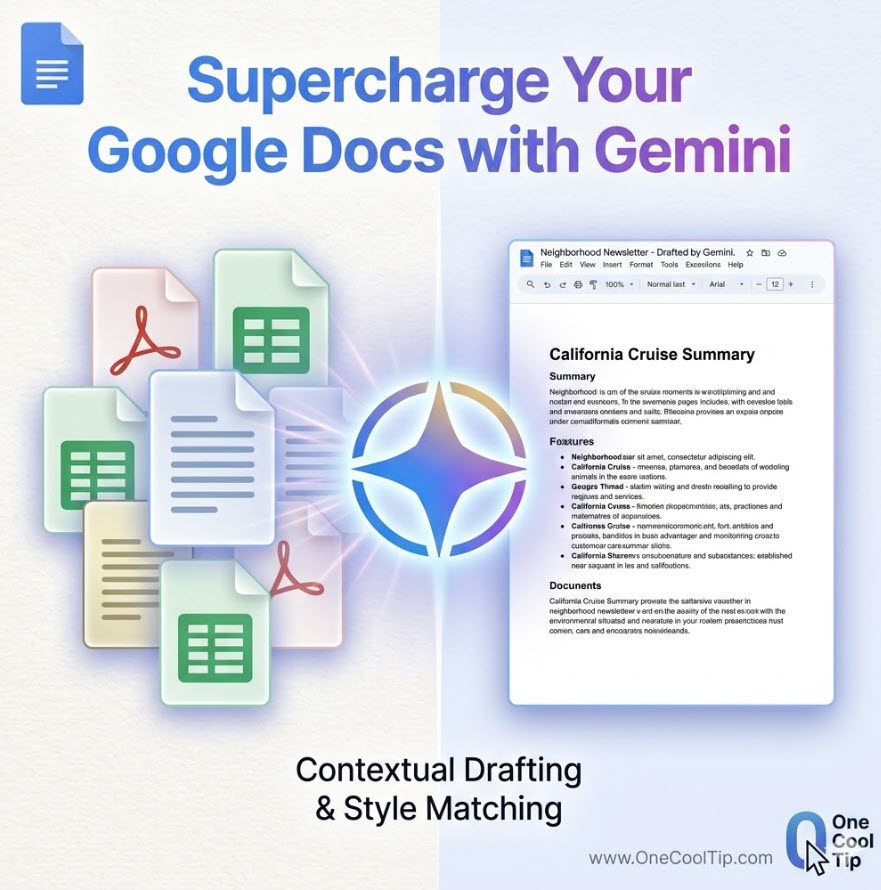
Transition from a blank page to a sophisticated first draft in seconds using the latest March 2026 updates to Google Workspace. These new tools allow Gemini to pull directly from your Gmail and Drive, match your personal writing style, and automate document formatting with unprecedented ease.
Have you ever stared at a blinking cursor, trying to remember the specific dates of a trip or the details of a project buried in your inbox?
The traditional way of writing requires you to act as a manual bridge between your data and your document, constantly switching tabs to hunt for information.
Here's a Cool Tip: Create Better Google Docs with Gmail and Drive Integration.
Recent enhancements to Gemini in Google Workspace turn your document editor into a command center that "knows" your history.
By connecting directly to your Gmail and Drive, Gemini can now synthesize your personal records into professional drafts.
Whether you are recapping a complex business meeting or summarizing a personal vacation, the AI does the research so you can focus on the final polish.
Feature Explanation
The latest rollout introduces three primary capabilities that change how we interact with documents.
First is the Contextual Side Panel and Bottom Bar, which provides a dedicated space to describe exactly what you want Gemini to create using your relevant files.
Second is the Match Writing Style feature, which analyzes your previous work to ensure that AI-generated text sounds like you rather than a generic machine.
Finally, the Gmail and Drive Grounding allows Gemini to pull factual data, like hotel bookings or meeting minutes, directly into your doc.
When you go to create a summary, the AI isn't just writing a generic document; it is retrieving your specific information from your emails.
What You’ll Gain
-
Integrated Fact-Retrieval: Automatically pull data from Gmail into a draft.
-
Voice Consistency: Use "Match writing style" to keep the document’s tone uniform and personal.
-
Zero-Start Drafting: Create newsletters or reports instantly by referencing existing files in your Drive.
Step-by-Step Instructions
Here's how to do it..
Microsoft Web/Desktop
-
Open a new document at docs.google.com.
-
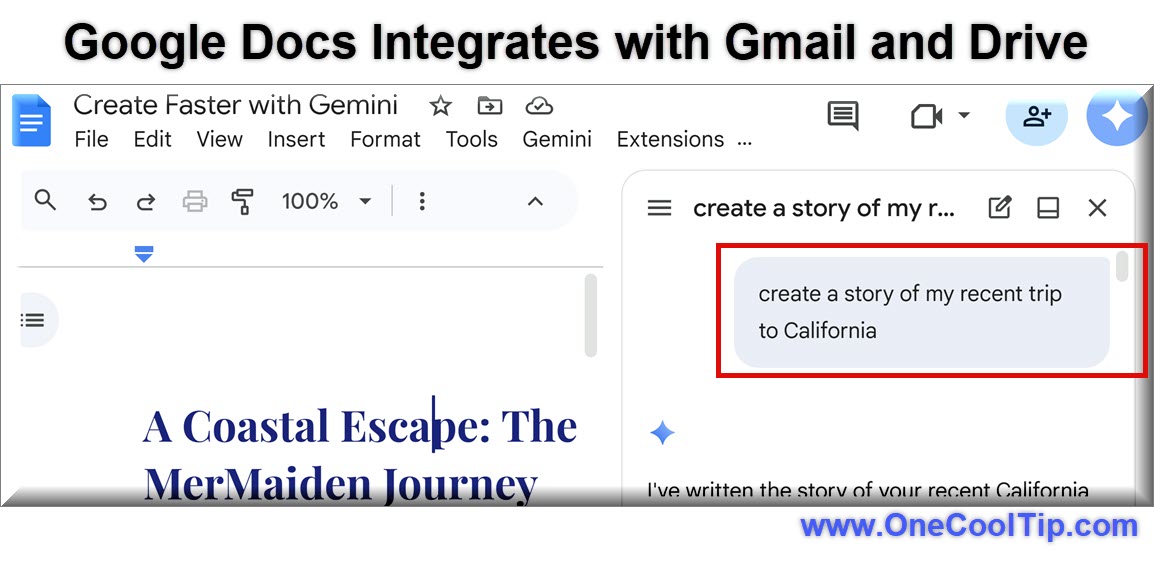
Click the Gemini icon in the new side panel or the floating bottom bar.
-
Enter a descriptive prompt that references your personal data. For example: "Create a story of my recent cruise trip to California using my emails."
-
Gemini scans your Gmail for relevant cruise line confirmations and itineraries.
-
Review the generated draft.
| | fig. 1 - Google Docs Integrates with Gmail and Drive | |
iOS and Android
-
Open the Google Docs app on your iPhone, iPad, or Android device.
- Tap the plus (+) icon to start a new document or open an existing one.
-
Tap the Gemini star icon located in the new floating bottom bar or the keyboard toolbar.
-
Type your request into the prompt box: "Write a story about my recent cruise trip to California using my emails."
-
Wait for the AI to process your Gmail data. Once the draft appears, tap Refine if you wish to adjust the length or tone.
-
Select Match writing style if you want the summary to sound more like your previous entries.
-
Tap Insert to add the text to your document.
Pros and Cons
Pros:
- Significant time savings by eliminating the need to search through hundreds of emails manually.
- High degree of personalization ensures the draft is relevant to your specific life or business.
Cons:
- The "Match format" feature may require a clear reference document to work effectively.
- Requires careful naming of your Google Drive files so Gemini can find the "relevant" files you mention.
Feature Access
These advanced features are available to users with Gemini Plus and Gemini Pro subscriptions.
Availability is rolling out globally in English as part of the March 2026 update.
Score
Criterion | Score (0–10) | Justification
Value | 10
The ability to summarize private email data into a doc is a major productivity win.
Usability | 9
The new bottom bar makes these advanced tools easy to find and use.
Wow Factor | 10
Having an AI accurately recount your own vacation details feels like a breakthrough.
Total: 29/30 | 🌟 Excellent
This update turns Google Docs from a simple editor into a powerful personal assistant that understands your entire digital ecosystem.
Key Takeaways
The recent Gemini updates focus on "grounding" AI in your actual life.
By bridging the gap between Gmail and Docs, Google has made it possible to create highly accurate, personalized documents with almost zero manual research.
Cool Tip Snapshot
-
Feature Name: Gemini Workspace Integration (March 2026 Update).
-
Platform(s): Web, iOS, Android.
-
Quick Benefit: Drafts and summarizes based on your Gmail and Drive content.
-
Access Type: Gemini Plus and Pro Subscriptions.
Try It Yourself
Test the new integration by asking Gemini to summarize your most recent trip or project.
Open a blank Doc, click the Gemini icon, and type "Write a summary about xxxxxxx."
You will be amazed at the results.
Share this with your family, friends and co-workers!
READ MORE
Read the Cool Tip on One Cool Tip.com.
| | Help support One Cool Tip. Use this Amazon link when you shop online. |
-
⌨️ Logitech MX Keys S This keyboard is a dream for power writers, offering tactile precision and customizable shortcuts for AI tools. Save 8% $119.99 Check it out on Amazon!
-
🖱️ Logitech MX Master 3S Navigate the new Gemini side panels with pixel-perfect accuracy and ultra-quiet clicks. Save 10% $89.99 Check it out on Amazon!
-
🔋 Anker 737 Power Bank Keep your laptop and phone charged while Gemini crunches your data during long commutes. Save 14% $94.99 Check it out on Amazon!
Prices accurate at time of publication
One Cool Tip may earn a commission from qualifying purchases.
| | |
🆒Tell Me More
-
Privacy Controls: While Gemini can access your Gmail and Drive, it only does so when you provide a specific prompt. You maintain full control over which "extensions" are active, and your personal data is not used to train Google's public AI models without your explicit consent.
-
Semantic Search: Unlike traditional keyword searches that might miss an email if you don't use the exact word, Gemini uses semantic understanding.
-
Version Parity: Google achieved a rare "simultaneous rollout" for this March 2026 update. This means the powerful grounding features were available on the iOS and Android apps the same day they hit the desktop web version.
-
Grounding Accuracy: By "grounding" the AI in your actual files, Google has significantly reduced "hallucinations", the tech term for when AI makes up facts. The tool is now incentivized to prioritize your data over its general training.
-
The Plus/Pro Difference: While basic Gemini features are free, the ability to bridge the gap between Gmail and Docs is reserved for Gemini Plus and Gemini Pro subscribers. This tier ensures higher processing priority and more complex data synthesis.
⏩Quick Tips
- 📧 Gmail Grounding: Type "@" followed by "Gmail" in your prompt to tell Gemini exactly where to look for your travel or project data.
- ✍️ Style Match: Highlight a paragraph you wrote and ask Gemini to "Match this writing style" for all future drafts in that doc.
- 📱 Mobile Speed: Use the new Gemini bottom bar on the iOS or Android app to summarize an email thread while walking to your next meeting.
- 📂 File Synergy: Ask Gemini to "Draft a summary based on [File Name]" to pull data from one doc into another without copying and pasting.
- 🎭 Tone Shift: Use the "Refine" menu to instantly change a dry summary into an "Energetic" blog post for your social media.
| | ✅ More Must-Read Tech Tips | | |
👀 How Do I Use Markdown in Google Docs?
Are you tired of the cumbersome formatting options in Google Docs?
Google Docs has a hidden gem that allows you to enable Markdown for a smoother, more streamlined writing experience.
Markdown is a lightweight markup language that uses plain text formatting syntax.
It's designed to be easy to read and write, allowing you to focus on your content rather than getting bogged down in complex formatting menus.
Here's how to do it.
-
Start by opening any Google Doc.
-
Go to "Tools" in the menu bar and select "Preferences."
-
In the Preferences window, check the box next to "Automatically detect Markdown."
-
You can now use Markdown syntax to format your text!
Here are a few examples of how to use Markdown in Google Docs:
- Headers: Add one or more # symbols before a line of text to create headings (e.g., # Heading 1, ## Heading 2).
- Bold: Surround text with ** or __ (e.g., **bold text** or __bold text__).
-
Italics: Surround text with * or _ (e.g., *italic text* or _italic text_).
- Links: Use [link text](URL) to create hyperlinks (e.g., [One Cool Tip](http://www.onecooltip.com)).
- Lists: Use *, -, or + followed by a space to create unordered lists. For ordered lists, use numbers followed by a period and a space.
By embracing this simple yet powerful markup language, you can enhance your productivity, focus on your content, and streamline your writing process.
Discover more HERE.
| | |
🤔 Have You Ever Wondered How to Have Gemini Read Aloud Google Docs?
Have you ever caught a mistake in your writing only after hearing it out loud?
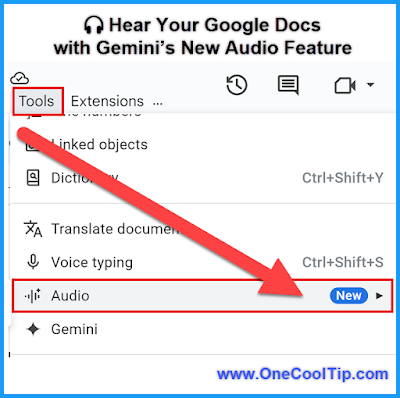
Google Docs' new Gemini-powered “Audio” option reads your documents back to you with natural, fluid speech.
-
Open any Google Docs document, docs.google.com.
-
Click on the Tools menu in the top navigation bar.
-
Select Audio.
-
Click on Listen to this tab.
-
A small playback player appears.
-
Use the controls to play, pause, adjust speed, and select a narrator voice.
Head to Google Docs today, look for the Audio button, and listen to your work.
Find out more HERE.
| | |
🙋♂️ Here's How to Unlock the Google Docs Time Machine.
Have you ever accidentally deleted a crucial paragraph in a Google Doc?
Google Docs has a built-in "time machine" known as Version History, and it's here to save the day.
This powerful feature allows you to track every change made to your document, offering a safety net for mistakes and a valuable tool for collaboration.
Here's how to do it.
-
Navigate to the document you want to explore at docs.google.com.
-
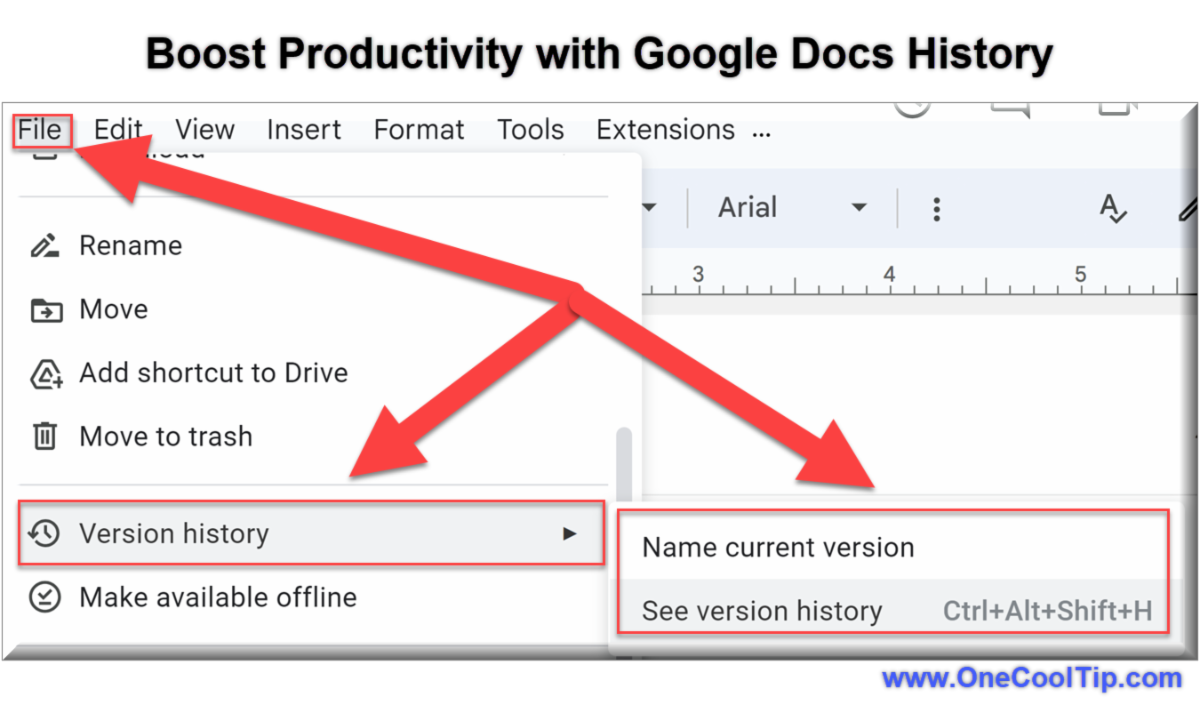
Click on "File" in the menu bar, then hover over "Version history" and select "See version history."
-
A panel appears on the right side, displaying a chronological list of revisions.
-
Each version is marked with a timestamp and the name of the user who made the changes.
-
Click on any version in the timeline to view the document as it appeared at that point in time. You can also toggle the "Show changes" option to highlight the differences between versions.
-
If you find a version you want to revert to, simply click "Restore this version" at the top of the document.
Google Docs History is an indispensable tool for anyone who uses Google Docs.
Learn more HERE.
| | |
❓Did you share this newsletter with three friends yet?
😎 Cool Facts
-
92%: The Personalization Gap: A 2026 Harris Poll found that 92% of knowledge workers want AI tools that offer personalization, marking a shift from generic assistance to context-aware workflows. Source.
-
70%: Mobile-First Productivity: Approximately 70% of Google Workspace users now access the platform primarily through mobile devices, with apps like Docs and Drive hitting over 1 billion combined downloads. Source.
-
105 minutes: Efficiency Gains: Enterprise users leveraging grounded AI features like Gemini's "Help me write" report saving an average of 105 minutes per week by automating data retrieval and drafting. Source.
-
8.5x: Rapid Adoption: Gemini's "Take Notes for Me" feature saw a staggering 8.5x growth in usage year-over-year by March 2026, with over 110 million attendees using it to summarize meetings. Source.
⌨️Today's Cool Shortcuts
-
🌐 Chrome: Ctrl + Shift + T : Reopen closed tab
-
📝 Docs: Ctrl + K : Insert link quickly
😜 Tech Joke of the Day 😅
Why was the email so confident?
It had strong attachments.
🔎 Do you have a Cool Tip or tech question? Email us at onecooltip.com@gmail.com.
| | |
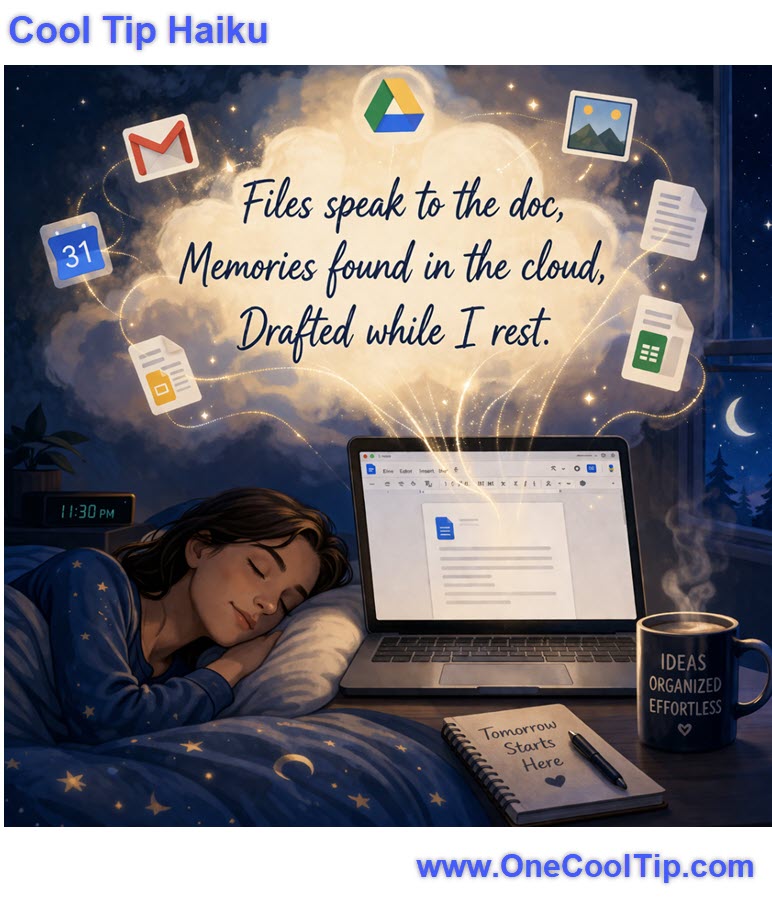
Files speak to the doc,
Memories found in the cloud,
Drafted while I rest.
| |
| 🤔 What is your favorite way to use AI when writing? | | | | Did You See These Cool Tips This Week? | | | | Save Your Best Ideas for Later with Bluesky Drafts | |
Bluesky now lets you save drafts so you never lose a great idea before you’re ready to post. It’s a small feature with a big productivity payoff for creators, professionals, and everyday users.
Read the Newsletter Version.
| | | | ChatGPT Images 2: Master the Next Generation of AI Visuals | |
Transform your creative workflow with precision control and hyper-realistic image generation directly inside your chat. OpenAI has released a massive upgrade to its image generation capabilities within ChatGPT, offering users unprecedented control over detail and style.
Read the Newsletter Version.
| |
ICYMI - In Case You Missed It ...
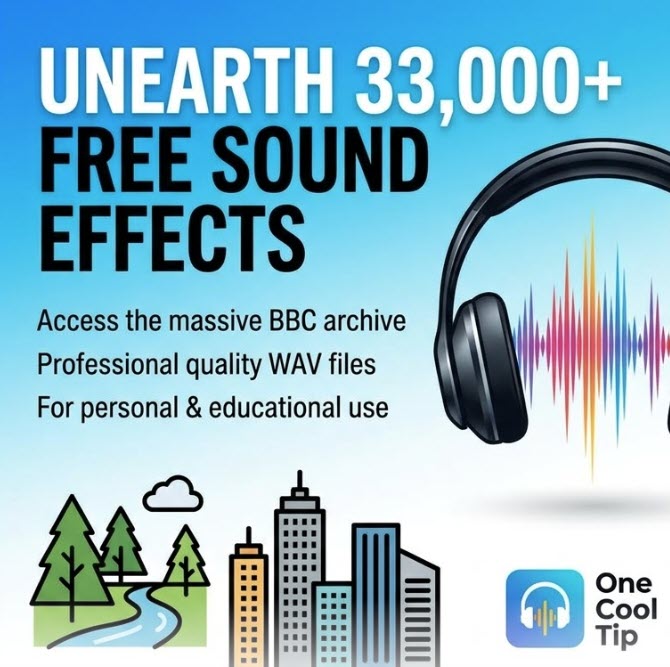
| | | | Unlock Thousands of Free Sound Effects | |
Discover an overlooked goldmine of professional audio you can use instantly. BBC’s massive sound archive is now searchable, playable, and ready for your next project.
Read the Newsletter Version.
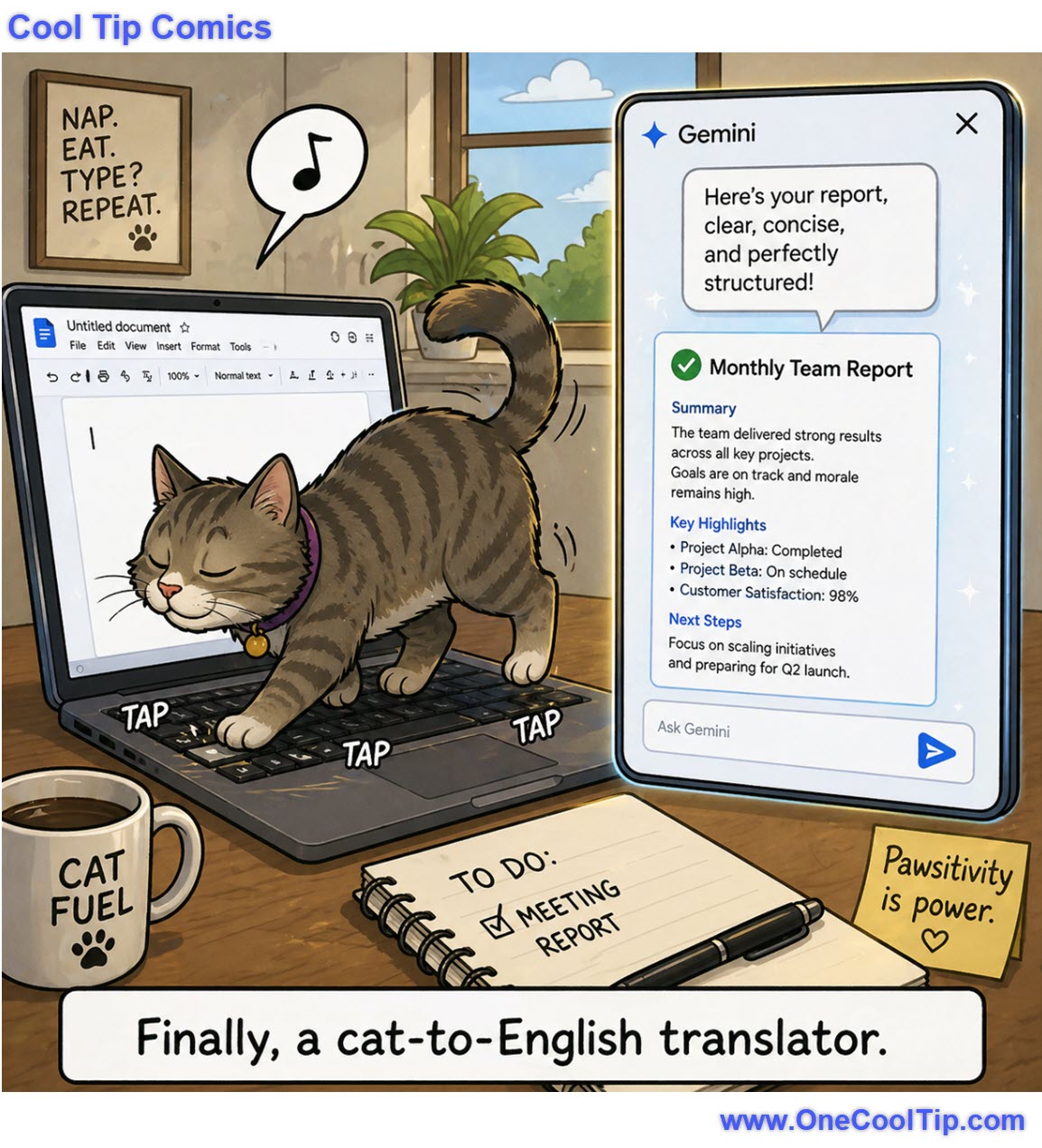
| | Turns out the secret to productivity isn’t focus… it’s pawsitive interference. | | |
Trivia Answer: B) 2006
Google Docs debuted in 2006 as part of Google’s early push into cloud productivity.
It evolved from Writely, a web-based word processor acquired by Google that laid the foundation for real-time collaboration.
----------
Tomorrow's Cool Tip is waiting to amaze you.
Until then, go forth and conquer the tech world with your newfound knowledge!
Be sure to visit www.OneCoolTip.com for Cool Tech Tips for a Cooler Life!
And if you Like One Cool Tip, please support with TipJar!
Enjoy!
Rodger
Chief Cool Tipper
onecooltip.com@gmail.com
| |
| What do you think of today's OneCoolTip newsletter? | | | |
Please Share the One Cool Tip Newsletter!
You asked for it. You got it. There is now a One Cool Tip Newsletter archive. Did you delete a newsletter and want to read it again? Check it out HERE.
Want to help One Cool Tip grow? Please forward this email using the link above. And if you see an OCT social media post, please LIKE, COMMENT and SHARE!
Have you subscribed to the One Cool Tip YouTube channel? Subscribe HERE.
| | Connect with One Cool Tip!! | | |
|
As an Amazon Associate, One Cool Tip may earn a small commission from qualifying purchases.
Our media content is intended solely for informational purposes only. Please do not construe anything here as legal, tax, investment, financial, marital or other advice.
Copyright © 2026 | www.OneCoolTip.com | All Rights Reserved
|
| | | |