|
One Cool Tip Newsletter
February 18, 2026
| Your daily dose of tech-savvy brilliance! | |
😀Greetings!, Happy Windows Wednesday, Cool Tipper!
Get ready to streamline your digital life with simple, actionable tips delivered straight to your inbox.
Today's Cool Tip Theme: Microsoft Store Command Line Interface (CLI)
IN THIS ISSUE
- ⚖️ Zuckerberg Trial.
- 🤖 AI Support Specialist Prompt.
- ⌨️ Microsoft Store CLI Tool.
- 🔄 Third-Party Updates.
- 🤫 Focused Productivity.
- 🎨 Kaomoji flair.
New here? Subscribe to the One Cool Tip Newsletter for daily updates. It's FREE!
-
😂 Laugh with Us! Enjoy our Tech Joke of the Day, Haiku and Cool Tip Comics.
-
🌐 Stay Informed! Check out ICYMI, and our One Cool Tip Video.
| | |
3️⃣
If you enjoy the One Cool Tip newsletter, please forward this newsletter to THREE friends or colleagues or share it on social media using the links below.
Leave a Tip!
Share this One Cool Tip Newsletter!
| | |
Today's Tech Trivia
Answer at the end of this newsletter.
| |
| Which Windows tool was Microsoft’s first official command-line package manager? | | | | |
🚨 Zuckerberg Faces Jury in Landmark Social Media Addiction Trial🚨
Meta CEO Mark Zuckerberg is testifying today in a high-stakes Los Angeles trial that could reshape how social media platforms are held accountable for youth mental health harms.
The case centers on a 20-year-old woman who alleges that Instagram and other platforms were deliberately designed to addict children and worsen depression and suicidal thoughts.
Zuckerberg’s appearance marks the first time he’ll face a jury over claims that Meta ignored internal warnings about addictive design features.
TikTok and Snap have already settled, leaving Meta and YouTube as the remaining defendants.
The outcome could influence thousands of similar lawsuits nationwide and challenge the legal protections tech companies have long relied onNBC News.
Why it matters:
This trial is being called social media’s “Big Tobacco” moment.
Expect scrutiny of algorithms, infinite scroll, and youth safety policies.
| |
| Do you think Social Media is Addicting? | | | | |
Try this Cool AI prompt. Copy and paste to ChatGPT, Gemini or Copilot.
Act as an experienced IT specialist and help to diagnose the following issue:
My computer is running slow and it frequently crashes. (replace with your issue)
What could be the potential problems and how can I resolve them?
| | |
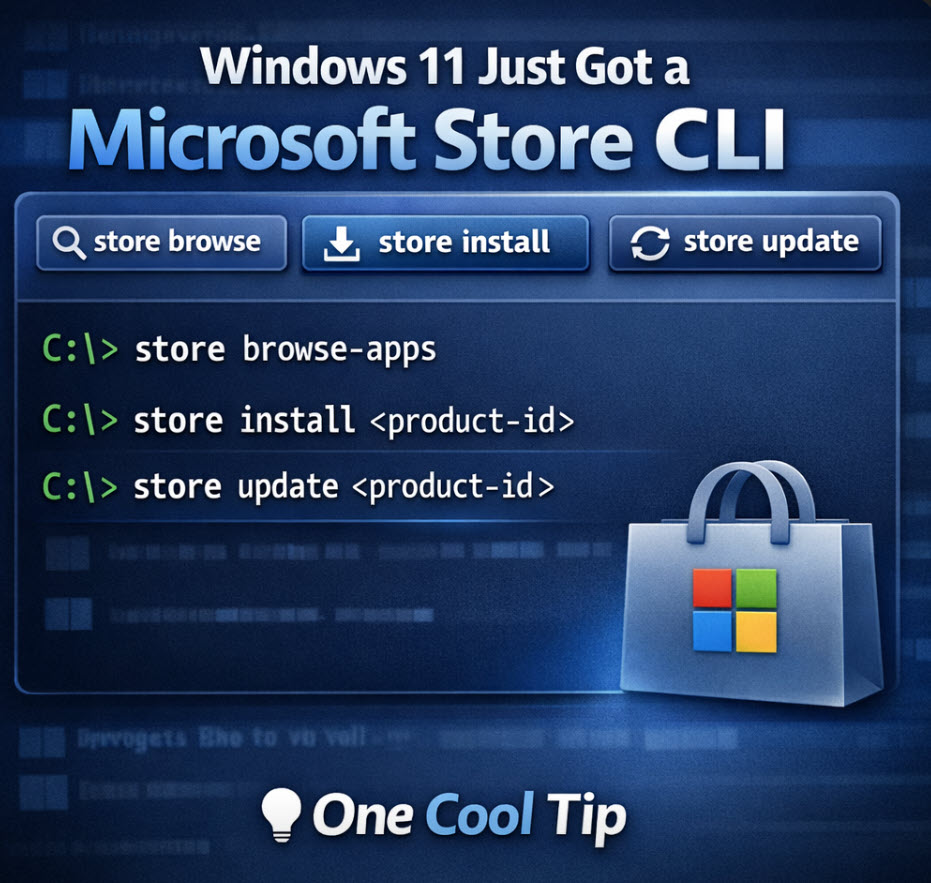
Windows 11’s Microsoft Store CLI: Install and Update Apps Without Opening the Store
If you live in Windows Terminal, Microsoft just gave you a faster way to manage Store apps. The new Microsoft Store command line tool lets you browse, install, and update Microsoft Store apps with a few simple commands, no GUI required.
Ever set up a new PC and thought, “Why am I clicking through the Store again?”
Or needed to update one specific app and got dragged into a sea of tiles, banners, and “recommended” content?
Here's a Cool Tip: Use the New Microsoft Store Command Line Interface (CLI).
Microsoft’s new Store CLI is a small change that quietly removes a lot of friction for anyone who prefers fast, repeatable workflows.
Feature Explanation
What it is:
A new command-line interface named store that talks to the Microsoft Store so you can discover, install, and update Store apps from a terminal window.
How it works:
You run store commands in Command Prompt, PowerShell, or Windows Terminal.
Core actions include:
- Browse the Store catalog with store browse-apps.
- Install an app with store install .
- Update an app with store update .
Why it matters:
This makes Store app management scriptable and repeatable.
It is especially useful for:
- setting up a new machine quickly.
- keeping a lab or family PC updated with a short checklist.
- standardizing app installs for small teams, classrooms, or client setups.
What You’ll Gain
- Faster installs and updates from the keyboard.
- Repeatable “setup scripts” for new PCs.
- Less time hunting through menus and UI clutter.
- More consistent app versions across multiple machines.
Step-by-Step Instructions
Here's how to do it.
Microsoft Web/Desktop (Windows 11)
Open Windows Terminal
-
Open Windows Terminal, PowerShell, or Command Prompt.
-
To open Windows Terminal:
- Press Start.
- Type Windows Terminal.
- Press Enter.
Install Apps
-
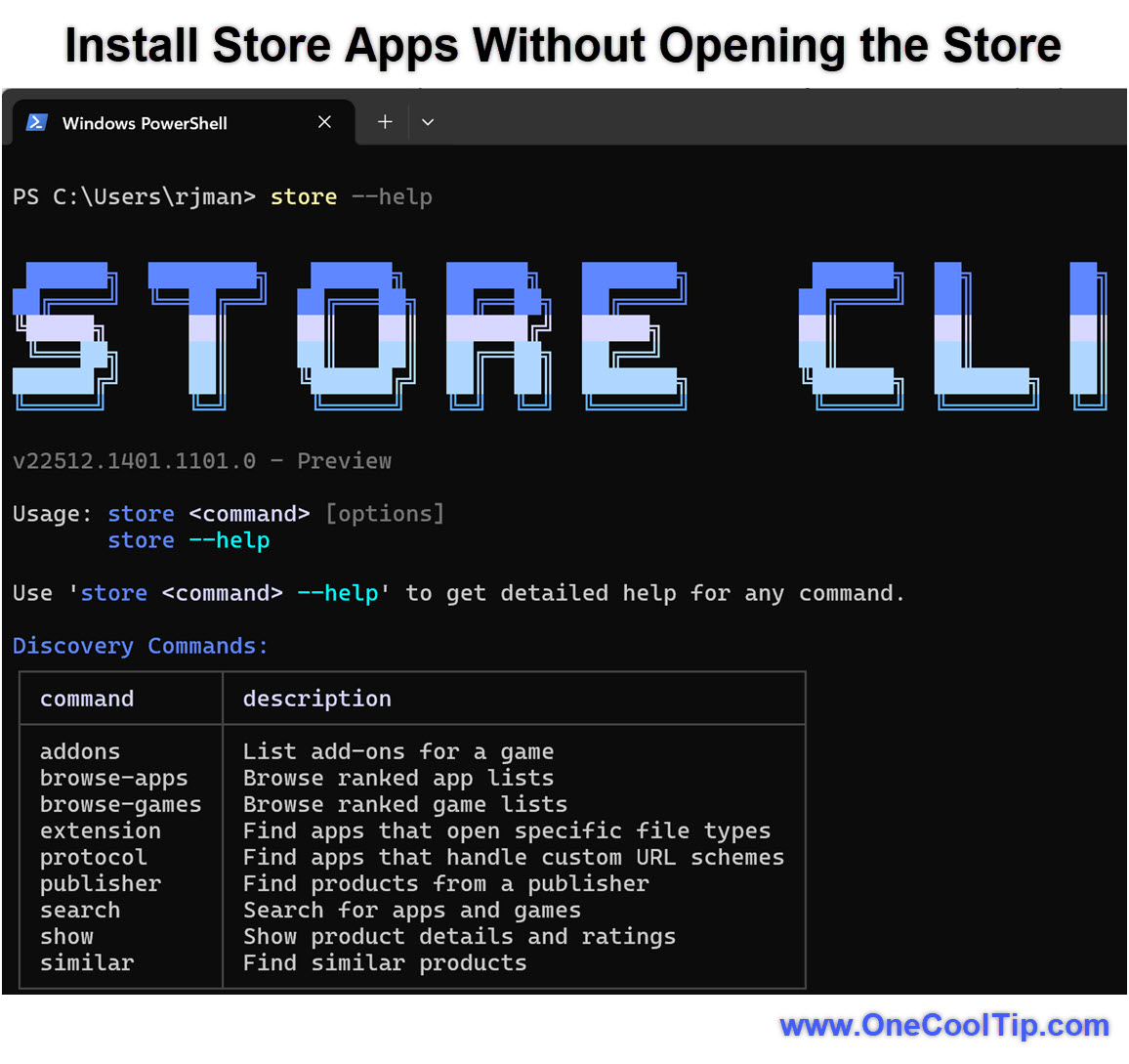
Verify the Store CLI is available: store --help
-
Search apps from the Store catalog: store search "Windows Notepad"
-
Find the Product ID: Microsoft Store web links include a 12‑character Product ID, such as: 9MSMLRH6LZF3 (Windows Notepad)
-
Install an app: store install
-
Wait for the install completion message.
| | fig. 1 - Install Store Apps Without Opening the Store | |
Common Help Examples:
- Usage: store [options]
- Use store help
Discovery Commands:
command description
- addons List add-ons for a game
- browse-apps Browse ranked app lists
- browse-games Browse ranked game lists
- extension Find apps that open specific file types
- protocol Find apps that handle custom URL schemes
- publisher Find products from a publisher
- search Search for apps and games
- show Show product details and ratings
- similar Find similar products
Operations Commands:
command description
- install Install an app from the Store
- installed List all installed apps
- update Check updates for a specific app
- updates Check for updates across all installed apps
Helper Commands:
command description
- app-categories List app categories
- game-categories List game categories
Examples:
- store search "Microsoft Teams"
- store show "Visual Studio Code"
- store browse-apps top-free --category productivity
- store browse-games top-paid --only-game-pass
- store similar firefox
- store updates
- store install whatsapp
Pros and Cons
Pros
-
Speed and focus: Great for power users who already live in Terminal.
-
Repeatability: Easy to standardize app installs for multiple PCs (home lab, classroom, small office).
-
Deterministic installs: Using Product IDs reduces ambiguity compared to searching by name.
Cons
-
Store must be enabled: If Microsoft Store is disabled by policy, the CLI will not work.
-
Store-only catalog: It does not replace WinGet for wider app sources.
-
Learning curve: You will need to get comfortable with Product IDs and basic terminal workflows.
Feature Access
- Microsoft introduced the Store CLI as part of improved Store developer tooling.
- It is described as available on devices where Microsoft Store is enabled.
- Windows 10 and Windows 11, but availability can vary, so treat it as currently rolling out if you do not see it yet.
Score
Criterion | Score (0–10) | Justification
Value | 9
Saves real time for anyone who installs or maintains apps on more than one PC, and enables repeatable setups.
Usability | 8
Command set is straightforward, but Product IDs and terminal comfort are required for best results.
Wow Factor | 7
Not flashy, but it meaningfully streamlines a common Windows chore for power users.
Total: 24/30 | 👍 Good
A practical power-user upgrade.
Key Takeaways
If you prefer keyboard-first workflows, the Store CLI removes the Store UI from your daily routine.
The big win is repeatability: installs and updates become predictable commands you can reuse across machines.
Cool Tip Snapshot
-
Feature Name: Microsoft Store CLI (store)
-
Platform(s): Windows (Microsoft Store enabled)
-
Quick Benefit: Install and update Store apps from the terminal
-
Access Type (Free, Subscription, Beta): Currently rolling out (availability may vary)
Try It Yourself
Open Windows Terminal and run store --help.
If it works, pick one Store app you actually use, grab its Product ID from its apps.microsoft.com link, and install or update it from the command line.
Share this article with your team, family, and friends.
READ MORE
Read the Full Cool Tip.
| | Help support One Cool Tip. Use this Amazon link when you shop online. | |
⌨️ Logitech MX Mechanical Wireless Keyboard
Comfortable, low-profile mechanical typing that fits terminal-heavy workflows. Check it out on Amazon!
🔌 Anker Prime Docking Station (14-Port, 160W)
Turns a laptop into a multi-display workstation for IT and productivity setups. Check it out on Amazon!
💾 SanDisk 1TB Extreme Portable SSD
Fast, rugged external storage for backups, installers, and portable toolkits. Check it out on Amazon!
Prices accurate at time of publication
One Cool Tip may earn a commission from qualifying purchases.
| | |
🆒Tell Me More
- Product IDs uniquely identify apps in the Microsoft Store.
- This feature supports developer workflows and automated environments.
- It complements WinGet instead of replacing it.
- IT departments can use it to standardize software deployments.
⏩Quick Tips
-
🪟 Verify availability: Type store --help to confirm it’s installed.
-
📦 Install faster: Use store install instead of opening the Store.
-
🔄 Update instantly: Update apps using store update .
-
🧾 Create a setup script: Save frequently used commands in a text file.
-
⚡ Combine with WinGet: Use WinGet for non-Store apps and Store CLI for Store apps.
| | ✅ More Must-Read Tech Tips | | |
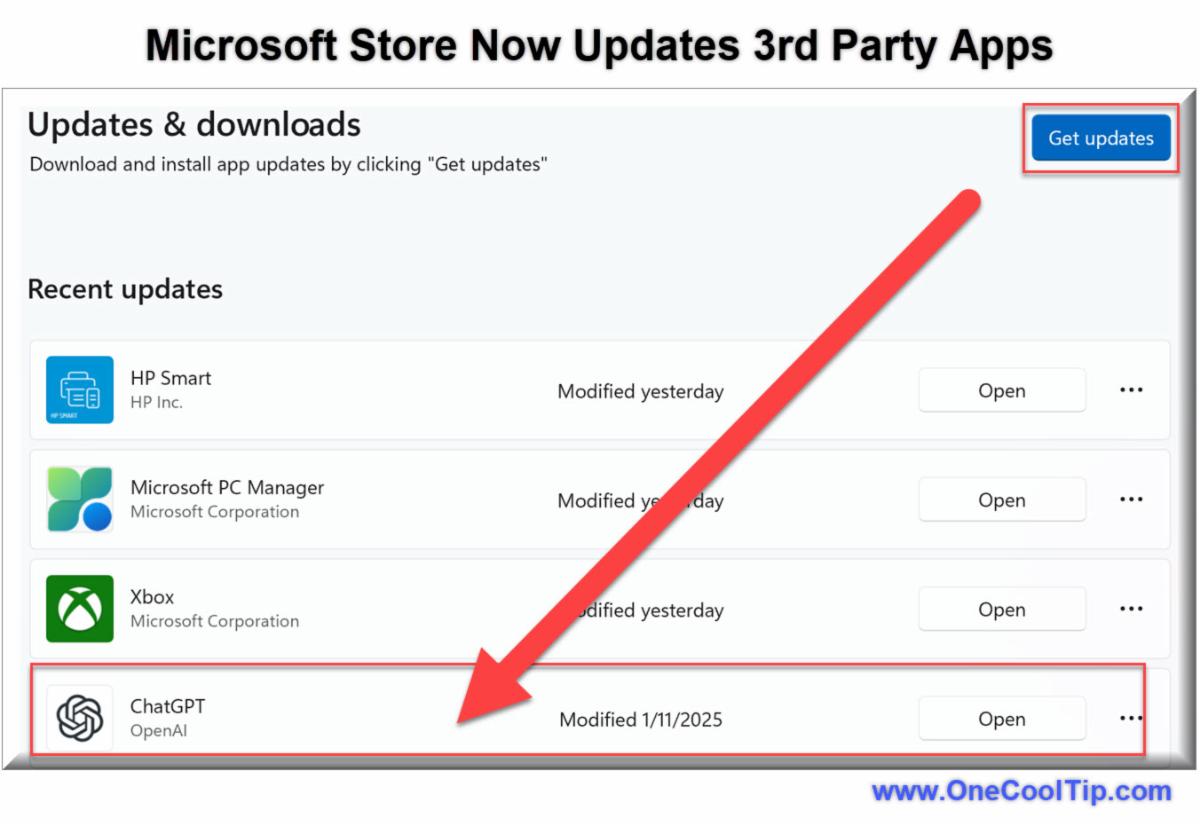
👀 How Do I Update Third-Party Apps with the Microsoft Store?
Have you ever wondered if there's an easier way to manage and update all your third-party applications on Windows 11?
The Microsoft Store now offers a seamless solution to keep both your Microsoft and non-Microsoft apps in check.
The Microsoft Store's new feature allows users to update third-party apps directly through the store, making it a central hub for software management.
Here's how to do it.
-
Launch the Microsoft Store from the Start menu.
-
Navigate to the 'Library' section.
-
Click 'Check for updates' to see if there are any available updates for your third-party apps.
-
Select the apps you wish to update and click 'Update' to install the latest versions.
By keeping your applications current, you minimize vulnerabilities and enjoy the latest features and improvements.
Discover more HERE.
| | |
🤔 Have You Ever Wondered How to Turn Off Notifications in Windows During Certain Times?
Ever been in the middle of a crucial task only to be interrupted by a barrage of notifications?
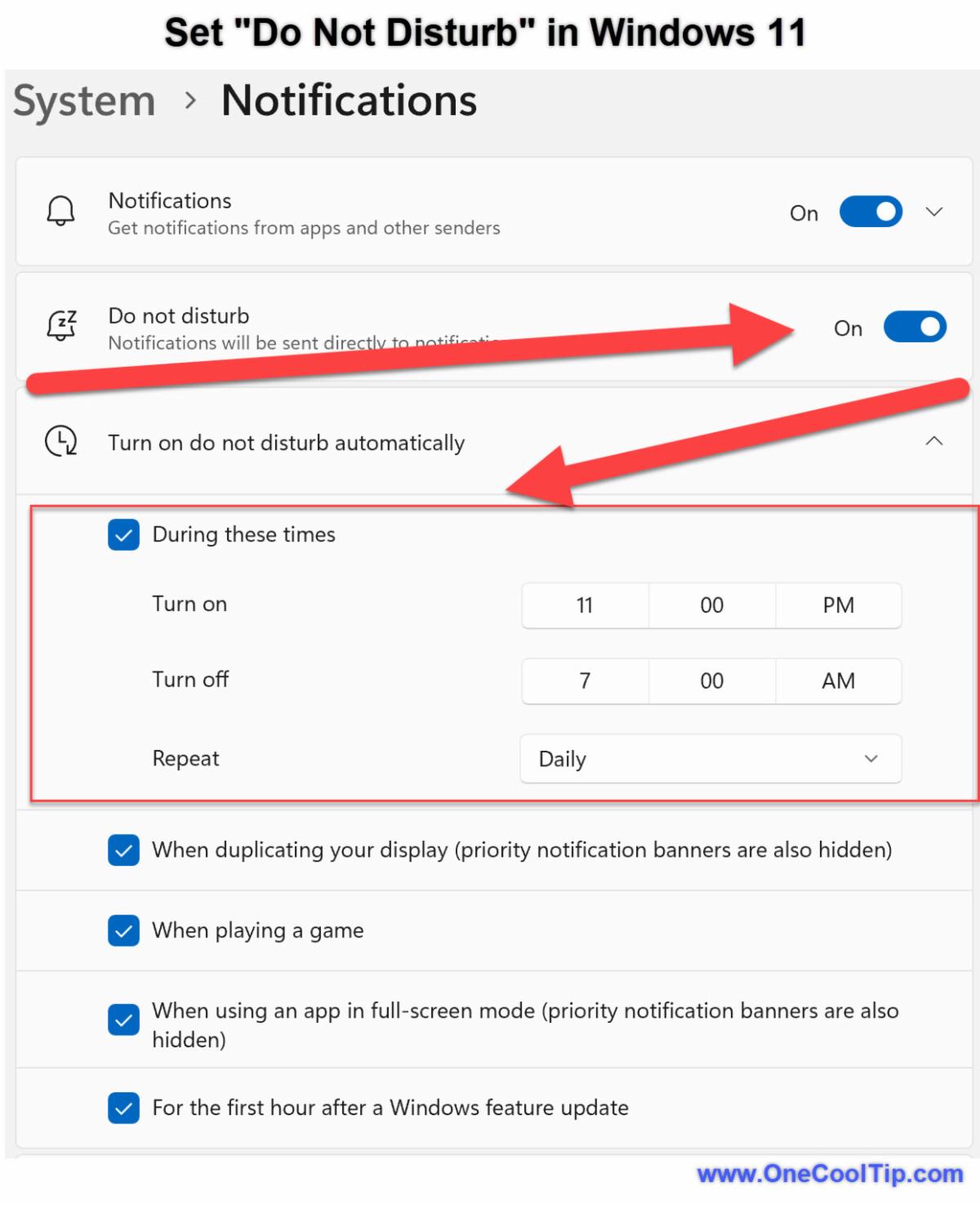
Windows offers a feature to turn off notifications during specific times, helping you maintain focus and peace of mind.
Here's how to do it.
-
Select Start > Settings > System > Notifications .
-
To turn on Do not disturb, select On.
-
To turn on do not disturb automatically, select "Turn on do not disturb automatically" and choose specific times to turn it on or specific certain conditions when you want it turned on.
-
Select the Time to Turn On, Turn Off and when to Repeat.
-
When "Do Not Disturb" is on, Windows hides any incoming notifications.
By turning off notifications during certain times, you can create a more focused and productive environment.
Find out more HERE.
| | |
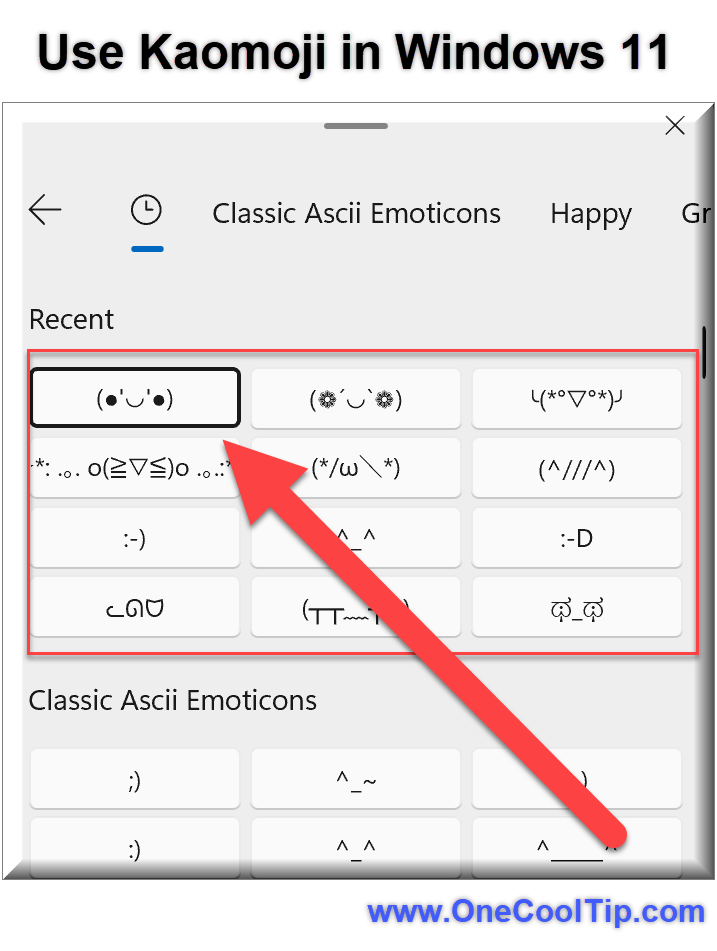
🙋♂️ Here's How to Add Fun and Flair to Your Messages.
Ever wanted to spice up your messages with adorable and quirky text faces?
Kaomoji, a popular form of Japanese emoticons, can add personality and emotion to your texts, emails, and social media posts. Windows 11 makes it easier than ever to access and use Kaomoji.
Here's how to do it.
-
Press Windows Key + . (period) or Windows Key + ; (semicolon) on your keyboard. This will open the Emoji Panel.
-
In the Emoji Panel, click on the Kaomoji tab located at the top of the panel.
-
Here, you'll find a variety of Kaomoji organized into categories such as happy, sad, angry, and more.
-
Browse through the categories and click on the Kaomoji you want to use. It will be inserted directly into your document or message.
Whether you’re chatting with friends, composing an email, or posting on social media, Kaomoji can add a unique flair to your messages.
Learn more HERE.
| | |
❓Did you share this newsletter with three friends yet?
😎 Cool Facts
-
700,000: Microsoft Store hosts over 700,000 apps. Source.
-
2020: WinGet was introduced in 2020. Source.
-
1 Billion: Windows powers over 1 billion devices. Source.
⌨️Today's Cool Keyboard Shortcuts
-
Win + X: Open power user menu.
-
Win + R: Open Run dialog.
-
Windows Terminal: Ctrl + Shift + T: Open new tab.
😜 Tech Joke of the Day 😅
An SQL query walks into a bar, walks up to two tables, and asks, "Can I join you?"
🔎 Do you have a Cool Tip or tech question? Email us at onecooltip.com@gmail.com.
| | |
Text on a black screen,
Apps arrive with just a word,
Quiet power reigns.
| |
| 🤔 How do you usually install apps? | | | | Did You See These Cool Tips This Week? | | | | Never Miss Important News Again: How to Create Google Alerts in Minutes | |
Track topics, competitors, and your own name automatically with Google Alerts. This free tool turns Google into your personal research assistant.
Read the Newsletter Version.
| | | | Turn Excel Chaos Into Clarity With Copilot’s Summarize And Categorize Superpowers | |
Copilot in Excel can scan thousands of rows, surface the story in your data, and organize it into meaningful categories with just a few natural language prompts. If you work in spreadsheets all day, this feature is like having a data analyst sitting in the ribbon.
Read the Newsletter Version.
| |
ICYMI - In Case You Missed It ...
| | | | How Google Gemini’s New AI Feature Connects Your Apps for Smarter Answers | |
Imagine an AI that doesn't just know general facts, but knows you, finding your lost frequent flyer number or that specific vacation photo in seconds. Google Gemini’s new Personal Intelligence upgrade connects Gemini to your personal apps to transform how you manage your digital life.
Read the Newsletter Version.
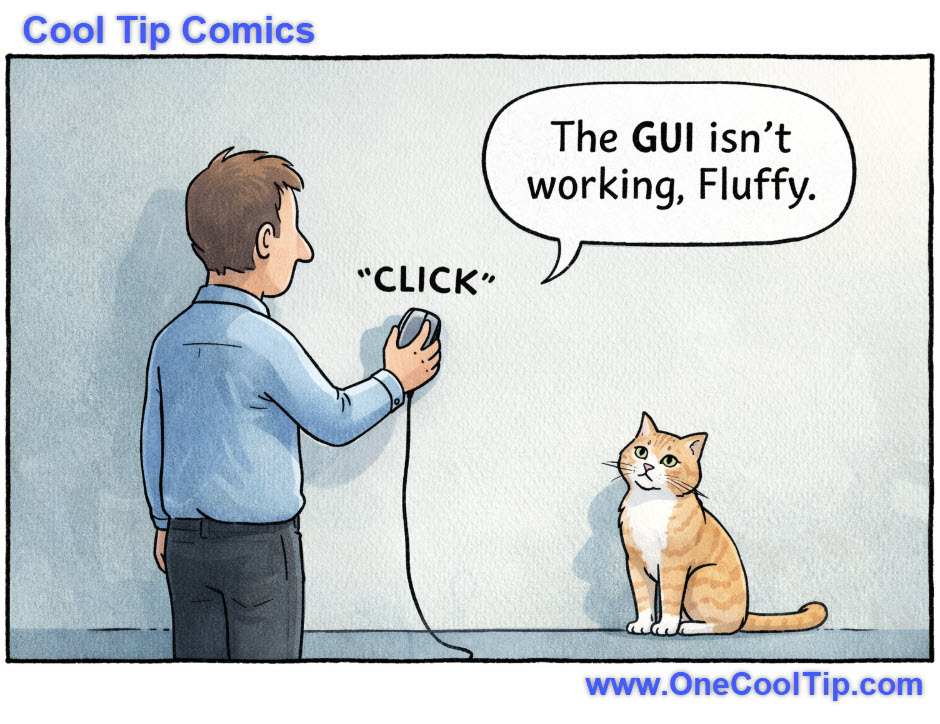
| | Fluffy’s face says it all: even the cat knows you need a better interface. | | |
Trivia Answer: C) WinGet
Microsoft introduced the Windows Package Manager (WinGet) in 2020 to simplify installing applications via the command line.
Before WinGet, installing apps often required downloading installers manually.
WinGet allowed users to install software with a single command, such as:
----------
Tomorrow's Cool Tip is waiting to amaze you.
Until then, go forth and conquer the tech world with your newfound knowledge!
Be sure to visit www.OneCoolTip.com for Cool Tech Tips for a Cooler Life!
And if you Like One Cool Tip, please support with TipJar!
Enjoy!
Rodger
Chief Cool Tipper
onecooltip.com@gmail.com
| |
| What do you think of today's OneCoolTip newsletter? | | | |
Please Share the One Cool Tip Newsletter!
You asked for it. You got it. There is now a One Cool Tip Newsletter archive. Did you delete a newsletter and want to read it again? Check it out HERE.
Want to help One Cool Tip grow? Please forward this email using the link above. And if you see an OCT social media post, please LIKE, COMMENT and SHARE!
Have you subscribed to the One Cool Tip YouTube channel? Subscribe HERE.
| | Connect with One Cool Tip!! | | |
|
As an Amazon Associate, One Cool Tip may earn a small commission from qualifying purchases.
Our media content is intended solely for informational purposes only. Please do not construe anything here as legal, tax, investment, financial, marital or other advice.
Copyright © 2026 | www.OneCoolTip.com | All Rights Reserved
|
| | | |