|
One Cool Tip Newsletter
June 10, 2026
| Your daily dose of tech-savvy brilliance! | | |
😀Greetings!, Happy Windows Wednesday, Cool Tipper!
Get ready to streamline your digital life with simple, actionable tips delivered straight to your inbox.
Today's Cool Tip Theme: Windows 11 Improved Search
IN THIS ISSUE
- 🛑 Beware of Fake Health Insurance Search Results.
- 🛡️ Critical June 2026 Windows Security Update.
- 🤖 AI Prompt for File Organization.
- 🔍 Windows 11 Search Gets an Accuracy Boost.
- 📍 Track and Lock Misplaced Windows Devices.
- 📺 Wireless Screen Sharing Made Simple.
- 📅 Hidden Date Calculator Tool.
New here? Subscribe to the One Cool Tip Newsletter for daily updates. It's FREE!
-
😂 Laugh with Us! Enjoy our Tech Joke of the Day, Haiku and Cool Tip Comics.
-
🌐 Stay Informed! Check out ICYMI, and our One Cool Tip Video.
| | |
3️⃣
If you enjoy the One Cool Tip newsletter, please forward this newsletter to THREE friends or colleagues or share it on social media using the links below.
Leave a $$$ Tip!
Share this One Cool Tip Newsletter!
| | |
Today's Tech Trivia
Which Windows version made Windows Search a standard built-in feature enabled by default?
A) Windows XP
B) Windows Vista
C) Windows 8
D) Windows 11
Answer at the end of this newsletter.
| | |
⚠️Don’t Trust the First Health Insurance Search Result⚠️
If you’re shopping for health insurance online, slow down before you click.
A new FTC warning highlights a growing tactic: scammers paying for top placement in search results to impersonate government sites.
These ads can look official, sometimes mimicking Medicare or Healthcare.gov, but they’re designed to lure you into sharing personal information, paying unnecessary fees, or signing up for misleading coverage.
How to Stay Safe:
-
Look for “Ad” or “Sponsored” labels. Top results may be paid placements, not the most trustworthy sources.
-
Check the URL carefully. Legitimate U.S. government sites typically end in “.gov.”
-
Scroll past the first results. Organic listings are ranked by relevance, not advertising dollars.
Take an extra moment to verify you’re on a real government website, not a lookalike trying to steal your information.
And in Other News...
Install Microsoft’s June Windows update ASAP
Windows users: don’t delay the latest update.
Microsoft’s June 2026 “Patch Tuesday” is one of the biggest ever, fixing 198 security vulnerabilities across Windows and related software.
Why It Matters:
- The update includes dozens of critical flaws, many involving remote code execution, which could let attackers take control of your PC.
- It also patches three “zero‑day” vulnerabilities, security holes that were already known publicly or potentially exploited before fixes were available.
- Key areas affected include core Windows features like BitLocker encryption, network services (HTTP.sys), Remote Desktop, and Hyper‑V virtualization.
This unusually large update should be treated as high priority, especially because some flaws could enable data theft, system crashes, or unauthorized access
What To Do:
Head to Settings → Windows Update and install the latest updates as soon as possible, then restart your device.
| | |
Try this Cool AI prompt. Copy and paste to ChatGPT, Gemini or Copilot.
Help me improve my Windows file organization for faster search.
Ask me what kinds of files I use most, then suggest a simple filename pattern, folder structure, and tagging strategy that works well with Windows Search.
Keep it practical for everyday use.
| | |
Find Files Faster: Windows 11 Search Finally Gets Smarter
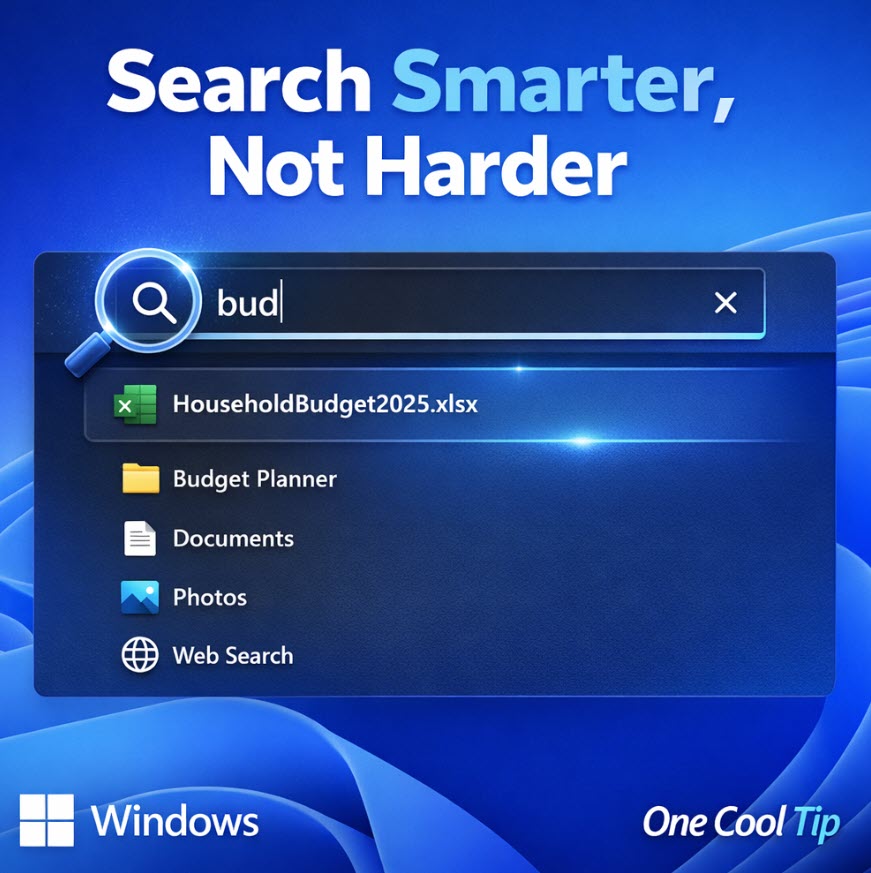
Windows 11 Search has long been a frustration point, but the June 2026 update addresses some of its biggest weaknesses. These changes make finding files faster, easier, and far less dependent on typing the exact file name.
You know the routine.
You open Search, type part of a file name, and nothing appears.
So you type more.
Then more.
At some point, it is faster to open File Explorer and hunt manually.
Here’s a Cool Tip: Find files faster with fewer keystrokes
Microsoft finally seems to be fixing that experience.
The June 2026 Windows 11 update introduces meaningful improvements to Search performance and accuracy.
The changes are subtle, but they show up quickly in everyday use.
Feature Explanation
The updated Windows 11 Search focuses on speed and relevance rather than a visual redesign.
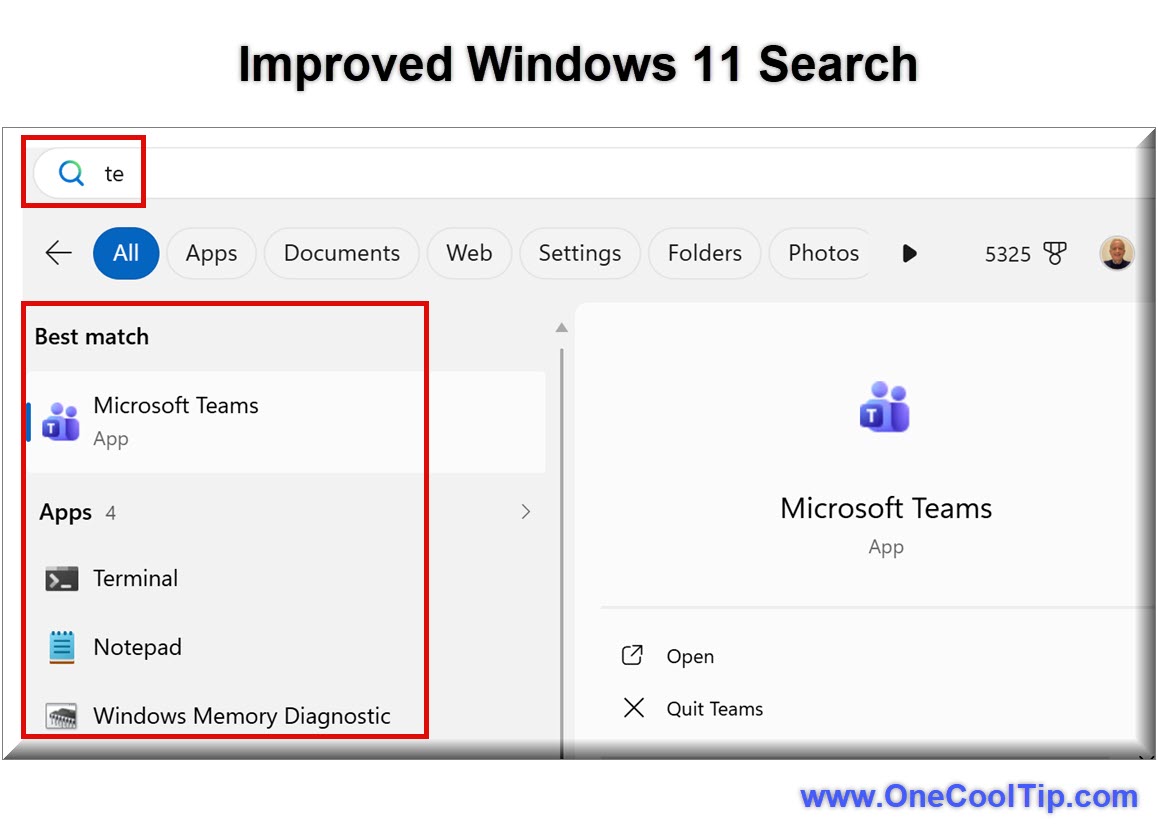
One of the most important improvements is that Search can now find files with as few as two characters typed.
That small change removes a surprising amount of friction when you are trying to locate something quickly.
Another upgrade is substring matching. Instead of requiring you to type the beginning of a filename, Search can now match words from anywhere within it.
For example:
Typing “report” can surface “ProjectStatusReport.docx”
Typing “april” can find “MeetingNotesApril.xlsx”
This is a major shift from older behavior, which often required exact or near-exact matches.
Under the hood, Microsoft has also improved overall responsiveness.
System-level performance updates aim to make Search and Start feel faster and more immediate.
These refinements are part of a broader effort to improve ranking so apps, local files, and system tools appear more reliably at the top of results.
What You’ll Gain
- Save time by finding files with just a couple of letters.
- Reduce frustration when filenames are not exact.
- Improve productivity with faster, more relevant results.
- Make Search more useful for daily tasks.
Step-by-Step Instructions
Here's how to do it.
Update Windows 11
-
Click the Start button.
-
Select Settings (gear icon).
-
In the left sidebar, click Windows Update.
-
Click Check for updates.
-
If updates are available, click Download & install.
-
Wait for the update to download and install.
-
Click Restart now if prompted to finish installation.
Using the New Search
-
Press the Windows key or click Start.
-
Begin typing a file name, app, or setting.
-
Try entering only 2–3 characters.
-
Watch results appear almost instantly.
-
Refine your search with keywords that appear anywhere in the filename.
| | fig. 1 - Improved Windows 11 Search | |
Pros and Cons
Pros:
- Faster results with less typing.
- Better matching for real-world file names.
- Improved responsiveness across Search and Start.
- Helpful for both casual users and power users.
Cons:
- Rolling out gradually, so not all users will see it right away.
- Some features may still appear first in preview or Insider builds.
- Still depends on indexing, which can vary by system configuration.
Feature Access
- Available on Windows 11 version 24H2 and 25H2 or later.
- Included in the June 2026 cumulative update.
- Rolling out gradually, so availability may vary by device, region, or configuration.
- Some improvements may appear earlier in Insider builds.
Score
Criterion | Score (0–10) | Justification
Value | 8
Improves a core feature used every day.
Usability | 9
No setup required, and behavior feels natural immediately.
Wow Factor | 6
Subtle improvements, but noticeable in daily use.
Total: 23/30 | Good
A practical upgrade that finally makes Windows Search feel more reliable.
Key Takeaways
The June 2026 update makes Windows Search faster and more accurate.
You can find files with fewer keystrokes and less reliance on exact file names.
It is a quiet improvement, but one you will notice every day.
Cool Tip Snapshot
-
Feature Name: Improved Windows 11 Search
-
Platform(s): Windows 11
-
Quick Benefit: Find files faster with minimal typing
-
Best For: Everyday productivity
-
Access Type: Rolling Out
-
Difficulty: Easy
Try It Yourself
Install the latest Windows update, try searching with just a few characters, and see how much faster it feels.
Be sure to share this Cool Tip along to coworkers, friends, and family.
READ MORE
Read the Cool Tip on One Cool Tip.com.
| | Help support One Cool Tip. Use this Amazon link when you shop online. | |
🖥️ Logitech MX Keys Keyboard: Comfortable typing helps you take advantage of faster Search. $119. Check it out on Amazon!
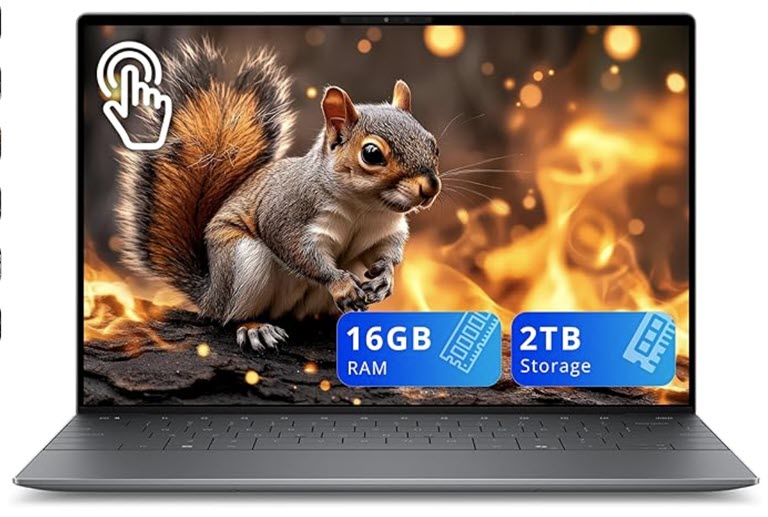
💻 Dell XPS 13.4" Laptop (Windows 11): Great performance boosts Search responsiveness. $1,599. Check it out on Amazon!
🖱️ Logitech MX Master 3S Mouse: Boost productivity while navigating Search results. $89.99 Check it out on Amazon!
Prices accurate at time of publication
One Cool Tip may earn a commission from qualifying purchases.
| | |
🆒Tell Me More
- The optional update is a gradual rollout of Search improvements, which includes the ability to find and prioritize files with as few as two characters. Those changes are part of the broader June cycle, but rollout may still vary by device.
- Microsoft’s official indexing guidance still matters here. If the folders you care about are not indexed, even a smarter Search experience can feel half-awake.
- File Explorer search can still be useful when you need a slower, deeper search. Searching from This PC can be more in-depth than searching from Home.
- Windows Search performance still depends on index size. A typical user indexes fewer than 30,000 items, while performance issues may begin above 400,000 items.
⏩Quick Tips
-
🔧 Turn on Enhanced indexing: If Search misses files outside your usual folders, go to Settings > Privacy & security > Search > Find my files > Enhanced. That tells Windows to index your whole PC instead of just the basics.
-
📁 Add important folders in Classic mode: Prefer lower resource use? Stay on Classic, then use Customize search locations to add only the folders you actually use.
-
🔎 Try shorter, more distinctive fragments: With the new behavior, a couple of unique letters may be enough to surface the right file. Start with a short fragment instead of typing the full file name.
-
🛠️ Rebuild the index if results feel stale: Go to Settings > Privacy & security > Searching Windows > Advanced indexing options > Advanced > Rebuild. This can help when Search feels stuck or incomplete.
-
🗂️ Search from This PC when you need a deeper sweep: In File Explorer, search from This PC instead of Home when you want a more thorough search across locations. It can be slower, but more complete.
| | ✅ More Must-Read Tech Tips | | |
👀 How Do I Find and Lock My Lost Windows Device?
Imagine this scenario: You’re rushing through a crowded airport, and suddenly, panic sets in.
Find My Device is a built-in feature in Windows 10/11 that allows you to track your PC’s location.
Think of it as Windows’ counterpart to Apple’s Find My feature.
Once enabled, you can use your Microsoft account to locate your Windows PC on a map.
Here's how to do it.
Turn On “Find My Device” (Windows 10)
-
Select "Start".
-
Select "Settings".
-
Click on "Update & Security".
-
Navigate to "Find My Device".
-
Toggle the switch to On.
-
Done! Your device is now trackable.
Turn On “Find My Device” (Windows 11)
-
Select "Start".
-
Select "Settings".
-
Click on "Privacy & Security".
-
Navigate to "Find My Device".
-
Toggle the switch to On.
-
Done! Your device is now trackable.
Find Your Windows Device (Windows 10 and Windows 11):
- Visit account.microsoft.com/devices.
- Sign in with your Microsoft account.
- Select the lost device from the list.
- Click Find to see its last known location on a map.
Remember that “Find My Device” relies on an active internet connection and frequent location updates may impact battery life.
Discover more HERE.
| | |
🤔 Have You Ever Wondered How to Screen Share?
Have you ever found yourself juggling multiple devices, trying to present or share media seamlessly?
Tired of cluttered cables while trying to share your screen?
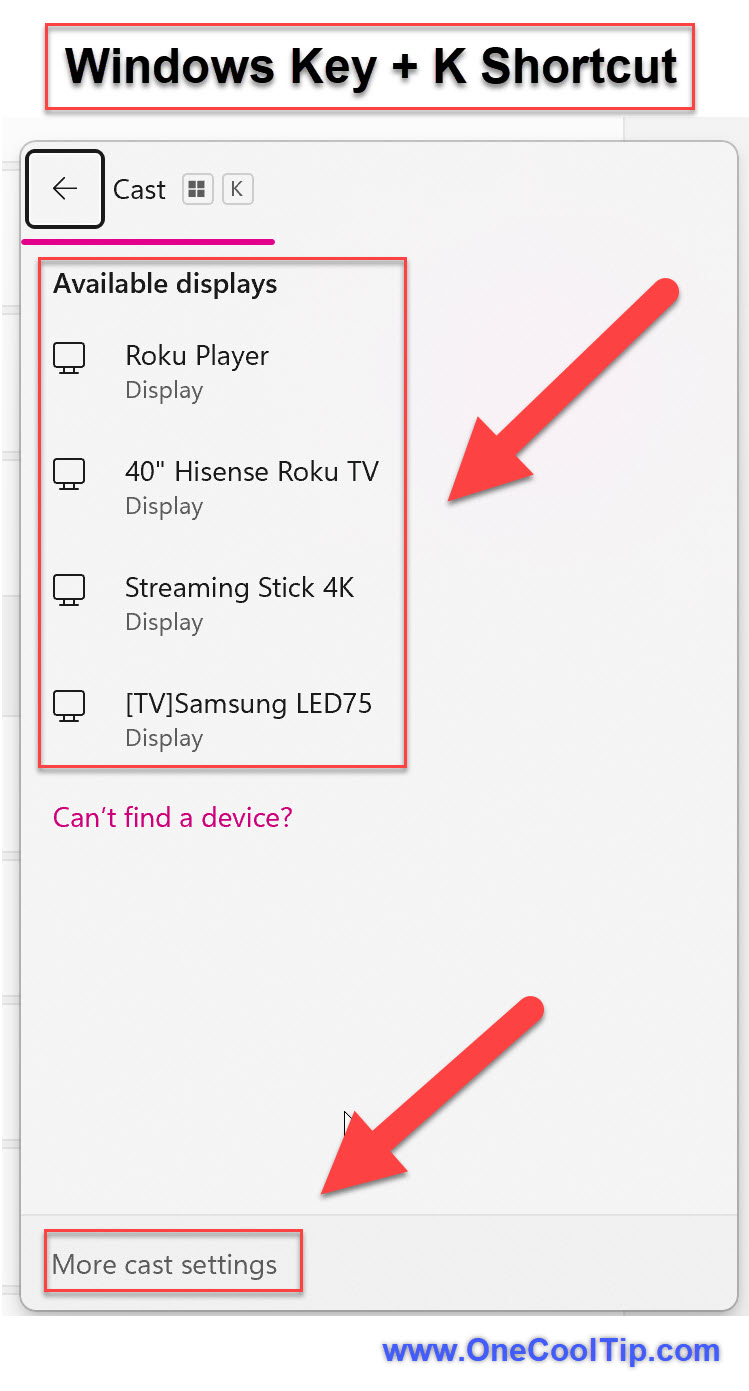
The Windows Key + K shortcut is your gateway to a streamlined media-sharing experience.
Here's how to do it.
-
Ensure your PC and the target device are connected to the same Wi-Fi network.
-
Press the Windows Key + K to open the Connect pane.
-
Your PC will search for wireless displays and audio devices.
-
Select the device you want to cast to from the list.
-
Follow any on-screen instructions to complete the connection.
-
Once connected, your media will be displayed on the chosen device.
-
Click "More Cast Settings" to open the Settings > System > Display screen for more Display settings.
Pro Cool Tip
- In the Settings app (System > Display), you can customize your projection settings – choose whether to extend your display, duplicate it, or show content on only the second screen.
Whether you're looking to improve your presentations, enhance your entertainment, or level up your productivity, this hidden gem is worth mastering.
Find out more HERE.
| | |
🙋♂️ Here's How to Use the New Date Calculator Feature in Windows 11
How many days until Christmas?
Or how many days until your vacation?
When you need to calculate the number of day until a specific day, Windows 11 has an app for that!
It's a hidden feature of the Calculator app.
Here's how to use it:
-
Search for Calculator using the Search function in the Windows bar.
-
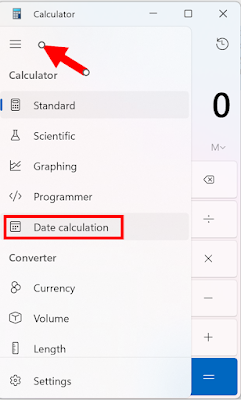
Select the Open Navigation button (the three horizontal lines on the top left corner) and then select Date Calculation.
Select the type of calculator
-
By default, Difference between dates is selected.
- You can use this mode to calculate how many days are between two dates.
- For example, you can find out how many days are left until your birthday or anniversary.
-
To calculate the difference between two dates, select a date under From and another date under To.
- The number of days between the two dates will be displayed at the bottom.
Select From and To Dates
-
To calculate a future or past date based on a given date and a number of days, months, or years, select Add or subtract days from Date Calculation mode.
- For example, you can find out what date it will be 100 days from now or what date it was 100 days ago.
Select Add or subtract days and then enter the number of years, months or days
- To calculate a future or past date, select a date under From and enter a number under Days to add/subtract.
- You can also enter a number under Months to add/subtract or Years to add/subtract if you want to use those units instead of days. The resulting date will be displayed under To.
Learn more HERE.
| | |
❓Did you share this newsletter with three friends yet?
😎 Cool Facts
-
2: Windows Search can now find and prioritize files with as few as 2 characters typed, improving speed and usability. Source.
-
30,000: A typical user’s PC indexes fewer than 30,000 items, while a power user may index up to 300,000. Source.
-
400,000: Windows Search performance issues may begin when the index grows beyond 400,000 items. Source.
-
1 Million: The Windows Search indexer can handle up to about 1 million indexed items, though very large indexes can impact system resources. Source.
⌨️Today's Cool Shortcuts
Windows key: Open Start, then begin typing to search right away.
Windows + E: Open File Explorer fast, which is handy when Search gets you close but not quite there.
Windows + H: Open voice typing, useful when you want to dictate a file name or text instead of typing it.
Ctrl + E: Open Search in most apps.
Ctrl + F: Find text on the current page, great for locating a phrase once you have already opened the right file or article.
😜 Tech Joke of the Day 😅
My folders are so organized that even Search is suspicious.
🔎 Do you have a Cool Tip or tech question? Email us at onecooltip.com@gmail.com.
| | |
Two letters appear
Lost files step into the light
Search remembers me
| |
| 🤔 How do you usually find files in Windows? | | | | Did You See These Cool Tips This Week? | | | | Forum Puts Facebook Groups in One Focused Feed | |
Meta’s new Forum app gives Facebook Groups a separate home, so group conversations do not have to compete with friends, videos, Pages, and other Facebook feed distractions. It is especially useful for people who rely on Groups for advice, hobbies, local tips, travel planning, support communities, and niche discussions.
Read the Newsletter Version.
| | | | Let Copilot Build Better PowerPoint Decks | |
Microsoft PowerPoint’s Copilot Agent features can help you turn a prompt into a polished presentation, then refine slides, visuals, tone, and structure without starting over. The real trick is knowing where the feature appears, who can access it, and how to guide it with better prompts.
Read the Newsletter Version.
| |
ICYMI - In Case You Missed It ...
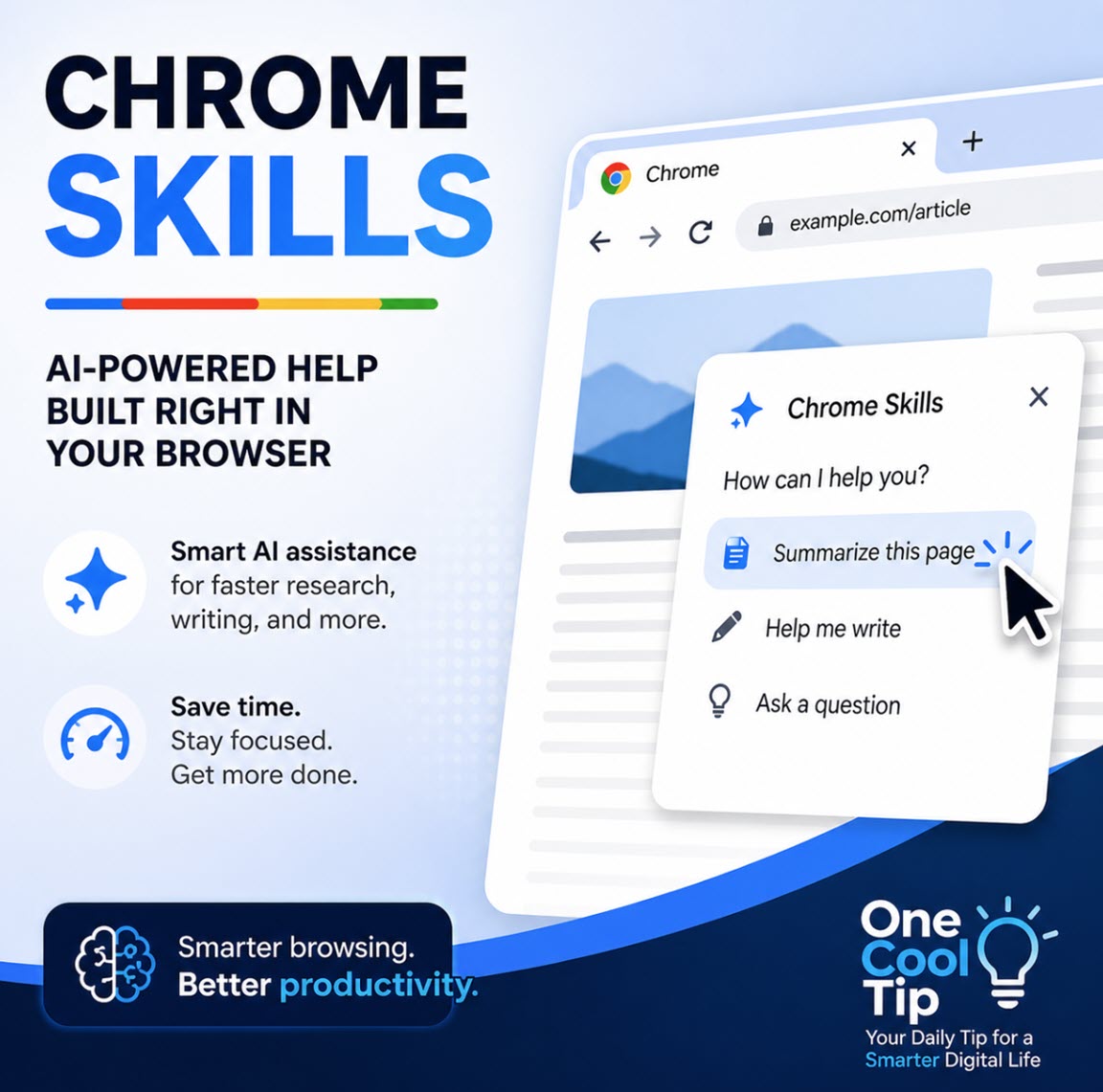
| | | | How to Use Google Chrome Skills | |
Transform your browser into a high-performance command center by using Gemini AI slash commands to summarize, chat, and organize your digital life.
Read the Newsletter Version.
| | Turns out the only thing better than perfect recall… is remembering to look behind the monitor. | | |
Trivia Answer: B) Windows Vista
Windows Search became a standard component of Windows Vista and Windows 7, enabled by default.
Microsoft says Windows Search replaced Windows Desktop Search, which had previously been available as an add-in for Windows XP and Windows Server 2003.
That history matters because modern Windows Search is not just a box in the taskbar.
It is an indexing platform that can search common file types and can be extended by developers to support additional file formats.
----------
Tomorrow's Cool Tip is waiting to amaze you.
Until then, go forth and conquer the tech world with your newfound knowledge!
Be sure to visit www.OneCoolTip.com for Cool Tech Tips for a Cooler Life!
And if you Like One Cool Tip, please support with TipJar!
Enjoy!
Rodger
Chief Cool Tipper
onecooltip.com@gmail.com
| |
| What do you think of today's OneCoolTip newsletter? | | | |
Please Share the One Cool Tip Newsletter!
You asked for it. You got it. There is now a One Cool Tip Newsletter archive. Did you delete a newsletter and want to read it again? Check it out HERE.
Want to help One Cool Tip grow? Please forward this email using the link above. And if you see an OCT social media post, please LIKE, COMMENT and SHARE!
Have you subscribed to the One Cool Tip YouTube channel? Subscribe HERE.
| | Connect with One Cool Tip!! | | |
|
As an Amazon Associate, One Cool Tip may earn a small commission from qualifying purchases.
Our media content is intended solely for informational purposes only. Please do not construe anything here as legal, tax, investment, financial, marital or other advice.
Copyright © 2026 | www.OneCoolTip.com | All Rights Reserved
|
| | | |