AUTO-PAY (ACH) SIGN UP INSTRUCTIONS

December's ACH will be the last recurring auto-payment (ACH) for University Hills-ICHA, GroundSublease-ICHA Real Estate and Townhomes-ICHA processed by ICHA. ICHA is officially transitioning to a new system through the secure Resident Portal. If you wish to continue to make monthly auto-payments via ACH, you MUST complete the following steps by December 31.


If you do not use online banking or you choose not to participate in ACH through the Resident Portal, you can opt to pay by check.


AUTO-PAY SETUP INSTRUCTIONS: Please note: Setting up auto-pay requires use of the email associated with the primary qualified employee to set up the banking information.


1. Log in to the Resident Portal. If you need instructions on how to do that, please refer to the previous email announcing the new system with FAQs.

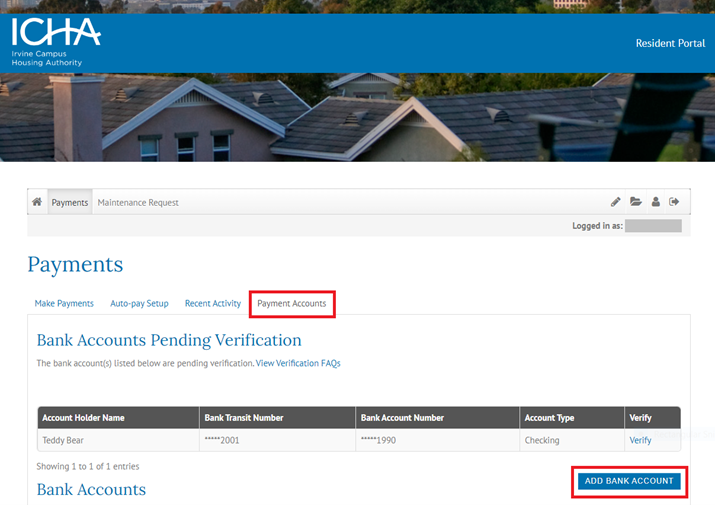
2. Once logged in to the Resident Portal, you will need to add a bank account for payments. Click on Payment Accounts and then ADD BANK ACCOUNT and follow the instructions on the screen.

3. Verify bank account.


HIGHLY RECOMMENDED: Option 1 (less than 5 minutes): The system will guide you through verification steps using Finicity, a secure authentication application that connects directly with your financial institution. Using Finicity, residents grant Yardi Payment Processing permission to pull funds from their bank accounts to pay University Hills invoices. The software will ask you to identify which bank you use. It will then take you to your bank's customer log-in screen. Once you log in, Finicity will ask which information to grant access to. Regardless of what is checked, Finicity only allows access to routing and bank account number. For Finicity security information:

https://www.finicity.com/security


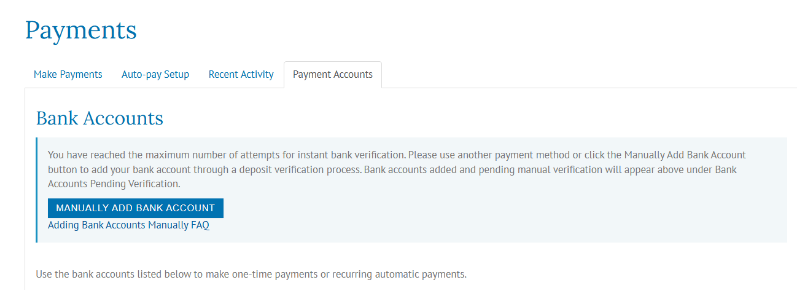
Option 2 (2-5 business days): Manual bank account verification is available as an alternative to Finicity. Once you open and close the Finicity window 3 times, a manual account verify button will appear (see below). Using the manual method involves a penny test, where a small deposit is made to the resident bank account within 3 days. Once the deposit appears in the bank account, return to Resident Portal, log in and click the verify button and then enter the small deposit amount that has been paid to your bank account. If the amount you enter matches the amount paid to your bank account, you'll then be able to make a payment from that account.

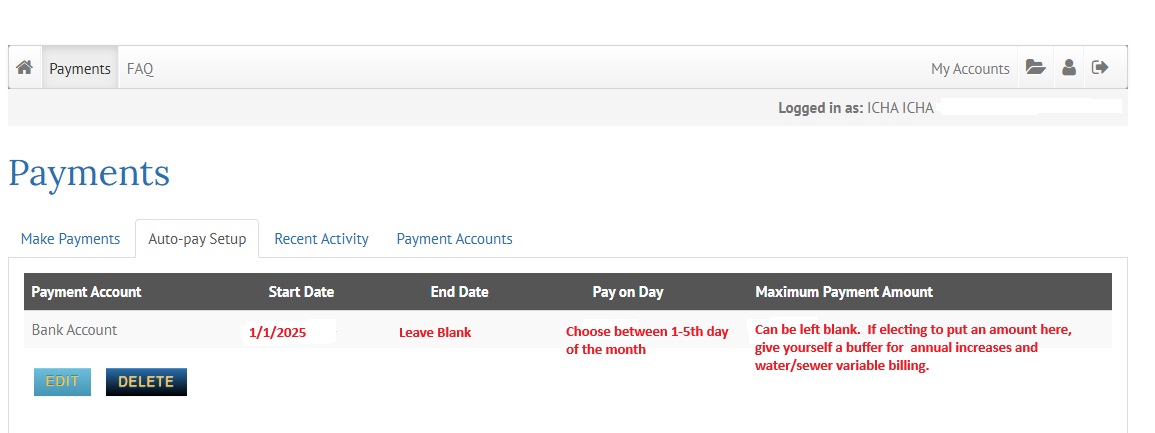
4. Once your bank information is verified, click on SETUP AUTO-PAY. This will ensure there is no interruption in your monthly auto-pay. Please note: The auto-pay option requires the primary qualified employee to set up the banking information. 

Below is an example of the SETUP AUTO-PAY enrollment screen. IMPORTANT: Be sure to enter 1/1/2025 for the start date to avoid paying December charges twice.  


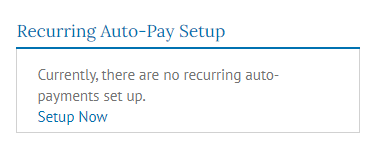
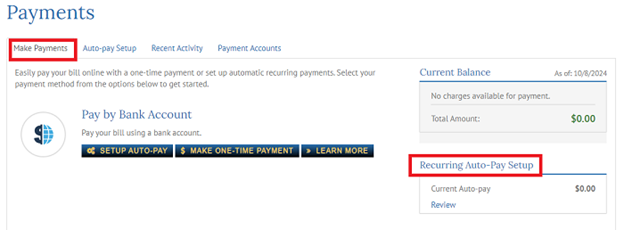
5. Click on MAKE PAYMENTS and check the Current Auto-Pay enrollment box to confirm your enrollment status. If the screen appears as below in the Auto-Pay enrollment box, it means the set up for autopay has not been completed. Review steps 2-4.

When the Current Auto-pay enrollment box appears as below, the account is successfully enrolled. 

Congratulations! You are set up for auto-pay (ACH) in the Resident Portal. You will need to repeat this process for each Resident Account. Again, please refer back to the previous email announcing the new system with FAQs, or contact ichaacctg@icha.uci.edu. We appreciate the opportunity to serve you.


Thank you,


Irvine Campus Housing Authority

ICHA & UHILLS CONTACTS

ICHA reserves the right to send to an unsubscribed e-mail certain important communications such as construction notifications or emergencies. The unsubscribed status will be respected for all other ICHA or HRB communications.