Learn21's Weekly EdTech Update
March 7, 2024
| |
|
How to sort strange things in a spreadsheet
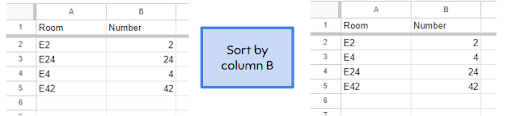
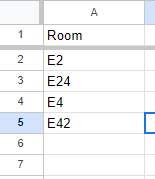
Sometimes you will deal with things like room numbers that consist of a letter and then a number. If there are no leading zeros on the number, sorting in Google Sheets will not sort the rows correctly. For example, if you have rooms E2, E4, E24, and E42, Google Sheets would sort them in this order: E2, E24, E4, E42.
|  | |
I'm going to be using Google Sheets to fix the issue, but you can also use Excel.
The problem
For our example, the issue is that the E is telling the spreadsheet that this cell contains text, and that it should sort the cell as text. The spreadsheet dutifully sorts the cells exactly how one would if one was following the rules for sorting words. However, in this case, that falls apart and puts the room numbers all out of order. Let's fix it.
Additional columns
What we're going to do is extract the number and put it in another column and then sort that column. In B2 we're going to enter =VALUE(REGEXEXTRACT(A2, "\d+")) if we are using Google Sheets or =VALUE(RIGHT(A2, LEN(A2)-1)) for Microsoft Excel.
Google Sheets =REGEXTRACT() is very cool, using regular expressions to elegantly identify any numbers in the target cell and pulling them out.
Unfortunately, Excel doesn't have this cool function so we're stuck using =RIGHT() to grab text starting from the right in cell A2, and grabbing the number of characters (=LEN()) minus 1, which will give us everything except for the E. This falls apart if the text of A2 is something longer, such as EE24. That means under Excel it will be a little more work depending on your data.
After entering your formula, fill down in Column B and you'll see it pulls out the numbers. Now sort by Column B:
| |
|
Your data is now sorted correctly. Column B has now out served its usefulness, so you can delete it.
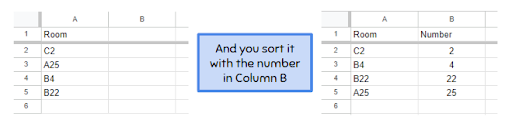
But, what happens when your data looks like this and you sort it by number:
| |
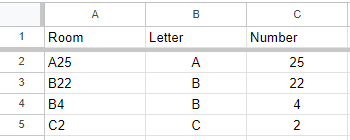
It's still not correct. That's when we have to switch to sorting by range. First, let's make a new column to store just the letter of the room. The function is the same for both Sheets and Excel, =LEFT(A2,1) but the sorting process is different. Fill down and you get: | |
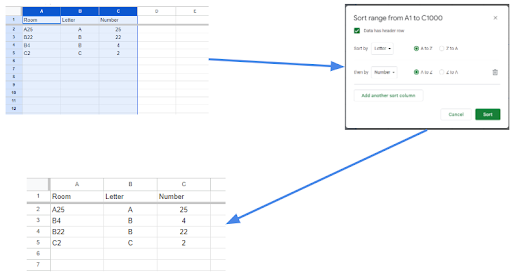
Here's how to sort it in Google Sheets, Excel will have different menu items but the process is the same. Drag across A-C columns to highlight them and select Data ➡ Sort Range ➡ Advanced Range Sorting Options. Check Data has a header row, sorted by Letter. Click Add another sort column, select Number: | |
Voilà! The data is sorted exactly how you would like it to look. This is a pretty simplistic example, but it could be used for more complicated data. Remember to split the data apart based on how you want to sort it. Once you are done sorting, you can delete the columns. HOWEVER, you may want to just hide the columns, allowing you to re-sort later without setting up all of the formulas again. | |
|
Tips and Tricks
Do you need some AI syllabus policy examples? Check out Molly Klodor's presentation from the Ohio Educational Technology Conference, OETC, that took place this past February. Besides demonstrating AI tools that you can use in the classroom, she also shared specific policies that teachers can use with their students on just how much AI a student can use in the teacher's classroom. There are five policies in all, ranging from students not using any AI at all to students using AI to make their best work better, but clearly labeling what the AI did.
That was just one of the many presentations held at the conference. I have a a list of the presentations I attended (along with a shameless plug for my two presentations) and Stephanie Howell of GoldEDU has shared a collaborative Google Sheet where other attendees have entered the sessions they went to, along with presentation information. The Learn21 Team also presented at OETC and shared great insights in their presentations "Pivot Don't Panic" and "PD That Doesn't Suck."
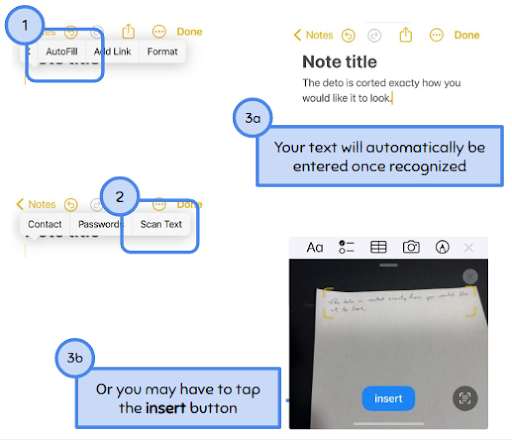
Scan in those handwritten notes with an Apple device. Start by opening up a document with your iOS device by creating a note, or starting an email. Basically, you want something that you would normally type. Tap in the text area to bring up the onscreen menu. Select Autofill ➡ Scan Text. The phone will either automatically enter the text or you may have to tap the insert button:
| |
|
It made two mistakes when it captured my terrible handwriting, but I call it a win because I'm lucky to be able to read it.
I also use this technique when I'm reading non-fiction and I want to take notes out of the book. Instead of retyping the passage, I'll just scan it in with my phone.
| |
|
Reader Tip of the Week
We want to feature your tech tips and tricks! If you have any tips and tricks you would like to share with the Bytes and Insights crew please reply to this email (newsletters@learn21.org) and your tip may be featured in an upcoming newsletter!
| |
|
Learn21 Update
Spotlight on the Innovator in Instruction Award Winners
We're thrilled to spotlight the remarkable achievements of two of the inaugural winners of the Learn21 Innovation in Instruction award winners, Erin Budic, a K-5 Library Media Specialist at Liberty Tree Elementary in Olentangy Local School District and Jackie O'Brien, a dedicated STEM teacher at Indian Hill Elementary School, part of Indian Hill Exempted Village School District. The work of these two distinguished educators embodies the spirit of the Innovation in Instruction Award, demonstrating the profound impact innovative educators can have on their students and the broader educational community.
Erin Budic is celebrated for her innovative use of digital tools in education, transforming the learning environment for her students. Her role extends beyond a Media Specialist; she is also the Instructional Technology Chair and a proactive member of the district's Digital Citizenship Cohort. Erin's initiatives, like the student-led morning news program and an online digital magazine, exemplify her commitment to fostering student learning and engagement through technology. Her dedication not only enhances educational outcomes but also sets a benchmark for digital citizenship and creativity in the classroom.
One project that showcases Erin’s commitment to empowering students through digital platforms is the student-led morning news program and digital magazine that she spearheaded. These projects, entirely run by students, serve as pillars of Erin's instructional approach, embodying real-world applications of digital literacy and media skills. Through her efforts, Erin has created a dynamic classroom environment where students are not just consumers of information but active creators and communicators. Her work with the Digital Citizenship Cohort further underscores her dedication to embedding digital citizenship principles across grade levels, ensuring that students not only excel academically but also navigate the digital world responsibly and ethically.
Jackie O'Brien has been instrumental in transforming traditional computer lab spaces into vibrant hubs of creativity and innovation. Her leadership in developing the iLab—a space that stands for innovation, imagination, independence, and a nod to Indian Hill—has redefined STEM education for grades 3-5 at her school. Under Jackie's guidance, students enjoy unprecedented access to coding, 3D printing, and problem-solving projects that address real-world issues within their school community.
Jackie's exceptional ability to integrate digital tools and methodologies into her teaching has significantly enhanced student engagement and learning outcomes. By moving away from a conventional computer lab setup, she created a flexible, student-owned environment where walls were replaced with opportunities for hands-on STEM education. Her personalized curriculum connects directly to students' studies, incorporating project-based learning (PBL), coding, robotics, and design thinking. Jackie's innovative approach and dedication to professional development have not only made her classroom a tri-state model of excellence but also helped her school achieve the prestigious Ohio STEM Designation in spring 2023.
The everyday work that Erin and Jackie engage in demonstrates a profound impact on their students' engagement, skill development, and understanding of digital citizenship. This holistic approach to education, where technology serves as a bridge to innovative learning and ethical digital interaction, exemplifies the essence of the Innovator in Instruction Award. Their achievements highlight Learn21's mission to recognize educators who are at the forefront of digital education, paving the way for a future where technology and education converge to unlock the full potential of every student. Mark your calendars for the 2024 ETLA Conference so we can all learn together from great educators like Jackie and Erin.
| |
|
ETLA Conference Update
Registration is now open for the ETLA Conference, formerly titled the Ohio CoSN-ISTE Conference. The conference will take place October 20-22, 2024 at the Nationwide Conference Center in Columbus.
Our call for proposals is open through Friday, March 15th. We are looking presenters for our four session types:
- Workshops - 2.5 hour sessions on Monday, 10/21 only. These are hands-on opportunities to dive deep into a topic. Participants should be able to leave with something they can apply in their practice.
- Presentations - 45 minute sessions offered on Monday, 10/21 and Tuesday, 10/22. More traditional conference-type session but instructional best practices are expected to apply.
- OH Talks - 10-minute talks on the main stage at 4pm on Monday, 10/21 or online at a pre-conference session. These are an excellent opportunity for engaging speakers to pontificate on an educational topic about which they are passionate.
- L21 Talks - 21 slides for 21 seconds (no exceptions) on Tuesday, 10/22. These talks are for the adventurous presenter.
We can't wait to see what you put together in your proposals!
| |
|
Extra Credit
If you would have asked me last week if the school calendar was based on farming, I would have said yes. This week, it’s a no. The current school schedule can be traced to no air conditioning in the cities in the 1800s.
Designers are always looking at things differently, and the reason why Chromebook keyboards have lowercase letters is no different. I especially like how the first Android onscreen keyboard also showed the characters in lowercase. Apple didn't add this feature to the iPhone until 2015 with iOS 9 when they set the keyboard to show upper or lowercase, depending on the status of the shift key.
Cursive is making a comeback in California classrooms. When I was in school I couldn't wait to type my papers instead of writing. I could never keep up with my thoughts writing them out, probably because of my undiagnosed ADHD. What do you think about students learning how to write in cursive?
After the initial rush of AI into education, things appear to be slowing down. Larry Ferlazzo ponders whether Sal Khan is right when he says it will not be “the biggest positive transformation that education has ever seen.” I've been using AI mostly for programming and proofreading, and it does pretty well at those two things. AI is a great sounding board, but it can't do anything without a prompt, and that's its biggest weakness. Without someone poking the bear, it's going to just sit there looking pretty. While AI will have an impact on education, it will still require great teachers to tell it what to do.
| |
|
🙋♂️ Bytes and Insights is written by Eduk8me’s Ryan Collins who writes about education and educational technology. He is also the Director of Technology for Kenton City Schools in Ohio. Sign up for his Of Bits and Bytes newsletter at https://eduk8.me!
If you'd like to take a hiatus from Bytes & Insights, please use the Update Profile link below. This will allow you control over which emails you receive from Learn21.
| | | | |