Learn21's Weekly EdTech Update

October 10, 2024

The Final Countdown to The ETLA Conference!

In just 10 days, we’ll be kicking off the 2024 ETLA Conference—and we’re gearing up for an incredible time of learning, connection, and fun! From powerful keynotes to hands-on workshops and lively evening socials, there’s something for everyone at ETLA this year. Haven’t registered yet? There’s still time to secure your spot! Head over to learn21.org/conference to get in on all the action.


Submit Your Song Requests & Get Ready to Shine at ETLA!

We're not just about education—we're about high vibes and unforgettable experiences, too! This year’s ETLA socials are guaranteed to bring the fun, and we want YOU to help shape the playlist for our Live DJ Night on Monday. DJ Dale is ready to spin the tunes, but he needs your song requests! Submit your favorite tracks using this form, and let’s make it a night to remember! But hurry—the deadline to submit is Sunday, October 14th!


Here’s the social lineup to look forward to;


Sunday: Musical Bingo – A Pop of Color

Kick off the conference with bright, bold colors to match the energy of Musical Bingo! Show your personality and start the week with a pop of color.


Monday: Live DJ Night – Razzle Dazzle

Shine bright like a diamond! Whether it’s sparkle, glitter, or shine, dress to impress and get ready to light up the dance floor as we party the night away.


Want to take the ETLA spirit home with you? Check out our exclusive ETLA merch in partnership with AppealNow! From stylish apparel to accessories, you can show off your enthusiasm for Learn21 and ETLA everywhere you go.


Join the Learn21 Team for L21 Talks & Dev Office Hours

We’re not just celebrating—we’re also diving deep into the latest in edtech innovation. The Learn21 team is excited to meet with you during our L21 Talks and Developer Office Hours. Whether you're curious about the future of TDT-Asset, TDT-Helpdesk, TDT-Identity, or edWise, we’ve got you covered! Plus, there’s a full lineup of workshops designed to equip you with the tools and knowledge you need to level up your edtech game.


Here's where you can find us:

  • L21 Talks: Tuesday, 10:00 - 10:45 AM – Updates on TDT and edWise
  • Developer Office Hours: Tuesday, with sessions at 12:15 PM, 1:15 PM, and 2:30 PM


ETLA Conference Workshops: Unlock the Latest in EdTech

Don’t miss these must-attend sessions! Packed with insights, strategies, and hands-on learning, our workshops are designed to address the most pressing issues in education technology today:


  • Mastering Cybersecurity: Monday, October 21, 1:00 - 3:30 PM
  • Ohio SB29: Impact, Implications, and Resources: Tuesday, October 22, 11:15 AM - 12:00 PM
  • Empower and Connect: Elevating Women in Leadership: Tuesday, October 22, 12:15 - 1:00 PM
  • Sustainable Device Strategy Framework: Tuesday, October 22, 12:15 - 1:00 PM
  • Building a Culture of Data Privacy: Tuesday, October 22, 1:15 - 2:00 PM
  • The New Heightened Cybersecurity Leadership Imperative: Tuesday, October 22, 2:30 - 3:15 PM


We’re just days away from bringing together the best and brightest in edtech! Whether you’re attending sessions, joining the socials, or swinging by the Learn21 booth, we can’t wait to connect with you.


Let’s make this the best ETLA Conference yet! We can't wait to you there!

For full conference details and to register, visit: learn21.org/conference

Translation Options in Google Chrome

Google has deprecated the translate extension for Google Chrome and has been building integrated translation functions directly into the browser. This feature allows users to translate entire web pages or individual words and phrases into several different languages instantly.


Web Page Translation

Google Chrome can translate web pages into the users preferred language, either on demand or automatically. To manually translate a page, right-click on the page anywhere and then click on "Translate to [Preferred Language].” To set up automatic translation, click on the three vertical dots in the top right corner of the browser, select "Settings," then "Advanced," "Language," and finally "Offer to translate pages in this language." Then, find your preferred language from the list and move the slider to "ON."


Individual Words or Sentences Translation

To translate individual words or phrases, simply highlight the desired text with your mouse. A pop-up will appear with the translation. If the pop-up doesn't appear, right-click on the highlighted text and select "Translate to [Preferred Language]" from the dropdown menu.


Live Caption with Translation

Live caption is a feature of Google Chrome that provides close caption for audio or video sources playing in the browser. The browser can also automatically translate the captions for the student. To activate this feature, click on the three vertical dots in the top right corner of the browser, select "Settings," then "Advanced," "Accessibility," and finally "Live Caption." After that, ensure that the "Live Caption" option is switched on.


Google Lens

The final translation feature is Google Lens, which is now built into Google Chrome. Google Lens will take a screenshot of the page and offer all sorts of information about the page. You can also highlight text on the page and translate it.


Where this really shines is with handwritten text. Google Lens will allow the user to highlight handwriting and then translate it. This also works with an entire page, translating handwritten notes for the user.


Other Translation Options

Besides these features built into the browser, there are other translation options that may be beneficial to you. Canva can take presentations or PDFs and translate them for you. Also, Google Translate is a standalone website that allows you to input text or upload documents for translation. Be mindful though, while AI translation tools are improving, they are not perfect. It's always best to have a human proofread important translations to check for errors.

Tips and Tricks

Jumping Directly to an App with the Keyboard


One of my biggest annoyances when using a computer is switching between apps. When I want to go to my Gmail, I want to quickly jump to it, not use alt/command tab and cycle through my open windows or have to click on the icon in the taskbar or dock. The past two weeks I’ve made a conscious effort to use the keyboard and switch directly to the app I want, and it’s diminished my annoyance.


First things first, I have not figured out an easy way to do this on macOS. ChromeOS and Windows both have these keyboard shortcuts built in, but macOS doesn’t.


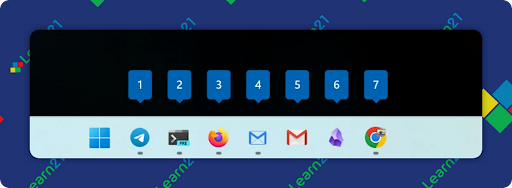
When you view the taskbar in ChromeOS or Windows, each app is numbered starting from the left.

Under Windows, to switch to an app, you hold down the {Windows} key and tap the number of the app. On ChromeOS it is the {Search} key. For example, Firefox is the third icon, so I can jump to it by pressing {Windows/Search} + 3. In case Firefox is not open, it will start.


I’ve started to pin my apps in a specific order, so I know that {Windows/Search}-4 will always open my email. Also, if you keep the {Windows/Search} key held down and repeatedly tap the number key, it will cycle through the open windows for that particular app. Not exactly perfect, but better than cycling through all of the open windows.

Extra Credit

This article by Naomi Schaefer Riley highlights the decline in book reading among children, which is affecting their preparedness for university life. With fewer students reading for pleasure and a decrease in book assignments in schools, students are entering higher education lacking essential critical reading and writing skills. This shift has driven a cycle of decreasing educational expectations, sparking issues in higher learning environments such as diminished civil discourse and understanding.


A recent study has highlighted a peculiar cognitive disconnect between physicians and AI like GPT-4. It turns out GPT-4 can outperform doctors in diagnostic accuracy. Yet, when paired with doctors, the doctors didn't massively improve despite having the AI as a helper, suggesting a rift in collaborative workflow. Some of the reasons are trust issues, unfamiliarity with how to prompt the AI effectively, cognitive load, and differing diagnostic approaches. Physicians, steeped in years of clinical experience, might be a bit skeptical of AI suggestions, making effective collaboration tricky.


Many college students are turning to AI tools like ChatGPT or even trusty old SparkNotes to breeze through their reading assignments without actually turning any pages. This trend isn’t new, professors have noticed a declining interest in assigned texts across the board. Some educators are embracing creative strategies, such as incorporating more accessible media or setting up class sessions that encourage reading for comprehension and discussion. Students cite packed schedules with jobs and extracurricular activities as major hurdles to their reading, and sometimes they just don’t find it engaging.

🙋‍♂️ Bytes and Insights is co-authored by Eduk8me’s Ryan Collins who writes about education and educational technology. He is also the Director of Technology for Kenton City Schools in Ohio. Sign up for his Of Bits and Bytes newsletter at https://eduk8.me!


If you'd like to take a hiatus from Bytes & Insights, please use the Update Profile link below. This will allow you control over which emails you receive from Learn21.

X Share on X
LinkedIn Share on LinkedIn

www.learn21.org

LinkedIn        X        YouTube        Instagram