Learn21's Weekly EdTech Update

February 5, 2026

From Compliance to Inclusion: Preparing School Districts for ADA Title II Digital Accessibility

By Mike Porter

Summary & Key Actions for School Districts

In April 2024, the U.S. Department of Justice (DOJ) issued a final rule updating Title II of the Americans with Disabilities Act (ADA). This rule requires that web-based and mobile app-delivered digital learning resources used by state and local governmental entities, including school districts, must be accessible and usable by students with disabilities. The standard for this accessibility is WCAG 2.1 Level AA, with implementation deadlines generally by 2026 or 2027 depending on specific factors. (AEM Center)


This update makes explicit what accessibility advocates, special educators, and civil rights law have long held: students with disabilities are entitled to access digital learning resources with equivalent ease of use as students without disabilities. This includes ensuring materials adhere to the POUR principles—Perceivable, Operable, Understandable, and Robust.


The rule covers a broad range of digital interactions and instructional materials. In practical terms, this includes:

  • Curriculum platforms and content delivery systems
  • Third-party instructional content embedded in learning systems
  • Commercial, open, or teacher-developed digital resources
  • Online assessments and grading systems
  • Communication systems (e.g., school-to-parent emails, notifications)
  • Mobile apps used for instruction or information delivery


There are limited exceptions to these rules. For example, archived materials or legacy documents may be an exception. However, these must be made accessible if updated after the rule takes effect or upon request.


Action Steps for School Districts

To comply with the new ADA Title II requirements and proactively support all learners, districts should consider the following practical actions:


1. Conduct an Accessibility Audit

  • Inventory all online learning platforms, content, apps, and communication tools that students interact with.
  • Identify where current resources fall short of WCAG 2.1 Level AA standards.
  • Use tools (e.g., accessibility checkers) or partner with accessibility specialists to evaluate compliance.


Outcome: A clear understanding of gaps that must be remediated before compliance deadlines.


2. Establish a District Accessibility Plan

  • Create a documented plan with timelines, roles, internal checkpoints, and reporting structures.
  • Prioritize high-impact systems (e.g., core curriculum platforms, assessments) early in implementation.
  • Coordinate efforts across departments (curriculum, IT, special education, communications).


Outcome: A structured road map aligned to legal deadlines and practical needs.


3. Build Capacity & Professional Learning

  • Provide training for educational technology staff, curriculum designers, and teachers on accessible design and tools.
  • Learn and apply POUR principles in content selection and creation.
  • Use free or low-cost professional development resources from the AEM Center and partners.


Outcome: Staff equipped to evaluate and create accessible materials and identify accessibility barriers.


4. Update Procurement Practices

  • Revise vendor contracts and RFP language to require accessibility certification or evidence of WCAG 2.1 Level AA conformance.
  • Vet products before purchase using criteria that align with accessibility benchmarks.


Outcome: New acquisitions that are accessible by design, reducing future remediation needs.


5. Engage Stakeholders & Provide Supports

  • Involve families and students in feedback loops about digital barriers.
  • Make processes for requesting accessible formats clear and responsive.
  • Partner with external organizations (e.g., AEM Center, SETDA) for guidance or technical assistance.


Outcome: Stronger alignment between district practices and the lived needs of students with disabilities.


6. Monitor & Report Progress

  • Use measurable benchmarks—such as the Quality Indicators for Accessible Materials and Technologies—to track district progress.
  • Share updates with boards and communities to build transparency and support.


Outcome: Ongoing accountability and continuous improvement toward compliance and inclusion.


The Bottom Line

The ADA Title II rule demands that digital educational environments be fully accessible. For districts, this means moving beyond reactive fixes to strategic, system-wide planning that ensures all students can access, interact with, and benefit from digital learning with equity and dignity.

Media Literacy Minute

Big Tech Faces New Scrutiny Over Social Media Addiction

A BBC article reports on a major legal development in which in which TikTok has reached a settlement just before a landmark trial alleging that their platform contributed to social media addiction and mental-health harms. The story highlights how mounting legal pressure and public concern are forcing renewed conversation about the responsibilities of digital platforms in shaping young people’s online experiences. 


Spotting Manipulative Language With RageCheck

A Lifehacker article introduces “RageCheck,” a free tool that analyzes online content for emotionally charged, manipulative language patterns rather than factual accuracy. By identifying outrage-bait framing and other rhetoric designed to provoke strong reactions, this tool can help readers think more critically about the content they consume and recognize influence tactics that aren’t always obvious at first glance. 


Deep Reading to Strengthen Critical Thinking

An article from The Conversation explains how practicing deep reading — slowing down, engaging with complex texts, and making connections — can boost critical thinking and reduce susceptibility to misinformation. The authors argue that sustained, thoughtful reading builds analytical habits that are especially important in an era of scrolling, skimming, and rapid information overload.

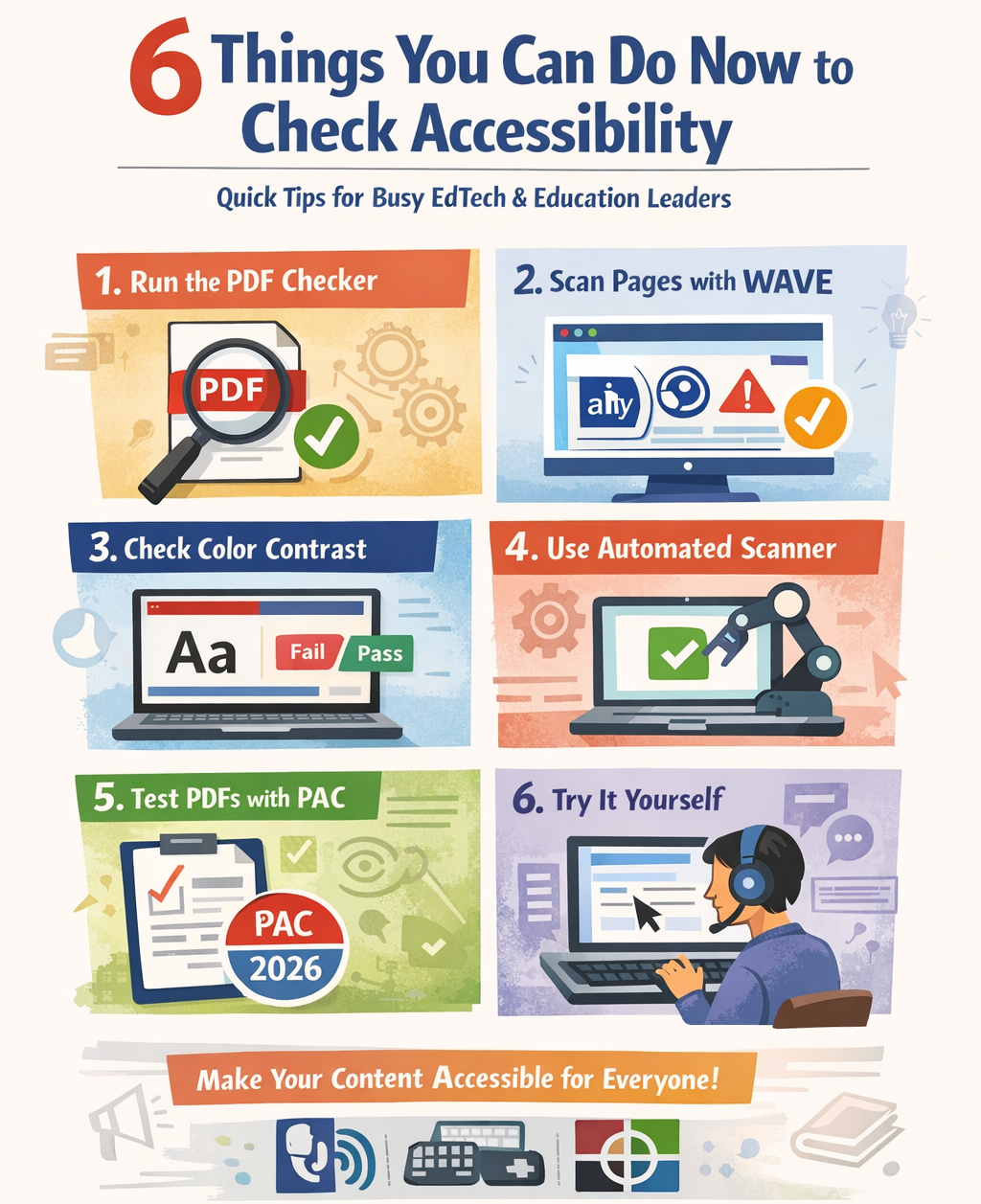
6 Things You Can Do Now to Check Accessibility

By Dr. Stacy Hawthorne

A practical, no-excuses guide for busy EdTech and education leaders

Accessibility often gets framed as a “big lift” or something we’ll handle later. But the reality is much simpler and more urgent. Every day, we send PDFs, slide decks, web pages, newsletters, and forms into the world assuming they work for everyone. Many don’t.


The good news? You don’t need to be an accessibility expert to make meaningful improvements. Here are six things you can do right now to quickly check, and significantly improve, the accessibility of the materials you’re already sharing.


1. Run the Built-In Accessibility Checker in Adobe

If you’re creating or distributing PDFs, this one is non-negotiable.

Adobe Acrobat Pro includes a built-in accessibility checker that scans for common issues like missing tags, incorrect reading order, missing document titles, and unlabeled form fields. It won’t fix everything automatically, but it will show you exactly where problems exist.

Why it matters: PDFs are one of the most common (and most inaccessible) file types used in education. A quick check here can prevent barriers for screen-reader users before a document ever goes out the door.


Quick win: Even reviewing the checker’s error list without fixing everything immediately raises awareness and improves future document creation.


2. Check Any Web Page with WAVE

The WAVE Web Accessibility Evaluation Tool from WebAIM is one of the fastest ways to understand how accessible a web page really is.

Paste in a URL or use the browser extension, and WAVE visually overlays accessibility issues, missing alt text, low contrast, heading structure problems, and more, directly on the page.


Why it matters: WAVE doesn’t just give you a score; it shows you where users may struggle. That context is powerful for designers, content creators, and leaders alike.


Quick win: Run WAVE on your homepage or most-visited page. Fixing even one or two flagged issues can dramatically improve usability.


3. Check Color Contrast (Your Eyes Will Lie to You)

Color contrast issues are everywhere—especially in slide decks, infographics, and modern website designs.


The Color Contrast Analyser lets you test foreground and background color combinations to see if they meet WCAG contrast standards.

Why it matters: Low contrast doesn’t just affect users with visual impairments, it impacts anyone reading content on a projector, mobile device, or in bright light.


Quick win: Test the text color and background on your most commonly used slide template. Fixing that one template helps every future presentation.


4. Use an Automated Website Scanner

Tools like Lighthouse (from Google) can quickly scan pages for accessibility violations.


Why it matters: Automated tools catch patterns humans often miss, especially across larger sites or repeated components like navigation menus.


Important note: Automated tools typically catch only about 30–40% of accessibility issues. They’re a starting point, not the finish line.


5. Test PDFs with PAC (PDF Accessibility Checker)

If you want a second opinion beyond Adobe, PAC 2026 provides a free, rigorous, standards-based PDF accessibility check.


Why it matters: PAC is especially helpful for high-stakes documents like reports, policies, or legally required communications.


Quick win: Use PAC on one “important” PDF you share publicly and compare the results to Adobe’s checker—you’ll learn a lot fast.


6. Do One Manual Reality Check

No tool replaces human experience.


Try this:

  • Navigate your website using only a keyboard
  • Turn on a screen reader for five minutes
  • Increase your browser zoom to 200%
  • Remove images and see if content still makes sense


Why it matters: Accessibility isn’t about compliance—it’s about usability. These quick tests build empathy and reveal issues no checker can flag.


Final Thought: Progress Beats Perfection

Accessibility isn’t an all-or-nothing endeavor. Every document checked, every contrast fixed, every heading structured correctly makes learning more inclusive.


If you’re waiting until you “do it perfectly,” you’ll never start. Instead, start with one tool, one file, one page, and do it today.

Because accessibility delayed is accessibility denied, and the tools to do better are already at your fingertips.

Big Ideas

Big ideas image

ChatGPT plays “guess how old I am” to calibrate content to that user

You may have heard that some of the big AI players (ChatGPT/Grok) are planning to allow more adult-themed content. In the case of ChatGPT, the application itself will attempt to determine the age of the user in order to release (in)appropriate content to that user. This is yet one more approach to the tricky question of how tech puts into place age gates. More here. 


Open campus? 

In today’s edition of how fast technology is moving (literally in this case), the interesting concept>prototype>proof_of_concept>scale can be found in the case of drone delivery systems. Think about small (4lb) packages from restaurants or drugstores being literally dropped off at your doorstep by Zipline drone, a pioneer in this space. Zipline has seen incredibly rapid growth, and is ramping up to build 15,000 delivery drones a year. One wonders how long it will be until students get fast food, fast, to their schools via drone delivery. 


More on tech and age

The article explains how tech-savvy millennials are reshaping today’s workplace. Having grown up with digital technology, millennials are highly skilled at using tools to automate tasks, improve collaboration, and increase efficiency. Their comfort with technology is accelerating digital transformation across organizations. Millennials also value flexibility, driving the rise of remote and hybrid work models that emphasize results over fixed schedules. In addition, they support inclusive workplace cultures, reverse mentoring, and skills-based hiring rather than focusing solely on degrees. To attract and retain millennial talent, companies must invest in modern technology, flexible work options, continuous learning, and values-driven leadership.

We want to hear from you! Each month we will ask a fun question to learn more about you. Please take a couple of minutes to let us know what the weirdest app you have been asked to unblock in your tech career!

X Share on X
LinkedIn Share on LinkedIn

www.learn21.org

LinkedIn        X        YouTube        Instagram