Oct. 20, 2025


Build explanatory videos into your engagement strategy

Engaging today’s news audiences means ditching a one-size-fits-all approach to presenting vital information. Audiences don’t just read the news, they watch it, scroll it, and share it. And while accuracy is paramount, authenticity is essential when presenting complex subjects and information.


In today’s installment of Camp Canva, we’re covering one way to inject authenticity and context into your work: Creating short, asynchronous explainer videos to layer with your coverage. A well-crafted video explainer pairs clear narration with the strong visuals you’re already creating in Canva.


Bonus: With Canva, you don’t need a production studio.


Here's a non-news example of what we mean by creating an explainer video using Canva’s free online screen recorder: 

In Canva, you can create an explainer video over any of your designs, presentations, or graphics, giving you the opportunity to connect with your audience and explain your journalism in your own words.


Let’s try it.


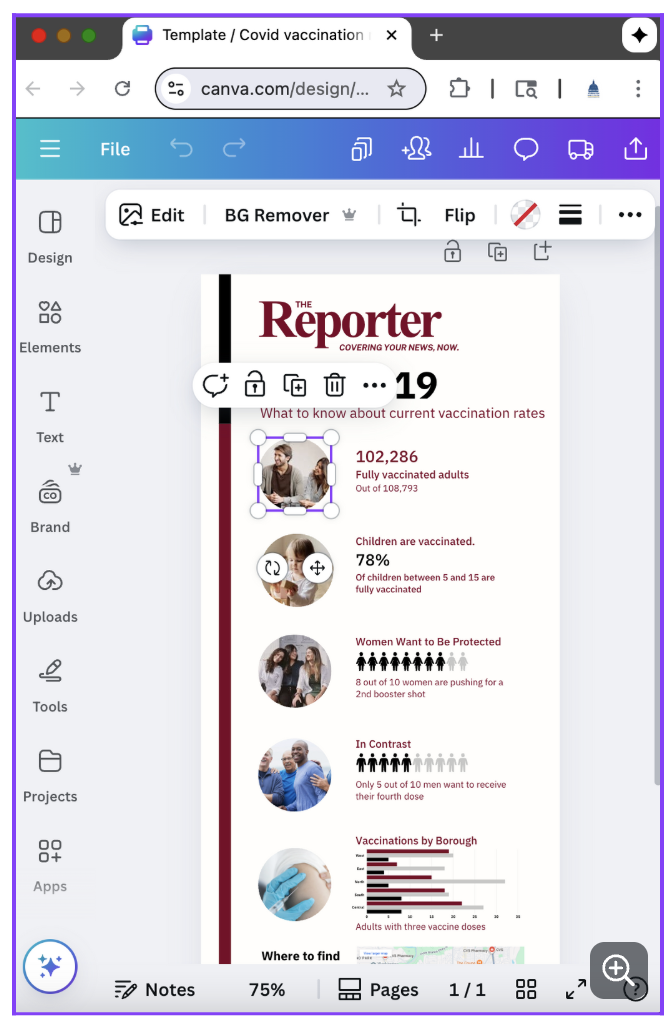
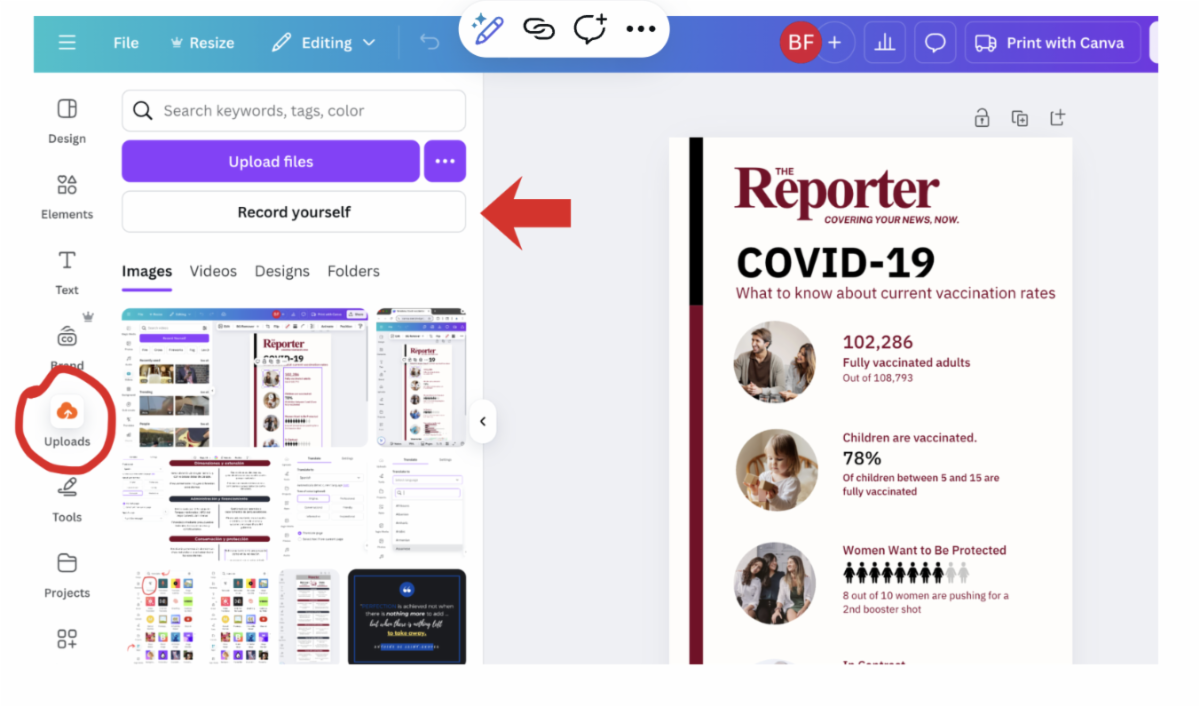
First, prepare your graphic. In this example, we’re opening a customizable infographic template we created during an earlier Camp Canva installment on infographics. 

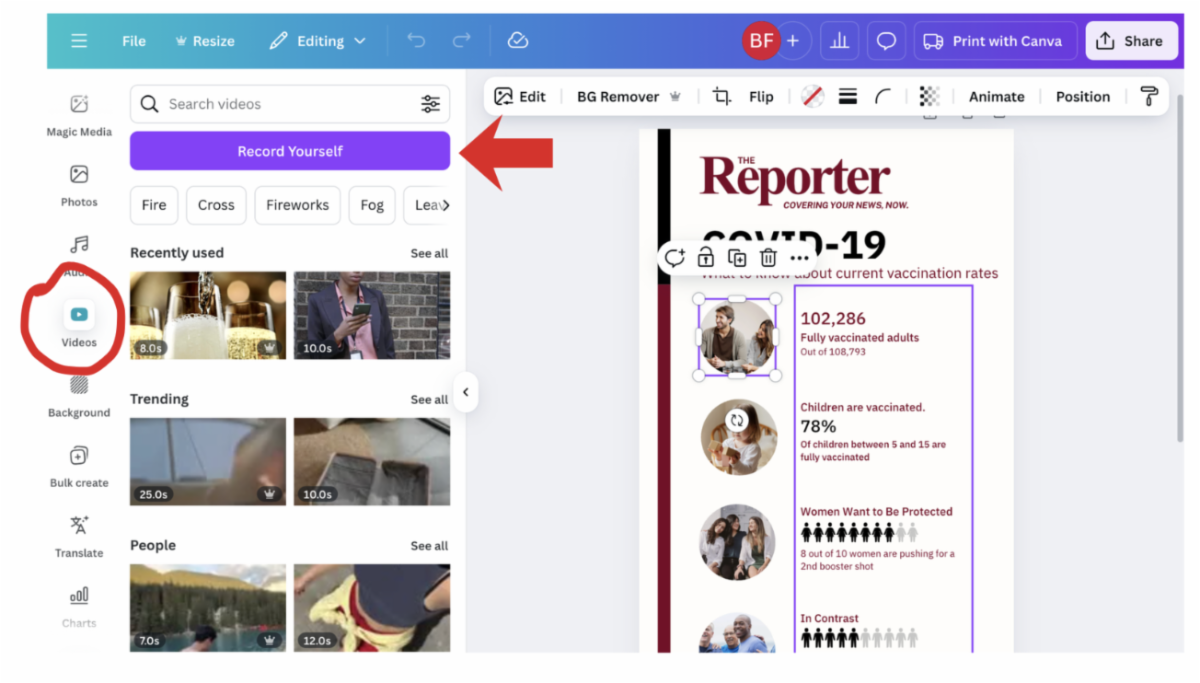
Next, we’ll open Canva’s Recording Studio. You can do this by selecting “videos” in the far left column of your window. 

Another option to enter the Recording Studio is to select “Uploads” in the far left column of your window.

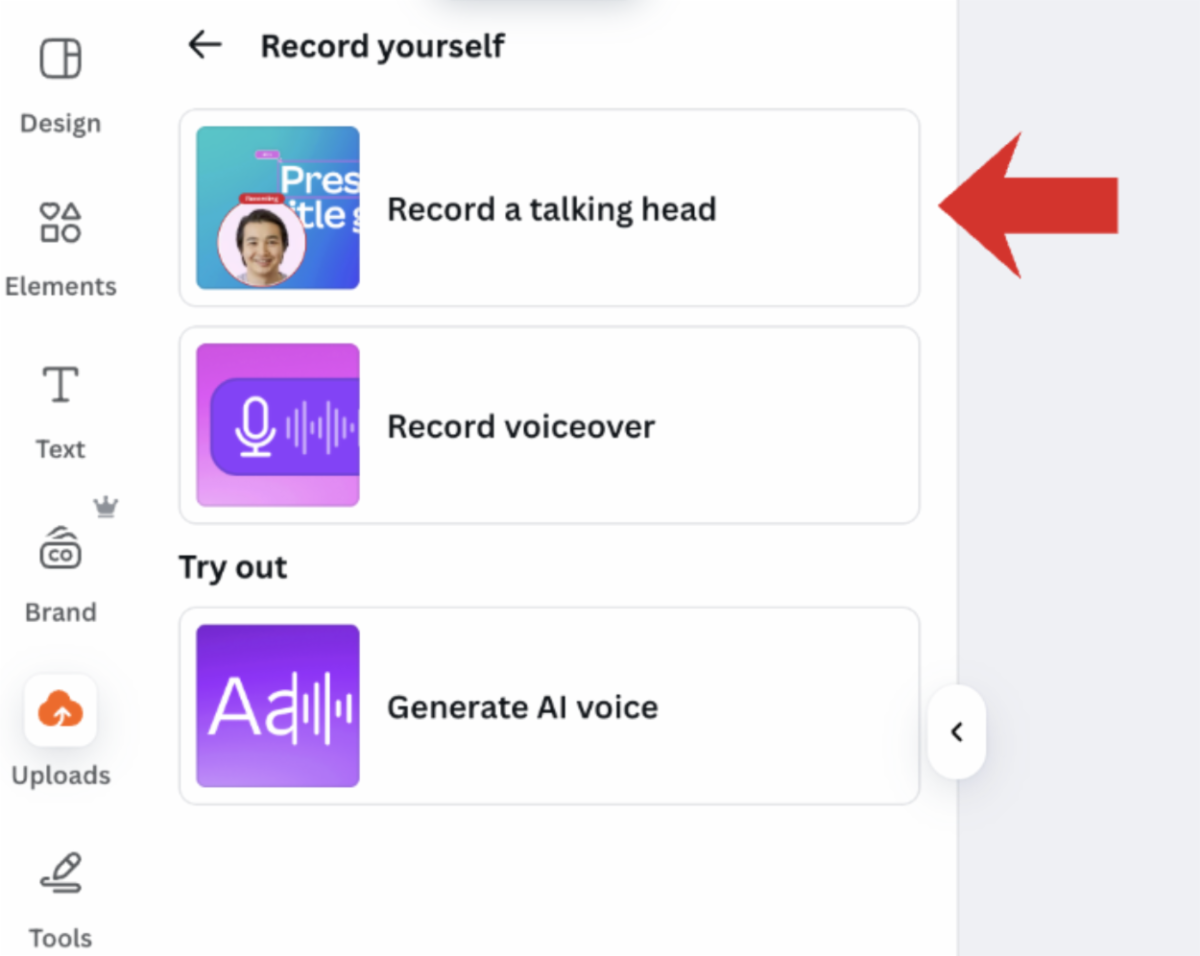
From here, select “Record yourself,” then “Record a talking head”. (You can also do a simple voiceover recording if you prefer.) 

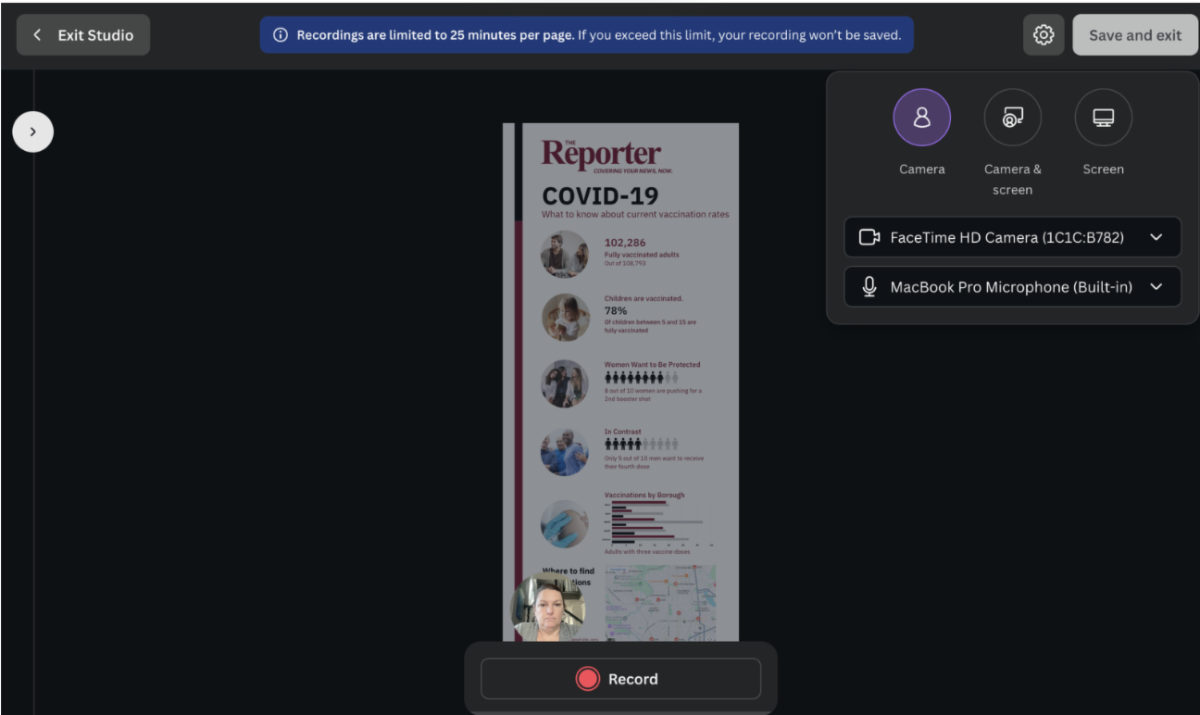
Once you select “Record yourself," you’ll see yourself in a circle toward the bottom of your design. That circle is mobile; that is, you can move it where you’d like within the design. First, though, let’s adjust the settings.


You’ll verify your camera and microphone settings in the top right corner. If the options disappear, you can use the gear icon to bring them back to your screen.

In Canva, you can record using just your camera, just showing your screen, or both your camera and your screen. In our example, we will select camera only.


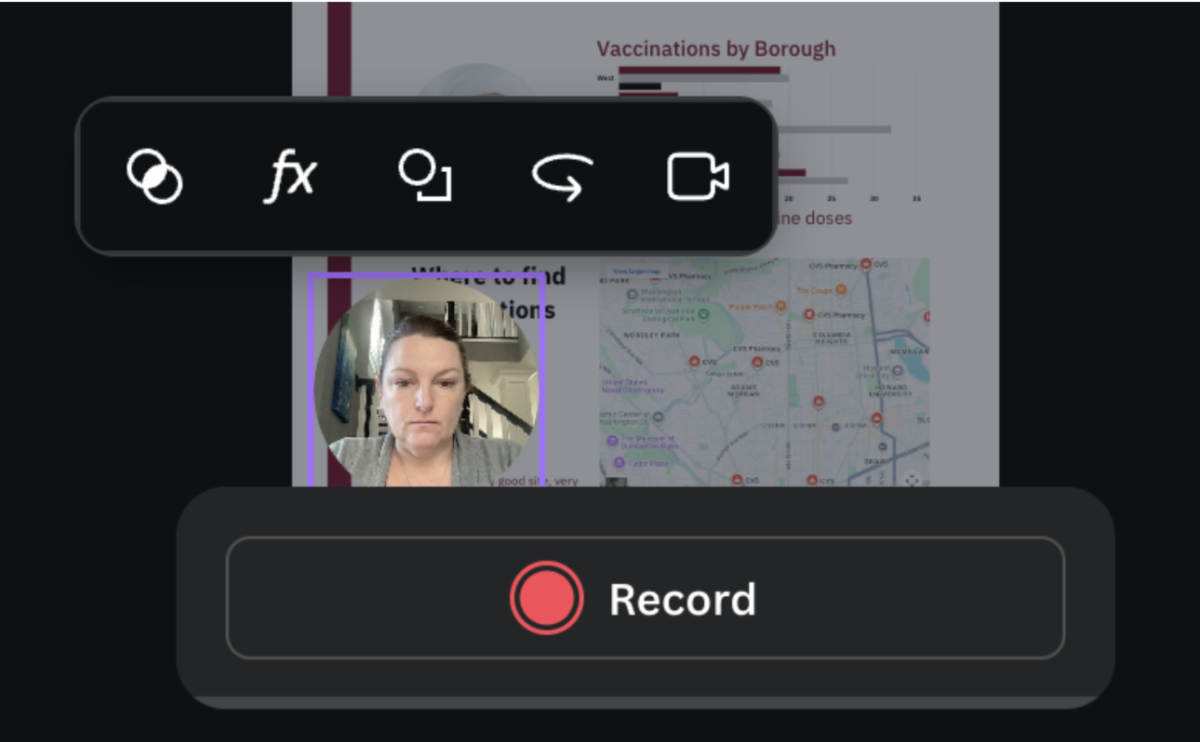
Wait! Don’t record just yet. Tap on your “talking head” circle and notice the options you have for filters, special effects, the shape of your recording, and for screen mirroring. Always check to ensure your preferences are locked in. 

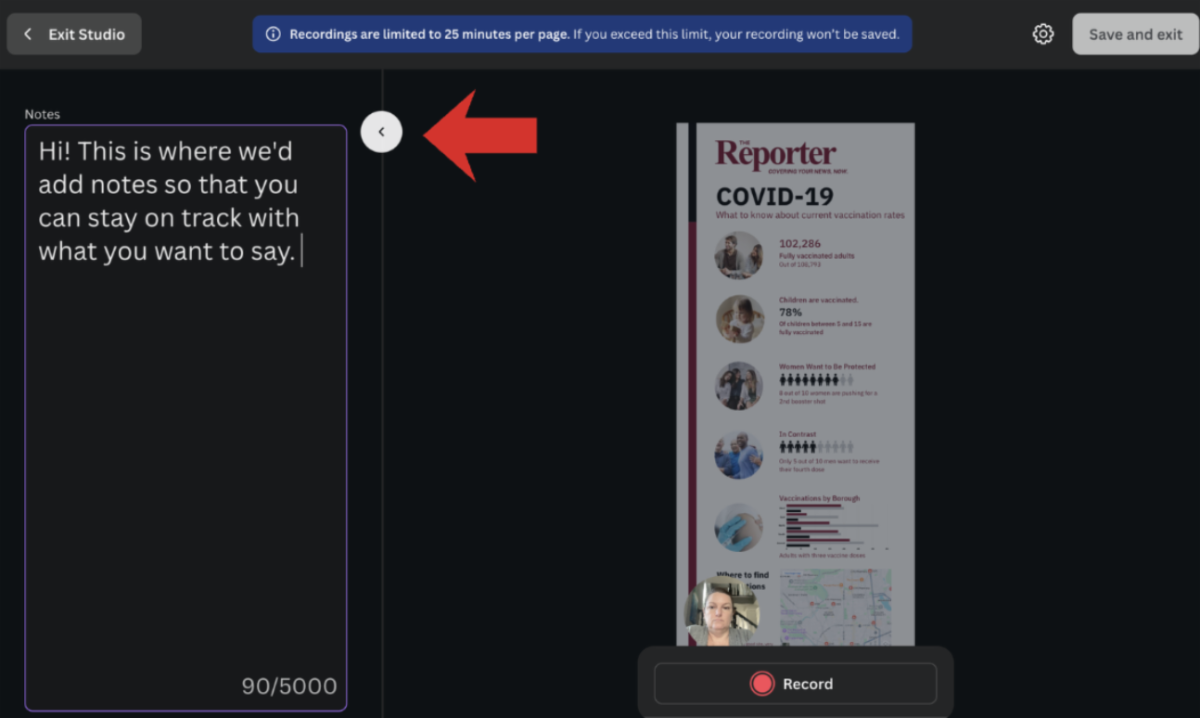
And last note before you begin recording: Some people find it helpful to have notes or even a script ready ahead of recording. You can add notes to your design (visible only to you) by selecting the small circle in the top left corner of your recording window.

Now, you’re ready to record. To start, select “Record” at at the bottom of your window. Canva will initiate a three-second countdown before the recording begins. Here are a few pointers while recording:


  • Remember to look at your camera and notes, not your face, while recording. Eye contact with the audience is important!
  • You can pause your recording at any time.
  • If you need a few takes, that’s OK! You can delete and replace recordings you don’t like.


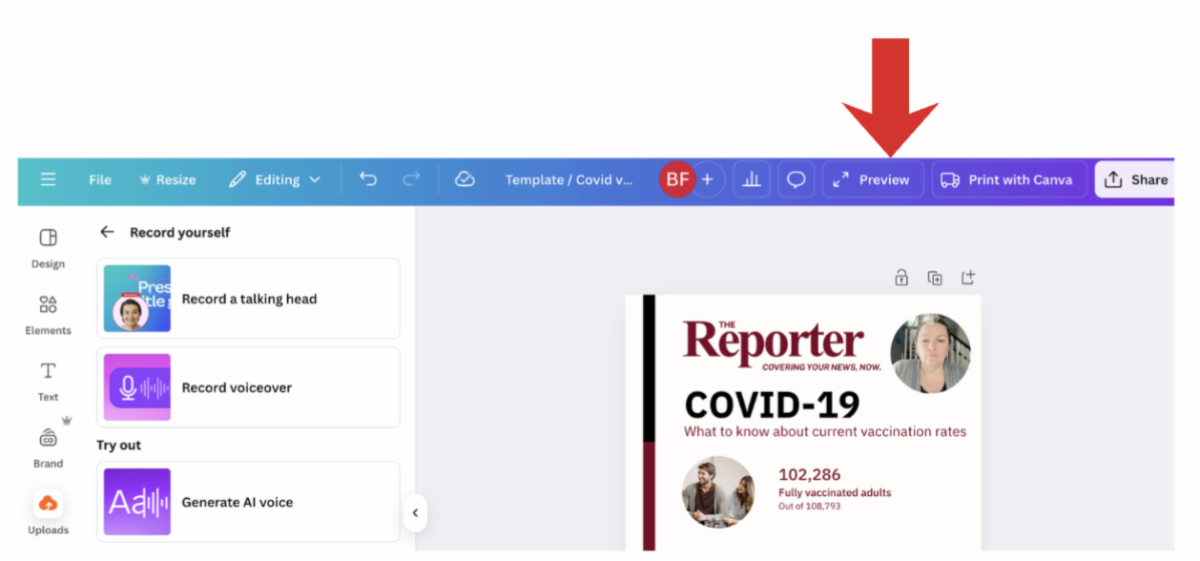
Once you are satisfied with your recording and infographic, it’s time to preview what you’ll be sharing with the world. To do so, select “Preview” at the top of your window.

Watch your preview and adjust anything you’d like ahead of sharing. To share, explore your options by selecting “Share” in the top right corner of your Canva window. You can share directly to your linked social media channels, download the file to use across platforms, create a QR code to share in ads, and more.


👋 Try it


Next time you publish a text-heavy story or an information-laden chart, create a 30-second video or a one-frame infographic to summarize the key point.


Track engagement — you’ll likely see higher time-on-page, more shares, and stronger recall.


Audiences don’t just want to know the news — they want to understand it. And visuals are the bridge that gets them there.

ICYMI


If you’ve joined Camp Canva at our halfway point, welcome! We’ve covered quite a bit of ground since starting on Oct. 1 with these daily hints and tips for deploying Canva in your journalism work. Here’s a look at archived editions that hit on infographics, Canva Sheets, and templates that we’ve referenced in today’s installment:


See more of our archives here.


Coming this week: More on creating fast, effective video using Canva tools. 

Camp Canva is a partnership between the National Press Club Journalism Institute and Canva to offer 31 days of free training for journalists today and continuing through the month of October. Camp Canva is a self-paced, opt-in e-mail learning series that offers quick tips and tricks for media professionals to supercharge storytelling and audience reach. Learn more about Canva's World Tour.


For any questions about this free program, contact Institute staff.


LinkedIn  YouTube  Web  Email