Oct. 6, 2025


Content planning with Canva Sheets


Planning is one of the most underrated superpowers a journalist can have. It’s what turns a jumble of ideas, deadlines, and interviews into a clear, focused story with impact. When you take time to plan — whether that’s sketching out your reporting timeline, mapping your sources, or deciding what visuals you’ll need — you’re giving yourself space to think strategically.


Good planning also helps you stay flexible and work collaboratively. In earlier installments of Camp Canva, we explored how journalists can use Whiteboard templates to kickstart conversations on defining your audience, identifying potential sources, and plotting a video story arc.


Today, we’ll explore Canva Sheets as a content management system and design one method for story tracking, whether you are working in a newsroom or as a news entrepreneur.


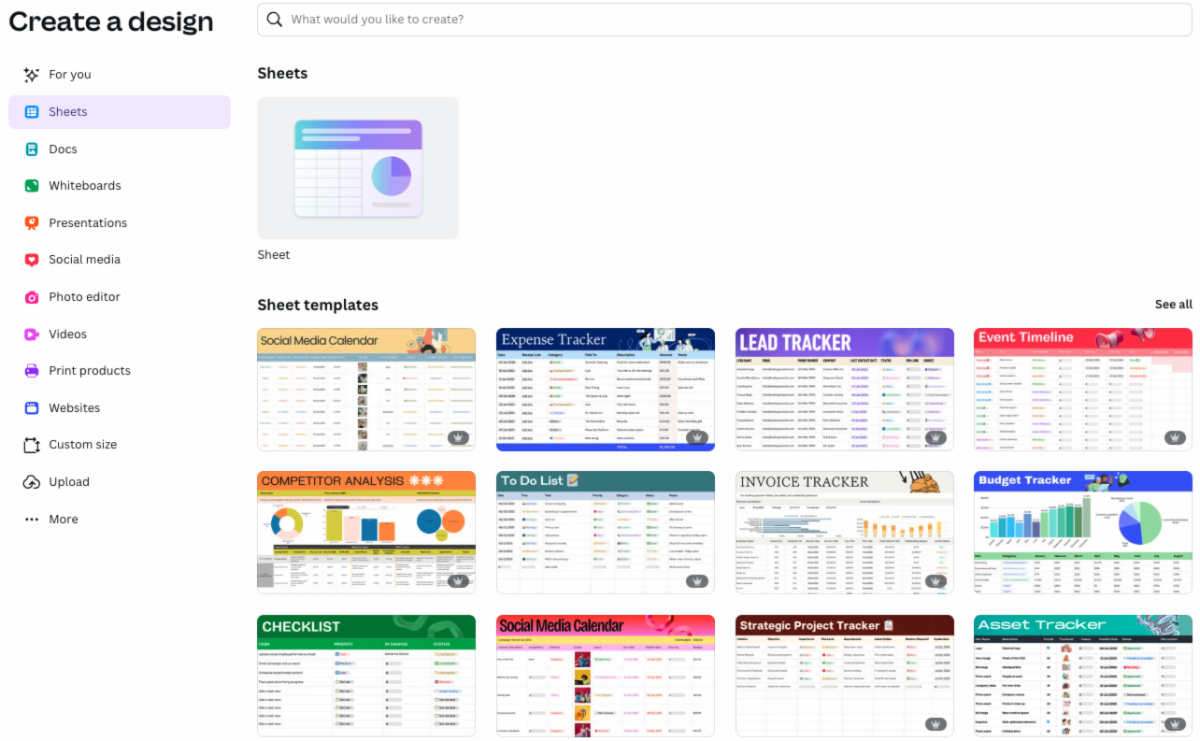
First, let’s “Create a new design” and select “Sheets.” 

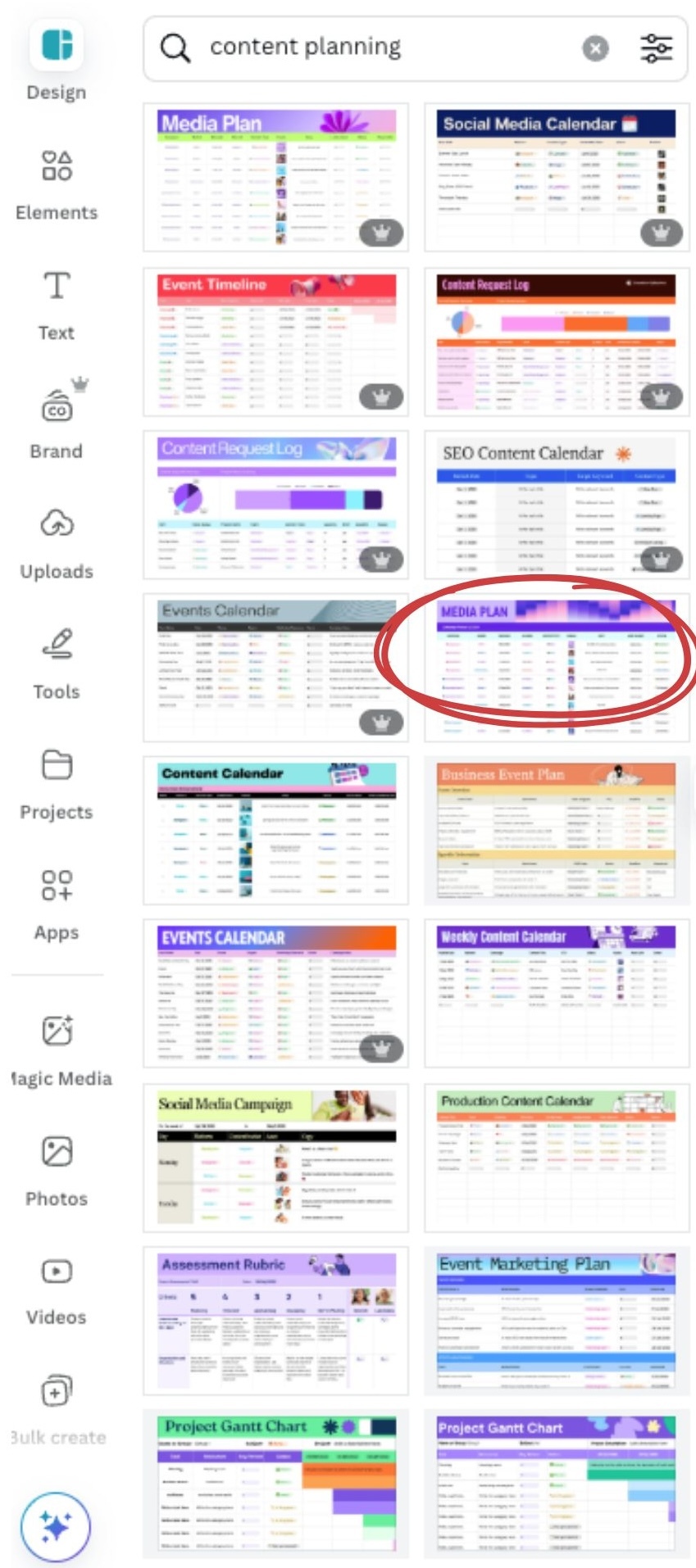
From within your new Sheet, select “Design” to search through existing templates. Remember: You don’t have to start from a blank screen! Here, our search for “content planning” turned up several options for consideration. Let’s select “Media Plan.” (Note we are using the free version of Canva in this exercise, so select the template that does not have the crown icon.)

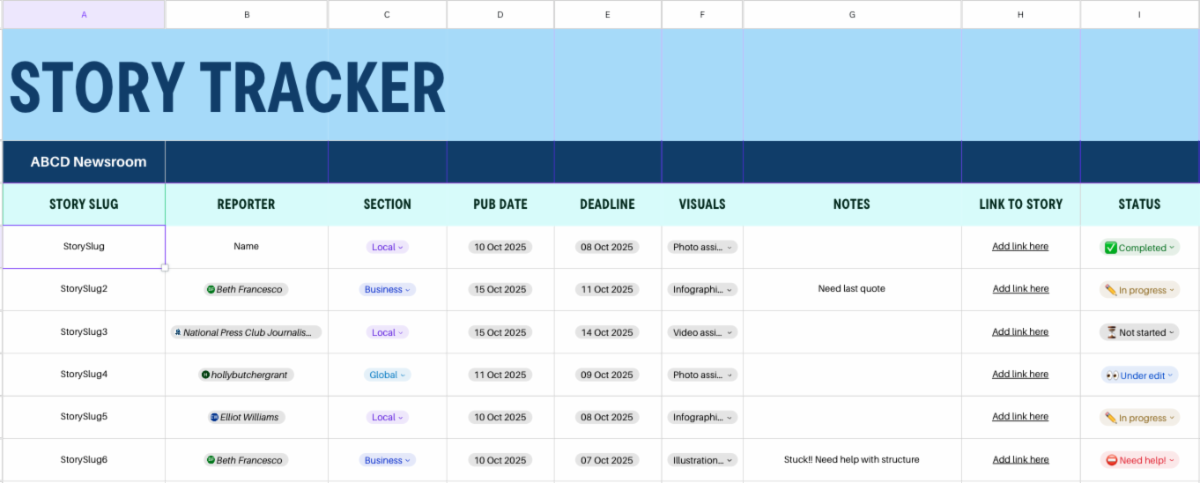
Once the Sheet is open, you can modify any part of it to meet your needs. Let’s turn this into a content management system that tracks story progress:

  • Rename “Campaign” to “Story Slug,” which removes the drop down menu.
  • Add a column by hovering between the Column A and Column B header, using the Plus (+) sign.
  • Use the “Actions” tab in the toolbar to select “Mention.” This will allow you to tag collaborators on your Canva team and make assignments.
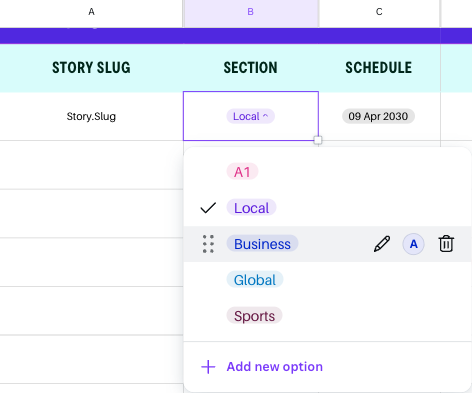
  • Rename “Market” to “Section” and rename the dropdown options. 
  • Rename “Schedule” to “Publication date.”
  • Add a column for “Deadline.
  • Remove “Channel” and “Content type.”
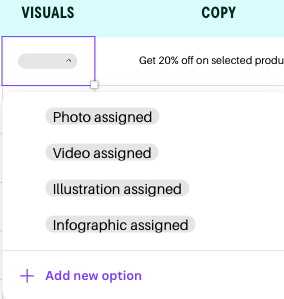
  • Change the images in “Visuals” to a dropdown menu featuring the types of visual assignments.
  • Rename “Copy” to “Notes”
  • Change “Link to asset” to “Link to story.” Using Canva Docs to write your story will allow you to link directly to your content in progress!
  • Adjust the “Status” column to meet your needs. We’ve changed these to “Not started,” “In progress,” “Need help!,” “Under edit,” and “Completed.”
  • Finally, rename the system and adjust to your brand colors.


With these adjustments, we’ve now created a collaborative, easy-to-follow content management system for a small team. What makes this different from other systems? Your ability to collaborate in real time and link to your Canva documents, visuals, and other creative items seamlessly. 

Here are a few other ways journalists are using Canva Sheets in their workflow:


  • Intake for visual requests (photo, video, or graphic assignments)
  • Social media content planning
  • Independent newsletter publishing
  • Planning story project budgets and grant requests
  • Tracking job searches


Journalism rarely goes exactly as expected — stories shift, sources fall through, news breaks — but communicating a plan means you’ve got a roadmap to adjust from, not chaos to clean up. It lets you pivot with purpose instead of panic.

Go deeper


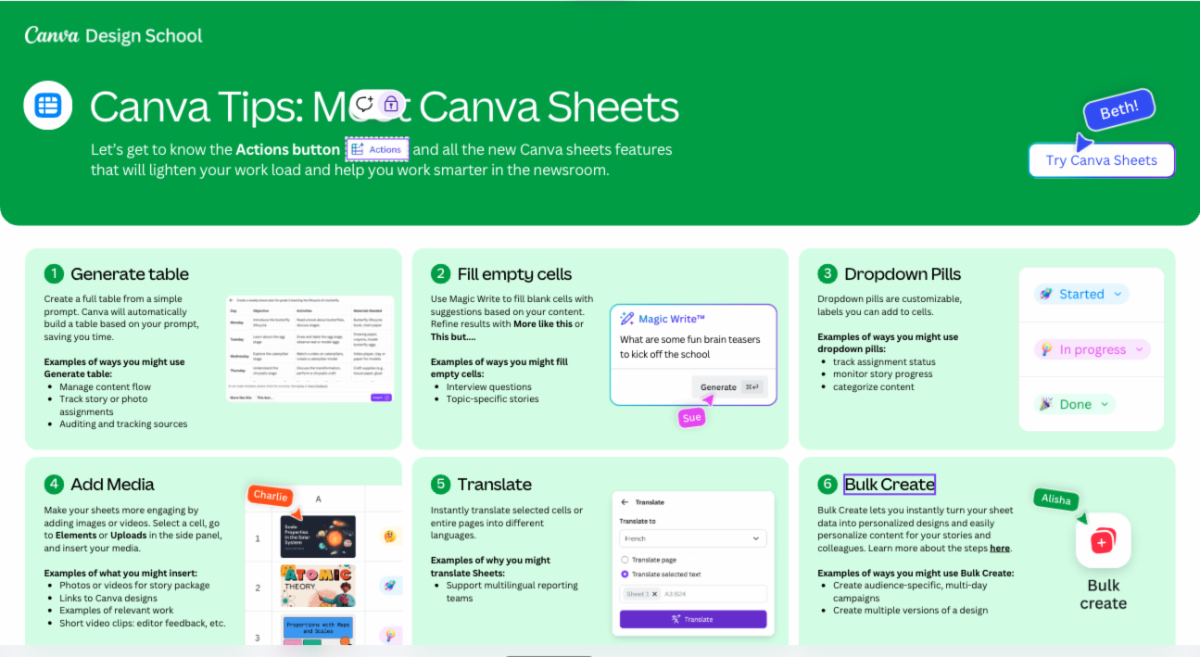
Use this Canva Design School Tip Sheet to explore sheets further and use Canva’s AI tools to help generate ideas and content.

ICYMI: This weekend, we explored Canva Websites and encouraged you to experiment by designing your personal journalism portfolio. Share your work throughout this month using #CampCanva.


Coming this week: We’re diving deep into data analysis and visualization using Canva Sheets and Magic Insights. 


Camp Canva is a partnership between the National Press Club Journalism Institute and Canva to offer 31 days of free training for journalists today and continuing through the month of October. Camp Canva is a self-paced, opt-in e-mail learning series that offers quick tips and tricks for media professionals to supercharge storytelling and audience reach. Learn more about Canva's World Tour.


For any questions about this free program, contact Institute staff.


LinkedIn  YouTube  Web  Email