Oct. 14, 2025


Embedding external maps into a Canva design


We’ve now learned how to create an infographic using Canva’s free infographics maker (click here for a refresher).


🗺️ Today we’re going to see how to add an external map into a Canva design.


Whether you are showing your city’s polling locations in an election explainer or reviewing new restaurants in a neighborhood, maps can add an extra layer to your graphics.


With Canva, there are three easy ways to incorporate a map into your designs:


✅ Use Canva's Google Maps app integration


This method allows you to embed a map directly into your design. Here’s how:


  • Open or create a design in Canva.
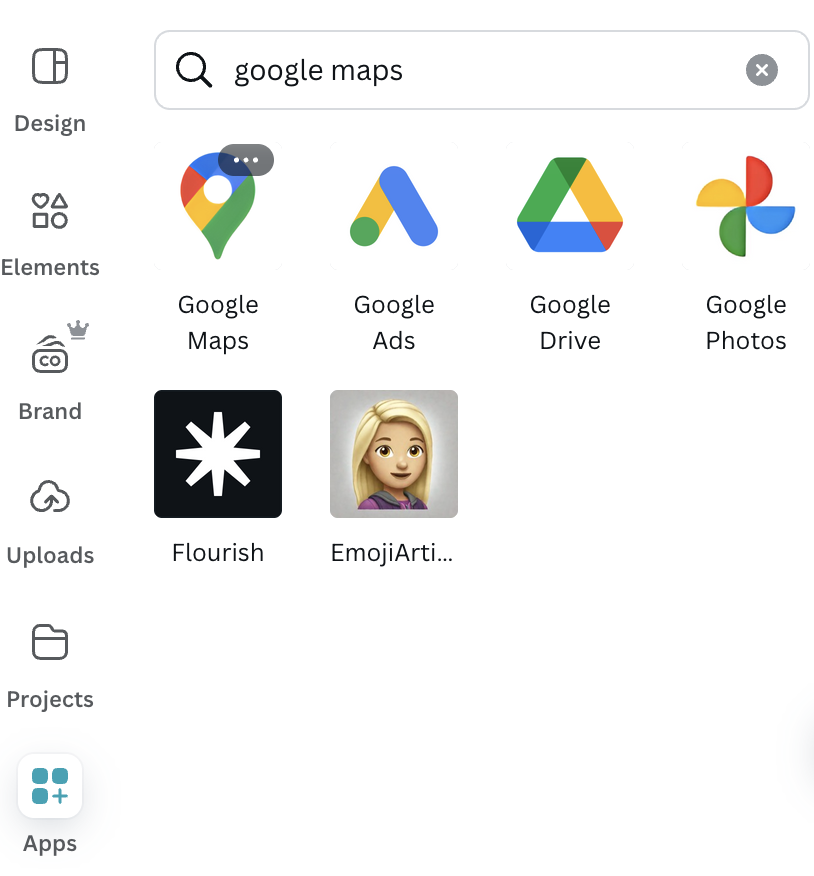
  • Find the Apps button at the bottom of the toolbar and search for Google Maps:
  • Click Open to launch the app.
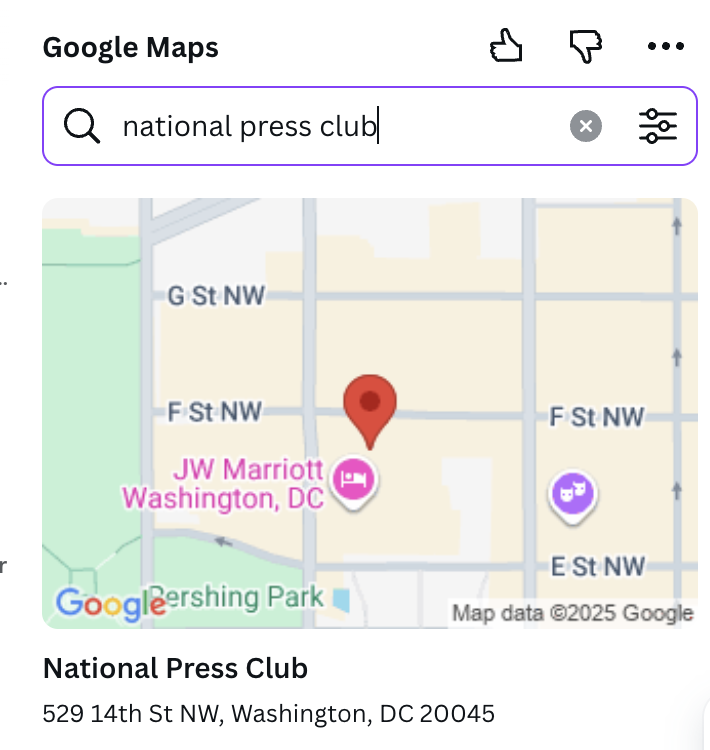
  • Type in a specific place or address in the Google Maps search bar:
  • Click the desired map result to add to your design.
  • Just like with infographics, you can add text and other graphic elements from the left toolbar.

✅ Import a Google Map location using a URL


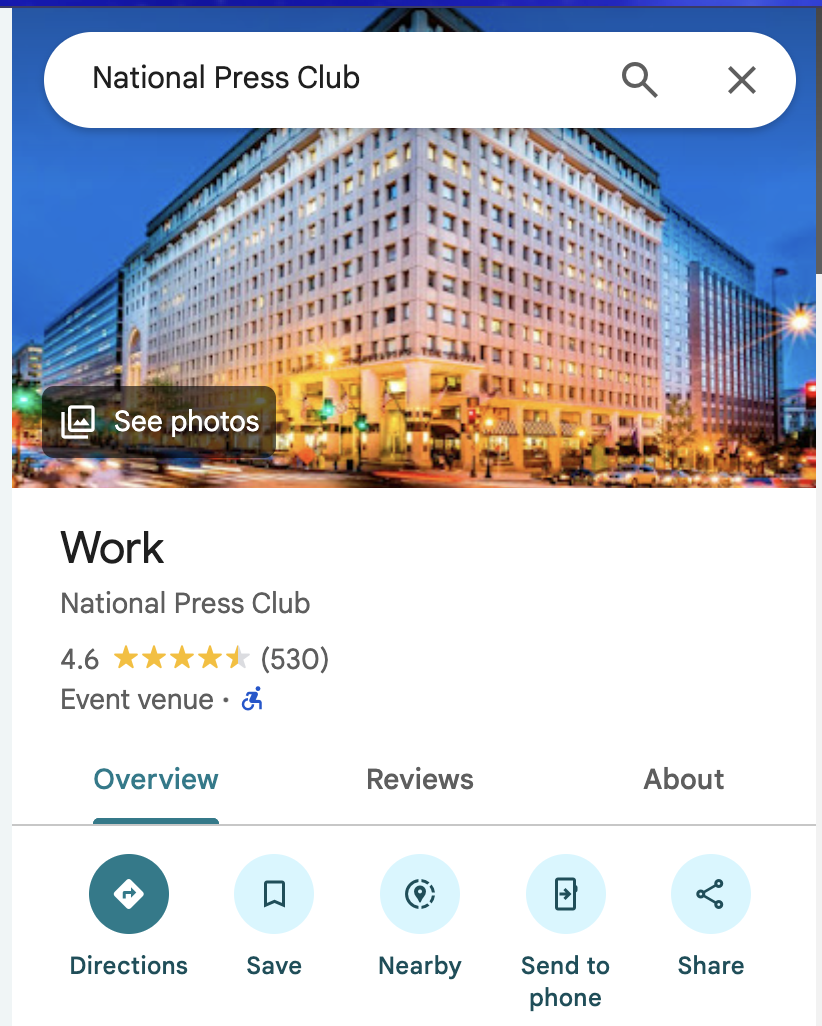
  • Open Google Maps and find your desired location.
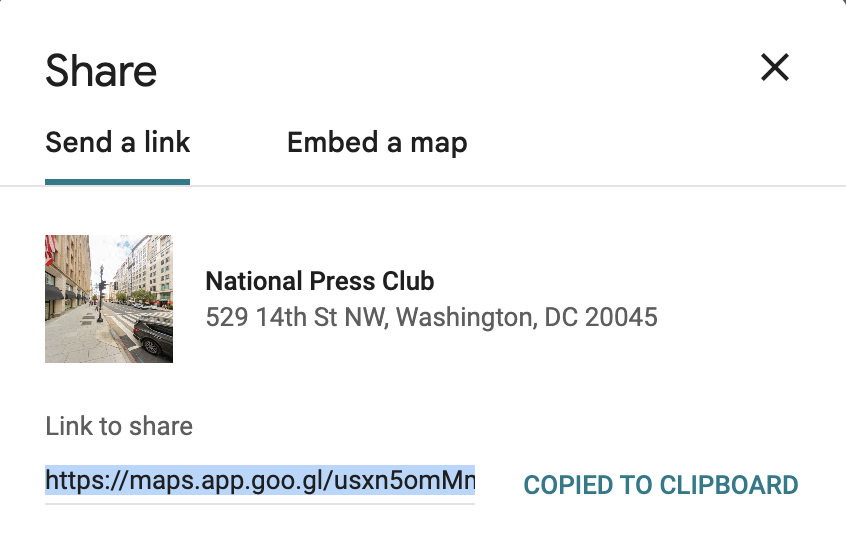
  • Click the share icon and copy the link to the map.
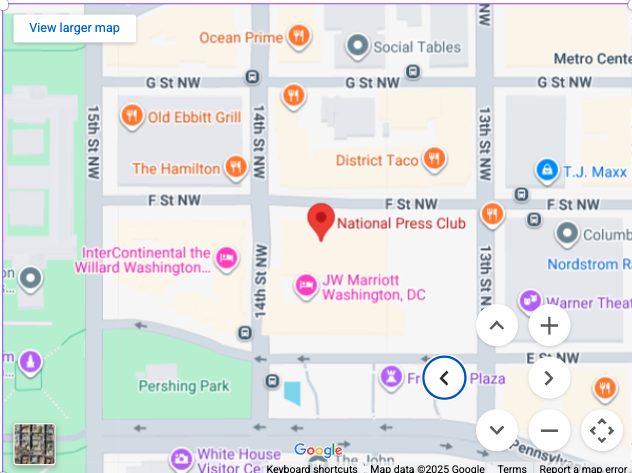
  • Open your design in Canva and paste the link you just copied where you want the map. (Note: You do not need to copy an embed code — Canva will automatically embed the map from the link.)

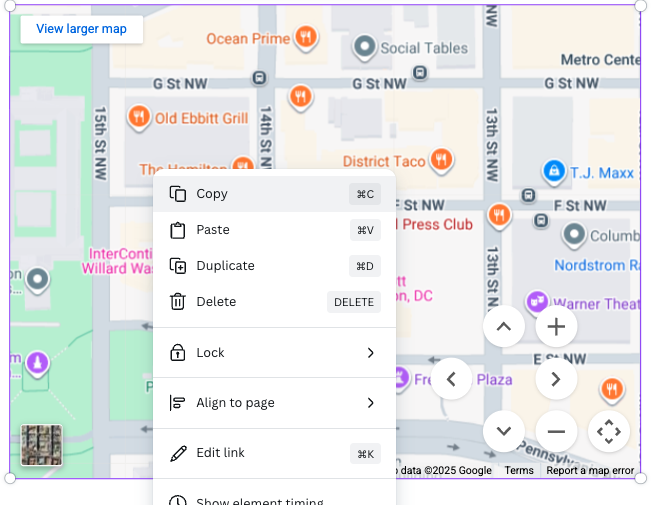
💡 Pro tip: Once the map is placed in your design — either from the app or a link — you can double click on it to move the map around. You can also zoom in or out to customize the size and the scope of the map.


✅ Upload an external map as an image


If you are using a different program like Apple Maps, or have a screenshot of a map already created, you can also upload it as an image and then drag it into your design. This will give you a static image rather than the interactive option from Google Maps.


Let's try it.


📝 You are a reporter assigned to write about the top three things to do in your city this weekend. Let’s make a map that pinpoints three spots in a neighborhood that you will include in your guide.


  • Open a new design in Canva.
  • Find the Google Maps app from the toolbar.
  • Search for your hometown in the Google Maps app.
  • Add the map to your blank design and resize to fit the canvas.
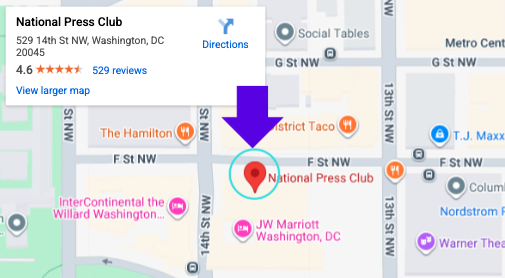
  • Double click on the map within your design to move the location around or to make the map larger or smaller. You can do this by selecting the arrows at the bottom right:
  • Pick a neighborhood in your map to highlight three different locations.
  • Search in the Elements tab to find arrows or a locator pin to add to your map. You can also add in text or other graphics.
  • Once you finish, you can save the map as an image to add to a published story or you can copy/paste it into another Canva design.
 

Camp Canva is a partnership between the National Press Club Journalism Institute and Canva to offer 31 days of free training for journalists today and continuing through the month of October. Camp Canva is a self-paced, opt-in e-mail learning series that offers quick tips and tricks for media professionals to supercharge storytelling and audience reach. Learn more about Canva's World Tour.


For any questions about this free program, contact Institute staff.


LinkedIn  YouTube  Web  Email