Compliance Guardian Weekly Spotlight 

To help familiarize your pharmacy with Compliance Guardian (accessible on the Member Portal), AlignRx is highlighting one key feature each week over the next month. Check out this week's spotlight!

Week 1 Spotlight: Adding and Maintaining Employee Records

Easily add employees and update their information, licenses, and access.


Compliance Guardian can help you manage information about your employees. You can add an employee or update an existing employee record, including license information and access level within the Member Portal.

Compliance Guardian Main Page

Get a High-Level View of Your Staff

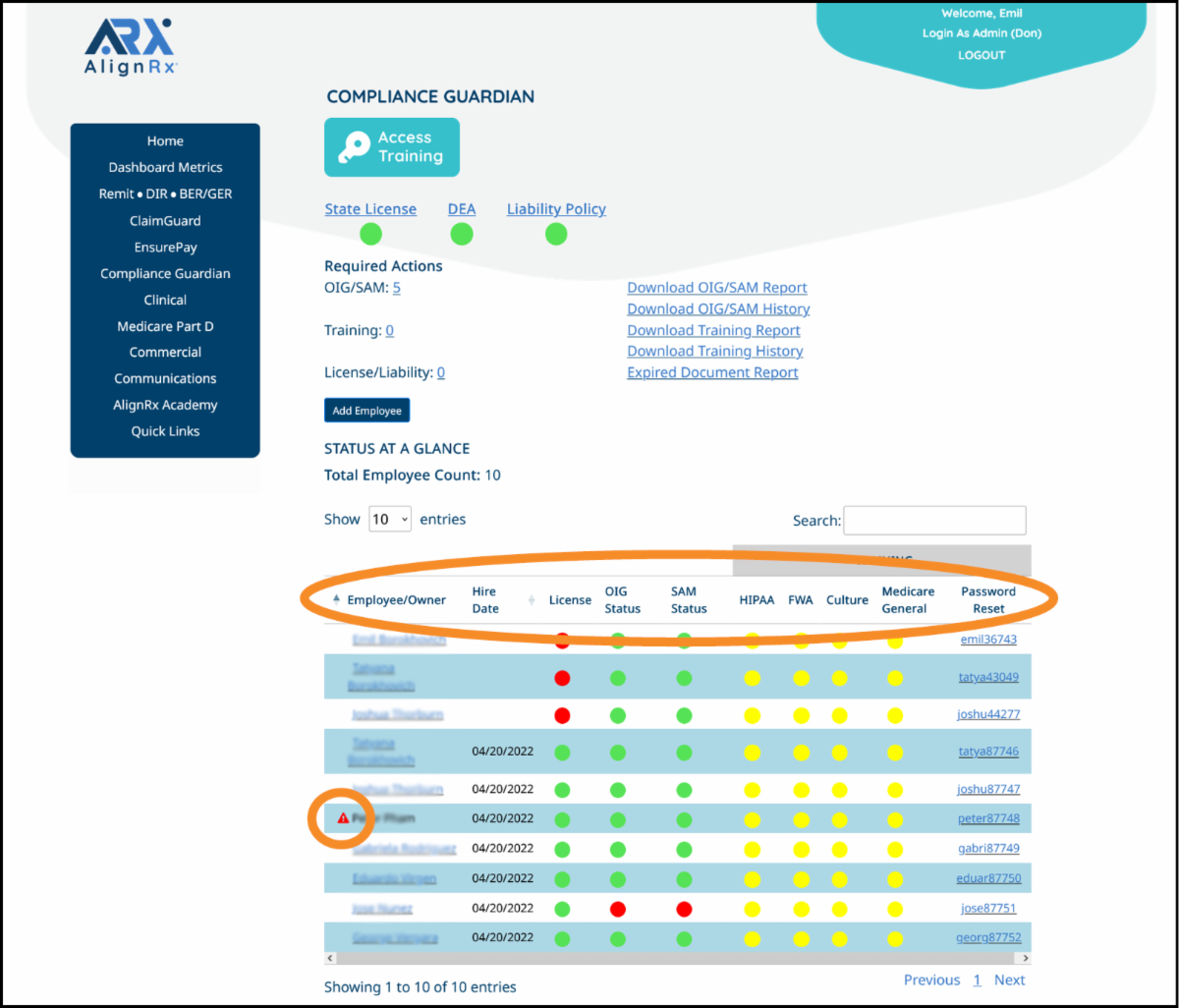
Compliance Guardian's main page lets you see your staff's information at a glance, including their compliance status. The employee grid is broken into:


  • Employee/Owner - Click an employee/owner’s name to go to the Maintain Employee page.
  • License - Identify employees with licenses that are either expired or about to expire.
  • OIG/SAM Status - Find out if any of your employees are on the OIG/SAM exclusion list.
  • Training - Get an overview of an employee’s annual training status.
  • Password Reset - View an employee’s username or easily reset their password on the Compliance Guardian training platform.

NOTE: A red triangle next to an existing employee’s name indicates an impending update to his/her record. Once the compliance team validates the information, the red triangle will disappear.

Status Key

Licensed employees' statuses will be in red, yellow, or green.


Green - All clear/all information is up to date

Yellow - Needs attention/coming due within 30 days

Red - Past due/immediate action required

Employee Records

Add Employees and Maintain Employee Information with Ease

Adding an Employee Record

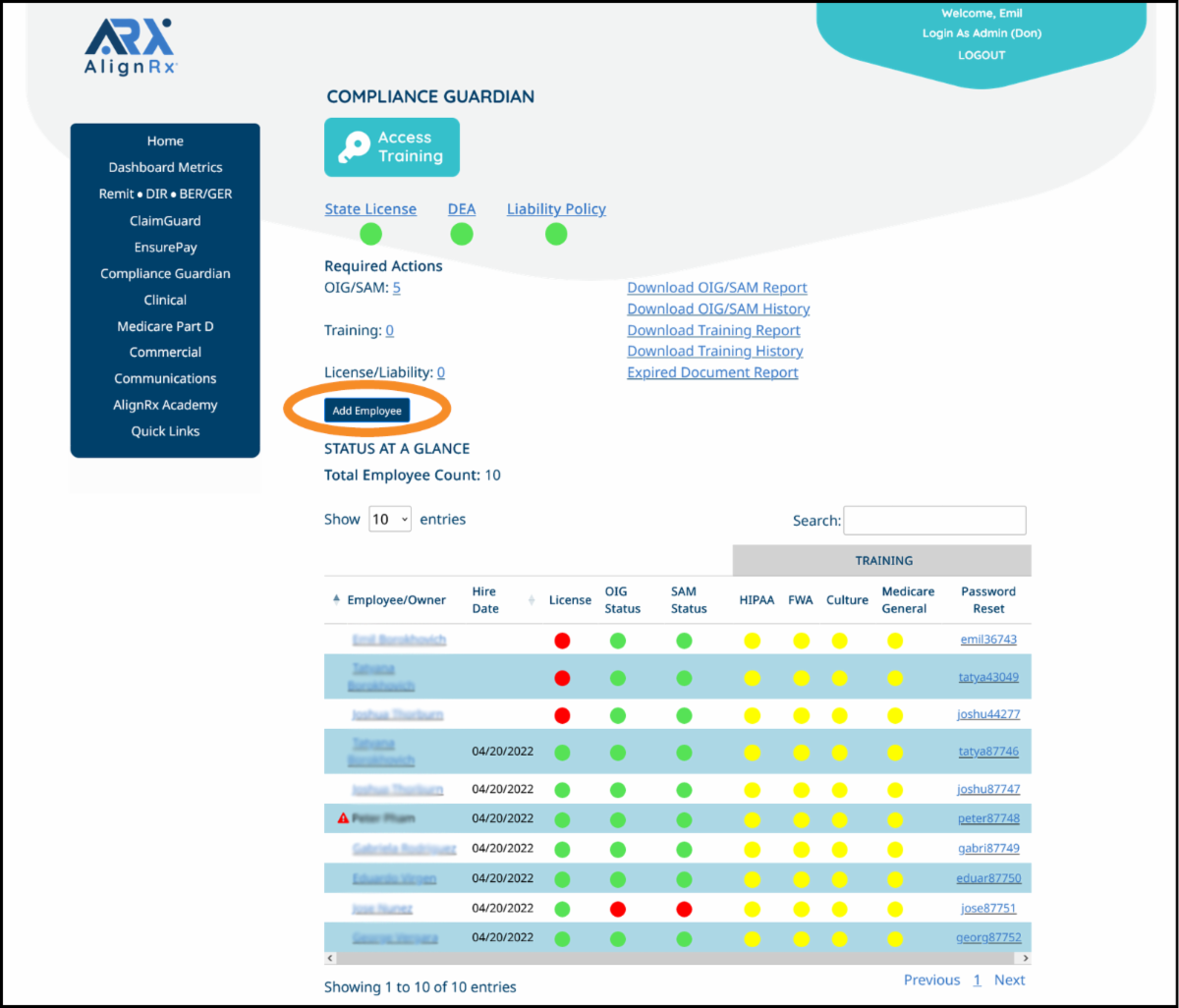
To add an employee, select the "Add an Employee" button on the Compliance Guardian Main Page.


Updating an Employee Record

To update an employee record, go to the Compliance Guardian Main Page and click on the employee's name you wish to access.

Maintain Employee Page

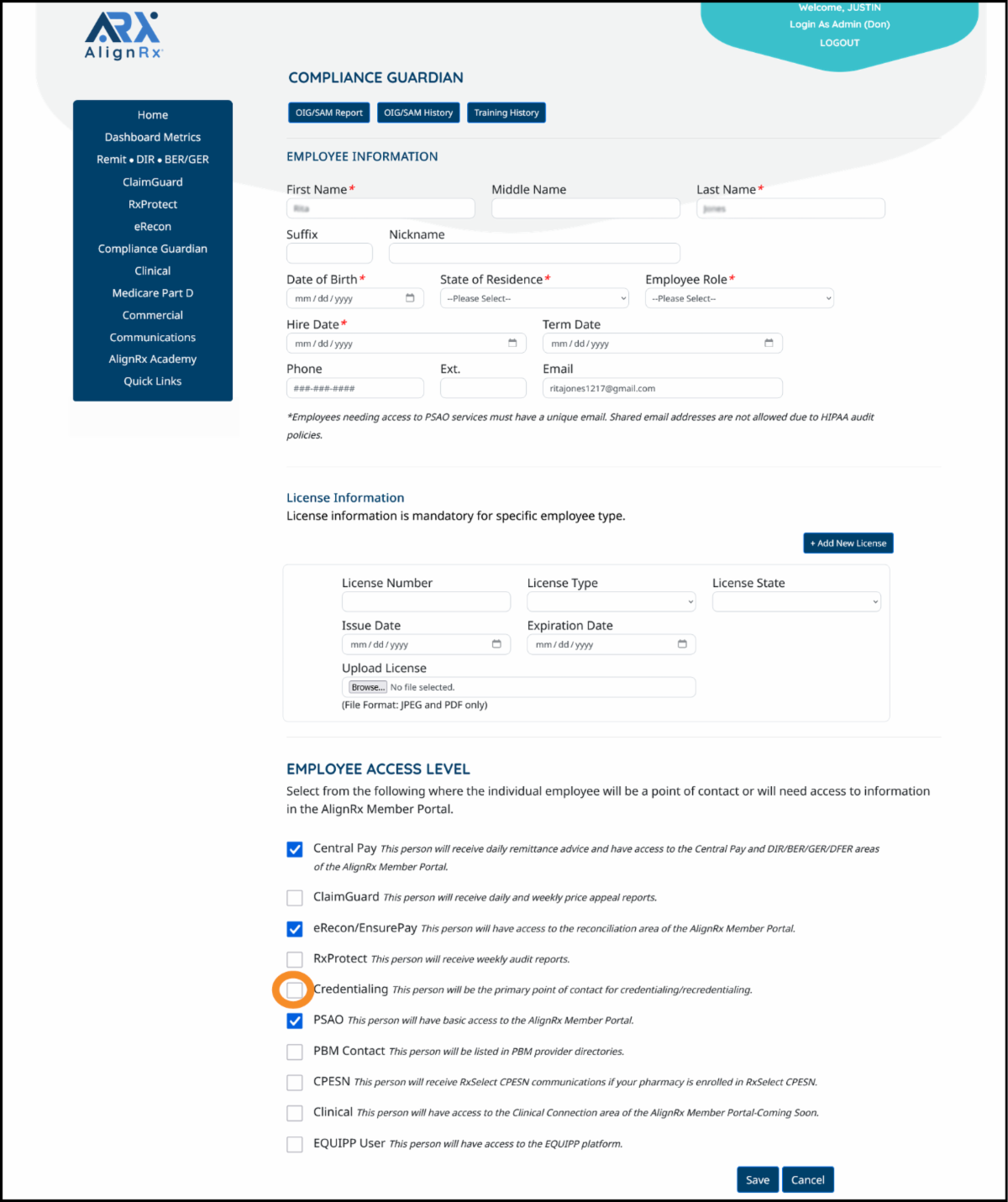
Once you open the Maintain Employee page, you can add or change employee information, which is divided into three sections:


  • Employee Information - While fields with an asterisk are required, be sure to complete all information in this section to minimize a match on the OIG/SAM exclusion lists.
  • License Information - View and maintain important license information for each employee.
  • Employee Access Level - Define an employee’s access to specific reports and areas within the Member Portal.


Clicking Save sends the information to the AlignRx Compliance Team for review and validation. Please allow 24 to 48 business hours during normal volume for this process to be completed.

Important: Providing an employee with credentialing access gives the ability to change/edit employee information. Please limit credentialing access to 1-2 employees only in order to reduce the risk of duplication of data and ensure your employee roster is properly maintained.

Get the Compliance Guardian User Guide

Access the user guide here, or log in to the Member Portal and visit the AlignRx Academy.

Download the User Guide

QUESTIONS?

Contact AlignRx Pharmacy Services at 844-ALIGNRX (844-254-4679), option 1.