2026–2027 • ELEMENTARY • EDITION 07

Supercharge Your Lessons with Lumio

Illustrated bee following a looping dotted flight path

Looking for an easy way to make your existing lessons more interactive? With Lumio, you can bring together PDFs, PowerPoints, and Google Slides in one lesson, then add activities that give students opportunities to respond, practice, and show what they know.

👀 See How It Works

Watch how to bring your existing materials into Lumio and add interactive activities without starting from scratch.

Lumio tutorial showing how to import lesson materials and add interactive activities.
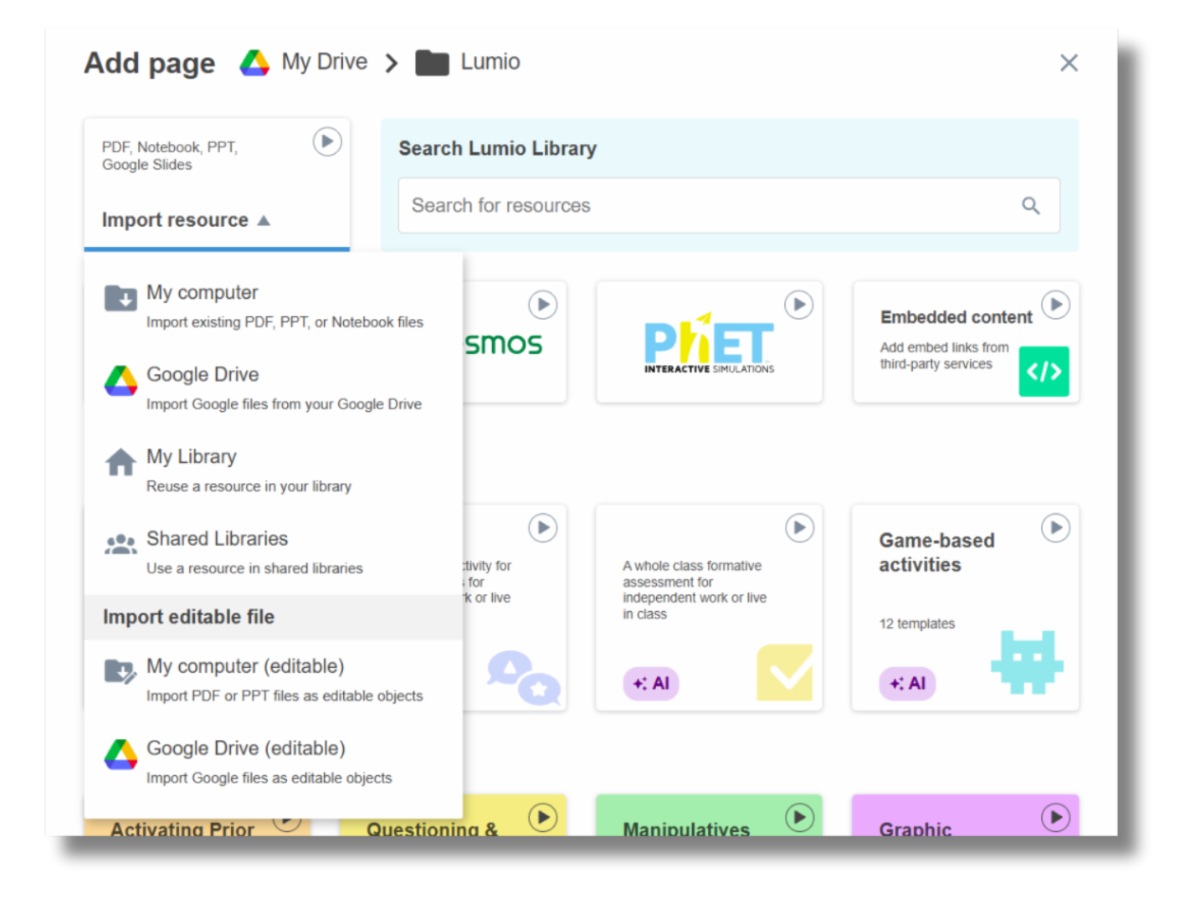
Lumio's Add Page menu showing options to import files from a computer or Google Drive.

Make Lumio Part of Your Classroom Routine

During Whole-Group Instruction

Present your lesson on your Newline while students follow along on their Chromebooks. Add opportunities for students to annotate, respond to questions, or complete digital activities as you teach.

During Independent or Small-Group Work

Let students work through activities independently or in groups while you monitor their progress. Use their responses to identify who may need additional support or clarification.


Too Many Tabs? Group Them!

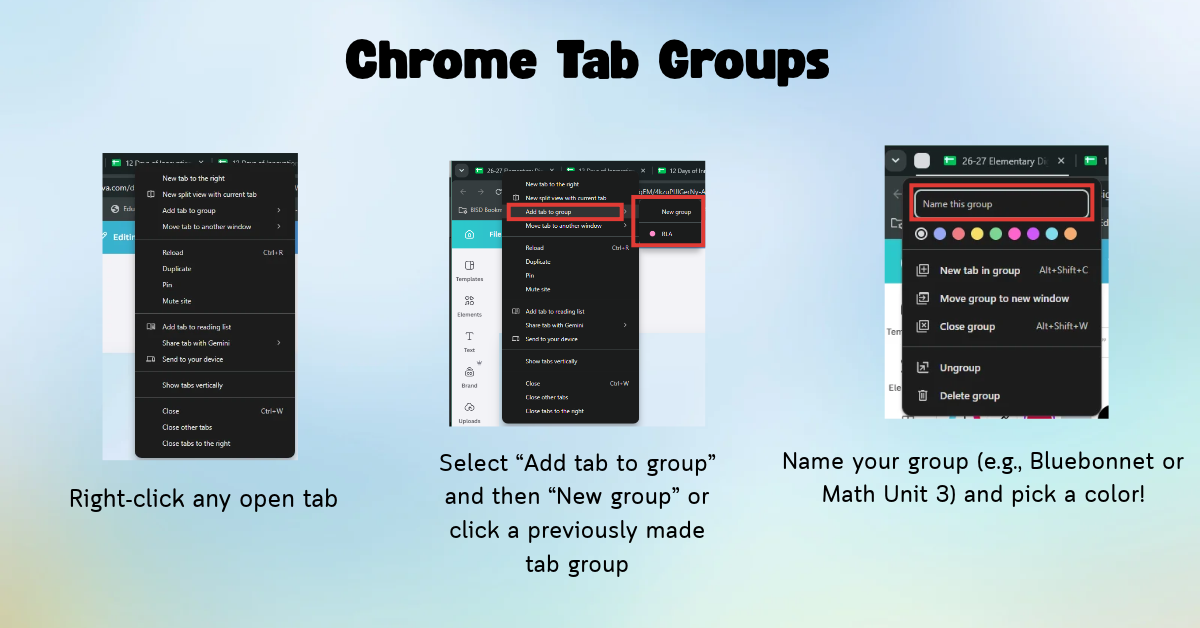
Tired of searching through a sea of open tabs while teaching? Chrome Tab Groups let you organize tabs by subject, lesson, or project. Give each group a name and color, then collapse groups you aren't using to keep your browser organized.

Three-step Chrome Tab Groups guide showing how to right-click a tab, create a group, and name and color it.

Put It to Work in Your Classroom

Animated screen recording showing chrome tab groups
  • Keep curriculum resources together: Group your Bluebonnet Learning materials, unit slides, and other frequently used resources by subject.


  • Simplify your screen: Collapse groups you aren't using so it's easier to find what you need while presenting lessons.

How to Create a Tab Group

  1. Right-click a browser tab and select Add tab to new group.
  2. Give your group a name and choose a color.
  3. Drag additional tabs into the group.
  4. Click the group name to collapse or expand your tabs.
 
Newsletter emerging from an envelope, representing past Digital Learning Update editions.

Looking for something we shared?

Browse Previous Digital Learning Updates

Digital Learning Quick Links

How Can We Support Your Campus?

Connect with your Digital Learning Specialist for planning, resources, technology integration, instructional support, and more!

 
Birdville Digital Learning Logo

Follow Digital Learning for more tips, resources, and ideas.

Instagram    Facebook    X