2026–2027 • ELEMENTARY • EDITION 09

Every Voice Counts with Lumio Shout It Out!

Illustrated bee following a looping dotted flight path

Want to hear from every student, not just the ones raising their hands? Lumio's Shout It Out! lets students share their ideas in real time, giving you a quick way to check understanding and spark whole-class discussions. As responses come in, you can sort and group them to identify common themes, compare thinking, and address misconceptions.

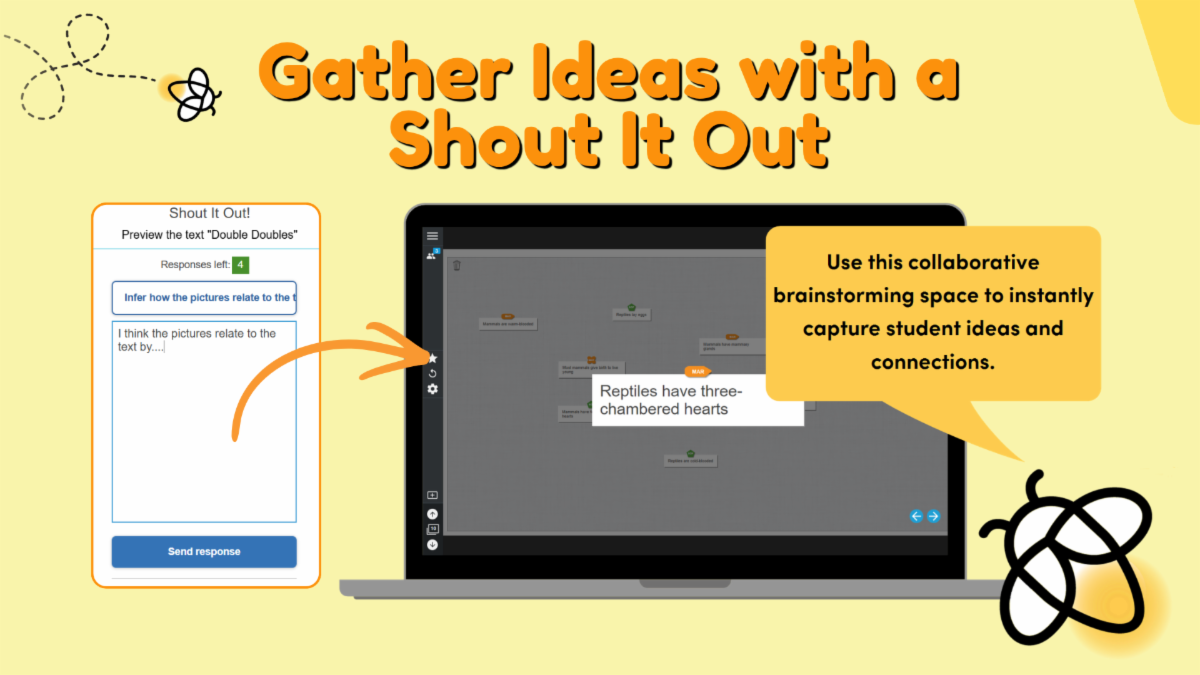
Lumio Shout It Out example showing students submitting responses to a collaborative space where ideas can be viewed, organized, and discussed as a class.

How to a Add Shout It Out

Lumio Shout It Out activity option for generating ideas through independent work or live whole-class participation

1. Open Your Lesson: Open a Lumio lesson in Edit mode.


2. Add an Activity: Click + New and select Shout It Out!


3. Enter Your Prompt: Type the question or scenario you want students to respond to.


4. Customize (Optional): Add categories to organize responses or choose a custom background.


5. Launch & Discuss: Start your lesson, have students submit their responses, and sort or group their ideas together in real time.


Lumio Shout It Out in Action!

Illustrated bee following a looping dotted flight path
 
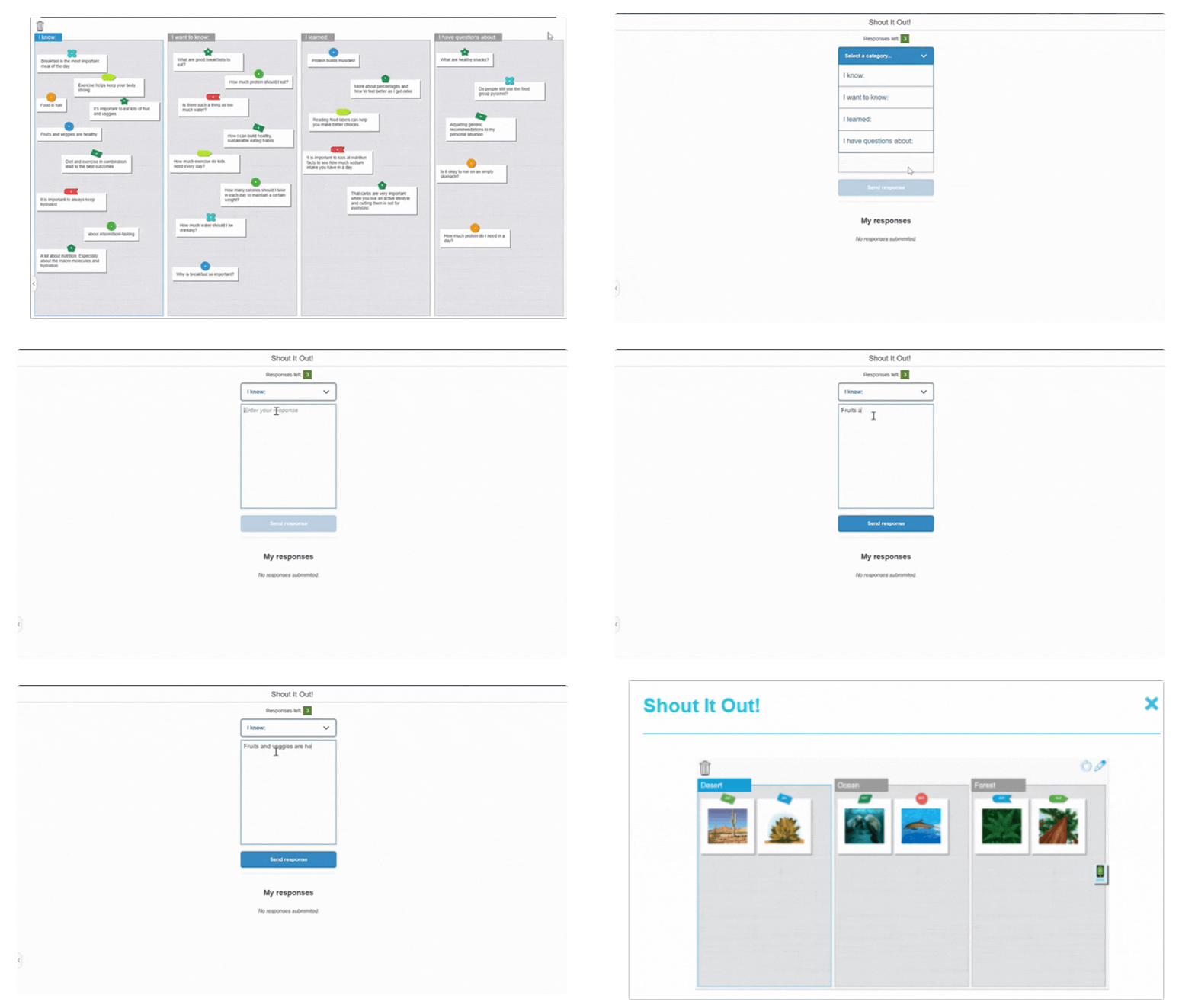
Lumio Shout It Out activity displaying student responses as individual notes across a shared class workspace.

Quick Checks

Check understanding and see what students know in real time.


Vocabulary Brainstorming

Collect words students connect to a topic or lesson.


Math Strategies

Share different ways to solve a problem and compare approaches.


One-Word Summaries

Have students describe their learning in one word.

KWL Activities

Share what students know, wonder, and have learned.


Reading Responses

Collect predictions, character traits, or story connections.


Sorting & Grouping

Organize student responses into categories to find patterns.


Exit Tickets

Ask students to share one thing they learned or still wonder about.

Ready to Explore?

Start with our ready-to-use Shout It Out template! Just display your question for students to see and let them submit their responses. No need to build an activity from scratch!

Make It Your Own!

Once you're comfortable with Shout It Out, try these features to make the activity work for your lesson.


Organize Responses with Categories

Create up to four categories to give students different places to respond. Use categories to sort ideas, such as Cause / Effect, or make each category a separate prompt or question.


Let Students Respond with Images

Shout It Out isn’t limited to text. Students can respond with images to represent a theme, illustrate a vocabulary term, or create a visual metaphor for a concept, then compare and discuss their choices.


Students can upload an image from their device or use Lumio’s built-in safe image search..

Video tutorial demonstrating how to create and use Lumio Shout It Out activities.

📺Watch Shout It Out! by Lumio

Want to Learn More?

Ready to create your own Shout It Out activity? Explore the resources below for step-by-step directions, more Lumio ideas, or CPE/Flex credit.


Keep Your Favorite Tabs Handy with Chrome!

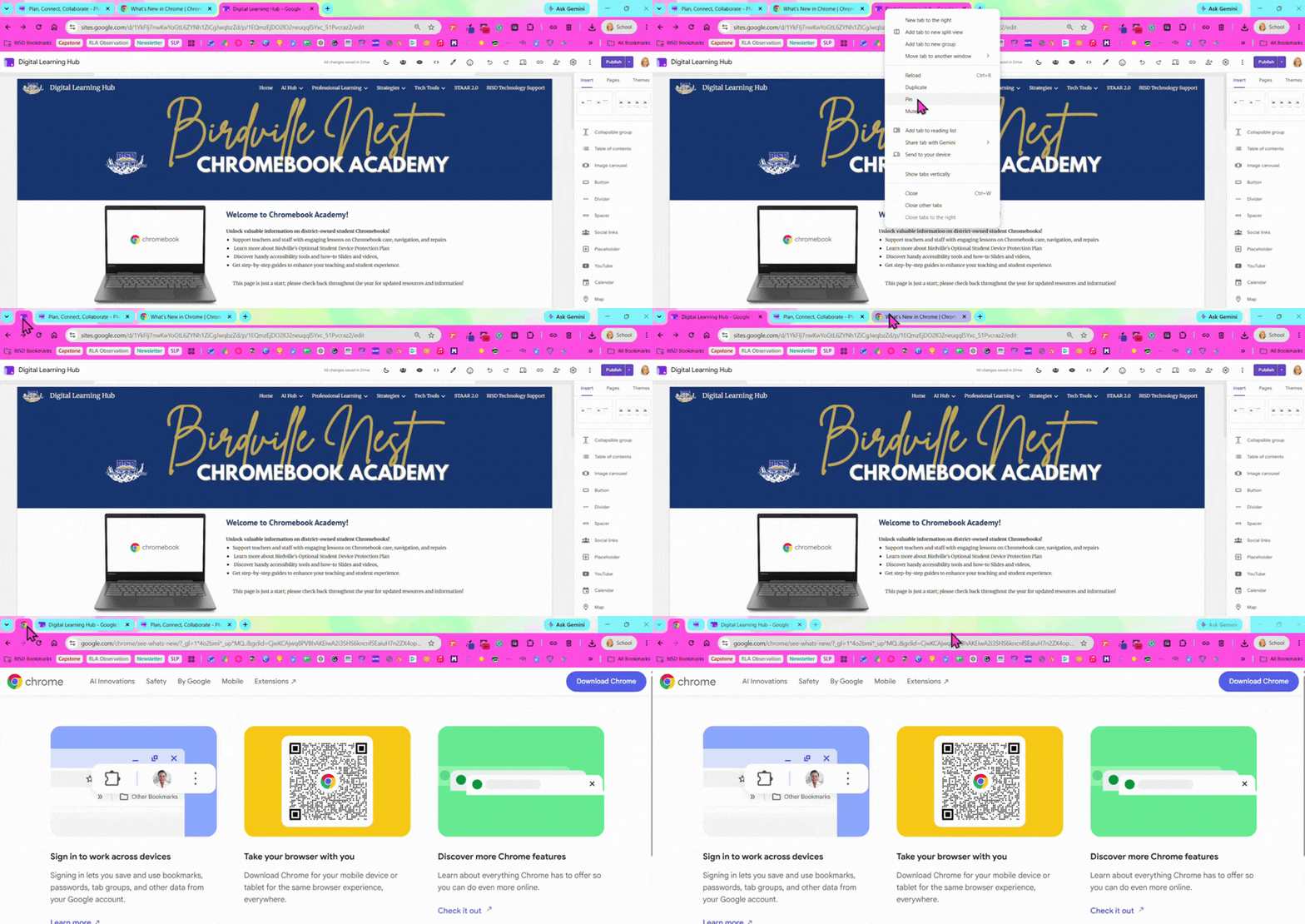
Tired of searching through tabs to find the websites you use every day? Pinning tabs in Chrome keeps your go-to sites in one convenient spot! Pinned tabs shrink to small icons on the left side of your browser, saving space and making them easy to find.

How to Pin a Tab

Google Chrome browser logo
  1. Right-click the tab you want to pin.
  2. Select Pin from the menu.
  3. Your tab moves to the far left and displays only the website's icon.
Animated demonstration showing how to right-click a Chrome tab and select Pin to keep it as a compact tab on the left side of the browser.

Why Pin a Tab?

  • Save Space: Keep frequently used sites open without crowding your tab bar.


  • Avoid Accidental Closures: Pinned tabs don't have an X button, making them harder to close by mistake.


  • Keep Favorites Handy: Chrome generally restores pinned tabs when you reopen your browser, depending on your startup settings.
 
Newsletter emerging from an envelope, representing past Digital Learning Update editions.

Looking for something we shared?

Browse Previous Digital Learning Updates

Digital Learning Quick Links

How Can We Support Your Campus?

Connect with your Digital Learning Specialist for planning, resources, technology integration, instructional support, and more!

 
Birdville Digital Learning Logo

Follow Digital Learning for more tips, resources, and ideas.

Instagram    Facebook    X