2026–2027 • SECONDARY• EDITION 08

Power Up Your Practice with Lumio Gamified Checks for Understanding!

Lumio logo in black lettering with a small black and yellow firefly above the text.

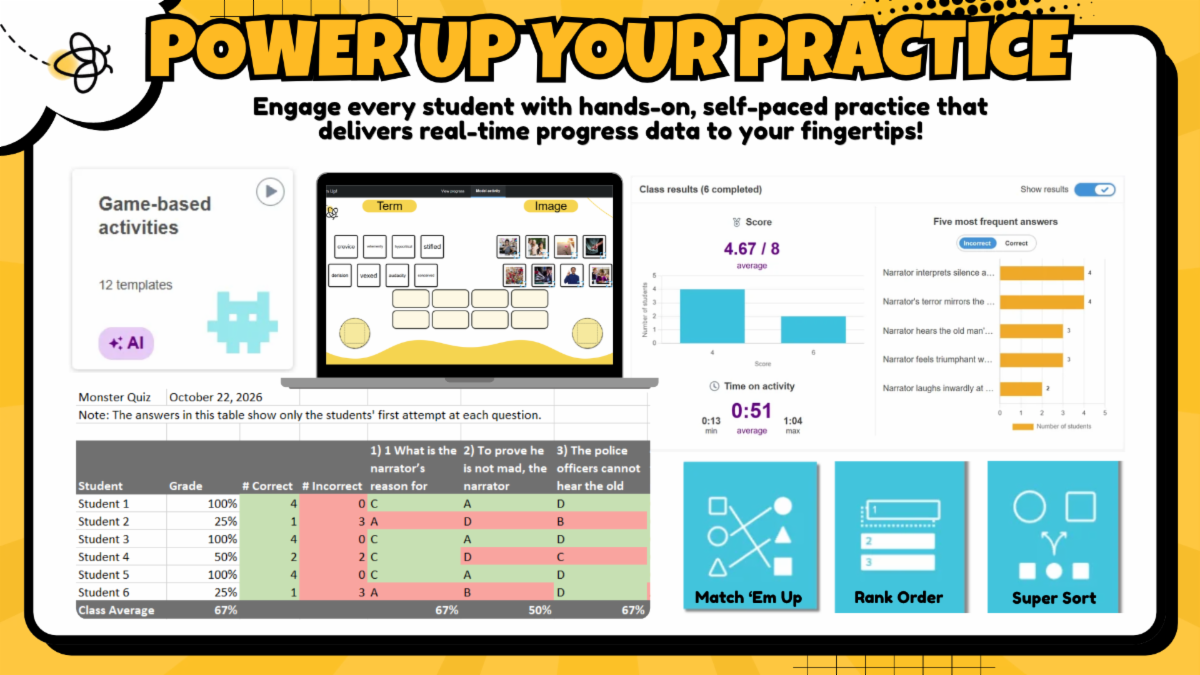
Looking to give your students engaging, self-paced practice while gathering instant data on their progress? Lumio’s independent game-based activities, like Match 'Em Up, Rank Order, Super Sort, and Label Reveal, turn solo practice into an interactive, hands-on experience! 

Lumio graphic showing practice activities, student results, and progress reports.

See the Activities in Action

Four ways to add interactive practice to your next Lumio lesson.

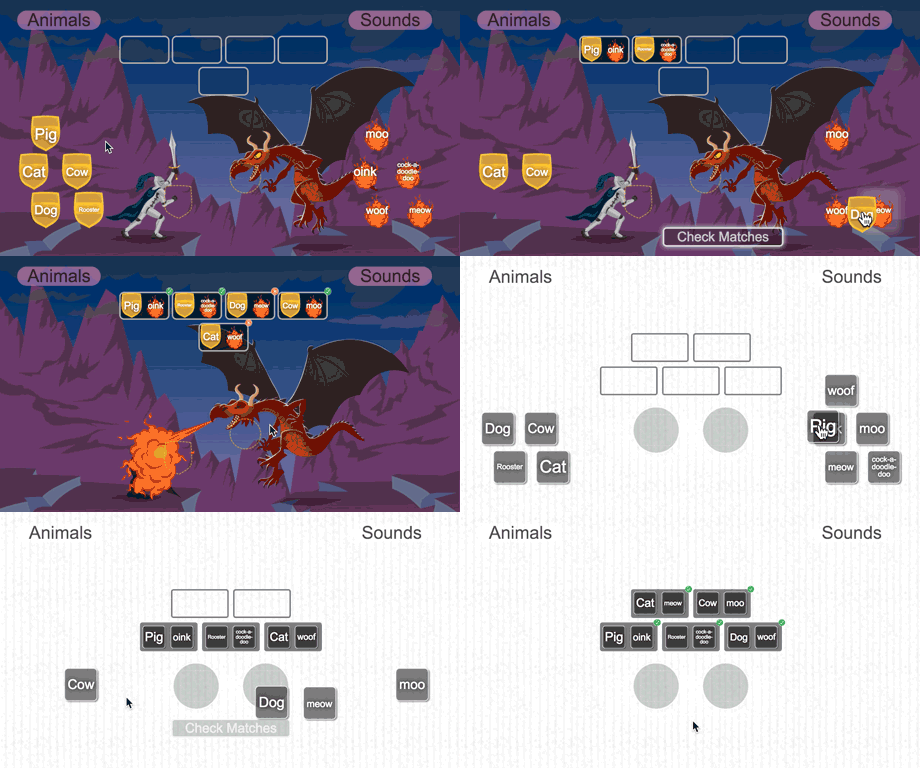
Animated Lumio activity matching animals to their sounds in a fantasy-themed setting.

🔗 Match 'Em Up

Students pair concepts, vocabulary terms, or equations together for quick visual reinforcement.

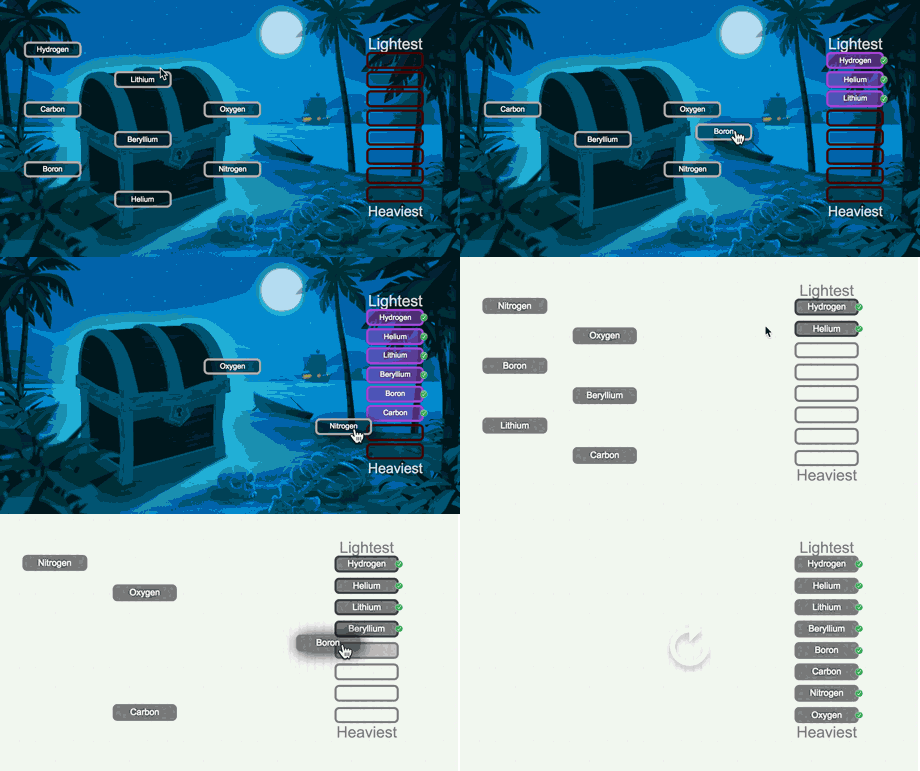
Animated Lumio activity ordering elements from lightest to heaviest.

📊 Rank Order

Great for building critical thinking by having students sequence events, steps in a process, or values.

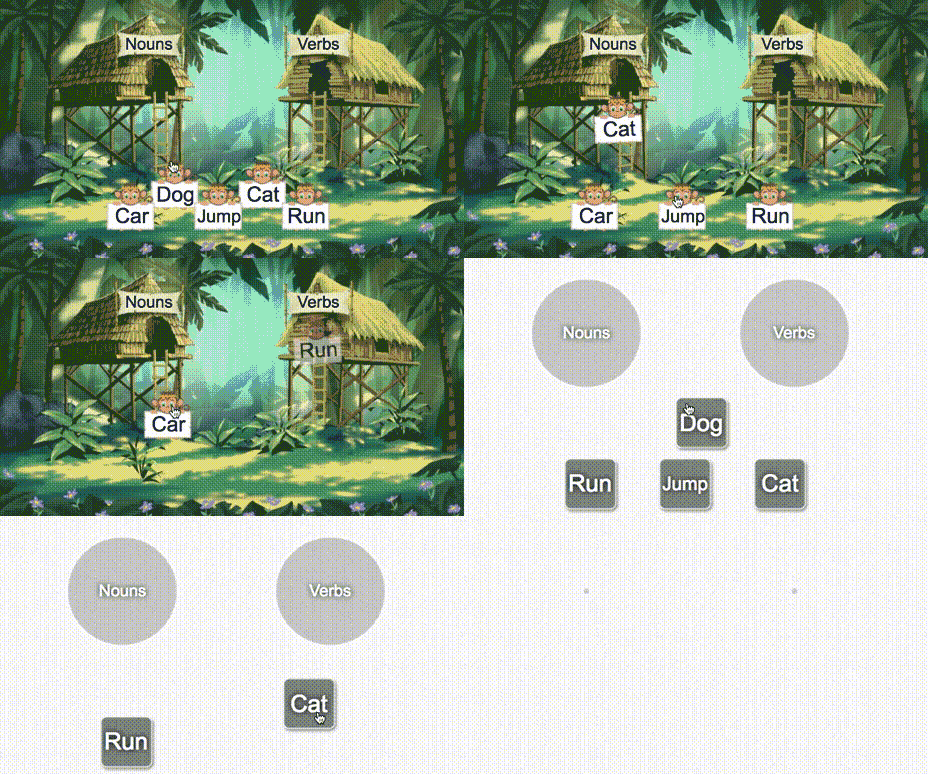
Animated Lumio activity sorting words into noun and verb categories

📦 Super Sort

Keeps students actively engaged as they drag items into correct categories to classify concepts.

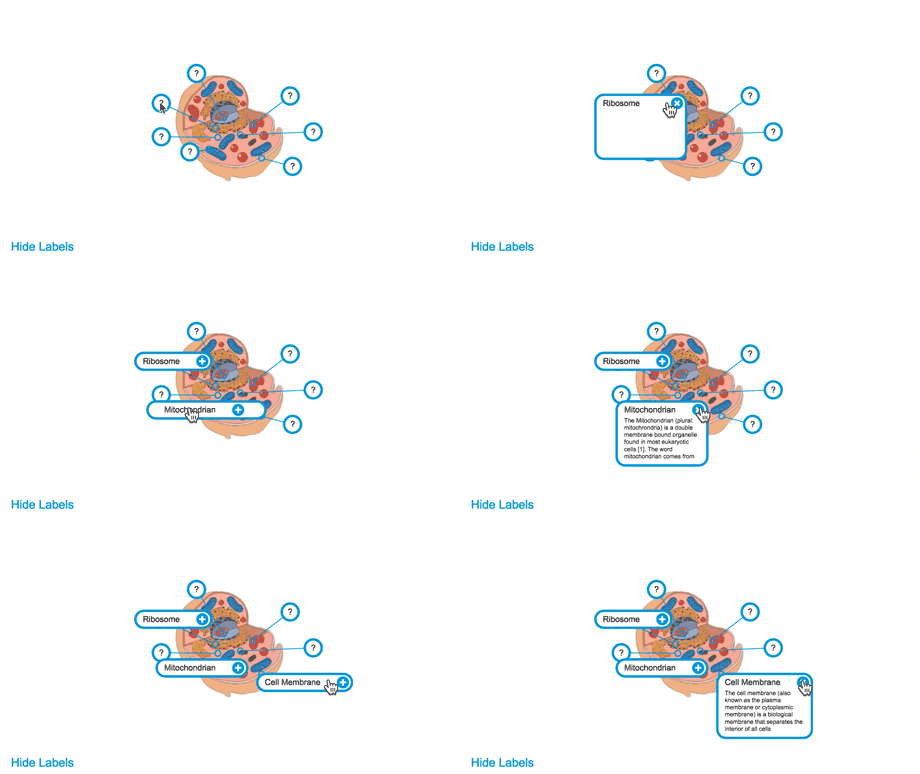
Animated Lumio activity revealing the labeled parts of an animal cell.

🏷️ Label Reveal

Perfect for diagramming! Students tap interactive pins to uncover key details on maps, charts, or images.

Lumio Activity Dashboard: See What Students Know

While students work at their own speed, you get real-time feedback to guide your next teaching steps:


  • Live Teacher Dashboard: Monitor whole class and individual student progress live as they complete each activity in the room or at home.


  • Export Student Analytics: Download activity reports after class to see exactly who mastered the concept and who needs targeted intervention.
Video tutorial introducing Lumio's Activity Dashboard for monitoring student progress and responses.

Watch the quick tutorial to explore Lumio's Activity Dashboard.

One Activity. Valuable Insights.

Start small! Add one interactive activity to your next Lumio lesson and use the Activity Dashboard to see what students know as they work.


A quick practice activity can give you valuable insight into what to reinforce, revisit, or teach next.


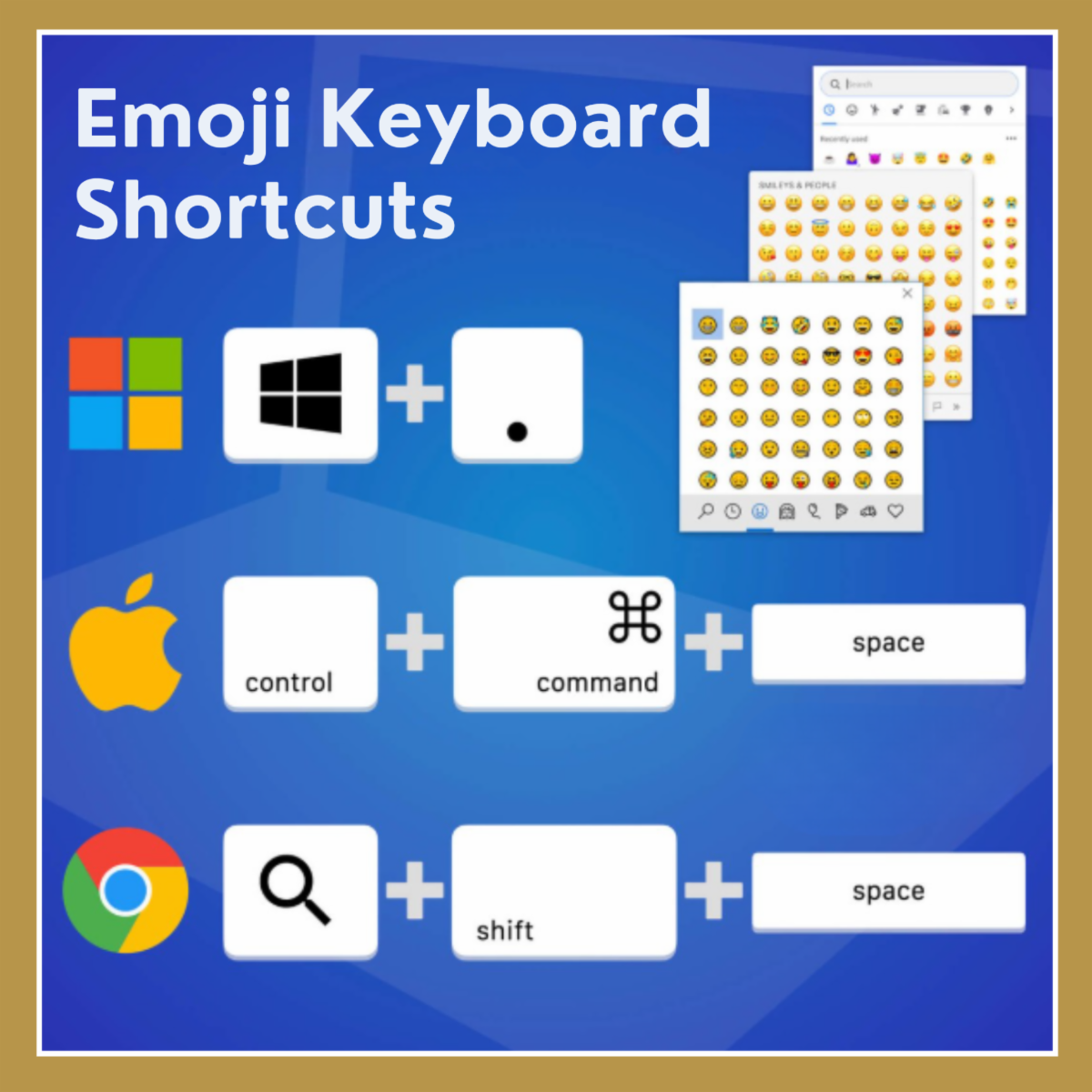
Add Some Flair with the Emoji Keyboard Shortcut!

Want to add a little personality to your emails, documents, or Canvas course? No need to search for emojis online! Your device has a built-in emoji keyboard.

On your Windows laptop:

Press Windows + . (period) to open the emoji panel.


On student Chromebooks:

Press Search + Shift + Space to open the emoji picker.

Graphic showing emoji keyboard shortcuts for Windows, Mac, and Chrome, with emoji picker examples.

Try these shortcuts in your next Canvas announcement, email, or classroom activity!

 
Newsletter emerging from an envelope, representing past Digital Learning Update editions.

Looking for something we shared?

Browse Previous Digital Learning Updates

Digital Learning Quick Links

How Can We Support Your Campus?

Connect with your Digital Learning Specialist for planning, resources, technology integration, instructional support, and more!

 
Birdville Digital Learning Logo
 

Follow Digital Learning for more tips, resources, and ideas.

Instagram    Facebook    X