|
If you’re adding employees or assigning at least some of your company’s bookkeeping tasks to another worker, you’re in a good place. It means your business is growing and/or you’ll be able to focus your energy on other management tasks that require your unique abilities.
Adding a user to QuickBooks Online requires a great deal of trust in that individual. And even if you’re confident in that person’s honesty and sense of responsibility, it makes sense to limit their access to the data they can view, enter, and modify. Your customers and vendors rely on you to keep their sensitive information safe.
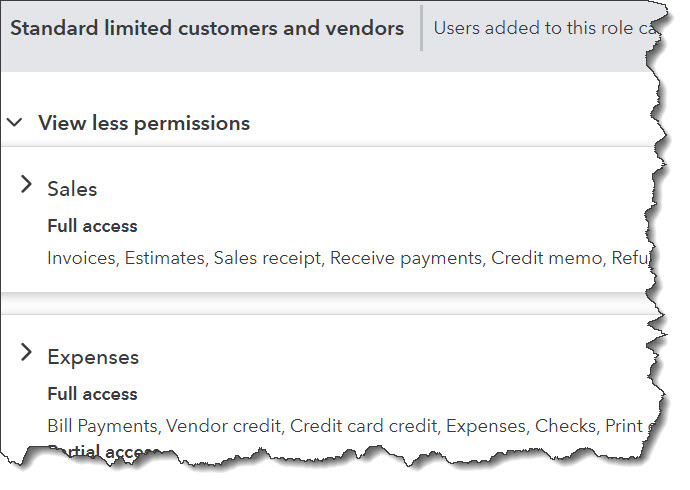
To help maintain the integrity of your company file, QuickBooks Online allows you to assign other employees to pre-defined user roles. If you have multiple people working with different levels of access, you’ll know who to talk to if any kind of problem occurs. You undoubtedly trust your workers, or you wouldn’t have hired them, but you need to be able to track down any activity that needs investigating. Here’s how it works.
Designating Roles for Employees
To get started, click the gear icon in the upper right. Under YOUR COMPANY, click Manage users. You’ll see two tabs at the top of the page that identify two types of people who might need access: Users and Accounting Firms. We’re going to talk about user roles here, though. Let us know if you want us to consult with you by getting a limited login ability.
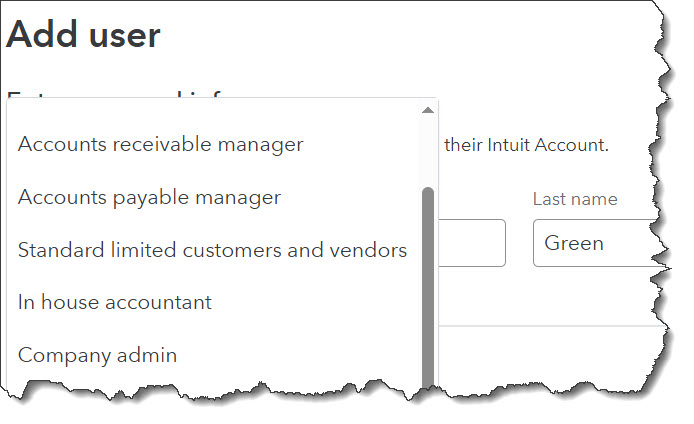
You’ll see yourself listed there, usually as the Primary admin. Click Add user in the upper right. On the page that opens, enter the employee’s name and email address in the blank fields. Click the down arrow next to the field under Assign roles.
|