July 19, 2023
DUE FRIDAY - Important Changes to Multi-Factor Authentication and Password Reset Procedure

Over the past two months, Ashley has seen a significant increase in credential phishing emails and other social engineering techniques (e.g. calling people). As a result, we are enacting some immediate changes to our password reset/change procedures and Multifactor Authentication (MFA) options.

Multi-Factor Authentication Changes
  • On Friday, July 21, you can no longer receive phone calls as one of the MFA verification options.
  • The only permitted method for MFA verification will be to use the Microsoft Authenticator app.
  • The Ashley Service Desk will no longer be able to change or reset your MFA configuration.
  • To update your MFA settings after July 21, you will need to go into the office, or be on a video call, where you can present your Ashley ID for the Service Desk personnel to verify your identify.

Ashley does NOT have any access to your mobile device by you installing and using the Microsoft Authenticator application for account verification.
Password Reset Changes
  • The Ashley Service Desk will no longer be able to change your password for you, unless you are in the office, in front of them, and they can confirm your identity.
  • In order to change your own password, without having to go into the office, go to the following URL: passwordreset.microsoftonline.com
  • For this to work, you must have these two actions completed:
  • The multi-factor authentication must already be set up
  • The three recovery questions (similar to what banks and other companies leverage) must be completed
  • If you haven’t already set your security questions and responses in this portal, please do so prior to Friday, July 21.
Using MS Authenticator App for Authentication Verification
  • To setup MFA verification through push/app notifications, go to the following URL: aka.ms/mfasetup
  • Sign in with their account credentials.
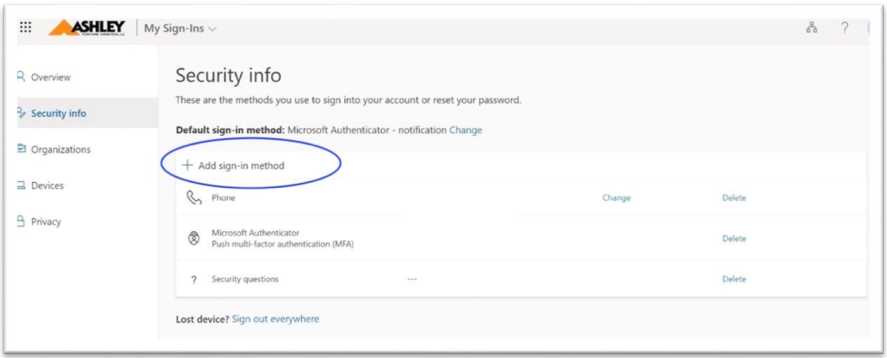
  • On the Security info page, you will see your current verification method(s).
  • Click on [+ Add sign-in method]
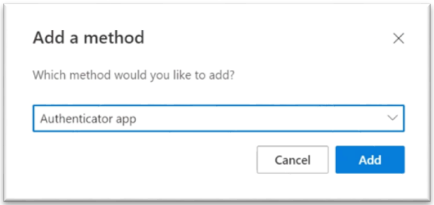
  • Choose [Authenticator app]. Then, simply follow the on-screen instructions to set up a new method.
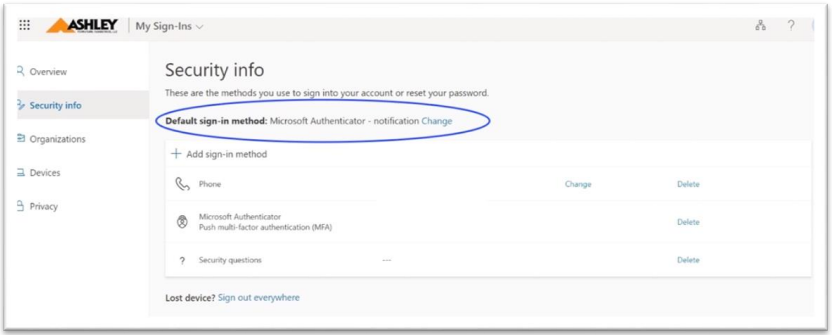
  • Once you have completed the setup, you will now need to change your default sign-in method to the "Microsoft Authenticator." This can be done by clicking on the word [Change].
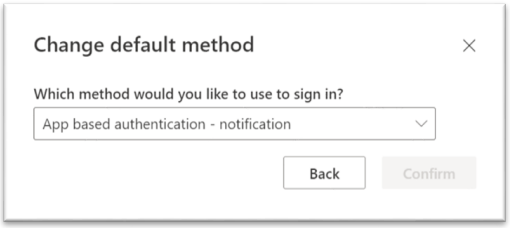
  • Then select [App based authentication – notification] as shown below.
  • After the new verification method is set up, and the default method has been changed to the "Microsoft Authenticator" app, you should remove the "Phone" option by clicking on [Delete], located on the same line the "Phone" method is on.
Your vigilance in protecting Ashley is very important. If you start receiving MFA confirmation requests and you are not signing in, please notify the Service Desk Immediately.
Regards,
Deane Davis
VP of Cyber Security
**Do not unsubscribe from this email. This is sent by your Ashley corporate communications team.