OCTOBER 2023

View as Webpage

VISIT® International Health Insurance
for Educational Partners International Teachers & Dependents
EPI Teacher Plan - www.visitinsurance.com/epi.html
EPI Dependent Plan - www.visitinsurance.com/epij2.html

EPI DEPENDENT HELPFUL RESOURCES

Dear EPI Teacher,


Below please find helpful resources on how to use your Dependent’s Health Insurance Plan. Please be sure you have also downloaded the EPI DEPENDENT Health Insurance Manual for additional resources and answers to frequently asked questions.


Should you have any questions regarding the EPI Health Insurance Plan, please contact our office Monday-Friday, 9am to 6pm at 703-660-9062, after hours please email us at epi@visitinsurance.com. Be sure to add epi@visitinsurance.com as a safe email so you do not miss any important information.


Warm Regards,

Lori Pederson

President, VISIT® Insurance

How Do I CHANGE My Dependent’s

Automatic Monthly Payment Information?

If your credit/debit card information changes, if your expiration date on your card has changed or if you would like to use a different credit/debit card or checking account for your Dependent’s Monthly Automatic Payment, please complete the EPI DEPENDENT PAYMENT UPDATE FORM. Be sure to download the form and save it on your computer.


Be sure to include your Dependent’s Name and Dependent’s Certificate Number on the Form. All information must be completed on the form for the payment to be updated. Completed forms can be emailed to epi@visitinsurance.com for processing.


Once the completed form is received, it can take up to 1-3 business days to update. Please be sure to complete the form as soon as possible if your payment information changes.


Please only send the form if you need to update your information.

DEPENDENT ID Cards


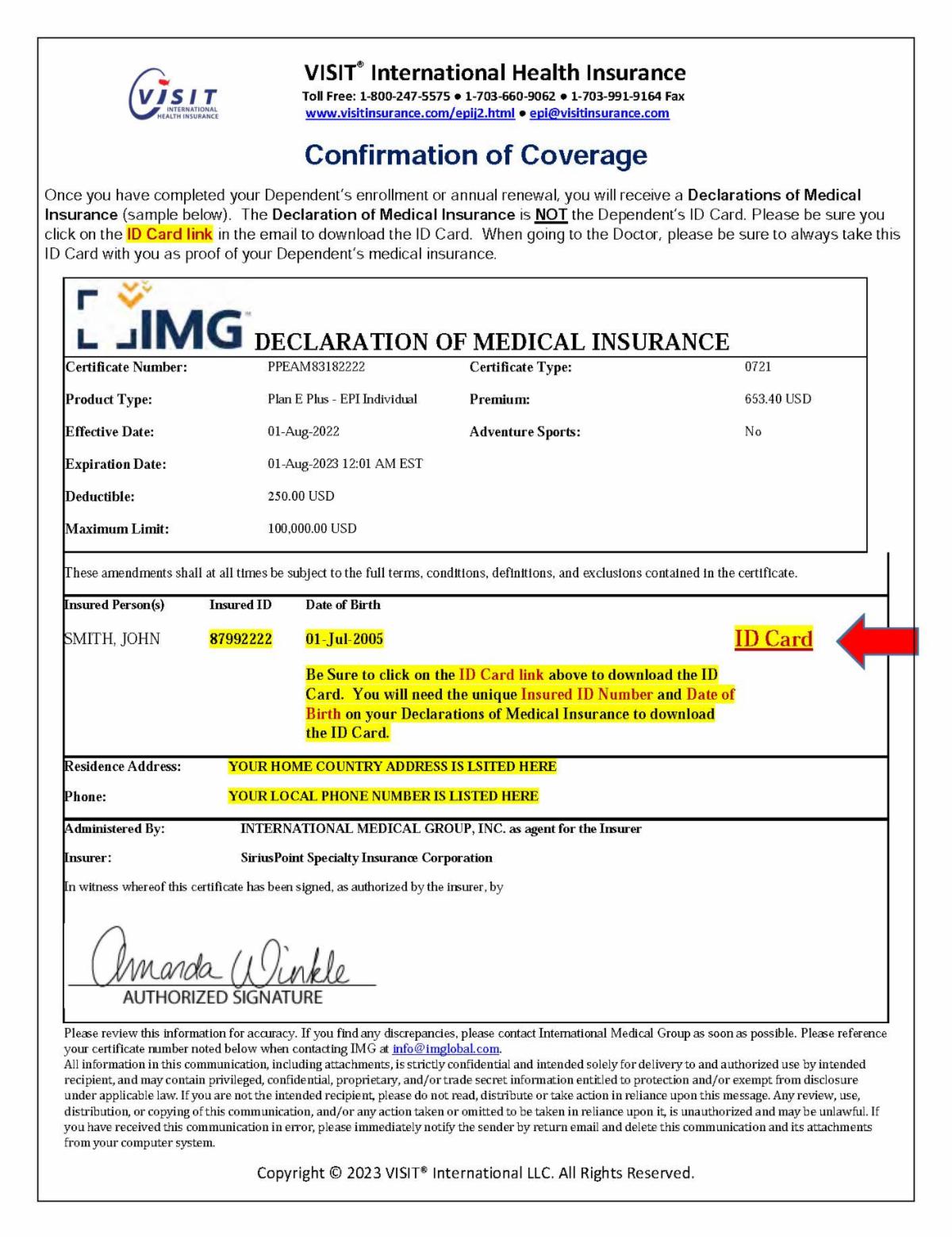
Please be sure you have downloaded your dependent's ID card. You should have received a Declarations of Medical Insurance when you purchased or renewed your dependent's policy.


The Declaration of Medical Insurance is NOT the Dependent’s ID Card. Please be sure you click on the

ID Card link in the email you received to download the ID Card. Use your DEPENDENT's Certificate Number from the Declarations email and your DEPENDENTS Date of Birth to download the ID Card.


When going to the Doctor, please be sure to always take this ID Card with you as proof of your Dependent’s medical insurance.


Please contact VISIT Insurance at epi@visitinsurance.com if you need a copy of your dependent's Declarations page or are having problems downloading the ID Card.

How do I Pay for Prescriptions?


In addition to your VISIT® Plan E PLUS Health Insurance ID card, you have two Discount Drug Cards (Universal Rx, WELLCARD) for your Prescriptions. The Universal Rx discount information is located on the UnitedHealthcare ID card. When going to the pharmacy, please present both the Discount Drug Cards. If the prescription is eligible for a discount, it will be applied at the time of your purchase. If there is a remaining cost due after the discount, please pay the remaining balance to the pharmacy and keep the receipt.  Prescriptions are reimbursed at 80%, after the $100 annual deductible for covered medical expenses.


To be reimbursed for the remaining balance of the prescription, please submit:

PREVENTIVE (WELLNESS) CARE

Preventive Care (wellness, annual physical exam, TB test, school health exams, and vaccinations)


REMINDER - Preventive Care and Vaccinations are NOT covered for DEPENDENTS. If your Dependent needs preventive care services, we suggest that you go to a Community Clinic or Walk-in Clinic for these services as they are less expensive than going to the Doctor’s Office. Be sure to ask for a SELF-PAY discount to reduce your out-of-pocket cost.


Please note that TEACHERS are covered for Preventive Care through their CRESCENT Plan. Please contact CRESCENT at epi@crescenths.com for details about your plan.

Create & Login to Your Online 
MyIMG Account Today! 

For faster self-service and routine questions about coverage and claims, we always recommend reviewing your MyIMG account first. If you haven't already done so, please use the time NOW to create and set up your MyIMG account.  

Please remember that the Teacher and Dependent will have separate MyIMG accounts. 

Using your MyIMG online account you can download your ID card,  search for a local doctor, create a new claim and/or upload claim forms, and check the status of your claims. If you have a claim question, please review your MyIMG account first before contacting VISIT® Health. You can get answers to most questions and claim status, or advice regarding additional requirements needed from you or your doctor in order to complete the claim.  

If you still have questions, please email detailed information (including a screen shot of the MyIMG claims status) to VISIT® at epi@visitinsurance.com.  
Take a few minutes to watch our video on
How to Set-up an MyIMG Account
How to Submit &
Track Your Health Insurance Claim

Each Claim requires a DOCTOR Claim Form & a PATIENT Claim Form
 
1. DOCTOR Claim Form
Be sure your Doctor files your claim through UnitedHealthcare using the information found on your VISIT® Plan E PLUS ID Card. This will allow your Doctor to file your claim electronically which will help expedite the claims process. Your ID card includes a Member ID Number and a Group Number your Doctor must use to file the claim properly. Improperly filed claims may be delayed or denied.  
 
2. PATIENT Claim Form
YOU must ALSO complete a PATIENT Claim Form. This is a separate form than the DOCTOR Claim Form and must be completed by you. For faster service, please submit the PATIENT Claim Form ONLINE using your MyIMG Account. For additional information on setting up your MyIMG Account, please see instructions below.
 
If you would prefer to email your PATIENT Claim Form, please CLICK HERE to download the form. You may submit your PATIENT Claim Form by email to epi@visitinsurance.com.
Take a few minutes to watch our video on
How to Submit & Track Your Claim 
QUESTIONS ABOUT YOUR CLAIM?

If you have followed all the steps above and still need additional assistance with your claim, we ask that you provide the following information by email to us at epi@visitinsurance.com:
 
  • Name of the Person the Claim is for – if it is for a dependent, please provide THEIR full name
  • Date you or your dependent went to the doctor
  • Name of the doctor you or your dependent went to
  • Amount of the claim
  • Any specific questions or details you have about the claim
  • If you have received a bill and you do not understand it, please include a copy of the bill in your email

One of our claim's advocates will review your Inquiry and work on resolving your questions and or concerns. Our claims advocate will need a few days to review the information and research the claim. Due to the high call volume, the preferred and most efficient form of communication is EMAIL Therefore it’s important that you check your email often because we may need additional information to resolve your concerns quickly and accurately.  

Thank you for your cooperation and understanding.

IMPORTANT LINKS

EPI Teacher Plan Information: www.visitinsurance.com/epi.html 

EPI TEACHER Health Insurance Manual


EPI Dependent Plan Information: www.visitinsurance.com/epij2.html 

EPI DEPENDENT Health Insurance Manual


MyIMG Account - CREATE YOUR ACCOUNT TODAY - www.imglobal.com/member/login  

Search for a Local Doctor, Urgent Care or Hospital - https://us1.welcometouhc.com

CLAIM FORM - www.visitinsurance.com/img-interactive-claim-form.pdf 


Want to Upgrade your plan? We offer to additional plans to choose from:

EPI Health Insurance Upgrade Options


Preventive Care Plan (EPI Teacher Only)

Crescent Health Solutions: 1-828-670-9145 Option 3

VISIT® International Health Insurance, PO Box 210, Mount Vernon, VA 22121