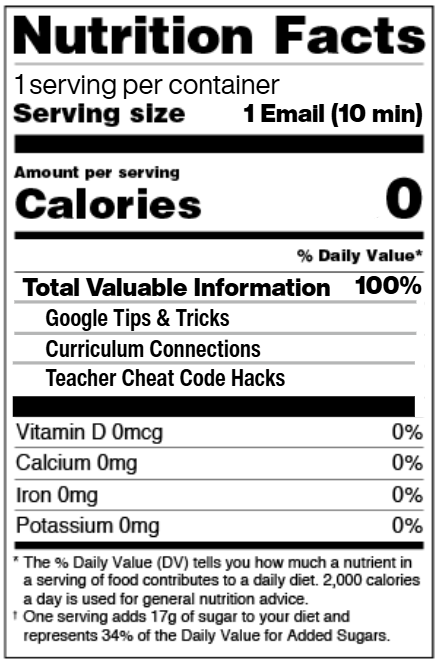
Welcome to the March issue of Tiger Bytes. This is your monthly dose of technology tips and tricks created by your Elementary BTIL team members along with others and delivered to your inbox for you to use. Shout out to Amy Kohlhaas for help with this month's issue!


Teacher Hack: Google Drive Organization Hack


If you want a folder in your Google Drive to be at the top of the list, use an emoji at the beginning of the name. Access your emoji options by using the keyboard shortcut of the “Windows Key” and the “.”. Putting an emoji at the beginning of the folder/file name will move it above anything that starts with a letter or number. This is an easy way you can move the most used folders to the top of your Drive and have some fun. 


Curriculum Connections: Using NotebookLM for Unit Prep

By Amy Kohlhaas


Whenever I’m starting a new curricular unit, there’s always a lot of material to get through—the teacher guide, student workbooks, readers, and all the extras. It can be a bit overwhelming to digest it all before you actually start teaching. Lately, I’ve been using NotebookLM to help me get a handle on these materials more efficiently.


The process is pretty straightforward. I just upload the unit documents (like the PDFs of the teacher guide and workbook) directly into the tool. Since NotebookLM only uses the specific sources you provide, you don't have to worry about it pulling incorrect information from elsewhere on the internet. It stays focused entirely on our curriculum.


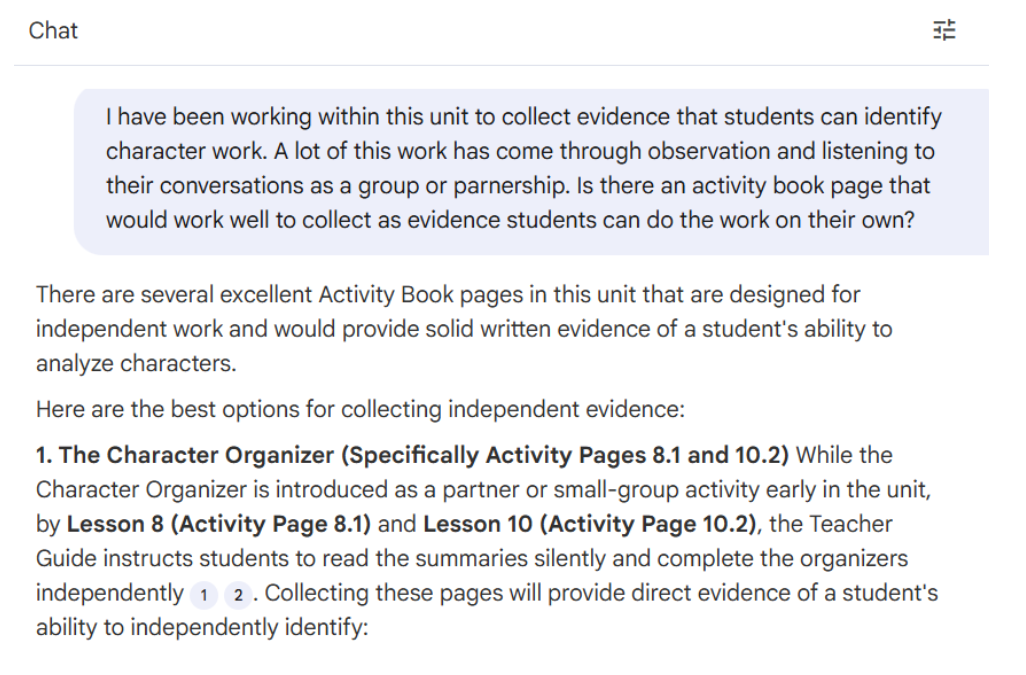
I’ve found it really helpful for getting a quick overview. For example, I’ve asked it to summarize the "Big Idea" of a unit or to list every lesson that addresses a specific learning target. I even asked it to compare how often students are assessed independently versus with a partner, which helped me think through the classroom logistics ahead of time. It’s been a great way to learn a unit deeply without having to read every single page line-by-line before the unit even begins. It’s definitely worth a look if you’re looking to save some time on your upfront planning, and I’m sure if you give it a try, you'll find even more ways it can be beneficial for your own workflow.


Google Tips & Tricks: Sharing is More Than Caring


We all know how to “Share” a document, slide deck, etc. in Google. Did you know that there are some new features tucked into that Share Window too?

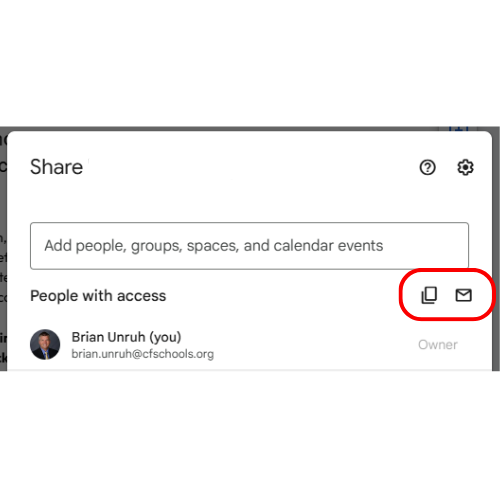
  • Send an email to all people with access. You can click on the mail icon above the listing of people who have access to the document and send an email to the people with access right within the Share Window.
  • Copy all people with access. Next to the mail icon you just used is a copy icon. Click that icon to copy all the people with access to the document. Then you can paste it in a new document share setting, email, calendar invite, or anywhere else you want to add the list.
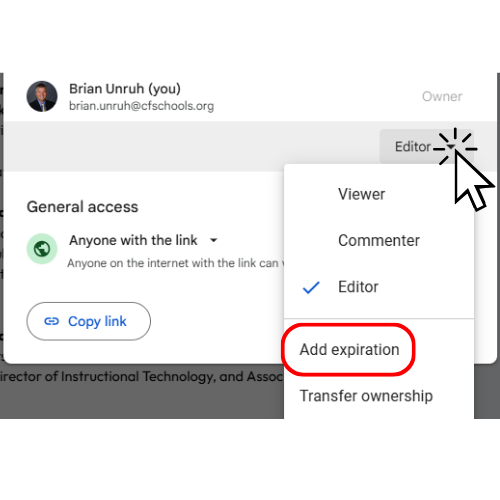
  • Add Expiration: To the right of the person’s name, you can change the permissions for the document. There is a new option to “Add expiration”. This will allow you to select a date and time in the future to automatically change their permissions.